-
Time Shifts are the cornerstone of the attendance management system. They define all the rules that govern employees' working hours, including anomaly detection and the generation of codes for payroll processing. Each time shift establishes expected work patterns, break requirements, overtime calculations, and export settings for payroll system integration.
The system uses time shifts to automatically:
- Monitor compliance with scheduled working hours
- Detect and flag attendance anomalies
- Calculate regular hours and overtime
- Generate appropriate payroll codes
- Manage break requirements
- Handle meal ticket eligibility
Main Interface
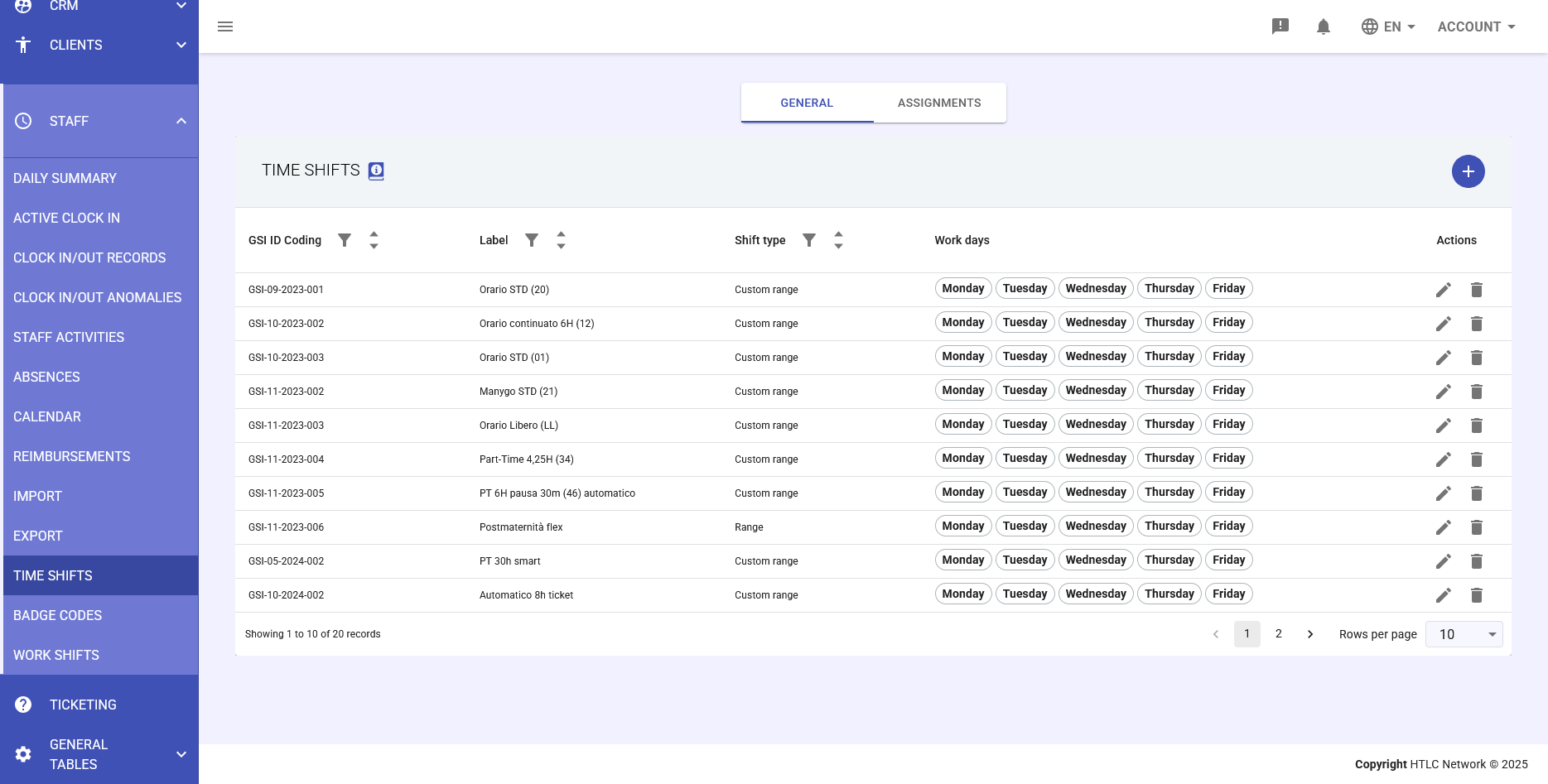
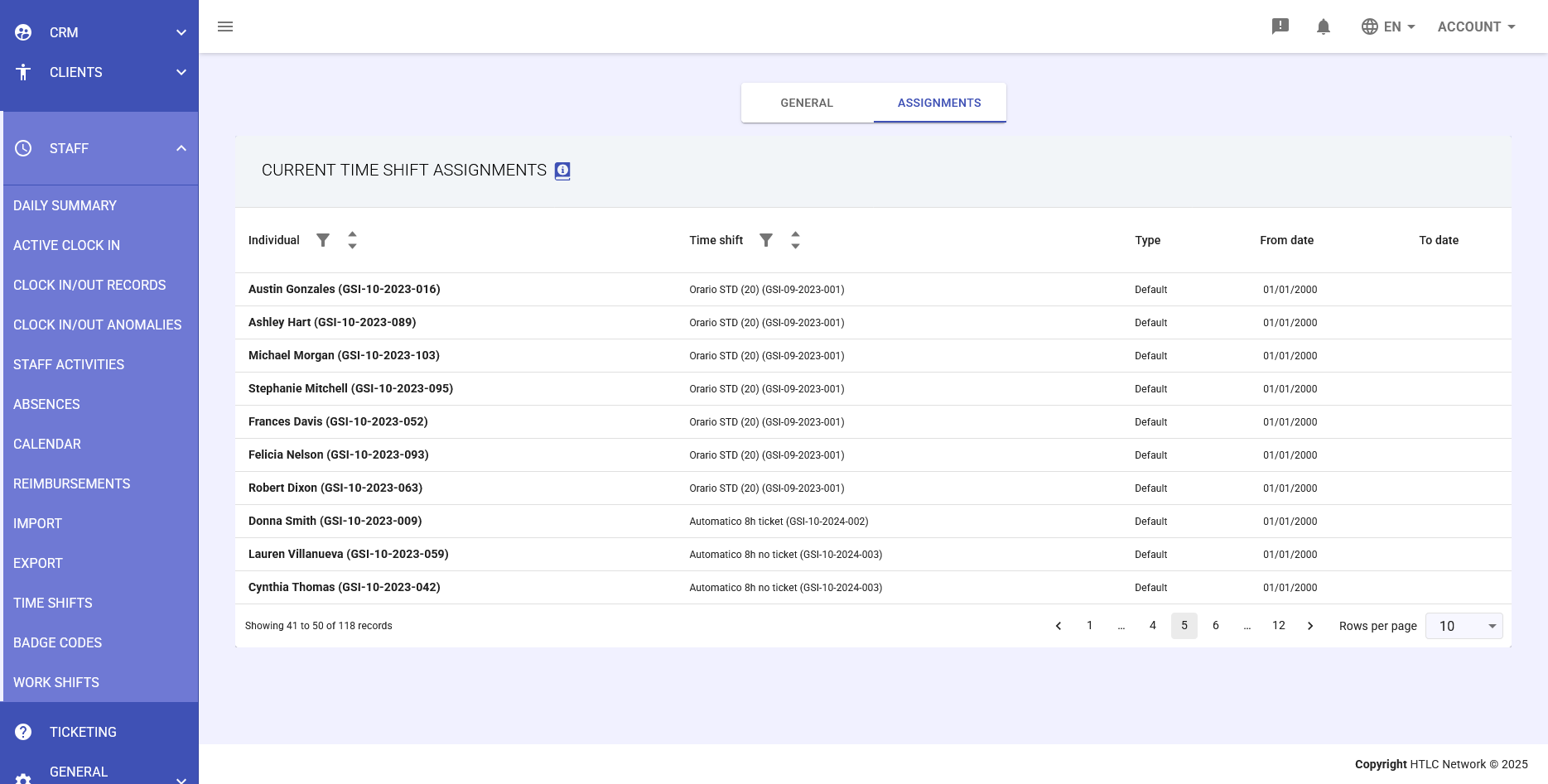
The Time Shifts section displays two main tabs:
- General: Where time shifts are created and configured. Lists all configured time shifts with their GSI ID Code, label, shift type, work days, and management actions
- Assignments: Informational view showing current time shift assignments to employees, including dates and assignment types. This tab is for reference only - actual time shift assignment to employees is performed in Organization > Individual > Time Shift. Note: Changes to time shift assignments trigger recalculations on existing clock records
Fundamental Concepts: Clock In/Out Records vs Staff Activities
Understanding the distinction between these two data types is crucial for effective time shift management:
- Clock In/Out Records: These are the raw registrations of actual times when employees clock in and out, representing their physical presence or work time. These are the unprocessed timestamps from badge readers, mobile apps, or manual entries.
- Staff Activities: These are validated work time records that have been accepted by the company according to rules established in the employee's time shift. Staff activities are created after resolving any anomalies or through manual approval, and represent the official work record used for payroll processing.
Time shift rules act as the filter between clock records and staff activities, determining what is accepted as valid work time and what requires review or generates anomalies.
Important Note on Rule Changes
Critical: Modifying time shift rules does not automatically affect all existing records or resolve existing anomalies. The system preserves historical data integrity. For rule changes, the recommended approach is:
- Clone the existing time shift using the "Clone Time Shift" button
- Modify the rules in the cloned time shift
- Assign the new time shift to desired individuals with appropriate effective dates
- Maintain the original time shift for historical reference and data consistency
This approach ensures clean transitions and maintains accurate historical records while implementing new rules for the future.
System Integration and Important Considerations
- Assignment Location: Time shift assignment to employees is performed in Organization > Individual > Time Shift, not in the Time Shifts module itself
- Work Arrangements: Must be enabled at the time shift level before employees can select them when clocking in. Managers can also assign work arrangements retroactively
- Anomaly Resolution: Anomalies must be resolved before payroll export. Resolution may involve approving the anomaly, adding absence codes, or adjusting clock times
- Ticket Code Generation: Meal tickets are generated only when both the time shift configuration and actual worked hours meet requirements
- Monthly Boundaries: Pay attention to how different time shift types handle month-end transitions, especially for Weekly time shifts where week boundaries may span multiple months
- Rule Hierarchy: Overtime rules for specific time ranges override hours amount rules; break requirements override normal work time calculations
- Data Flow: Clock In/Out Records → Time Shift Rule Processing → Anomaly Detection → Resolution → Staff Activities → Payroll Export
Best Practices
- Start with simpler time shift types (Unlimited, Duration) for flexible positions
- Use Custom Range for positions with rigid schedules
- Configure appropriate tolerances to reduce false anomalies
- Thoroughly test overtime rules before deployment
- Regularly review anomaly patterns to refine settings
- Document special rules and exceptions in the Description field
- Consider using Weekly time shifts for positions with variable daily hours but consistent weekly totals
- Configure break requirements to ensure compliance with labor regulations
- Carefully configure export settings to ensure accurate payroll integration
Workflow Tips
- Creating a new time shift: Click the + button, select appropriate type based on position requirements, configure all tabs before saving
- Assigning time shifts: Use the Assignments tab to link time shifts to employees with effective dates
- Testing configuration: Use a test employee account to verify anomaly detection and code generation works as expected
- Cloning time shifts: Use the "Clone Time Shift" button to create variations of existing configurations
- Managing changes: When updating a time shift, consider impact on existing assignments and historical data
-
Time Shift Types
1. Unlimited Hours
The simplest time shift type with minimal restrictions:
- No fixed hours or overtime rules
- Generates only regular hour codes based on actual employee activity
- Suitable for flexible positions or managerial roles
- Minimal anomaly detection (most rules don't apply)
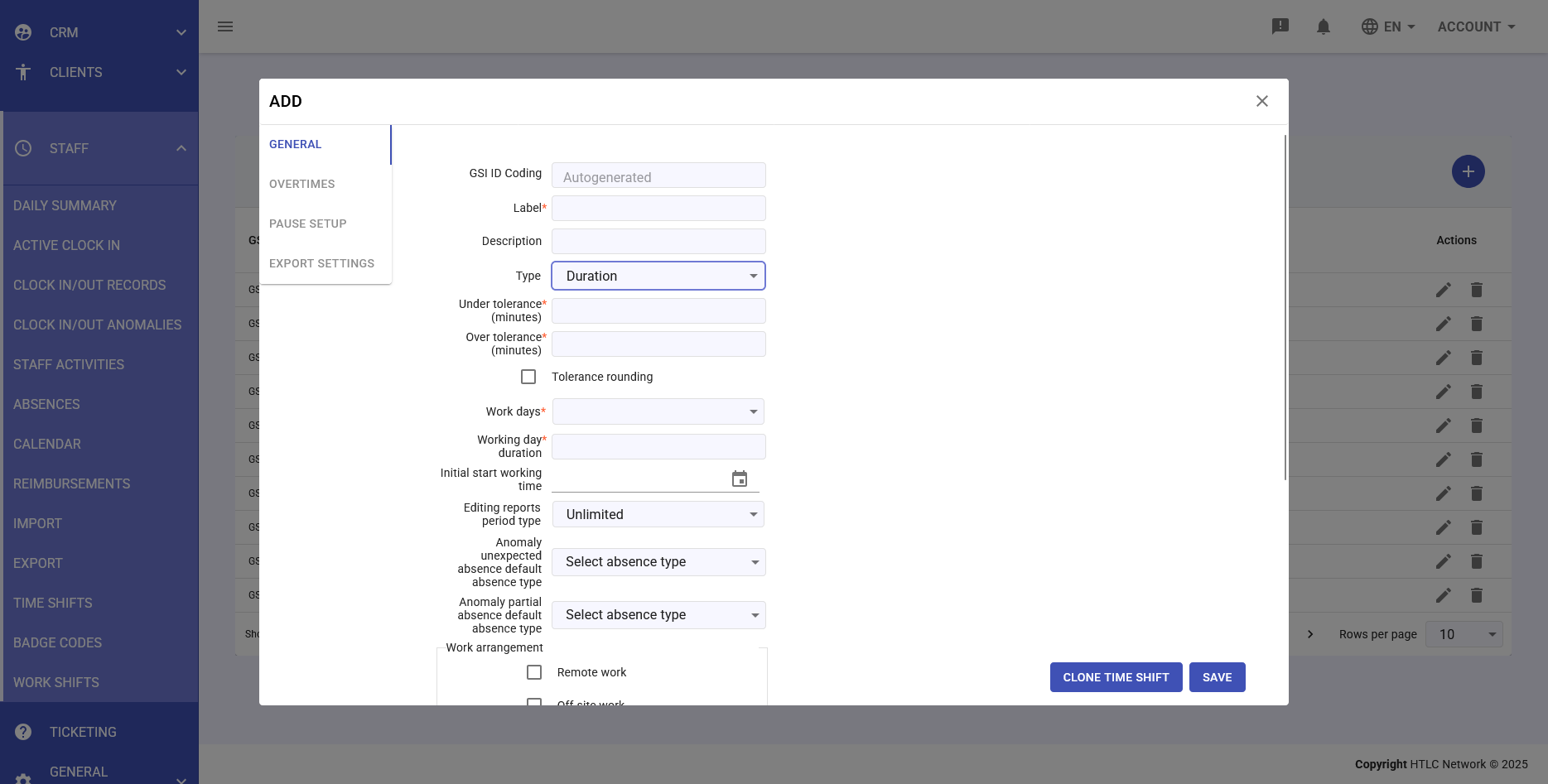
2. Duration
Defines expected daily working duration without fixed time slots:
- Sets required number of working hours per day
- No specific start/end times
- Includes tolerance settings for under/over time
- Can track working day duration and initial work start time
- Limited anomaly detection compared to more structured types
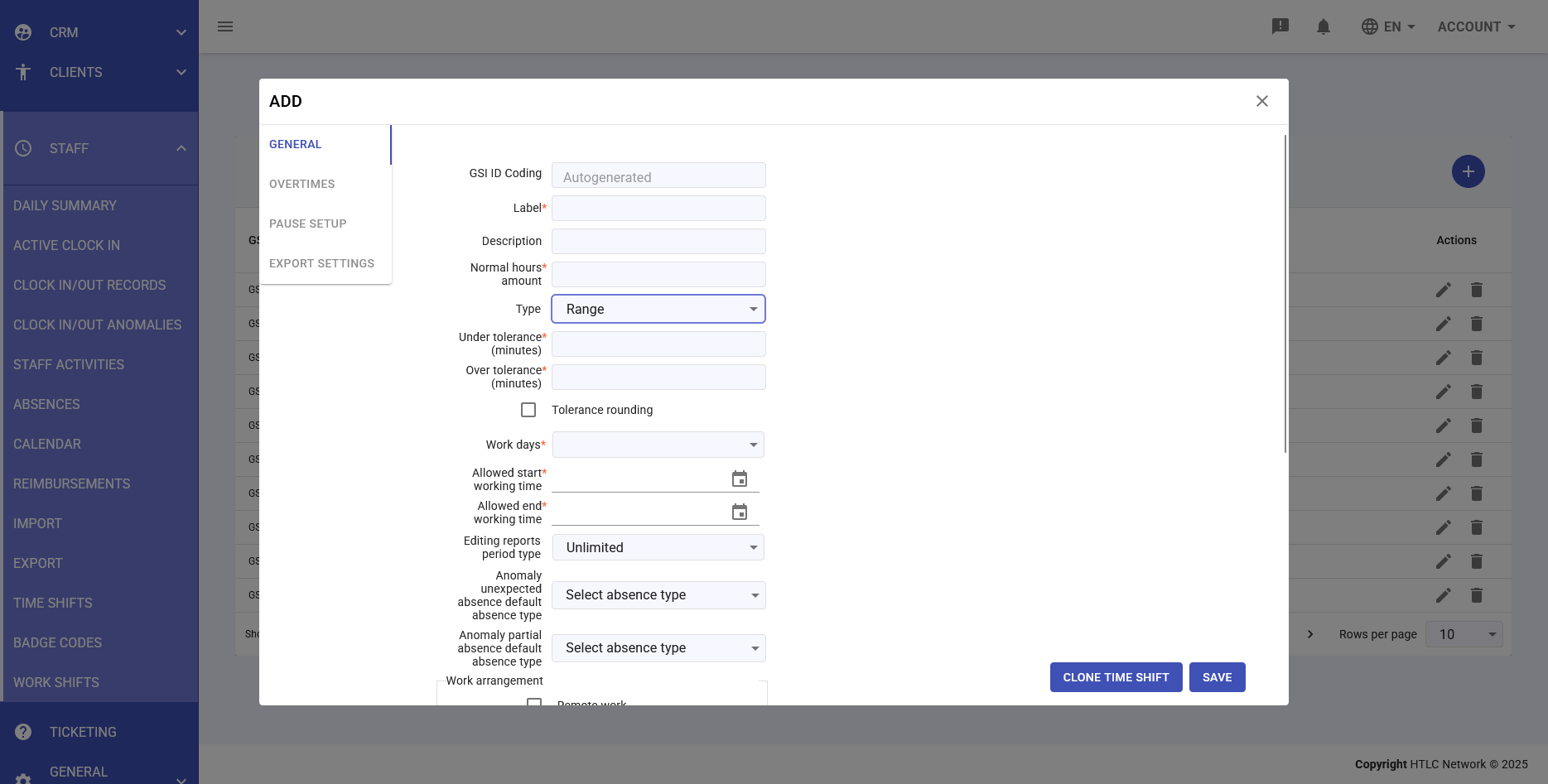
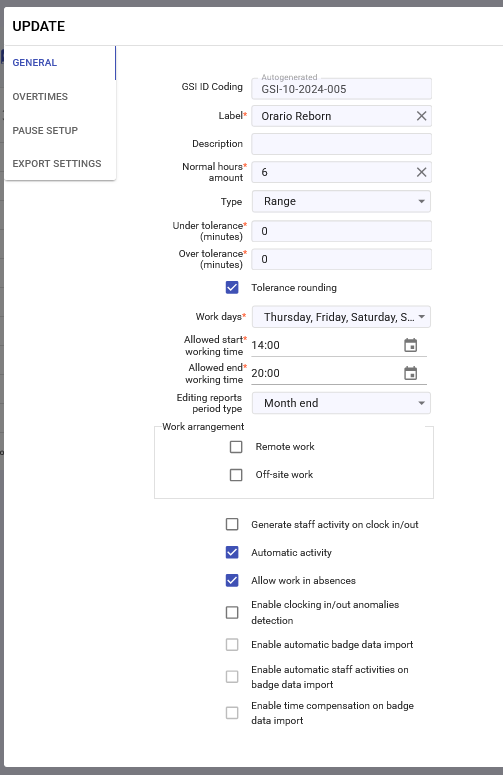
3. Range
Similar to Duration but with additional time parameters:
- Defines normal hours amount per day
- Includes "allowed start working time" and "allowed end working time"
- Sets expected work time ranges (allowing for example to quantify absence hours for one or more days absences)
- More comprehensive anomaly detection than Duration type
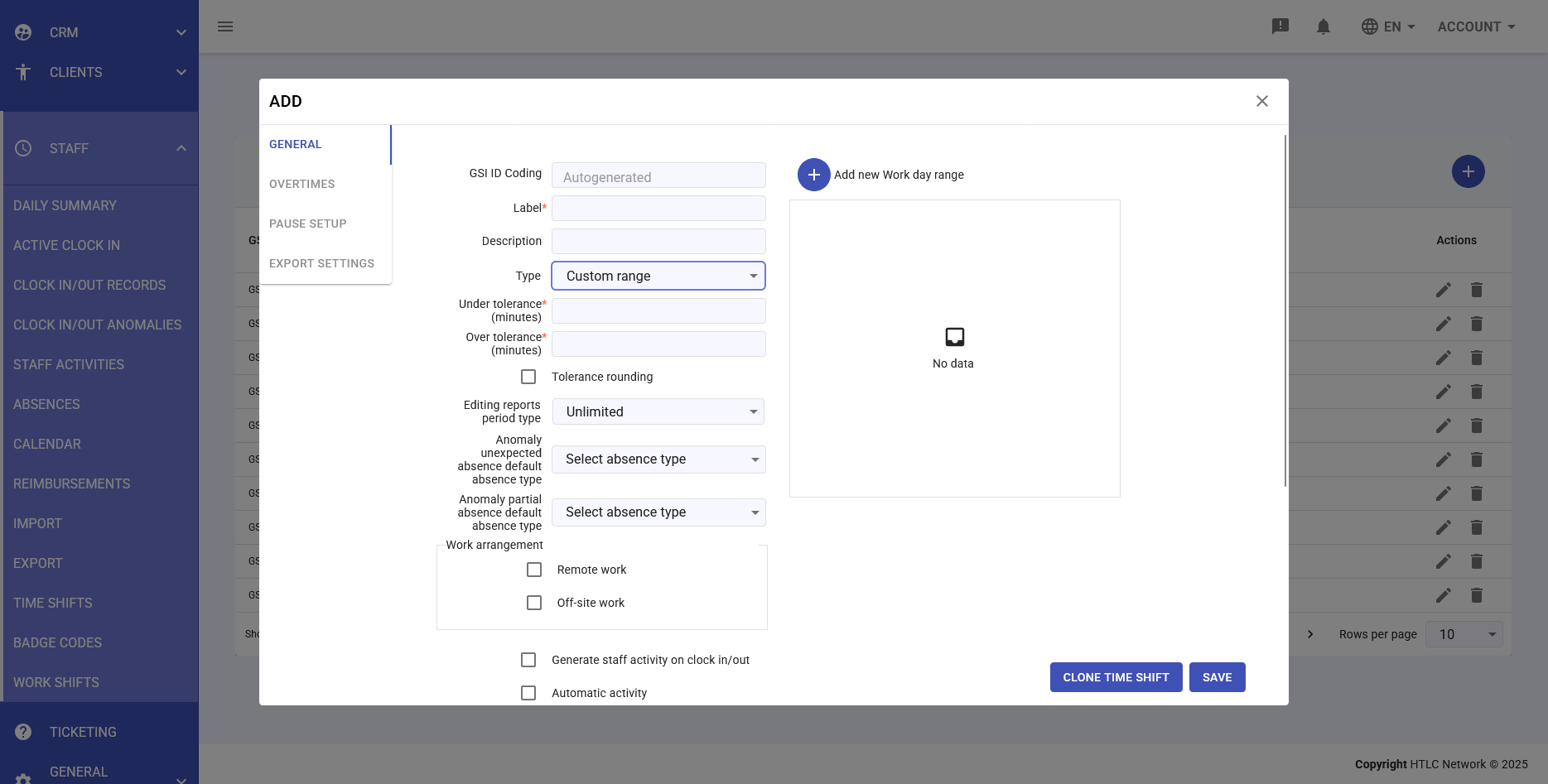
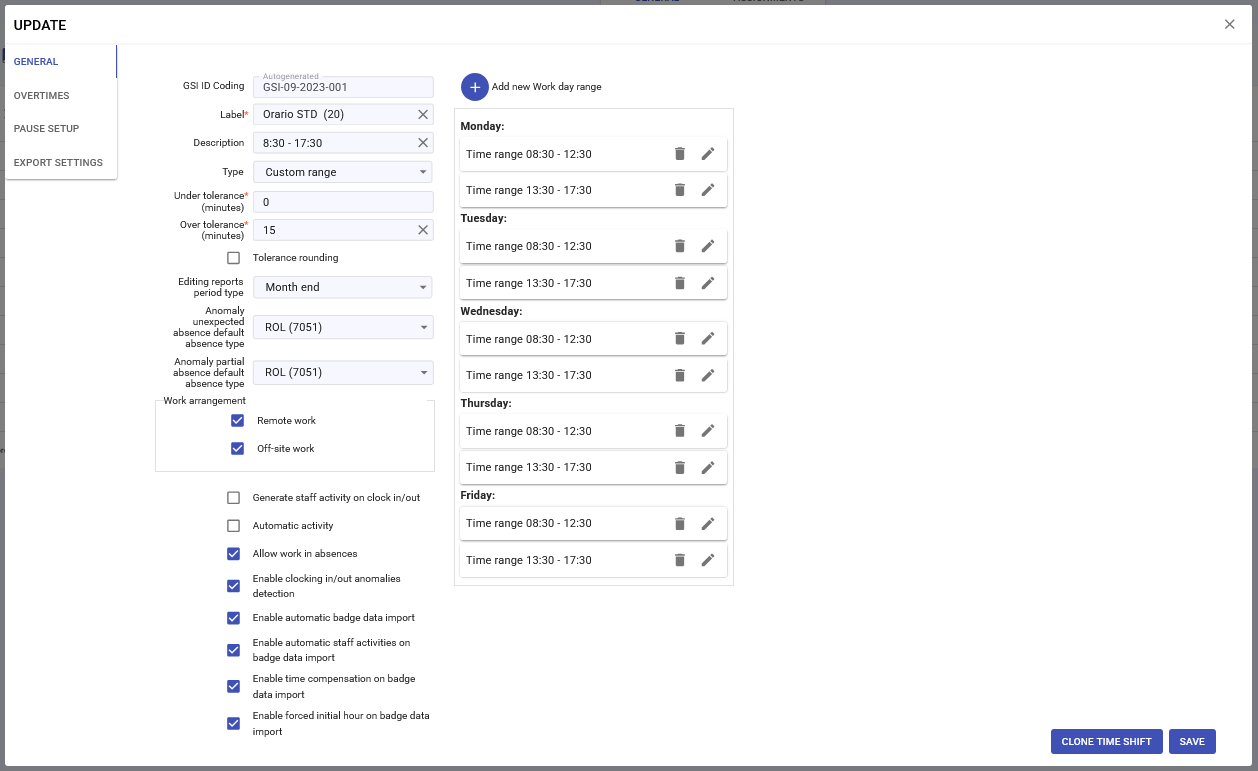
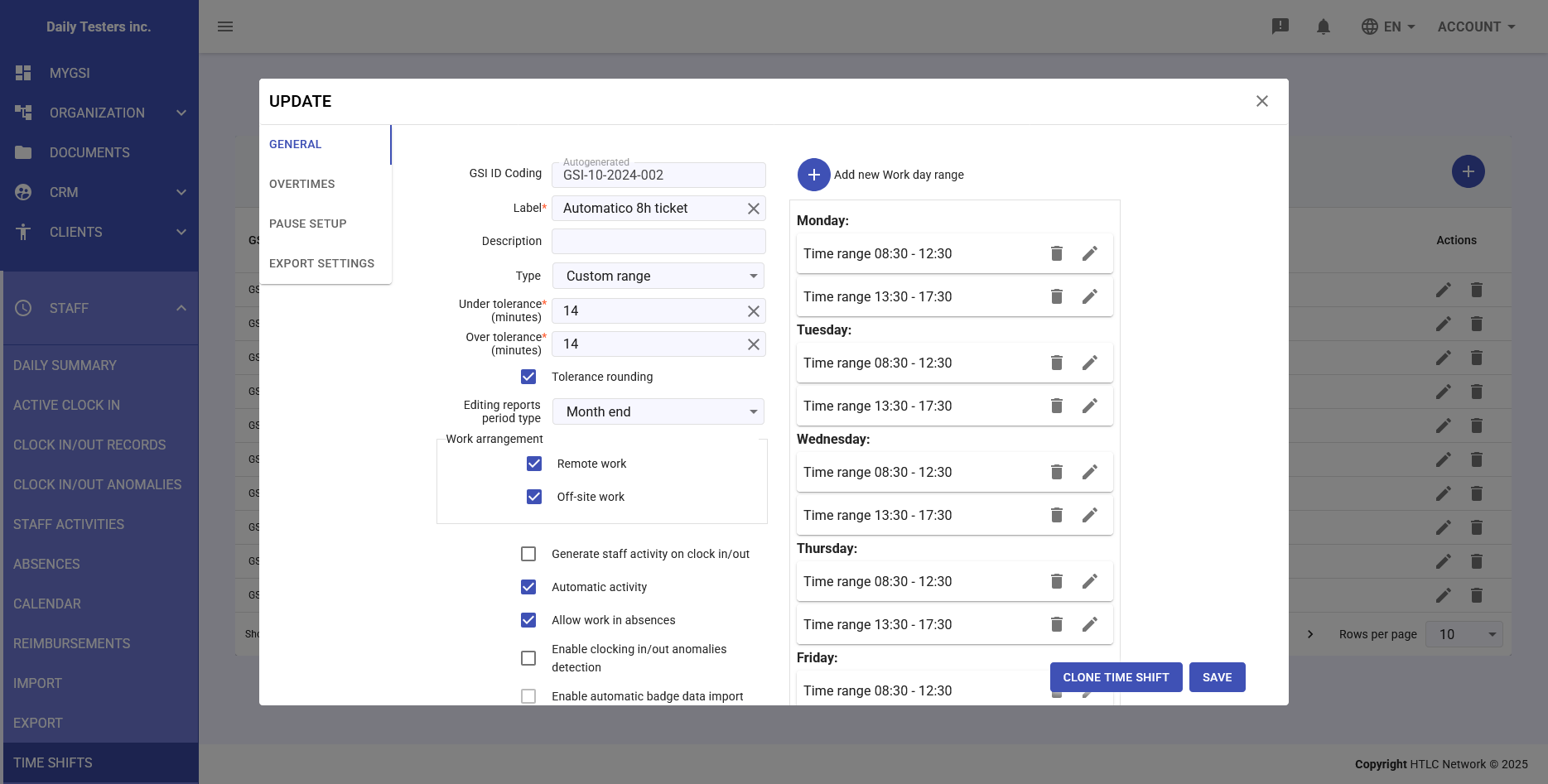
4. Custom Range
Most structured time shift with precisely defined time blocks:
- Specific work time ranges for each work day
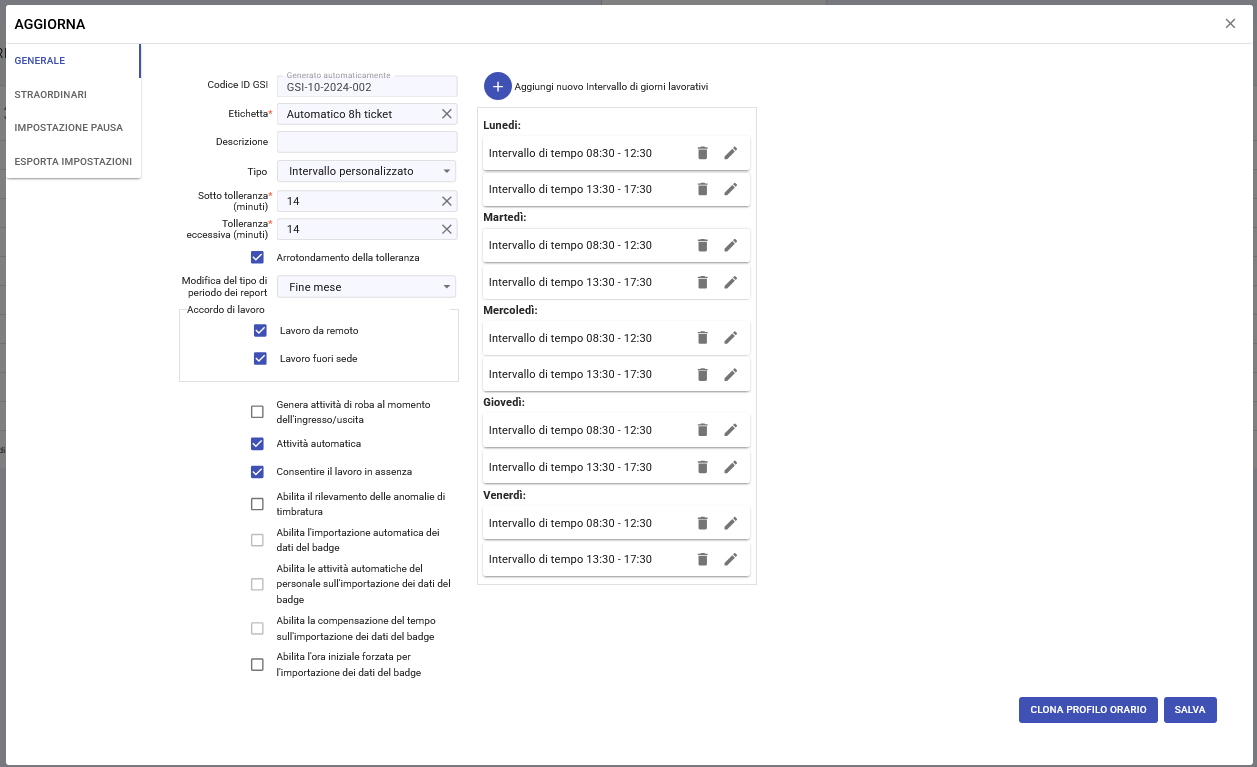
- Multiple time blocks per day supported (e.g. 08:30-12:30 and 13:30-17:30)
- Limited tolerance settings to preserve schedule logic
- Option to add new work day ranges with custom times
- Full anomaly detection capabilities
- Supports automatic activity generation
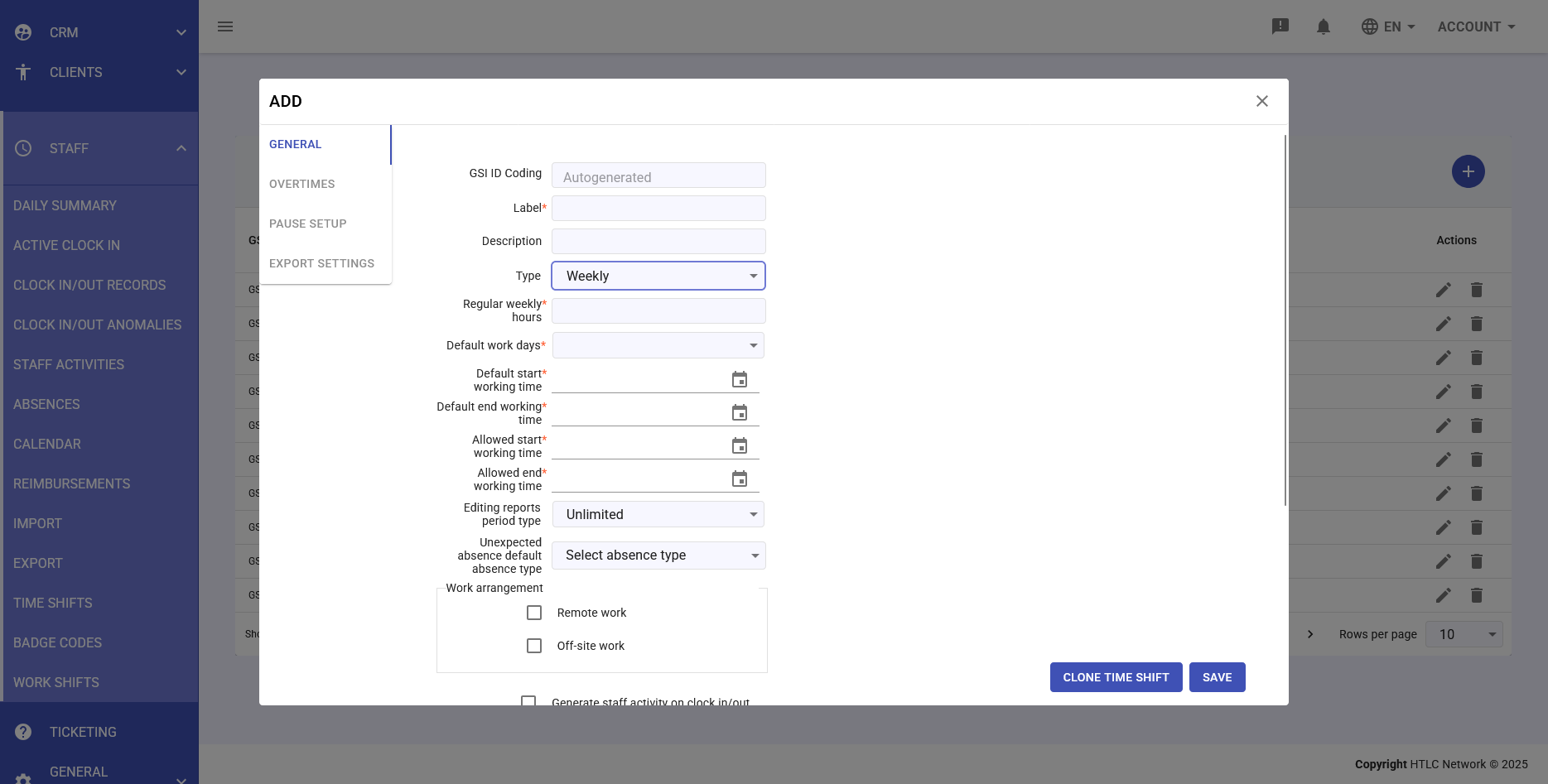
5. Weekly
Defines weekly rather than daily hour requirements:
- Sets total expected hours per week instead of per day
- Week start day is determined by Main Company settings in Organization > Company
- When work week ends beyond month boundary, totals are carried to next month
- Unique anomaly: "Incompleted working week" - automatically fills missing hours from expected weekly total as absences, starting from last available work day and proceeding backwards
- Regular weekly hours field defines expected weekly total
-
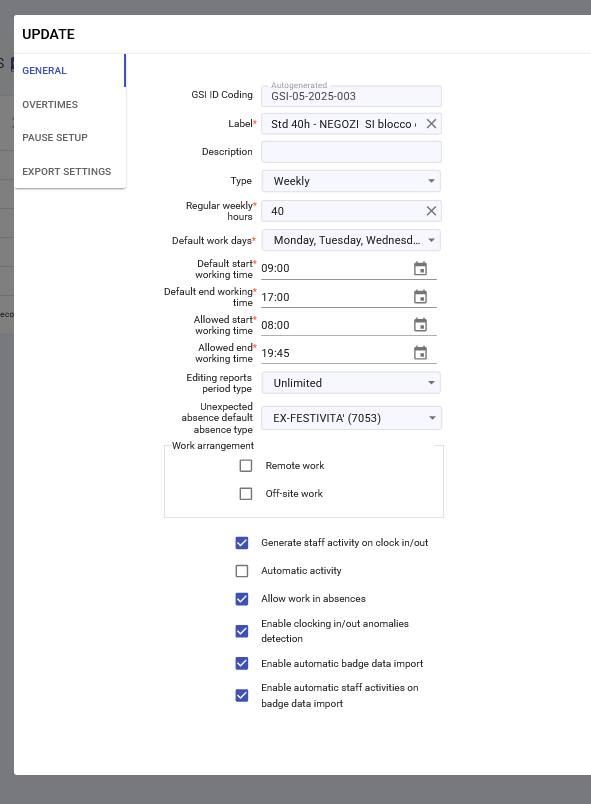
Configuration Tab: General
Main settings that vary by time shift type:
Common Fields:
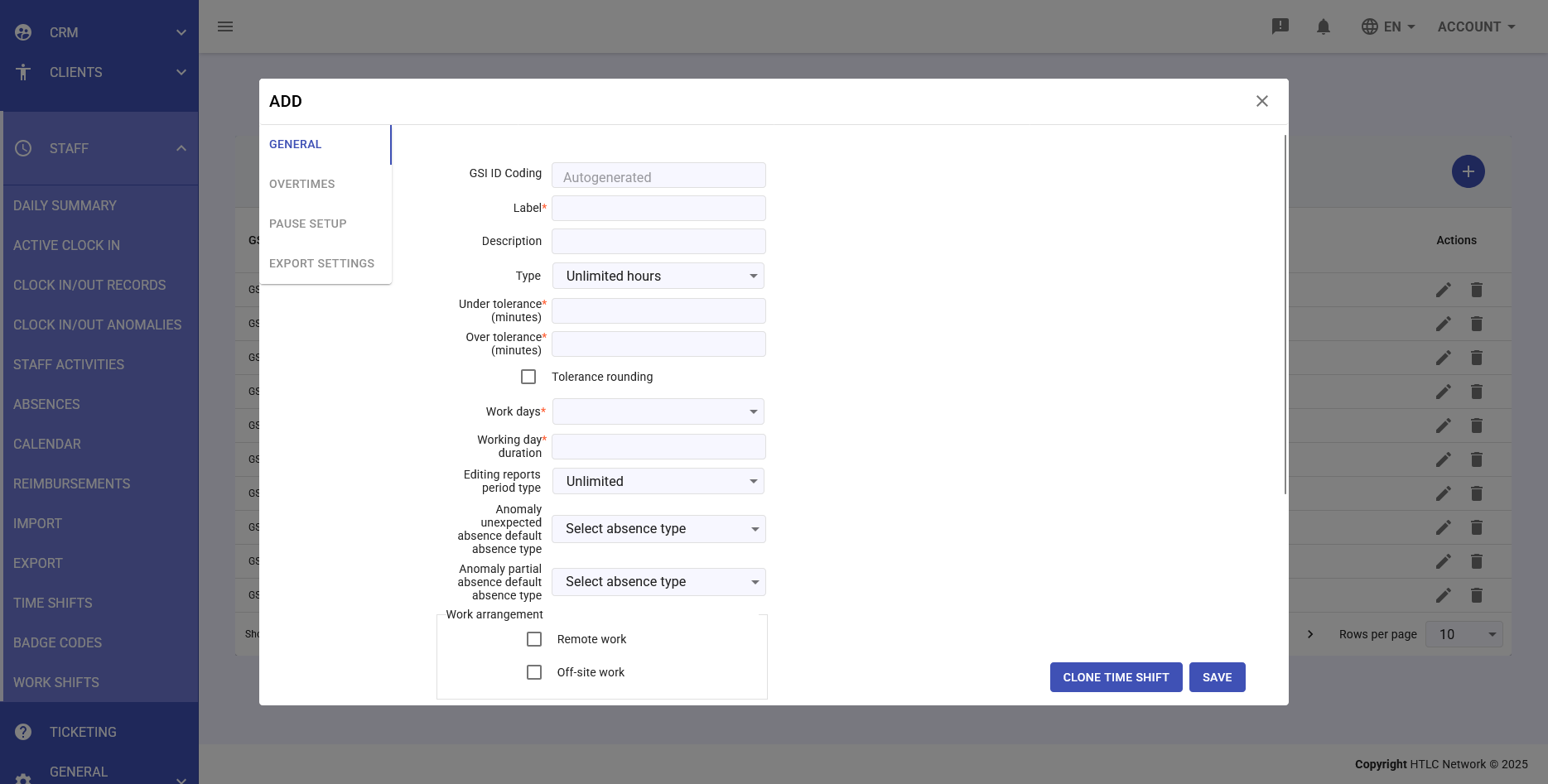
- GSI ID Coding: Unique identifier in GSI2 system (autogenerated)
- Label: Display name of time shift
- Description: Optional detailed description
- Type: Time shift type selection (Weekly, Duration, Custom range, Range, Unlimited hours)
Type-Specific Fields:
- Under tolerance/Over tolerance (minutes): Acceptable variations from scheduled times before anomalies trigger
- Tolerance rounding: Rounds clock times to nearest tolerance interval
- Default work days: Selectable weekdays for work
- Default start/end working time: Expected schedule boundaries
- Allowed start/end working time: Maximum acceptable clock in/out times
- Editing reports period type: Period when regular users can edit staff activities (Unlimited, Month end, etc.)
- Anomaly unexpected absence default absence type: Default absence code when employee doesn't clock during expected work time
- Work arrangement: Remote work or Off-site work options must be enabled for the time shift to be available. Once enabled, they can be selected during clocking or set later by managers. They appear in reports but don't affect code generation
Activity Generation Options:
- Generate staff activity on clock in/out: Automatically creates staff activities when clock has no anomalies
- Automatic activity: System assumes work during set periods without checking clock records (absences handled manually)
- Allow work in absences: Permits work during absence periods
- Enable clocking in/out anomalies detection: Generates anomaly entries instead of staff activities when clock records don't meet rules
- Enable automatic badge data import: Receives clock data from badge terminals
- Enable automatic staff activities on badge data import: Creates activities from badge data
- Enable time compensation on badge data import: Applies tolerance adjustments to imported badge data
- Enable forced initial hour on badge data import: Sets mandatory start time for imported badge data
-
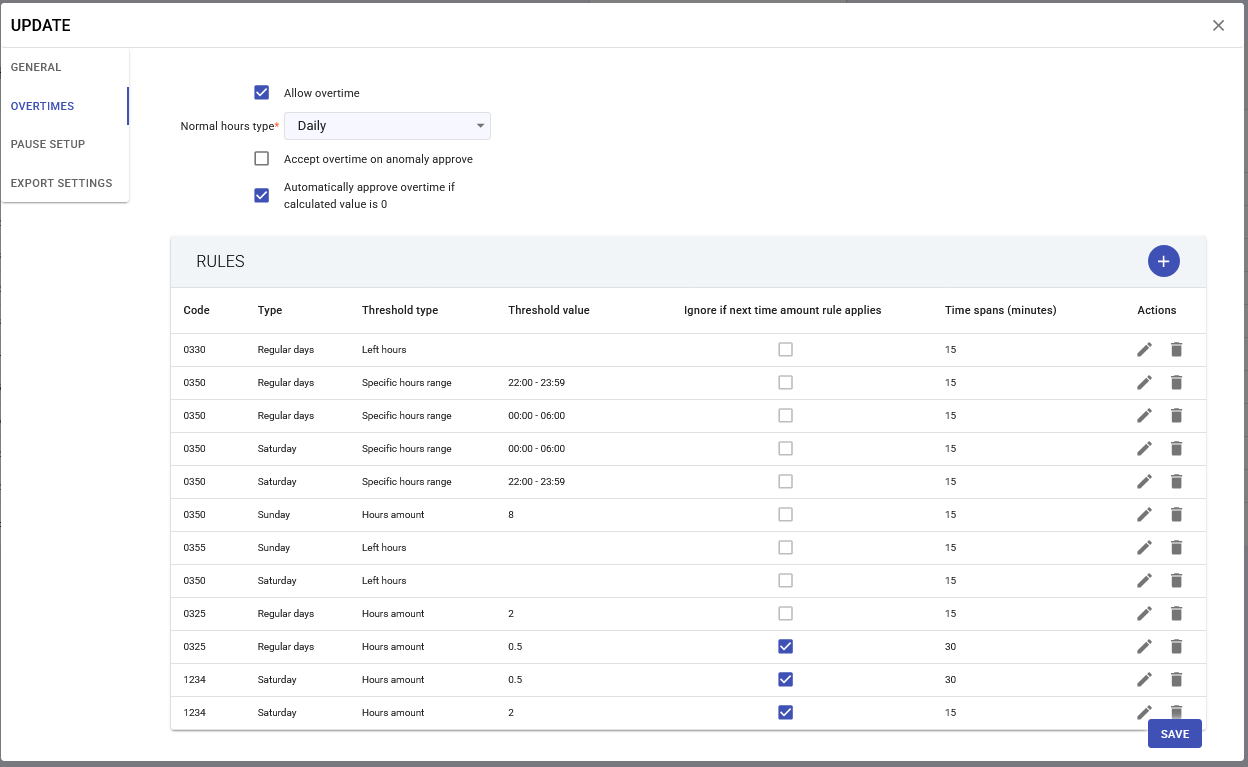
Configuration Tab: Overtimes
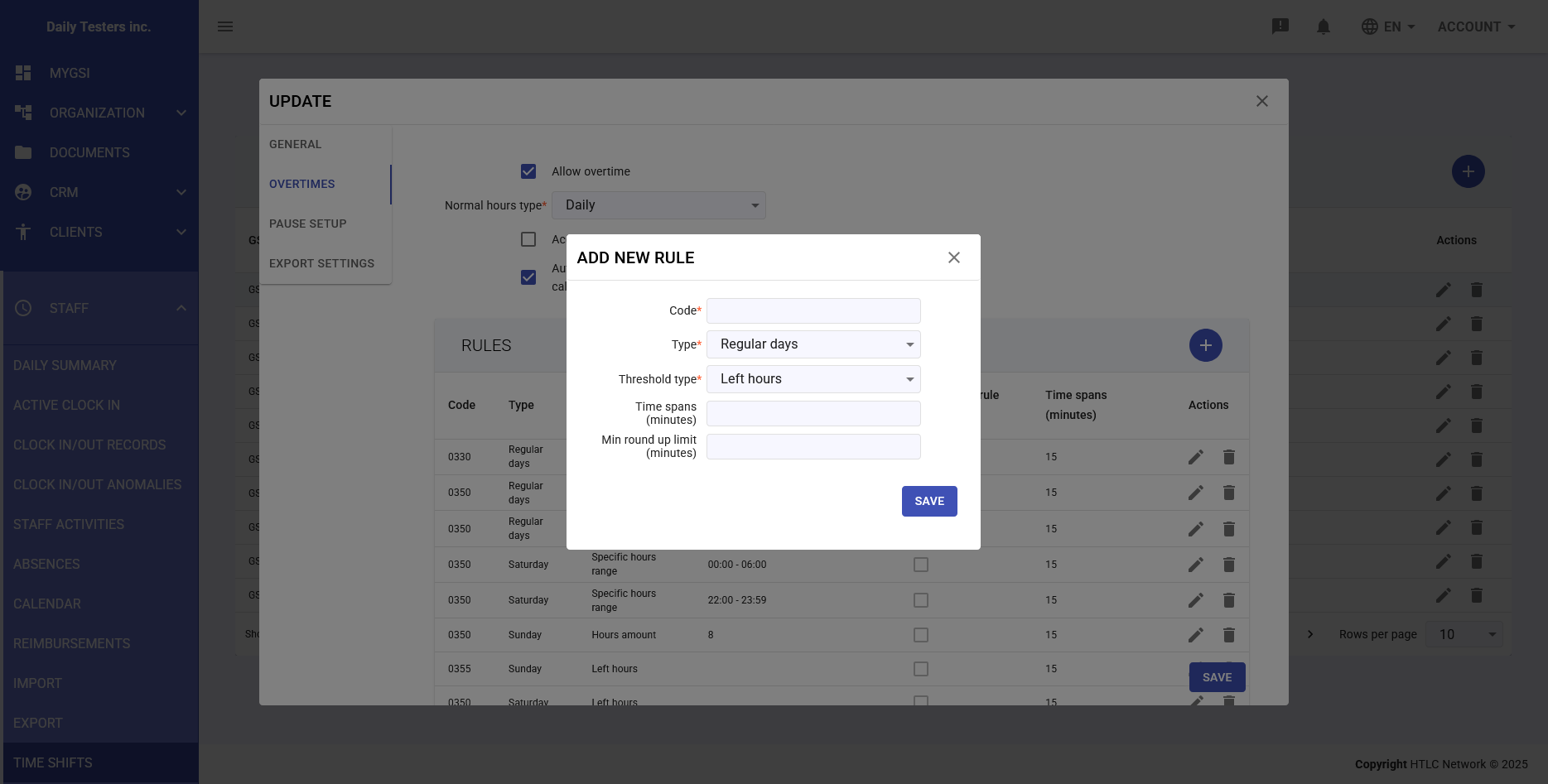
Manages overtime calculation rules with different settings for regular days, Saturdays, and Sundays:
Configuration Options:
- Allow overtime: Master switch for overtime tracking
- Normal hours type: Daily or other period selection
- Accept overtime on anomaly approve: Links overtime approval to anomaly resolution
- Automatically approve overtime if calculated value is 0: Auto-approves when no overtime detected
Rules Structure:
Each rule contains:
- Code: Payroll code identifier
- Type: Regular days, Saturday, or Sunday
- Threshold type:
- Left hours: Hours remaining after other rules application
- Hours amount: Progressive time from regular work end (e.g. "2" = first 2 hours, "4" = from 2 to 4 hours)
- Specific hours range: Applies when clock times fall within set range, overrides other rules
- Threshold value: Numeric value or time range
- Time spans (minutes): Minimum duration for rule application
- Ignore if next time amount rule applies: Skip this rule if next threshold is reached
-
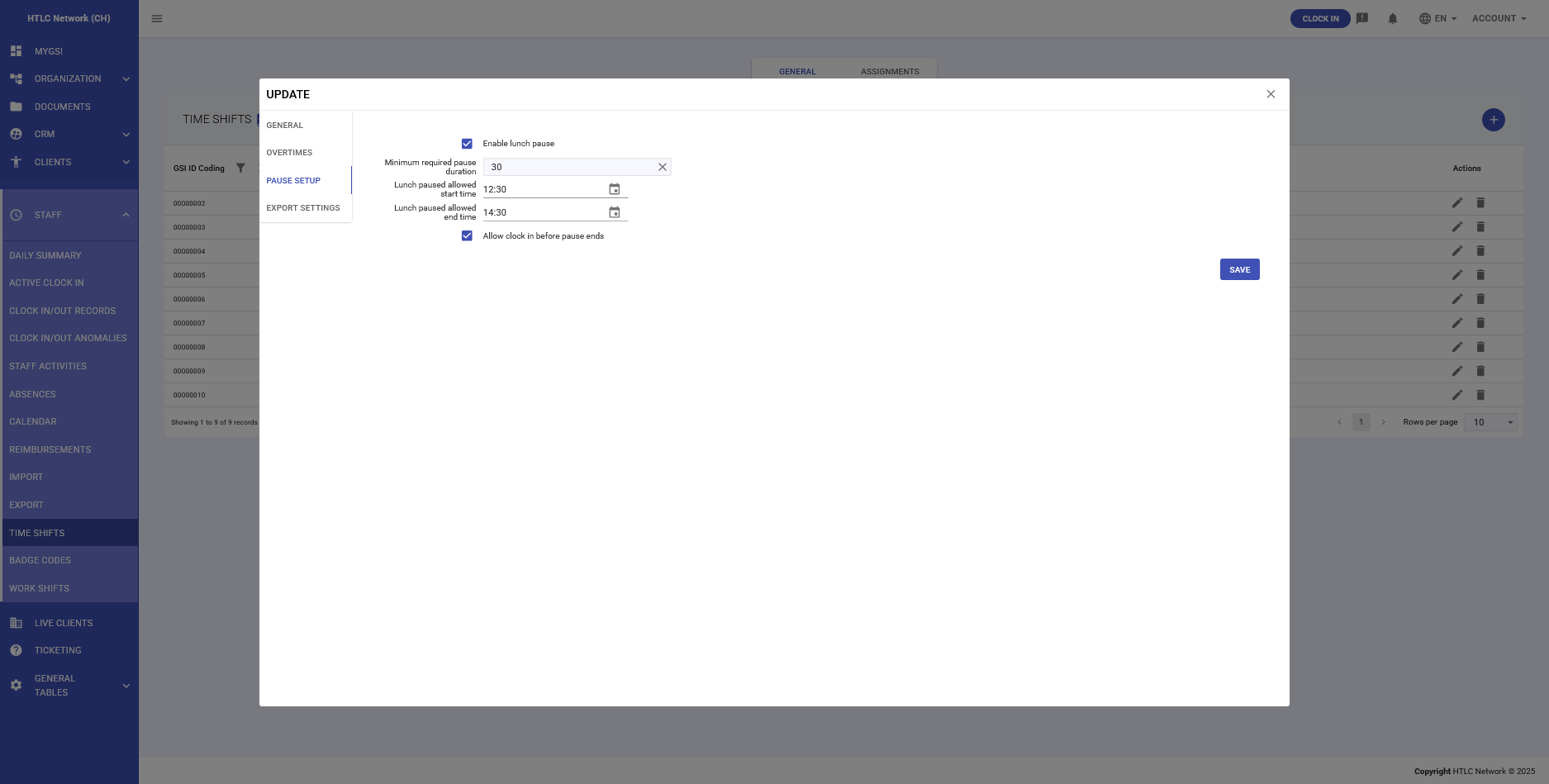
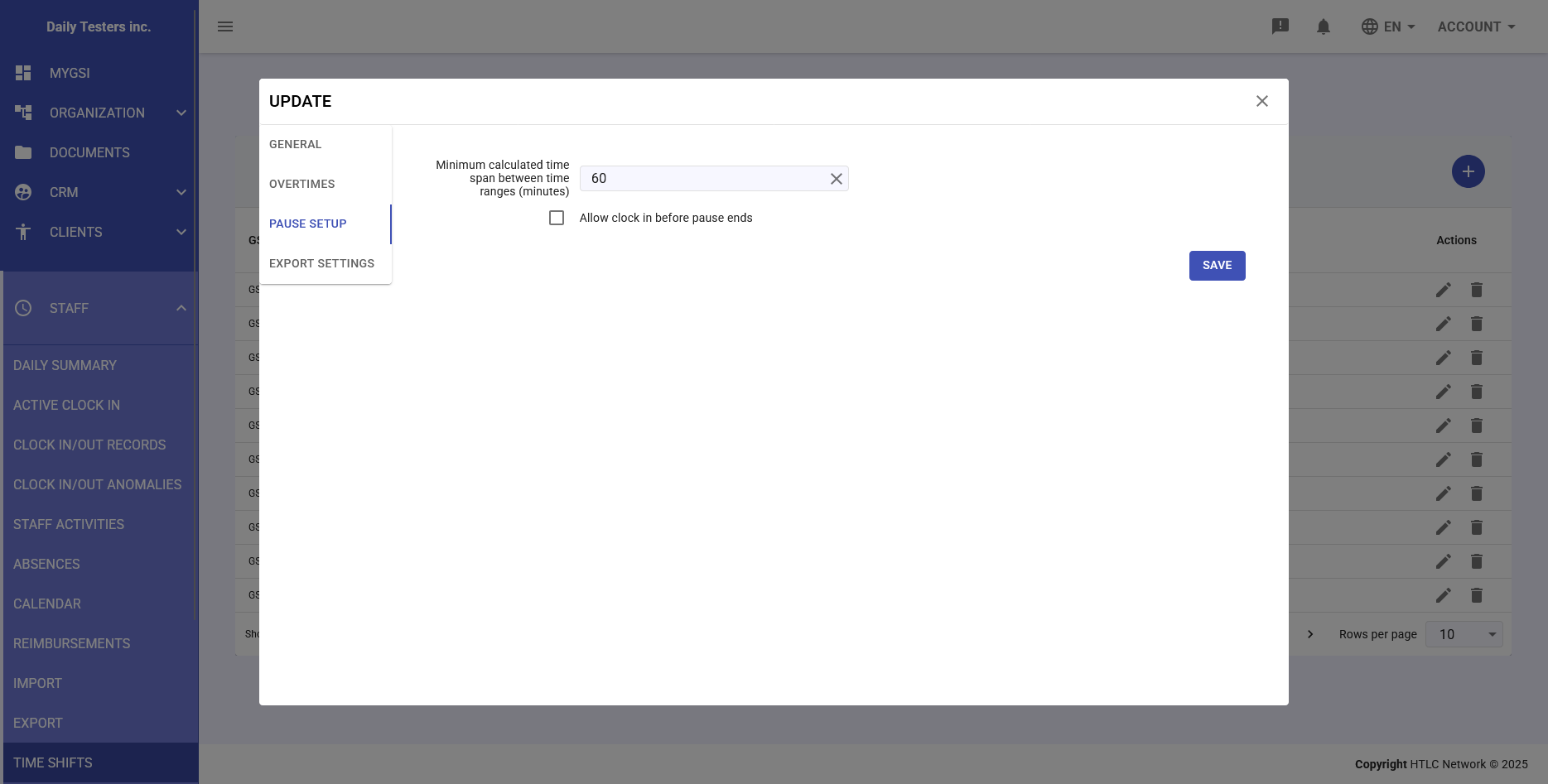
Configuration Tab: Pause Setup
Configures mandatory break requirements:
- Minimum calculated time span between time ranges (minutes): Required break duration between work periods
- Allow clock in before pause ends: Permits early return from break
- For Range and Weekly time shifts: Define allowed start and end hours for lunch pause periods
- For Custom Range time shifts: Pause periods are automatically determined by the span between configured time blocks
When pause settings are configured, the system can generate "missing pause" anomalies if requirements aren't met.
-
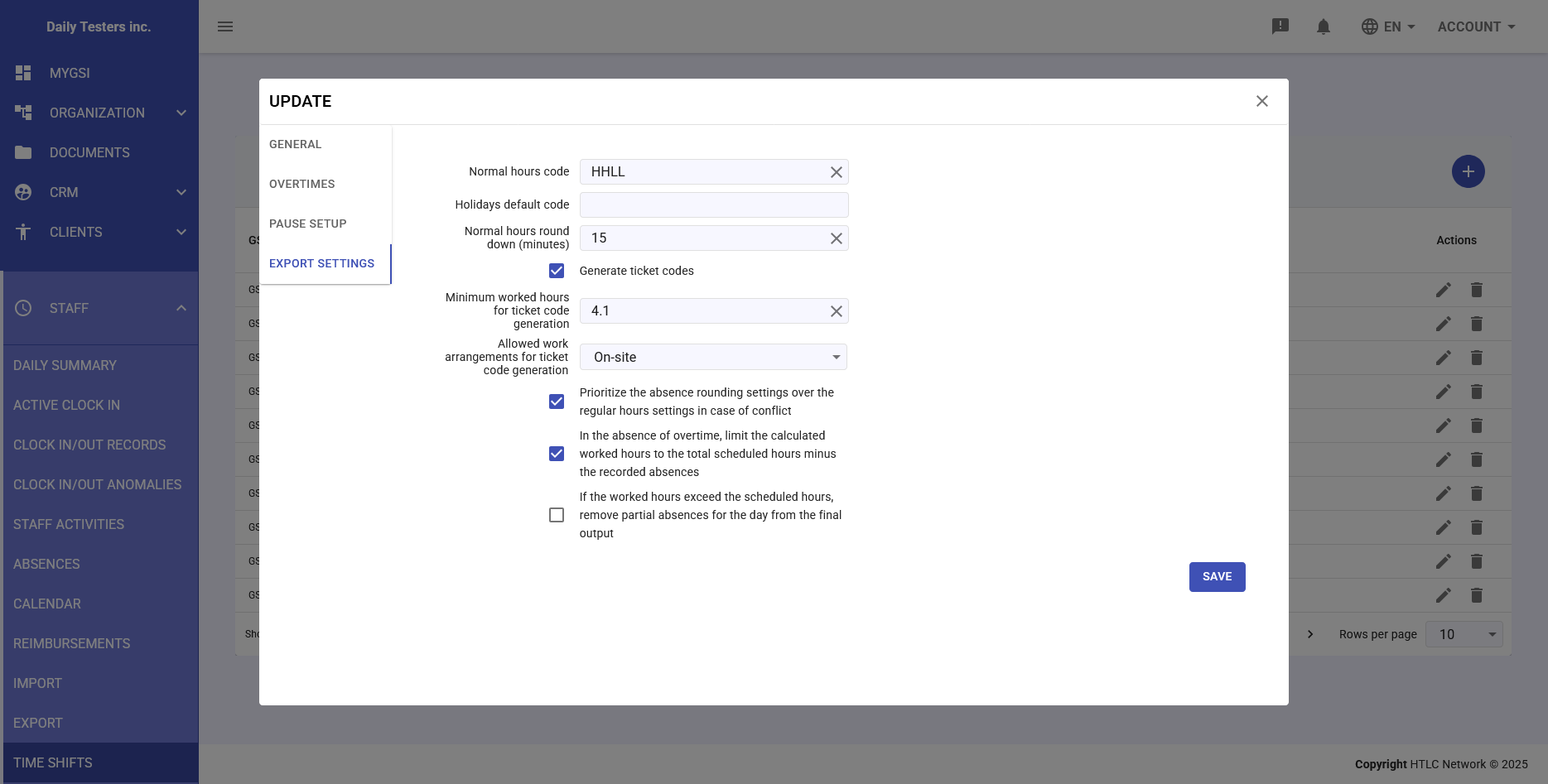
Configuration Tab: Export Settings
Controls payroll export and additional benefit settings:
- Normal hours code: Payroll code for regular hours
- Holidays default code: Code for holiday periods
- Normal hours round down (minutes): Rounding precision for hour calculations
- Generate ticket codes: Creates meal ticket codes when daily working time threshold is met
- Minimum worked hours for ticket code generation: Hours required to qualify for meal ticket
- Allowed work arrangements for ticket code generation: On-site, Remote, etc.
- Prioritize the absence rounding settings over the regular hours settings in case of conflict: Resolution priority for calculation conflicts
- In the absence of overtime, limit the calculated worked hours to the total scheduled hours minus the recorded absences: Caps regular hours calculation
- If the worked hours exceed the scheduled hours, remove partial absences for the day from the final output: Adjusts absence records when overtime occurs