-
The Clock In/Out Anomalies module is GSI2's quality control component that identifies and manages discrepancies between actual time registrations and expected timeshift patterns. The system automates anomaly detection and provides flexible resolution tools, ensuring data accuracy before payroll processing.
Key Concepts
Anomaly Types
- Time shift: Discrepancy between worked hours and assigned timeshift
- Work in holiday): Clock records during holidays
- Work in absence: Work detected during approved absence
- User not found: Unrecognized employee identifier
- Clock in not found: Missing entry record
- Clock out not found: Missing exit record
- Unexpected absence: No clock in when work was scheduled
- Conflict: Overlapping or contradictory records
- Incompleted working week: Weekly hours below minimum threshold
- Work shift absence: Complete absence from assigned shift
- Missing pause: Required break not taken
- Partial unexpected absence: Incomplete work period coverage
- Time shift not found: No timeshift assigned for the period
Anomaly States
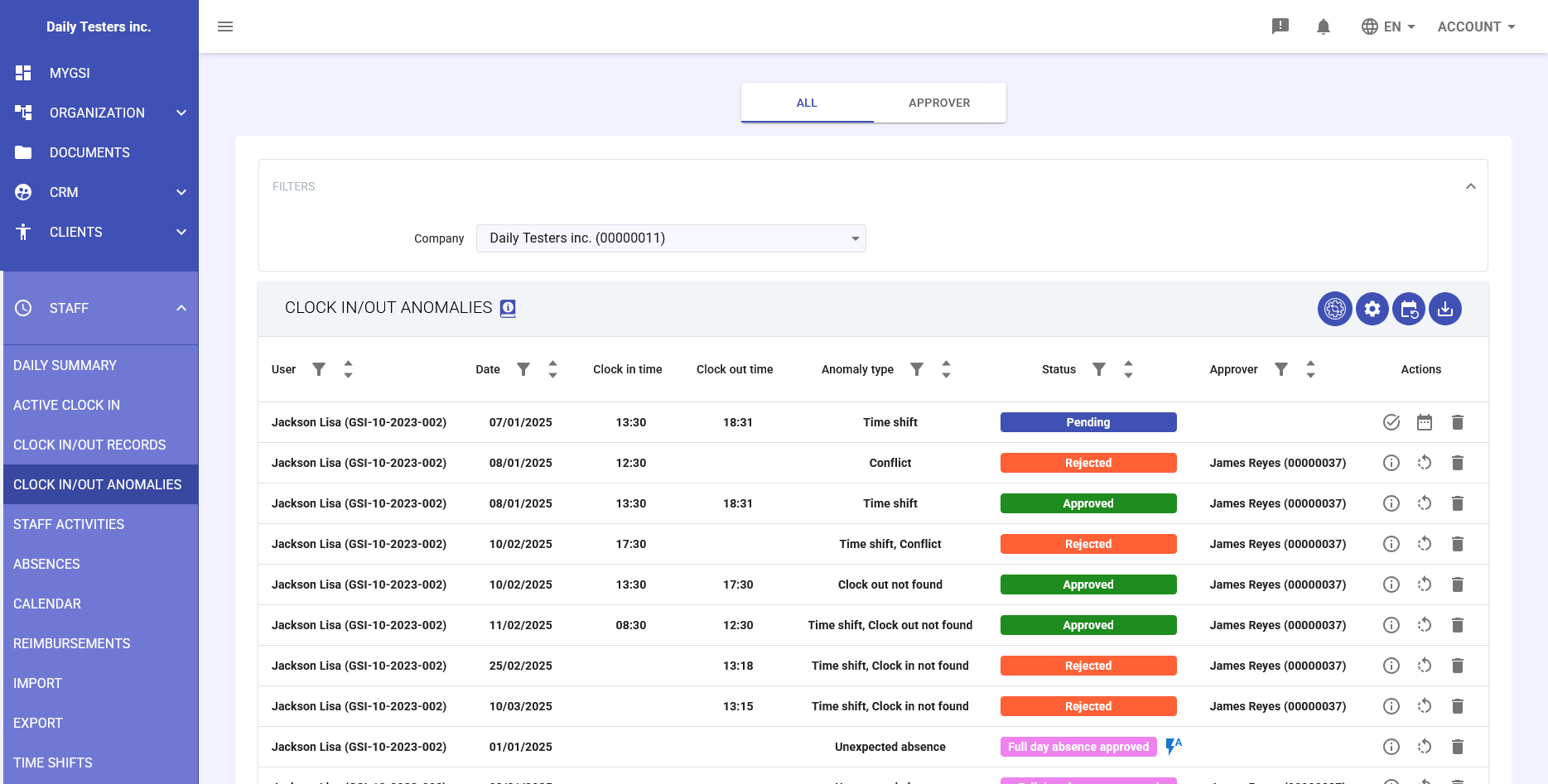
- Pending (blue): Detected anomaly requiring intervention
- Approved (green): Resolved anomaly with created activity
- Rejected (red): Declined anomaly, no activity generated
- Full day absence approved (purple): Complete absence handled
Main View
The main anomalies table displays:
- Employee: Name and code of the employee
- Date: Day of the anomaly
- Clock in/out time: Recorded timestamps
- Anomaly type: Category of detected issue
- Status: Current resolution state
- Approver: Person responsible for resolution
- Actions: Buttons to view details, edit, or delete
Available filtering capabilities:
- Filter by company, work location, and business unit
- Individual or multiple employee selection
- Customizable date range
- Anomaly status filter
Best Practices
For Employees
- Check personal anomalies daily in the dashboard
- Submit resolution proposals promptly with clear descriptions
- Provide supporting documentation when available
- Monitor the status of submitted proposals
For Managers
- Review the APPROVER tab regularly
- Prioritize user proposals evaluation
- Document decisions for exceptional cases
- Identify recurring patterns to improve processes
- Configure automatic rules to handle most common cases
- Optimize rule priority order
- Periodically review automatic rule effectiveness
- Use batch processing for company events
- Keep supervisor training updated
- Export regular reports for compliance
-
User Proposal Submission
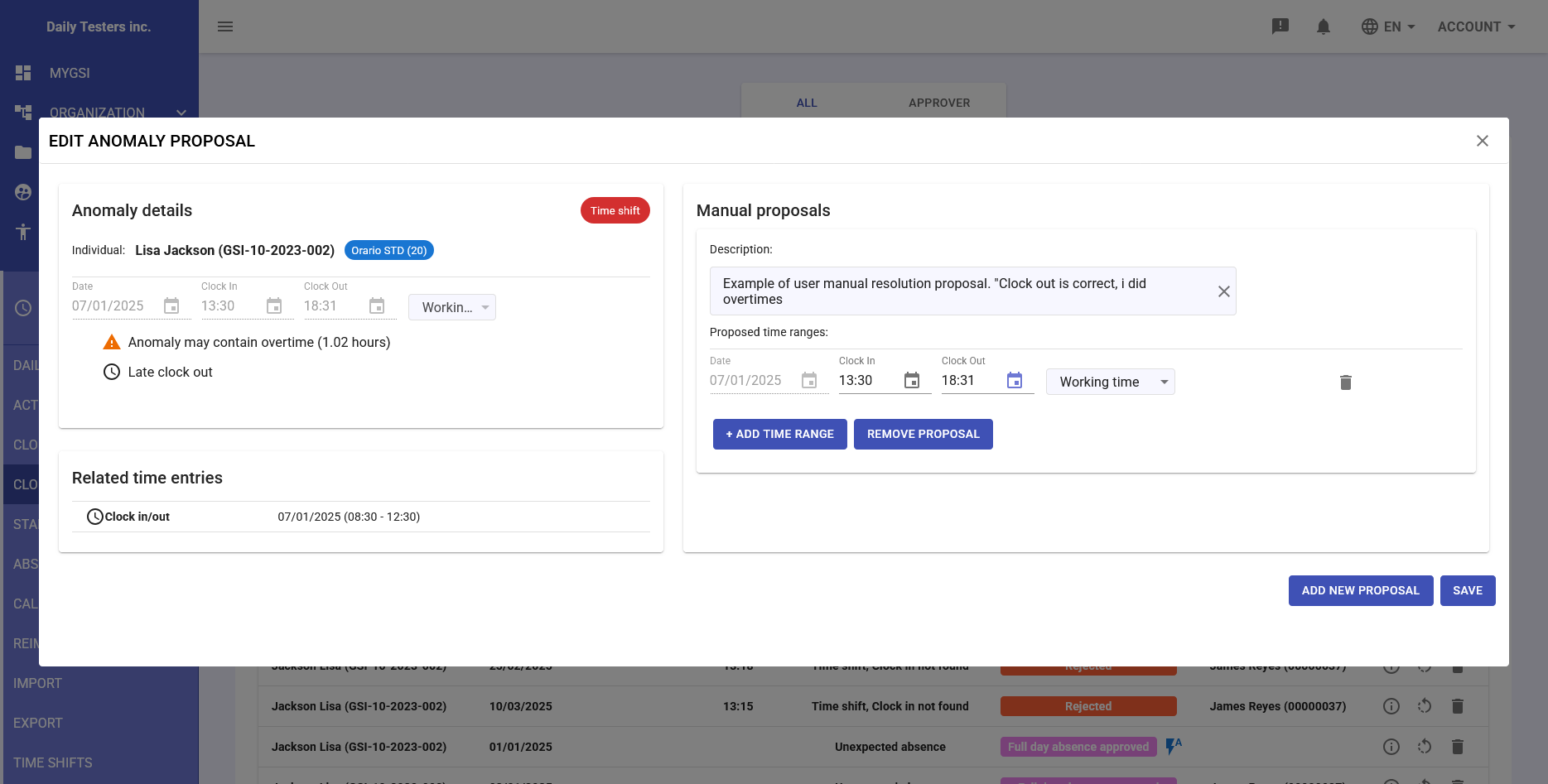
Employees can propose resolutions for their own anomalies through the self-service system.
Also manager can add proposals, e.g. in a complex internal flow involving more than one manager in the anomalies resolution.
Proposal Creation Process
- Access to personal dashboard
- View pending anomalies
- Click on the proposals icon
 of the anomaly's row
 - Complete proposal form with:
- Detailed situation description
- Anomaly justification
- Proposed correct times
- Work mode (on-site, smart working, business trip)
- Submit proposal for managerial approval
Marking a valid clock in/out record as anomaly
In the clock in/out records section, a user could mark an existing valid clock in/out record to signal an anomaly not detected by the system, setting up a solution proposal for it.
Proposal Management
- Proposals remain in "pending" status until manager intervention
- Employee can modify or withdraw unapproved proposals
- Additional comments or documentation can be added
- System sends automatic notifications to responsible manager
-
Manual Resolution
Managers have three main methods to manually resolve anomalies:
Applying User Proposal
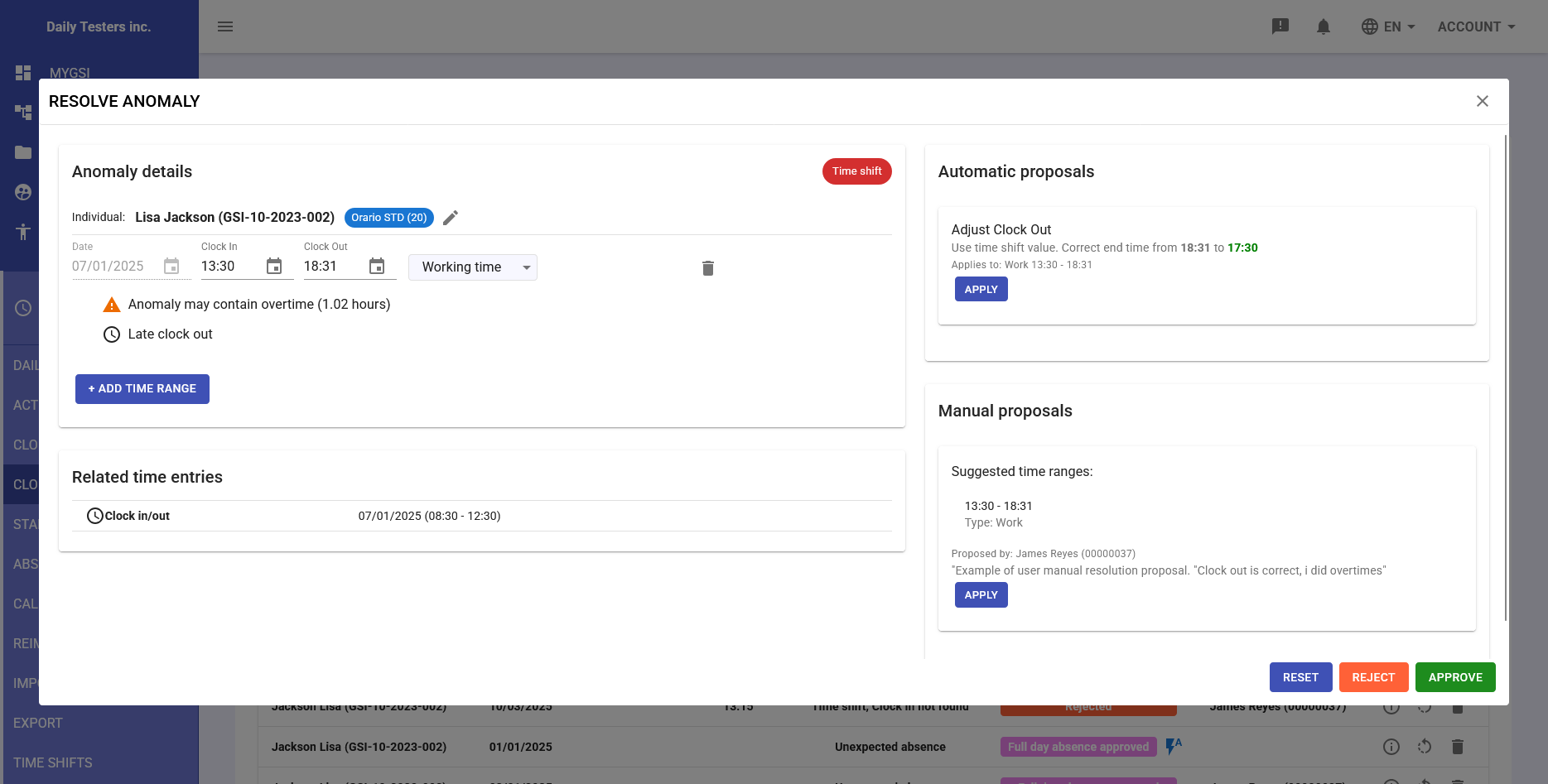
- Review employee-submitted proposal
- Evaluate provided documentation
- Option to modify proposal before approval
- Direct application with APPLY button
- Add notes for audit trail
Using System Automatic Proposals
The system generates automatic proposals based on common patterns:
- Split with pause: Automatically inserts standard break into work period
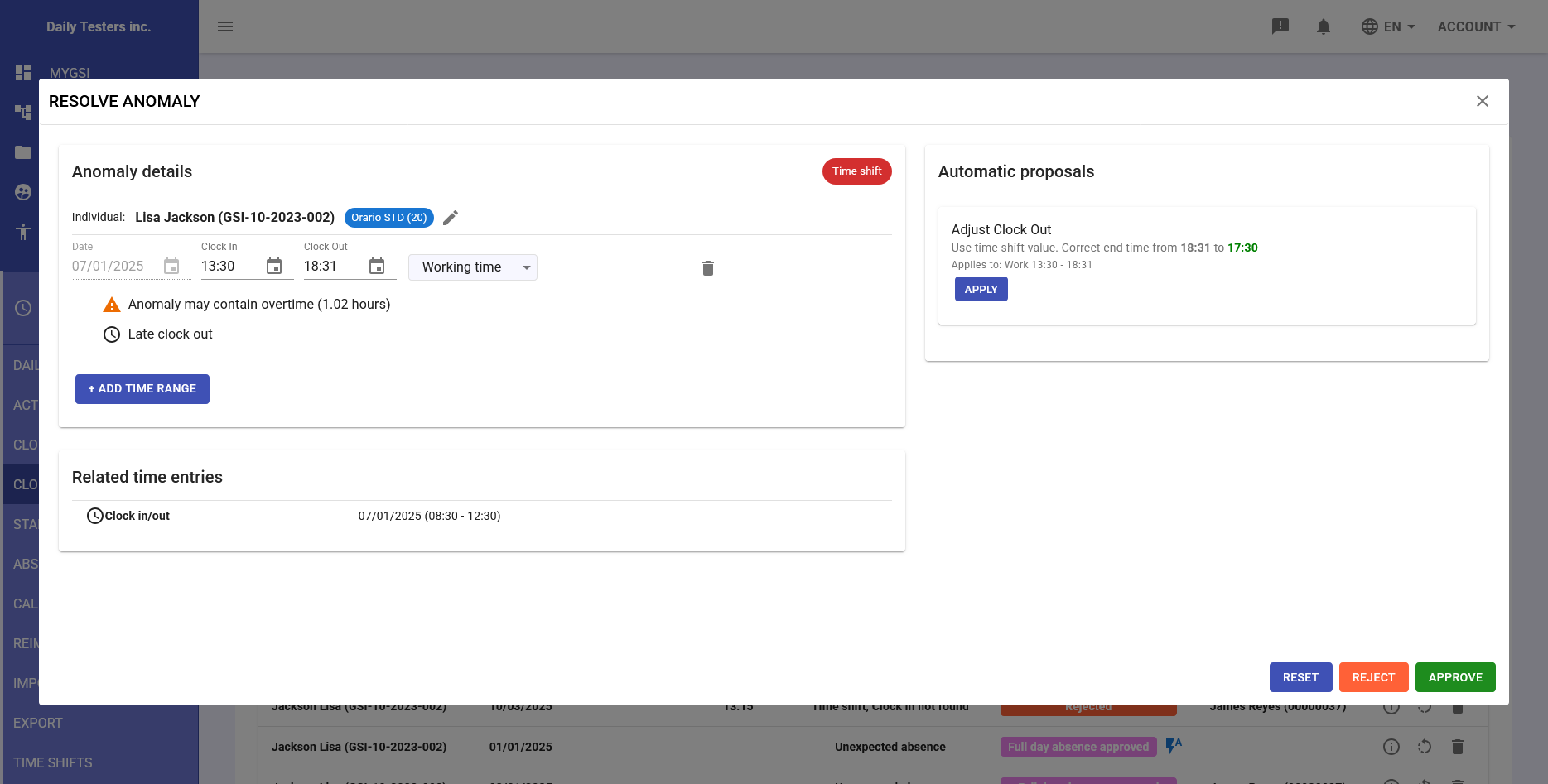
- Adjust clock out: Aligns exit time to timeshift
- Adjust clock in: Aligns entry time to timeshift
- Quick application with SAVE button
Direct Record Modification
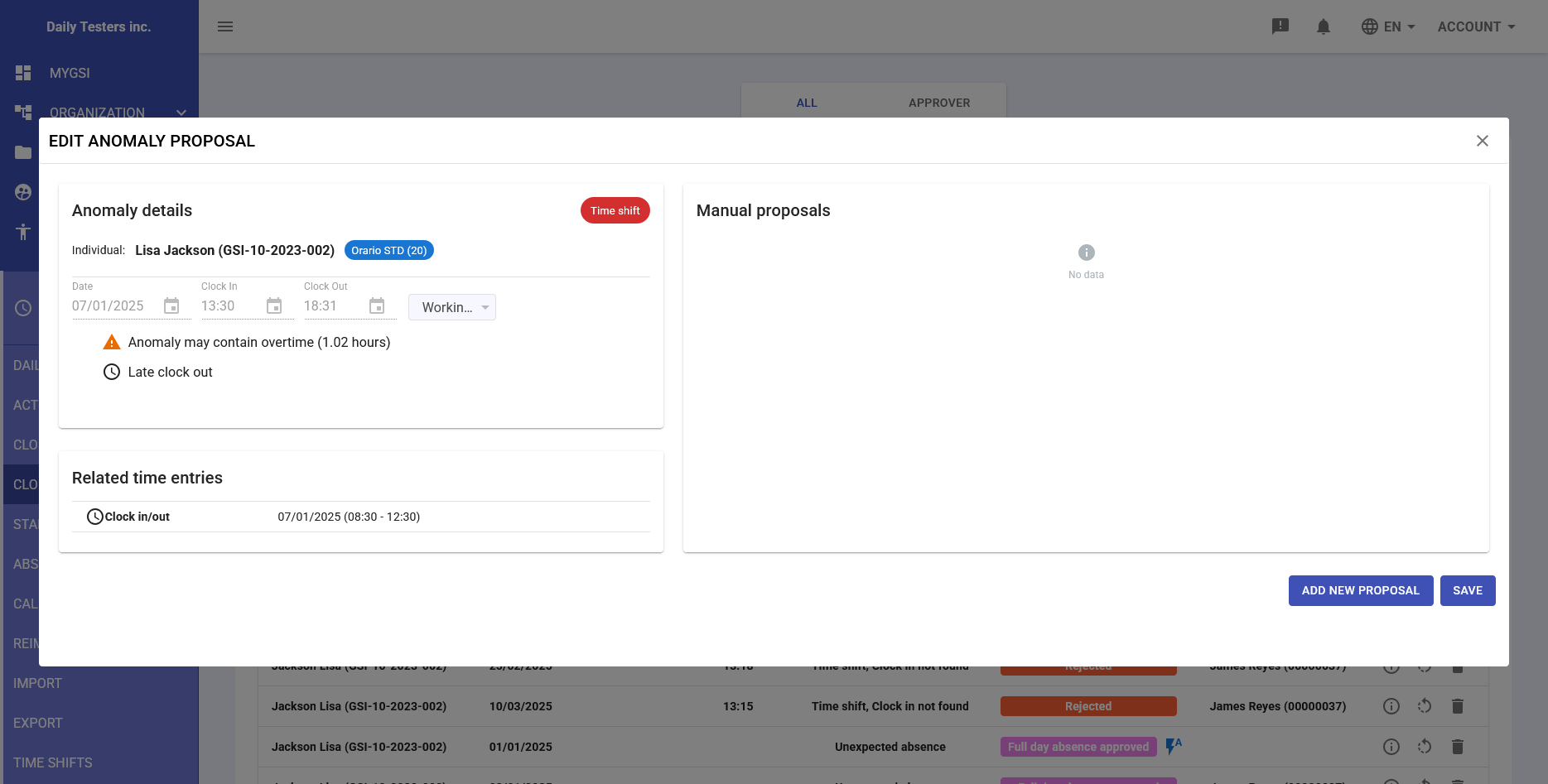
- Open anomaly detail panel
- Manually edit fields:
- Record date
- Record start time
- Record end time
- Record type (clock in/out or partial absence)
- Optionally: Work mode
- Ability to add multiple intervals with "+ ADD TIME RANGE"
- Real-time visualization of modification impact
Automatic Recalculation and Visual Feedback System
After each modification, the system:
- Automatically recalculates the anomaly
- Verifies if the change completely resolved the issue
- Shows warning if problems remain unresolved
- Signals potential overtime generated (orange triangle)
- Indicates late clock out (clock icon)
Visual indicators:
- Orange triangle: Anomaly with potential overtime
- Clock icon: Late clock out detected
- Green check: Modification completely resolves anomaly
- Red X: Issues remain after modification
-
Automatic Resolution
The automatic resolution system applies predefined rules to handle common anomalies without manual intervention.
Interface Navigation
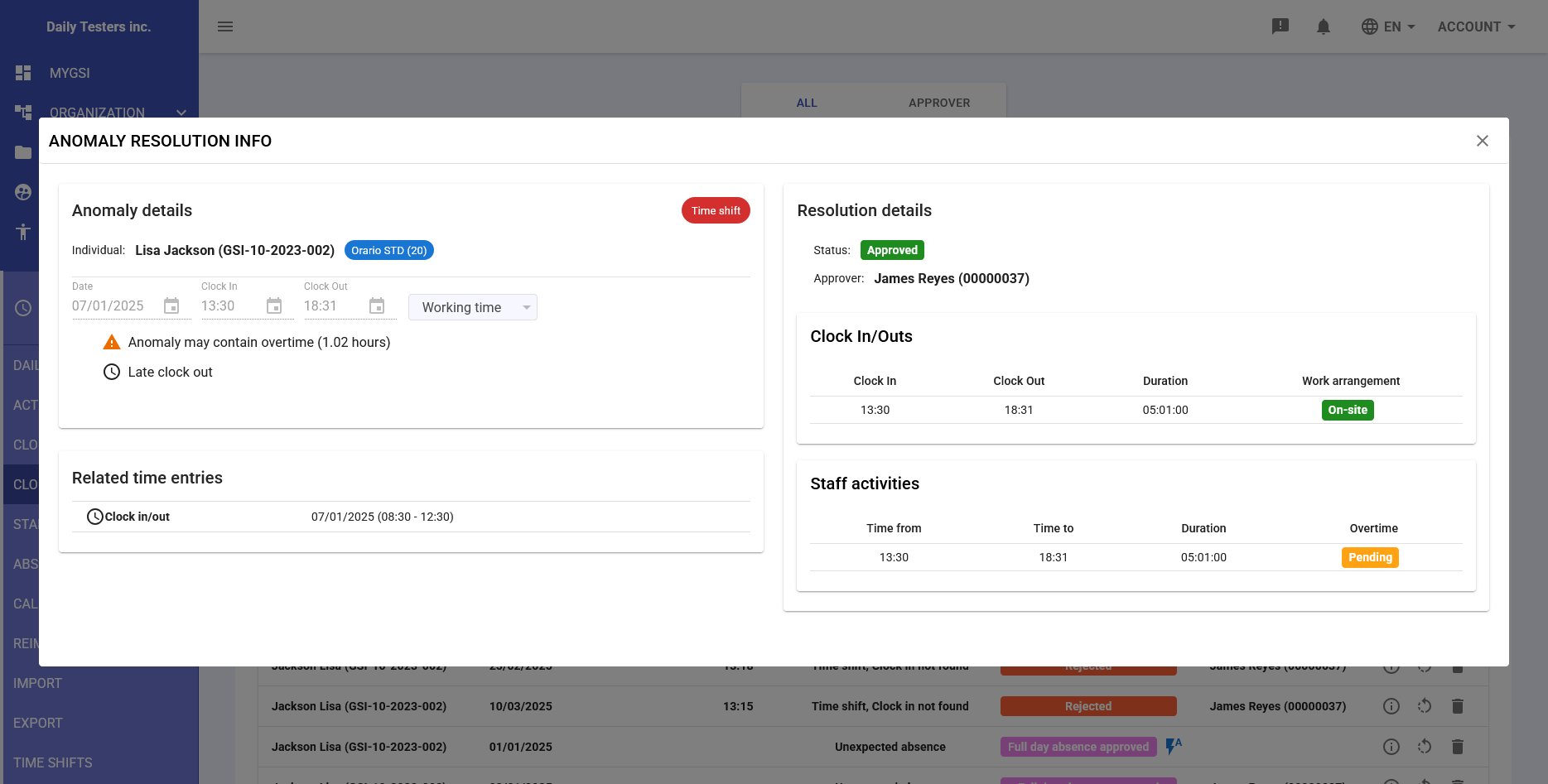
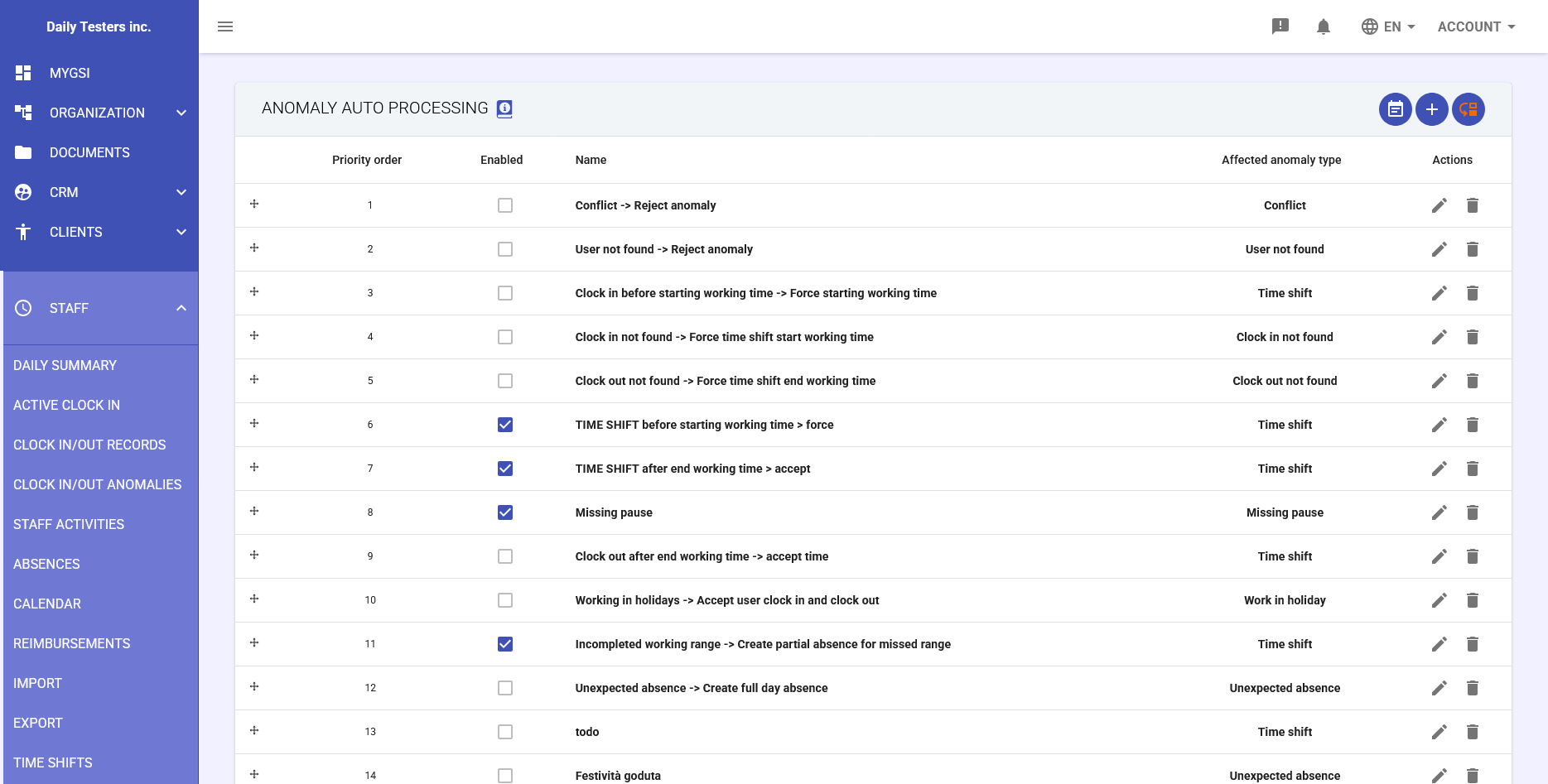
Click on the full gear icon
 on the top right of main view's table to open the automatic anomalies processing rules configuration screen.
In the ANOMALY AUTO PROCESSING screen, the top toolbar presents:

- List icon (first): Return to main view (anomalies table)
- + icon (second): Add a new automatic processing rule
- Reorder icon (third): Opens rules list in drag & drop mode to reorder the rules
Rule Configuration
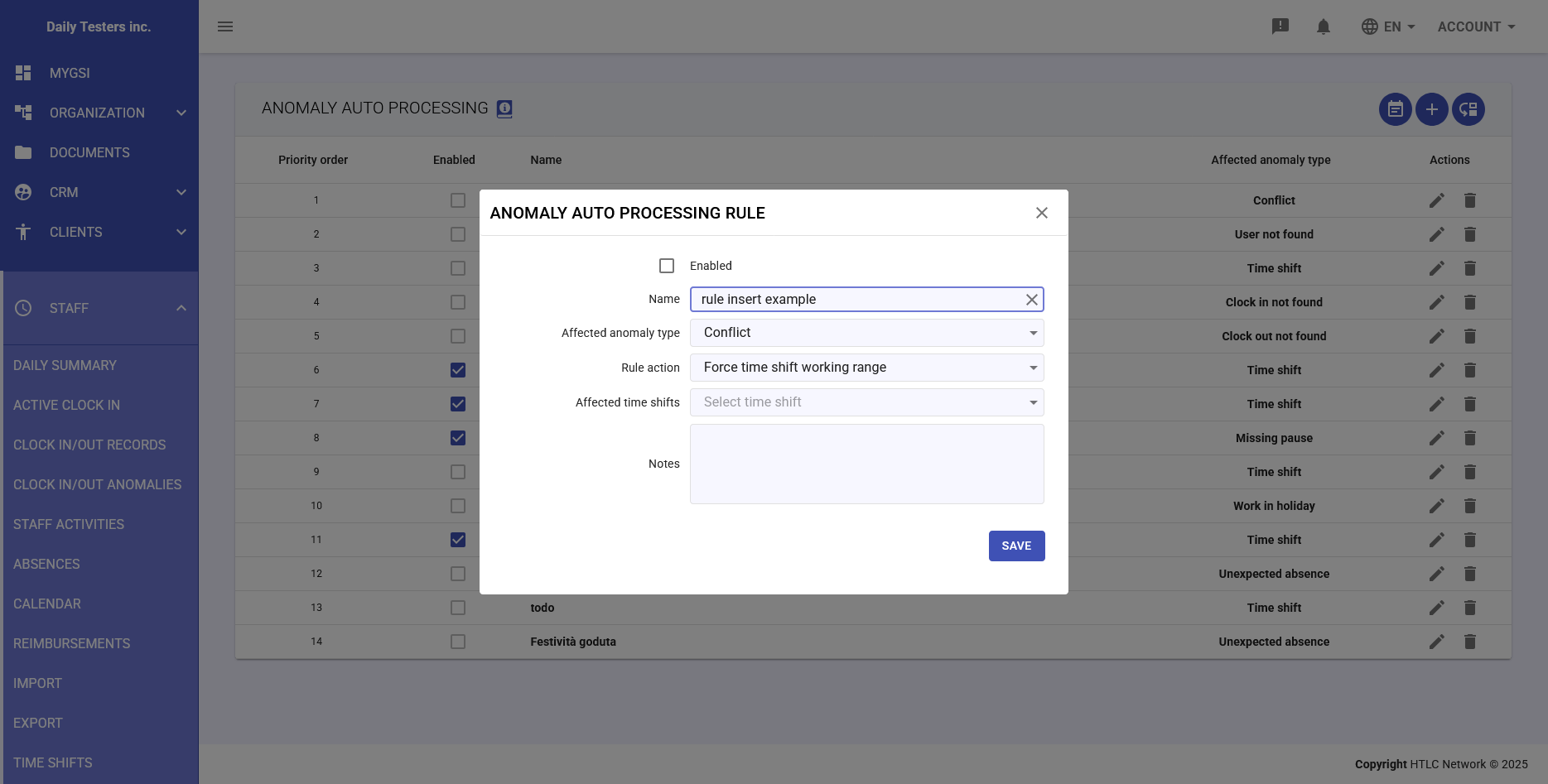
Clicking the + icon on the top right or the pencil icon on an existing rule opens the "ANOMALY AUTO PROCESSING RULE" form.
Each automatic rule includes:
- Enabled checkbox: Activates the rule immediately after saving
- Name: Text field to identify the rule
- Affected anomaly type: Category of anomaly to handle
- (If applicable) Condition: Specific application criteria
- (If applicable) Threshold value: Numeric tolerance value (e.g., 30 minutes)
- Rule action: Operation to execute when rule applies
- Affected time shifts: Profiles where rule applies
- Notes: Text field for additional documentation
- Additional checkbox (If applicable) "Force clock in to respect minimum pause period" checkbox to manage launch pause
- Priority: Execution order
Automatic Processing Workflow
- Sequential rule analysis by priority order
- Condition evaluation for each enabled rule
- Action application if all criteria are met
- Verification of complete anomaly resolution
- If anomaly persists after all rules, remains in "Pending" status
Batch Processing
To process anomalies in bulk:
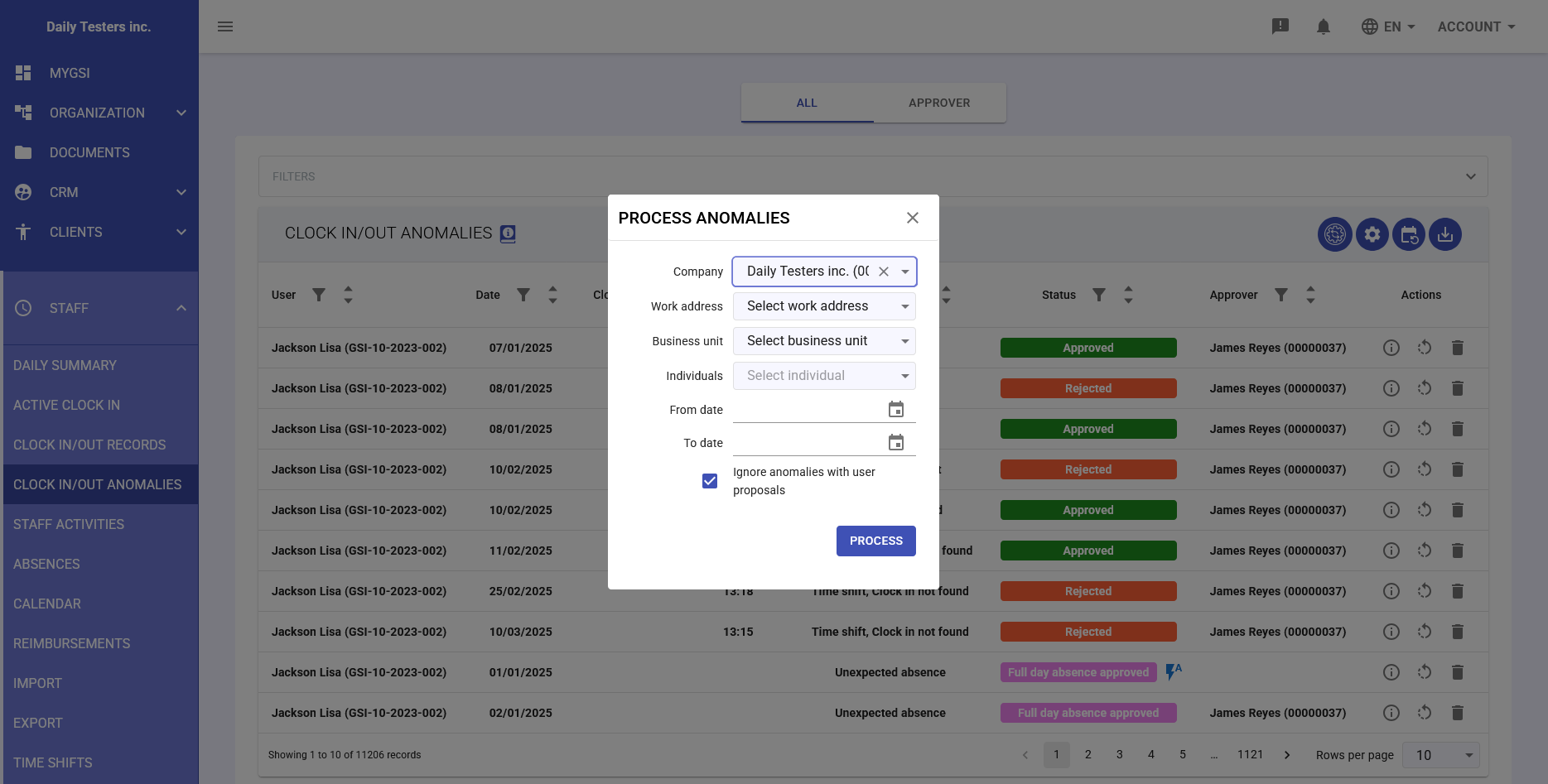
- Access via empty gear icon
 in main view
 - Configure filters:
- Company and work location selection
- Business unit and individuals
- Date range to process
- Option to ignore anomalies with user proposals
- Execute with PROCESS button
- Results report showing resolved anomaly count
-
Applied Resolution Information
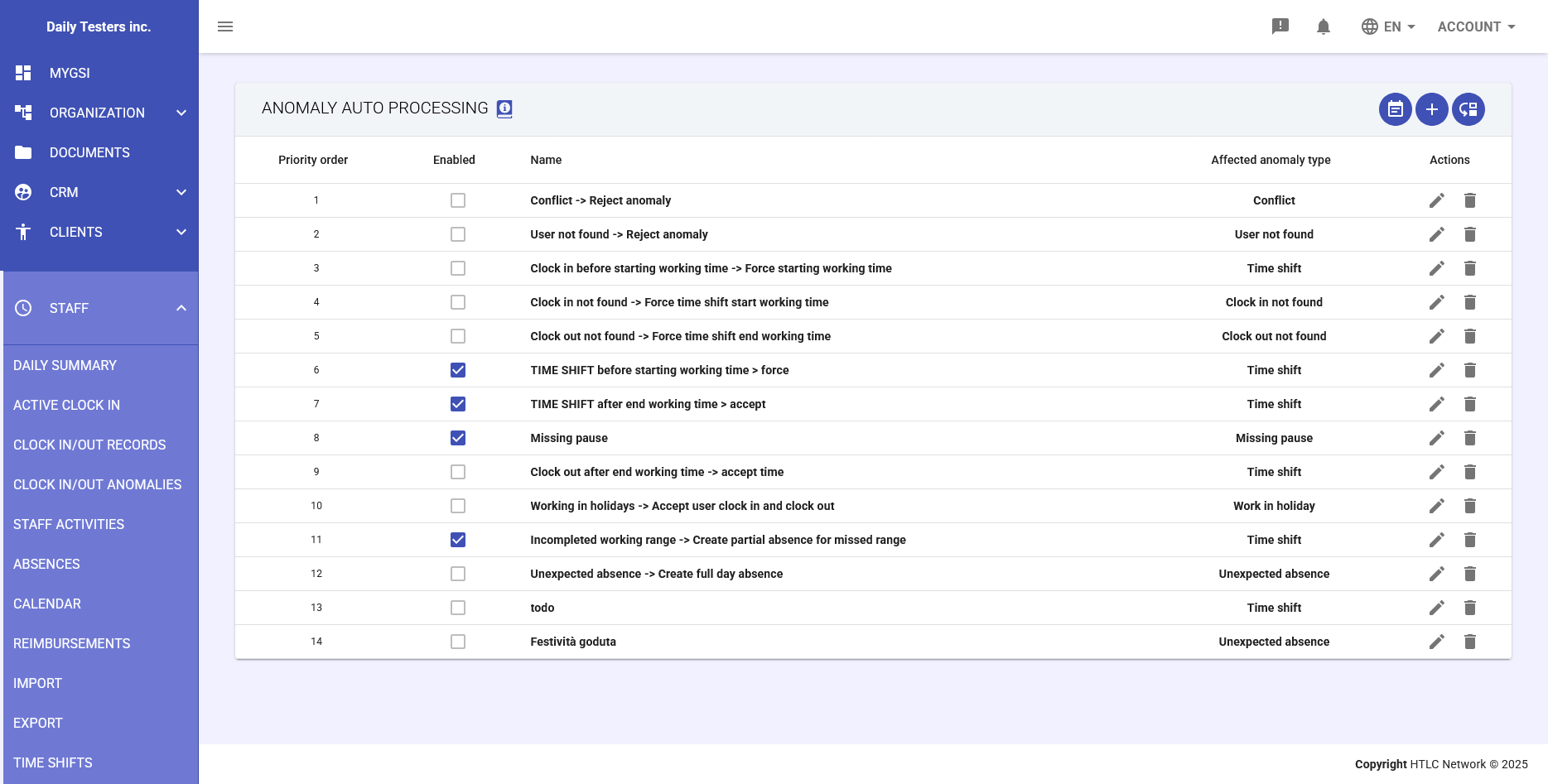
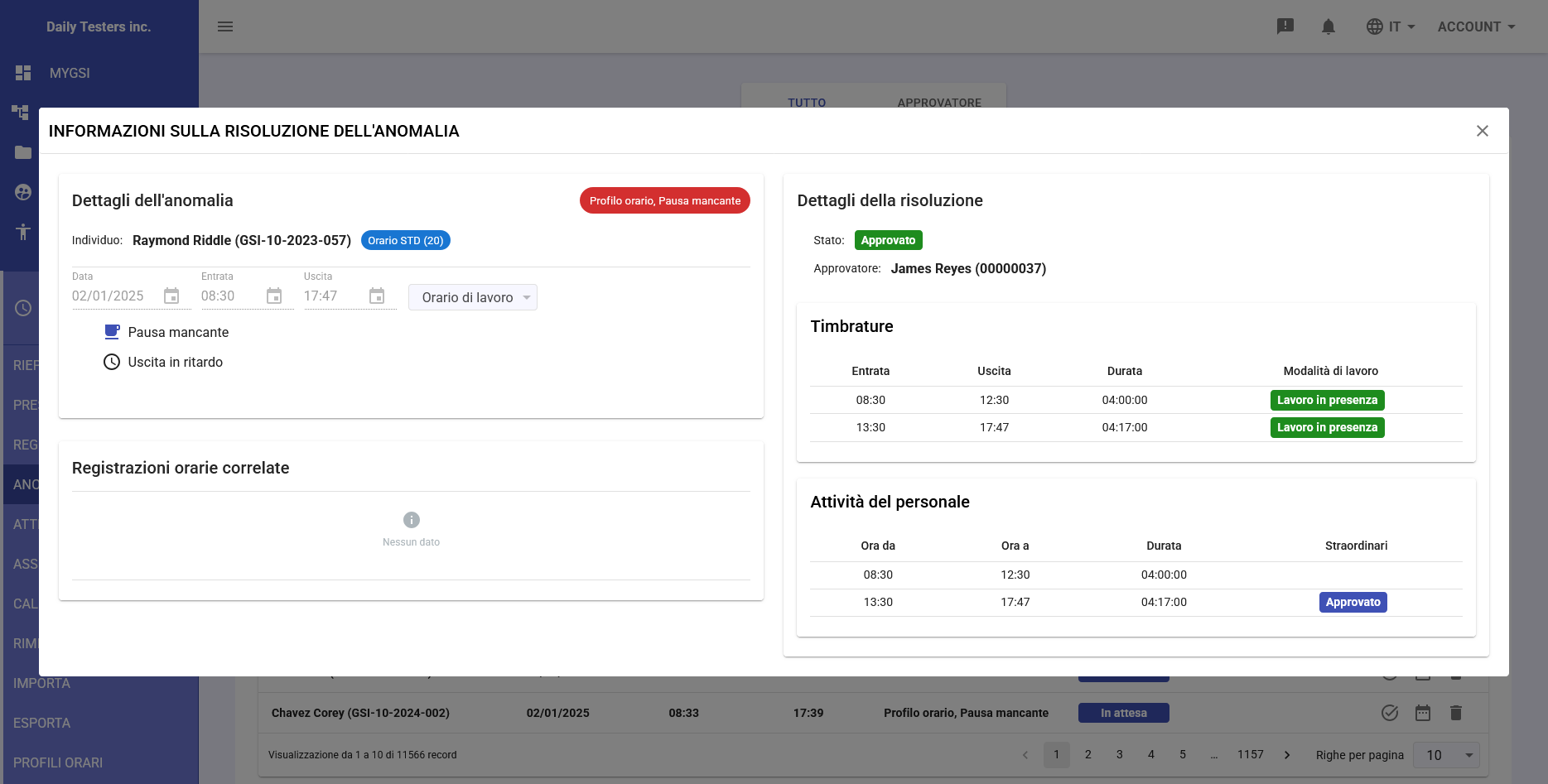
After applying a resolution, clicking on the info
 icon in the "actions" column of the anomaly's row in the main anomalies table, the system provides detailed information:
Resolution Details
- Final status: Approved, Rejected, or Full day absence approved
- Approver: Name and ID of responsible person who applied resolution
- Resolution date/time: Operation timestamp
- Method used: Manual, automatic, or user proposal
Resulting Clock Records
- Display of final clock records after resolution
- Comparison with original clock records
- Indication of applied modifications
- Assigned work mode
Generated Staff Activities
- Calculated regular hours
- Any generated overtime (requires separate approval)
- Applied breaks
- Direct link to activity in Staff Activities module
-
Reset Applied Solutions
The system allows cancellation of previously applied resolutions to reprocess anomalies. Reset can be performed individually or in bulk.
Individual Anomaly Reset
- In the anomalies table, use the reset icon in the resolved anomaly row
- Confirm the operation when prompted
- The anomaly immediately returns to "Pending" status
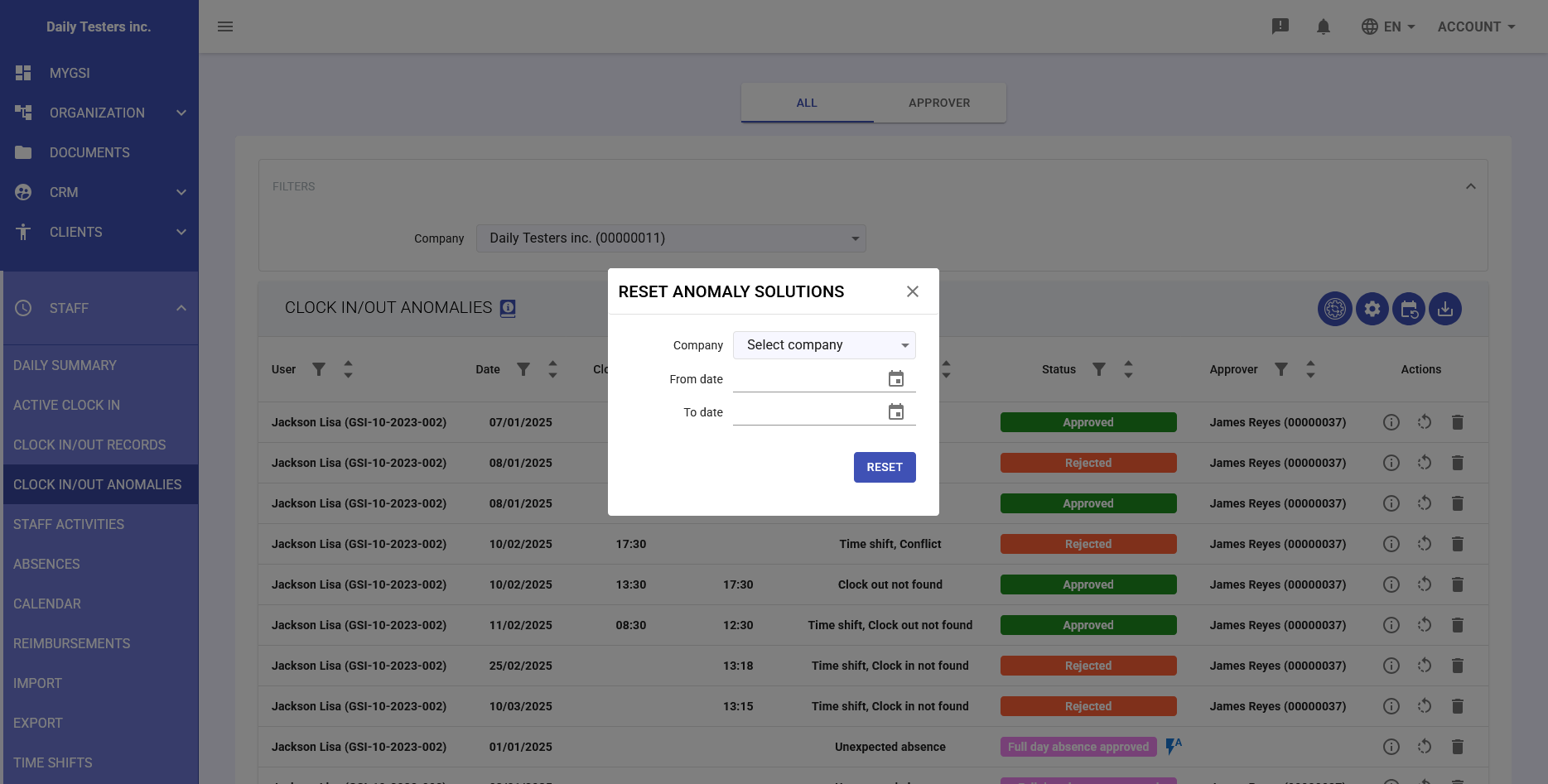
Bulk Reset - RESET ANOMALY SOLUTIONS
Access the function via the dedicated button at the top right of the anomalies table:
- Company: Dropdown to select the company
- Work address: Select specific location
- Business unit: Department selection
- Individuals: Select affected employees
- From date / To date: Date pickers to define time range
Execution Process
- Configure desired filters in the panel
- Click the blue "RESET" button
- Selected anomalies return to "Pending" status
- Possibility to reapply different resolutions
Important note: Resetting the anomaly solution also deletes the associated staff activity. This operation is irreversible for activity data, although the resolution history is maintained for audit trail.
-
ReportDownload
The module offers reporting functionality to export anomaly data in various formats.
Access to Report Function
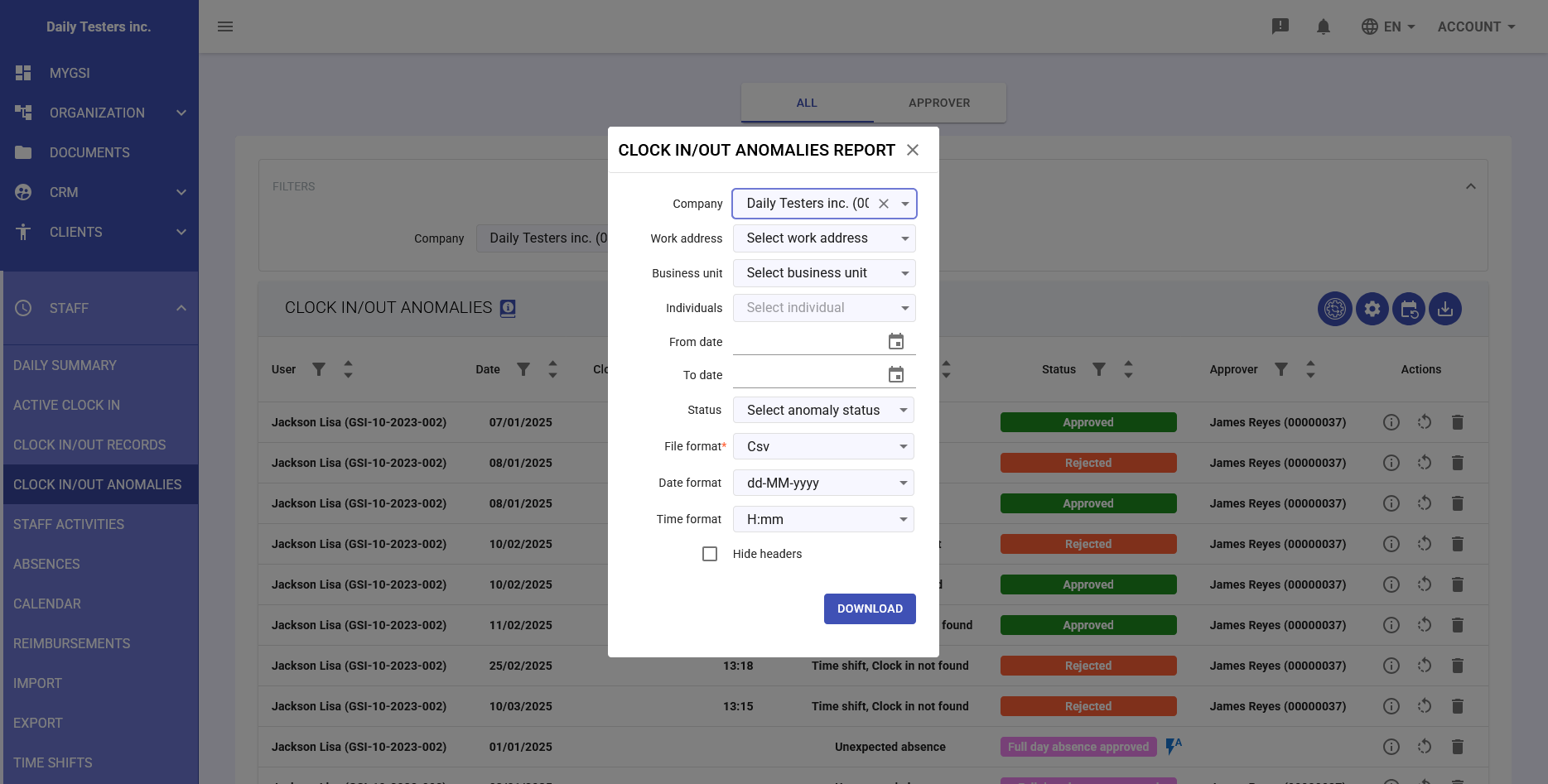
The "CLOCK IN/OUT ANOMALIES REPORT" panel is accessible via the download icon in the top toolbar of the anomalies table.
Report Configuration
The configuration panel presents the following filters:
- Company: Company selection (e.g., "Daily Testers Inc.")
- Work address: Dropdown to select specific location
- Business unit: Department or unit selection
- Individuals: Multiple selection of employees to include
- From date / To date: Date pickers for time range
- Status: Select anomaly status to export
Export Formats
- File format: CSV, Excel (XLSX), PDF
- Date format: dd-MM-yyyy (configurable)
- Time format: H:mm (24 hour, configurable)
- Hide headers: Checkbox to exclude header from file
Report Fields
The exported report contains the following fields:
- Individual: Employee name and code
- Company: Company affiliation
- WorkAddress: Work location
- Date: Anomaly date
- ClockInTime: Clock in time
- ClockOutTime: Clock out time
- AnomalyType: Type of detected anomaly
- Status: Resolution status
- AnomalyReasons: Anomaly reasons
Report Generation
- After configuring all parameters, click the blue "DOWNLOAD" button
- The system generates the file in the selected format
- Download starts automatically in the browser