-
Overview
The Absences section within the Staff module provides comprehensive management of employee time-off requests, including holidays, sick leave, permits, and other configurable absence types. This integrated system supports approval workflows, balance tracking, and seamless coordination with time tracking systems.
Beyond traditional leave management, the Absences functionality also serves as a correction mechanism for resolving time tracking anomalies when clock in/out records don't align with expected work schedules.
Absences can be:
- Entered in advance: Requested by employees and approved by managers before the absence date, preventing anomaly generation
- Created by managers: Directly entered by supervisors for their team members
- Added retroactively: Created to resolve unexpected absence anomalies or document unplanned absences
- Automatically generated: Created by the system for configured national holidays or company closures
Main View - Table
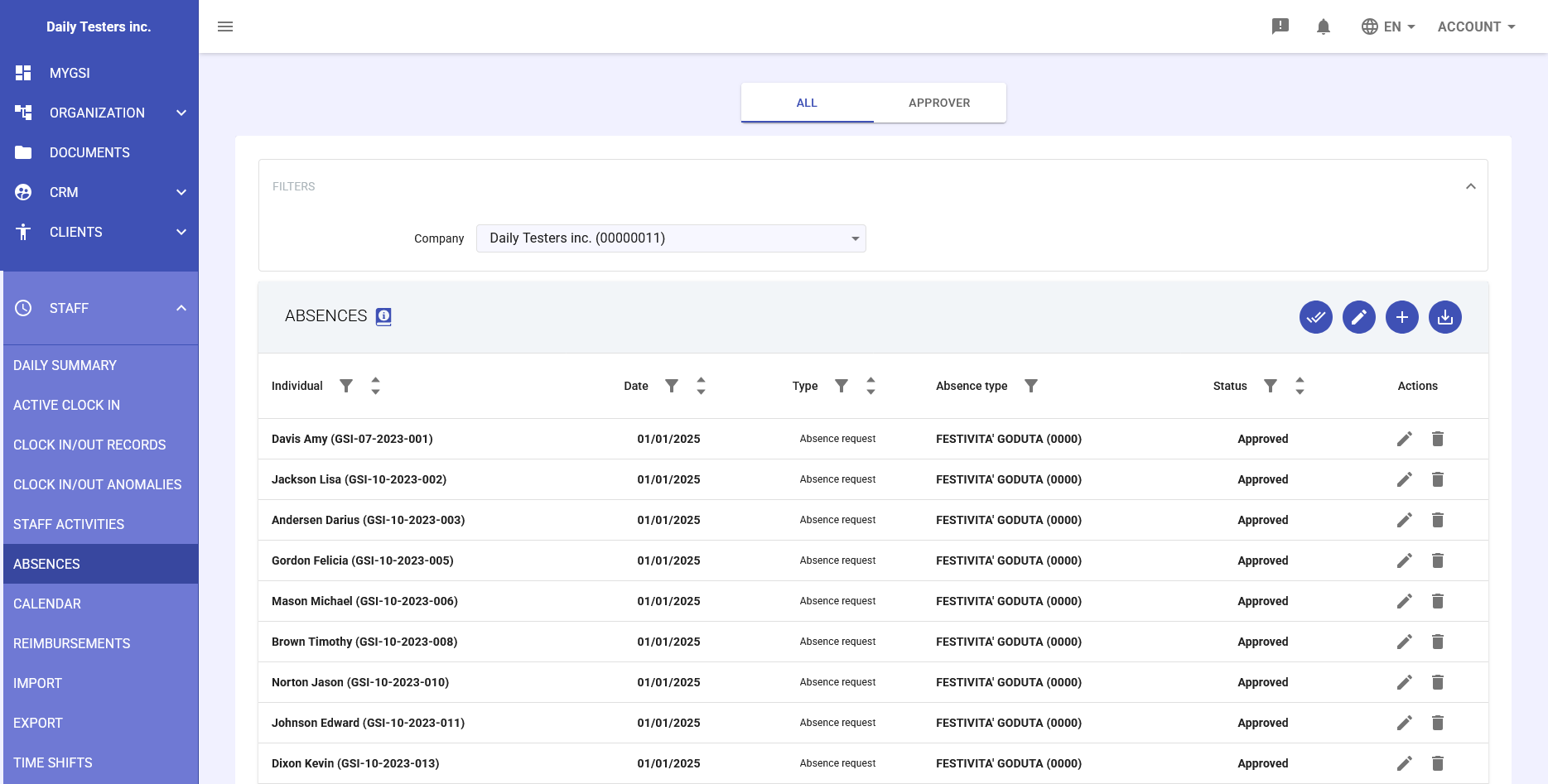
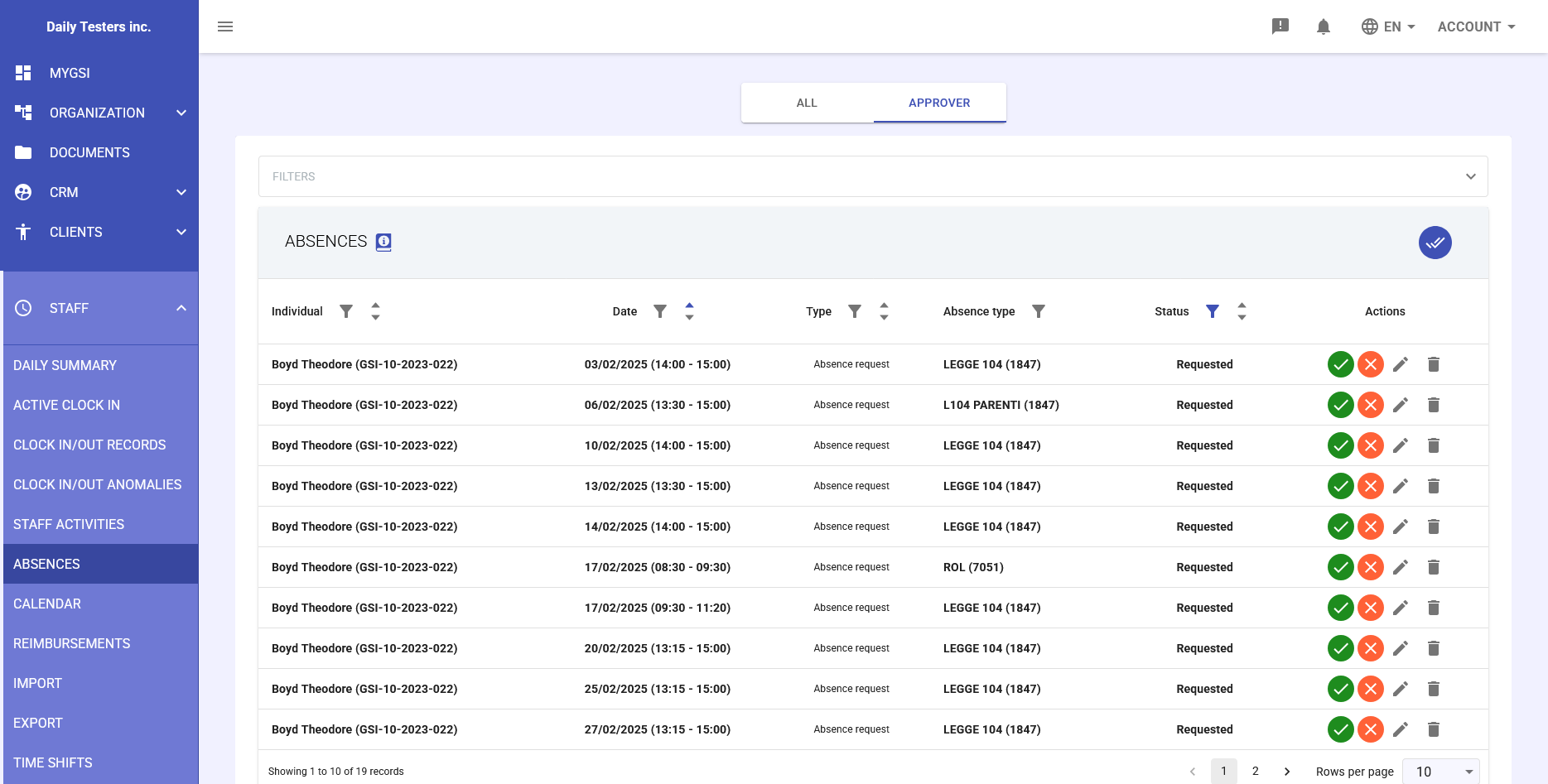
The main interface presents a comprehensive table view of all absences, with two display modes:
- ALL: Shows all absences visible to the current user
- APPROVER: Shows only absences pending approval for which the user is responsible
Table Fields
- Individual
- Name and GSI code of the employee for the absence. Includes a dropdown filter to select specific employees.
- Date
- Absence dates. For multi-day absences, shows the date range (e.g., 29/09/2025 - 02/10/2025). For partial absences, includes specific times (e.g., 31/07/2025 13:00 - 16:00).
- Type
- Absence mode: "Absence request" for formal employee requests or managerial entries.
- Absence type
- Specific absence category selected from types configured in General Tables (e.g., HOLIDAY, ROL, SICK LEAVE). Each type has its own identification code used in reports and exports.
- Status
- Current absence status:
- Requested: Awaiting managerial approval
- Approved: Confirmed by manager
- Rejected: Not approved by manager
- Actions
- Buttons for available operations:
- Green icon (✓): Approve absence (available for managers)
- Red icon (✗): Reject absence (available for managers)
- Pencil icon: Edit absence
- Trash icon: Delete absence
-
Add New Absence
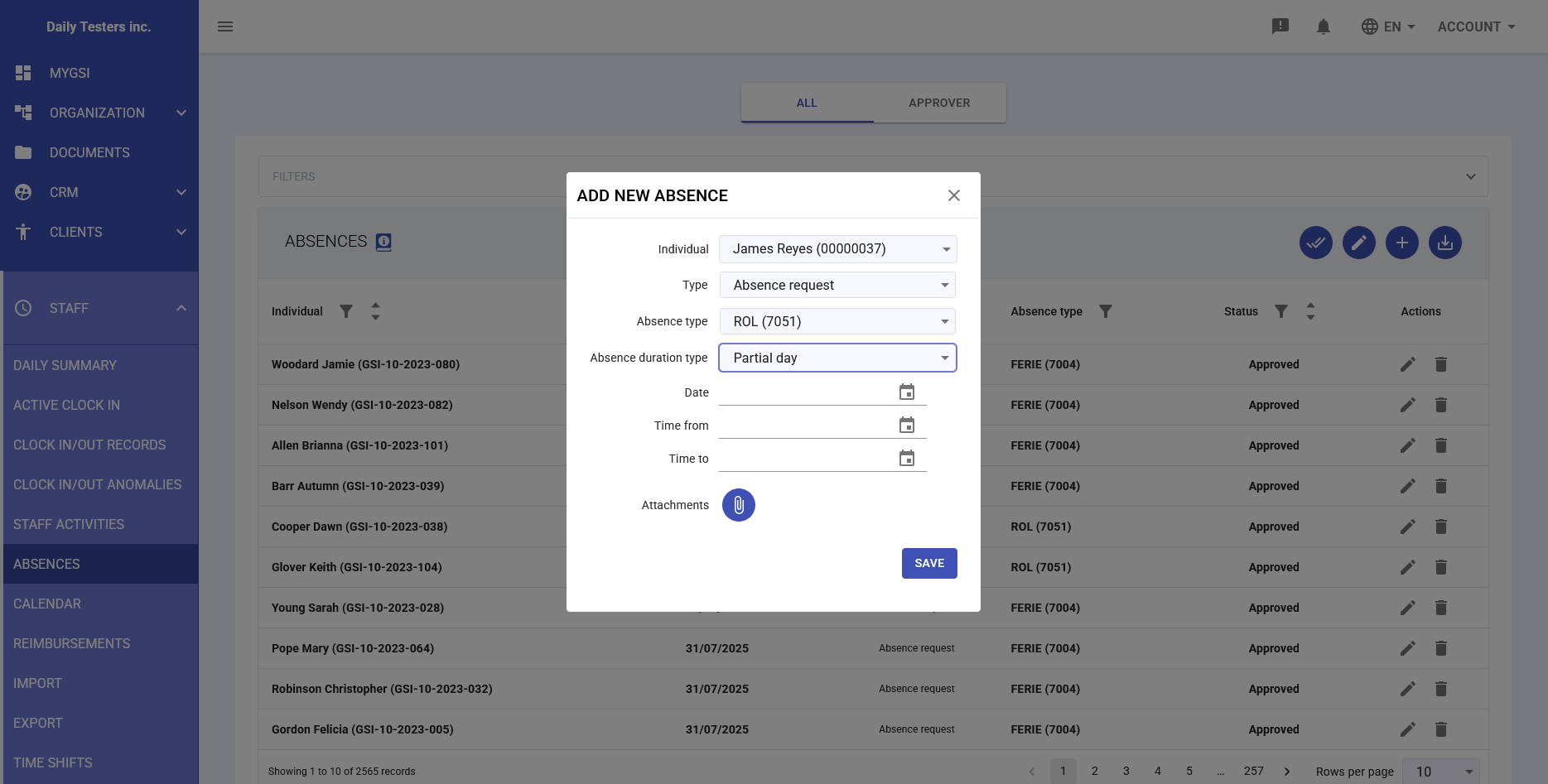
Creating a new absence is done via the "+" button at the top of the table. The creation form adapts to the user's context and permissions.
Creation Form Fields
- Individual*
- Selection of the employee for the absence. Managers see their team list, while employees see only themselves.
- Type*
- Always set to "Absence request" for standard registrations.
- Absence type*
- Selection from the list of absence types configured in the system. Shows the code in parentheses (e.g., "HOLIDAY (7004)").
- Absence duration type*
- Available options:
- Partial day: For absences of a few hours
- One day: For full day absences
- Multiple days: For consecutive multi-day absences
- Date from / Date to
-
- For "Partial day" or "One day": only "Date" field
- For "Multiple days": "Date from" and "Date to" fields
- Time from / Time to
- Visible only for "Partial day" absence types. Specify the time range of the absence.
- Attachments
- Ability to attach supporting documentation (medical certificates, permit documents, etc.).
Automatic Day Calculation
For multi-day absences, the system automatically compares the date range with the employee's time profile, excluding:
- Non-working weekends
- National holidays
- Company closures
- Days not included in the employee's time profile
-
Edit Absence
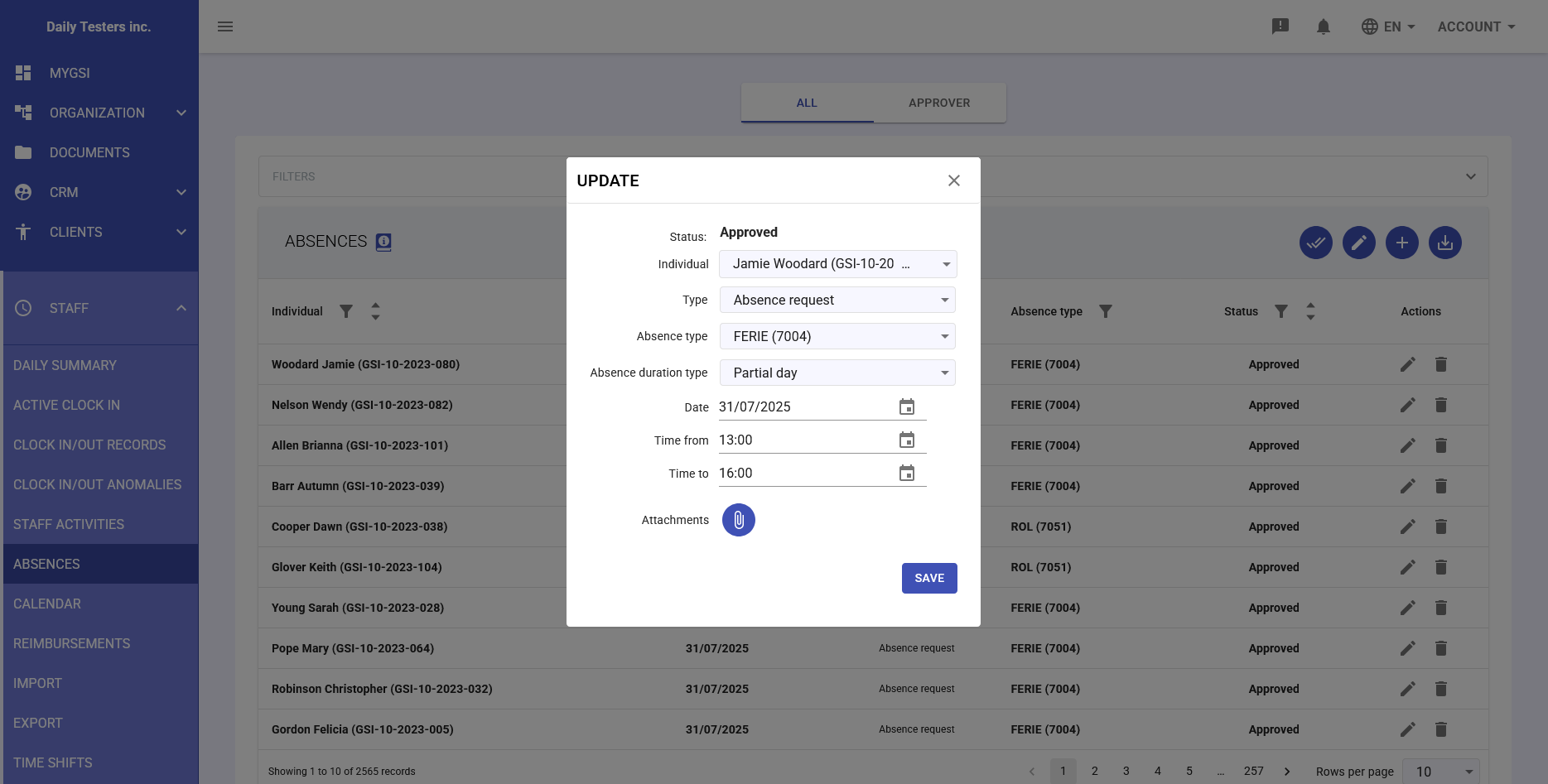
Existing absences can be modified by clicking the pencil icon. The edit form presents:
- Status: Ability to change status (Requested/Approved/Rejected) for managers
- Absence type: Modification of the absence category
- Dates and times: Adjustment of the absence period
- Attachments: Addition or removal of documentation
Edit Restrictions
- Employees can only modify their own requests in "Requested" status
- Managers can modify all absences for their team
- Past absences can only be modified for administrative corrections
- Changes to approved absences may require new approval
-
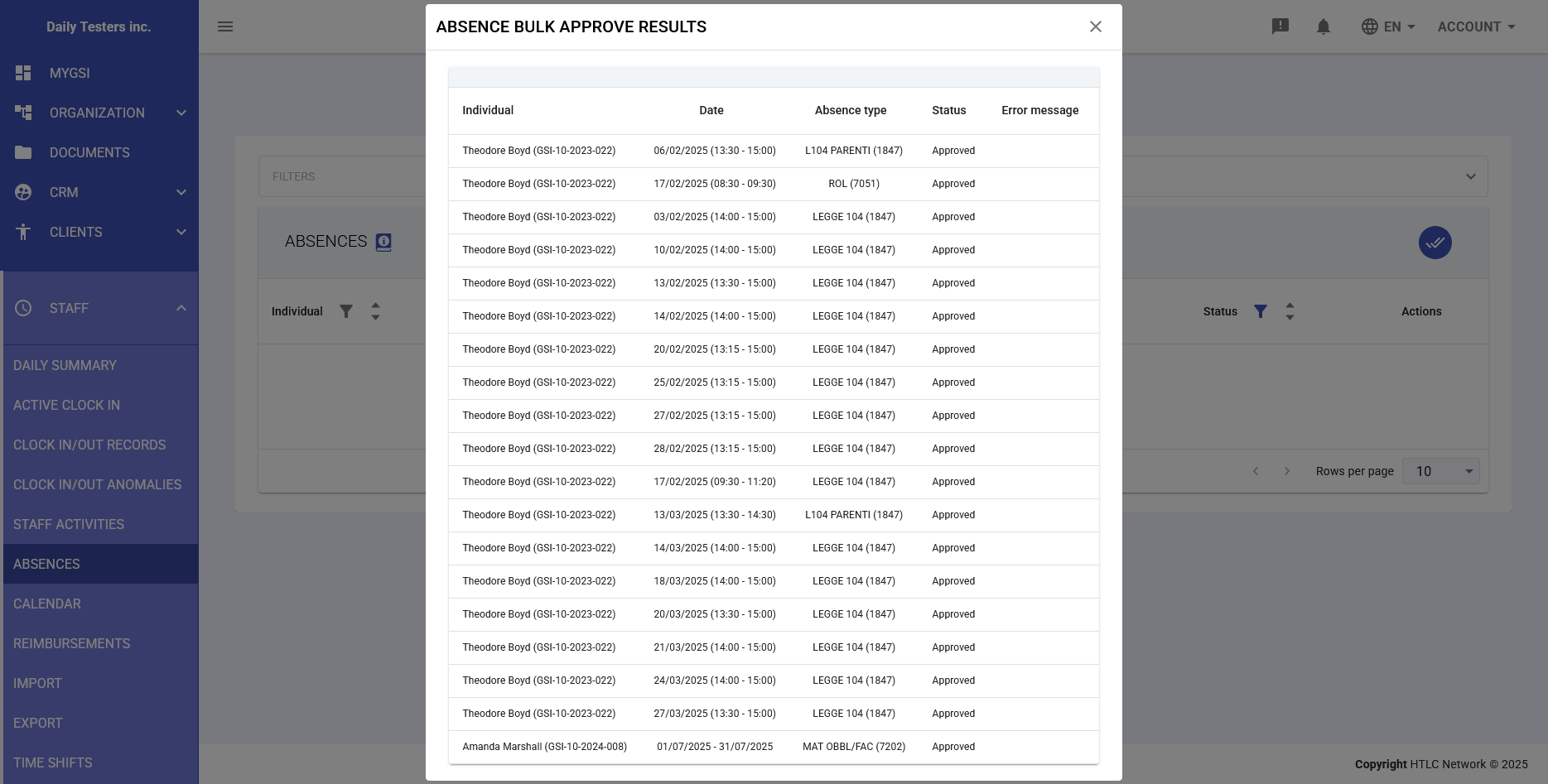
Bulk Approve
Managers can approve multiple absences simultaneously using the multiple selection function (checkbox) and the bulk approval button. After confirmation, a summary is shown with:
- List of successfully approved absences
- Any errors or conflicts (e.g., insufficient balances)
- Automatic notifications sent to affected employees
-
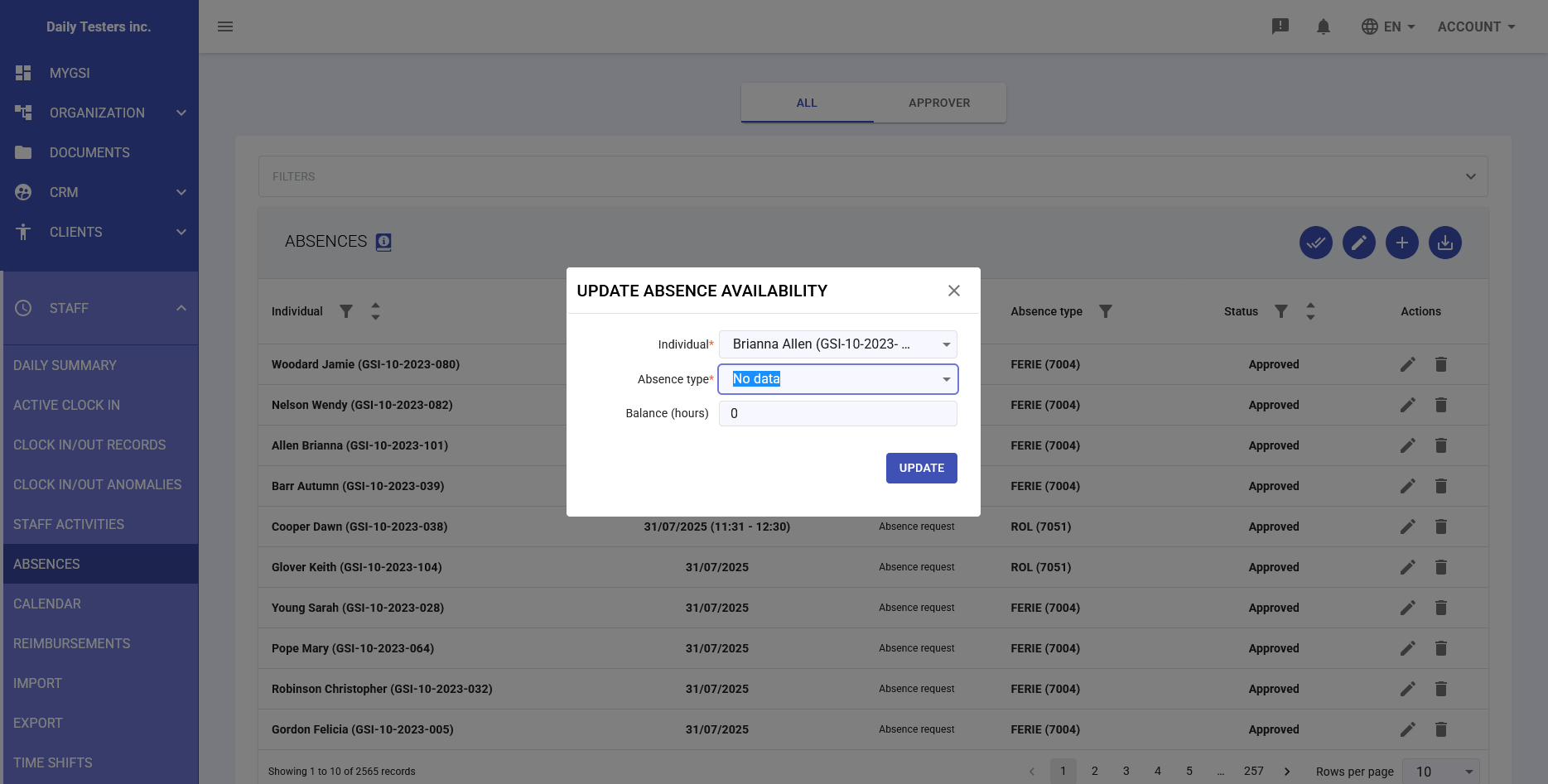
Update Absence Availability
Administrative function to manually update an employee's absence balances. Allows:
- Select the employee
- Choose absence type
- Set new balance in hours
- Add or subtract hours from existing balance
This function is useful for manual corrections, extraordinary bonuses, or year-end adjustments.
-
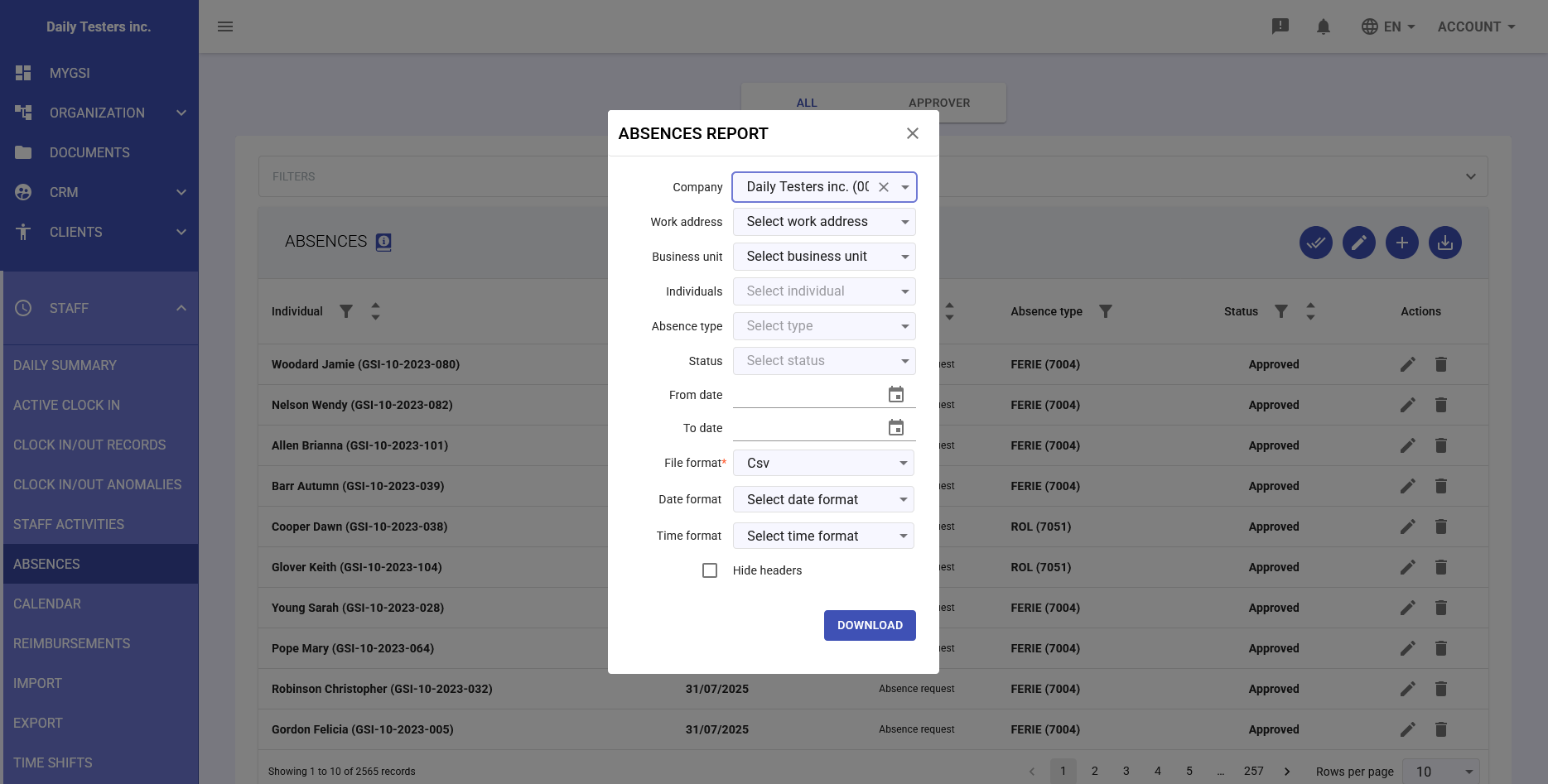
Download Report
The export function allows downloading detailed absence reports with the following parameters:
Available Filters
- Company: Company selection (for multi-company users)
- Work address: Filter by specific location
- Business unit: Filter by company division
- Individuals: Selection of specific employees
- Absence type: Filter by specific category
- Status: Filter by absence status
- From date / To date: Report time range
Export Formats
- CSV: Comma-separated values file for Excel processing
- Excel: Formatted .xlsx file
- PDF: Formatted report for printing
Additional Options
- Date format: Date format customization
- Time format: Choice between 12/24 hour format
- Hide headers: Option for export without column headers
-
Integration with Staff Module
Approved absences automatically integrate with:
- Calendar: Display of absences in the company calendar
- Time Tracking: Prevention of anomalies for planned absences
- Time Reports: Inclusion in monthly attendance reports
- Payroll Export: Generation of correct codes for salary processing
- Anomaly Management: Automatic resolution of time tracking discrepancies