- Individuals
- General
- Residence address
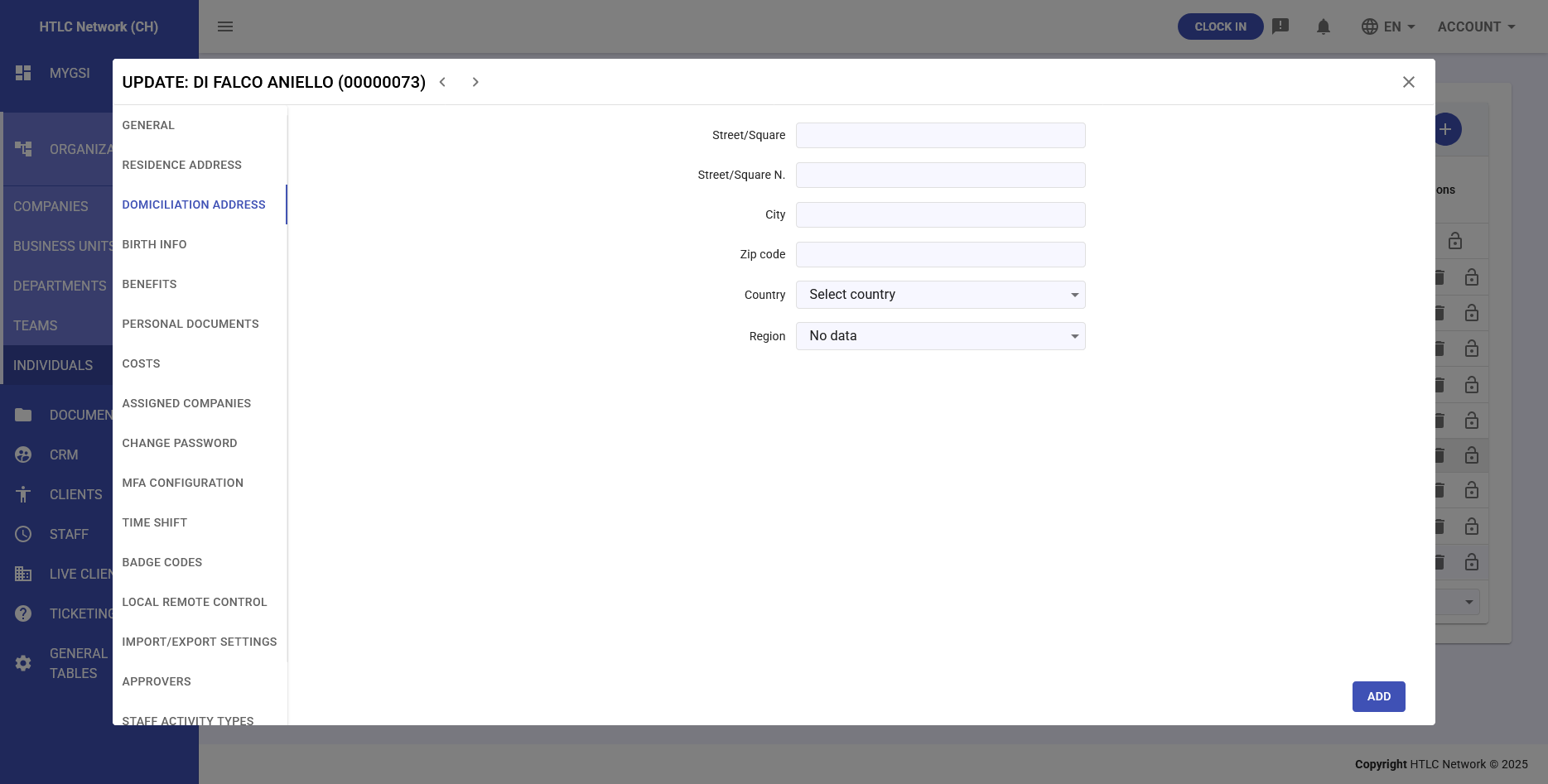
- Domiciliation address
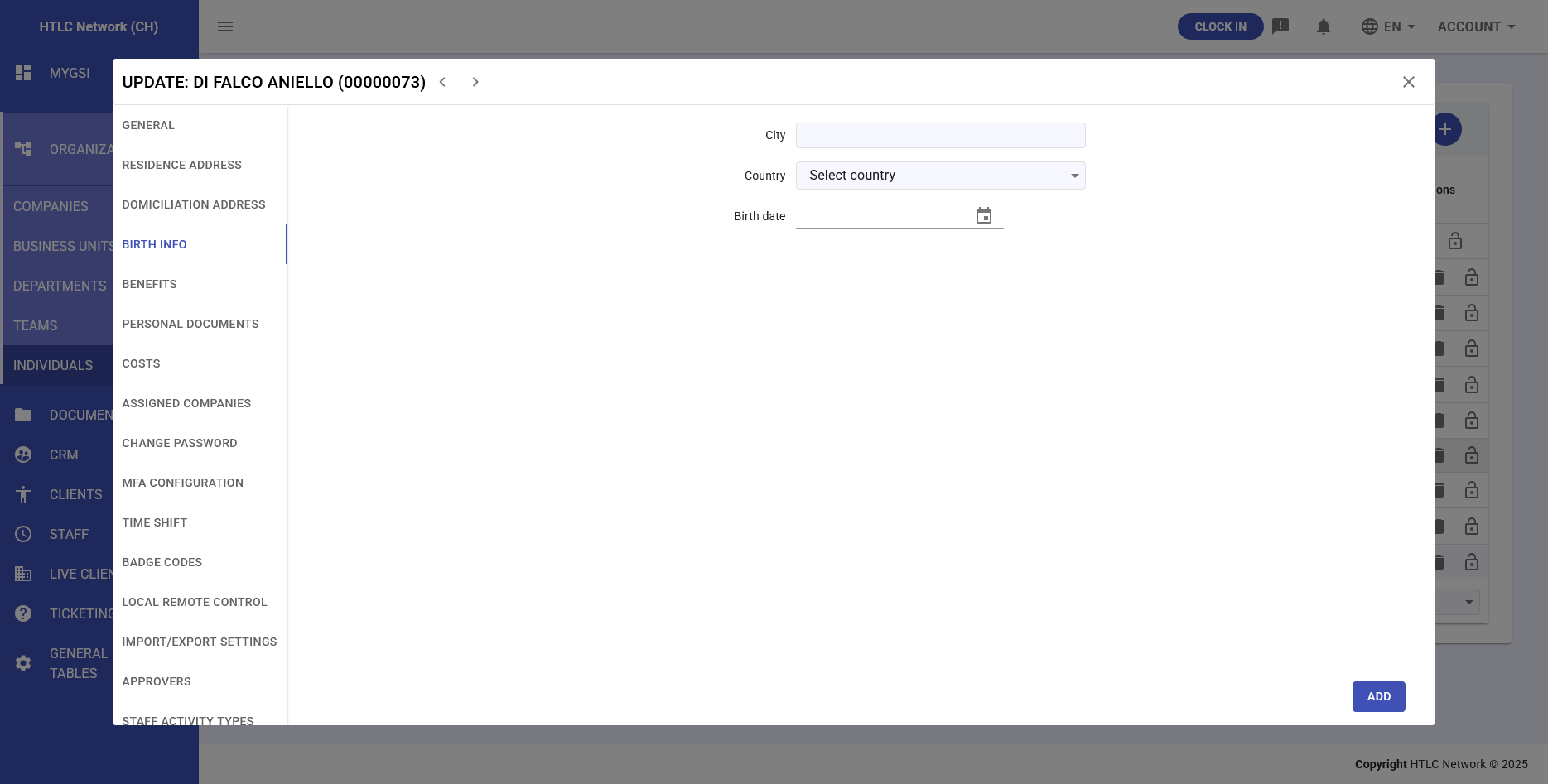
- Birth info
- Benefits
- Personal documents
- Costs
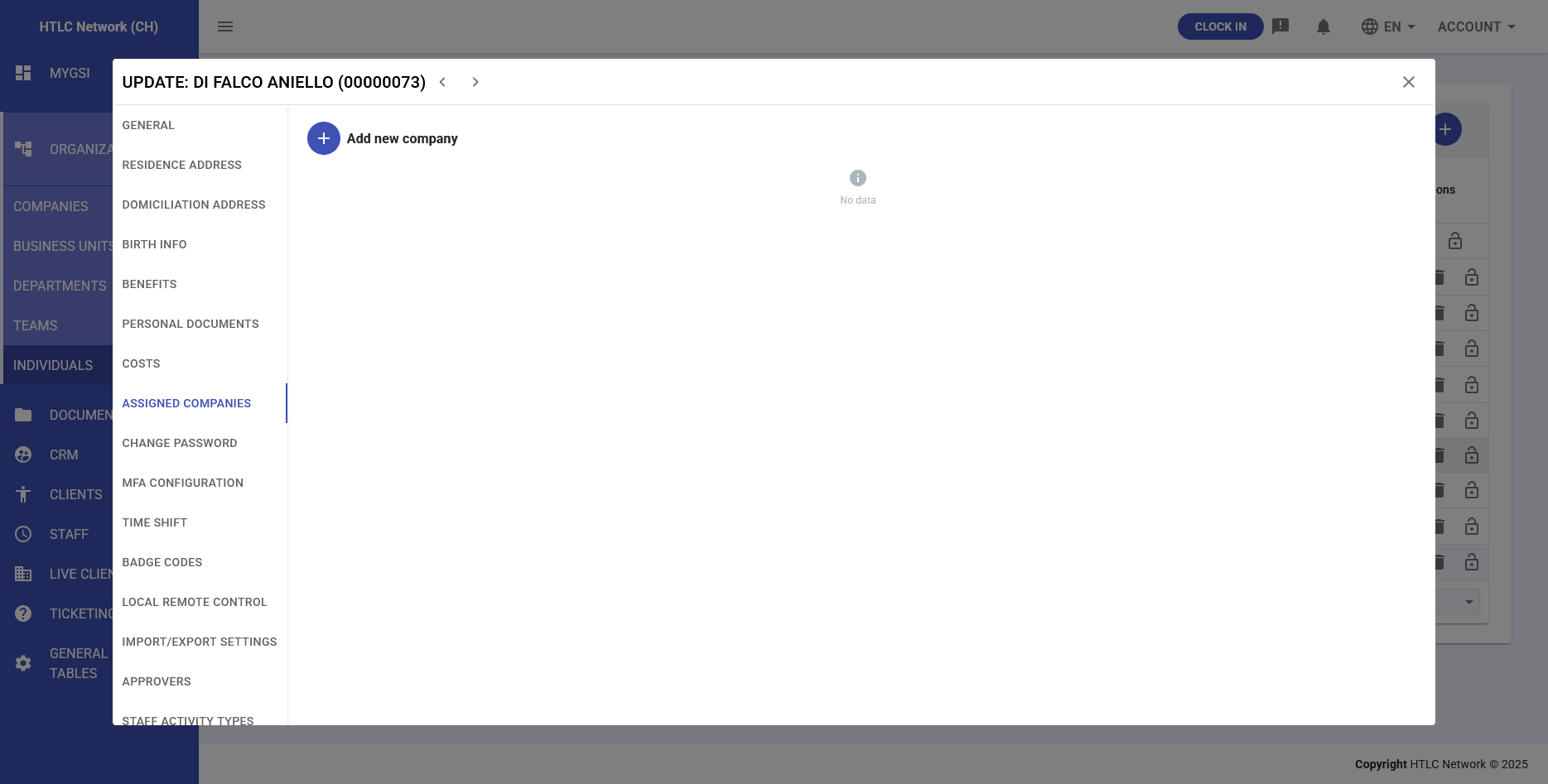
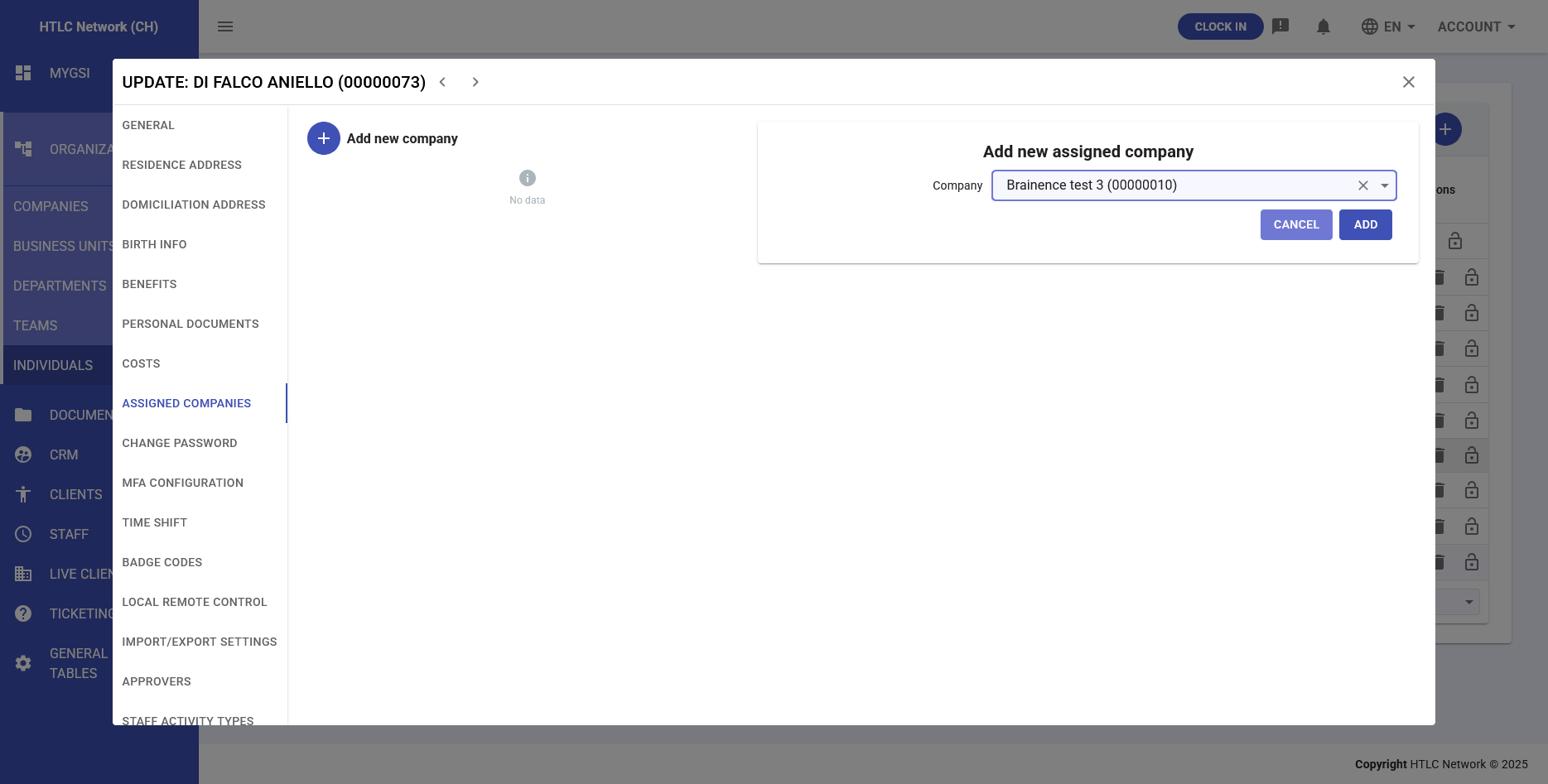
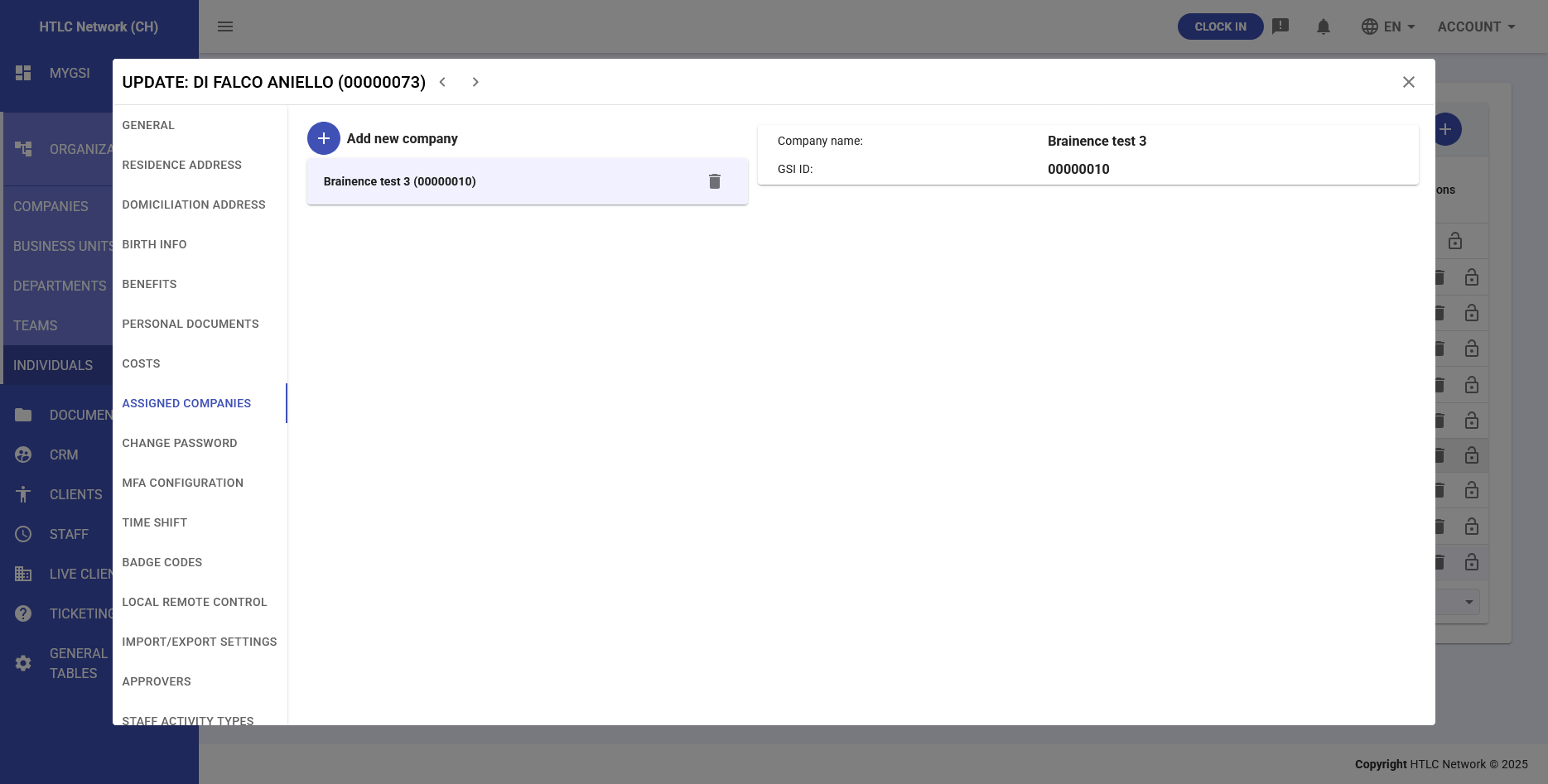
- Assigned Companies
- Change password
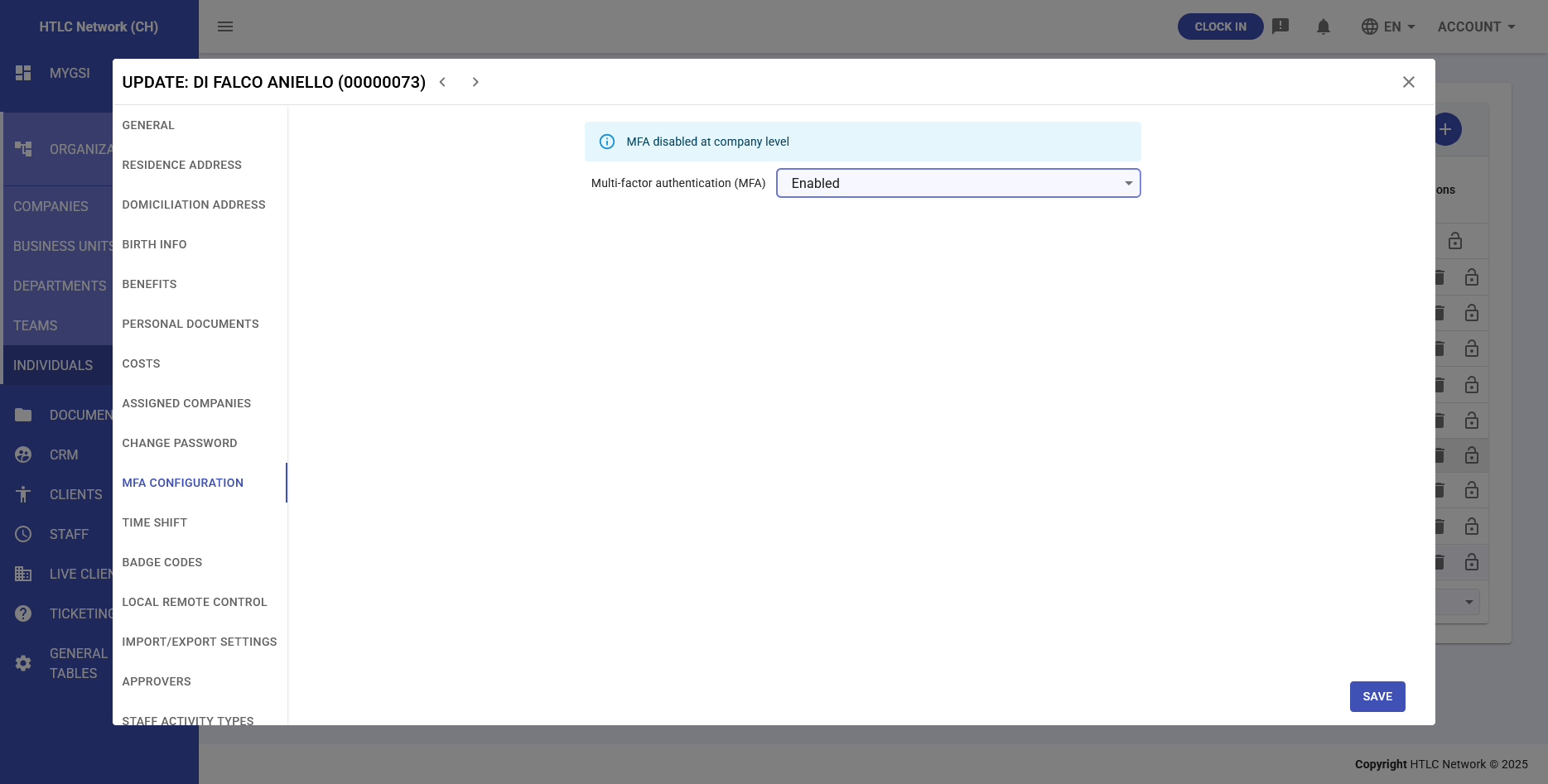
- MFA Configuration
- Time Shift
- Badge Codes
- Local Remote Control
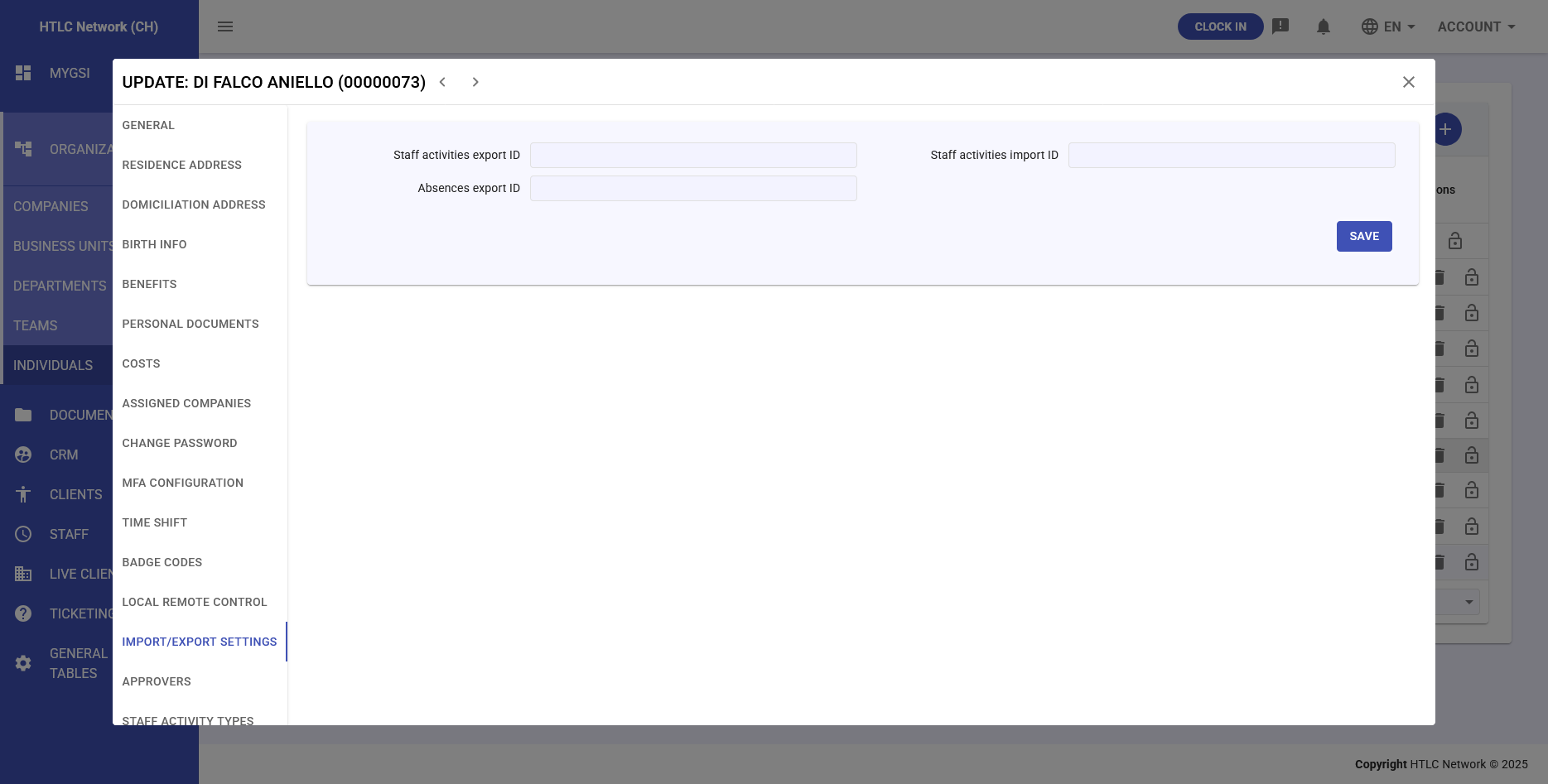
- Import/Export Settings
- Approvers
- Staff Activity Types
- Access Configurations
- Permissions Management
-
Overview
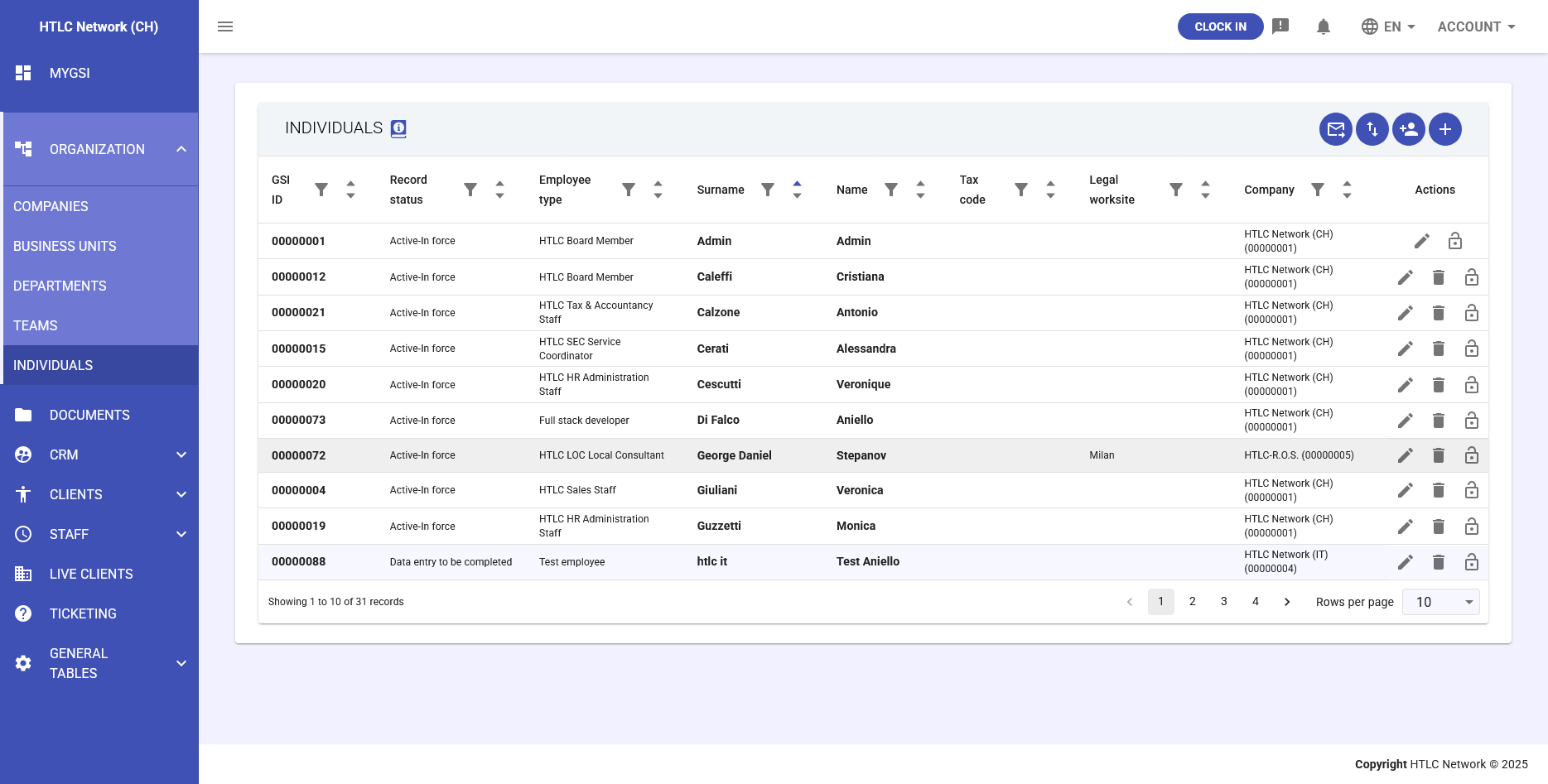
The Individuals module in HTLC Network is a comprehensive employee and user management system that handles both internal staff records and system user access. This module distinguishes between "individuals" (employee records) and "system users" (individuals with login access). A company email address is required to grant system user access to any individual.
Permission define exactly what users can see and do in the system (see "Permissions Management" section below for full details).
Main Individuals List View
Table Display
The individuals table shows all registered persons with visual status indicators:
- Light Gray Background: Users who have not completed first access setup
- Light Blue Background: Internal users without company email (cannot receive system invitations)
- Standard Background: Active users with completed access
Column Structure
- GSI ID: Unique system identifier (format configured in General Tables > GSI ID Coding Settings)
- Record Status: Status values configured in General Tables > Individuals > Individual Status entries
- Employee Type: Classification categories configured in General Tables > Individuals > Employee Types entries
- Surname: Last name
- Name: First name
- Tax Code: Fiscal identification code
- Legal Worksite: Primary work location assignment
- Company: Associated organization
- Actions: Three icon buttons per row:
- Pencil Icon: Edit individual details
- Trash Icon: Delete individual record
- Lock Icon: Manage roles and permissions (critical for system access control)
Top Action Buttons (Right Side)
Four primary action buttons above the table:
- Send First-Access Invite (Email Icon)
- Send password setup invitations to single or multiple users
- Only available for individuals with company email addresses
- Triggers email with secure link for password creation
- Import (Upload Icon)
- Import from Zucchetti Workflow exports
- Support for custom Excel files with matching column structure
- Bulk data migration capability
- Add Individual with Wizard (Wizard Icon)
- Simplified 2-step creation process
- Step 1: Essential data entry
- Step 2: Role and permission assignment
- Streamlined for quick user setup
- Add Individual (Plus Icon)
- Full form access for complete data entry
- Creates individual with General tab information
- Additional details can be added after creation
Best Practices
User Creation Workflow
- Determine User Type: System user (needs company email) or internal record only
- Choose Creation Method:
- Wizard for quick setup with permissions
- Full form for complete initial data entry
- Import for bulk creation
- Complete Required Fields: Name, surname, company, employee type, record status
- Add Company Email: Essential for system access
- Configure Permissions: Use lock icon to set roles
- Send First Access: Email invitation for password setup
Data Management
- Regular Audits: Review user statuses and permissions quarterly
- Document Uploads: Maintain current documents with clear expiry dates
- Address Updates: Keep residence and domiciliation current
- Company Assignments: Update when organizational changes occur
- Badge Management: Deactivate badges promptly when access changes
- Time Shift Changes: Plan carefully due to impact on clock records and approvals
Security Considerations
- MFA Enforcement: Enable for sensitive roles
- Password Policies: Configure in company settings
- Remote Access: Limit by IP and geography when possible
- Permission Reviews: Regular audit of user roles and access
- Live Client Access: Review and update based on actual needs
- Document Manager Rights: Grant selectively per company rather than globally
- Inactive Users: Set record status to inactive rather than deleting
Time and Attendance Management
- Time Shift Planning: Consider impact on existing clock records before changes
- Badge Code Updates: Ensure continuity when replacing badges
- Anomaly Resolution: Review after timeshift changes as resolutions will reset
- Overtime Approvals: Re-approve after timeshift modifications
Important Notes
- Changes require clicking SAVE in each section
- Deleted individuals cannot be recovered - consider setting inactive instead
- Role-based permissions override individual settings
- Company-level configurations may supersede individual preferences
- System maintains full audit trail of all modifications
- Worksite selections are limited to addresses configured for the selected company
- Status, type, and ID format options are centrally managed through General Tables
- Time shift changes have cascading effects on attendance records - plan accordingly
- Live client access depends on both user permissions and client sharing settings
- Document manager privileges can be granted per company for granular control
-
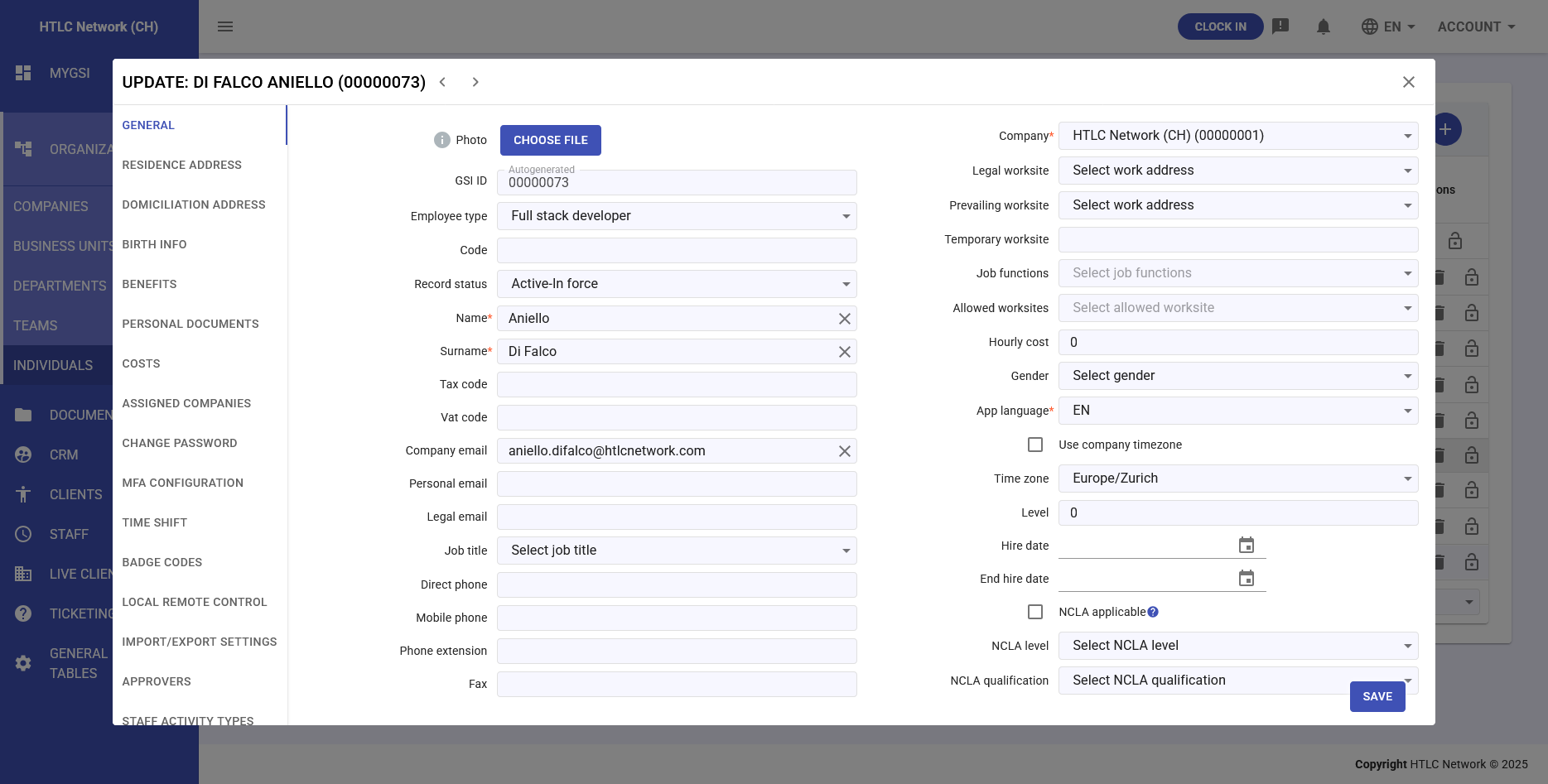
General
Identity Section
- Photo: Upload profile picture via "CHOOSE FILE" button
- GSI ID: System-generated or manually entered based on General Tables > GSI ID Coding Settings configuration
- Employee Type: Dropdown populated from General Tables > Individuals > Employee Types
- Code: Optional employee code
- Record Status: Dropdown populated from General Tables > Individuals > Individual Status entries
Personal Information
- Name: First name (required)
- Surname: Last name (required)
- Tax Code: Fiscal identification number
- VAT Code: VAT registration number
- Gender: Dropdown selection
- App Language: Interface language preference (e.g., EN, IT, FR)
Contact Details
- Company Email: Required for system user access - critical field
- Personal Email: Private email address
- Legal Email: Official/certified email address
- Direct Phone: Primary contact number
- Mobile Phone: Cell phone number
- Phone Extension: Internal extension number
- Fax: Fax number if applicable
Employment Information
- Company: Dropdown to select associated organization (required)
- Job Title: Position designation dropdown
- Job Functions: Specific role responsibilities
- Level: Seniority/grade level (numeric)
- Hourly Cost: Cost rate per hour
- Hire Date: Employment start date
- End Hire Date: Employment termination date
- Use Company Timezone: Checkbox to inherit company settings
- Time Zone: Manual timezone selection if not using company default
Work Locations
- Legal Worksite: Primary official work location (selected from company's configured addresses/seats)
- Prevailing Worksite: Most frequent work location (selected from company's configured addresses/seats)
- Temporary Worksite: Current temporary assignment (selected from company's configured addresses/seats)
- Allowed Worksites: Multiple selection of permitted locations (selected from company's configured addresses/seats)
NCLA Settings
- NCLA Applicable: Checkbox to enable NCLA features
- NCLA Level: Dropdown selection when applicable
- NCLA Qualification: Additional qualification criteria
-
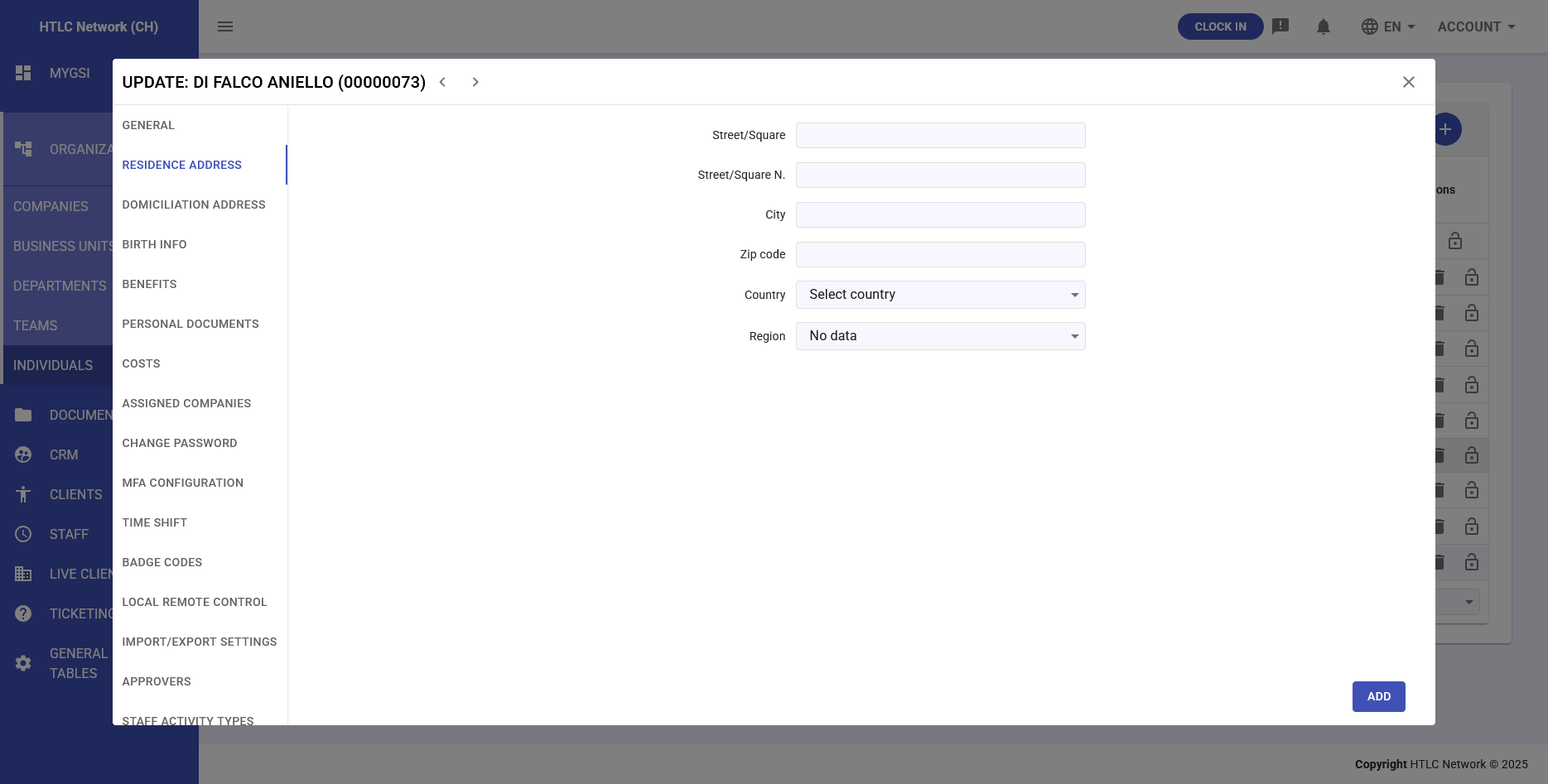
Residence address
Primary residential address information for official records and correspondence:
- Street/Square: Street name field
- Street/Square N.: House/building number
- City: City name
- Zip Code: Postal code
- Country: Dropdown country selector
- Region: State/province dropdown (populated based on country)
- ADD Button: Save address information
-
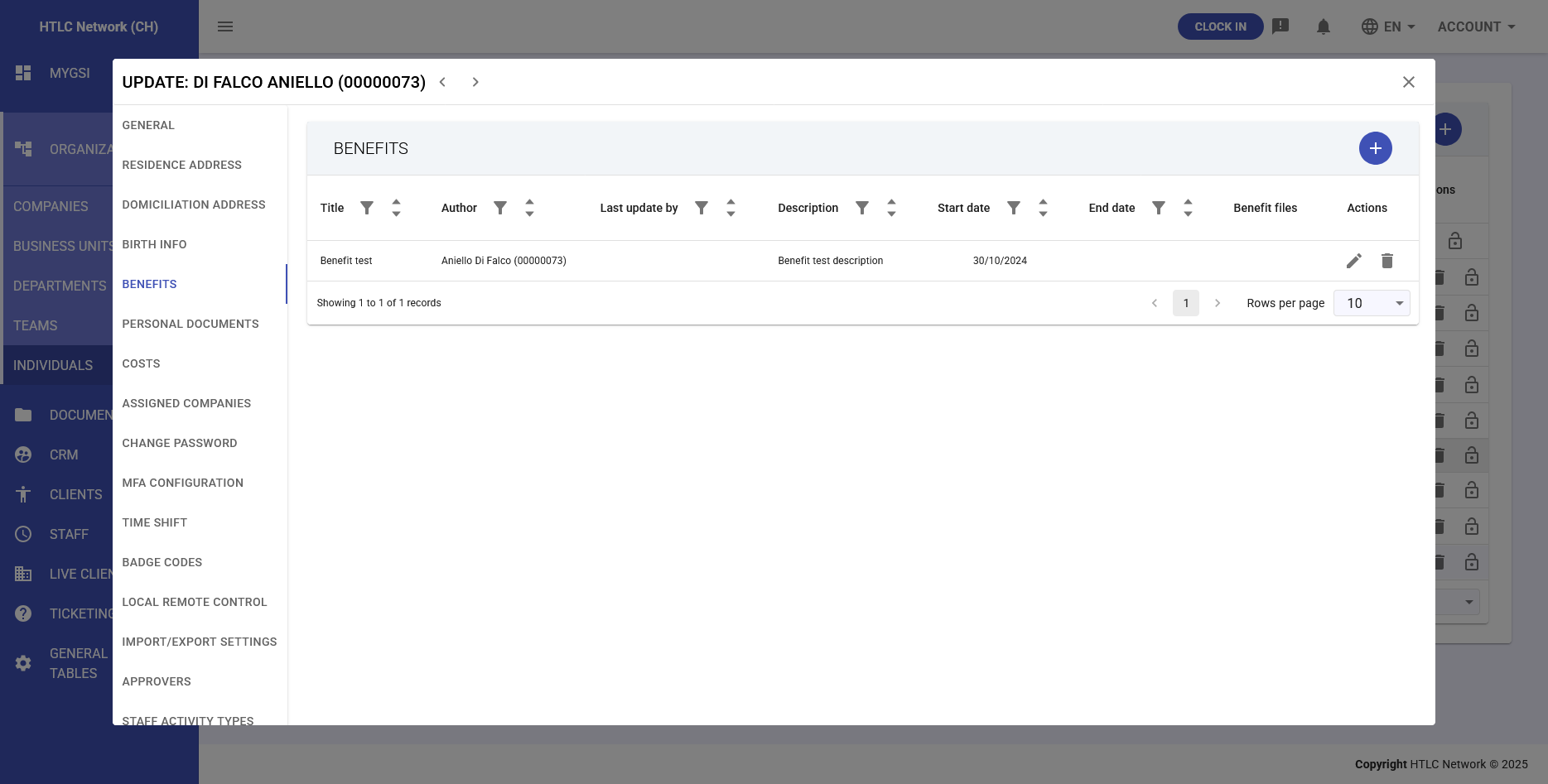
Benefits
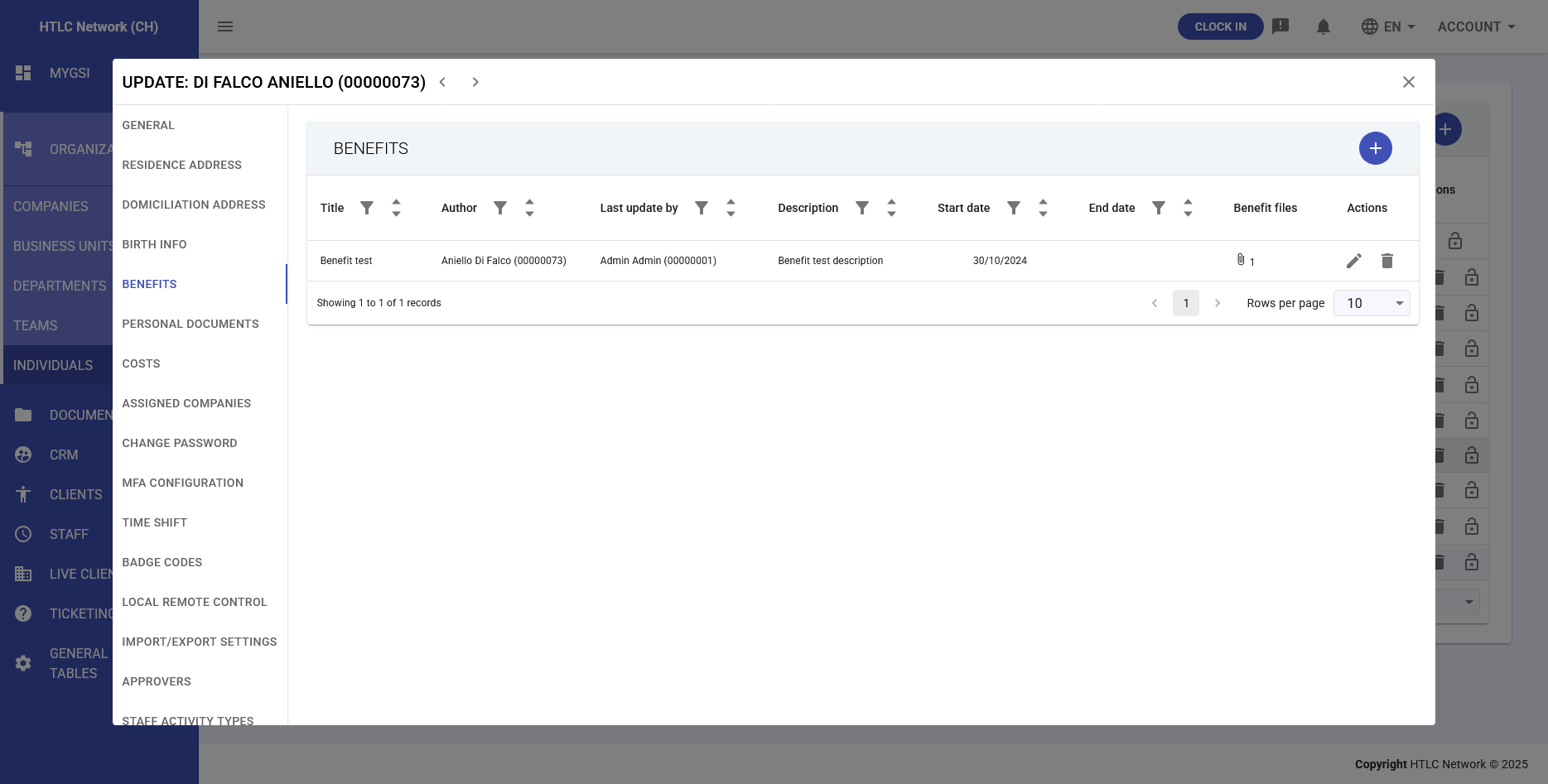
Employee benefits management interface:
Benefits Table Columns
- Title: Benefit name/identifier
- Author: Person who created the benefit entry
- Last Update By: Latest modifier
- Description: Detailed benefit description
- Start Date: Benefit effectiveness date
- End Date: Benefit expiration date
- Benefit Files: Attached documentation
- Actions: Edit/Delete buttons
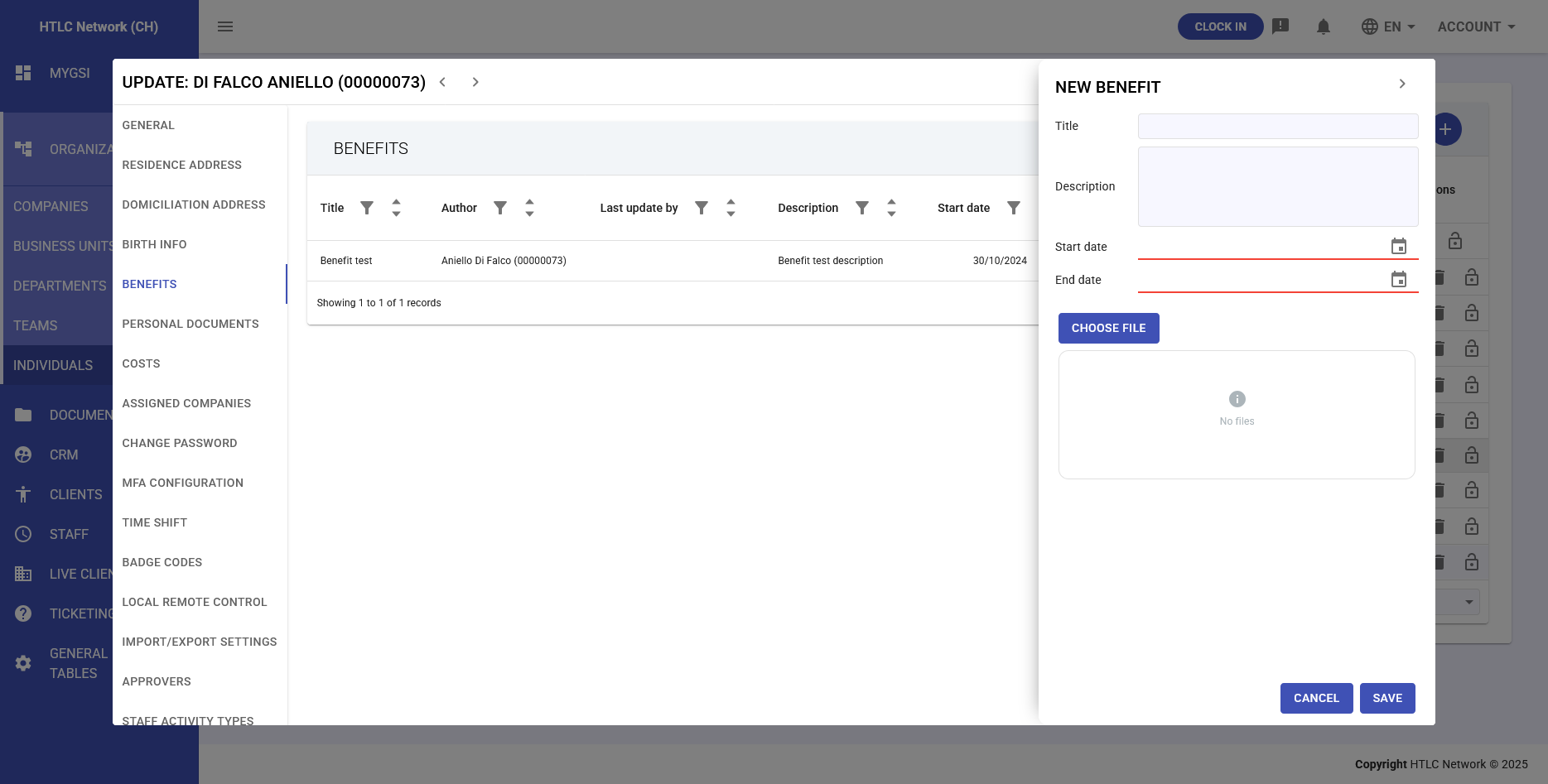
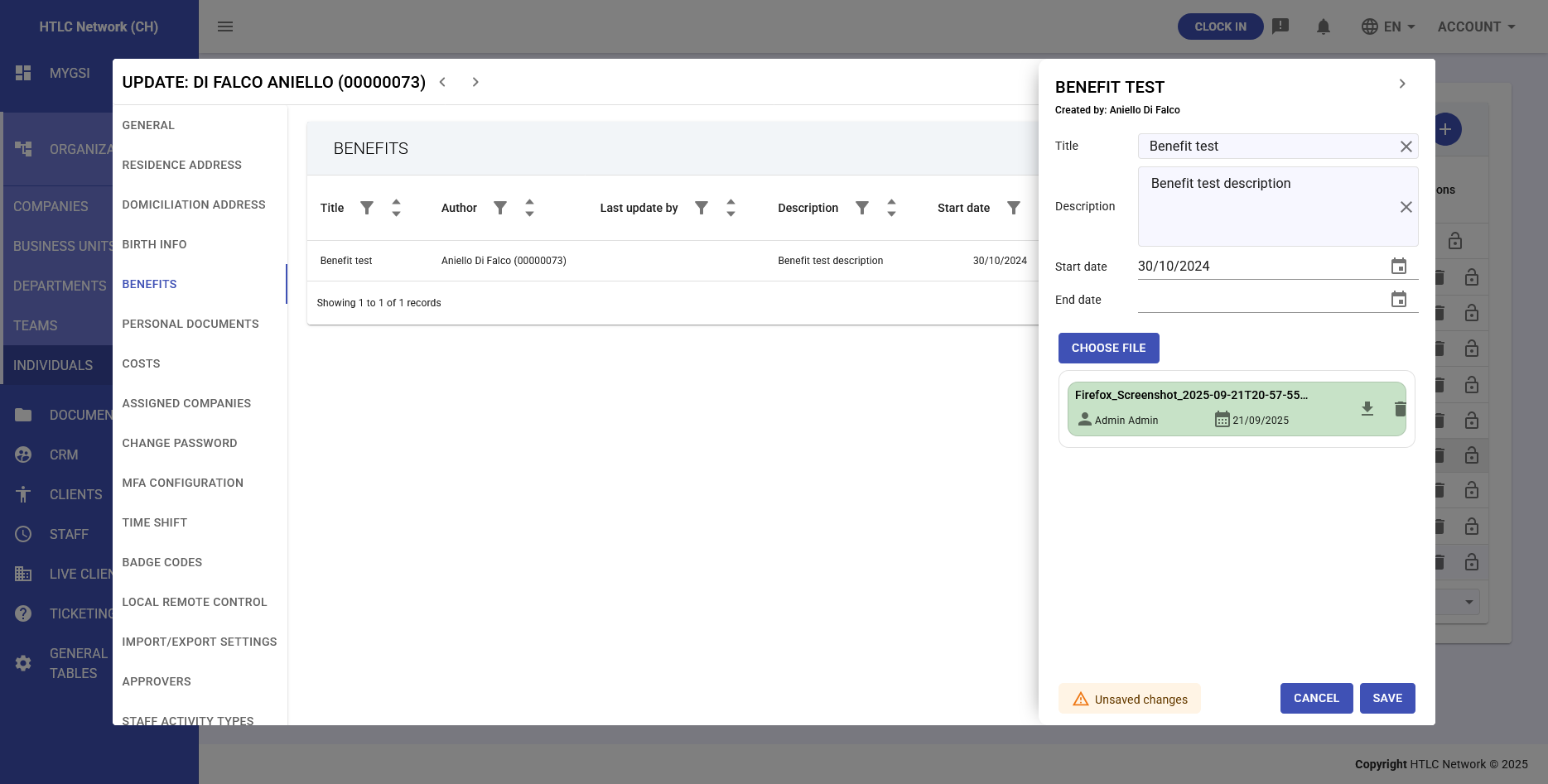
Adding New Benefits
Click "+" button to open form with:
- Title: Benefit name
- Description: Full details
- Start Date: Begin date picker
- End Date: Expiration date picker
- Choose File: Document upload
- Cancel/Save: Action buttons
-
Personal documents
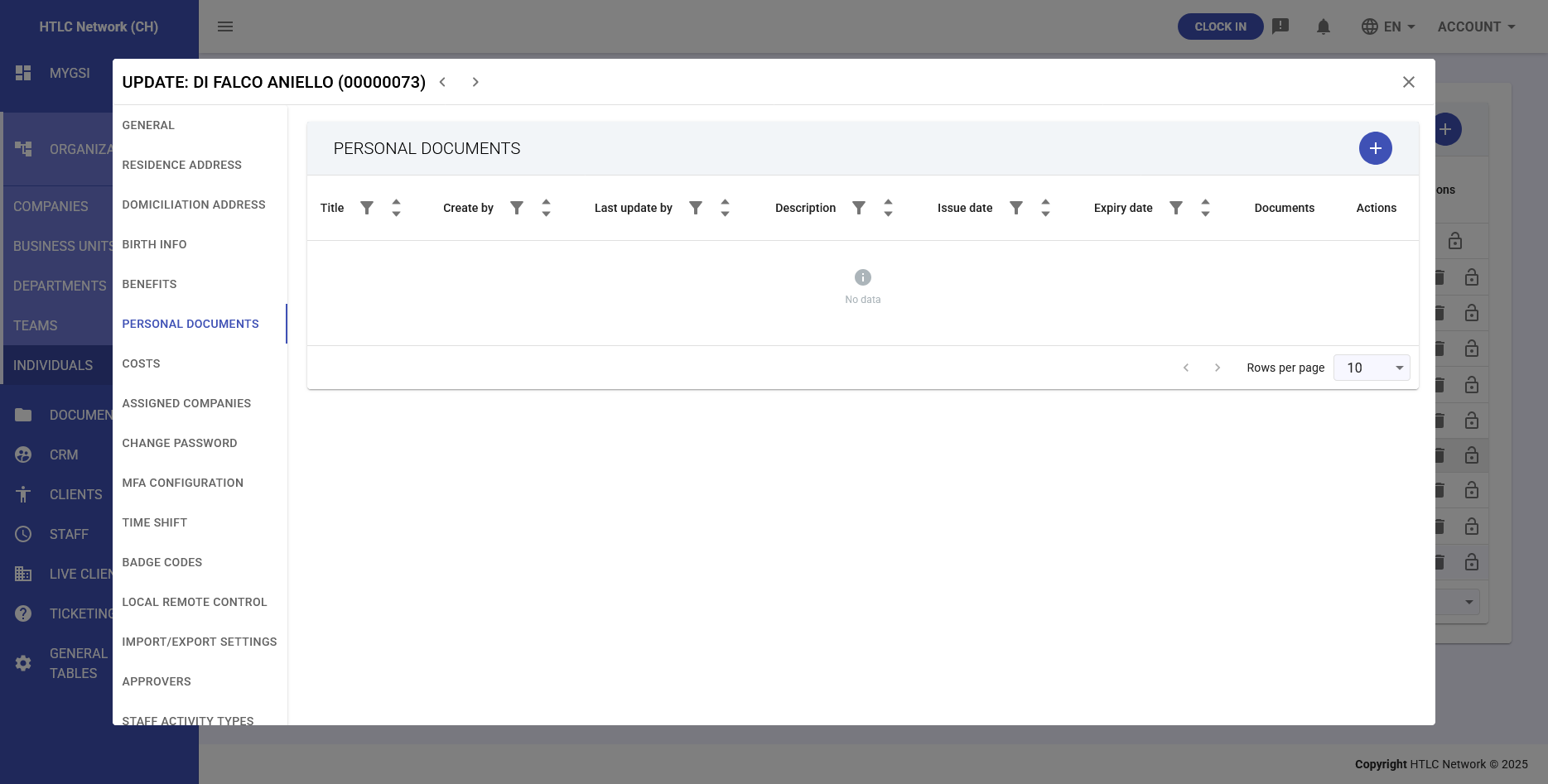
Personal Documents Tab
Document repository with table structure:
Document Table Columns
- Title: Document name
- Create By: Document uploader
- Last Update By: Latest editor
- Description: Document details
- Issue Date: Document creation/issue date
- Expiry Date: Document expiration
- Documents: File links/downloads
- Actions: Management buttons
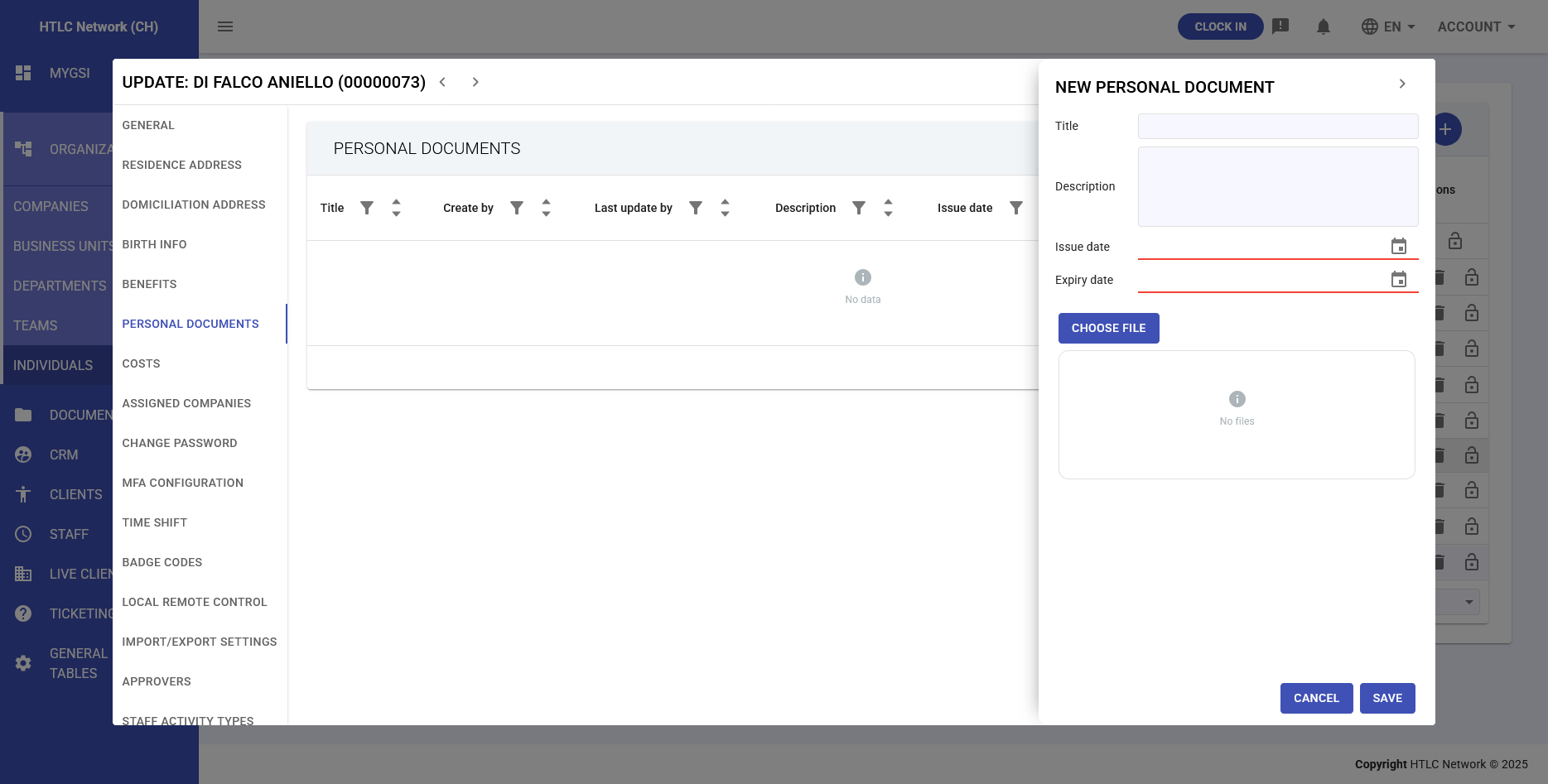
Adding Documents
"+" button opens upload form for new documents with metadata fields.
-
Costs
Financial allocation and cost center indicative calculations:
- Hourly Rates: Standard and overtime rates
- Project Costs: Activity-specific billing rates
- Currency Support: Multi-currency cost tracking
- Cost Centers: Assignment to organizational cost structures
-
Change password
Security credential management:
- New Password: Password input field with strength indicator
- Confirm Password: Verification field
- CHANGE PASSWORD Button: Submit password update
- Only available for system users with company email
-
Time Shift
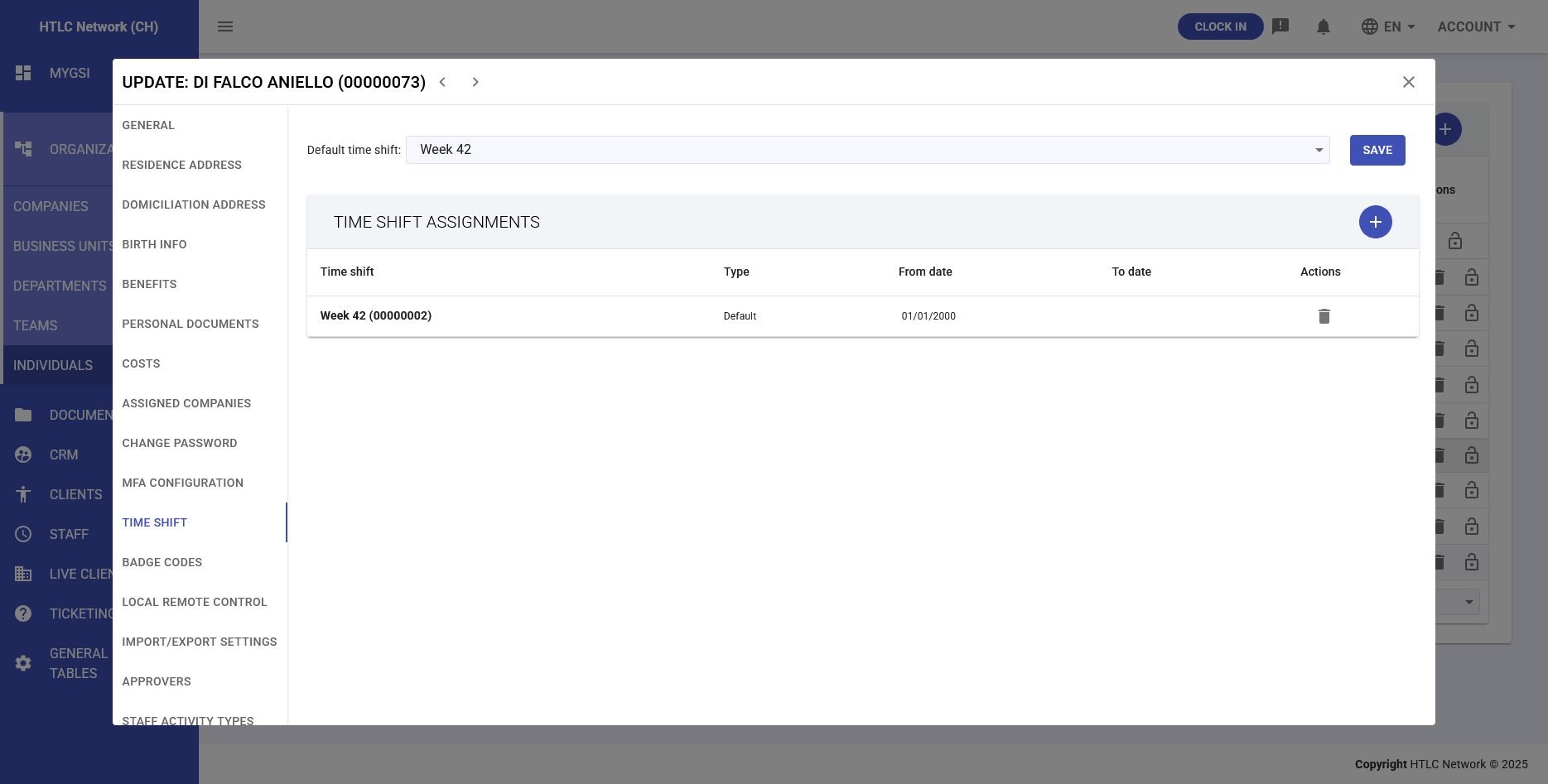
Work schedule management integrated with the Staff module:
Default Settings
- Default Time Shift: Dropdown selector populated from Staff > Time Shift definitions
- SAVE Button: Apply default schedule (becomes active from the next day)
Time Shift Assignments Table
- Time Shift: Schedule identifier and code
- Type: Default or Custom designation
- From Date: Schedule start date (default assignments start from next day)
- To Date: Schedule end date (automatically set when replaced by new default)
- Actions: Delete assignment button
- "+" Button: Add temporary time shift assignments
Important Time Shift Considerations
- Time Dependency: Default assignments activate from the day after creation
- Historical Tracking: Previous default shifts receive end dates when replaced
- Recalculation Impact: Any timeshift change triggers:
- Recalculation of all relevant clock in/out entries
- Re-evaluation of anomaly detection
- Reset of existing anomaly resolutions
- Reset of overtime approvals
- Application of new timeshift rules to affected periods
- Temporary Shifts: Can be applied for specific date ranges without affecting default
-
Badge Codes
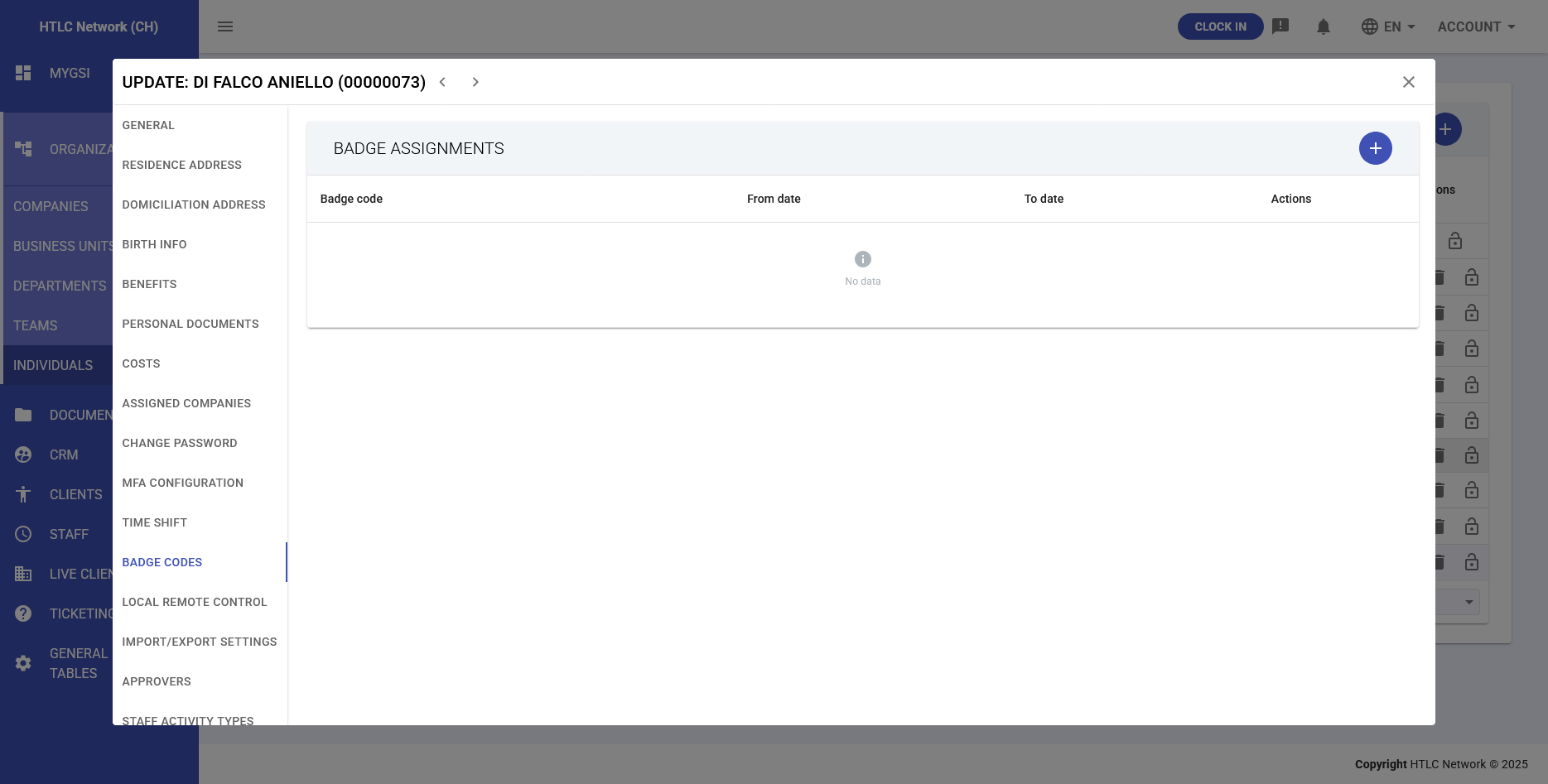
Physical access control integrated with the Staff module:
Badge Assignments Table
- Badge Code: Unique badge identifier
- From Date: Badge activation date
- To Date: Badge expiration date (automatically set when replaced)
- Actions: Remove badge assignment
- "+" Button: Add new badge assignment
Badge Code Functionality
- Time Dependency: Similar to time shifts, badges are valid for specific periods
- Automatic Import Integration: Used when assigned timeshift has "automatic badge record import" enabled
- Historical Tracking: Previous badges receive end dates when new badges are assigned
- No Default Option: Unlike time shifts, badge codes don't have a default designation
-
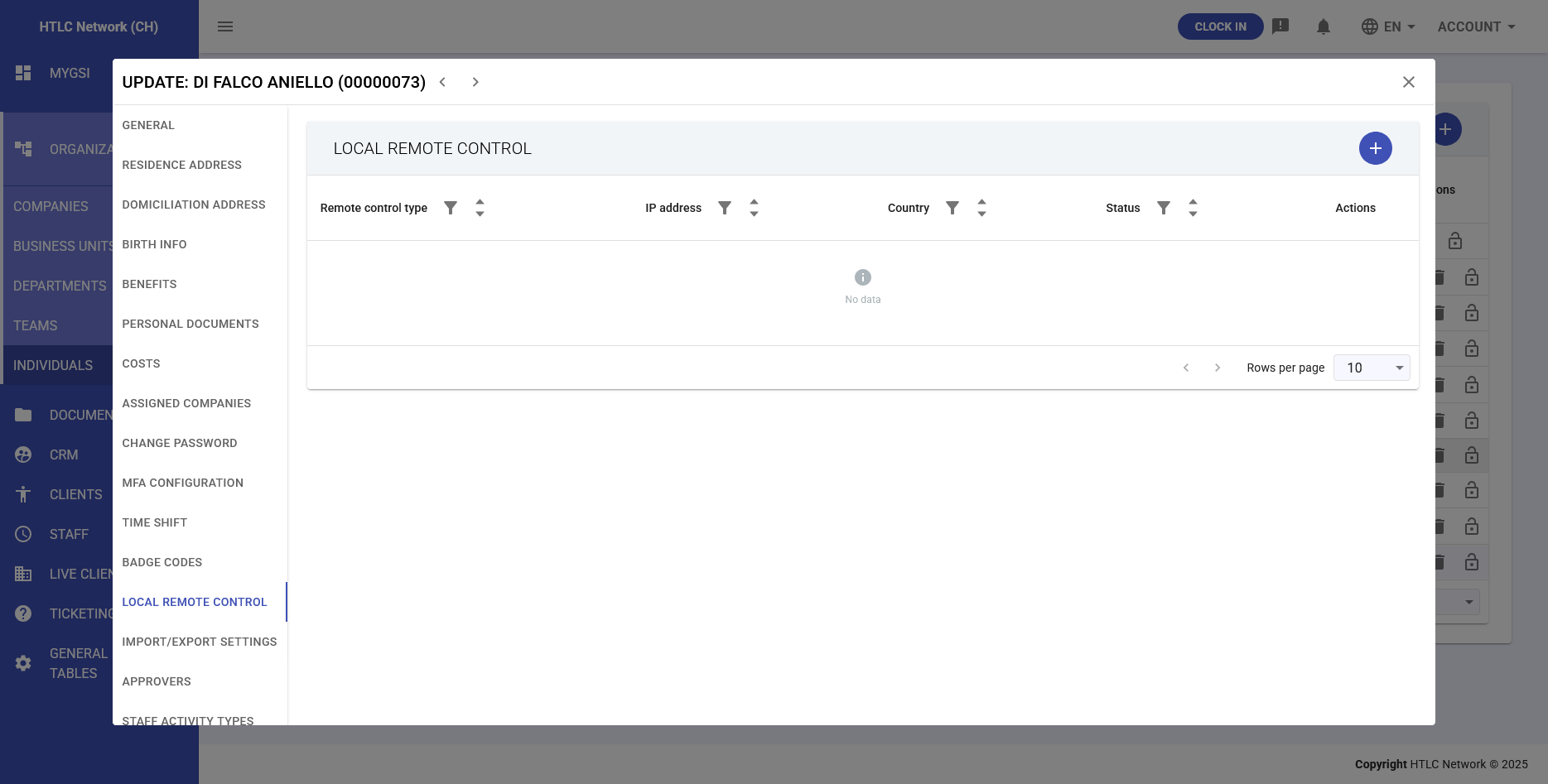
Local Remote Control
Remote access configuration (overrides company settings if set):
Remote Control Table
- Remote Control Type: Access method dropdown
- IP Address: Allowed IP addresses
- Country: Access location restrictions
- Status: Active/Inactive state
- Actions: Edit/Delete controls
- "+" Button: Add new remote control rule
-
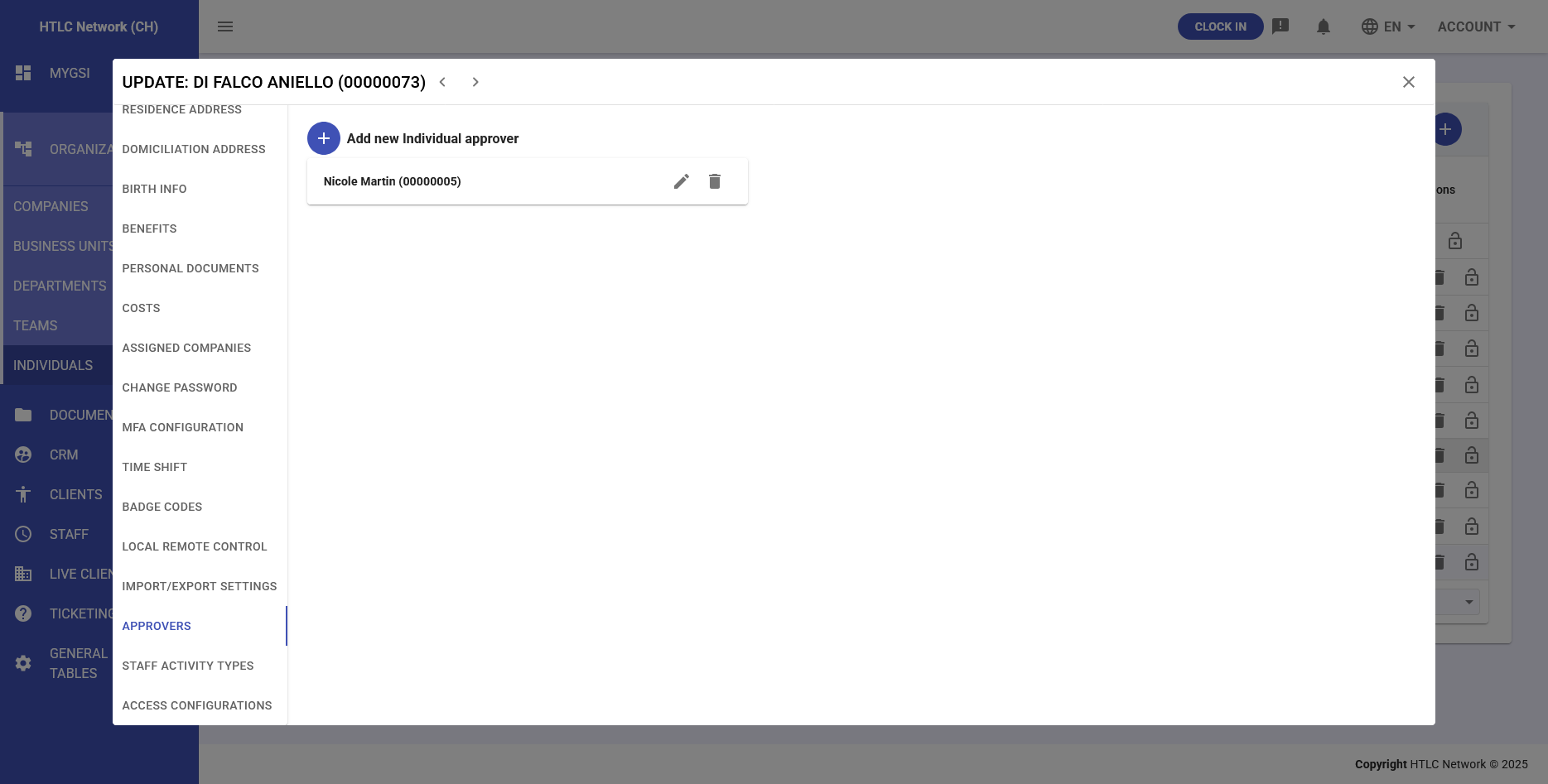
Approvers
Sets approvers at individual levels (other organizational approvers don't get overridden)
Adding Approvers
- "+ Add New Individual Approver": Button to add approvers
- Opens selector showing available individuals with ID numbers
Approver List
Shows assigned approvers with:
- Name and ID
- Edit button
- Delete button
-
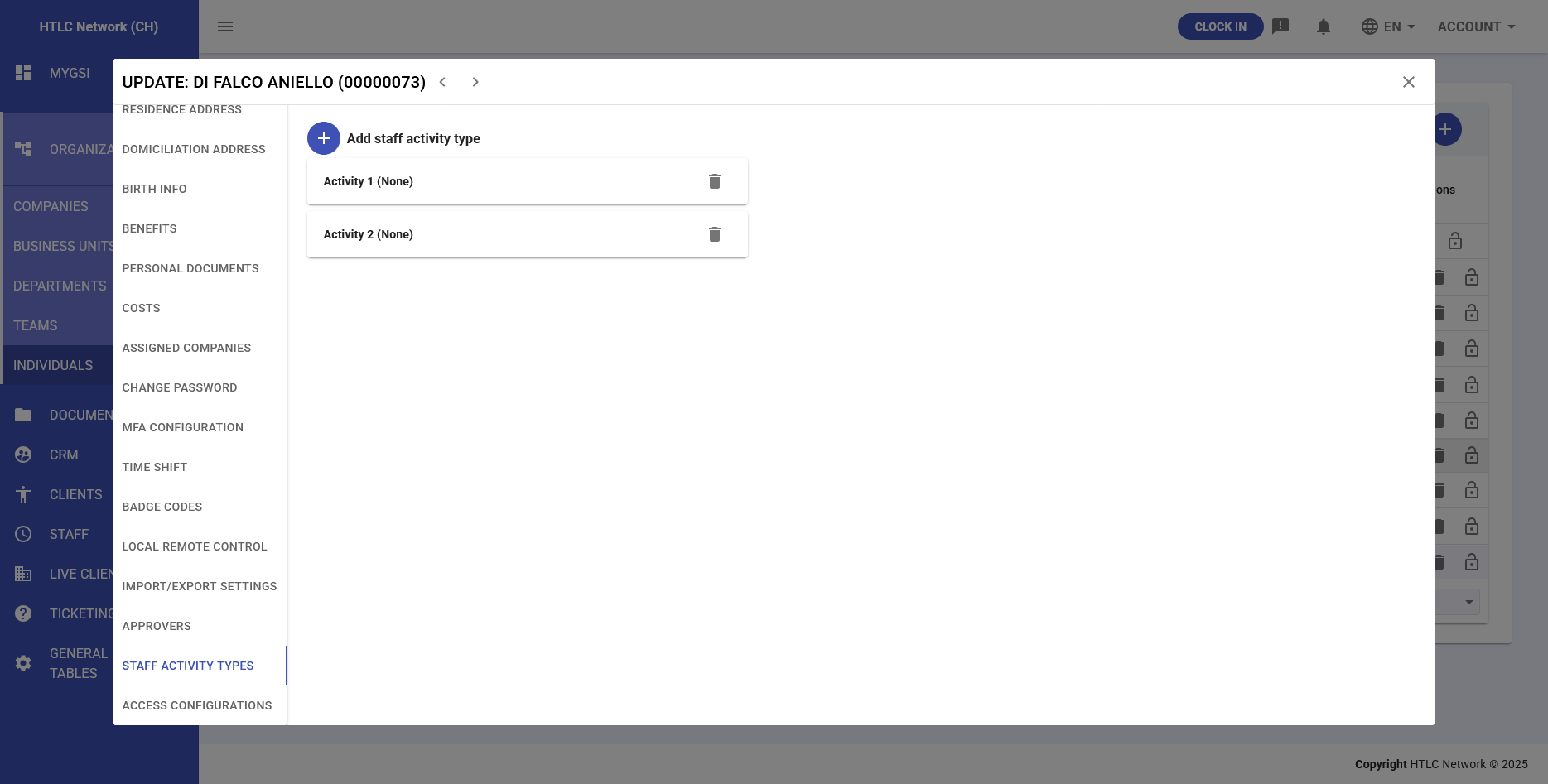
Staff Activity Types
Activity categorization setup (adds individual Activity Types to the ones inherited by the Organization hierarchy):
Adding Activity Types
- "+ Add Staff Activity Type": Selects an activity type to add
- List of available activity types depends on General Tables > Staff > Staff Activity Types settings
- Activity entries show as "Activity 1 (None)", "Activity 2 (None)", etc.
Activity List
Table of defined activities with:
- Activity name
- Delete button per activity
-
Access Configurations
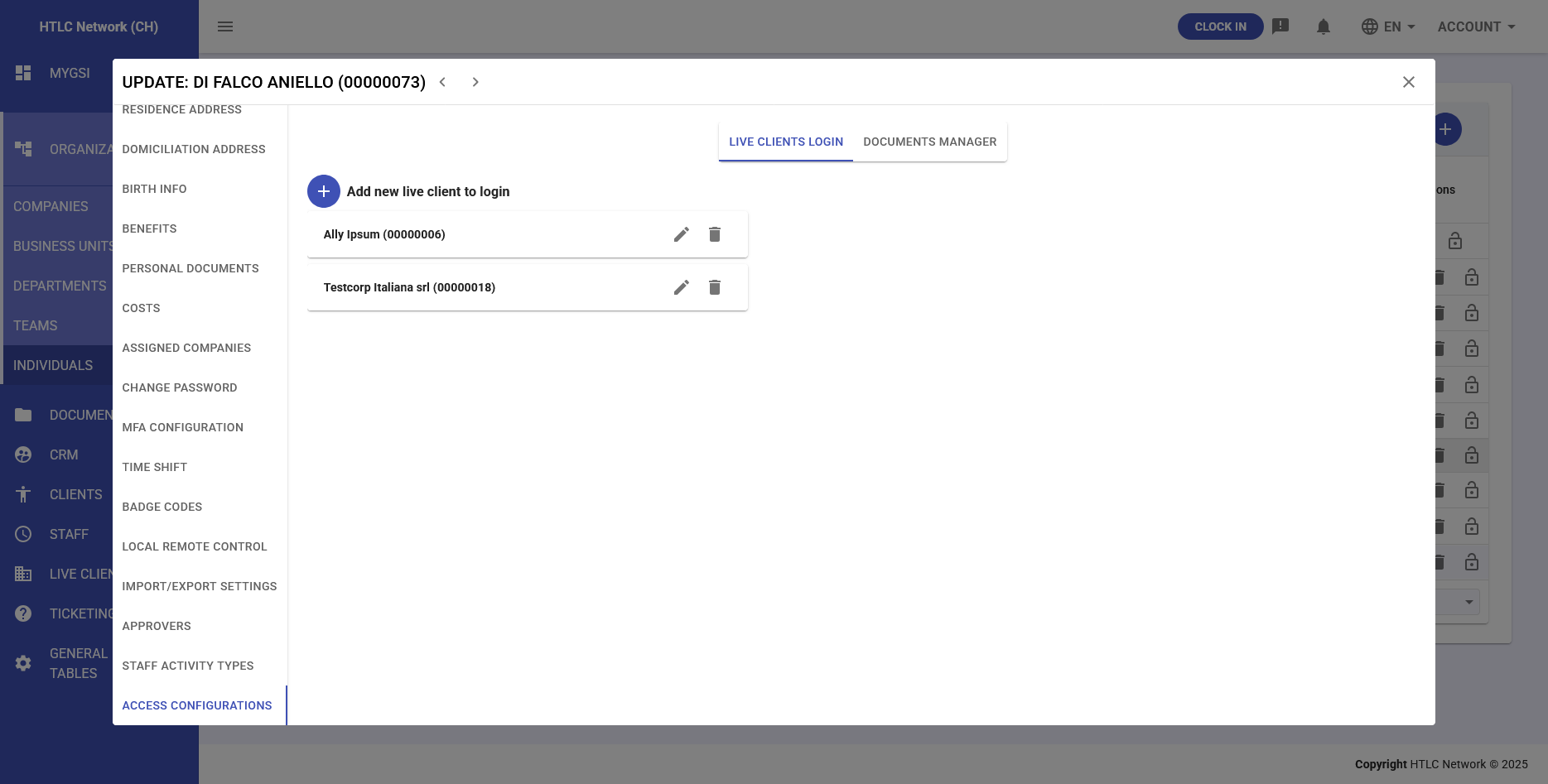
Live Clients Login Tab
Granular access control for live client portals:
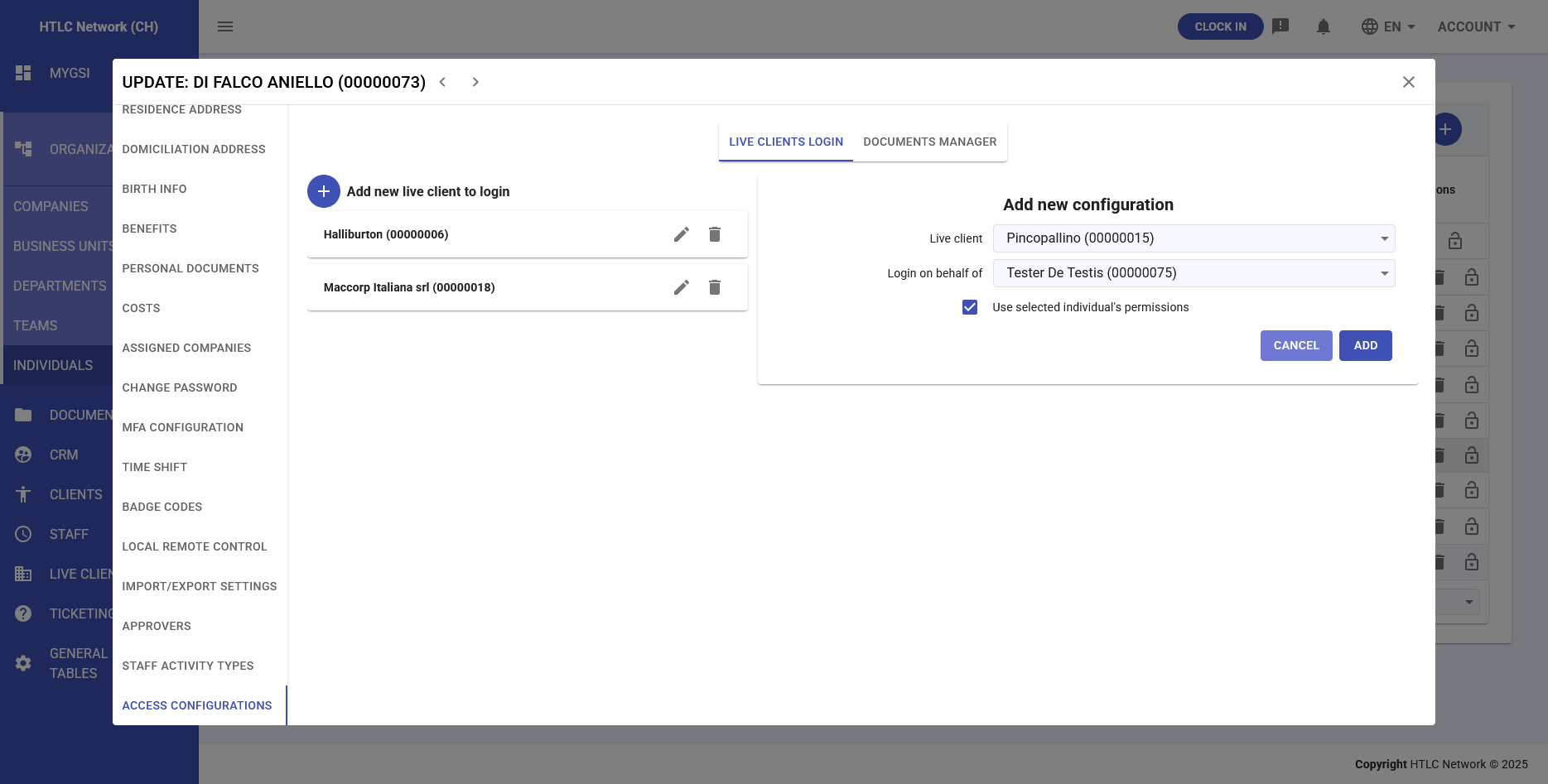
- "+ Add New Live Client to Login": Grant access to specific live clients
- Available Clients: Only shows live clients that have:
- Explicitly granted access permissions in their "shared with" settings
- User must have "access live clients" permission
- Permission Options:
- Inherited Permissions: User carries their own permissions when accessing the live client
- Client-Specific Permissions: Option to access with specific live client individual's permissions (e.g., user can be document manager for another client without having those permissions in their own environment)
- Client List Display:
- Client name and ID (e.g., "Ally Ipsum (00000006)")
- Edit access button (modify permission settings)
- Delete access button (revoke access)
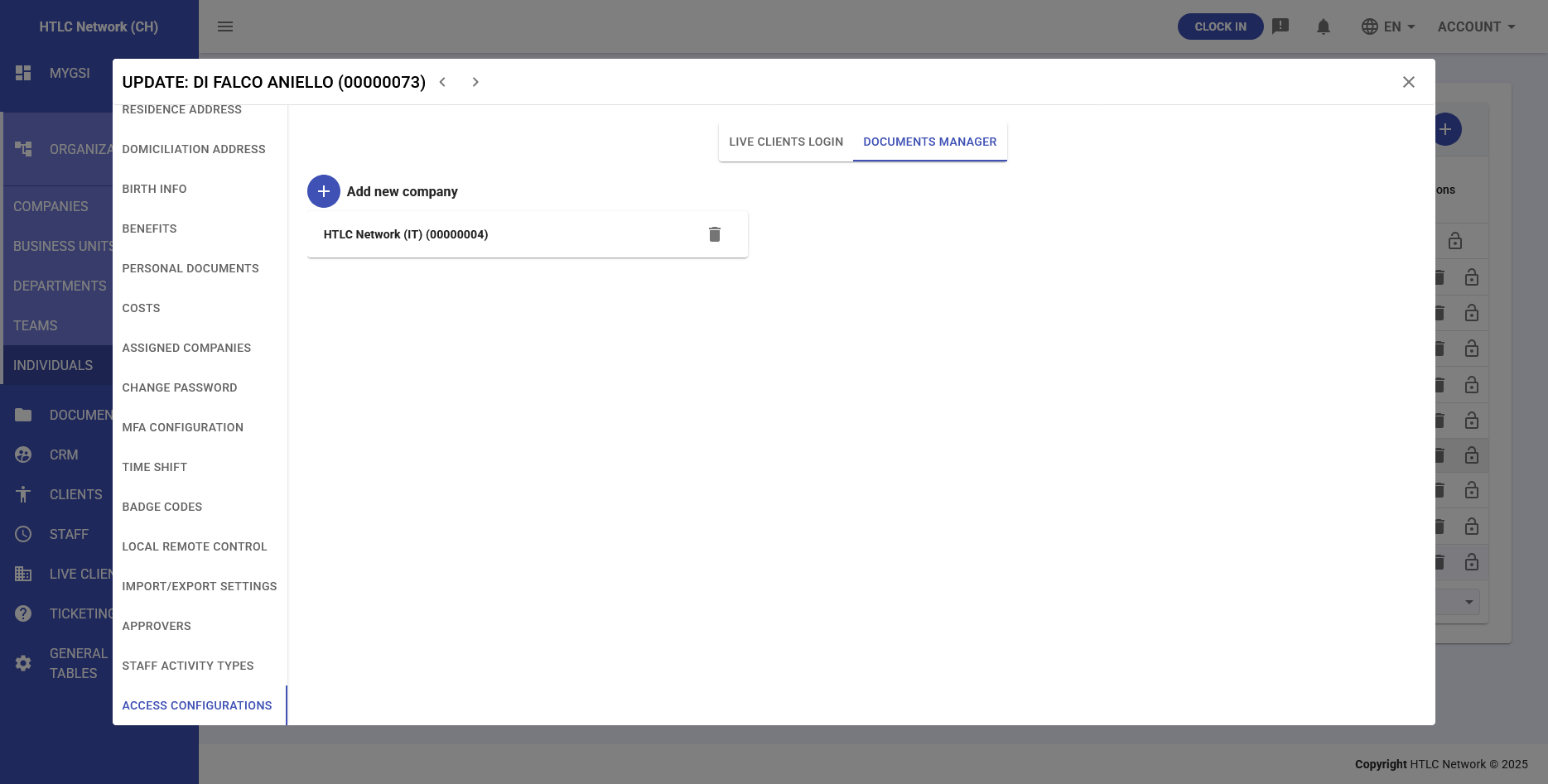
Documents Manager Tab
Selective document management privileges:
- "+ Add New Company": Grant document manager rights for specific companies
- Functionality:
- Provides document manager privileges for selected companies only
- Does not grant global document manager status for all companies in the live client
- Allows granular control over document access permissions
- Company List Display:
- Company name and ID (e.g., "HTLC Network (IT) (00000004)")
- Remove access button (revoke document manager rights)
-
Permissions Management
Permission System Overview
The permission system controls all user actions and views across the HTLC Network platform. Permissions determine what modules users can access, what data they can view, and what actions they can perform.
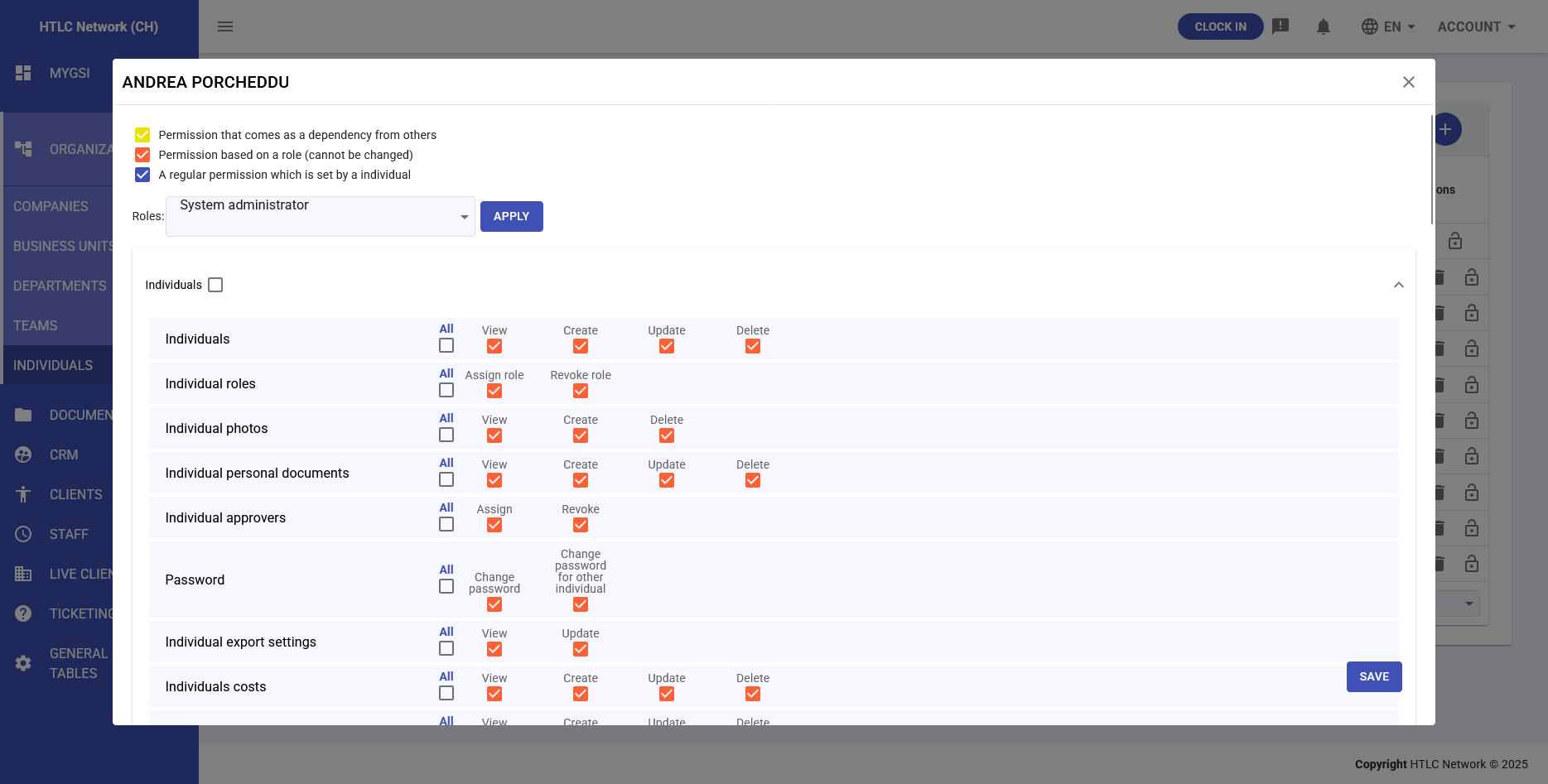
Permissions are organized into thematic sections, each linked to a specific module. Every functionality can be enabled or disabled through a checkbox.
Permission Assignment Methods
- Role-Based Permissions: Configured in General Tables > Roles, providing permission presets
- Multiple Roles: Users can have multiple roles with permissions being cumulative
- Individual Permissions: Additional permissions can be granted directly (though role management is recommended)
- Permission Dependencies: Some permissions automatically grant related permissions
CRUD Operations
Most permissions follow a CRUD pattern with four distinct operations:
- Create (C): Add new records
- Read (R): View existing records
- Update (U): Modify existing records
- Delete (D): Remove records
Below is the detailed list of available sections:
Individual
Allows you to manage:
- the user profile, specifications, and credentials;
- assigning or revoking a user’s roles;
- configuring cross-company access, enabling the user to log in to GSI as if they were part of another company.
Companies
Allows you to manage:
- the company profile, related specifications, and password policies;
- settings for changing the graphical theme of the interface and other specifications.
Permissions
Allows you to assign technical and functional roles and privileges. Specifically:
- assign the role of SuperAdmin (reserved for technicians, with full access);
- assign the role of Company Admin (company supervisor);
- enable the user to manage permissions for other users;
- decide the visibility and access to the various GSI modules;
- manage Live Clients;
- designate a user as an Approver (approver for workers);
- grant access to a specific Live Client.
Staff
Allows you to manage permissions related to the Staff module:
- management of tables (work schedules, activity types, absences, vacations, company closures);
- definition of the user’s role in the module, which can be:
- data access only,
- support role,
- approver role (e.g., for vacations and leave requests).
General tables
Allows you to manage static data tables, such as:
- list of countries;
- list of regions;
- list of currencies.
Organization
Allows you to manage the organizational structure, specifically:
- teams;
- departments;
- company business units.
Notifications
Allows you to manage notification settings:
- enable or disable notifications for the user;
- configure notifications for other users (if allowed);
- set up reminders, i.e., automatic alerts that notify of deadlines, pending approvals, or other important actions.
Mobility integration
Allows you to enable the user to access the Mobility platform.
Internal
Internal section (to be detailed).
Ticketing
Allows you to manage permissions for the Ticketing module, including the ability to:
- manage ticket types;
- manage ticket priorities;
- manage categories and subcategories;
- configure other aspects of the module.
Files
Allows you to manage permissions for:
- viewing files;
- creating new files;
- modifying existing files.
Documents
Allows you to manage permissions related to the Documents module:
- access to the module;
- enablement as General Document Manager;
- enablement as Live Client Document Manager;
- access to the Documents module of other Live Clients;
- configuration of Document Managers.
CRM
Allows you to manage permissions for the CRM module, including:
- management of the social networks table;
- management of domain names;
- management of task types;
- creation, modification, or deletion of statuses, priorities, sales stages, setup types, lifecycles, company types, and attachment types;
- assignment of roles such as CRM Coordinator or Lead Generator;
- management of CRM campaigns;
- management of data related to a company’s industry type.
Clients
Allows you to manage permissions for the Clients module, including:
- enabling access to the module;
- assigning the role of Activity Manager;
- assigning the role of Local Consultant.