-
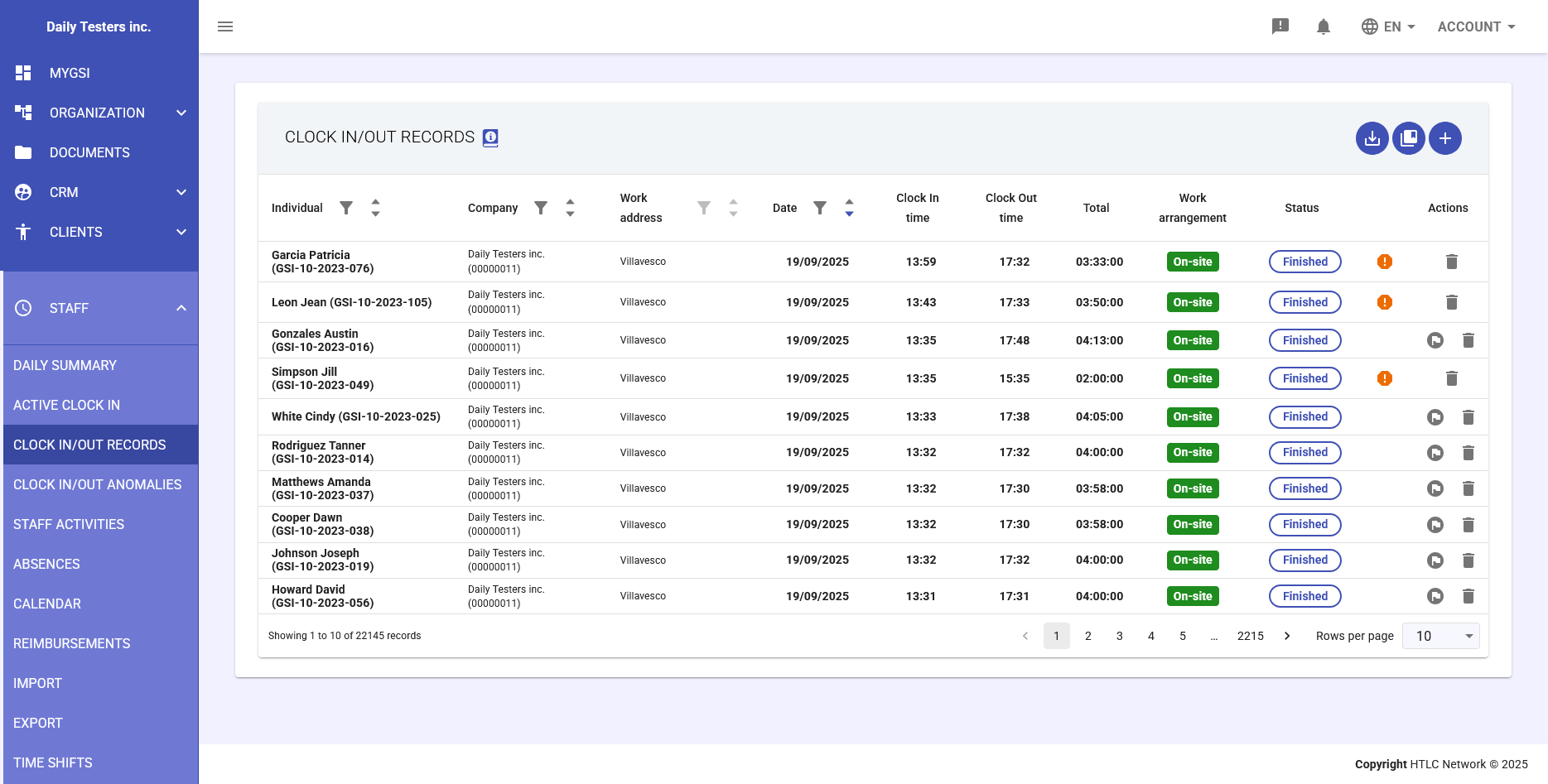
The Clock In/Out Records section manages employee attendance tracking, recording work entry and exit times. It is the starting point of the GSI2 attendance management system, where raw clocking data is collected and subsequently processed according to timeshift rules to generate validated staff activities.
Main Function: Capture and manage raw clocking records that document physical presence or working time of employees.
Data Flow:
Clocking (badge/app/manual) → Clock In/Out Records → Anomaly Detection → Staff Activities → Payroll ExportKey Concept: Clock in/out records are raw, unprocessed data. Only when they present no anomalies or after anomalies are resolved, they are converted into validated staff activities for payroll processing.
Main Table
The table displays all clocking records with the following columns:
Column Structure:
- Individual: Employee name and GSI code
- Company: Employee's company affiliation
- Work address: Work address/location (e.g., Villavesco)
- Date: Registration day (dd/MM/yyyy format)
- Clock In time: Work start time (HH:mm format)
- Clock Out time: Work end time (HH:mm format)
- Total: Total duration of work period (HH:mm:ss format)
- Work arrangement: Green badge "On-site" or other arrangements
- Status: Blue "Finished" button for completed records
- Actions: Buttons for available operations
Visual Indicators:
- Green "On-site" badge: Indicates on-site work
- Blue "Finished" button: Completed clocking record with entry and exit
- Orange exclamation point icon: Presence of anomalies on the record
- Information icon: View record details
- Trash icon: Delete record (requires confirmation)
- Circular refresh icon: Update record status
Active vs Finished Records:
- Active records: Employees currently at work (only entry registered)
- Finished records: Completed work cycles (entry and exit registered)
-
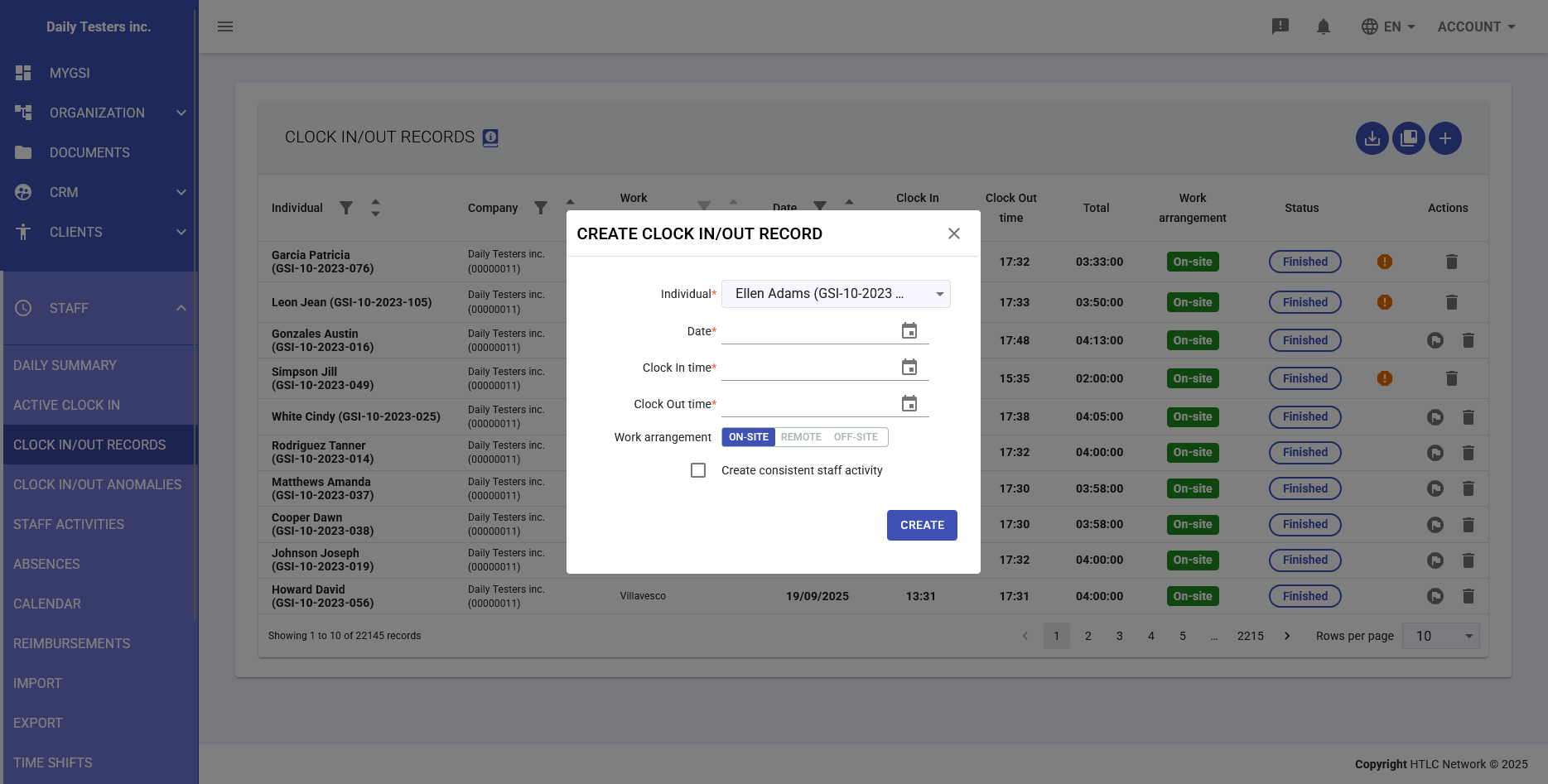
Create Clock In/Out Record
Modal for manual clocking entry, activated by the
 button at the top right of the table.
Required fields:
- Individual: Select employee from menu
- Date: Registration day
- Clock In time: Entry time
- Clock Out time: Exit time
- Work arrangement: ON-SITE / REMOTE / OFF-SITE buttons
- Create consistent staff activity: Checkbox to also generate validated activity
"CREATE" button saves the record in the system.
-
Delete Record
Clock in/out records cannot be modified, only created and deleted. To delete a record, click the trash icon, which opens a confirmation request:
Message: "Are you sure you want to delete this item?"
Actions:
- CANCEL: Abort operation
- OK: Confirm permanent deletion
Important Note: If a staff activity was previously generated from the record, deleting the clock in/out record does NOT automatically delete the staff activity. The activity must be managed separately in the Staff Activities module.
-
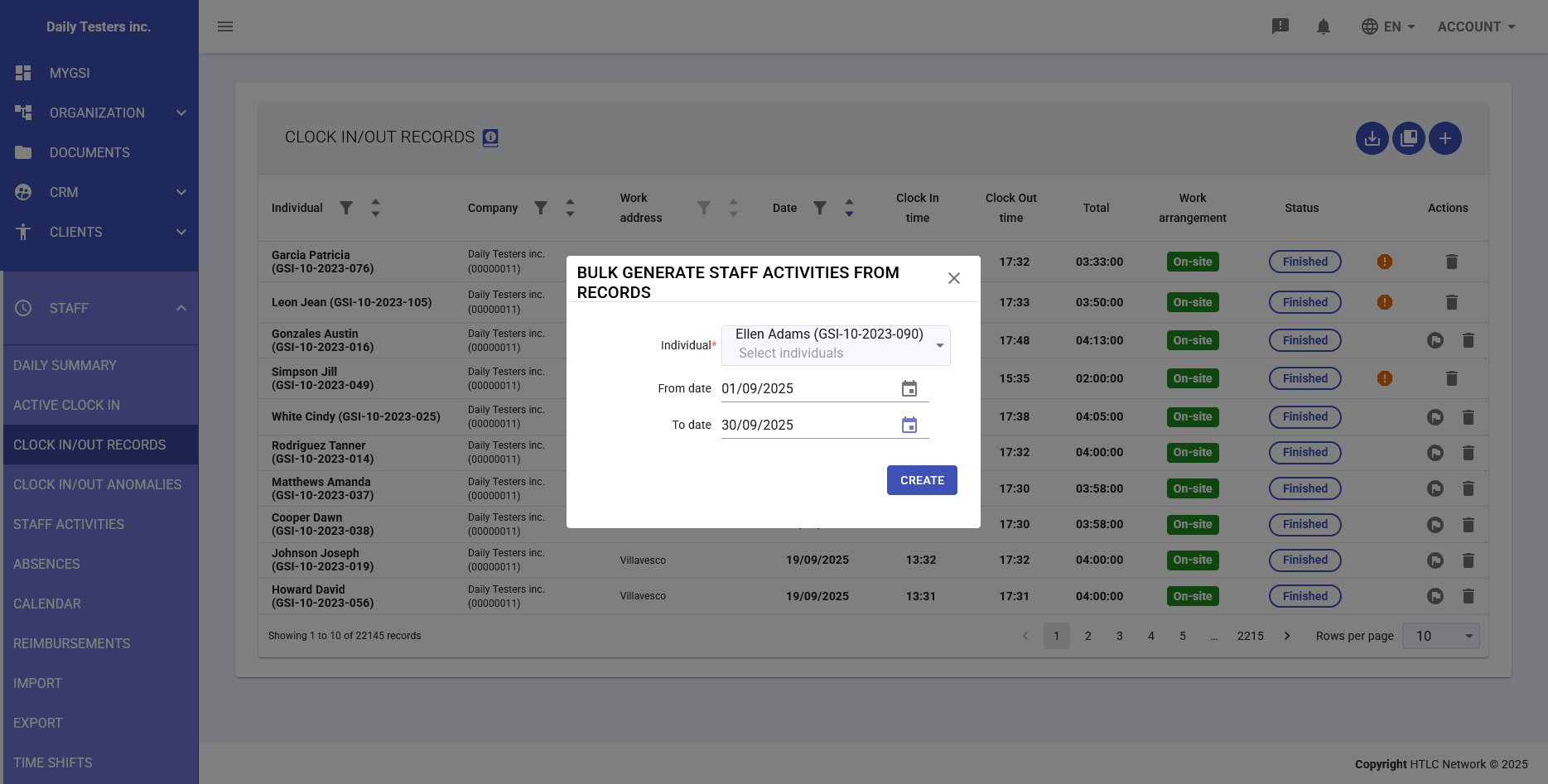
Bulk Generate Staff Activities From Records
Modal to forcibly convert a period of records into validated activities, activated by the
 button at the top right of the table.
Parameters:
- Individual: Dropdown to select employees
- From date: Conversion start date
- To date: Conversion end date
"CREATE" button starts the forced conversion. Timeshift rules, in this case, are ignored.
-
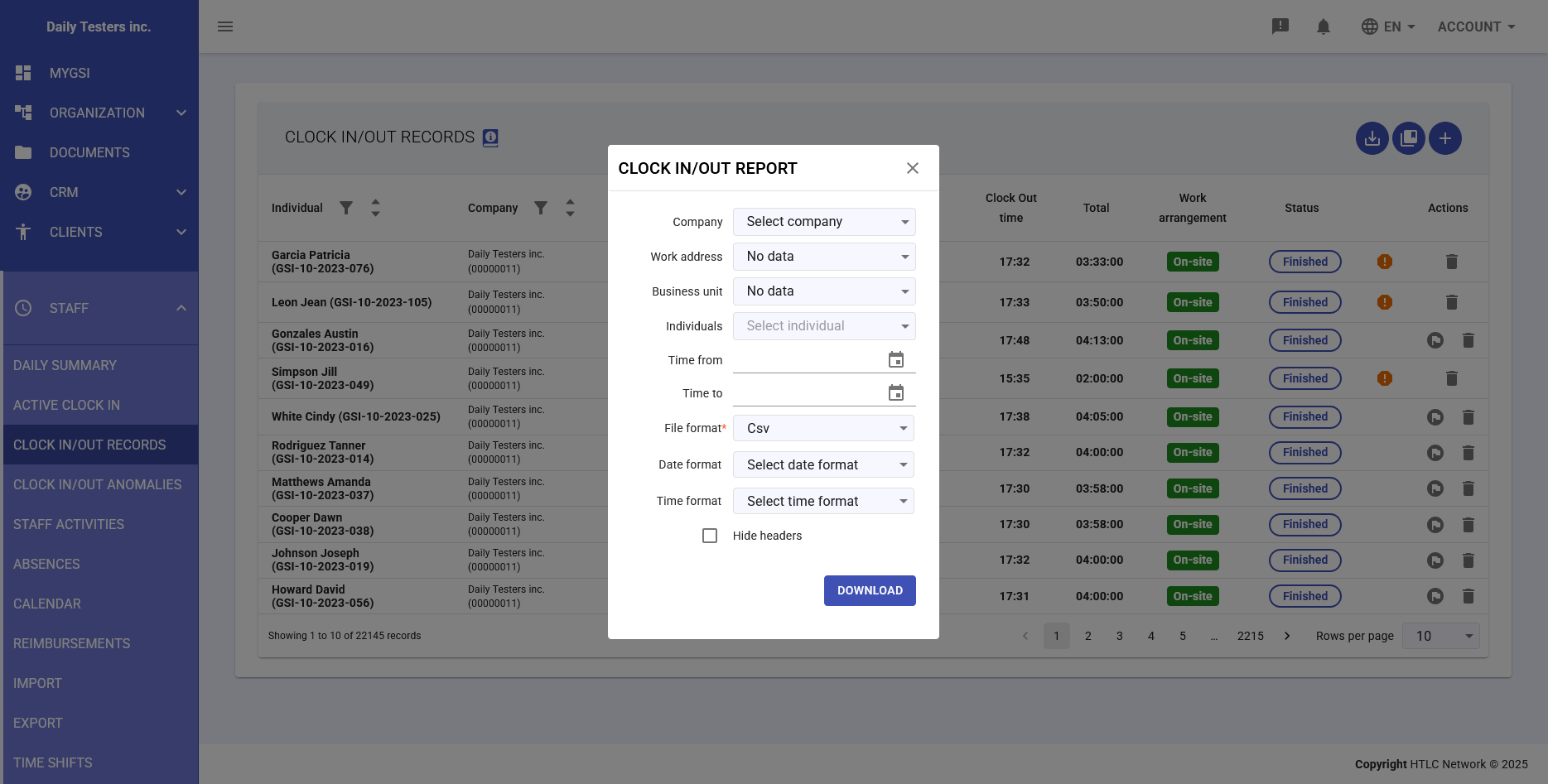
Download Report
Modal for exporting clocking data, activated by the
 button at the top right of the table.
Configurable fields:
- Company: Select specific company or all
- Time from: Start date and time of the period
- Time to: End date and time of the period
- Individuals: Select employees to include
- File format: CSV, Excel or PDF
- Date format: Various formats available
- Time format: Different time formats
- Hide headers: Checkbox to exclude column headers
"DOWNLOAD" button to generate the report.