-
Overview
The Staff Activities module provides comprehensive management of employee working hours, activities, and overtime. This essential tool enables HR managers and supervisors to track, approve, and analyze all staff activities including regular hours, overtime, and special assignments. The module seamlessly integrates with badge machine data while allowing manual entries and adjustments.
Core Concepts
Understanding Staff Activities
Staff Activities represent discrete periods of work that can be:
- Generated from Clock In/Out: Automatically created from attendance records
- Manually Created: Entered directly by employees or managers
- Imported: Brought in from external time tracking systems
Each activity is a complete record including:
- Time period (from/to or duration)
- Employee identification
- Optionally: Activity classification
- Optionally: Project/client association
- Approval status
- Potential Overtime calculation (subject to approval)
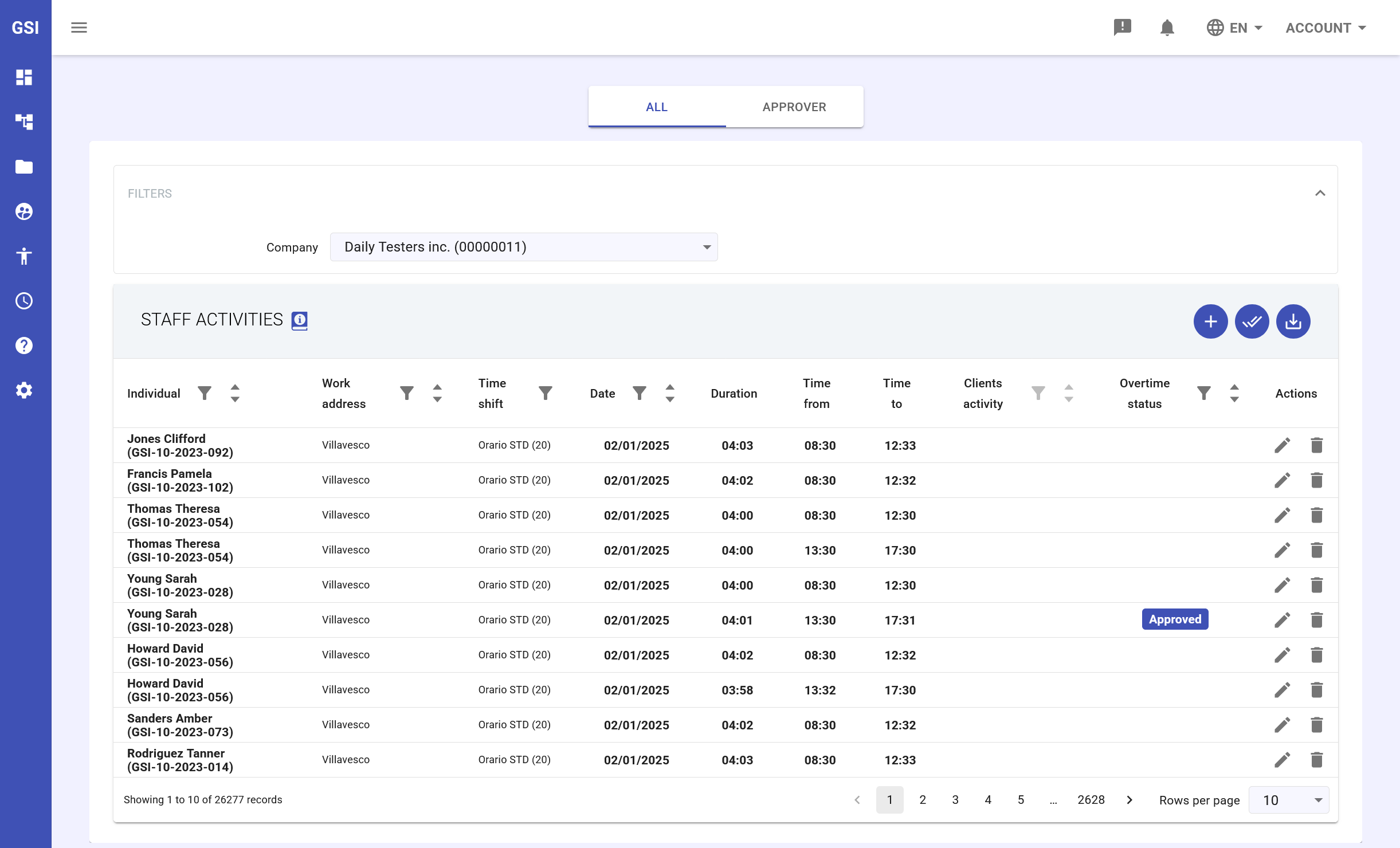
Main View - Activity Table
View Modes
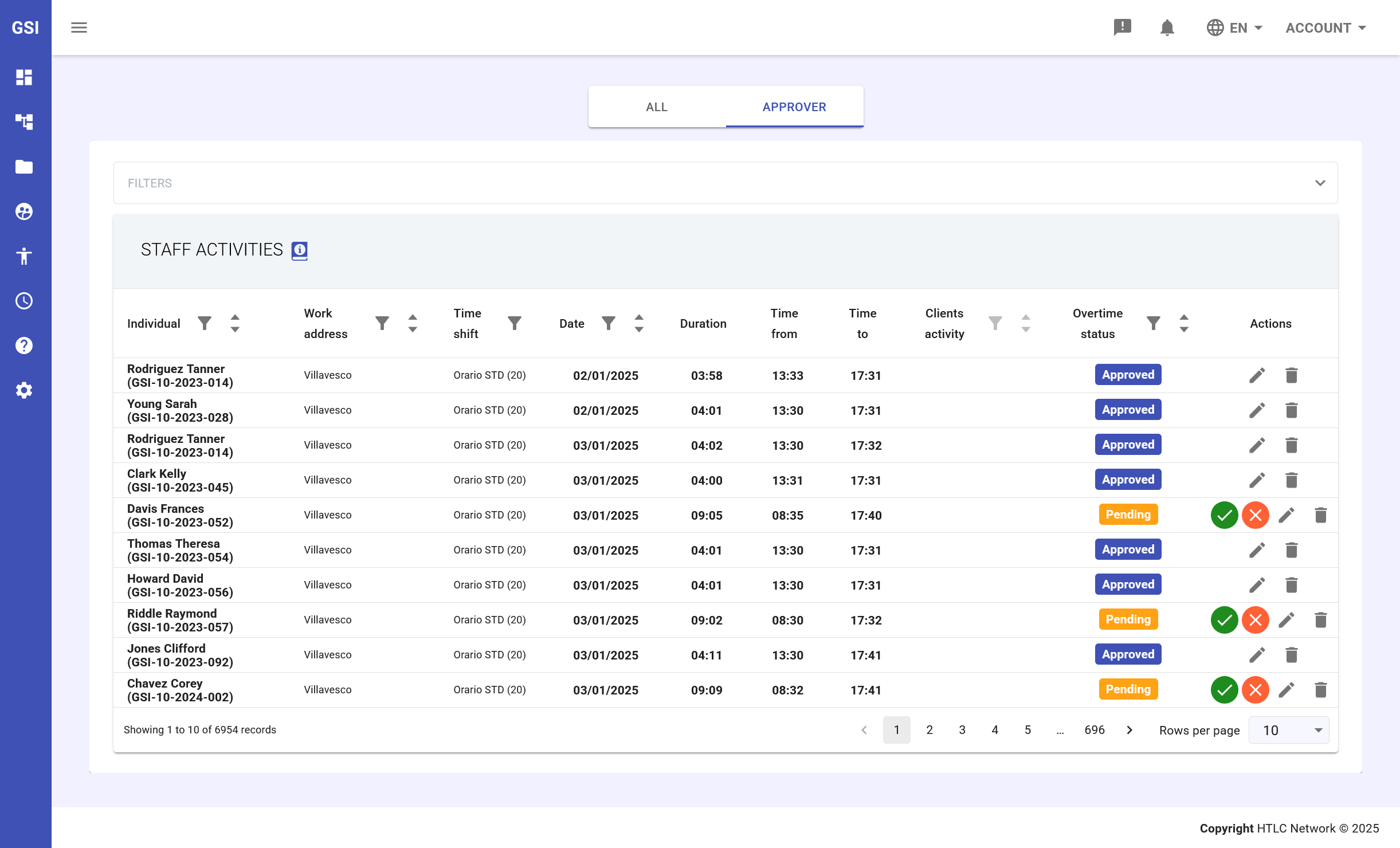
The module presents two distinct tabs to accommodate different user roles and responsibilities:
- ALL tab: Comprehensive view displaying all activity records across the organization. This view is typically used by HR administrators and managers who need complete visibility of all staff activities
- APPROVER tab: Filtered view showing only activities that require action from the current user. This streamlined view helps approvers focus on pending items requiring their attention
Table Structure and Data Fields
The main activity table provides a comprehensive overview of all staff activities with the following columns:
- Individual (Dipendente): Employee name with GSI identification code (format: GSI-XX-XXXX-XXX)
- Work address (Sede lavorativa): Physical location where the activity was performed (e.g., Villavesco, Brianco)
- Time shift (Turno): Assigned work shift code (e.g., Orario STD (20)) that defines standard working hours
- Date (Data): Date when the activity occurred in DD/MM/YYYY format
- Duration (Ore totali): Total hours worked displayed in HH:MM format
- Time from (Orario inizio): Activity start time in 24-hour format
- Time to (Orario fine): Activity end time in 24-hour format
- Clients activity (Attività dei clienti): Associated client project or activity (if applicable)
- Overtime status (Stato): Current approval status with color-coded badges
- Actions (Azioni): Quick action buttons (edit, delete, view details)
Status Indicators
The system uses visual status indicators to quickly communicate activity states:
- Approved (Approvato): Blue badge - Activity has been reviewed and approved
- Pending: Orange badge - Activity is awaiting review
- In attesa: Orange badge with action icons - Activity requires specific action
- Green checkmark: Validates correct entry
- Red X: Indicates rejection or issue
- Edit icon: Activity can be modified
- Delete icon: Activity can be removed
-
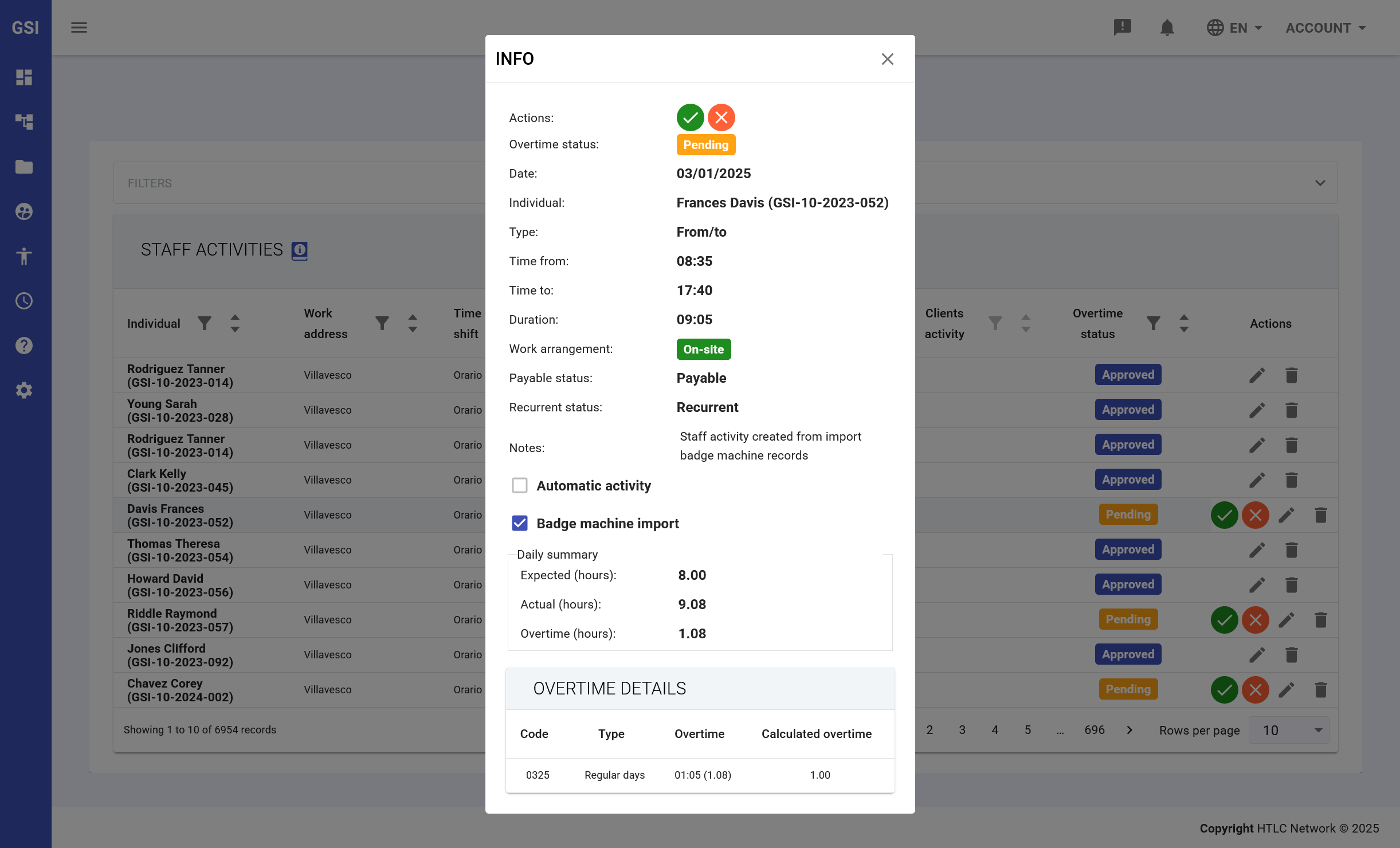
View Activity Details
Clicking the info button opens a detailed view of the selected activity, providing comprehensive information including:
- Actions validation: Visual confirmation of activity status (green check = valid, red X = invalid)
- Overtime status: Current approval state with colored badge (Pending, Approved, In attesa)
- Core activity data:
- Date of activity
- Employee information with GSI code
- Activity type (From/to, Da/a)
- Start and end times
- Total duration
- Work arrangement (On-site, Remote, Off-site)
- Billing information:
- Payable status (Payable/Not payable)
- Recurrent status (Recurrent/Not recurrent)
- System flags:
- Automatic activity checkbox (system-generated entries)
- Badge machine import flag (imported from badge system)
- Daily summary calculations:
- Expected hours: Standard working hours per shift
- Actual hours: Total hours worked
- Overtime hours: Hours exceeding standard shift
- Overtime details table:
- Code: Overtime classification code
- Type: Description of overtime type (Regular days, Holidays, etc.)
- Overtime amount: Calculated overtime hours
- Calculated overtime: Monetary value or weighted hours
-
Add New Staff Activity
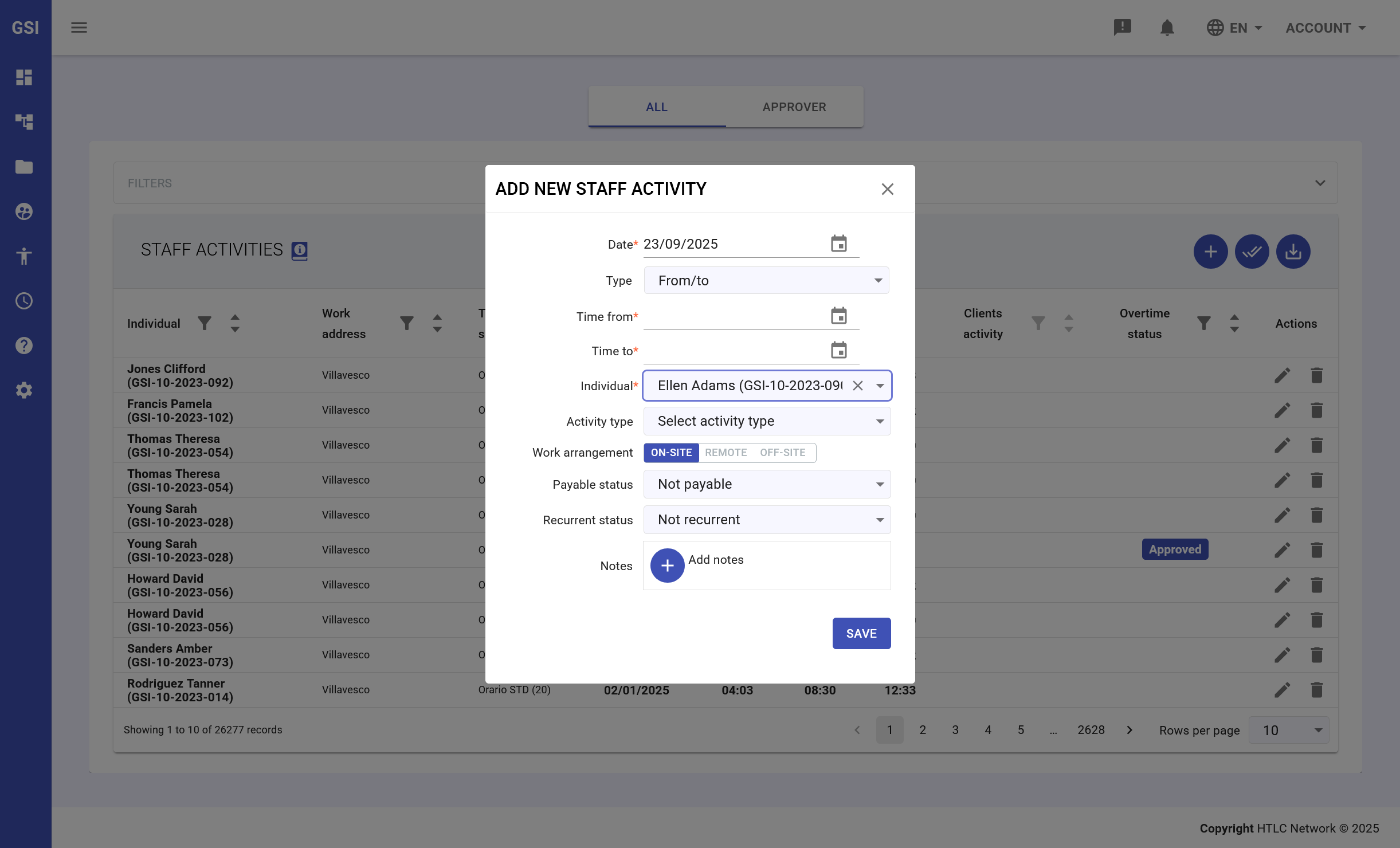
The ADD NEW STAFF ACTIVITY dialog allows manual creation of work activities. This feature is essential for adding activities not captured by the badge system or for special assignments.
Required Fields:
- Date: Select activity date using calendar picker
- Type: Choose activity type (From/to for time-based entries)
- Time from: Set start time using time picker
- Time to: Set end time using time picker
- Individual: Select employee from dropdown list (searchable)
- Activity type: Choose from predefined activity categories
Work Arrangement Options:
- ON-SITE: Physical presence at work location
- REMOTE: Working from remote location
- OFF-SITE: Working at client location or traveling
Additional Settings:
- Payable status: Mark if activity generates payment (Not payable for training, meetings, etc.)
- Recurrent status: Indicate if activity repeats regularly
- Notes: Add explanatory notes or special instructions
-
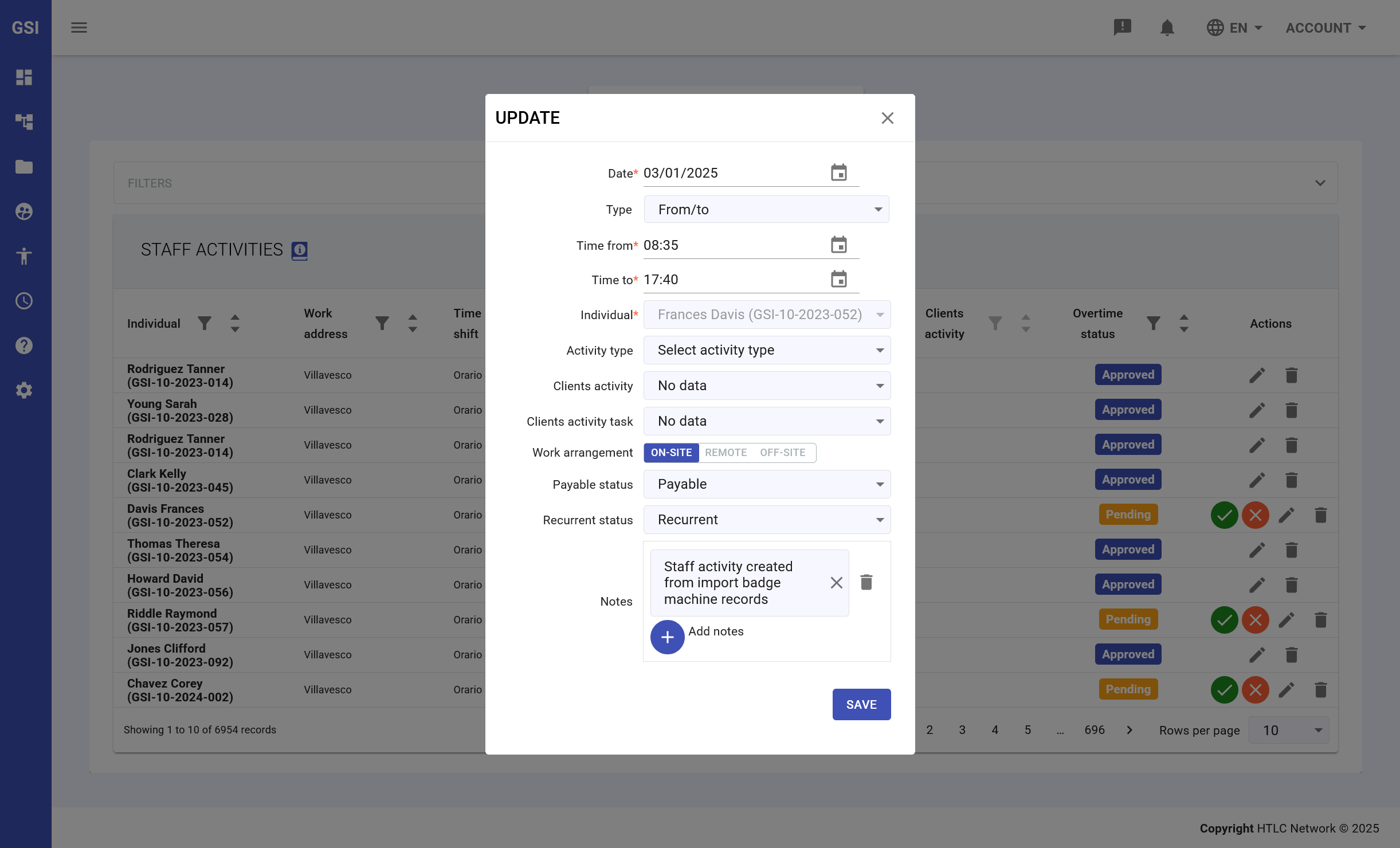
Update Existing Activity
The UPDATE dialog allows modification of existing activities. Access this feature through the edit icon in the Actions column.
Editable Fields:
- All fields from the original entry can be modified
- Client activity association (link to specific client projects)
- Client activity task (assign to specific task within project)
- Notes can be added or updated
Special Considerations:
- Activities imported from badge machines show special indicator
- Modifications to system-generated activities are tracked
- Changes require appropriate authorization level
- Audit trail maintains history of all modifications
-
Overtime Approval
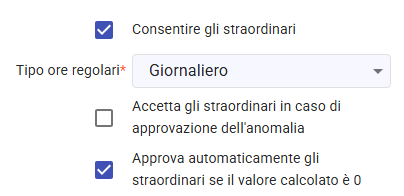
The possibility of performing overtime and its management depends on the employee's Time Shift settings, which may include automatic approval circumstances.
To approve or reject overtime in "pending" (approval) status, simply click on the appropriate icons
 in the actions column of the main table, or in the activity details.
-
Bulk Overtime Approval
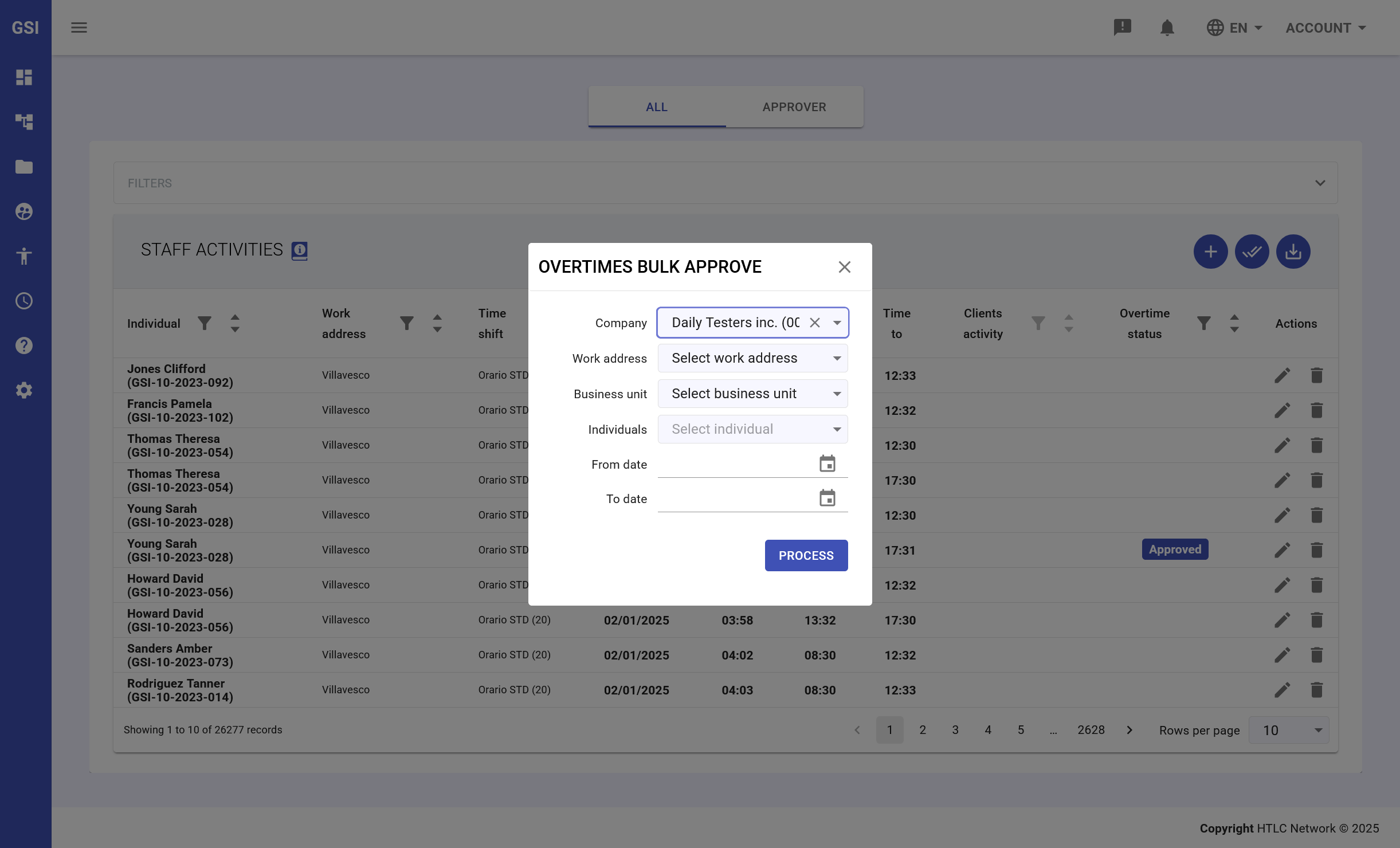
The OVERTIMES BULK APPROVE feature streamlines the approval process for multiple overtime requests simultaneously.
Filter Options:
- Company: Select specific company or all companies
- Work address: Filter by location
- Business unit: Choose organizational unit
- Individuals: Select specific employee or all employees
Date Range Selection:
- From date: Start of approval period
- To date: End of approval period
Processing:
- Review filtered results before processing
- Click PROCESS to approve all selected overtime entries
- System updates status for all processed items
- Confirmation message displays number of processed entries
-
Generate Staff Activities Report
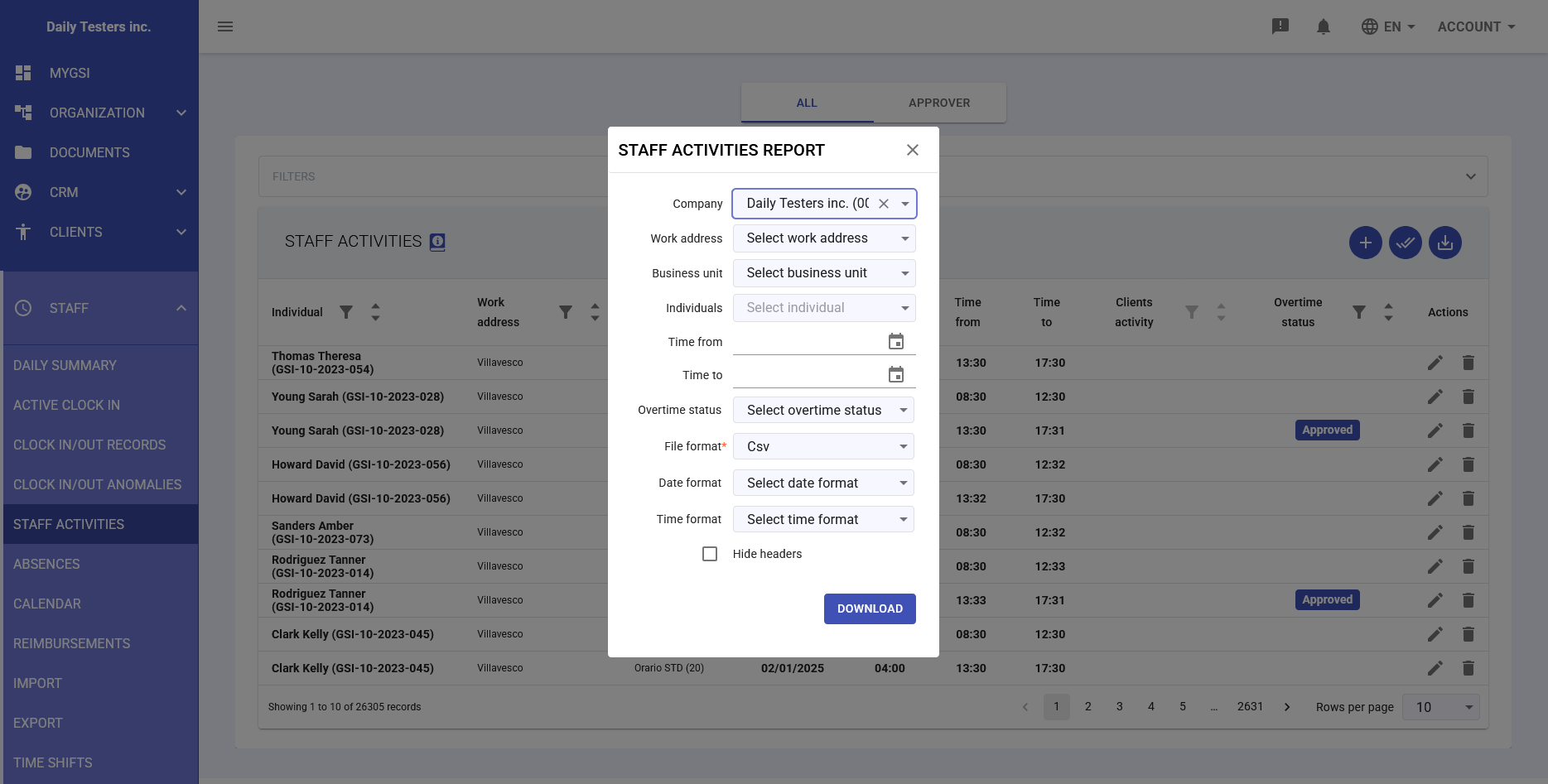
The Staff Report feature enables comprehensive data export for analysis, payroll processing, and any other internal purpose.
Report Parameters:
- Company filter: Select specific company or all
- Work address filter: Choose locations to include
- Business unit filter: Select organizational units
- Individual selection: Specific employees or all
- Date range: Define reporting period
- Status filter: Include specific activity statuses
Export Options:
- File format: CSV for spreadsheet compatibility
- Date format: Multiple format options (dd-MM-yyyy, yyyy-MM-dd, MM/dd/yyyy)
- Time format: 12-hour (h:mm) or 24-hour (HH:mm)
- Hide headers: Option to exclude column headers