-
In this article you will find:
- Absences introduction: who can create them and when
- Approve, edit or reject pending requests
- Create a new absence
- Add an absence to resolve an anomaly
Introduction
This guide explains how to record an absence in the GSI2 system, including vacation, sick leave, permissions, and other configurable types of absence. Absences can be requested by employees, entered by managers, or added to resolve presence anomalies.
Who can create absences
- Employees: Can request absences for themselves
- Managers: Can enter absences for their team members
- HR/Administrators: Can create absences for all employees
- Designated approvers: Can manage absences for assigned staff
When to enter an absence
- In advance: For planned vacation or scheduled leave
- During the absence: For sickness or emergencies
- Afterwards: To resolve anomalies or document unplanned absences
- For corrections: When clock-ins are missing or errors need fixing
Approve, edit or reject absence requests
To manage employee absence requests, follow these steps:
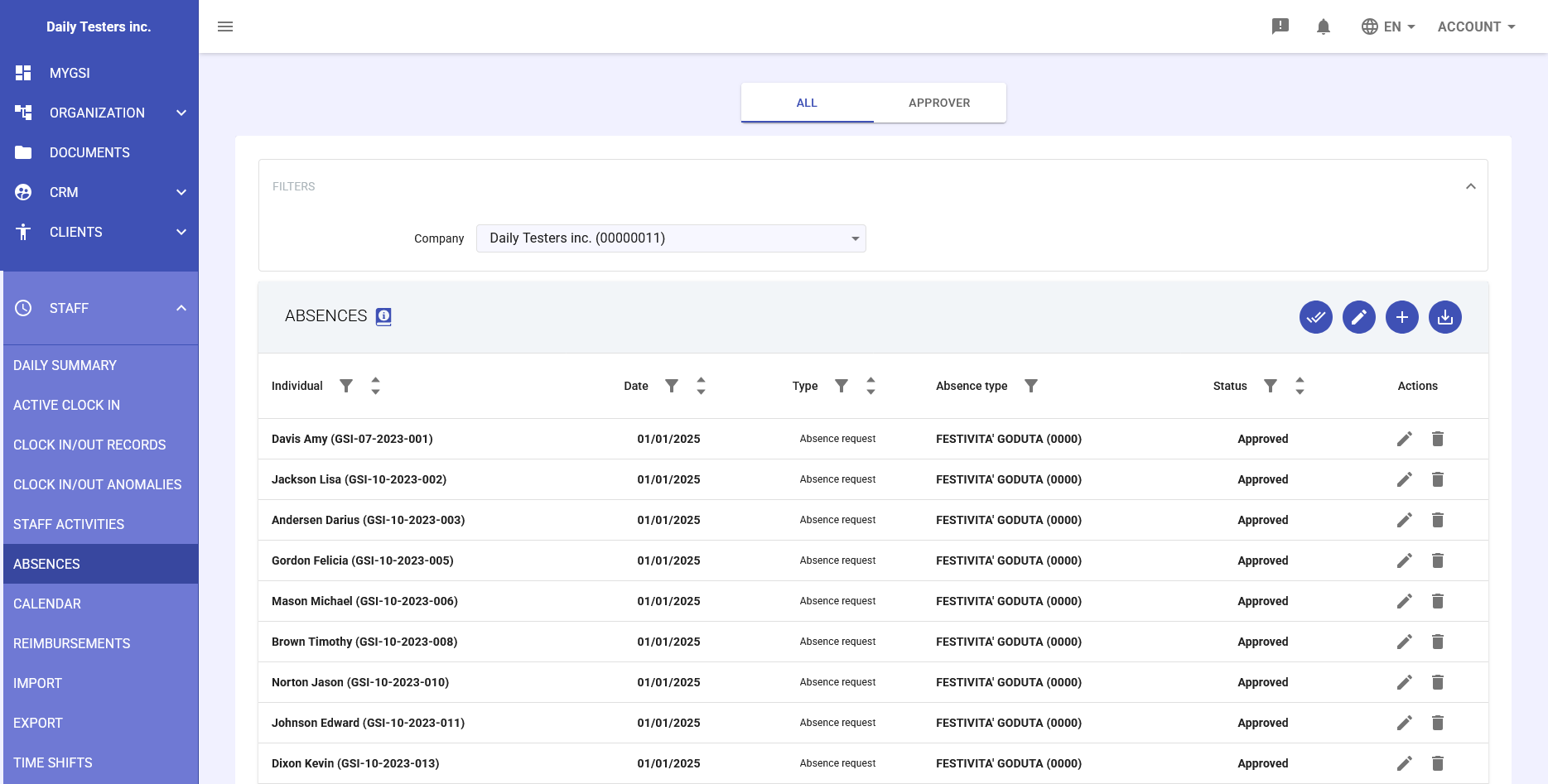
- Access the Staff → Absences module: From the main menu, select Staff and then click on Absences.
- Go to the desired tab:
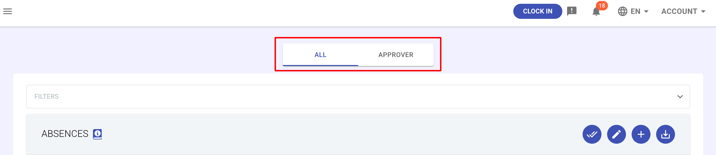
- All – to view all absences (including those pending approval), and filter them by company.
- Approver – to view only the absences (including those pending approval) assigned to a specific approver and for a specific company.
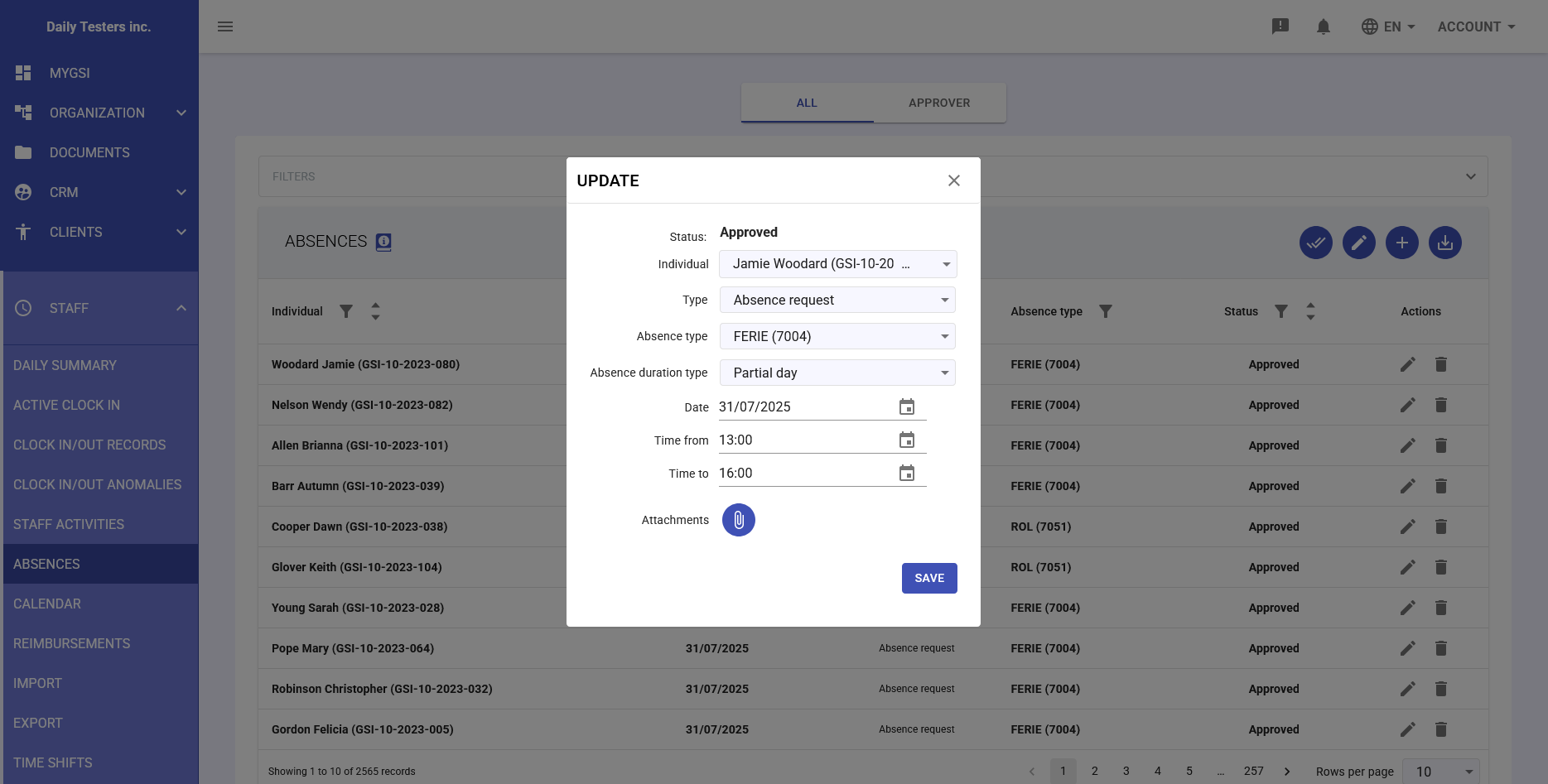
- Select the request – In the list, click on the employee’s row to view details and attached documents. A screen will open with the request information and any attachments.
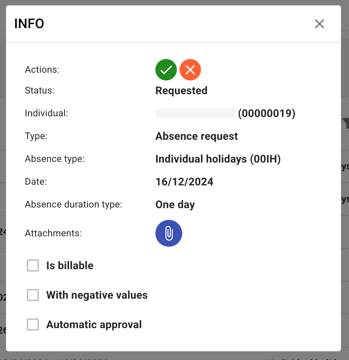
From here you can already approve (green check button) or reject (red X button) the selected absence request. - Approve, reject, edit or delete the request – In the last column of the row you will find four buttons:
 : Green check: approve the request
 : reject the request
 : edit the request; a screen will open where you can modify the absence details and add attachments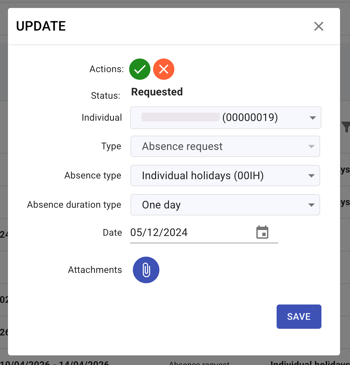
 : delete the request
Create a new absence
To create an employee’s absence, follow these steps:
- Navigate to Staff → Absences – From the main menu, select Staff and then click on Absences.
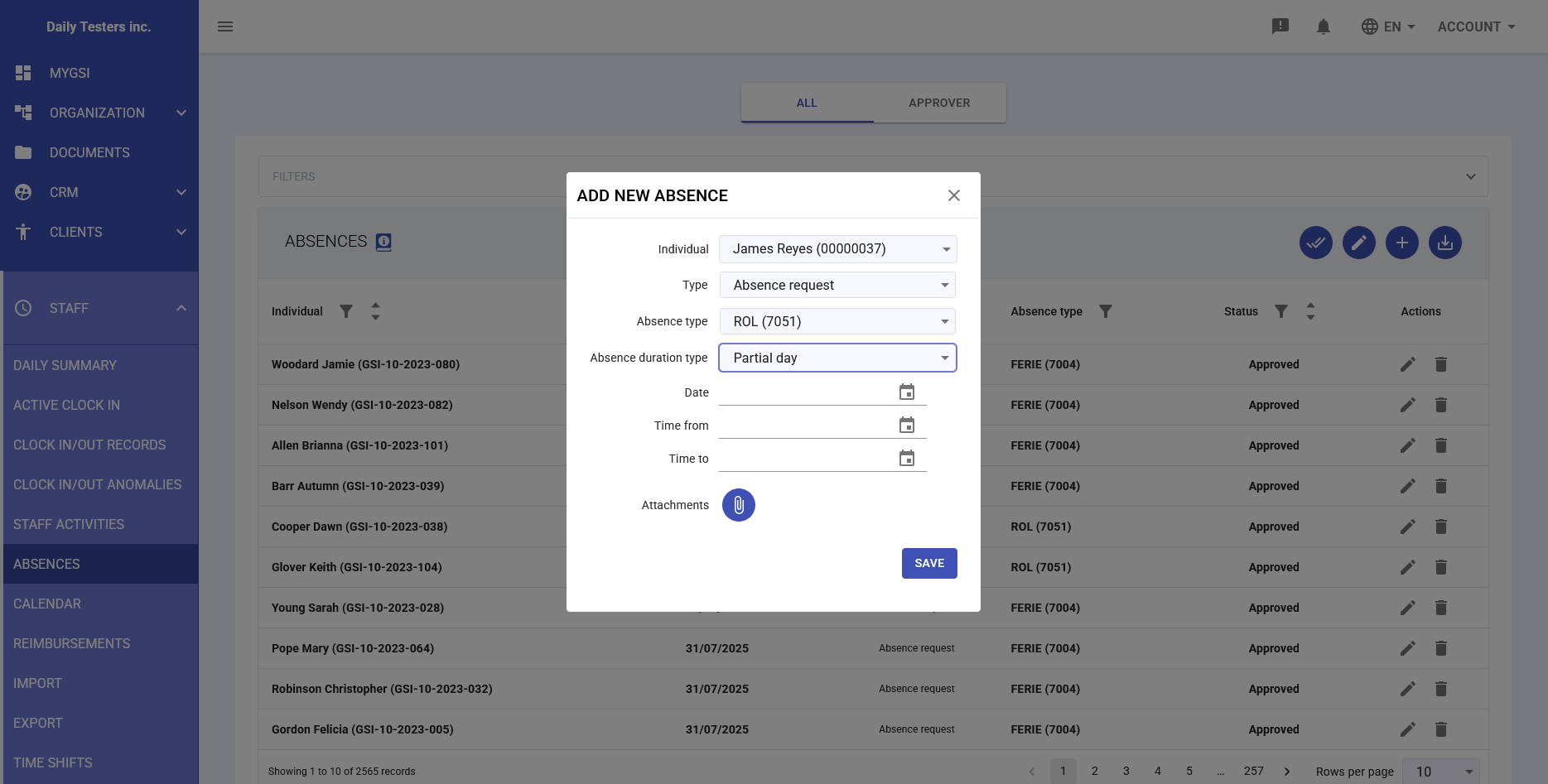
- Create a new absence – Go to the All tab and click the “+” button to create a new absence.
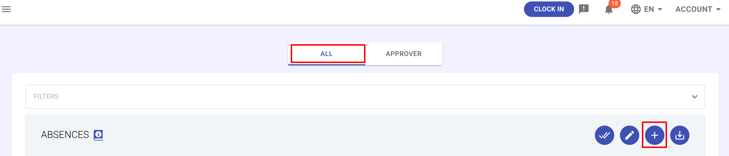
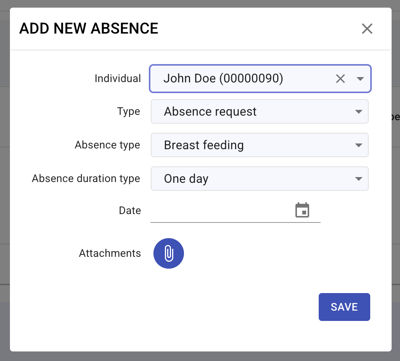
- Fill in the request form – A panel will open where you must complete the following fields:
- Employee: Select the employee for whom you want to add the absence (employees see only themselves, managers see the full user list).
- Type: You can choose between Absence request, Holiday, or Company closure.
- If Absence request (to manage the selectable absence types in this section, see our dedicated article):
- Absence type: Choose from the dropdown (vacation, ROL leave, sick leave, paid leave, unpaid leave, etc.).
- Absence duration type: One day, multiple days, or partial days.
- One day: allows you to select the date from the calendar
- Multiple days: allows you to select “From date” and “To date”
- Partial day: allows you to select the date and specify “Start time” and “End time”
- Attachments (optional): Add supporting documentation (medical certificates, special permits) by clicking Add attachment then Choose file.
- If Holiday: Select the holiday type (e.g., Christmas, Easter, etc.). To manage selectable holidays in this section, see our dedicated article.
- If Company closure: Select the company closure type. To manage selectable company closures in this section, see our dedicated article.
- If Absence request (to manage the selectable absence types in this section, see our dedicated article):
- Save the request – Click SAVE to complete the absence entry.
- After submission, the absence status will be set to Requested and will be visible:
- In monthly attendance reports
- In the shared calendar
- In exports for the payroll system
Vacation/leave balances will automatically update accordingly.
Add an absence to resolve an anomaly
When the system reports an anomaly (e.g., the employee did not clock in or out, a vacation or leave request was not correctly recorded), it is often necessary to add the correct absence (vacation, sick leave, permission, etc.) so that the daily record is complete.
To enter an absence to resolve an anomaly, follow these steps:
- Navigate to Staff → Daily Summary – From the main menu, select Staff and then click on Daily Summary.
- Select the anomaly – In the Unexpected Absence Anomalies panel, click on the anomaly row to view the details of the flagged day.
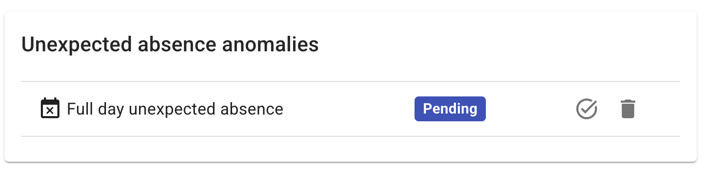
- Resolve the anomaly – Click the button to start the anomaly resolution process.
- Review details – A screen will open with the anomaly information. In the Automatic proposals panel, click Apply on the suggested proposal.
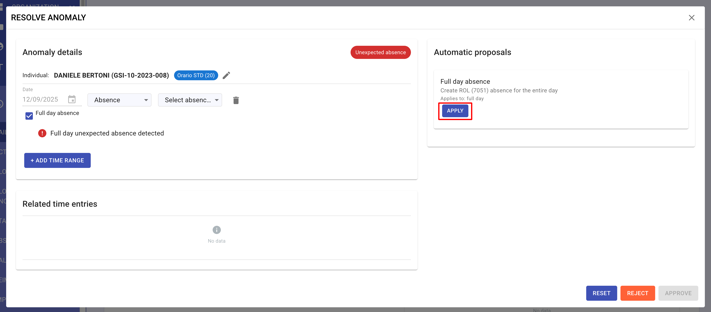
- Confirm – Click Approve to confirm the resolution.