-
Absence Types Management
This guide walks you through the complete configuration of absence types available in the GSI2 system for managing holidays, permits, sick leave and other types.
Accessing Configuration
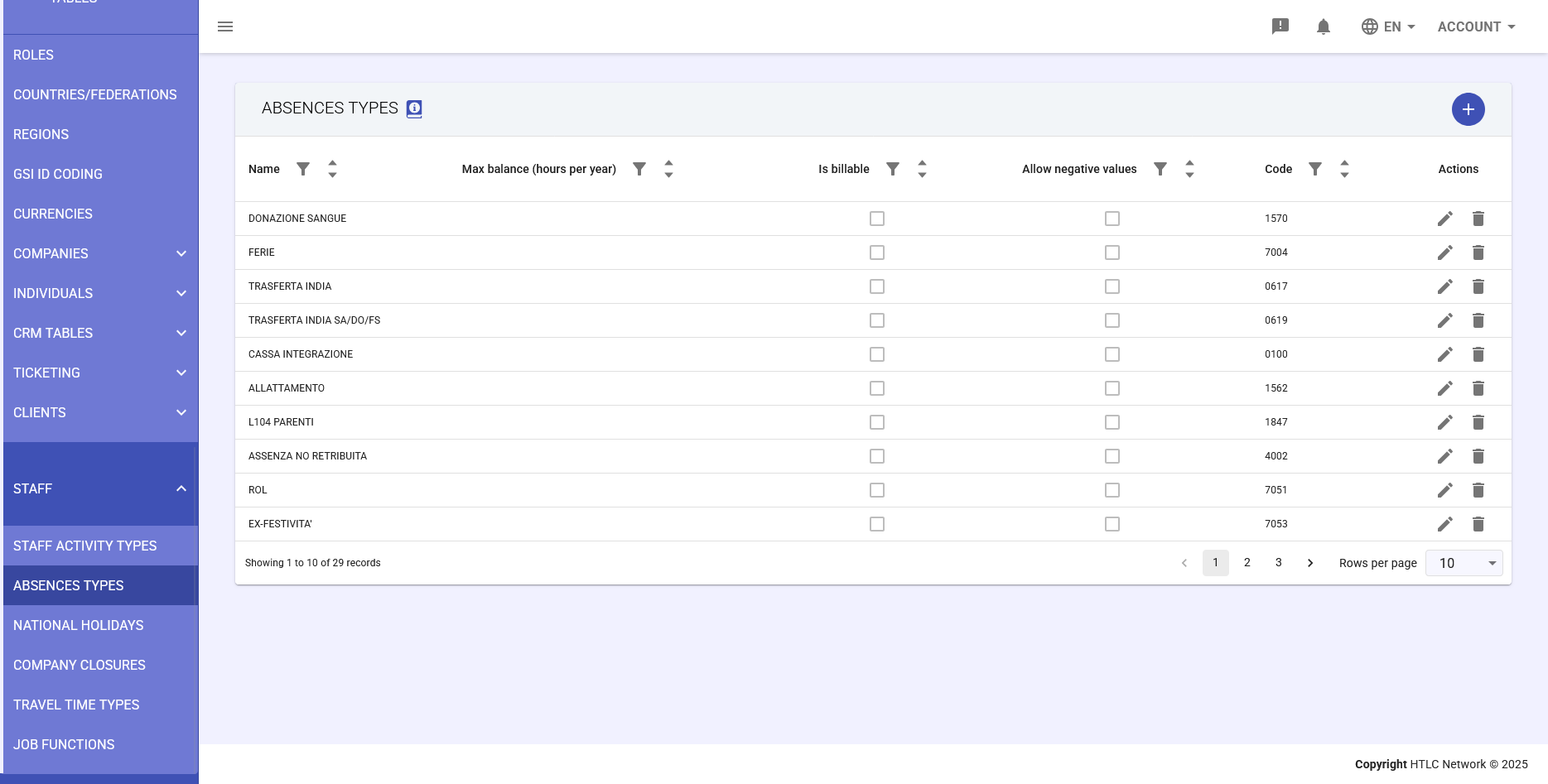
- From the main menu, navigate to General Tables → Staff → Absence Types
- You'll see the table with all configured absence types
- Use filters and sorting to quickly find a specific type
Main Table View
The table displays the following columns:
- Name: Absence type designation visible to users
- Max balance (hours per year): Annual hours available
- Is billable: Indicates if hours are billable to clients
- Allow negative values: Permits negative balances
- Code: Identifier for export and integrations
- Actions: Edit and delete buttons
Creating New Absence Type
Step 1: Start Creation
- Click the + button at the top right
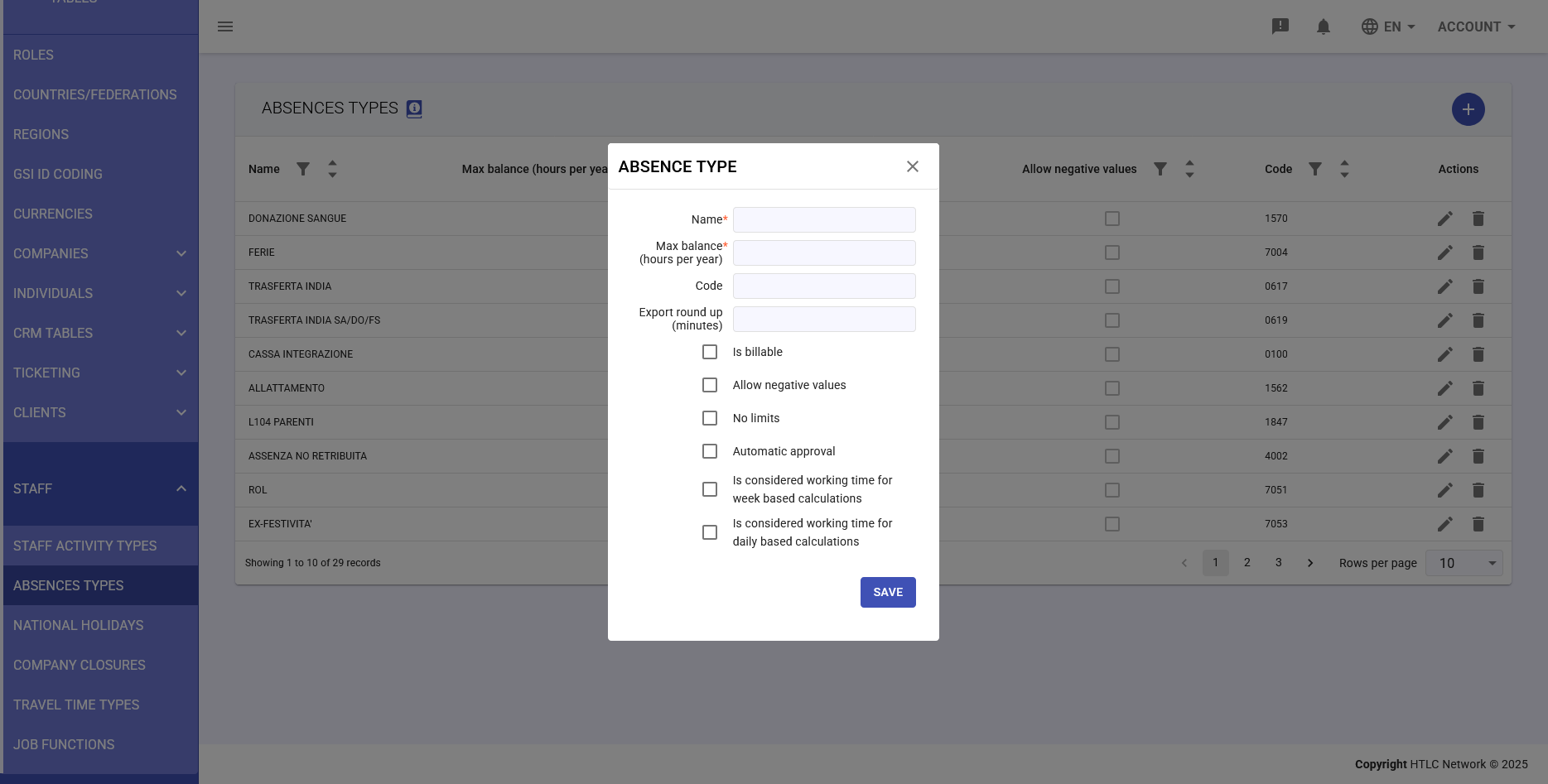
- The "Add absence type" form will open
Step 2: Basic Information
- Name*: Enter a descriptive name (e.g. "HOLIDAY", "SICK LEAVE", "PERMIT")
- Code: Enter a numeric code for export (e.g. 7004 for holidays)
- Max balance (hours per year): Define annual hours (e.g. 160 for 20 days)
Step 3: Configuration Options
Billing
- Check Is billable if these absences should be billed (e.g. training at client)
Limit Management
- No limits: Removes any restriction on usable hours
- Allow negative values: Permits going negative (useful for holiday advances)
Approval
- Automatic approval: Requests are approved without managerial review
Step 4: Advanced Configurations
Export Rounding
- In the Export round up (minutes) field, enter the rounding value
- Example: with value 15, 1h10min becomes 1h15min in export
Working Time Calculation
- Is considered working time for week based calculations: Hours contribute to weekly total
- Is considered working time for daily based calculations: Hours contribute to daily total
Step 5: Save
- Verify all entered fields
- Click SAVE to create the absence type
Editing Absence Type
- Find the type in the main table
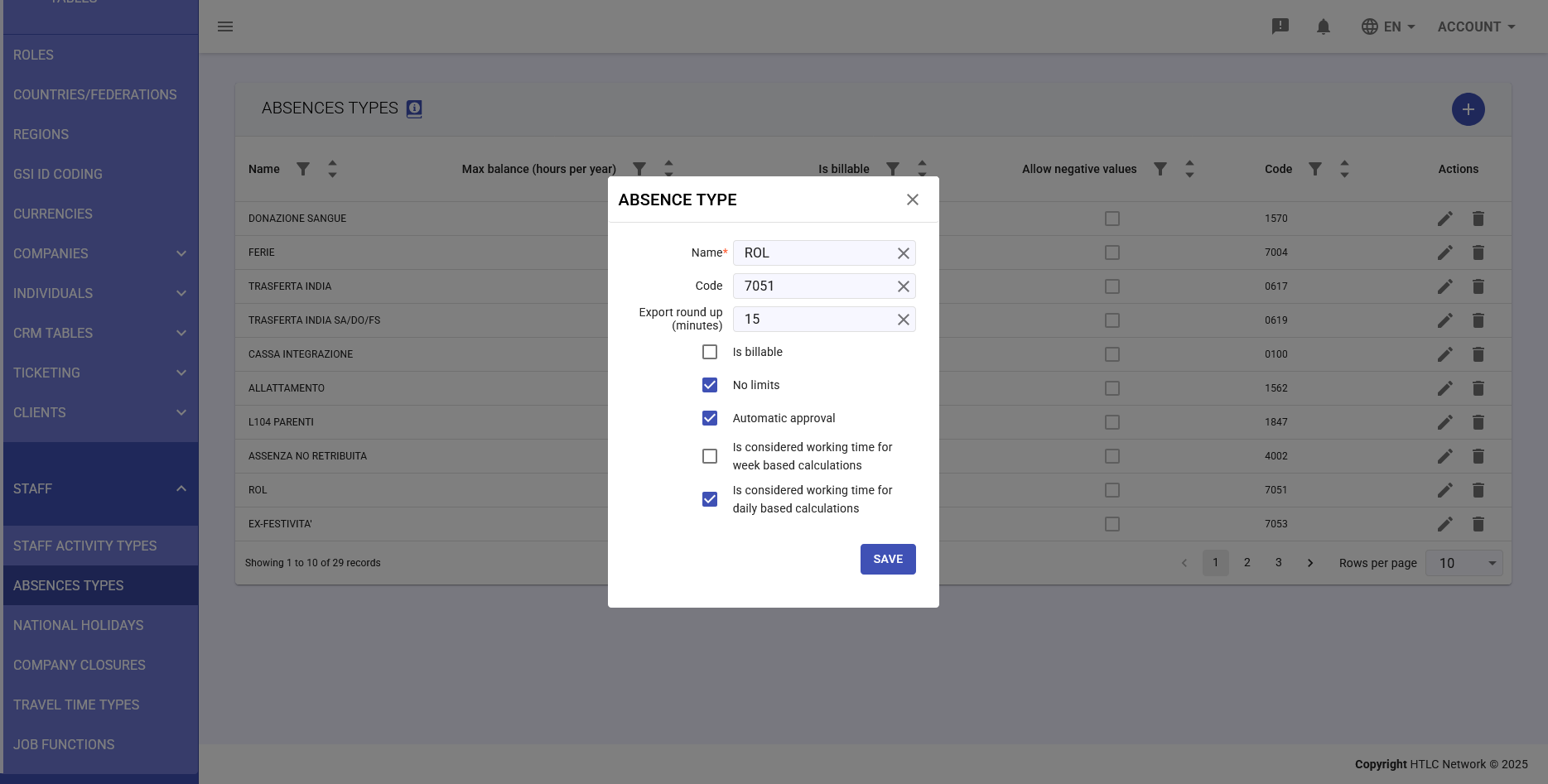
- Click the pencil icon in the Actions column
- Modify necessary fields in the form
- Click SAVE to confirm
Warning: Changes are not retroactive. Changing max balance doesn't affect already recorded absences.
Deleting Absence Type
- Verify no absences are recorded with this type
- Click the trash icon in the Actions column
- Confirm deletion in the dialog window
-
Typical Configurations
Annual Leave
- Name: HOLIDAY
- Code: 7004
- Max balance: 160 hours (20 days)
- Is billable: NO
- Allow negative: YES (for advances)
- Automatic approval: NO
Time Off in Lieu
- Name: TIME OFF
- Code: 7051
- Max balance: 72 hours (9 days)
- Is billable: NO
- Allow negative: NO
- Automatic approval: NO
Sick Leave
- Name: SICK LEAVE
- Code: 7010
- No limits: YES
- Is billable: NO
- Automatic approval: YES
Training
- Name: TRAINING
- Code: 7020
- Max balance: 40 hours
- Is billable: YES (if at client site)
- Is considered working time: YES
-
Integration with Staff Module
Configured absence types are used in:
- Staff → Absences: To create absence requests
- Staff → Calendar: View planned absences
- Staff → Anomalies: To resolve unjustified absences
- Staff → Export: Generate codes for payroll
-
Best Practices
- Use clear and industry-standard names (HOLIDAY, SICK LEAVE)
- Keep numeric codes consistent with payroll system
- Document internally the meaning of each type
- Test rounding before production use
- Enable automatic approval only for non-critical types
- Check impact of "considered working time" options