-
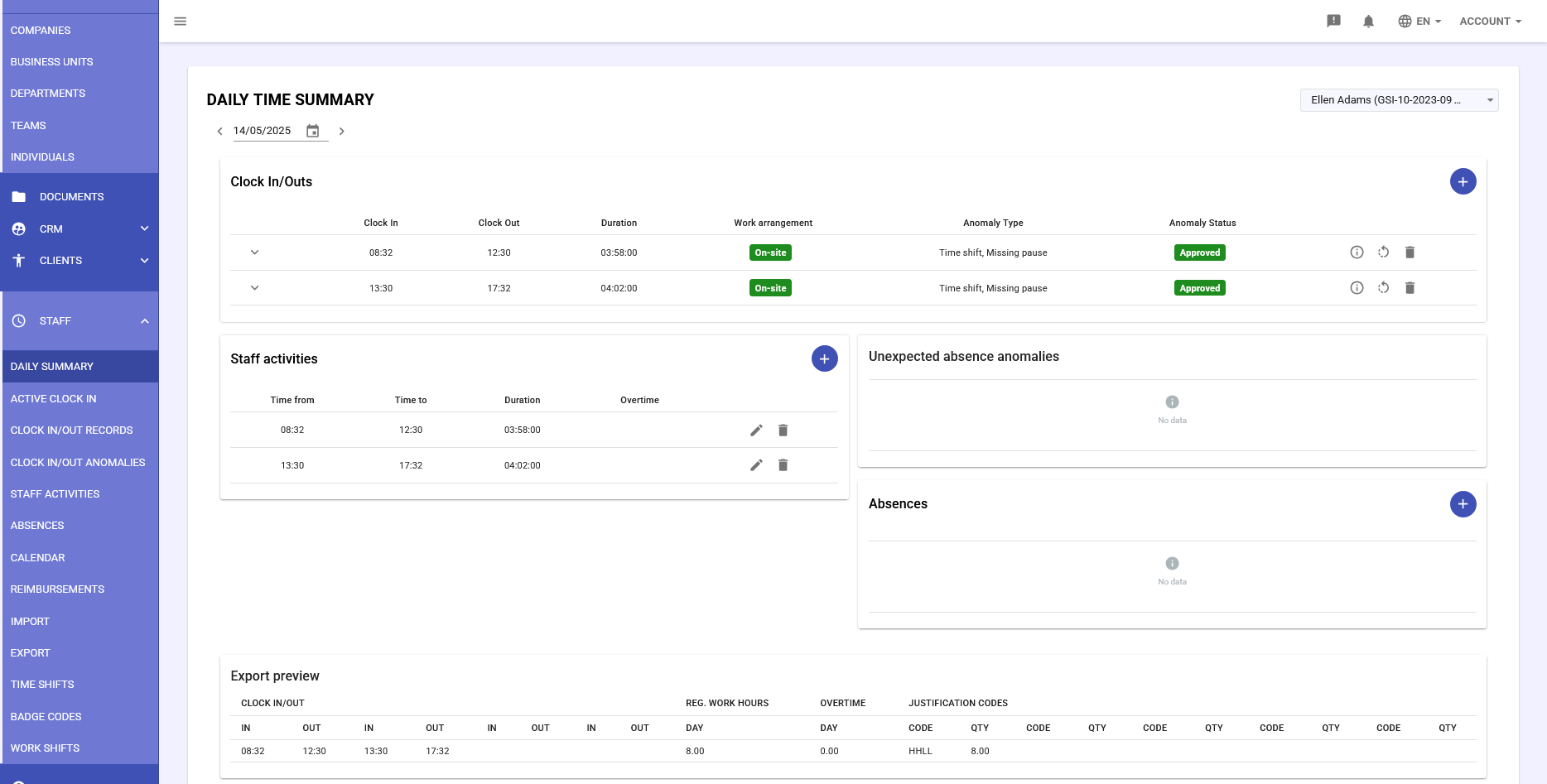
The Daily Summary is a central feature of the GSI2 Staff module that consolidates in a single interface all information related to attendance management for a single employee on a specific date. This unified view eliminates the need to navigate between different sections to get a complete picture of the daily attendance situation.
Main Components
The Daily Summary consists of five main sections:
- Clock In/Outs
- Staff Activities
- Unexpected Absence Anomalies
- Absences
- Export Preview
Navigation Controls
Date Selection
- Calendar: Click the calendar icon to select a specific date
- Navigation arrows: Use the < and > arrows to navigate day by day
- Date format: DD/MM/YYYY (e.g., 14/05/2025)
Employee Selection (available for users with Approver permissions)
- Dropdown menu: Select the desired employee
- Display format: First Name Last Name (GSI-XX-XXXX-XXX)
- Search filter: Type part of the name to filter the list
-
Clock In/Outs
The Clock In/Outs section displays all clock-in and clock-out records for the selected date, highlighting any anomalies.
3.2 Information Displayed
Main Columns
- Date: Record date (DD/MM/YYYY format)
- Clock In: Entry time (HH:MM format)
- Clock Out: Exit time (HH:MM format)
- Duration: Total time calculated (HH:MM:SS format)
- Work arrangement:
- On-site
- Remote
- Off-site
- Anomaly Type: Description of detected issue
- Anomaly Status:
- Pending - orange background
- Approved - green background
- Rejected - red background
3.3 Visual Indicators
- Colored badges: Indicate record status
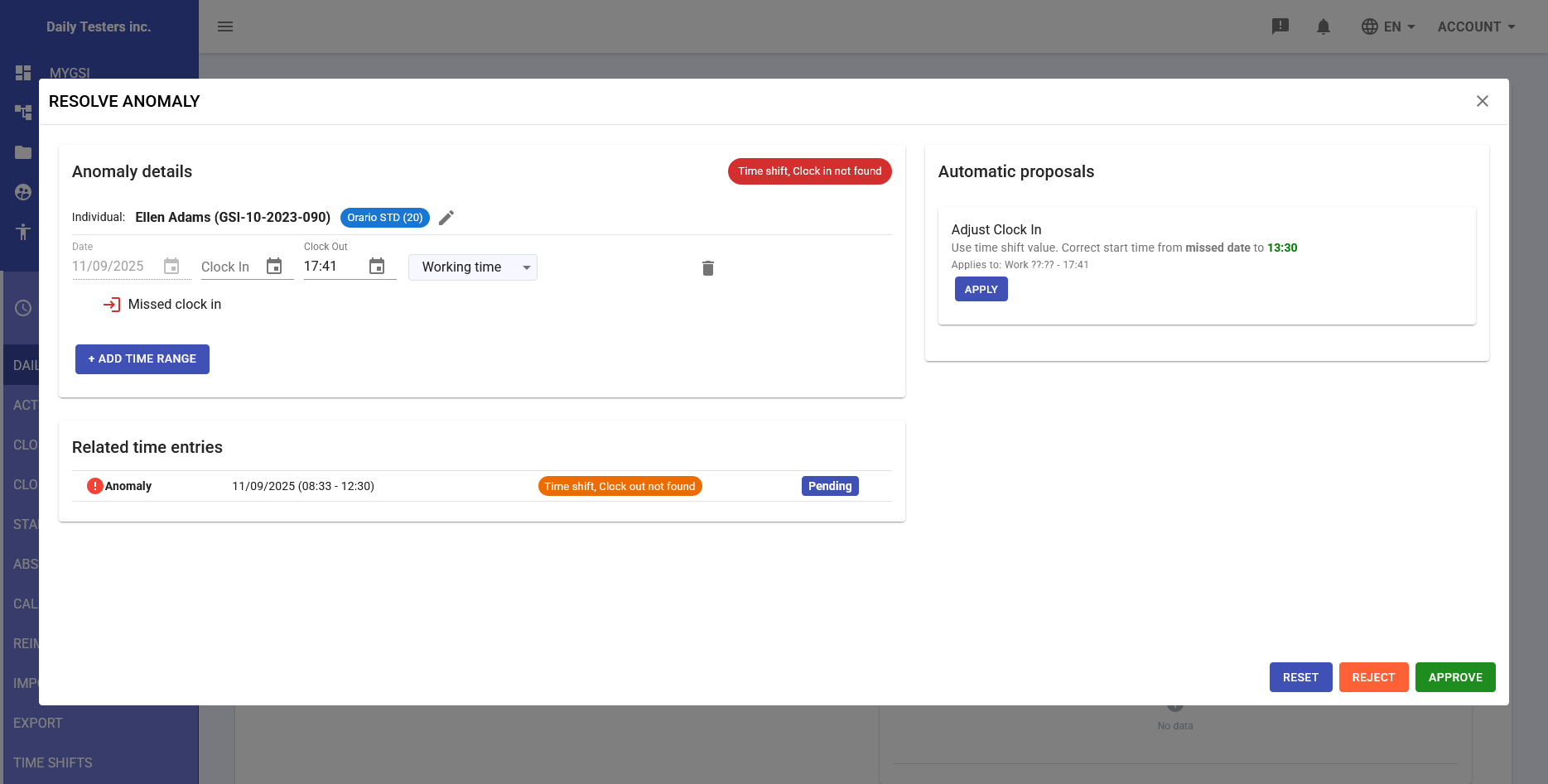
- Red text: Highlights critical anomalies (e.g., "Time shift, Clock in not found")
- Action icons: Appear on hover for quick actions
3.4 Available Actions
Adding New Record
- Click the blue "+" button
- In the "CREATE CLOCK IN/OUT RECORD" popup:
- Select the individual
- Enter the date
- Specify clock in time
- Specify clock out time
- Select work arrangement
- Option: create related staff activity
- Click "CREATE" to save
Anomaly Resolution
When an anomaly is present:
- Resolution icon: Opens the manual resolution panel
- Information icon: Shows applied resolution details
- Reset icon: Cancels the resolution and restores the anomaly
- Trash icon: Completely deletes the record
-
Staff Activities
This section shows validated and approved work activities for the selected day.
Data Displayed
Field Description Format Time from Activity start HH:MM Time to Activity end HH:MM Duration Total time HH:MM:SS Overtime Extra hours HH:MM Creating New Activity
- Click the "+" button in the section
- In the "ADD NEW STAFF ACTIVITY" form:
- Date: Select the activity date
- Type: Choose between From/To (fixed time) or Duration (total hours)
- Start time: Specify the start time
- End time: Specify the end time
- Individual: Select the employee
- Activity type: Select the category
- Work mode:
- ON-SITE
- REMOTE WORK
- OFF-SITE WORK
- Billable: Indicate if the activity is billable to the client
- Recurring: Specify if the activity is recurring
- Notes: Add any annotations
- Click "SAVE" to confirm
Updating Activity
In the "UPDATE" form you can:
- Modify times and durations
- Change activity type
- Update work mode
- Associate with different clients
- Modify billability status
-
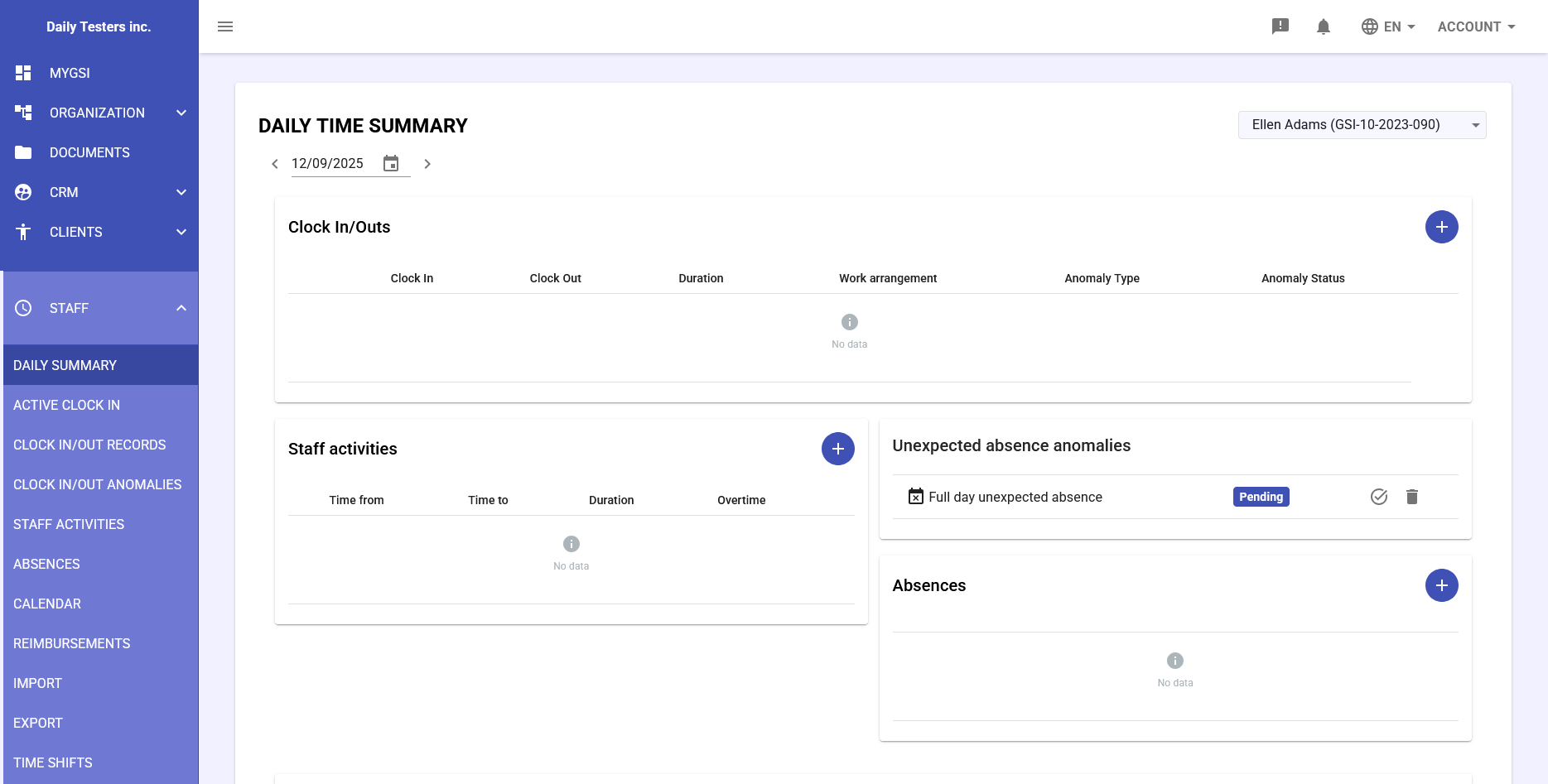
Unexpected Absence Anomalies
This section is displayed when:
- The employee was expected at work according to the Time Shift
- No clock records are present for the day
- There are no approved absences justifying the absence
Types of Absence Anomalies
- Full day unexpected absence: Complete unjustified absence
- Partial day absence: Partial unjustified absence
- Late arrival: Significant unjustified delay
- Early departure: Unjustified early exit
Resolution
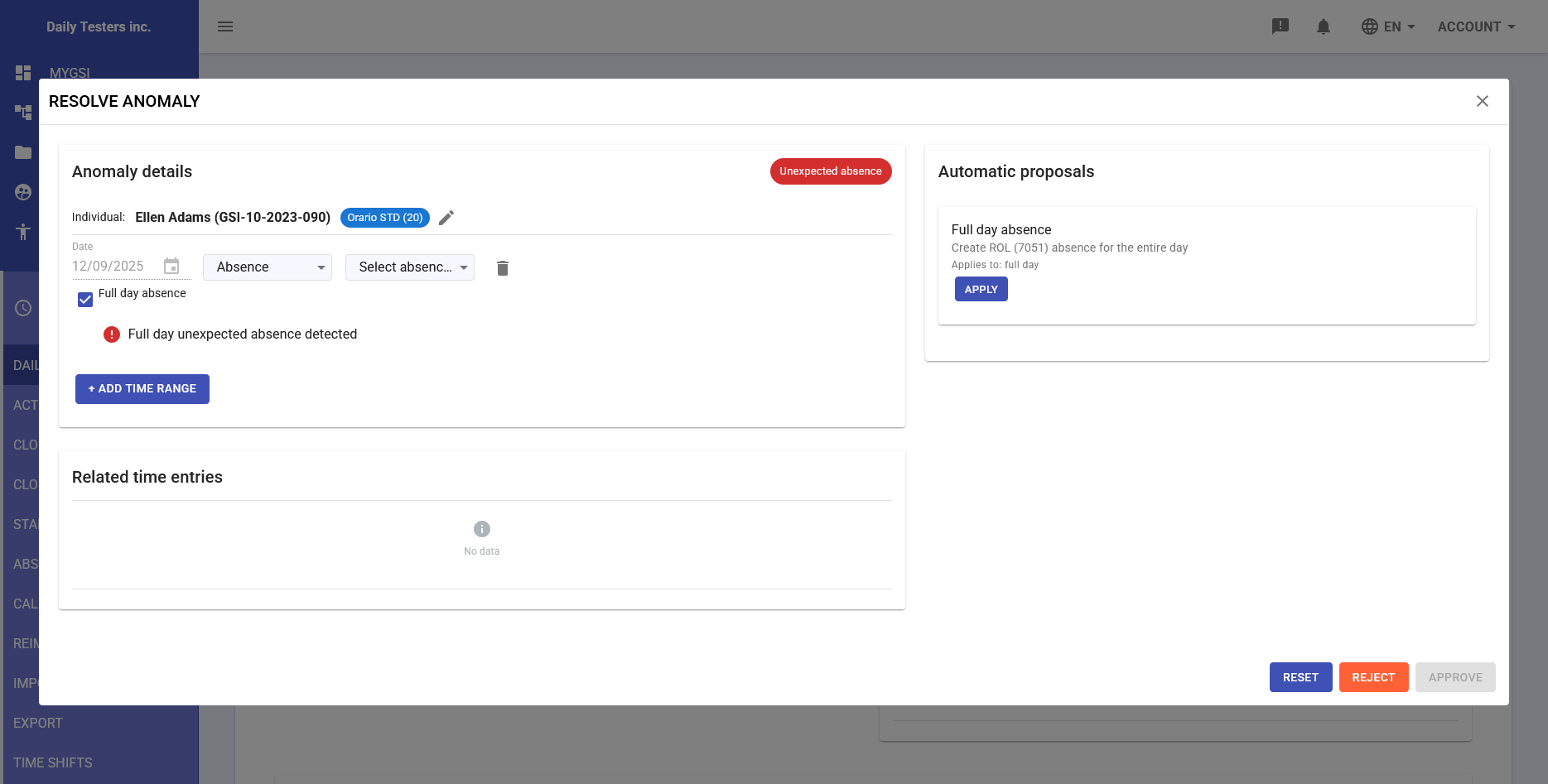
Automatic Proposals
The system can automatically propose:
- Full day absence: Create ROL (7051) for the entire day
- Adjust Clock In: Correct start time from missed date to 13:30
- Create absence: Create absence for specific period
Manual Resolution
- Click on the anomaly to open the resolution panel
- Evaluate the automatic proposal (if present)
- Alternatively, manually select:
- Type of absence to apply
- Period to cover
- Justification notes
- Click "APPLY" to apply the solution
-
Absences
The section shows all absences impacting the selected date:
- Already approved absences
- Requests pending approval
- Rejected absences (for reference)
Creating New Absence
Duration Types
- One day: Absence for the entire day
- Multiple days: Continuous absence period
- Partial day: Some hours of the day
Creation Form
In the "ADD NEW ABSENCE" popup:
- Individual: Select the employee
- Type: Absence request
- Absence type:
- HOLIDAY (7004)
- ROL (7051)
- Sick leave
- Paid leave
- Unpaid leave
- Other configured types
- Absence duration type:
- One day: Enter date only
- Multiple days: Enter from and to dates
- Partial day: Enter date, start and end time
- Attachments: Option to attach documentation
- Click "SAVE" to submit the request
-
Export Preview
The export preview provides a projection of how the day's data will be represented in the final export for the payroll system (TeamSystem).
Preview Content
Clock In/Out Section
IN OUT IN OUT IN OUT Shows up to 3 in/out pairs for the day Hours and Codes Section
REG. WORK HOURS OVERTIME JUSTIFICATION CODES DAY: HH:MM DAY: HH:MM CODE (e.g., HHLL, 7004, 7051) Additional Columns
- QTY: Quantity for justification codes
- CODE: Special absence/presence codes
7.3 Usage
- Verify data correctness before monthly export
- Identify discrepancies between entered data and final output
- Check that justification codes are correct
- Validate overtime calculation