-
Run Automatic Anomaly Processing
When you run the automatic processing:
- The system analyzes each anomaly within the selected period.
- For each anomaly, it applies the rules in order of priority, checking the defined conditions.
- If the anomaly is resolved, the result is saved.
- If no rule applies, or the anomaly cannot be fully resolved, it remains in the “Pending” state.
To run automatic anomaly processing:
- Access the Staff → Anomalies module
Go to the Staff module, in the Anomalies section. - Open the batch processing function
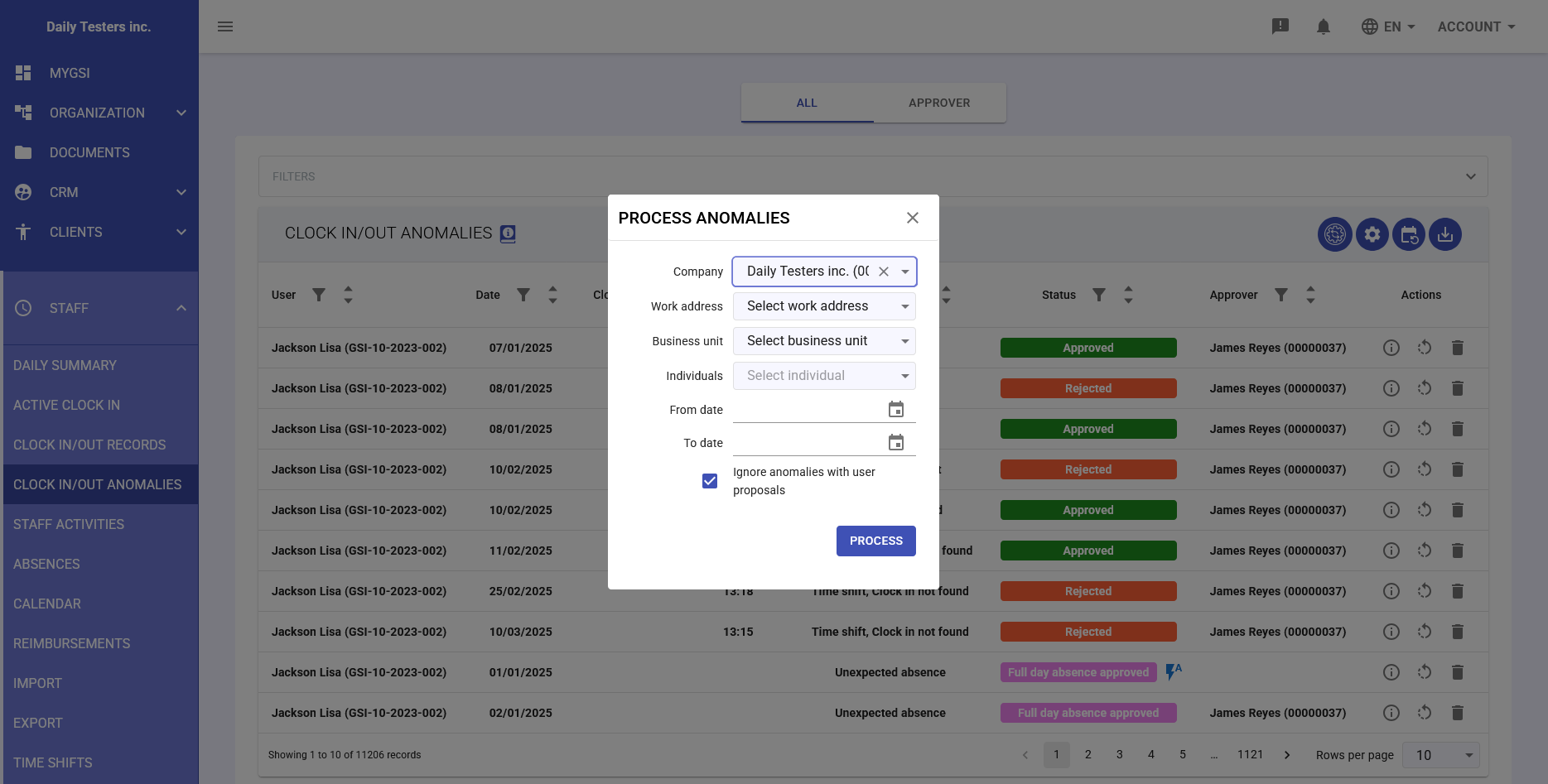
From the main Anomalies view, click the outlined gear icon.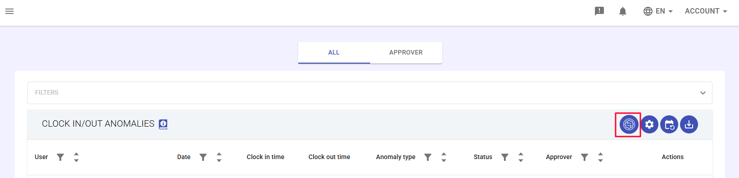
- Configure the filters
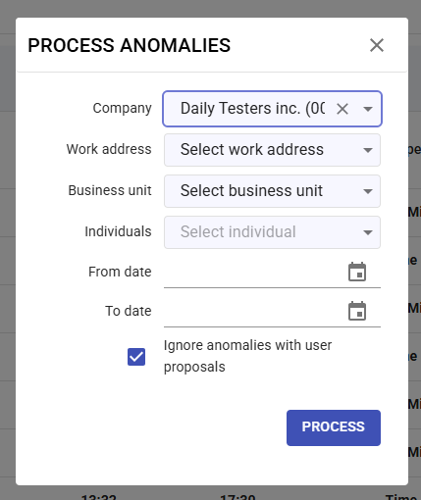
The Automatic Anomaly Processing window will open, allowing you to configure the following options:- Company: select the company to process.
- Work location: filter by site (optional).
- Business unit: filter by department (optional).
- Employees: select specific employees or choose “All”.
- From day / To day: define the date range to process.
- Ignore anomalies with user proposals: check this option to exclude anomalies already managed manually.
- Run the processing
Make sure all parameters are correct, then click PROCESS to apply all active rules to the selected anomalies.
Once completed, you’ll receive a report showing the number of anomalies resolved.