-
In this article:
- Create a new automatic rule
- Edit an existing rule
- Redefine the order of rules (in terms of priority)
Create a new automatic rule
To create a new automatic anomaly resolution rule, follow these steps:
- Access the Staff → Anomalies module
Go to the Staff module, in the Anomalies section - Open the configuration interface
At the top right, click the solid gear icon to open the rule settings.
- Create a new automatic rule
Click the “+” button in the top-right corner to open the Automatic Anomaly Processing Rule form.
- Configure the rule parameters
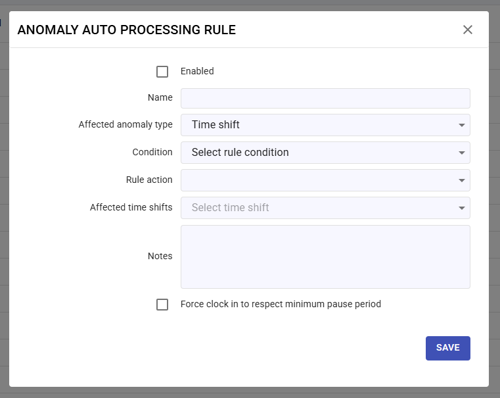
From this panel, you can configure the following parameters:- Enable: tick the checkbox to activate the rule immediately.
- Name: enter a descriptive name (e.g. “Complete missing check-outs”).
- Related anomaly: select the type of anomaly to manage.
- Rule action: choose what the system should do when the anomaly is detected:
- Split with break: automatically inserts the standard lunch break.
- Adjust check-out: aligns the check-out time with the work schedule.
- Adjust check-in: aligns the check-in time with the work schedule.
- Create absence: automatically generates a justified absence.
- Ignore anomaly: marks the anomaly as resolved without making changes.
- Affected time shifts: select one or more work shifts to which the rule should apply.
- Notes: add any additional comments or explanations about the rule.
- Priority: define the execution order (1 = highest priority).
- Force clock-in to respect minimum pause period: optional, ensures that the lunch break duration is respected.
Additional fields (visible only for certain anomaly types):- Condition: define specific criteria to apply the rule (e.g. “Incomplete working range”).
- Max absence threshold (hours): set a numeric value within which the rule applies (e.g. 30 minutes).
- Save
Review all parameters and click SAVE to create the rule.
The rule will appear in the list and will be immediately active if enabled.
Edit an existing rule
To edit an existing automatic anomaly resolution rule, follow these steps:
- Access the Staff → Anomalies module
Go to the Staff module, in the Anomalies section - Open the configuration interface
At the top right, click the solid gear icon to open the rule settings. - Select the rule
Find the rule you want to edit and click the pencil icon to modify its configuration.
 - Edit the rule
Update the necessary parameters. - Save changes
Click SAVE to confirm the modifications.
Redefine the order of rules
The order of the rules is crucial, as it determines the priority with which anomalies are resolved.
The system applies rules from top to bottom, so the ones placed at the top of the list are executed first.Example:
- Rule 1: “Adjust check-out to match work schedule”
- Rule 2: “Insert standard lunch break”
If the lunch break rule came first, the check-out time might be altered incorrectly.
Placing the check-out rule first ensures that it is correctly applied before the lunch break.To reorder the rules, follow these steps:
- Access the Staff → Anomalies module
Go to the Staff module, in the Anomalies section - Open the configuration interface
At the top right, click the solid gear icon to open the rule settings. - Enable reorder mode
Click the reorder icon (third icon at the top). The rule list will switch to drag & drop mode.
- Move the rules
Drag and drop the rules up or down to set the desired order.
Note: Rules at the top of the list have the highest priority and are applied first. - Save changes
Click SAVE ORDER to confirm the new sequence.