-
In this article you will find how to:
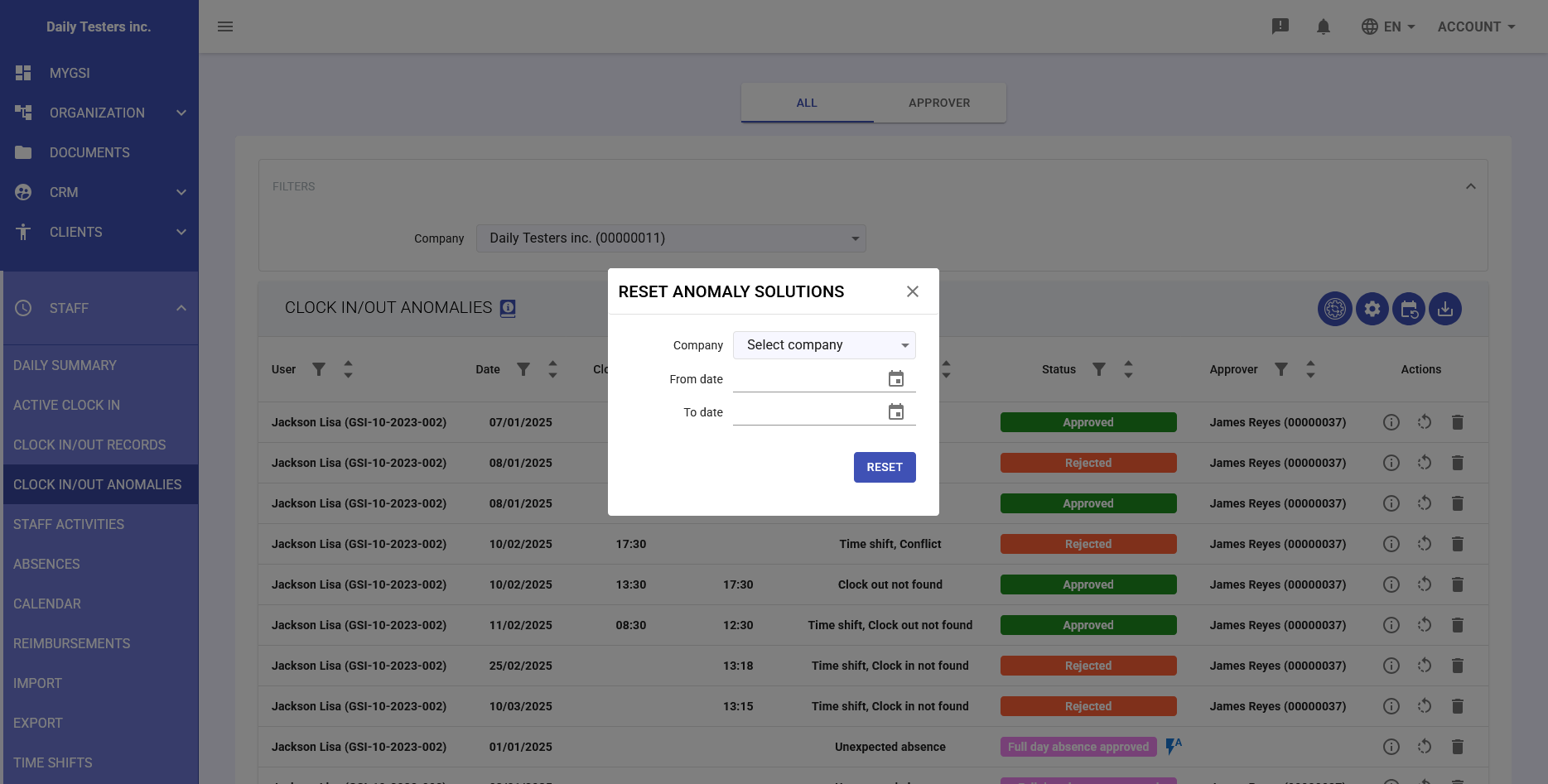
The system allows you to cancel a resolution already applied to an anomaly, so that it can be reprocessed. The reset can be performed on a single anomaly or in bulk for multiple employees or time periods.
Resetting the resolution of a single anomaly
To cancel a resolution already applied to an anomaly, follow these steps:
- In the main menu go to Staff then Clock In/Out Anomalies
- In the anomalies table, locate the row of the resolved anomaly.
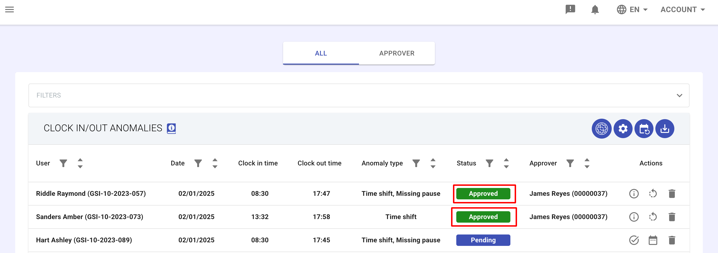
- Click the Reset icon.

- The anomaly will immediately return to the Pending status and can be corrected again.
Resetting multiple anomaly resolutions
To cancel multiple resolutions at once:
- In the main menu go to Staff then Clock In/Out Anomalies
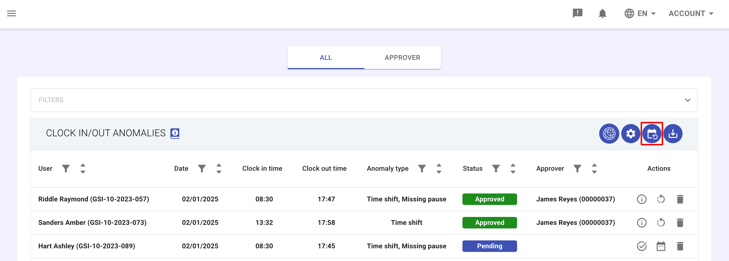
- Click the Reset anomaly resolutions button in the upper-right corner.
- Set the filters in the panel that opens:
- Company – Select the relevant company
- Work location – Limit the action to a specific site
- Business unit – Filter by department (optional)
- Individuals – Select one or more employees
- From day / To day – Define the time range
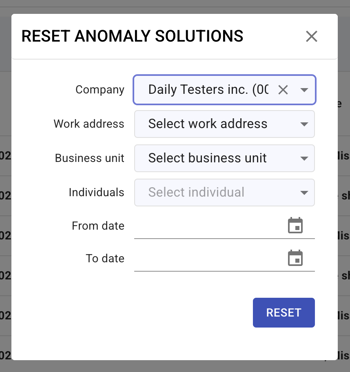
- Once the criteria are set, click RESET.
- All matching anomalies will return to the Pending status, ready to be reprocessed.
IMPORTANT NOTE
- The reset also deletes the staff activity automatically generated by the anomaly resolution.
- This deletion of the activity is irreversible, while the history of resolutions remains recorded for audit purposes.