-
This article explains how to:
- Approve overtime individually
- Approve multiple overtime requests simultaneously
- Best practices
- Important notes
Approve overtime individually
There are two ways to approve overtime individually:
From the Staff Activities module
- Access the module – Go to Staff → Staff Activities from the main menu.
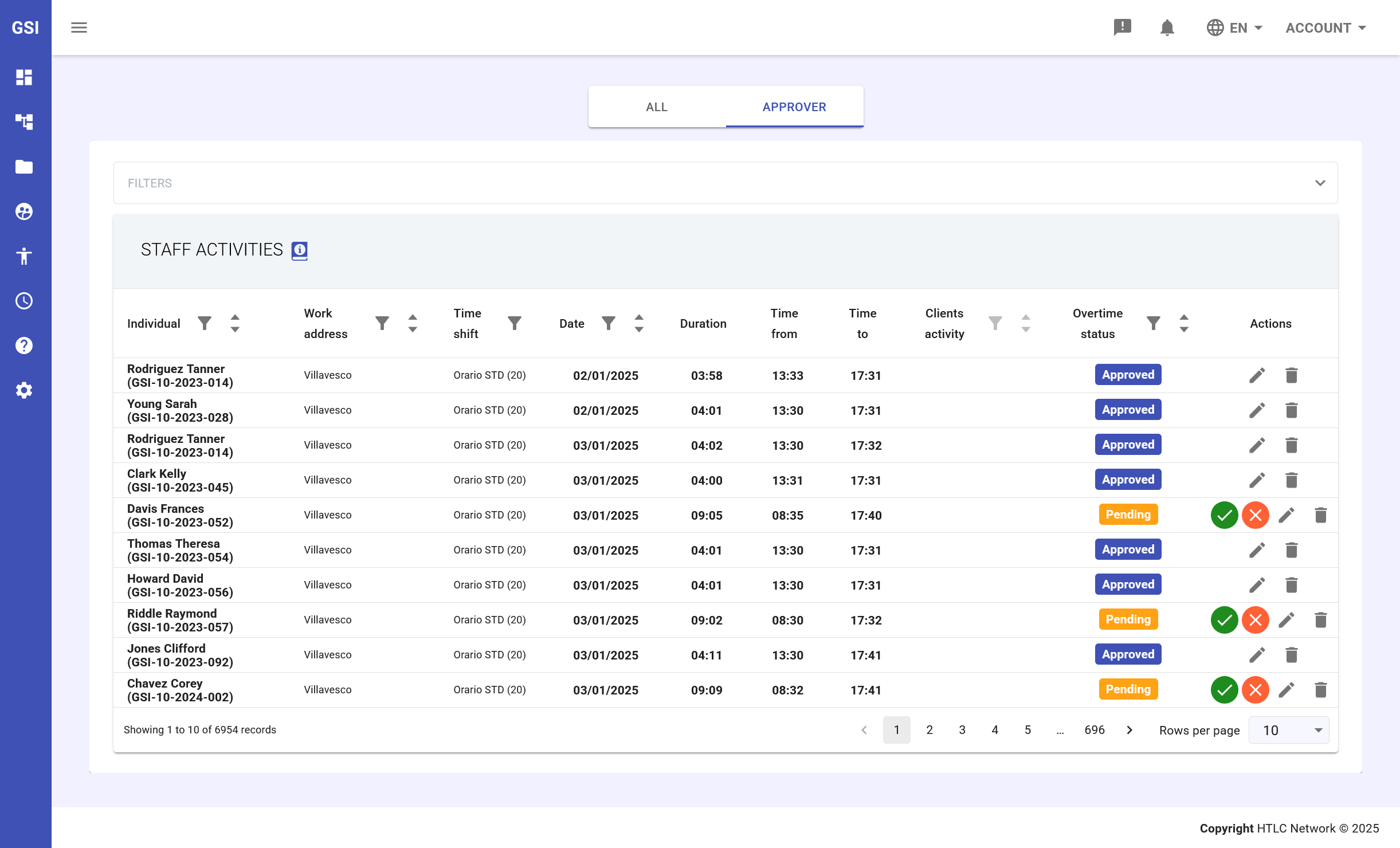
- View overtime requests – At the top center, select the Approver tab to see all pending requests.
If overtime requests are present, they will appear as Pending (highlighted in yellow), and the Duration column will display the number of overtime hours.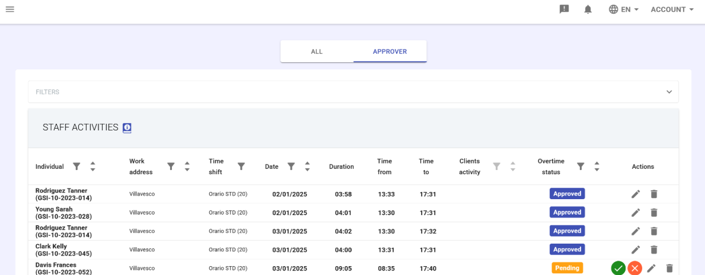
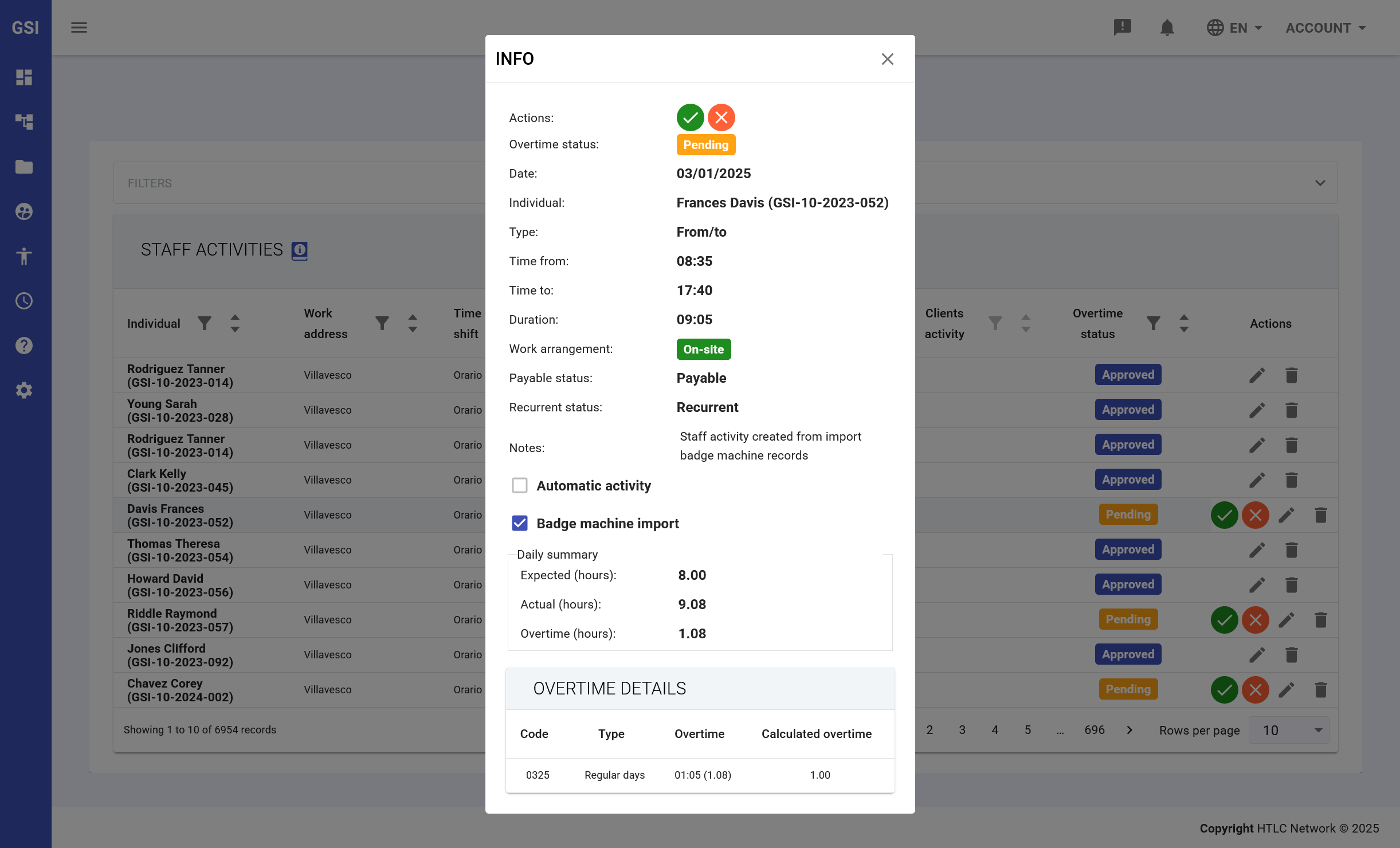
- Select the request – Click the employee’s row to view the details of their overtime request.
An INFO panel will open, showing the Overtime Summary section with:- Scheduled Hours: Contract hours
- Worked Hours: Actual worked hours
- Overtime: Calculated difference
- Code: Payroll code for overtime
- Type: Overtime type
- Calculated Overtime: Final amount
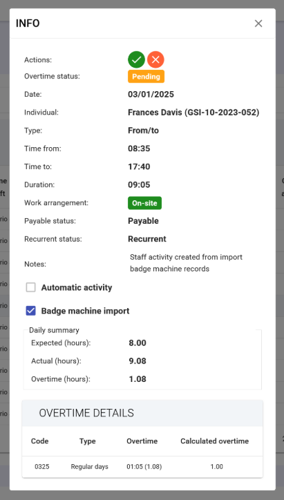
- Approve or reject the overtime – In the last column of the row, you’ll find two buttons:

- Green checkmark: Approve overtime
- Red cross: Reject overtime
From the Daily Summary module
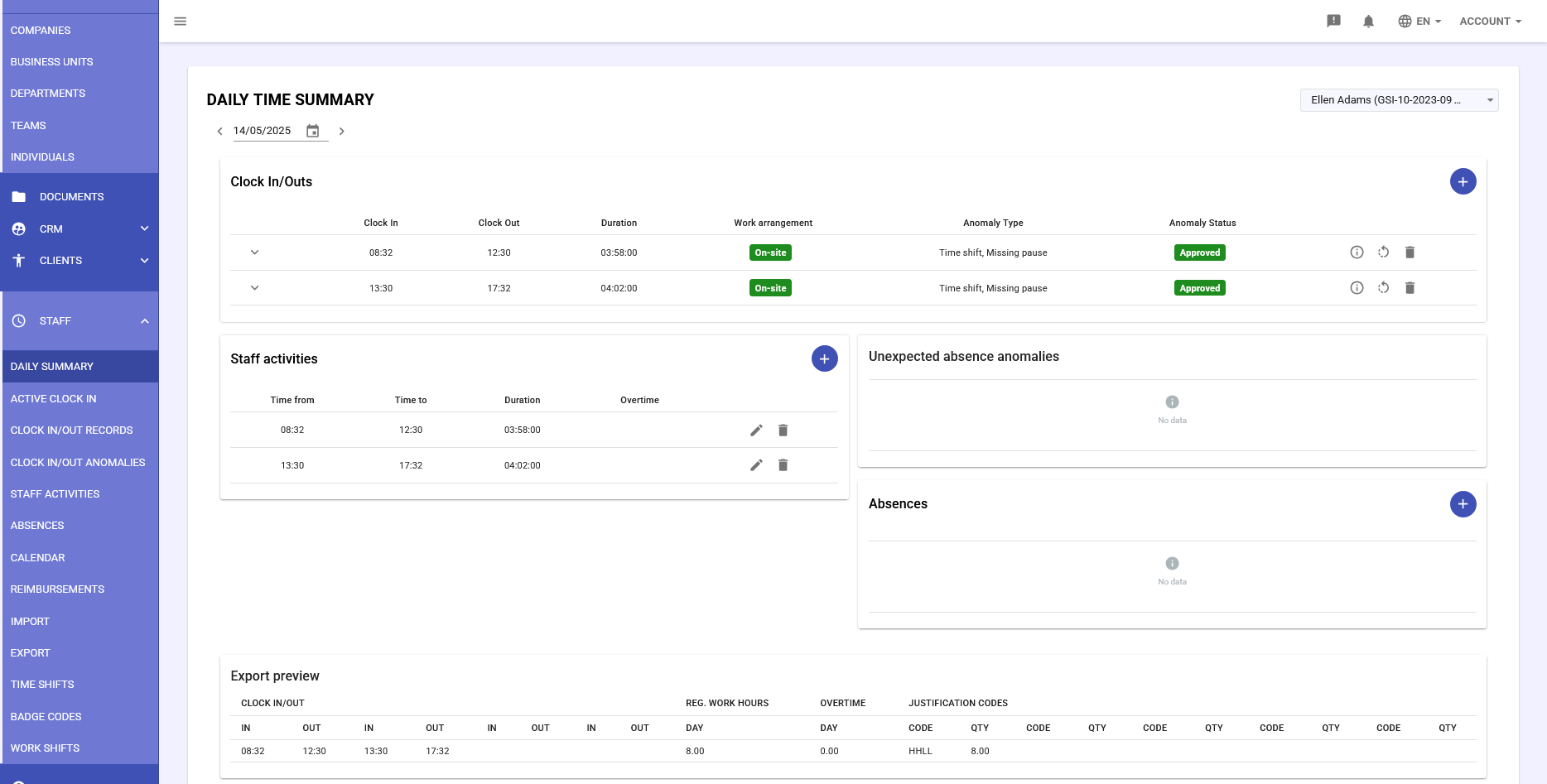
- Access the module – Go to Staff → Daily Summary.
In this section, overtime records are displayed in a table according to the selected date and employee. - View overtime requests – Select the day and employee.
If overtime exists, it will appear in the Staff Activities panel as Pending (yellow).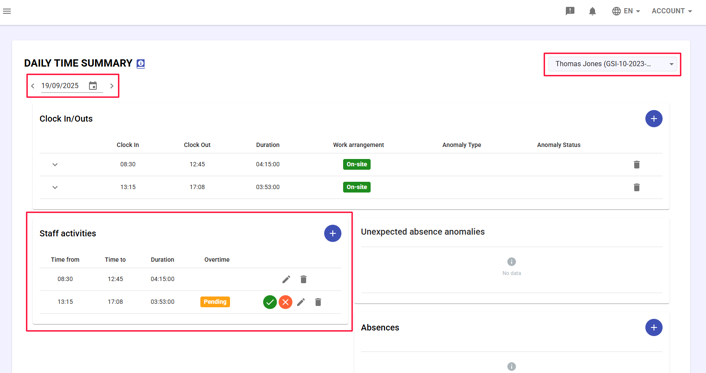
- Select the request – Click the relevant row to open the INFO panel containing the Overtime Summary section with:
- Scheduled Hours: Contract hours
- Worked Hours: Actual worked hours
- Overtime: Calculated difference
- Code: Payroll code for overtime
- Type: Overtime type
- Calculated Overtime: Final amount
- Approve or reject overtime – In the last column of the Staff Activities table, you’ll find two buttons:
 Green checkmark: Approve overtime
 Red cross: Reject overtime
The status will immediately change from Pending to Approved or Rejected.
Approve multiple overtime requests simultaneously
To approve several overtime requests at once, follow these steps:
- Access the module – Go to Staff → Staff Activities from the main menu.
- View the requests – At the top center, select the All tab to view all overtime requests.
You can recognize pending ones as they are highlighted in yellow in the Status column.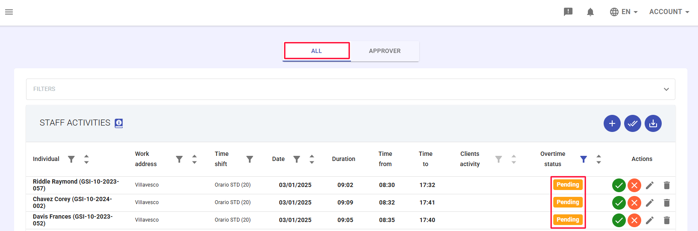
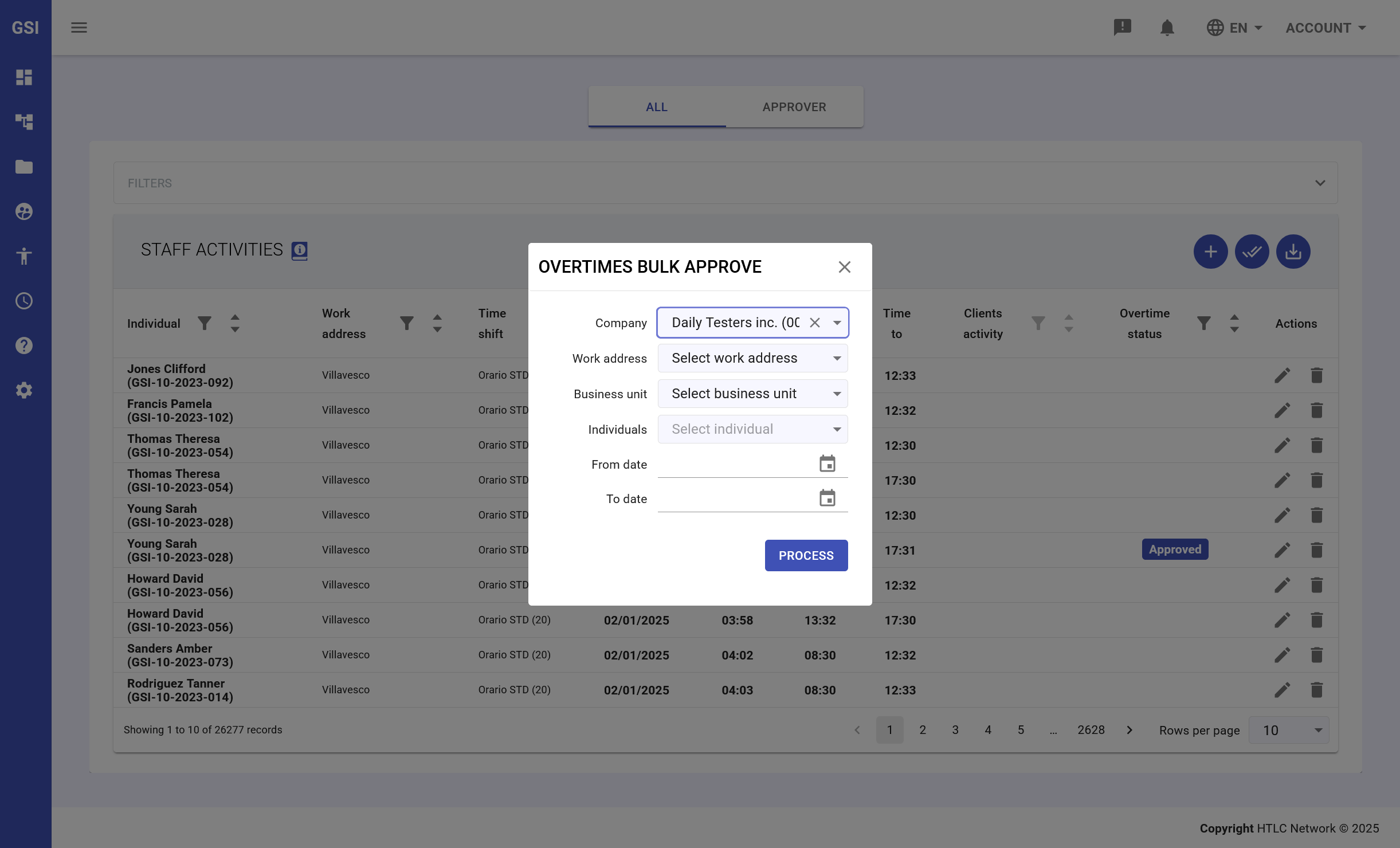
- Mass approval – Click the double checkmark icon
 in the top right corner of the module.
 - Set parameters – A Mass Approval (or Overtime Bulk Approval) panel will open, where you can apply filters such as:
- Reference company
- Reference time period
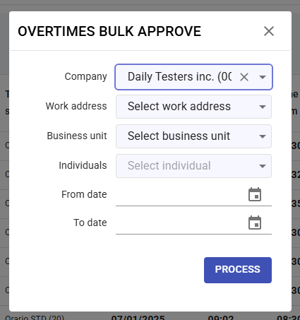
- Confirm – Click PROCESS to confirm.
The system will approve all overtime requests that meet the selected criteria.
A summary of the approved requests will be displayed.
Best Practices
- Always review details before approving significant overtime amounts.
- Use mass approval at the end of the week/month to speed up processing.
- Verify that overtime codes are correct for payroll export.
- Consider the department’s overtime budget before approving.
- Document any rejections with appropriate notes.
Important Notes
- Approved overtime directly affects payroll calculations.
- All approvals are final and tracked within the system.
- Employees receive notifications of approval or rejection.
- Unapproved overtime will not be included in payroll exports.