Esporta
-
This article explains how to:
Configure badge codes for a company
Before entering a badge code, you need to enable the option for the company. To do this, follow these steps:
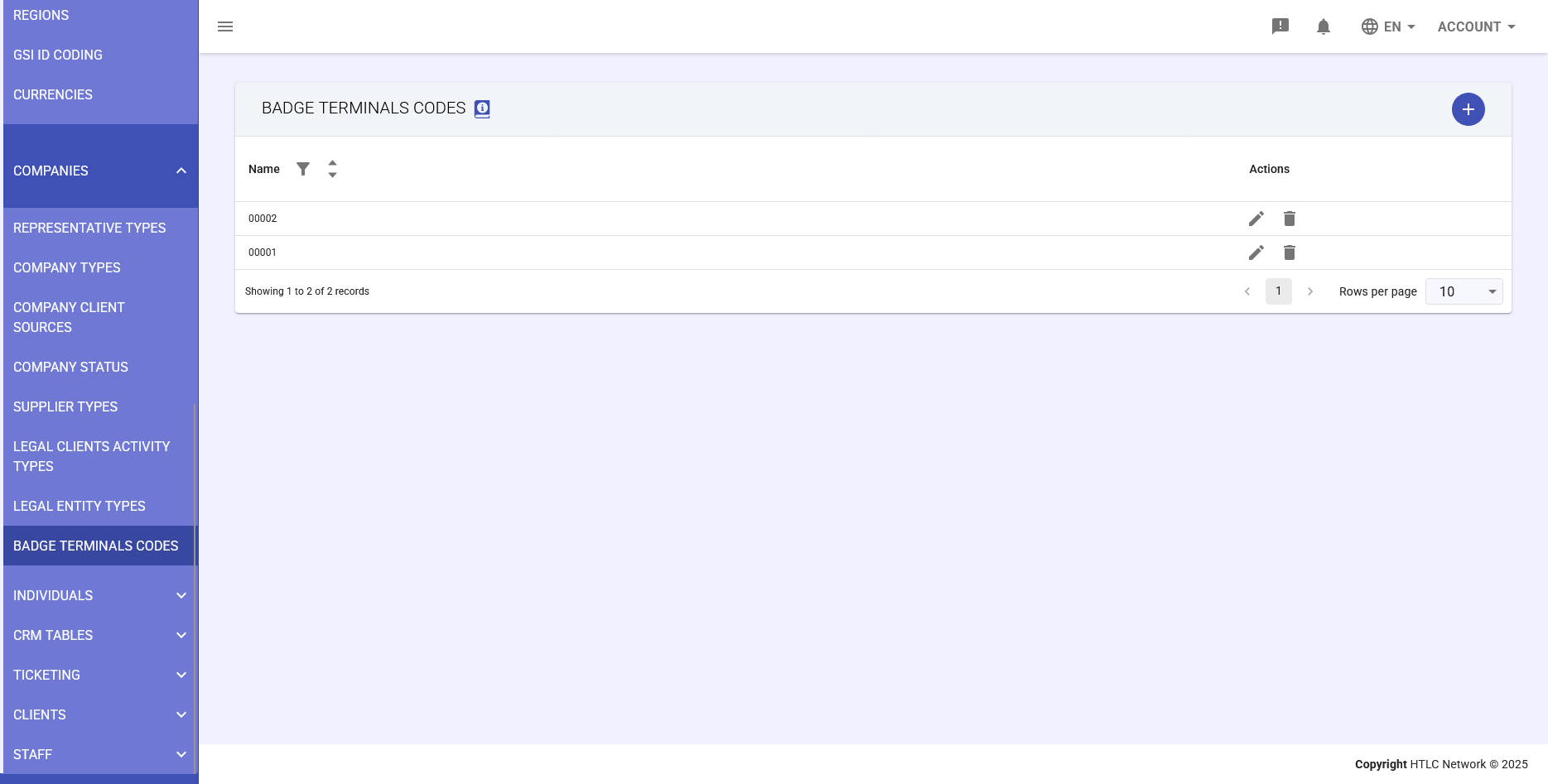
- Go to the General Tables -> Companies -> Badge Terminal Codes module – here you’ll find all badge codes listed in a table format.
- Create a new terminal – Click the + icon in the upper-right corner to create a new terminal (e.g., 00001, 00002).
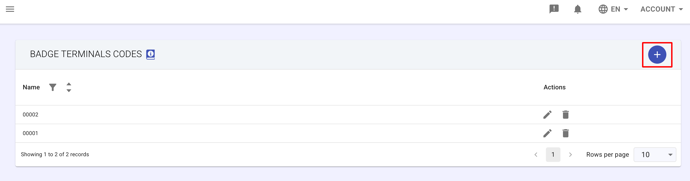
- Enter the terminal code – Enter the terminal code (example: 00001, 00002).
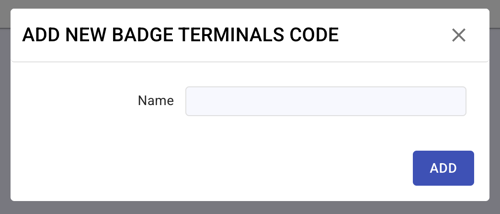
- Save changes – Click ADD to save the changes.
Create a badge code
Before entering the employee’s personal information, you must first create their badge code. The steps are as follows:
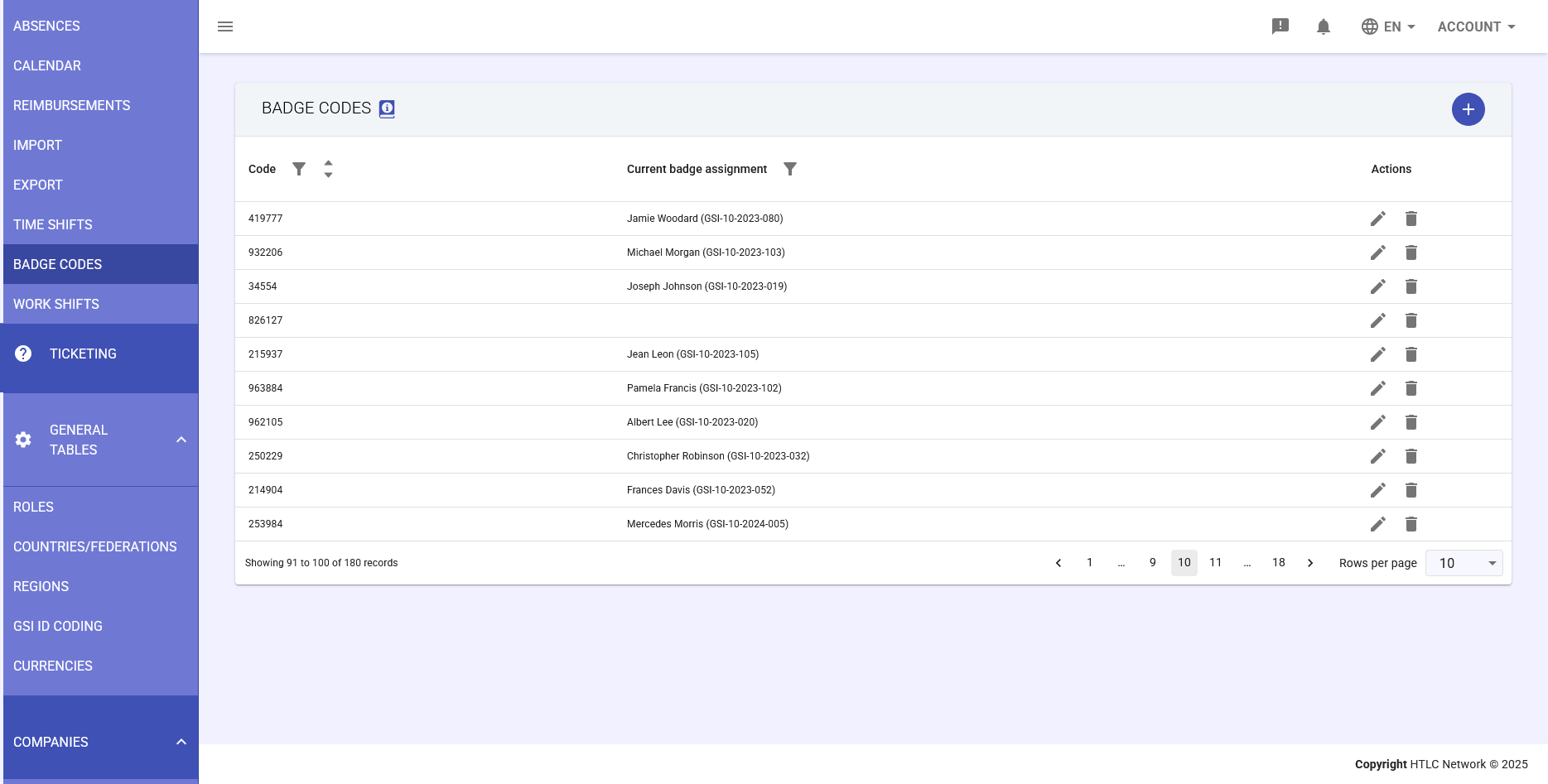
- Go to the Staff -> Badge Codes module – Navigate to the Staff module, under the Badge Codes section, where all badge codes are listed in a table format.
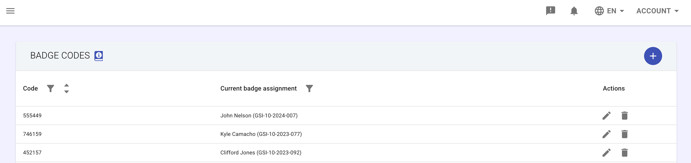
- Verify the badge code – Check that the badge code exists in the system by reviewing the list (and filtering the results if needed).
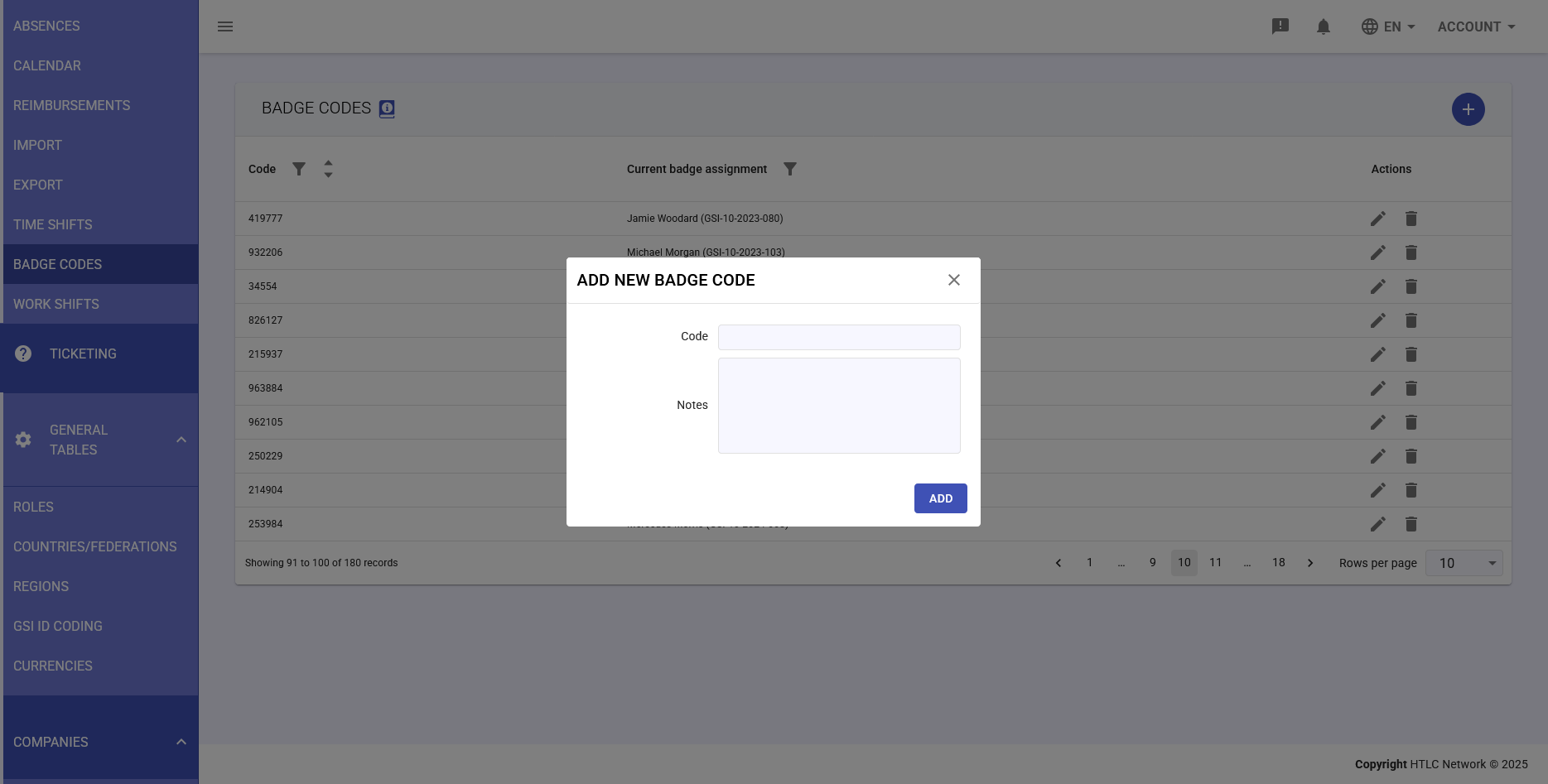
- Create a new badge code – Click the + button in the upper-right corner and, in the Code field, enter a unique number (example: 419777).
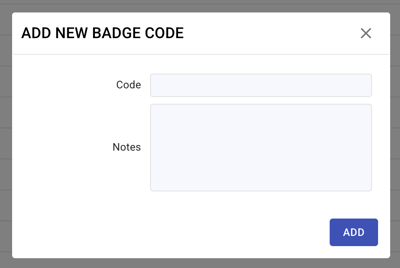
- The Current badge assignment field will remain empty until it’s assigned.
- Save changes – Click ADD to save the changes.
Edit or delete an existing badge code
To edit or delete an existing badge code, follow these steps:
- Go to the Staff -> Badge Codes module – Navigate to the Staff module, under the Badge Codes section, where all badge codes are listed in a table format.
- Select the badge code – Select the row of the badge code you want to edit or delete.
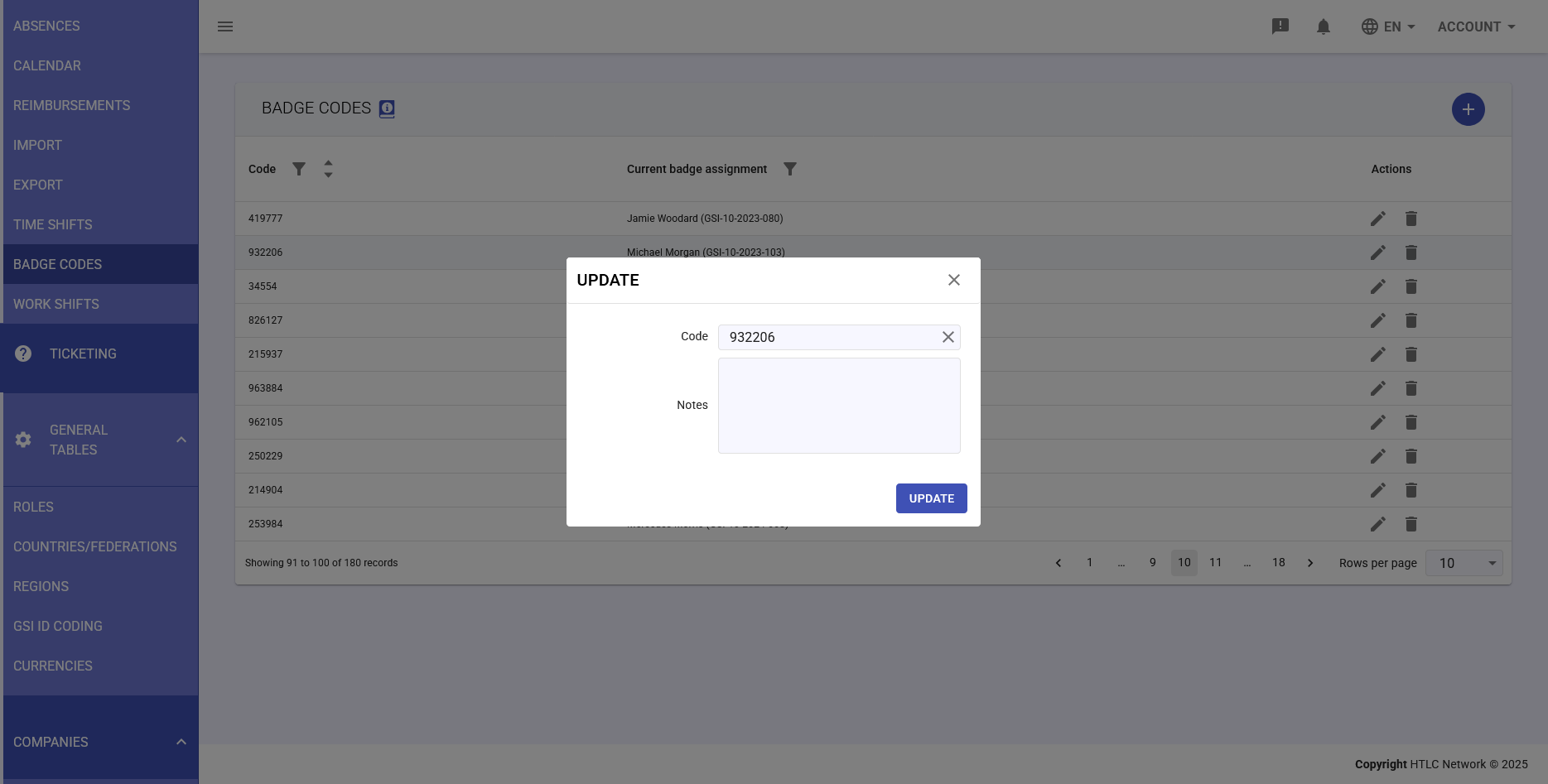
- Edit or delete the code – In the last column of the row, you’ll find two buttons:
 Pencil: edit the badge code
 Trash bin: delete the badge code
- Save changes – Click OK/UPDATE to save the changes.
-
Advanced Management
Active Badge Report
- From Staff → Badge Codes
- Use filters to display only assigned or unassigned badges
- Export the list to Excel for audit
Periodic Maintenance
- Check unassigned badges monthly
- Verify correspondence between physical badges and system
- Remove codes of terminated employees
- Document any anomalies or issues
Security
- Don't reuse badge codes for at least 6 months
- Maintain a deactivation log
- Perform quarterly access audits
- Immediately deactivate lost badges
-
Troubleshooting
Badge not recognized at terminal
- Verify the code is created in Staff → Badge Codes
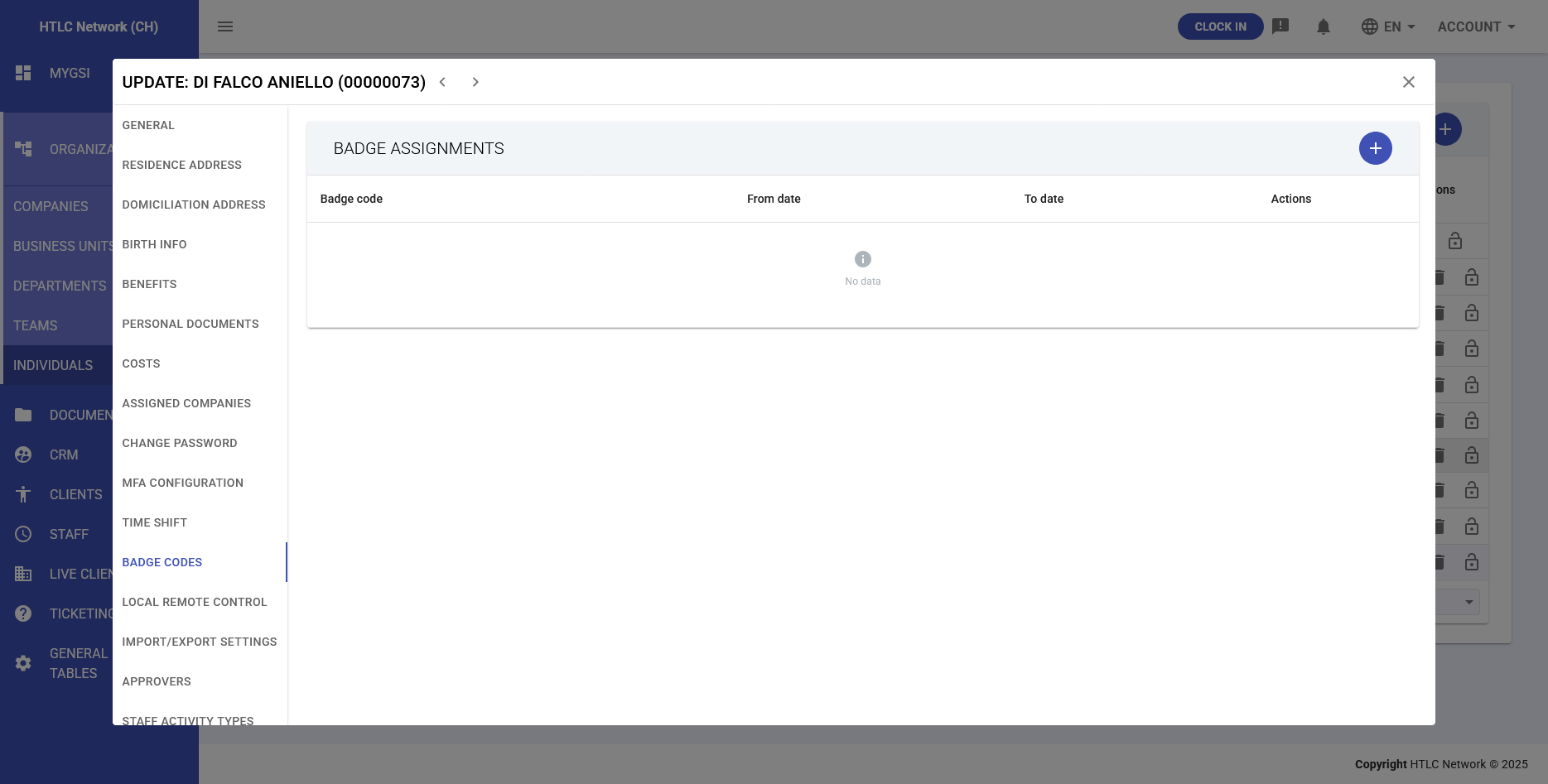
- Check assignment in Organization → Individuals
- Verify validity dates (From/To)
- Check that the terminal is configured correctly
Clock-ins not recorded
- Verify that Time Shift has "Enable automatic badge data import" active
- Check terminal connection
- Check Staff → Import for import errors
Duplicate badge code
- The system doesn't allow duplicates
- Check all existing codes in Staff → Badge Codes
- Use a sequential numbering system to avoid conflicts