-
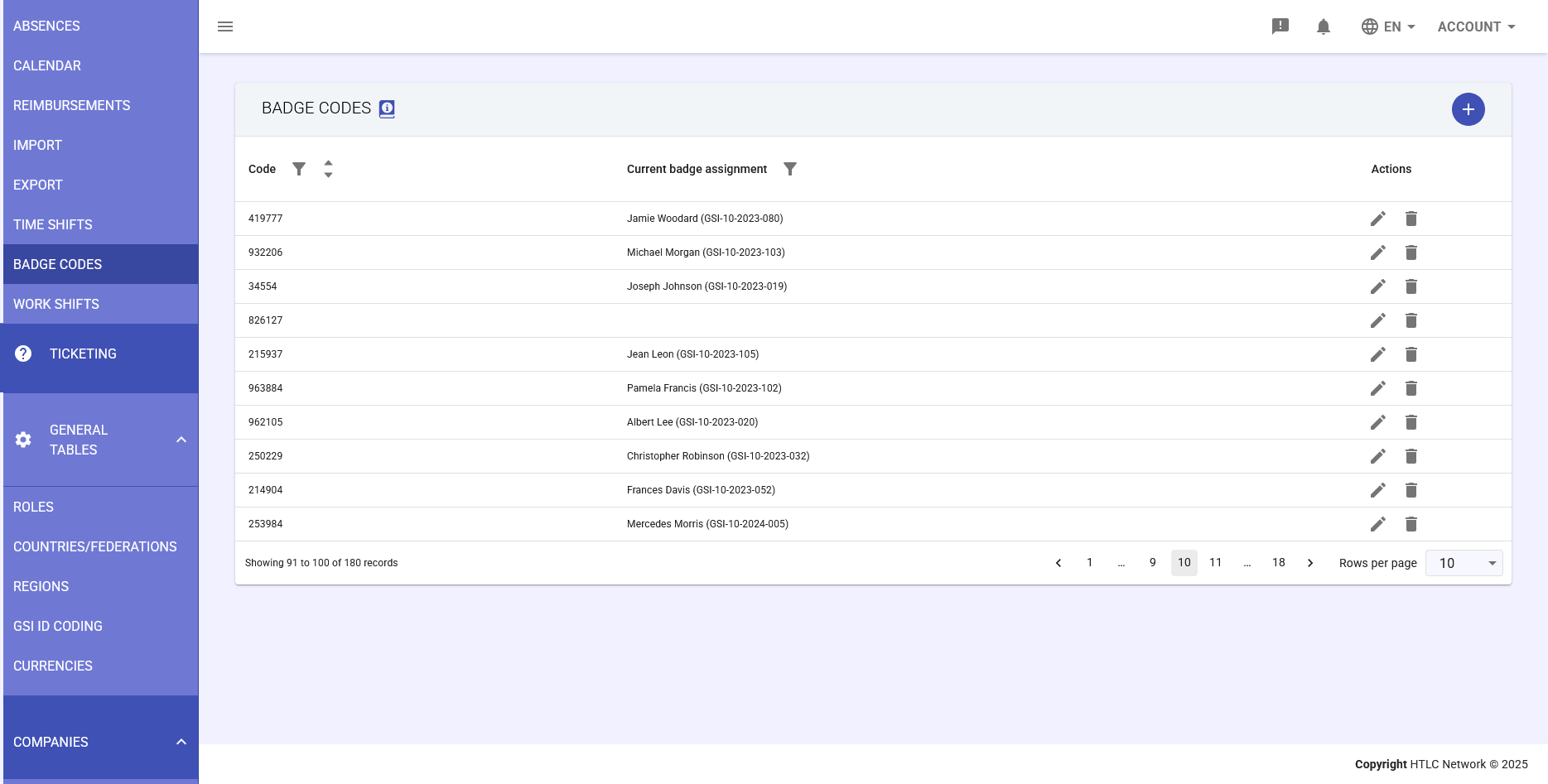
The Badge Codes section of the Staff module is dedicated to the centralized creation and management of badge codes used for staff identification and access. This section allows you to maintain a complete registry of all available badge codes in the system and view current assignments.
Key features:
- Creation of new unique badge codes
- View current staff assignments
- Edit and update existing codes
- Delete unused codes
- Track assignment history
Important note: The actual assignment of badges to employees occurs in the Organization > Individuals section, in the "Badge Codes" tab. The display in this section is for informational purposes only.
Main Interface
Badge Codes Table
The main table presents the following columns:
- Code: The unique numeric badge code
- Numeric format (e.g., 419777, 932206)
- Sortable ascending/descending
- Must be unique in the system
- Current badge assignment: Currently assigned employee
- Format: First Name Last Name (GSI Code)
- Example: Jamie Woodard (GSI-10-2023-080)
- Informational field not editable from this section
- Actions: Available operations
- Pencil icon: Edit badge code
- Trash icon: Delete badge code
Management and Best Practices
Code Organization
- Use a consistent numbering system
- Maintain a separate registry of decommissioned codes
- Document any badge peculiarities in the notes field
- Perform periodic assignment audits
Security
- Immediately remove codes for terminated employees
- Do not reuse previously assigned codes for a minimum period
- Regularly verify all active badges are correctly assigned
- Maintain change tracking for compliance reasons
Maintenance
- Periodically check unassigned badges
- Delete obsolete or unused codes
- Verify correspondence between physical badges and system codes
- Update notes when necessary
-
Adding a New Badge Code
Procedure
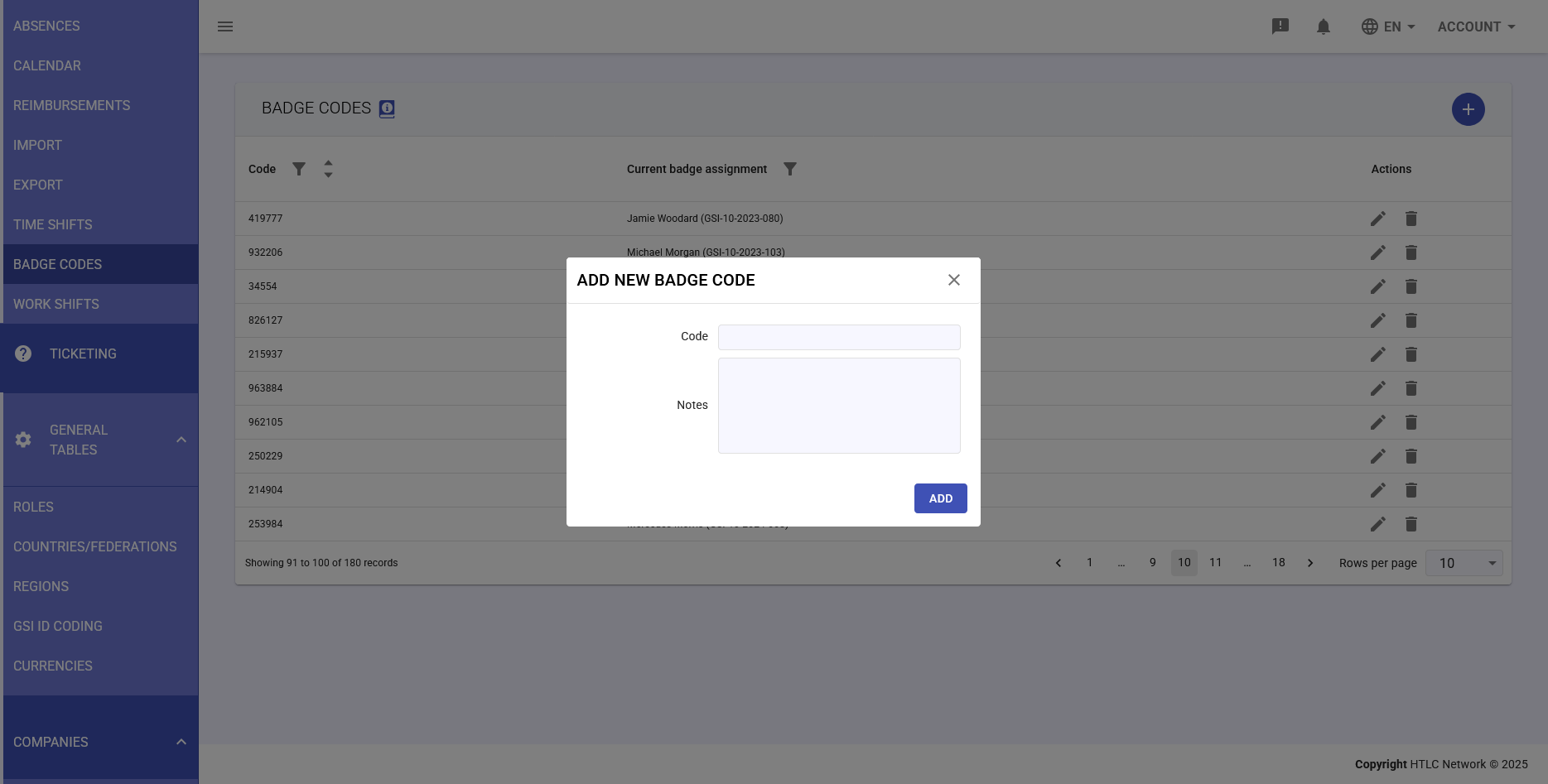
- Click the + (Add) button in the top right corner
- The "ADD NEW BADGE CODE" modal window will open
- Fill in the required fields:
- Code: Enter the unique numeric code
- Notes: Optional field for additional notes
- Click ADD to save the new code
Code Rules
- The code must be unique in the system
- Recommended format: 5-6 digit numeric
- Cannot be duplicated
- Once created, the code can only be modified if not assigned
-
Editing a Badge Code
Edit Procedure
- Identify the badge code to edit in the table
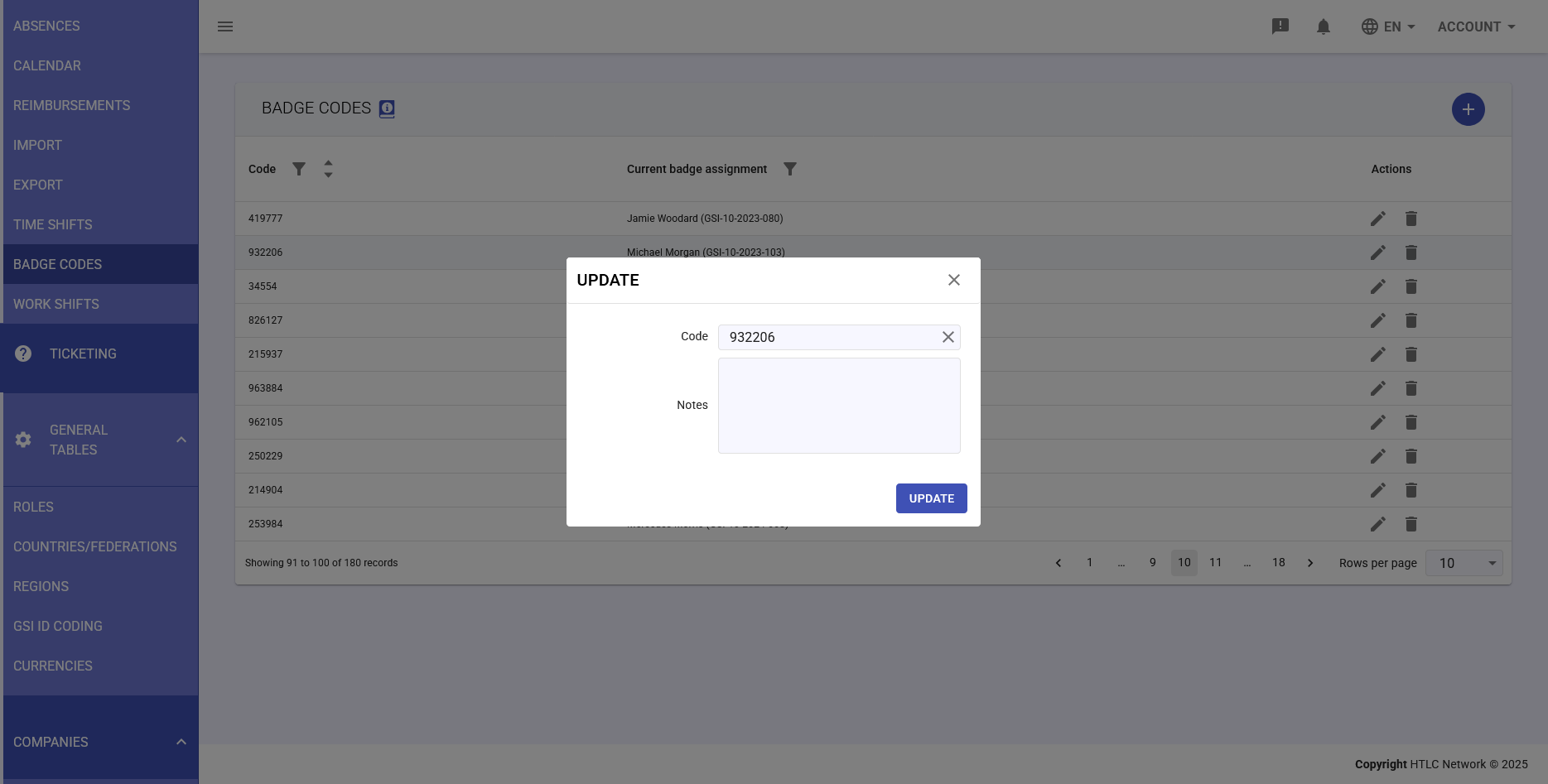
- Click the pencil icon in the Actions column
- The "UPDATE" modal window will open
- The Code field shows the current value
- Modify the code if necessary
- Add or modify notes in the Notes field
- Click UPDATE to save changes
Limitations
- Cannot modify a code currently assigned to an employee
- The new code must be unique
- Changes are immediate and not reversible
-
Deleting a Badge Code
Deletion Procedure
- Identify the badge code to delete
- Click the trash icon in the Actions column
- Confirm deletion in the dialog window
Warnings
- Cannot delete a currently assigned code
- Deletion is permanent and not reversible
- Always verify the code is no longer needed before deleting
- Previous assignment history is maintained for audit purposes
-
Badge Assignment to Employees
Where to Perform Assignment
The actual assignment of badge codes to employees does not occur in this section, but in:
- Navigate to Organization > Individuals
- Select the desired employee
- Access the Badge Codes tab
- Assign the badge code to the employee
Assignment Display
The "Current badge assignment" column in this section:
- Is informational and read-only
- Updates automatically when an assignment is made
- Always shows the current assignment as of today's date
- Includes the employee's full name and GSI code