-
This article explains how to:
- Assign a badge code to an employee
- Replace or remove an employee’s badge
- Resolve the “User Not Found” anomaly
- Best practices for badge management
Assign a badge code to an employee
To assign a badge code to an employee, follow these steps:
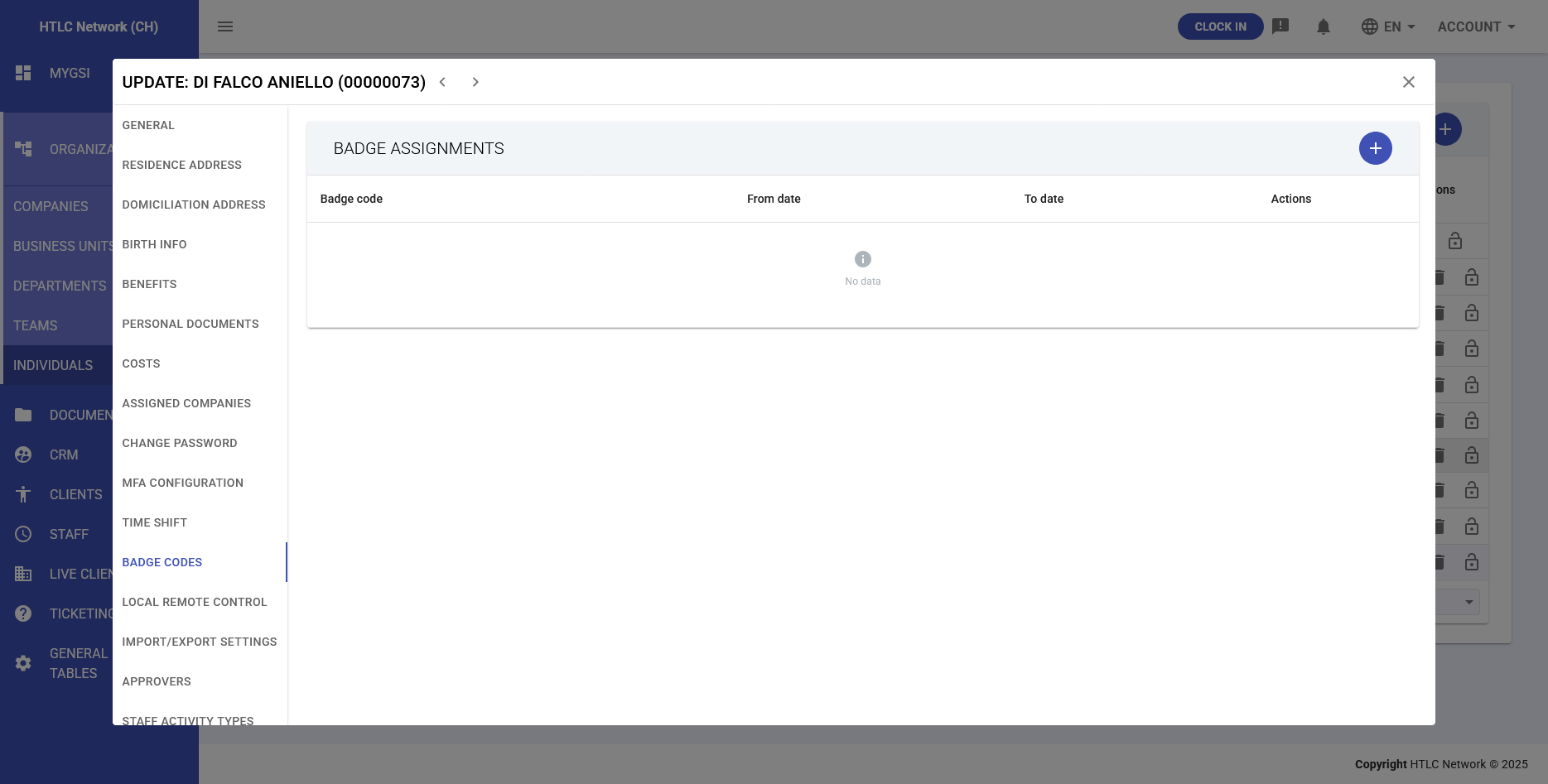
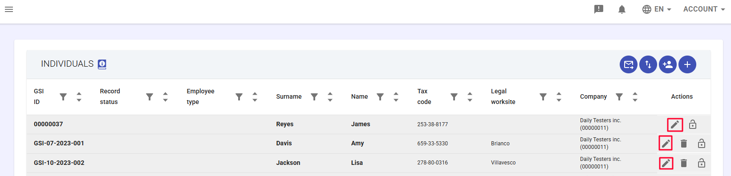
- Access the module Organization → Individuals: go to the Organization module, under the Individuals section, where all employees are listed in a table format.
- Select the employee - locate the employee whose information you want to update and click the pencil icon to edit their profile details.
- Open the Badge Codes tab - once you click the icon, you will be redirected to a screen where you can find the Badge Codes tab.
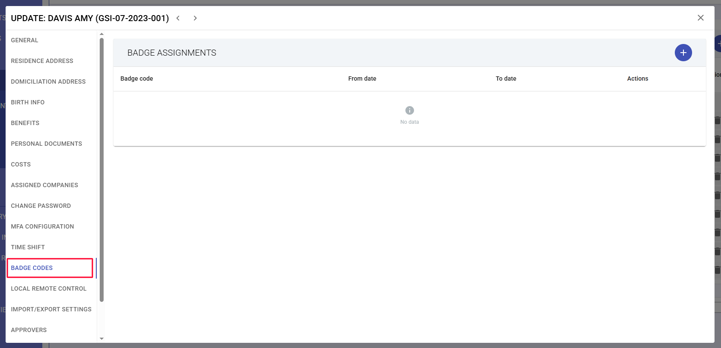
- Link the badge code to the employee
- Click the + icon in the top-right corner.
- A form called Create a new badge code assignment will open.
- Here, you can assign an existing badge code and define its validity period.
Note: The badge code must already exist in the system. If it doesn’t, create it first by following the dedicated procedure.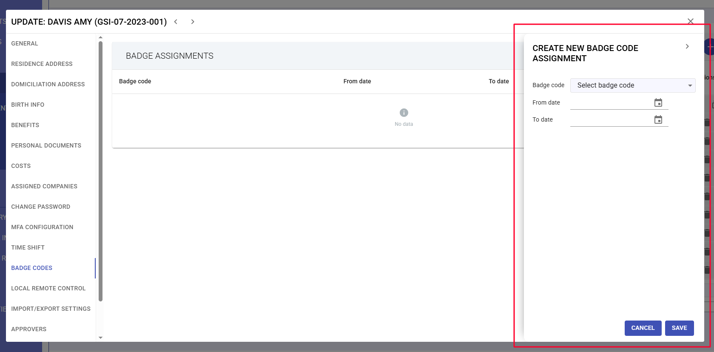
- Save changes - click SAVE to assign the selected badge code to the employee.
Replace or remove an employee’s badge
To replace or remove a badge assigned to an employee, follow these steps:
- Access the module Organization → Employees
Go to the Organization module, under the Employees section, where all employees are listed in a table format. - Select the employee - Locate the employee whose information you want to update and click the pencil icon to edit their profile details.
- Open the Badge Codes tab - Once you click the icon, you will be redirected to a screen where you can find the Badge Codes tab.
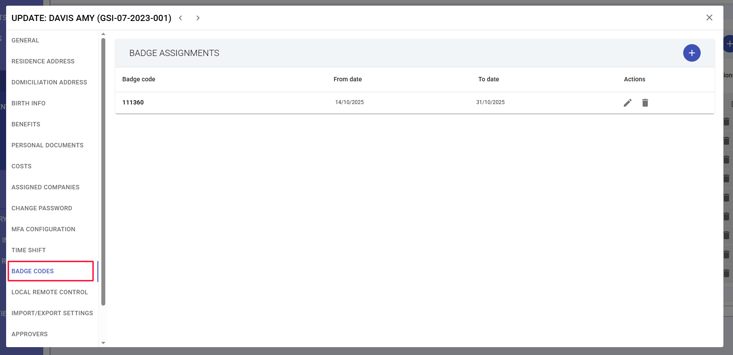
- Select the badge code - Find the row containing the badge code you want to replace or remove.
- Edit or delete the badge assignment - In the last column of the row, you will find two buttons:
- Pencil icon
 : Update badge code – this option allows you to replace the current badge with another existing one and set the validity period (example: If today the employee returns their badge and receives a new one, set the end date of the old badge to “today.” From the next day, the old badge will no longer be active).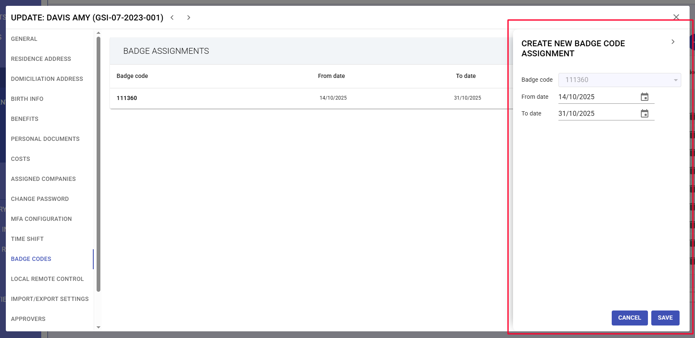
- Trash icon
 : Remove badge code assignment – this option removes the current badge assignment from the employee.
- Pencil icon
- Save changes - Click OK/UPDATE to save your changes.
How to resolve the “User not found” anomaly
The “User not found” anomaly occurs when the system records a timestamp with a badge that is not linked to any employee.
Example: A new badge is used before being created or assigned in GSI2.
To resolve this type of anomaly:
- Identify the badge code indicated in the anomaly.
- Check whether the badge exists in the system:
- If it does not exist → create it in Staff → Badge Codes (see article Create a new badge code).
- If it exists → go directly to the assignment.
- Assign the badge to the correct employee, specifying the start date of validity (retroactively if necessary).
- Save the assignment – After saving, the system will automatically recalculate attendance: the timestamps will be linked to the employee, and the anomaly will be resolved.
Best practices for badge management
- Always create and assign the badge before its first use.
- Use sequential numeric codes to simplify management.
- Avoid reusing deactivated badge codes immediately.
- Close the assignment when an employee leaves the company.
- Perform periodic checks to identify active, unassigned, or obsolete badges.