-
In this article you will find:
- When to use manual resolution
- How to resolve anomalies using manual resolution
- Resolution methods
- Cascade effect of manual anomaly resolution
Manual resolution is necessary when:
- Automatic rules do not cover the specific case
- The employee has provided a particular explanation
- There are exceptional circumstances to consider
- A case-by-case evaluation is required
- The employee has proposed a solution for approval
To resolve anomalies manually:
Access the Anomalies
Anomalies can be viewed from:
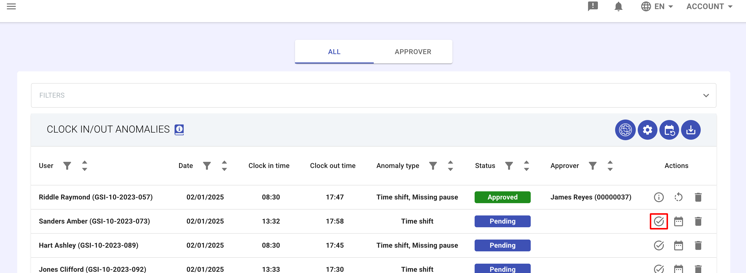
- Staff Module → Clock in/out anomalies – Search for rows with status “Pending” and click the Resolve icon in the Actions column.
- Staff Module → Daily Summary – Select the day (or the employee).
Anomalies are highlighted next to each employee; click Resolve.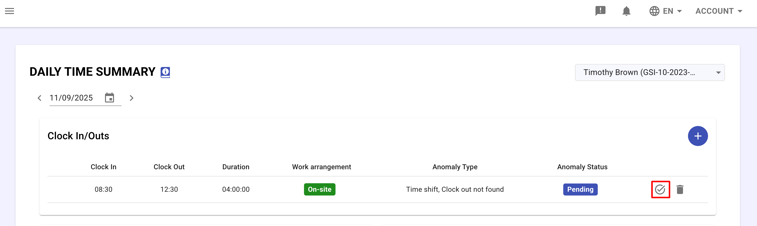
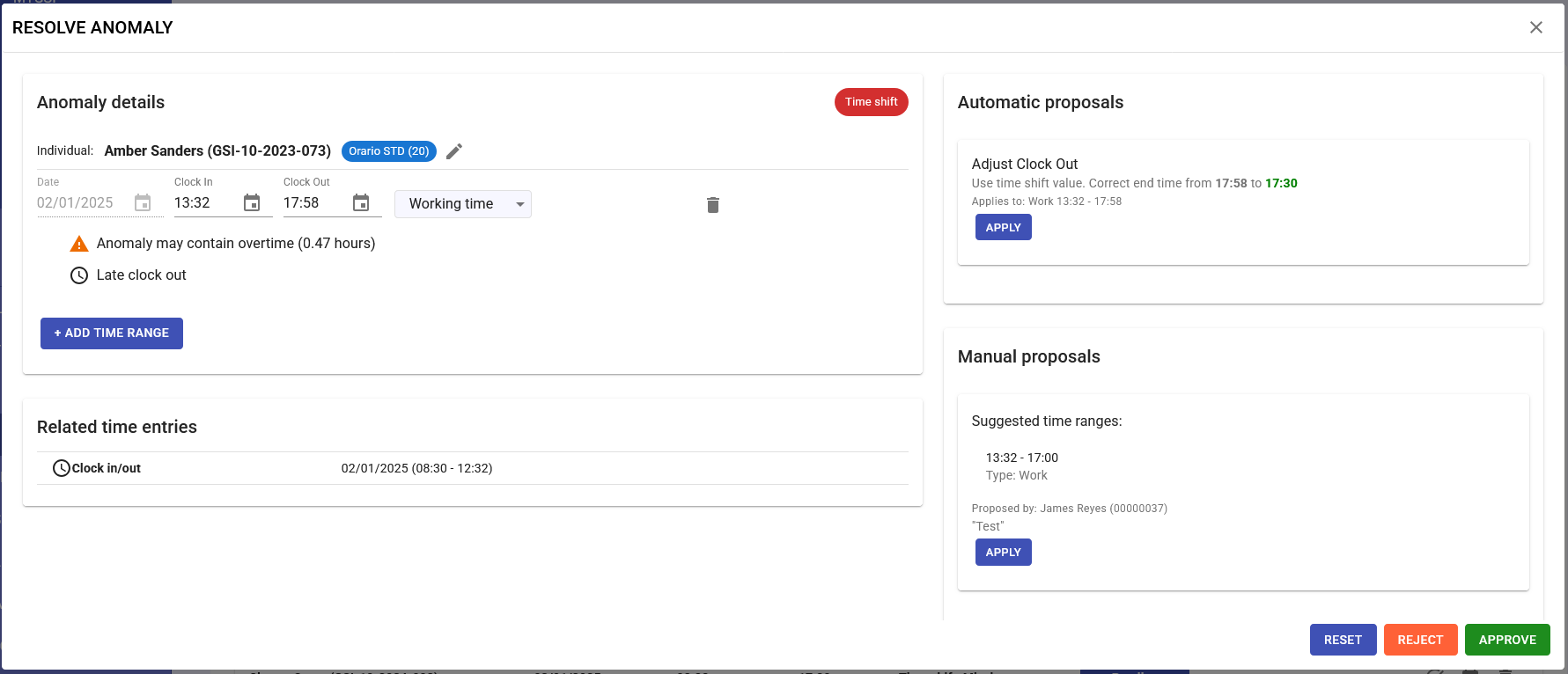
The resolution panel: what you’ll find
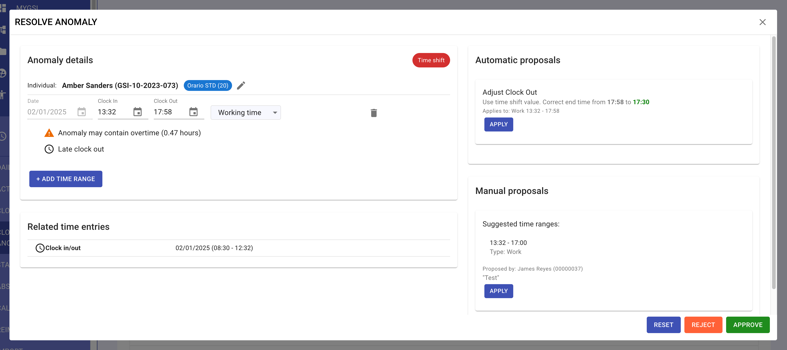
- Details of the anomaly
- Related clock-in/out records
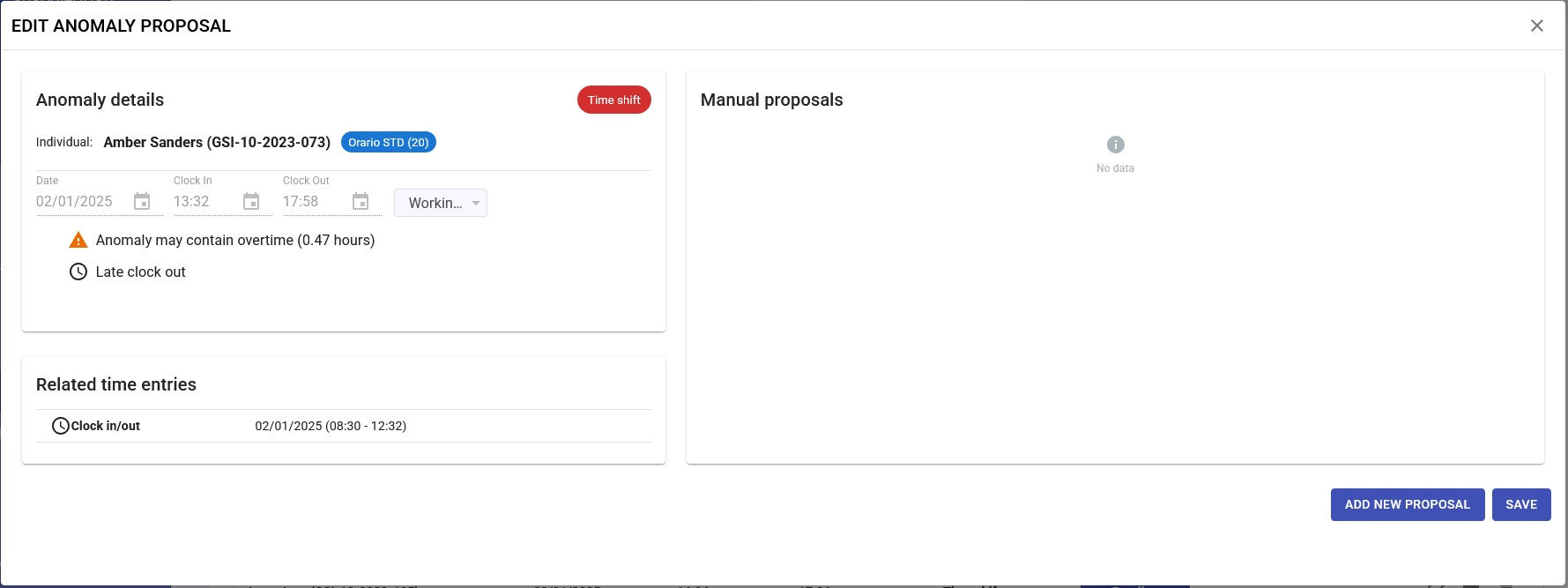
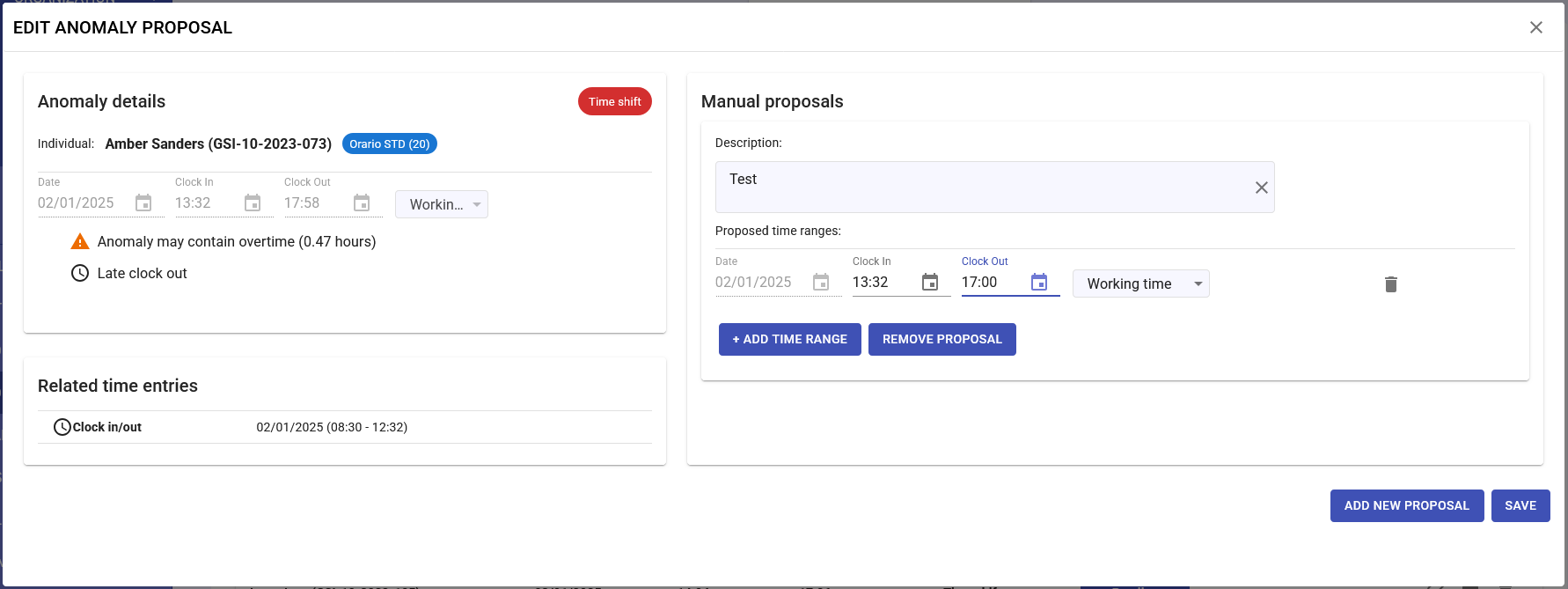
- Possible manual proposals (created by the employee)
- System-generated automatic proposals
- Editable fields for manual correction
Resolution methods
Method 1: Apply the employee’s proposal
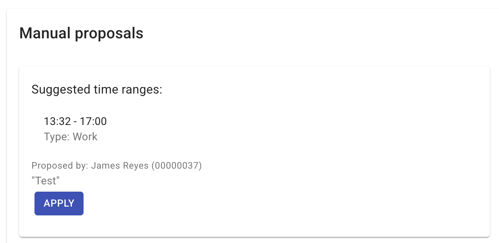
- In the Manual Proposals section, read the explanation and view any attachments.
- If you agree, click APPLY; you may edit times or add notes before confirming.
Method 2: Use system proposals
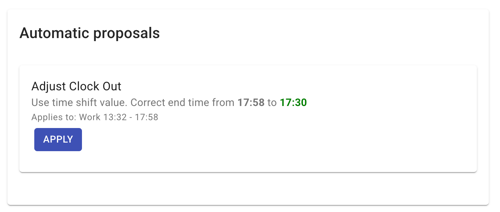
- Choose one of the standard proposals (e.g. Add partial absence / Split with break / Adjust exit / Adjust entry).
- Modify the suggested times if needed.
- Click SAVE to apply.
Method 3: Full manual edit
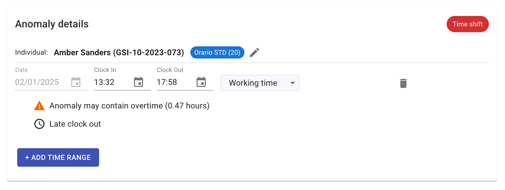
- Edit the basic fields: Date, Check-in time, Check-out time, Work mode (On-site / Remote / Business trip).
- If needed, click + ADD TIME RANGE to insert multiple periods (split shifts, different locations).
- If part of the day is an absence, select Partial absence and indicate the worked hours.
Before saving: make sure no warning messages are displayed.
Saving the resolution
- Enter a note documenting the decision.
- Click SAVE.
- The anomaly status will change from Pending to Resolved.
- The corresponding staff activity will be created, and the employee will receive a notification.
- The corrected hours will flow into the payroll; all changes are logged for audit purposes.
Recalculation occurs automatically when a proposal is applied. When performing manual edits, you must manually revalidate the anomaly.
Cascade Effect of Manual Anomaly Resolution
When manually resolving an anomaly for a specific day, the GSI2 system triggers an automatic recalculation mechanism that can also have positive effects on other anomalies reported for the same date.
How Recalculation Works
After applying a manual change (for example, correcting an entry or exit time, adding a break, etc.), the system:- Automatically recalculates all anomalies related to that same day
- Checks whether the applied changes have also resolved other detected issues
- Updates the technical status of the related anomalies
Technical Status vs Administrative Status
This is the key point to understand:
Technical Resolution
When you open the manual management of other anomalies on the same day, you may no longer see any warning messages.
This means that, from a technical perspective, the anomaly has been resolved thanks to the previous correction.Need for Approval
However, these anomalies remain in the Pending (blue) state and do not generate staff activities until they are formally approved.Why Approval is Required
Technically resolved anomalies must still be approved in order to:
- Generate staff activities: Only anomalies in Approved (green) status create validated activities used for payroll processing
- Ensure traceability: Maintain a clear record of who validated the changes and when
- Enable managerial control: Ensure a supervisor has reviewed and authorized the corrections
Recommended Procedure
When resolving an anomaly manually:
- Apply the correction to the main anomaly
- Check other anomalies from the same day to verify if they were technically resolved
- Approve all related anomalies, even if they no longer show active issues
- Only after approval will the system generate the corresponding staff activities.
In summary: technical resolution is automatic, but administrative approval is always required to complete the process and make the data available for payroll processing.