-
The Company Management section is a comprehensive administrative interface for managing organizational entities within the system. This module allows administrators to create, configure, and maintain company records with detailed information ranging from basic identification to complex operational settings.
Company Types and Access Levels
The system distinguishes between two primary categories of companies:
- Internal Companies (Active Environment): These are companies stored within your active environment (live client). Users with appropriate permissions have full control over these entities, including:
- Complete data management capabilities
- Configuration of all functional options
- Ability to create, modify, and delete records
- Full access to all subsections and features
- External Companies (Shared Access): These are main companies belonging to external live clients who have granted access to your active environment. These companies appear in the table with limited management capabilities:
- View-only access to certain data fields
- Restricted modification rights based on sharing permissions
- Indicated by specific markers in the company type or through the "Shared With" relationship
Dynamic Table Interface
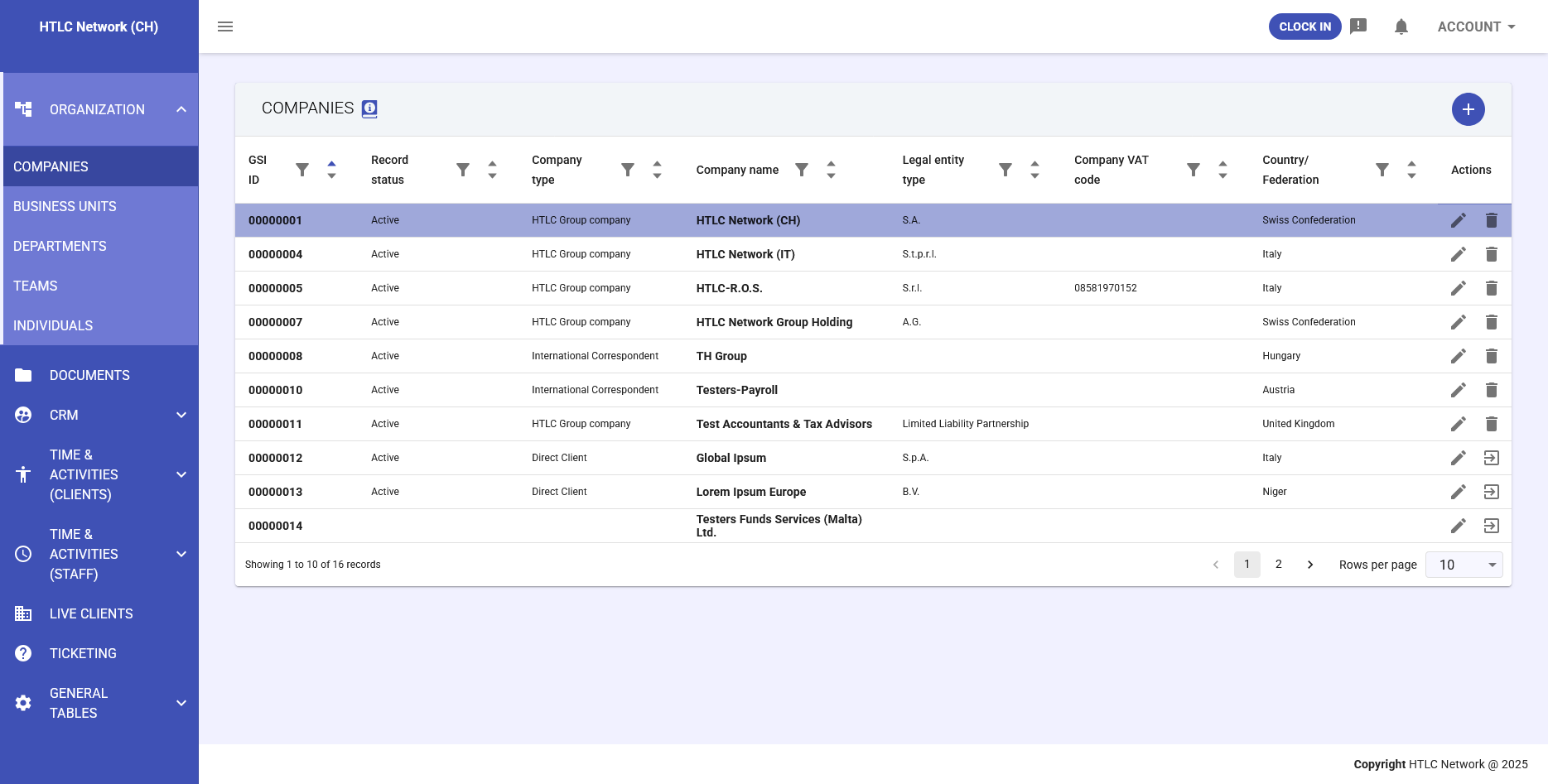
The Companies table is a sophisticated, dynamic interface that provides powerful data management capabilities:
- Sorting Functions: Click on any column header to sort data in ascending or descending order
- Filtering Capabilities: Apply filters to quickly locate specific companies based on various criteria
- Pagination Controls: Customize the number of records displayed per page (10, 25, 50, or more)
- Real-time Updates: Changes made to company records are immediately reflected in the table view
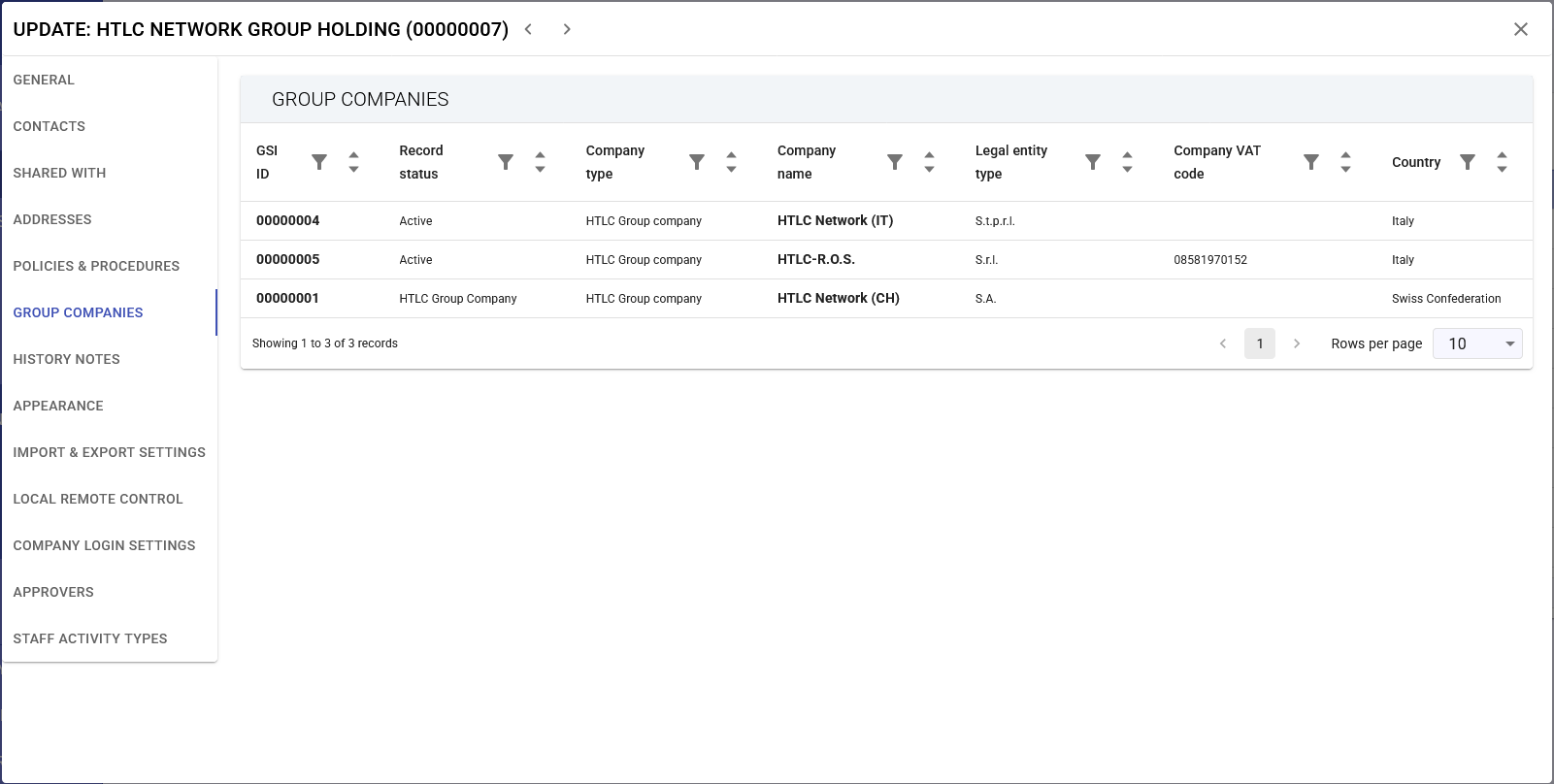
- Multi-column Organization: Key fields displayed include GSI ID, Record Status, Company Type, Company Name, Legal Entity Type, Company VAT Code, and Country/Federation
Individual-Company Relationship
A fundamental principle of the system architecture is that all individuals reference a company. This means:
- Every user account must be associated with at least one company entity
- Personnel records are linked to their respective organizations
- Access permissions and data visibility are governed by company relationships
- Cross-company collaboration is managed through the sharing mechanisms
Company Modal Management Interface
Opening a single company modal (by clicking the edit icon or company name) provides access to a comprehensive management interface with two main categories of controls:
- Data Fields Management:
- General information and identification details
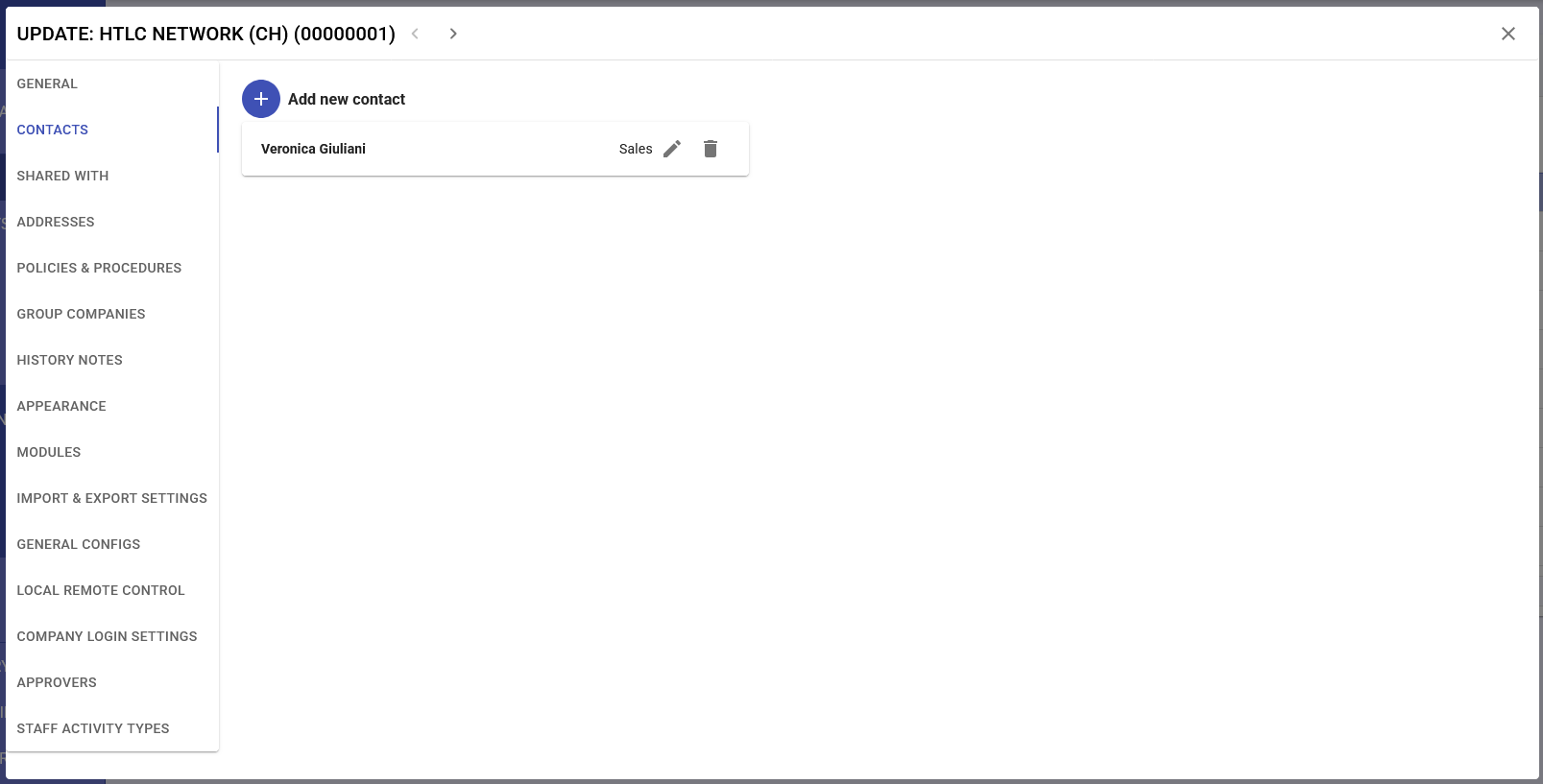
- Contact information and personnel records
- Legal and tax registration data
- Addresses and physical locations
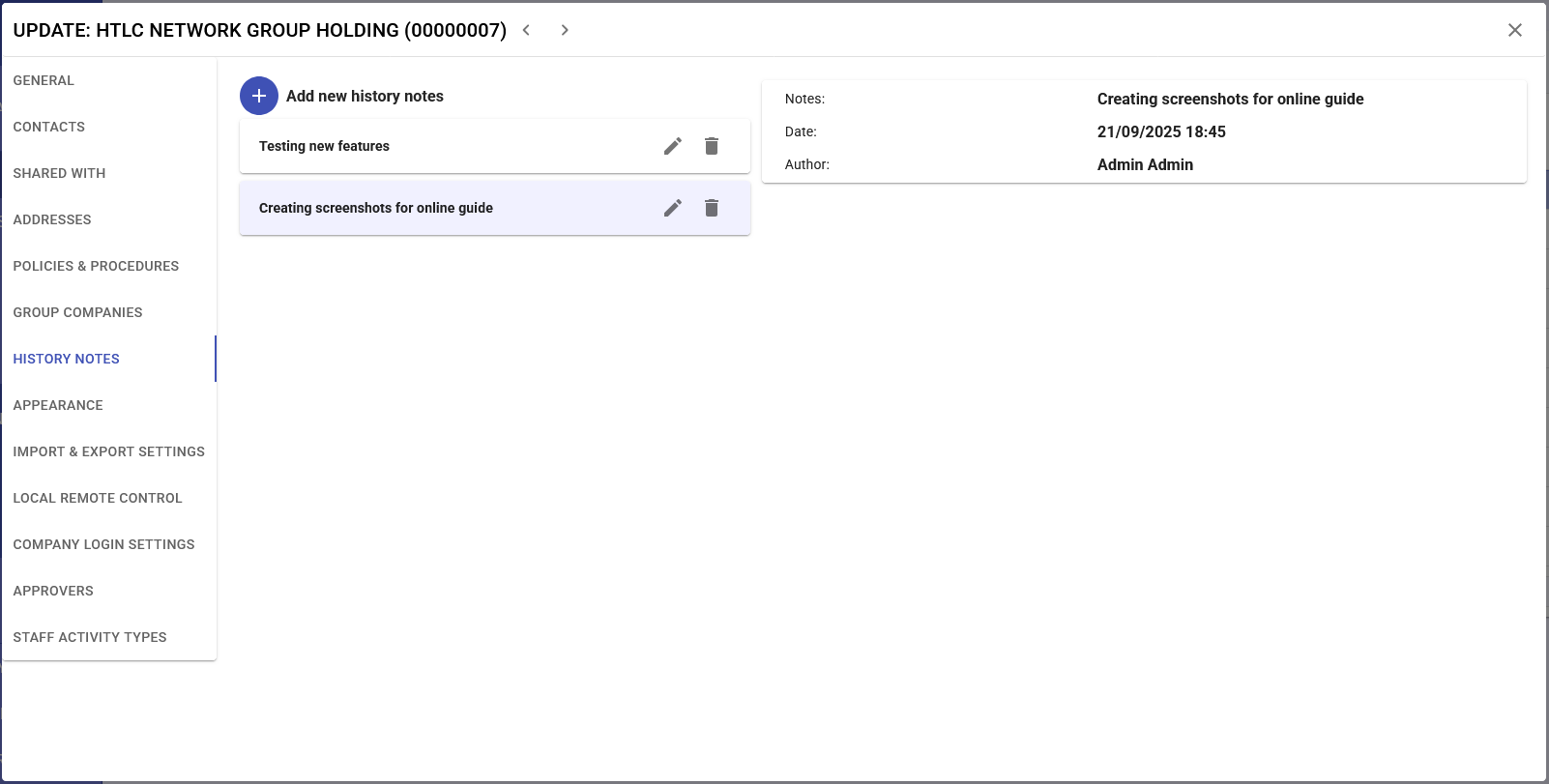
- Historical notes and documentation
- Functional Options Configuration:
- Module activation and deactivation
- Security settings and authentication policies
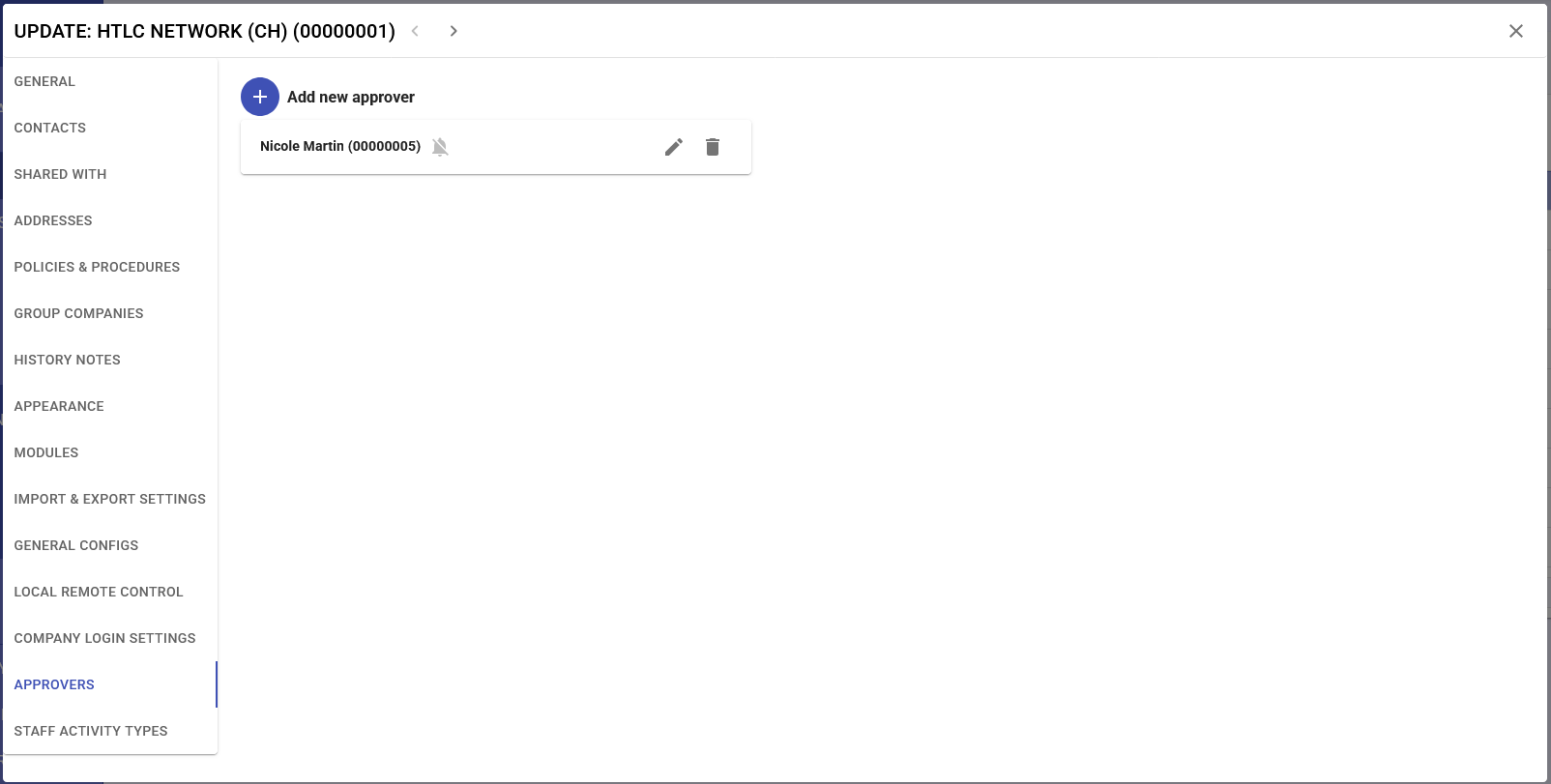
- Approval workflows and hierarchies
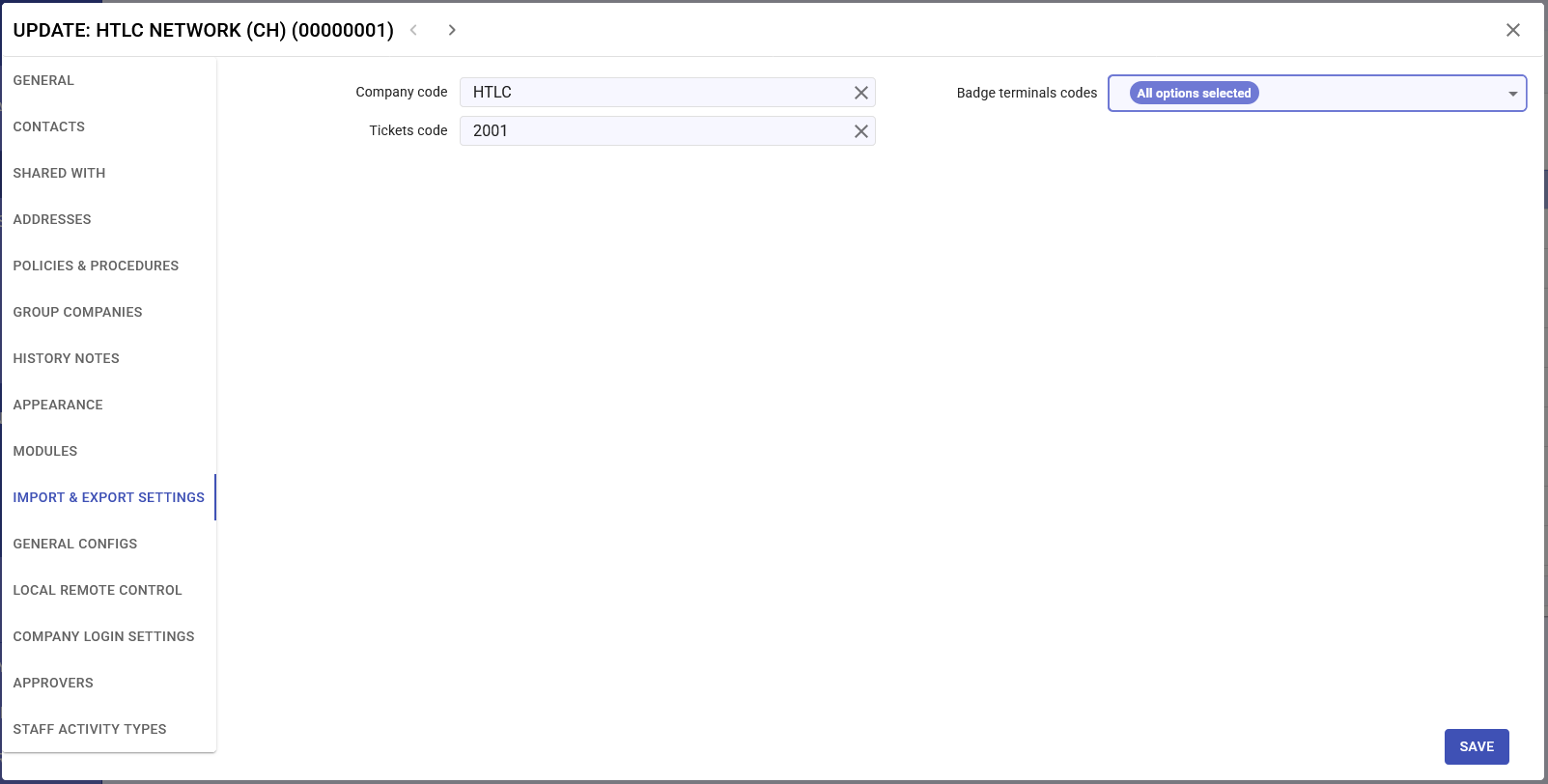
- Import/export configurations
- Remote access controls
- Activity type definitions
The modal interface uses a tabbed sidebar navigation system, allowing administrators to move efficiently between different configuration sections while maintaining context within the selected company record. Changes can be saved individually per section or globally, depending on the specific configuration area.
Best Practices
-
Complete all mandatory fields in the General section before saving
-
Keep contact information up to date for effective communication
-
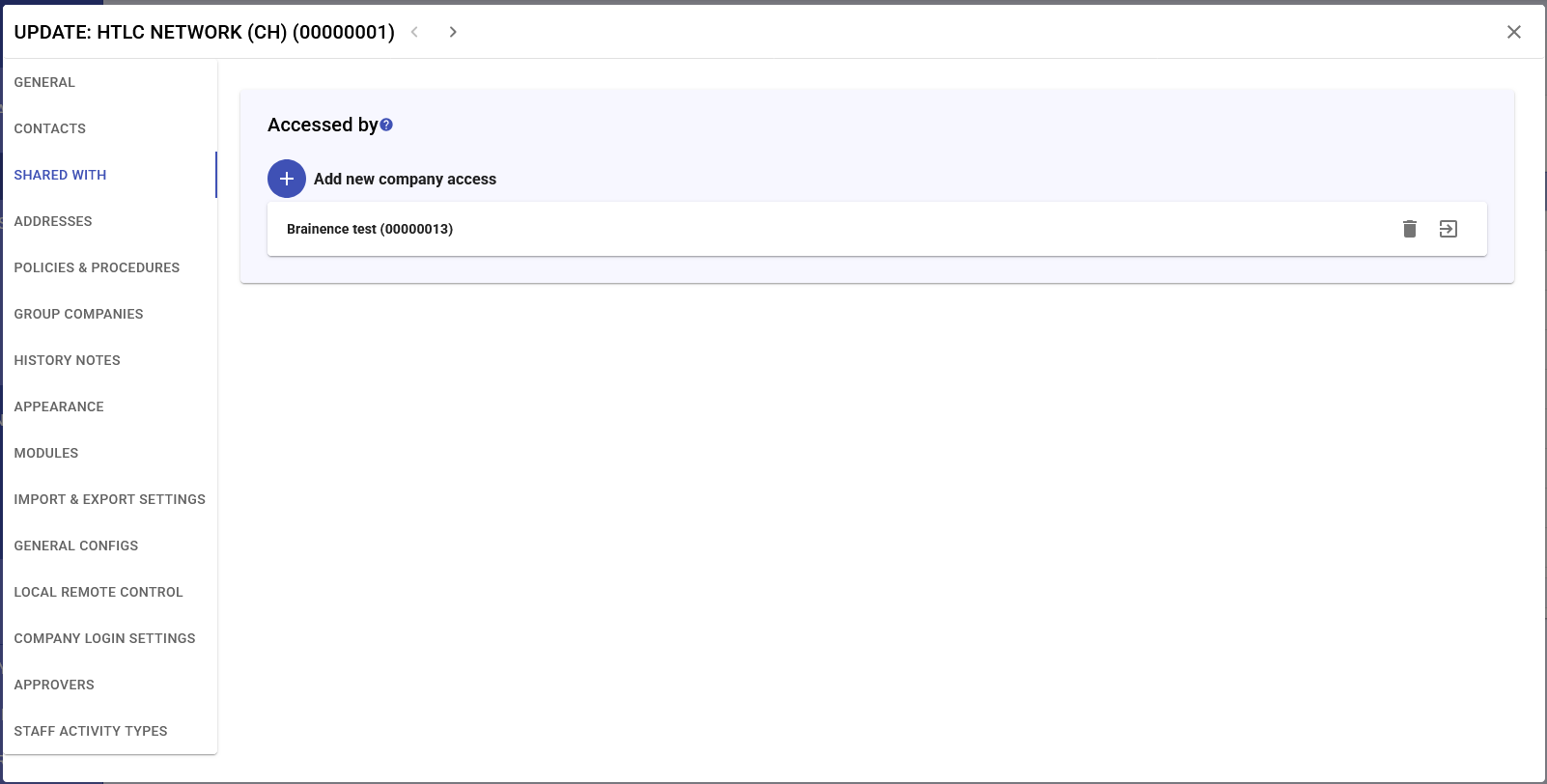
Configure appropriate access permissions in the Shared With section
-
Upload a logo with suitable dimensions for optimal display on the platform
-
Enable MFA for enhanced security
-
Document changes using the Historical Notes function
-
Review and update Policies and Procedures regularly
-
Configure forms based on actual business requirements
-
Set appropriate password policies balancing security and usability
-
Establish clear approval hierarchies for efficient workflow management
Navigation Tips
-
Use the left sidebar menu to quickly jump between sections
-
The SAVE button appears contextually when changes are made
-
Pagination controls at the bottom of tables allow customization of displayed records
-
Clicking on a company row in the general table opens a view-only modal
-
Edit icons (pencil) provide direct access to editing interfaces
-
Delete icons (trash) require confirmation before removing records
-
The close button (X) in the top-right corner cancels changes and returns to the main view
- Internal Companies (Active Environment): These are companies stored within your active environment (live client). Users with appropriate permissions have full control over these entities, including:
-
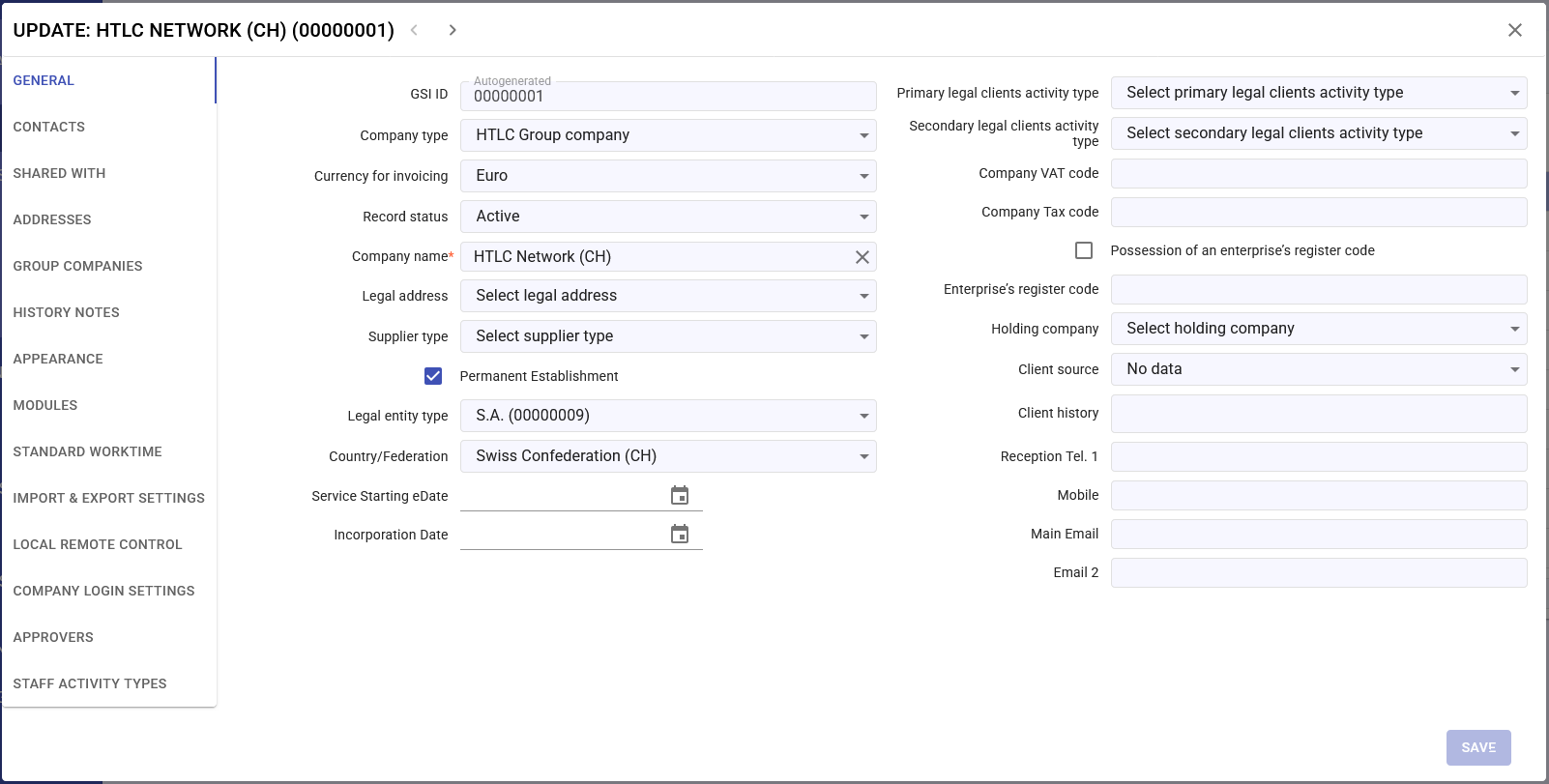
General
The General section contains the core identification and classification data for each company:
- GSI ID: A unique system-generated identifier that can be autogenerated or manually assigned
- Company Type: Classification of the entity (HTLC Group company, International Correspondent, Direct Client)
- Company Name: The official registered name of the entity
- Currency for Invoicing: Default currency for financial transactions
- Record Status: Current operational status (Active, Inactive, etc.)
- Legal Entity Type: The formal business structure (S.A., S.r.l., Limited Liability Partnership, etc.)
- Legal Address: Primary registered address selection
- Supplier Type: Classification for procurement purposes
- Country/Federation: Geographical jurisdiction
- Service Starting Date: Commencement of services
- Incorporation Date: Official registration date
- Default Timezone: Operational timezone setting
- Permanent Establishment: Checkbox indicator for tax purposes
- Legal Clients Activity Types: Primary and secondary activity classifications
- VAT and Tax Codes: Official tax identification numbers
- Enterprise Register Code: Business registration identifier
- Holding Company: Parent company selection
- Client Source: Origin or acquisition channel
- Client History: Historical relationship data
- Contact Information: Reception telephone, mobile, main email, and secondary email
-
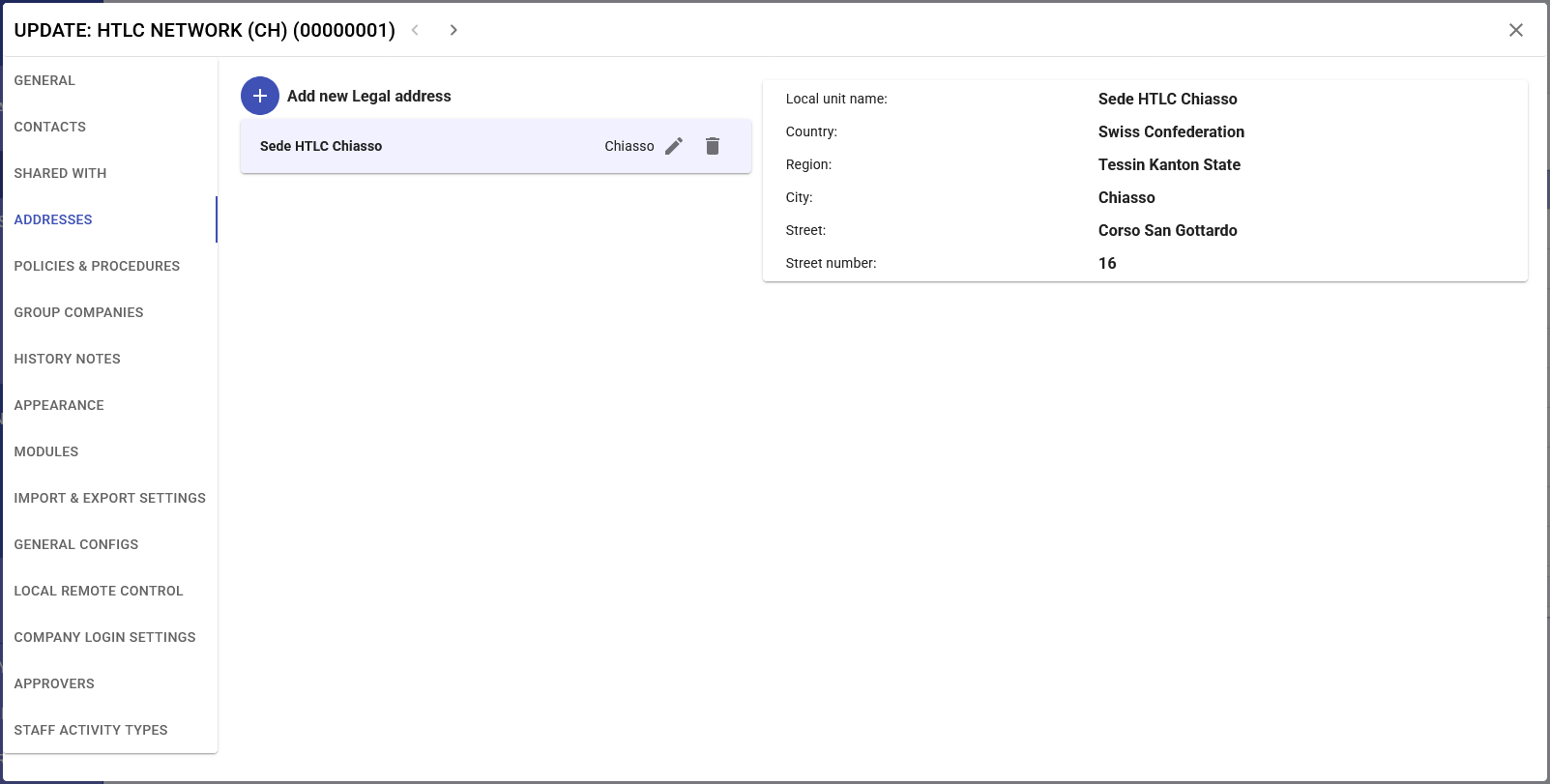
Addresses
The Addresses module manages multiple location records for each company:
- Legal Address Management: Primary registered office designation
- Local Unit Name: Branch or office identifier
- Complete Address Details:
- Country and Region
- City
- Street name and number
- "Add new Legal address" functionality for multiple locations
-
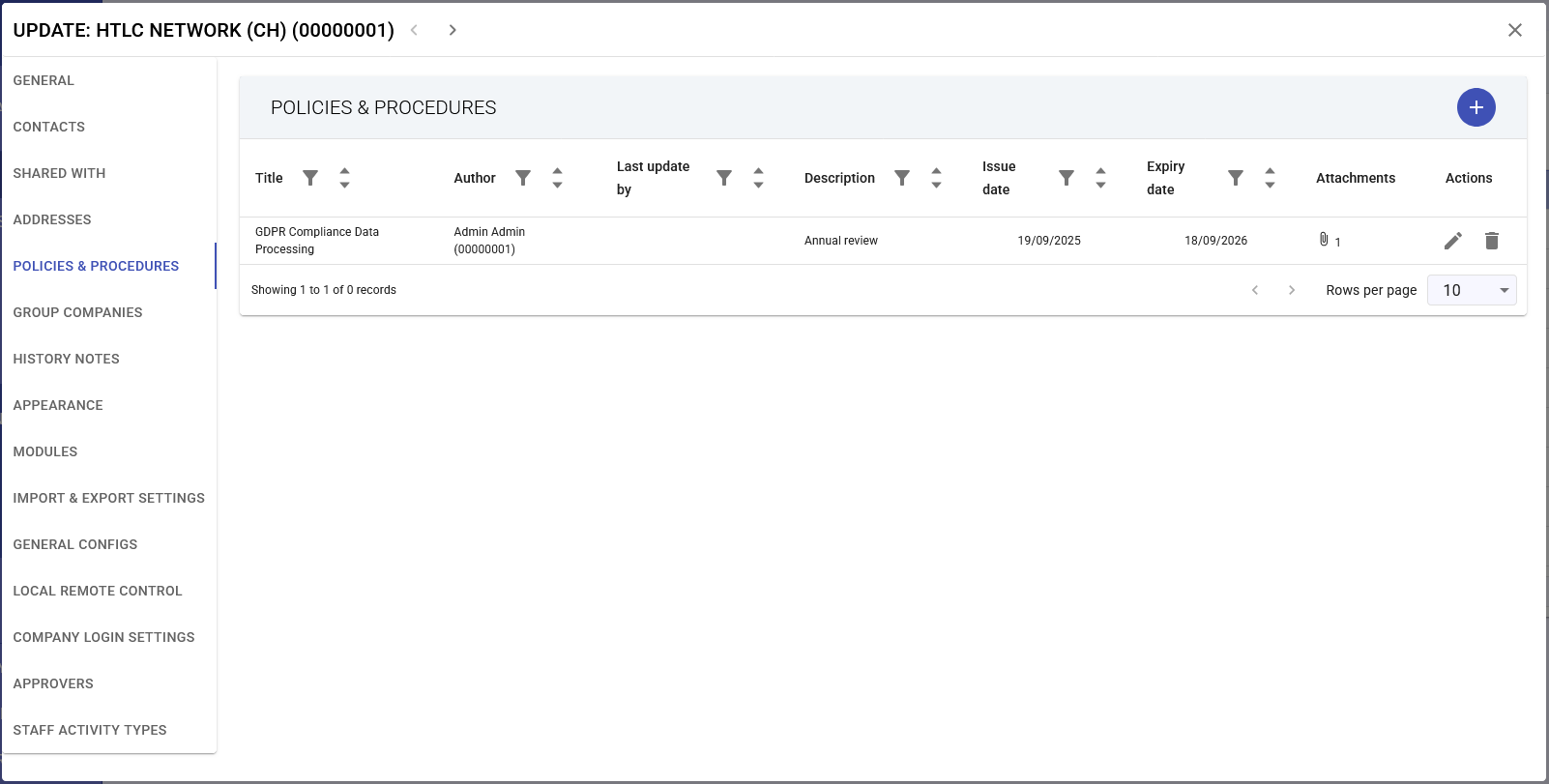
Policies & Procedures
Document management system for compliance and operational documentation:
- Document Information:
- Title and Author
- Last update timestamp
- Description field
- Issue date and Expiry date
- Attachments: File upload capability with counter
- Actions: Edit and delete options for each policy
- Table view with pagination controls
- Document Information:
-
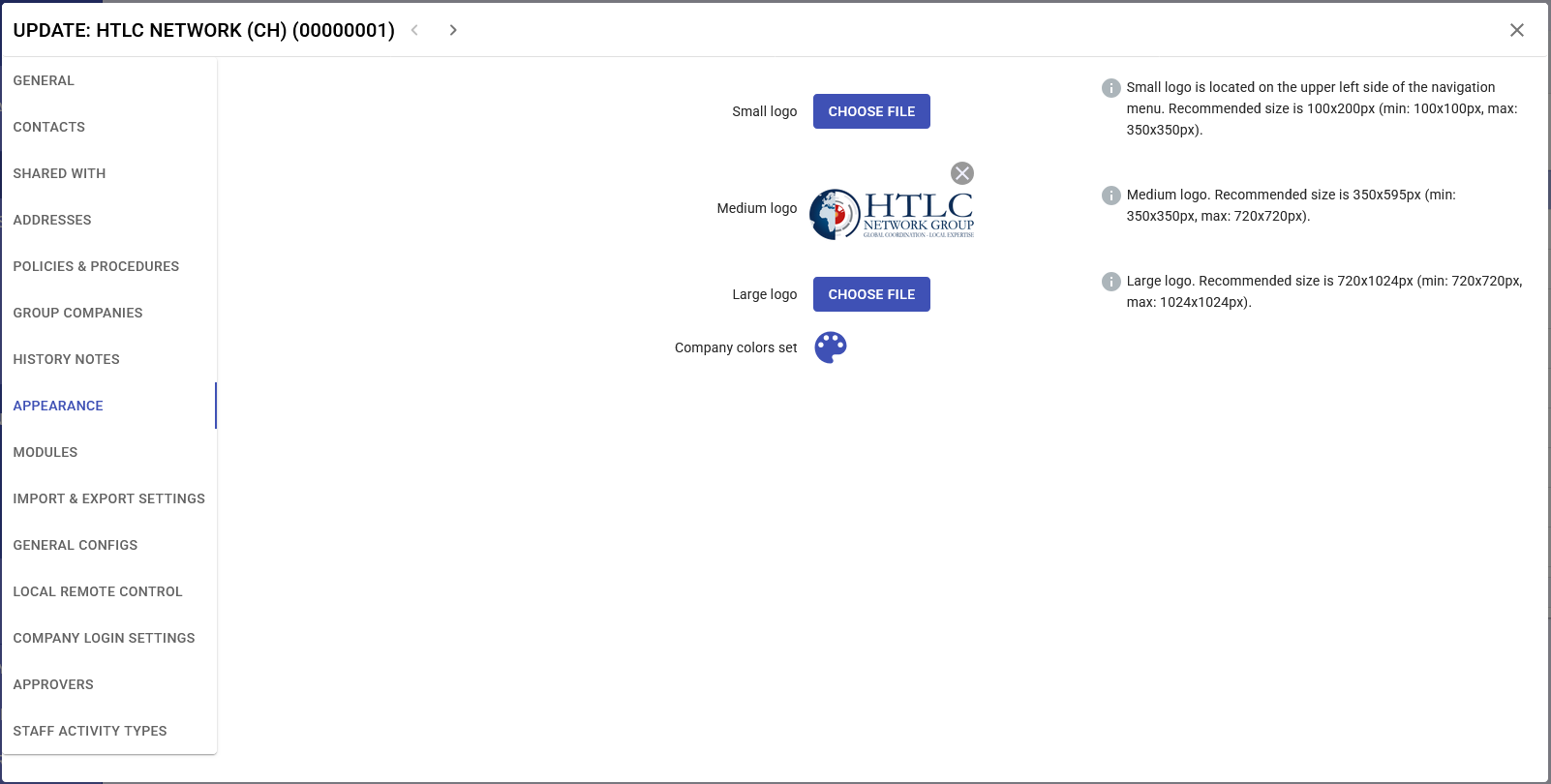
Appearance
Branding and visual identity configuration:
- Logo Management:
- Small logo upload (100x200px minimum, 350x350px maximum)
- Medium logo upload (350x595px minimum, 350x350px maximum, 720x720px)
- Large logo upload (720x1024px minimum, 720x720px maximum, 1024x1024px)
- Company Colors Set: Custom color scheme configuration
- File upload interface with "CHOOSE FILE" buttons
- Visual preview of uploaded logos
- Logo Management:
-
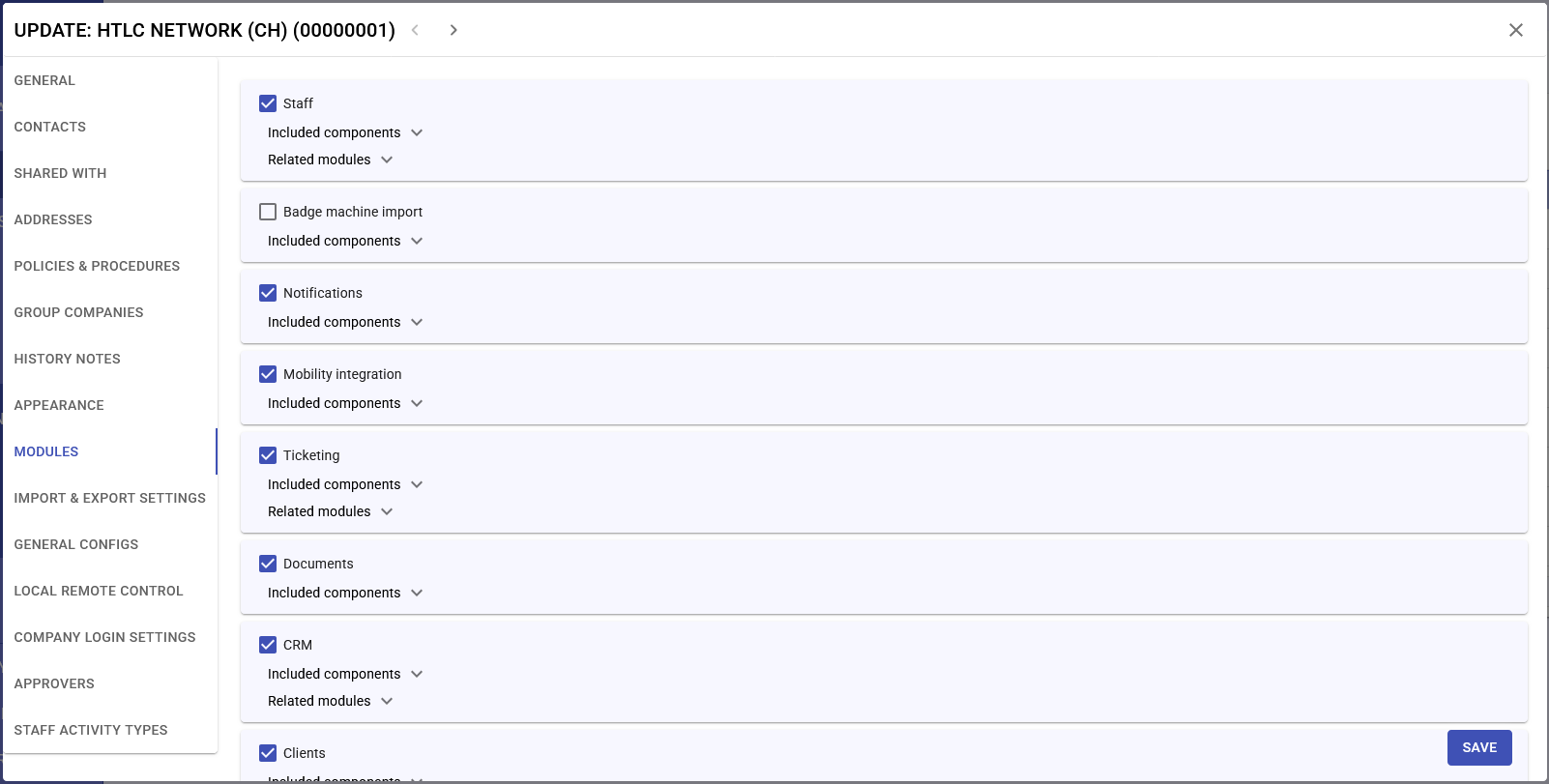
Modules
Feature activation and configuration panel:
- Staff Module: Employee management components and related modules
- Badge Machine Import: Access control integration
- Notifications: Alert and communication system components
- Mobility Integration: Mobile workforce management tools
- Ticketing: Support and request management system with related modules
- Documents: Document management system components
- CRM: Customer relationship management tools with related modules
- Clients: Client management functionality
- Each module includes expandable "Included components" and "Related modules" sections
-
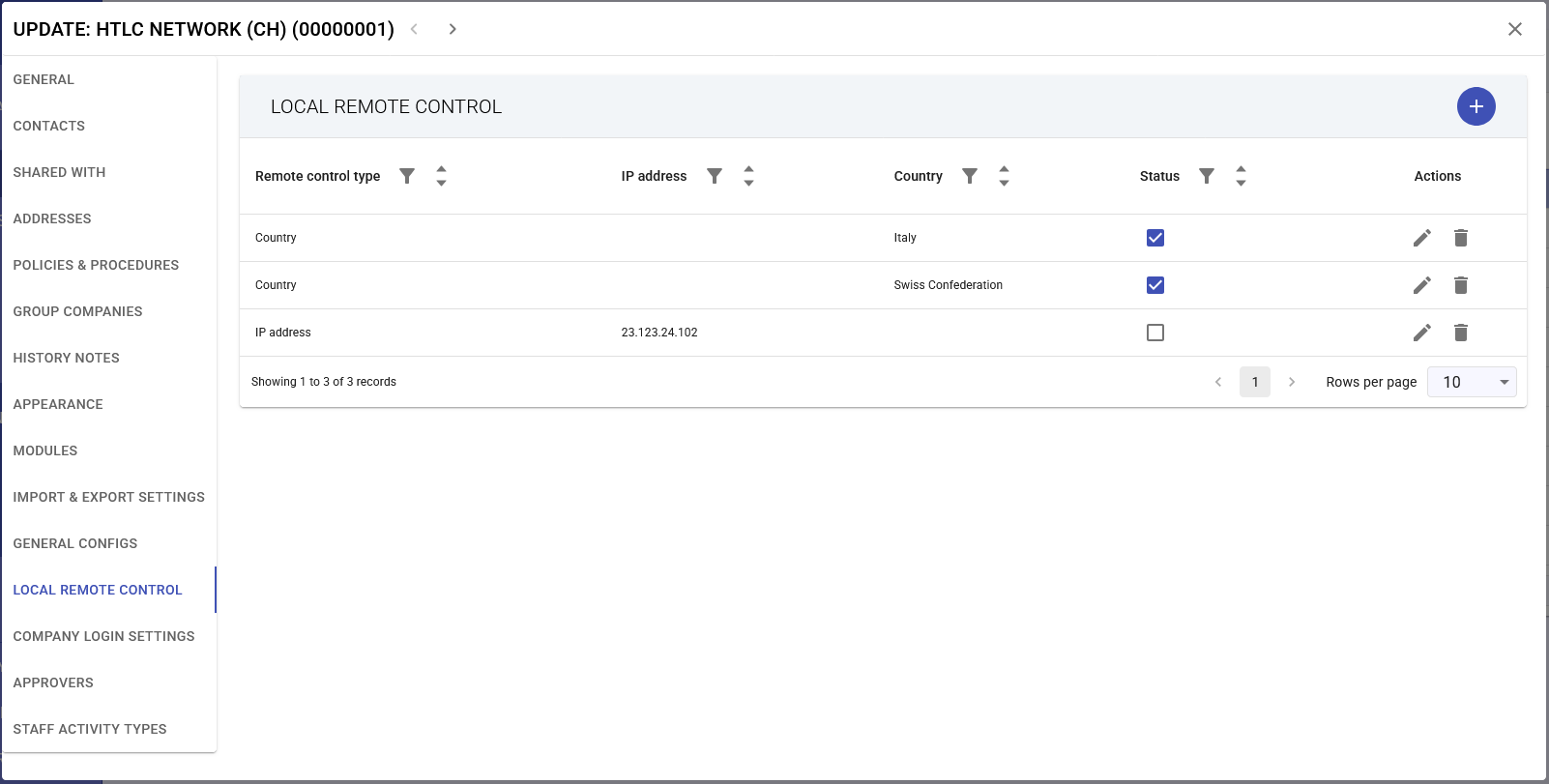
Local Remote Control
Network and access management settings:
- Remote Control Configuration Table:
- Remote control type (Country, IP address)
- IP address specifications
- Country selections (Italy, Swiss Confederation, etc.)
- Status indicators (checkbox controls)
- Individual edit and delete actions
- "Add new" button for additional control rules
- Pagination controls with adjustable rows per page
- Remote Control Configuration Table:
-
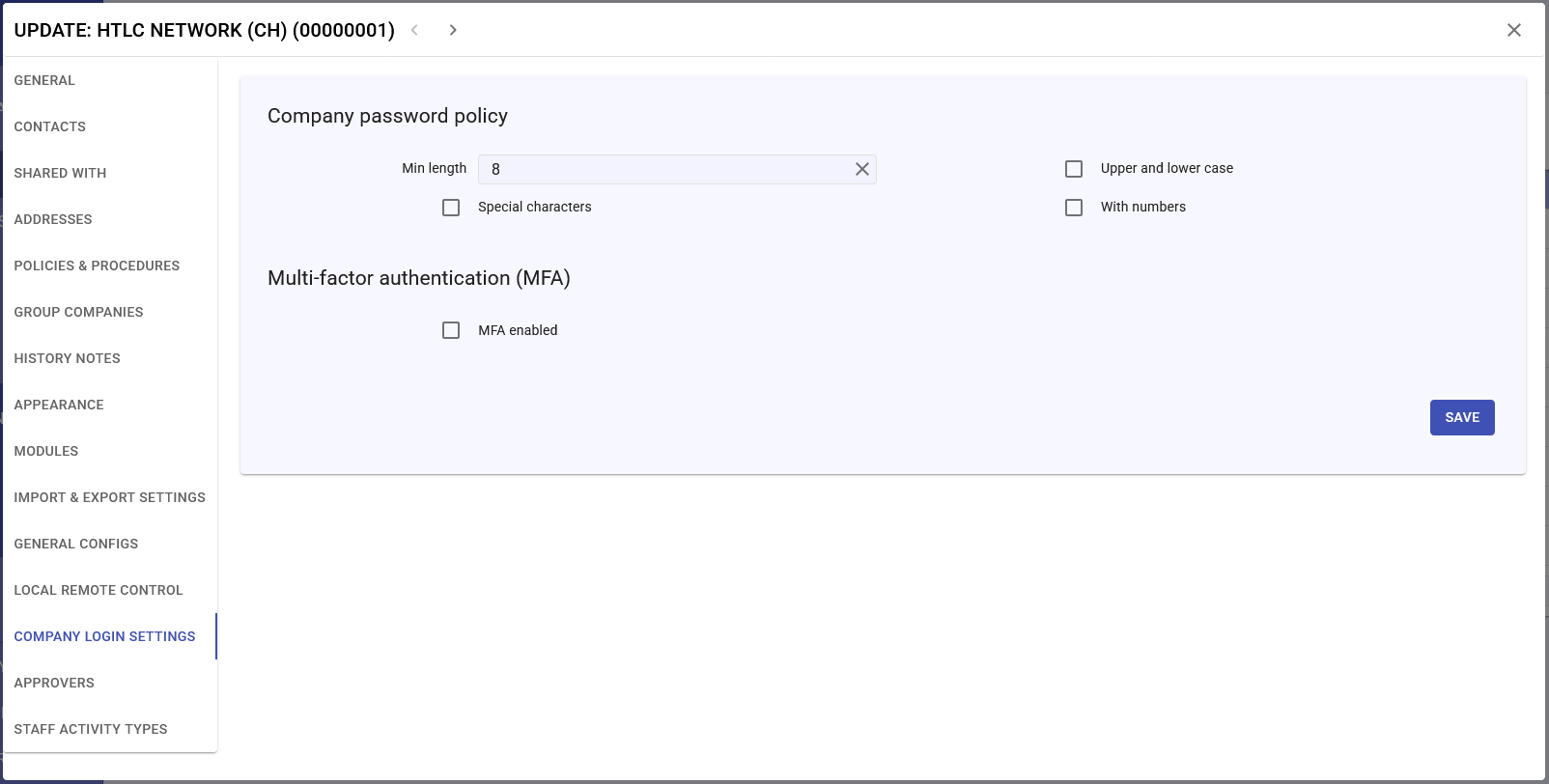
Company Login Settings
Security and authentication parameters:
- Company Password Policy:
- Minimum length requirement (default: 8 characters)
- Special characters requirement toggle
- Upper and lower case requirement
- Number inclusion requirement
- Multi-factor Authentication (MFA):
- MFA enabled checkbox control
- Save button to apply security settings
- Company Password Policy:
-
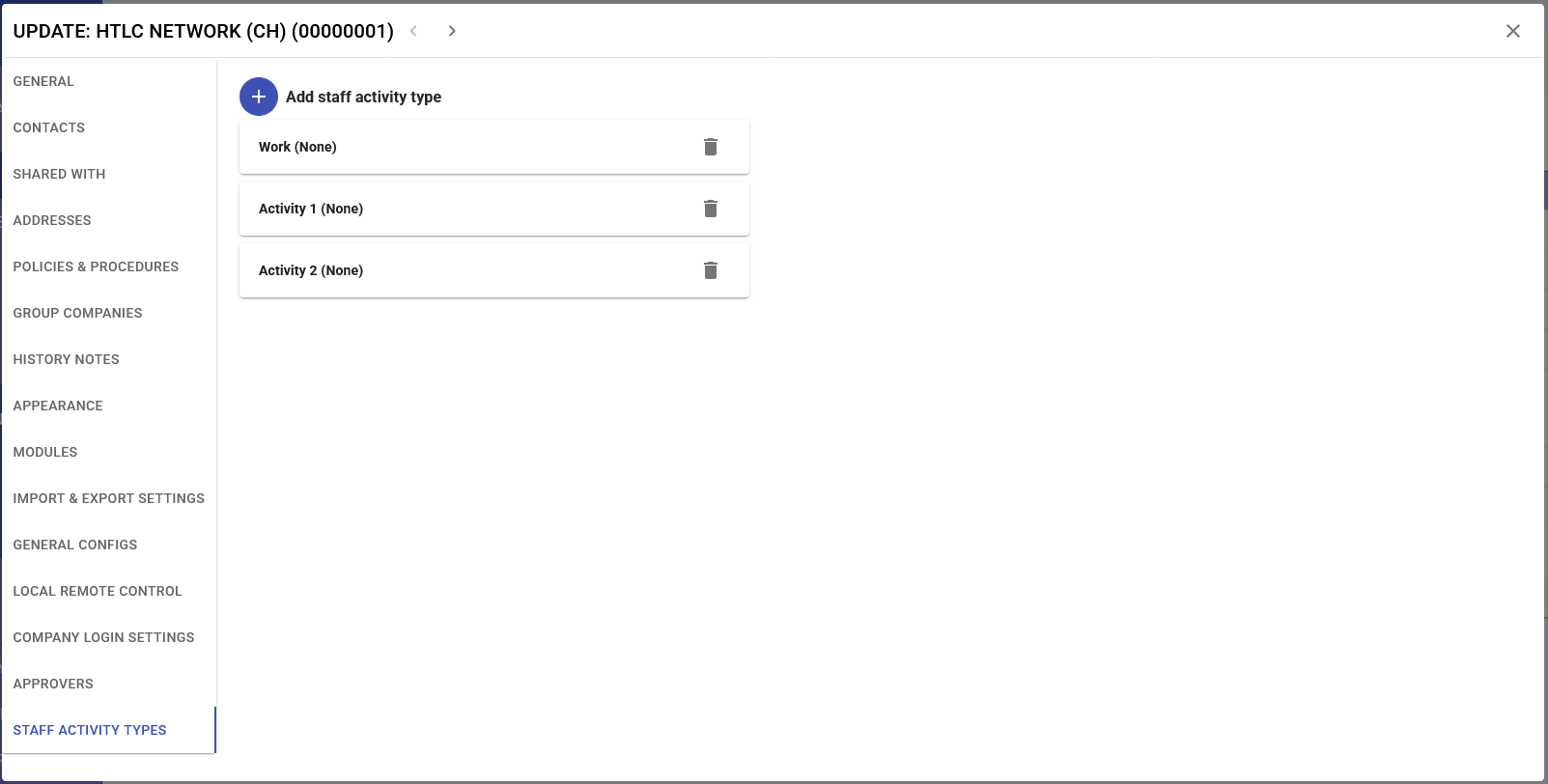
Staff Activity Types
Workforce classification and tracking:
- Activity Type Management: list of selectable activity types usable by all company's individuals
- "Add staff activity type" functionality
- Delete option for each activity type
- Customizable activity categories for time tracking and reporting