This guide describes how to create a new company in the GSI2 system. Company creation is a fundamental process that establishes the organizational entity to which all individuals and operational configurations will be associated.
Core principle: In the GSI2 system, all individuals must be associated with at least one company. The company represents the organizational entity that governs access permissions, data visibility, and operational configurations.
Prerequisites
- Administrator permissions or specific company creation permissions
- Access to Organization > Companies module
- Complete company information (identification data, tax information, legal address)
Company Types
The system distinguishes between two main categories:
- Internal Companies (Active Environment): Companies created and managed in your own environment with full control over all data and configurations
- External Companies (Shared Access): Companies from other live clients that have granted shared access, with limited management capabilities
Process Structure
Company creation is divided into two phases:
- PHASE 1: Initial creation with essential data (General tab only)
- PHASE 2: Advanced configurations after saving (all other tabs)
⚠️ Important note: During initial creation, only the General tab is accessible. All other tabs (Contacts, Addresses, Policies & Procedures, Appearance, Modules, etc.) become available only after saving the company and reopening the record by clicking the pencil icon.
PHASE 1: Initial Creation (Essential Data)
Step 1: Access the Companies Section
- From the main menu, navigate to Organization
- Select Companies
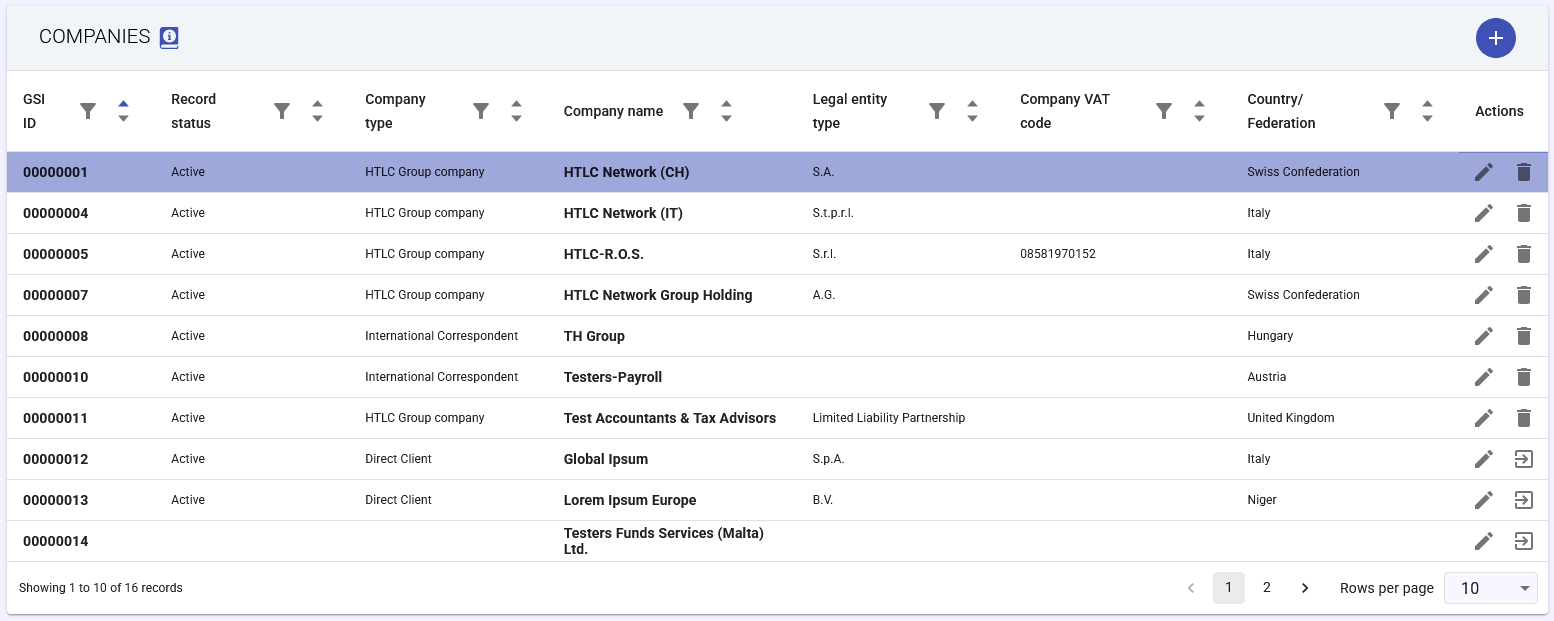
- The dynamic table with the list of existing companies will open
Note: The table supports column sorting, filtering, and customizable pagination.
Step 2: Initiate Creation
- Click the "+" (Add) button at the top right of the table
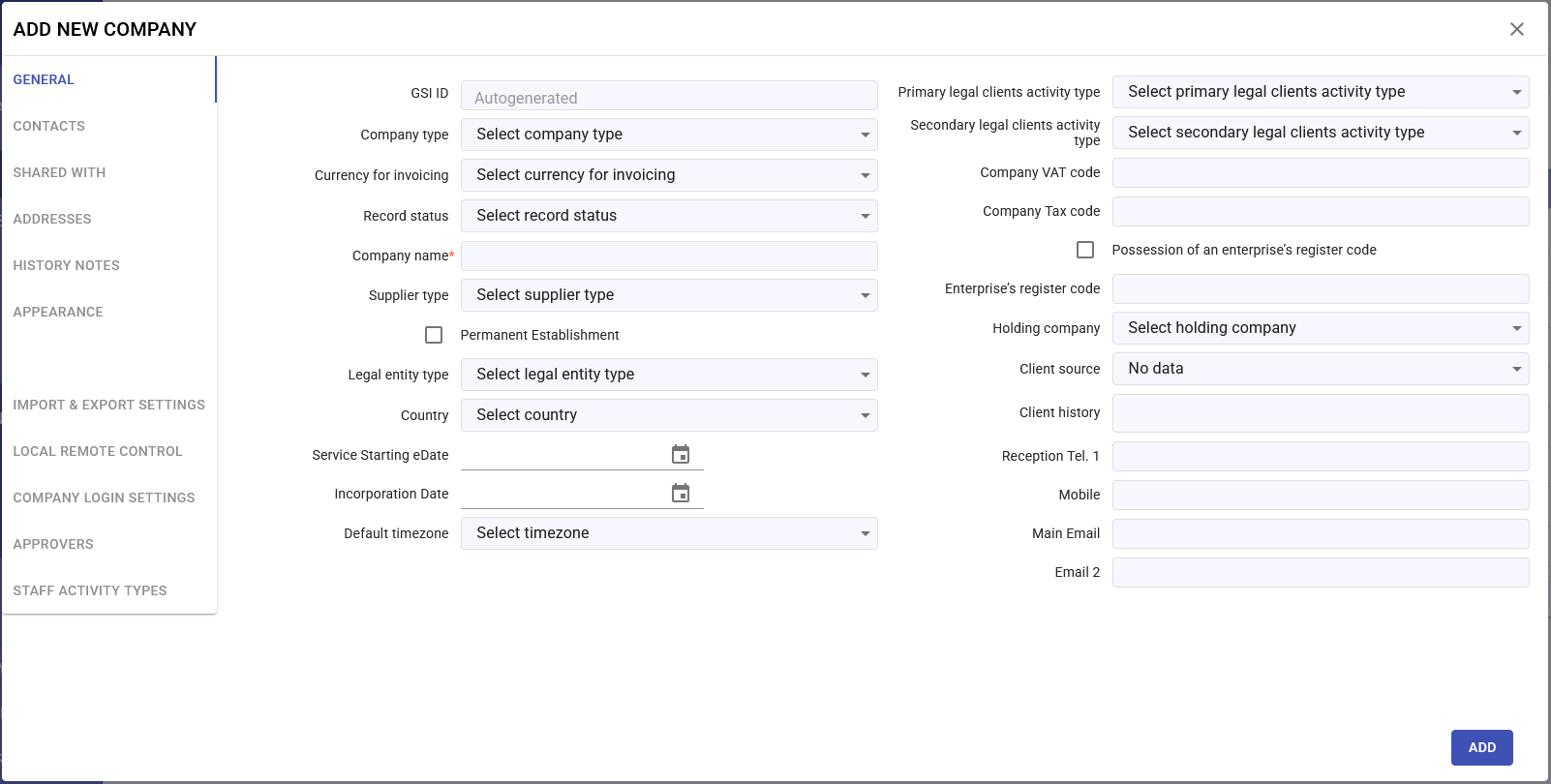
- The creation form will open with only the General tab visible
Step 3: Fill in the General Tab
A) Required Fields (marked with asterisk *)
- Company Name: Enter the official registered name
- Company Type: Select from dropdown menu
Available values depend on General Tables > Companies > Company Types configuration. Examples: HTLC Group company, International Correspondent, Direct Client - Legal Entity Type: Select the business structure
Values depend on General Tables > Companies > Legal Entity Types. Examples: S.A., S.r.l., Limited Liability Partnership - Country/Federation: Select the geographical jurisdiction of registration
B) Recommended Fields
- GSI ID: Unique system identifier
- Can be auto-generated by the system
- Or manually entered (must be unique)
- ⚠️ Cannot be modified after creation
- Record Status: Informational field for operational status
- Available values depend on General Tables > Companies > Company Status configuration
- Currency for Invoicing: Default currency for financial transactions (EUR, USD, etc.)
C) Tax Information
- Company VAT Code: Official VAT identification number
- Tax Code: Tax identification code of the legal entity
- Enterprise Register Code: Business registration identifier
- Permanent Establishment: Checkbox for tax purposes
D) Dates and Basic Configurations
- Incorporation Date: Official company registration date
- Service Starting Date: Date of operational start in GSI2 system
- Default Timezone: Operational timezone affecting timestamps and schedules
E) Business Relationships
- Holding Company: Parent company selection (if applicable)
- Client Source: Acquisition channel or origin
- Supplier Type: Classification for procurement purposes
F) Activities and Classifications
- Legal Clients Activity Types (Primary): Primary activity classification
- Legal Clients Activity Types (Secondary): Secondary activity classification
G) General Contact Information
- Reception telephone: Reception phone number
- Mobile: Reference mobile number
- Main email: Primary email address
- Secondary email: Secondary email address
Step 4: Save the Company
- Verify that all required fields are filled (red asterisk *)
- Click the SAVE button at the bottom
- The system will confirm creation with a success message
- The company will now be visible in the main table
✅ PHASE 1 COMPLETED: The company has been successfully created with essential data.
PHASE 2: Advanced Configurations (Post-Saving)
After saving the company, you can access all other tabs for advanced configurations.
Step 5: Reopen the Company in Edit Mode
- From the Companies table, locate the newly created company
- Click the pencil icon in the Actions column
- The complete form will open with all tabs now accessible
Available Tabs for Advanced Configurations
1. Contacts Tab
Purpose: Manage personnel and contact points associated with the company.
How to add a contact:
- Click "Add new contact"
- Enter: Name, Surname, Role/Department, Email, Phone
- Save
Note: You can edit or delete contacts using the pencil/trash icons.
2. Addresses Tab
Purpose: Manage physical locations and legal address of the company.
How to add a legal address:
- Click "Add new Legal address"
- Fill in: Local Unit Name, Street, Number, City, Zip Code, Region, Country
- Mark as primary Legal Address if necessary
- Save
The primary legal address will then be selectable in the General tab under the "Legal Address" field.
3. Shared With Tab
Purpose: Control company data accessibility with other live clients.
How to grant access:
- Click "Add new company access"
- Select the external company to authorize
- Define access level and permissions
- Save
You can remove existing access by clicking the trash icon.
4. Policies & Procedures Tab
Purpose: Manage compliance documentation and operational procedures.
How to add a policy:
- Click "Add"
- Enter: Title, Author, Description, Issue Date, Expiry Date
- Upload attachments (if necessary)
- Save
5. Group Companies Tab
Purpose: View and manage relationships with other entities in the corporate group.
This tab automatically displays related companies based on the "Holding Company" configuration in the General tab.
6. History Notes Tab
Purpose: Document changes, events, and decisions related to the company.
How to add a note:
- Click "Add new history notes"
- Enter the description/content of the note
- The system will automatically add: date, time, and author
- Save
Recommendation: Always document the initial creation and applied configurations.
7. Appearance Tab
Purpose: Configure branding and visual identity of the company on the platform.
How to upload logos:
- Small logo: Displayed in the top left of the navigation menu
- Medium brand: For use in reports and documents
- Large brand: For use in presentations
For each logo:
- Click CHOOSE FILE
- Select the image (PNG or JPG format recommended)
- Save
Company Colors Set: Configure custom color scheme for the interface.
8. Modules Tab
Purpose: Activate/deactivate features and modules available for the company.
Available modules include: Staff, Badge Machine Import, Notifications, Mobility Integration, Ticketing, Documents, CRM, Clients, and related sub-modules.
⚠️ Important: Module activation/deactivation affects features available to all company users.
9. Import & Export Settings Tab
Purpose: Configure identifiers for integration with external systems.
- Company Code: Unique identifier for data exchange
- Tickets Code: Ticketing system identifier
- Badge Terminals Codes: Access control system integration
10. General Configs Tab
Purpose: Define basic operational parameters.
- Work Week Start Day: Select the first day of the work week (Monday, Tuesday, etc.)
11. Local Remote Control Tab
Purpose: Manage access rules based on network and geolocation.
How to add a rule:
- Click the add button
- Select type: Country or IP Address
- Specify the value (e.g., Italy, 192.168.1.0)
- Set status (active/inactive)
- Save
12. Company Login Settings Tab
Purpose: Configure security policies and authentication.
Company Password Policy:
- Minimum length: Number of required characters (default: 8)
- Special characters requirement: ON/OFF
- Upper and lower case requirement: ON/OFF
- Number requirement: ON/OFF
Multi-factor Authentication (MFA):
- Enable the MFA enabled checkbox to require two-factor authentication
⚠️ Important: Password policy changes apply immediately to all company users.
13. Approvers Tab
Purpose: Configure approval chain for business processes.
How to add an approver:
- Click "Add new approver"
- Select the individual from the employee list
- Define the approval scope
- Save
14. Staff Activity Types Tab
Purpose: Define activity types usable by employees for time tracking and reporting.
How to add an activity type:
- Click "Add staff activity type"
- Select the classification category from the configured general table
Available values depend on General Tables > Staff > Staff Activity Types configuration - Save
These activity types will then be selectable by all company employees.