-
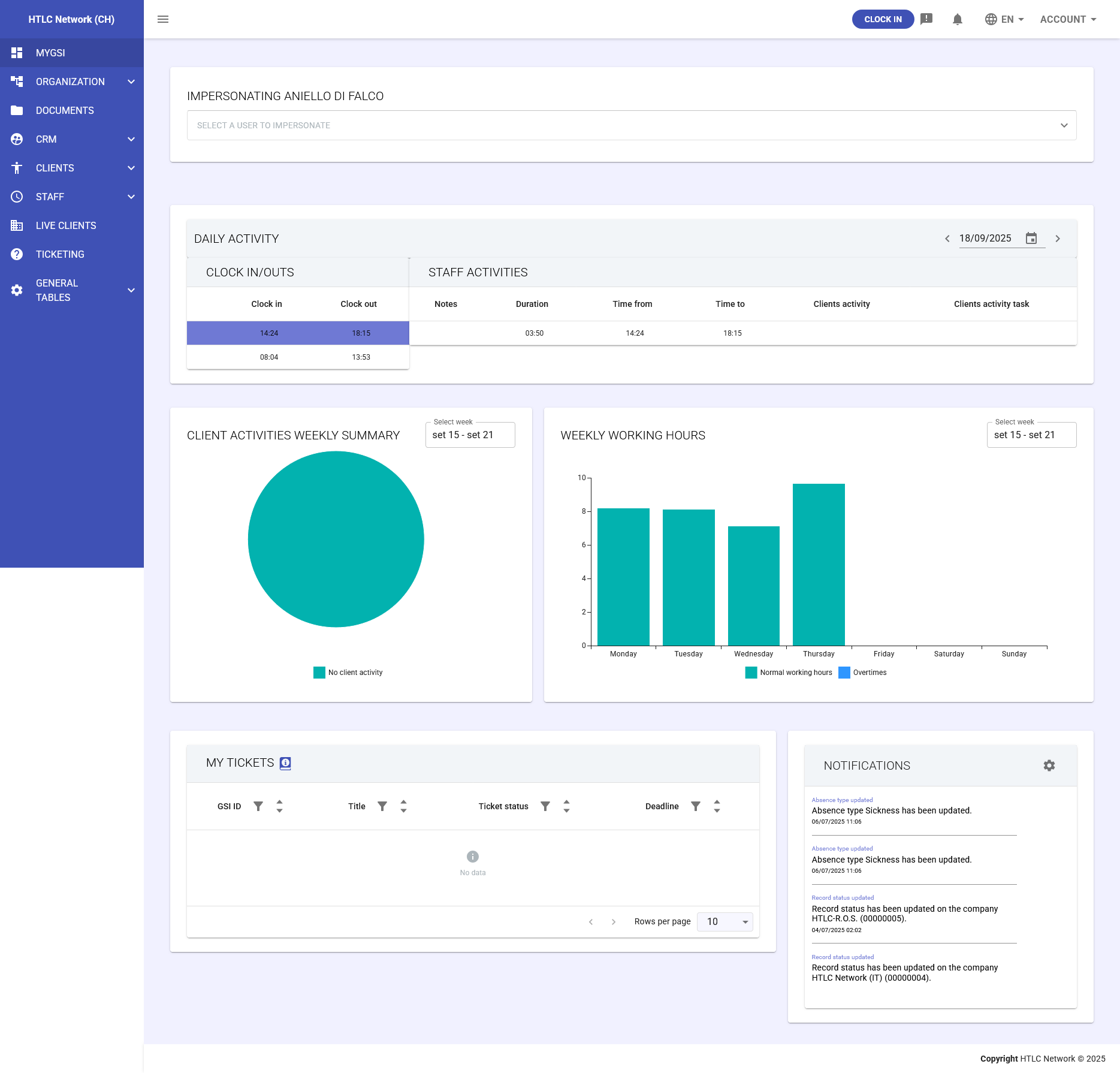
The MyGSI dashboard represents the personalized command center of the GSI2 system, offering a consolidated and immediate view of the most relevant information for the user. This interface is designed to provide quick access to critical data from different system modules, allowing real-time monitoring of user attendance, business activities, and important communications.
The dashboard appears as the first screen after login.
Each user normally sees only their own personal dashboard with their own data. Only users with adequate permissions (typically managers or administrators) can use the impersonation feature to view other users' dashboards.
In "contents" below each widget is explained in more details.
-
Daily Activity Panel
Clock In/Outs Section
Description: Shows daily time records with staff entry and exit times.
Displayed elements:
- Clock in: Entry/registration time
- Clock out: Exit time
- Notes: Any annotations
- Total hours: Total presence duration
- Time from: Activity start time
- Time to: Activity end time
Features:
- Immediate view of current day attendance
- Quick identification of anomalies or missing punches
- Automatic calculation of hours worked
Staff Activities Section
Description: Summary table of staff activities with details on projects and clients.
Main columns:
- Clients activity: Activity performed for the client
- Clients activity task: Specific activity task
- Display of hours dedicated to each activity
- Real-time monitoring of resource allocation
-
Client Activities Weekly Summary Panel
Description: Pie chart showing the percentage distribution of time dedicated to different client activities during the current week.
Features:
- Immediate graphical visualization of work distribution
- Reference period: current week (e.g., Sep 15 - Sep 21)
- Legend with "No client activity" indicator for periods without recorded activities
- Useful for quick analysis of resource allocation
Weekly Working Hours Panel
Description: Bar chart showing the distribution of hours worked during the week, divided by day.
Elements:
- X-axis: Days of the week (Monday - Sunday)
- Y-axis: Hours worked (0-10 scale)
- Turquoise bars: Standard working hours
- Blue bars: Overtime (if present)
- Reference period indicated (e.g., Sep 15 - Sep 21)
Usage:
- Daily workload monitoring
- Activity peak identification
- Contractual hours compliance check
-
Tickets Panel
Description: Integrated ticket management system for support requests and reports.
Structure:
- GSI ID: Unique ticket identifier
- Title: Request title/subject
- Status: Current status (open, in progress, closed)
- Deadline: Resolution deadline
Features:
- Filters for personalized viewing
- Pagination for managing many tickets (e.g., "Rows per page: 10")
- "No data" indicator when there are no tickets
-
Notifications Panel
Description: Notification center for important system alerts and communications.
Types of notifications displayed:
- Absence type Sickness: Sickness absence notifications with date and time
- Record status: Updates on approved/updated record status
- Notifications with precise timestamp for traceability (e.g., 06/07/2025 11:09)
Features:
- Gear icon for notification preferences configuration
- Chronological display of events
- Alert system for critical events
- Ability to customize which notifications to receive
-
Impersonation Feature
Description: The top bar "IMPERSONATE [USER NAME]" indicates when a manager is viewing the dashboard from another user's perspective.
Access:
- Available ONLY for users with manager or administrator permissions
- Standard users see exclusively their own dashboard
- Requires specific authorizations configured in the Organization module
Usage:
- Allows managers to see exactly what an employee sees
- Useful for providing support and troubleshooting
- Facilitates verification of configurations and permissions
- User selection for impersonation is done through the "SELECT EMPLOYEE" field