-
The attendance module integrated into MyGSI allows users to manage their daily time registrations and view work activities in real-time. This guide will walk you through using the attendance tracking features directly from your personal dashboard.
System Access
Step 1: MyGSI Dashboard Overview
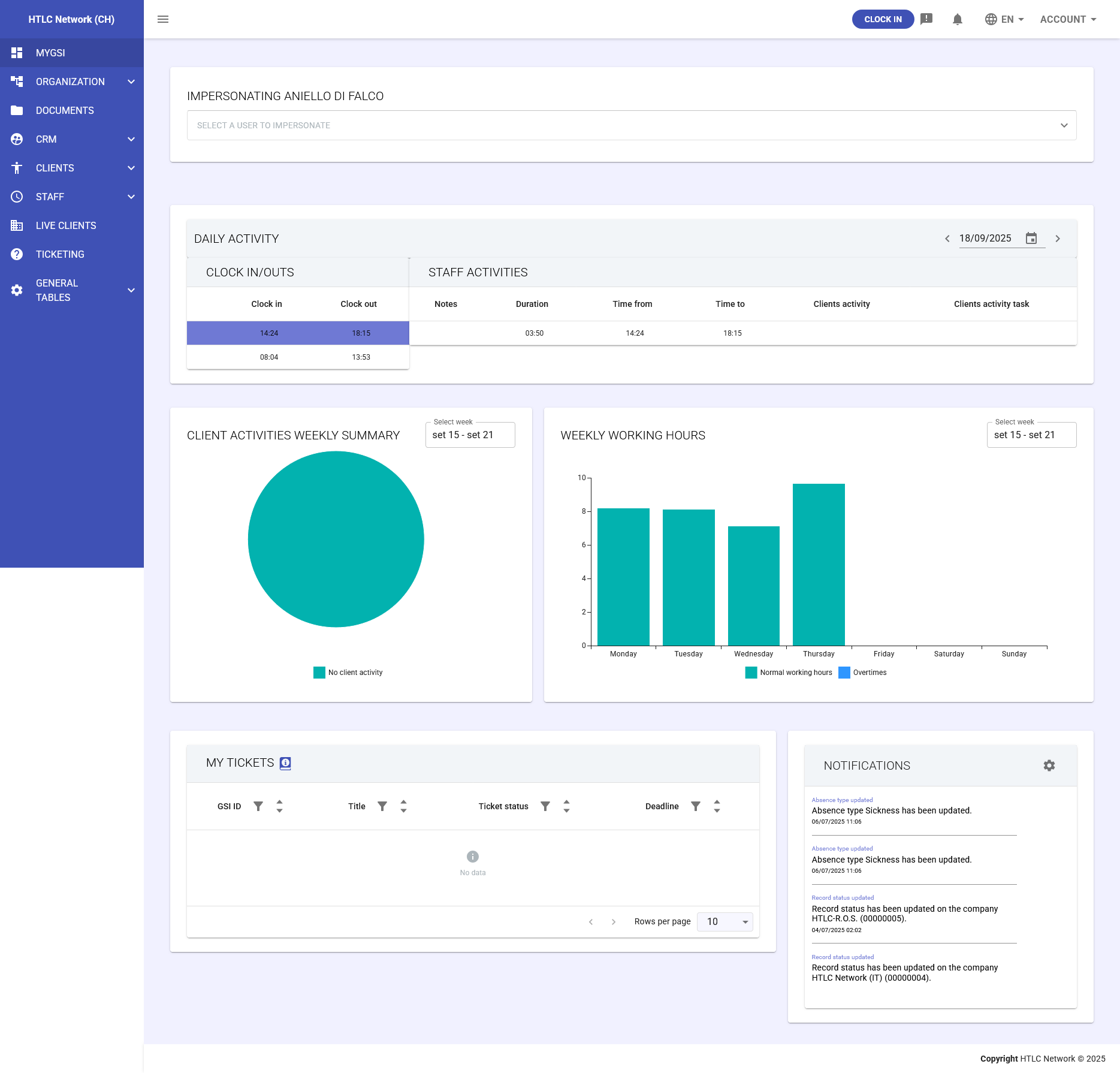
Once logged in, you'll see the MyGSI dashboard with various information panels. For attendance management, the main panels are:
- Daily Activity Panel - shows your clock records and activities for the current day
- Weekly Hours Panel - displays a summary of hours worked during the week
- Client Activities Weekly Panel - time distribution across various projects/clients
Clock In
Step 3: Start Your Work Day
- At the top of the screen, locate the CLOCK IN button
- Click the CLOCK IN button
- The system will automatically record the current time as your entry time
- A timer will start counting your worked time
- The button will change to CLOCK OUT to indicate you're currently at work
Step 4: Select Work Arrangement (Optional)
When clocking in, you may need to specify your work arrangement:
- ON-SITE - Click this button if you're working at the office
- REMOTE - Select for remote work/smart working
- OFF-SITE - Choose if you're working at a client location or other site
During the Work Day
Step 5: Monitor Worked Time
In the Daily Activity Panel you can view in real-time:
- Clock in time - the time you clocked in
- Active timer - the elapsed time counter
- Total hours - total hours worked so far
Step 6: Manage Breaks (If Applicable)
If your time shift includes breaks:
- You can register a break by clicking the PAUSE button (if available)
- The timer will pause during the break
- Click RESUME to continue counting worked time
Clock Out
Step 7: End Your Work Day
- At the end of your work day, click the CLOCK OUT button at the top
- The system will record the current time as your exit time
- The timer will stop
- In the Daily Activity Panel you'll see:
- Complete clock in time
- Complete clock out time
- Total hours worked for the day
View Attendance Records
Step 8: Check the Daily Activity Panel
In the dedicated panel on the MyGSI dashboard you can see:
Clock In/Outs Section:
- Clock in - recorded entry time
- Clock out - exit time (when available)
- Notes - any added annotations
- Total hours - total presence duration
Staff Activities Section:
- Client activities - projects or activities you worked on
- Client activity task - specific task detail
- Dedicated hours - time allocated for each activity
Step 9: Check Weekly Summary
- Consult the Weekly Hours Panel to see the bar chart with daily hours
- Turquoise bars indicate standard working hours
- Blue bars (if present) indicate overtime
- The reference period is shown above the chart (e.g., "Sep 15 - Sep 21")
Anomaly Management
Step 10: Identify and Resolve Anomalies
If you forget to clock in/out or there are discrepancies:
- The system will show a warning icon (orange exclamation point) next to the record
- Contact your manager or HR office for correction
- Common anomalies include:
- Missing clock in
- Missing clock out
- Times not conforming to your time shift
Additional Features
Manual Registration (If Authorized)
If you forget to clock, you might be able to manually enter a time record:
- Access Staff → Clock In/Out Records from the main menu
- Click the "+" button to add a new record
- Select the date and enter clock in and out times
- Choose the appropriate work arrangement
- Click CREATE to save
View Active Clock Ins
To see who is currently at work in your team:
- Access Staff → Active Clock In from the menu
- You'll see the list of all colleagues with active clock in
- You can see each person's entry time and work location
Tips and Best Practices
- Punctuality: Always clock in when you arrive and clock out when you leave
- Daily verification: Check the Daily Activity Panel to ensure your time records are correct
- Timely resolution: If you notice anomalies, report them immediately to your manager
- Work arrangement: Remember to select the correct mode (on-site/remote/off-site)
- Compatible browsers: Use updated Chrome, Firefox or Edge for the best experience