-
In addition to role-derived permissions, GSI2 allows configuration of specific individual permissions for each user. This guide describes how to view, add, and manage permissions at the individual user level, including special permissions like Live Client access and Document Manager rights.
Permission Core Concepts
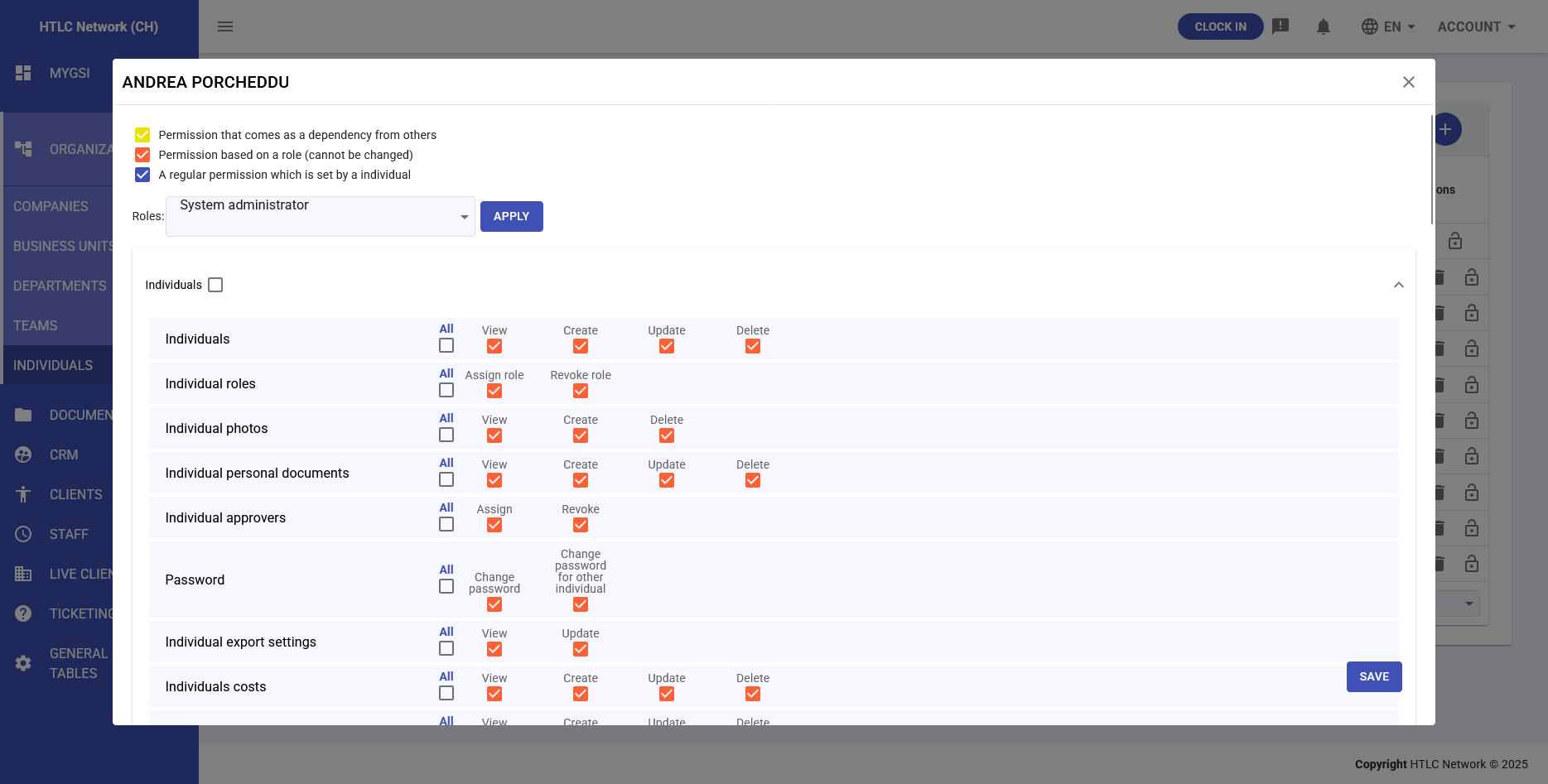
- Role Permissions: Automatically inherited from assigned roles (orange checkboxes)
- Individual Permissions: Directly assigned to the user (blue checkboxes)
- Cumulative Permissions: Roles + individual always add up
- Dependencies: Some permissions automatically activate others (highlighted in yellow)
Permission Checkbox Color Legend
In the permissions configuration panel, checkboxes use different colors to indicate the origin of permissions:
- Orange: Permissions derived from assigned role (cannot be modified at individual level)
- Yellow: Permissions automatically derived from other permissions (dependencies)
- Blue: Individual/single assignments set directly
Accessing Individual Permissions
Prerequisites
- "Set Permissions" permission or Company Admin role
- User must have a company email to be a system user
Access Procedure
- Navigate to Organization > Individuals
- Locate the user in the table
- Click the lock icon in the Actions column
- The complete permissions panel will open
Permission Panel Structure
Top Section: Roles
- Shows currently assigned roles
- Ability to add/remove roles
- Role permissions shown with orange checkboxes
Permission Sections by Category
Permissions are organized in thematic sections. For each section:
- All: Checkbox under the section title - checking it automatically checks all permissions in the section
Module Permissions
1. Individual Permissions
User management:
- View: View user profiles
- Create: Create new users
- Update: Modify existing users
- Delete: Delete users
2. Companies Permissions
Company data management:
- View: View company data
- Create: Create new companies
- Update: Modify company configurations
- Delete: Delete companies
3. Staff Permissions
Attendance and activities management:
- Access: Basic module access
- View: View attendance data
- Support: Assist other users
- Approver: Approve vacation/leave requests
4. Documents Permissions
Document management:
- View: View documents
- Create: Upload new documents
- Delete: Delete documents
- Document Manager: Complete management for specific companies
5. CRM Permissions
Customer relationship management:
- Access: Module access
- View: View contacts
- Manage Leads: Manage leads
Special Access Configurations
Live Clients Login
Allows access to other shared Live Clients:
Configuration:
- Navigate to Access Configurations tab
- Live Clients Login section
- Click "+ Add New Live Client to Login"
- Select Live Client to authorize
- Choose permission type:
- Inherited Permissions: Use user's current permissions
- Specific Permissions: Use specific Live Client user's permissions
- Save configuration
Remove Access:
- Click delete icon next to Live Client
- Confirm removal
Documents Manager by Company
Grants selective Document Manager rights:
Assignment:
- Access Configurations tab
- Documents Manager section
- Click "+ Add New Company"
- Select specific companies
- User will have Document Manager rights ONLY for those companies
- Save
Adding Individual Permissions
Step-by-Step Procedure
- In permissions panel, locate module section
- Check boxes for permissions to add
- Note any automatic dependencies (yellow)
- Click SAVE at bottom
- Permissions apply immediately
Practical Example
Scenario: Add CRM permissions to an HR operator
- User already has "HR Operator" role
- Open permissions panel
- CRM section: check "Access" and "View"
- Save - user now has HR + limited CRM permissions
Removing Permissions
Important Limitations
- CANNOT remove permissions granted by a role
- To remove role permissions, must remove the role itself
- Individual permissions can be removed by unchecking the box
Removal Procedure
- Identify if permission comes from role (orange) or individual (blue)
- If individual: uncheck box and save
- If from role: consider removing/changing the role
Critical Permissions and Security
High-Risk Permissions
Permission Impact Recommendation Company Admin Complete access to everything Only for senior administrators Set Permissions Can modify other users' permissions Limit to HR/IT managers Delete Companies Can delete entire companies System administrators only Access Live Clients Access to other companies' data Authorized personnel only Security Controls
- Enable MFA for users with critical permissions
- Regular permission audit (monthly)
- Document every change
- Always apply least privilege principle