-
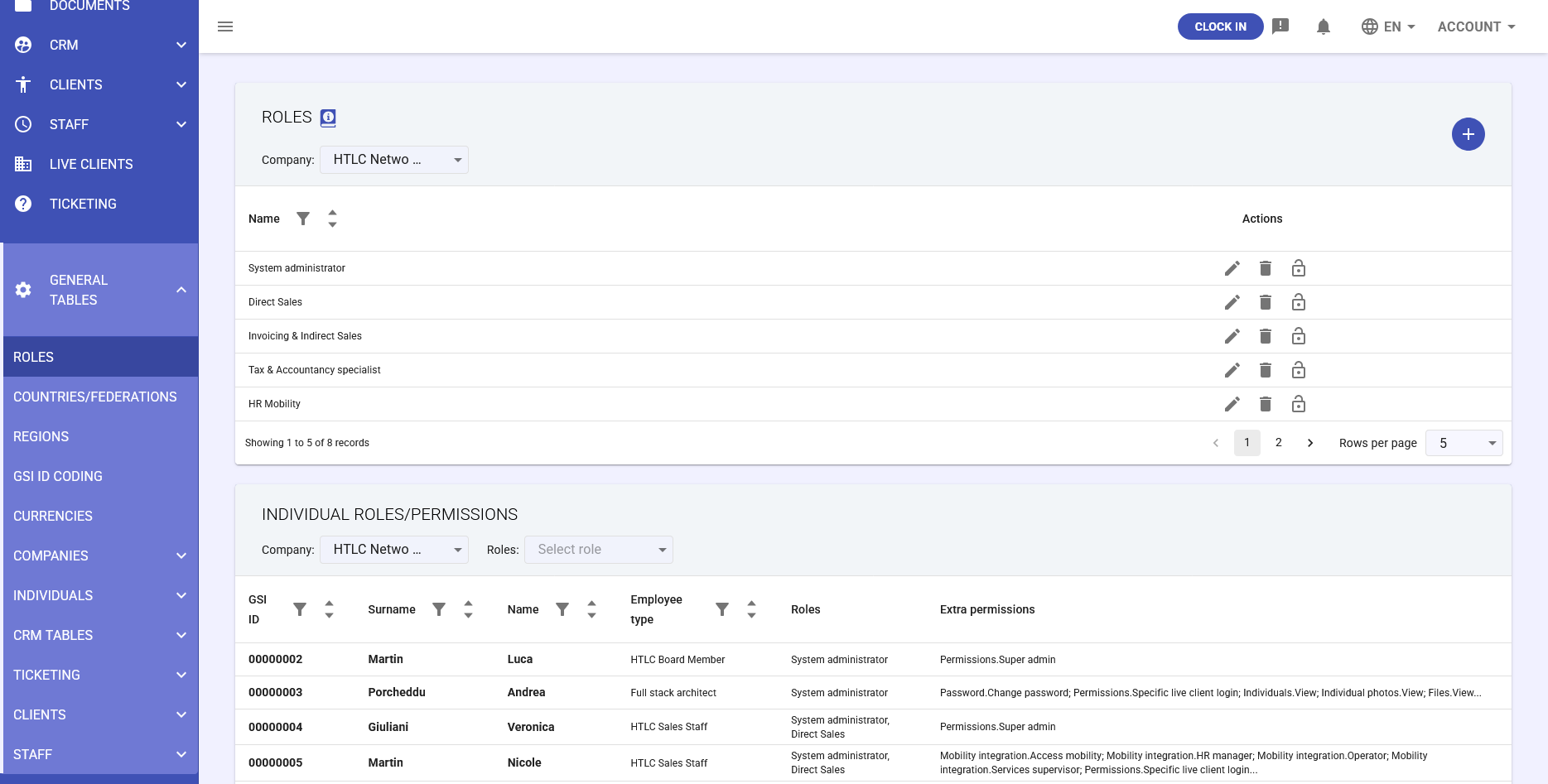
Roles in GSI2 provide a centralized system for managing user access rights and permissions through role-based access control (RBAC). This guide describes how to create new roles, modify existing ones, and assign them to users.
Core Concepts
- Role: Predefined collection of permissions that can be assigned to multiple users
- Permissions: Specific authorizations to access and operate on system modules
- Inheritance: Users automatically inherit all permissions from assigned roles
- Cumulative: A user can have multiple roles; permissions are additive
Permission Checkbox Color Legend
In the permissions configuration panel, checkboxes use different colors to indicate the origin of permissions:
- Orange: Permissions derived from assigned role (cannot be modified at individual level)
- Yellow: Permissions automatically derived from other permissions (dependencies)
- Blue: Individual/single assignments set directly
Part 1: Create a New Role
Access Role Management
- From main menu, navigate to General Tables
- Select Roles
- The table with existing roles will open
Role Creation
- Click the "+" button at top right
- In the creation form, enter:
- Name: Descriptive role name (e.g., "HR Manager", "CRM Operator", "Attendance Supervisor")
- Company: Select the company for which the role is valid
- Click SAVE to create the base role
Configure Role Permissions
- Find the newly created role in the table
- Click the lock icon in the Actions column
- The permissions configuration panel will open
Assign Permissions to Role
In the permissions panel, configure authorizations by section:
System Permissions
- Company Admin: ⚠️ Grants ALL permissions - use with caution
- Login to Other Companies: Allows access to other companies in the live client
- Set Permissions: ⚠️ Allows managing other users' permissions
Module Permissions
For each module, configure CRUD operations:
- All: Checkbox under the section title - checking it automatically checks all permissions in the section
- View (R): View data
- Create (C): Create new records
- Update (U): Modify existing records
- Delete (D): Delete records
Role Configuration Examples
"Basic HR Operator" Role:
- Individuals: View ✓, Create ✓
- Staff: View ✓
- Documents: View ✓
- Other modules: no permissions
"Attendance Supervisor" Role:
- Staff: All ✓
- Individuals: View ✓, Update ✓
- Approver Rights ✓
- Notifications: All ✓
Part 2: Modify an Existing Role
Modify Role Name
- From Roles table, click the role's pencil icon
- Modify the name in the text field
- Save changes
Update Role Permissions
- Click the role's lock icon
- In the permissions panel:
- Check new boxes to add permissions
- Uncheck boxes to remove permissions
- Note yellow highlighted permissions (automatic dependencies from other permissions)
- Orange permissions derive from the role itself and cannot be modified individually
- Click SAVE to apply changes
⚠️ Important: Role modifications apply immediately to all users who have that role assigned.
Part 3: Assign Roles to Users
Method 1: During User Creation
- Navigate to Organization > Individuals
- Click Add Individual with Wizard
- Step 1: Enter essential data
- Step 2: In roles section, select one or more roles from dropdown
- Complete creation
Method 2: On Existing User
- From Individuals table, locate the user
- Click the lock icon in Actions column
- In permissions panel:
- Roles section at top
- Select roles from dropdown
- For multiple assignments, select multiple roles
- Save to apply roles
Verify Assigned Roles
- Open user permissions (lock icon)
- Active roles are shown in top section
- Permissions derived from roles display with orange checkboxes
- Additional individual permissions have blue checkboxes
- Automatic dependencies appear in yellow
Advanced Management
Multiple Role Combination
When a user has multiple roles:
- Permissions are additive (union of all permissions)
- No conflicts: if even one role grants a permission, the user has it
- Example: Role A (View Documents) + Role B (Create Documents) = User can View + Create
Override with Individual Permissions
Beyond roles, you can:
- Add specific individual permissions not included in roles
- These permissions add to role permissions
- Cannot "remove" a permission granted by a role
Remove Role from User
- Open user permissions panel
- In roles section, deselect role to remove
- Save changes
- User immediately loses that role's permissions
Best Practices
Role Design
- Least privilege principle: Grant only necessary permissions
- Clear naming: Use descriptive names (e.g., "Accountant_ReadOnly" vs "Role1")
- Granular roles: Better to have many specific roles than few overly broad ones
- Documentation: Maintain a record of roles and their purpose
Security
- Minimize roles with "Company Admin" or "Set Permissions"
- Periodically review role assignments (quarterly audit)
- Remove roles when user duties change
- Don't create "catch-all" roles with too many permissions