-
Overview
The Roles module in GSI2 provides a centralized system for managing user access rights and permissions across the platform. Through role-based access control (RBAC), administrators can efficiently define, assign, and maintain standardized permission sets that determine what users can see and do within the system. This module serves as the foundation for security and access management throughout GSI2.
Core Architecture
The role management system is built on a hierarchical permission model that ensures both flexibility and security:
Role Definition
Each role represents a collection of permissions that can be assigned to multiple users, providing a standardized approach to access control. Roles are company-specific and can be tailored to match organizational structures, job functions, or responsibility areas. This approach simplifies user management by allowing administrators to assign predefined permission sets rather than configuring individual permissions for each user.
Permission Inheritance
When users are assigned a role, they automatically inherit all permissions associated with that role. The system supports multiple role assignments per user, with permissions being combined additively—users receive the union of all permissions from their assigned roles. Individual permission overrides can be applied when specific users require additional access beyond their role definitions.
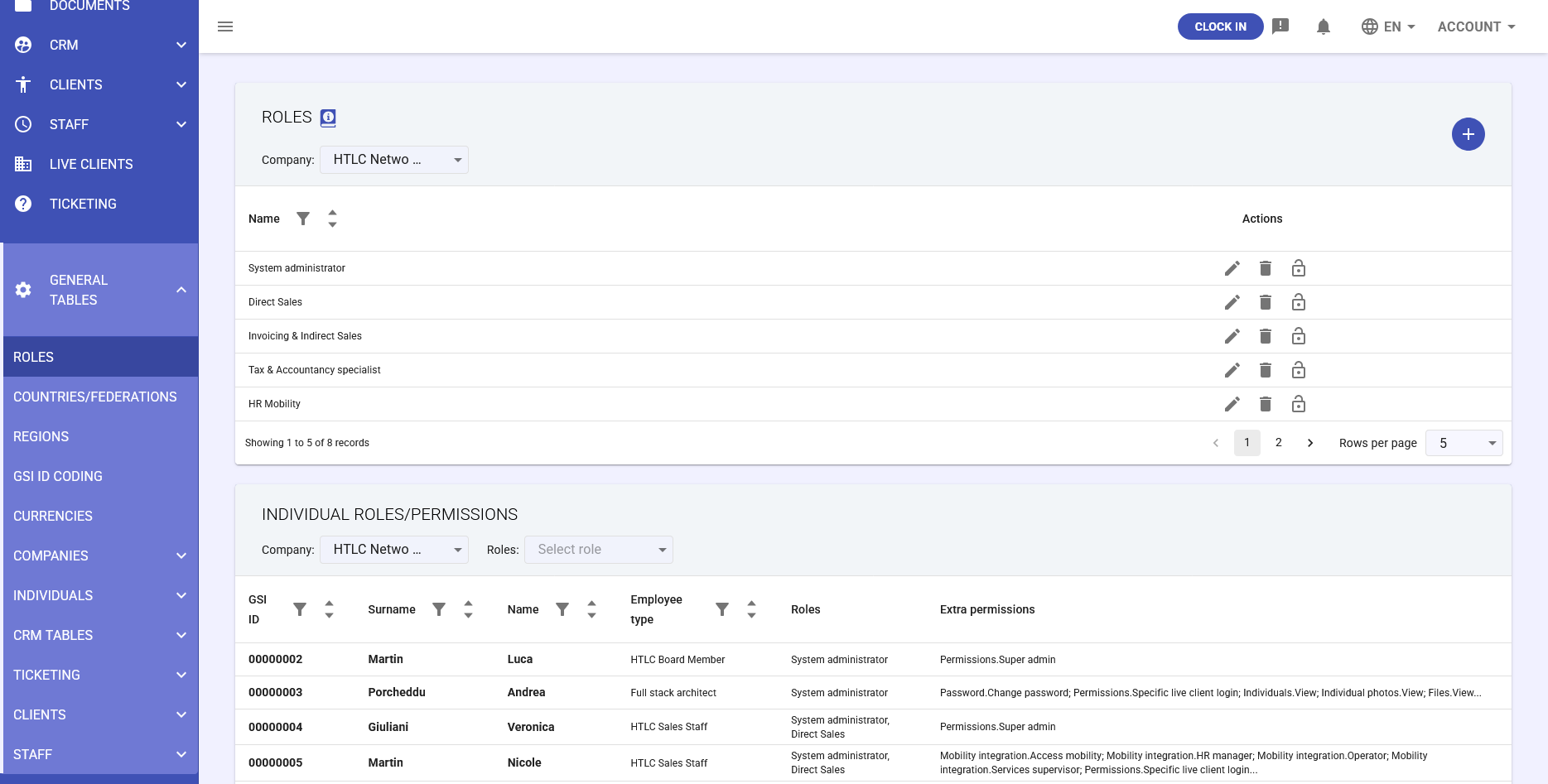
Main Roles Interface
Table Display
The roles interface displays all configured roles with the following information:
- Name: Descriptive identifier for the role (e.g., "System administrator", "Direct Sales", "HR Mobility")
- Company: The associated company for which the role is configured
- Actions: Management controls for each role:
- Edit (pencil icon): Modify role name and basic properties
- Delete (trash icon): Remove the role from the system
- Permissions (lock icon): Access the detailed permission configuration panel
Role Creation
Creating a new role is streamlined through the "+" button, which opens a dialog requiring only:
- Name: A descriptive name for the role (required field)
- Company: Selection from available companies in the system
For more insights on Permissions, see the "Permissions Management" section of the Individuals article
-
Permissions Management
Permission Configuration Panel
Accessing the lock icon opens the comprehensive permissions panel where administrators can configure granular access rights. The interface uses a checkbox matrix system that clearly displays available permissions across different functional areas.
Permission Categories
Permissions are organized into logical groups that correspond to GSI2 modules and functionalities:
Core System Permissions
- Company Admin: A special permission that automatically grants all available permissions for the selected role
- Login to Other Companies: Allows users to access other companies within the live client environment
- Set Permissions: Grants the ability to configure permissions for other users (handle with extreme care)
Module-Specific Permissions
Each module section includes standard CRUD operations (Create, Read, Update, Delete) plus specialized permissions:
- Individuals: User management and profile access
- Companies: Organization data management
- Documents: File and folder access controls
- Time & Activities: Attendance and activity tracking permissions
- CRM: Customer relationship management functions
- Ticketing: Helpdesk and support ticket management
- Notifications: Alert and notification configuration
- Setup & Tables: System configuration and reference data management
Permission Dependencies
The system intelligently manages permission relationships:
- Automatic Dependencies: When certain permissions are granted, related permissions are automatically enabled to ensure functionality
- Minimum Requirements: Some permissions require specific base permissions to function properly
- Visual Indicators:
- Yellow highlighting: Indicates permissions that come as dependencies from other selections
- Orange/Red highlighting: Shows permissions that cannot be changed due to role requirements
- Blue checkmarks: Regular permissions set by the administrator
Permission Types and Indicators
The permission interface uses visual coding to help administrators understand permission states:
- All: Grants complete access to the functionality
- View: Read-only access to data
- Create: Ability to add new records
- Update: Permission to modify existing records
- Delete: Authority to remove records
- Access: Basic entry permission to the module
- Support: Assistance capabilities for other users
- Approver: Workflow approval rights
-
Role Assignment Process
Individual Assignment
- Navigate to the Individuals module
- Select the target user and click the permissions icon
- Choose roles from the dropdown menu
- Fine-tune with individual permission overrides if needed
- Save to apply the role and permissions
Bulk Assignment
- Roles can be assigned during user creation through the Individual Wizard
- Multiple users can be assigned the same role for consistent access
- Role templates speed up onboarding of new employees
-
Best Practices
Role Design Strategy
- Principle of Least Privilege: Grant only the minimum permissions required for job functions
- Standardization: Create consistent role names and structures across the organization
- Documentation: Maintain clear descriptions of each role's purpose and intended users
- Regular Audits: Periodically review role assignments and permission levels
Security Considerations
- Sensitive Permissions: Carefully control "Company Admin" and "Set Permissions" access
- Separation of Duties: Design roles to prevent conflicts of interest
- Emergency Access: Maintain a break-glass administrative role for emergencies
- Change Management: Document and approve role modifications before implementation
Maintenance Guidelines
- Role Lifecycle: Regularly review and update roles as organizational needs change
- Permission Creep: Monitor for unnecessary permission accumulation
- Deactivation Process: Remove or reassign roles when employees change positions
- Testing: Validate role configurations in non-production environments first
-
Integration Impact
Role configurations affect every aspect of the GSI2 system:
User Experience
- Interface Customization: Users only see menu items and functions they have permission to access
- Workflow Participation: Role permissions determine approval chains and process involvement
- Data Visibility: Controls which records and fields users can view or modify
System Security
- Access Control: Roles enforce data segregation and privacy requirements
- Audit Trail: All permission changes are logged for compliance
- Multi-Company Scenarios: Roles can restrict or enable cross-company access
-
Troubleshooting
Common Issues and Solutions
Users Cannot Access Expected Functions
- Verify role assignment is saved
- Check for conflicting role permissions
- Review individual permission overrides
- Ensure module is activated for the company
Permission Changes Not Taking Effect
- User may need to log out and back in
- Clear browser cache if persistent
- Verify changes were saved properly
Cannot Delete Role
- Ensure no users are assigned to the role
- Check for system dependencies
- Consider deactivating instead of deleting