-
This article explains how to:
- Create a new time record (with the related staff activity)
- Delete a time record
- Bulk generate staff activities
- Edit a time record
- Best Practices
Create a new time record
To create a new time record, follow these steps:
- Access the module Staff → Clock In/Out Records
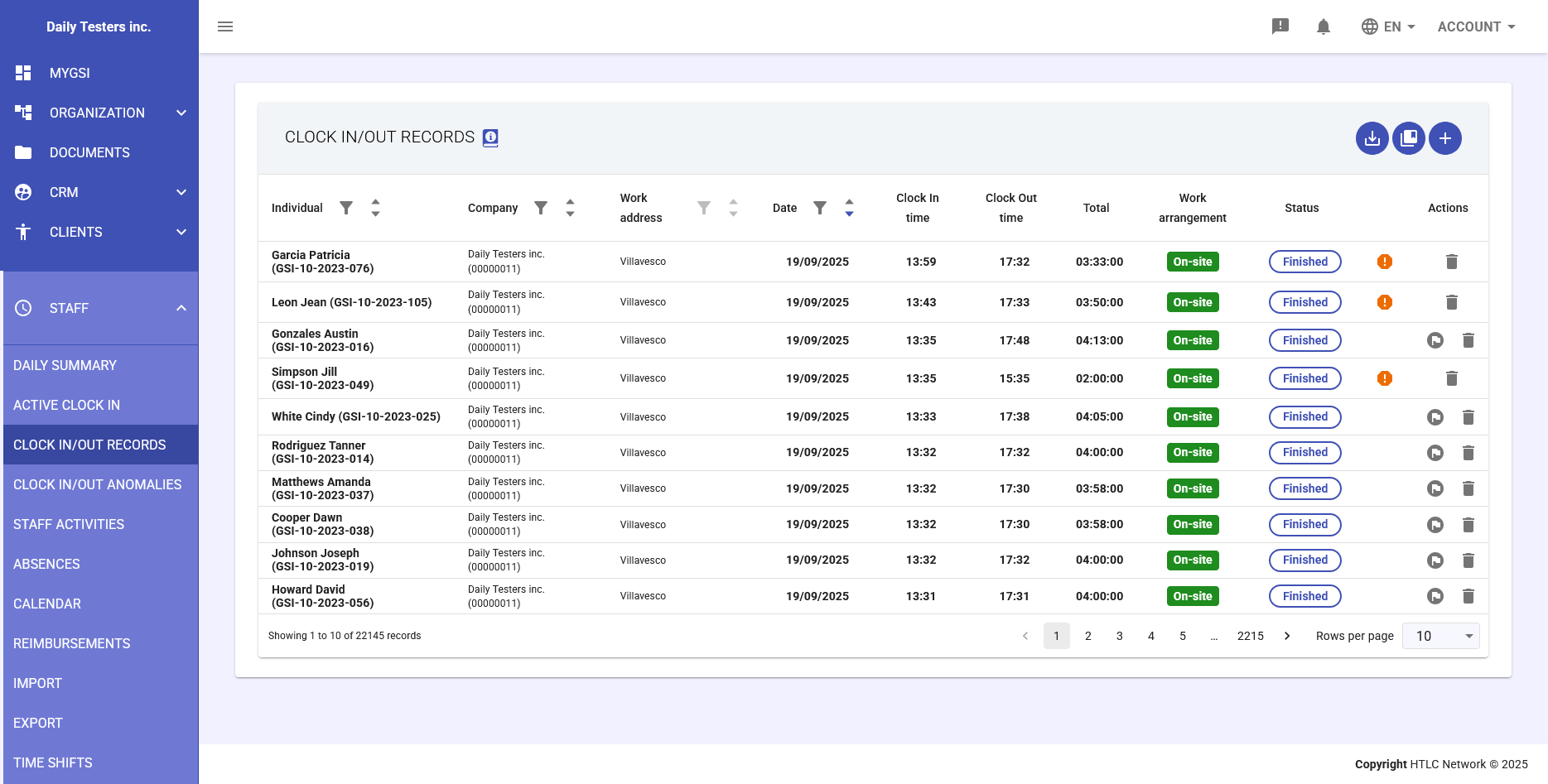
Go to the Staff module, under the Clock In/Out Records section, where all time records are listed in a table format.
You can filter by specific employee, date range, work location, and approval status.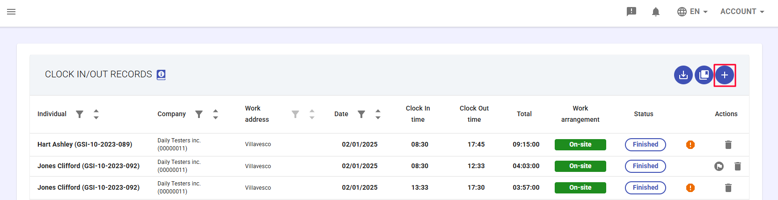
- Create a new time record
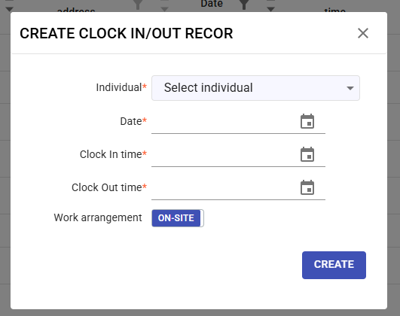
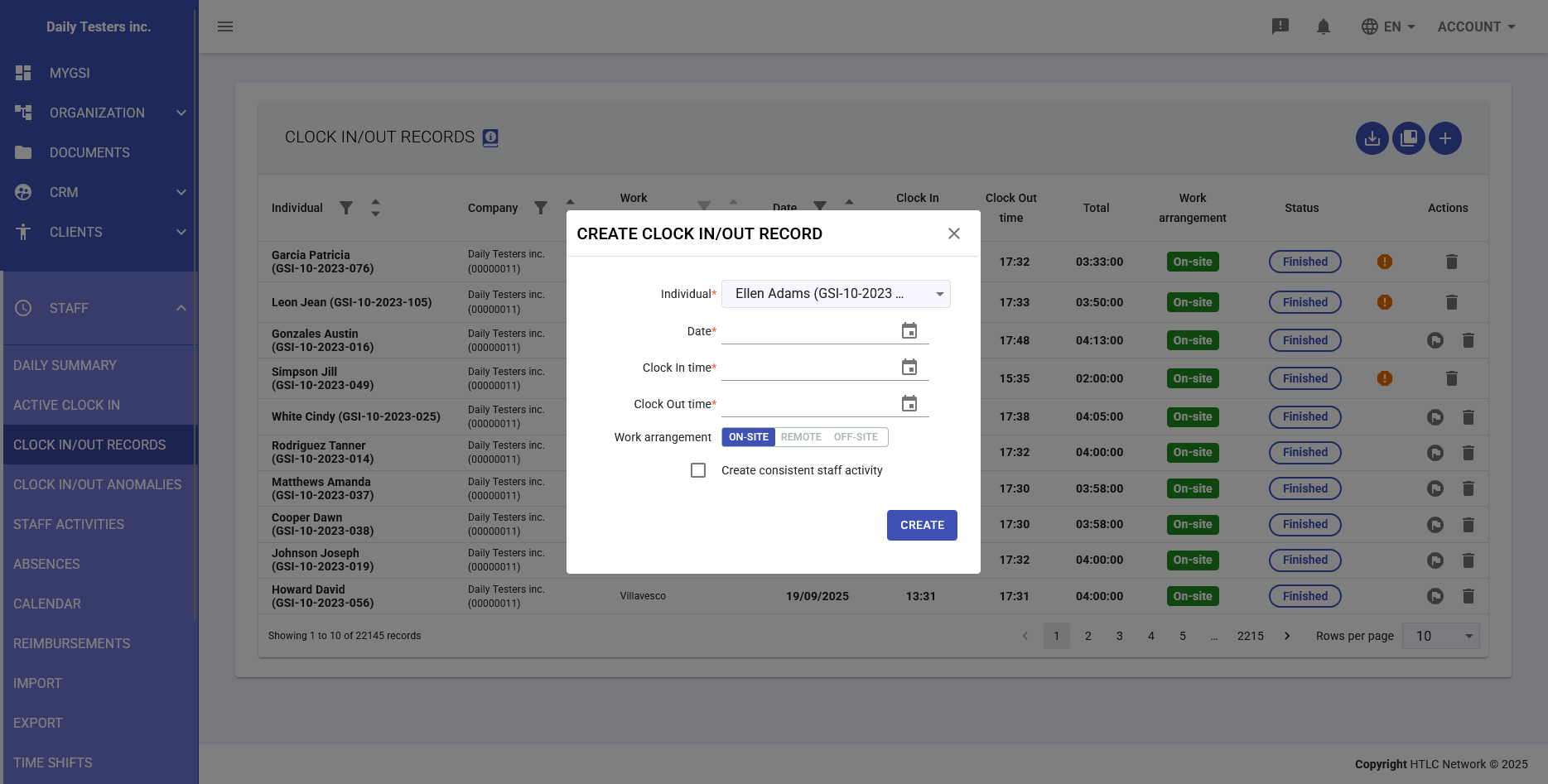
- Click the + icon in the top-right corner of the Clock In/Out Records module to create a new record.
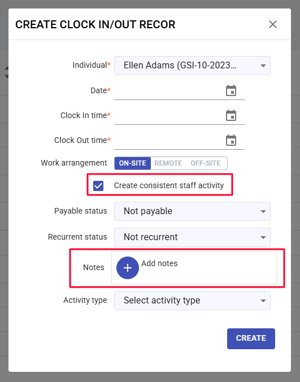
- A panel will open where you can enter the following details:
- Individual: Select the employee from the dropdown list.
- Date: Choose the date using the calendar.
- Clock In time: Enter the start time (e.g. 08:30).
- Clock Out time: Enter the end time (e.g. 17:30).
- Work arrangment: Select between On-site (physically at the office), Remote (working from home or another location), or Business trip (at the client’s site or travelling).
- Create the related staff activity: If selected, the system will automatically create a validated staff activity.
Use this option when:- The record is already verified and approved.
- No further validation is required.
- You want to skip the anomaly handling process.
- Save changes - click CREATE to save the record.
Note: When the Create the related staff activity option is checked, additional optional fields appear:
- Billable: Choose between Non-billable (for internal activities) or Billable (for client-related activities).
- Recurring: Choose between Non-recurring (single activity) or Recurring (repeated activity).
- Notes: Click + Add notes to enter comments.
- Activity type: Select the activity type from the configured list.
Delete a time record
To delete a time record, follow these steps:
- Access the module Staff → Clock In/Out Records
Go to the Staff module, under the Clock In/Out Records section, where all time records are listed in a table format.
You can filter by employee, work location, shift, date, and status. - Delete the time record
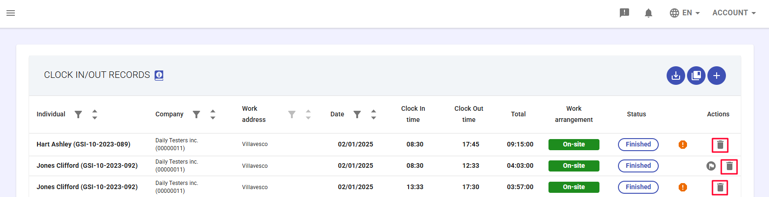
In the last column of the row, click the Trash icon. - Confirm the deletion
A confirmation message will appear:
“Are you sure you want to delete this item?”
Click OK to confirm or CANCEL to abort.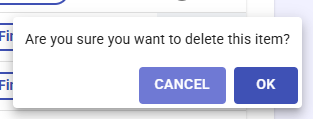
Warning:
If a staff activity was previously generated from this record, deleting the time record will not automatically delete the related staff activity.
The activity must be managed separately in the Staff Activities module.
Bulk generate staff activities
This feature allows you to convert multiple time records into already validated staff activities, bypassing normal time profile rules.
It is useful for quickly processing verified periods or exceptional cases.Use this function to:
- Quickly validate periods already checked manually.
- Bypass standard time rules in exceptional cases (e.g. extraordinary work management).
- Convert historical records not yet turned into staff activities.
To convert multiple time records into validated staff activities:
- Click the bulk generation icon in the top-right corner of the screen.
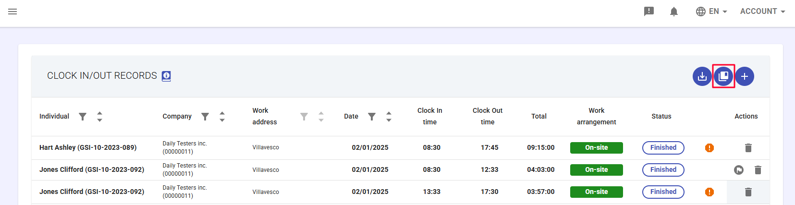
- The window “Bulk generate staff activities from records” will open, asking you to set the following required parameters:
- Employee: Select one or more employees.
- From / To: Specify the date range to convert.
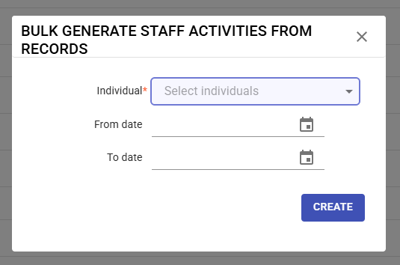
- Click CREATE to start the automatic generation of staff activities.
Edit a time record
Time records cannot be edited directly.
If a record contains an error, you must correct it using one of the two available methods:Method 1 – Correction through an Anomaly (recommended)
- Identify the record to be corrected.
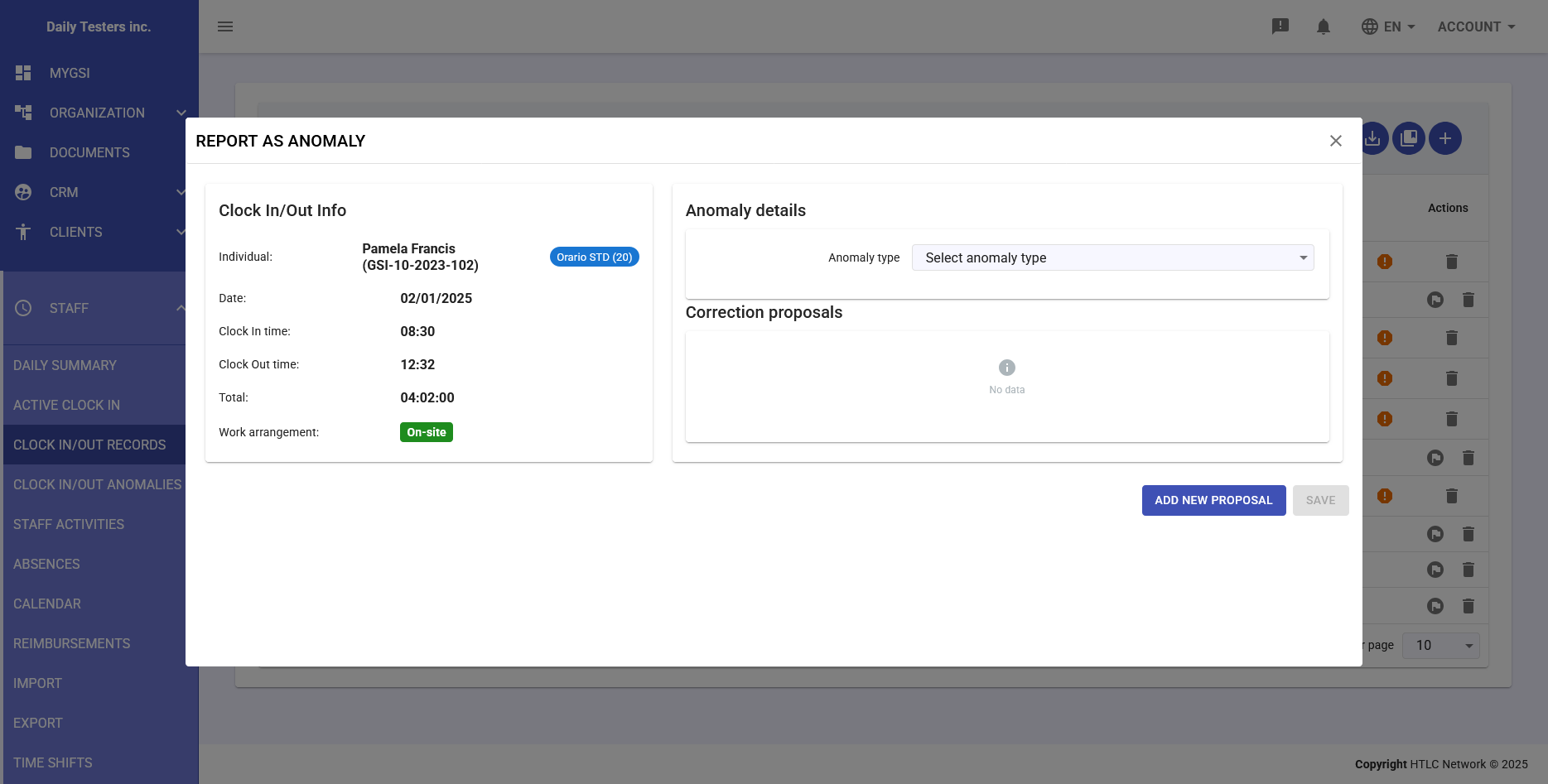
- Mark it as anomalous (if not already) using the button
 and set the relevant parameters in the popup window.
 - Go to the Anomalies module.
- Resolve the anomaly by entering the correct data.
The system will automatically generate the corrected activity while keeping the modification history for traceability.
Advantage: Maintains a full history of actions, ideal for compliance and audits.Method 2 – Deletion and new record creation
- Delete the incorrect time record.
- Create a new one with the correct data.
- If necessary, generate the related staff activity as well.
Advantage: Faster method, recommended only when keeping the error history is not required.
Best Practices
When to create a manual time record
Use a manual time record only in specific cases, such as:- Missed punch by the employee.
- Malfunction of the time-tracking system.
- Work performed at locations without badge readers.
- Need to recover missing or historical records.
Proper documentation
To ensure traceability and transparency:- If you selected Create consistent staff activity, always fill in the Notes field indicating the reason for the entry.
- Include any authorizations received (e.g. from the manager or HR).
- Specify the data source (e.g. “Retrieved from paper attendance sheet”).
Checks before saving
Before confirming the record:- Make sure no other time records exist for the same time period.
- Verify consistency with the employee’s work schedule.
- Ensure that the selected work mode is correct.
Managing anomalies
If a manual record generates an anomaly:- A warning indicator will appear in the table.
- The correction must be made from the Anomalies module.
When resolved, the system will automatically generate the correct activity and preserve the full audit trail for tracking purposes.