-
In this article you will find:
- Introduction to Staff Activities: what they are and how they work
- Approving, editing, or rejecting pending Staff Activities
- Performing bulk approval of Staff Activities
Introduction to Staff Activities
Staff Activities are work records that:
- Can be entered by the employee as a request to be approved by the manager (e.g. request for a remote work day)
- Can be entered directly by the manager as an already approved activity (e.g. assignment of a business trip to an employee)
- Are independent from the Time Records system (e.g. the employee is travelling and cannot clock in)
In some cases, activities can be automatically generated from the work schedule profile if this option is enabled (for example, the system automatically creates a standard 9:00–18:00 activity for all working days for employees who do not clock in).
In this case, no approval or further action from the manager is required.
Approving, editing, or rejecting Staff Activities
To manage pending Staff Activities, follow these steps:
- Navigate to Staff → Staff Activities
From the main menu, select Staff, then click Staff Activities. - View requests
At the top center, select the APPROVER tab to view all pending requests.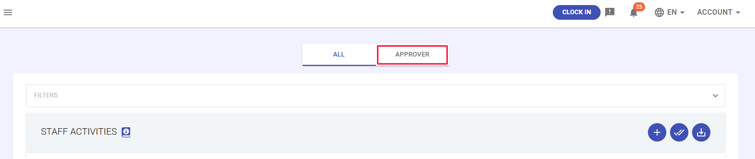
- Select a request
In the list, click on the employee’s row to view the details of their activity.
A panel will open displaying the following information:- Employee: Name and GSI code
- Date: Day of the activity
- Start/End time: Worked period
- Total hours: Total duration
- Overtime: Any extra hours worked
- Work mode: On-site / Remote / Business trip
- Notes: Any additional comments
Note: If the activity includes overtime, you will see the “Overtime Summary” section with detailed information.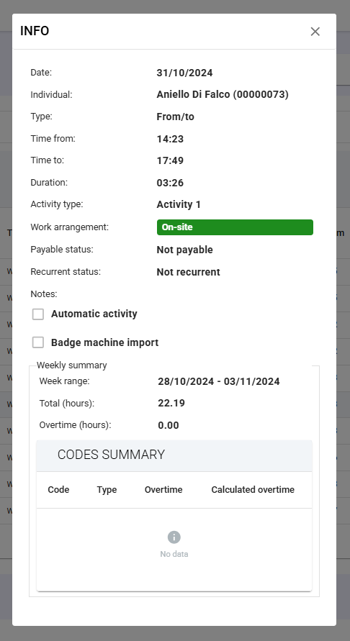
- Approve, reject, edit, or delete the request: in the last column of the row, you will find four buttons:
 Green tick: approve the request
-
 Red cross: reject the request
  Pencil: edit the request
 Trash bin: delete the request
Performing bulk approval of Staff Activities
To approve multiple Staff Activities simultaneously, follow these steps:
- Navigate to Staff → Staff Activities: from the main menu, select Staff, then click Staff Activities.
- View requests: at the top center, select the ALL tab to display all pending requests.
- Bulk approval: click the double checkmark icon
 in the upper-right corner of the module.
 - Define the details: the Bulk Approval panel will open, where you can specify:
- The Company of reference
- The Time period to be approved
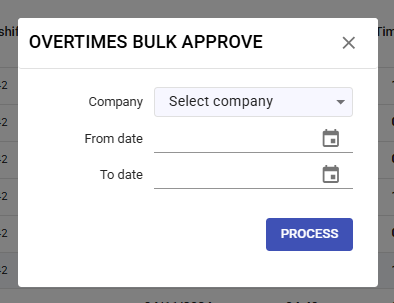
- Confirm: click PROCESS to confirm and complete the bulk approval.