-
The Weekly time shift is an approach that defines hour requirements on a weekly basis rather than daily. It offers maximum flexibility in distributing hours during the week while maintaining control over the total.
It can be combined with the Workshift module to define precise working hours in a flexible way, programming missing hours and overtimes.
When to Use This Profile
- Roles or working arrangements requiring daily flexibility but weekly consistency
Key Concepts
Work Week
- Week start day is determined by Main Company settings
- Typically starts Monday and ends Sunday
- Hours are counted across the entire weekly period
Monthly Boundary Management
- When a week crosses two months, hours are carried to the next month
- Important for monthly payroll closing
- Requires attention in end-of-month anomaly management
Creating the Weekly Profile
Step 1: Module Access
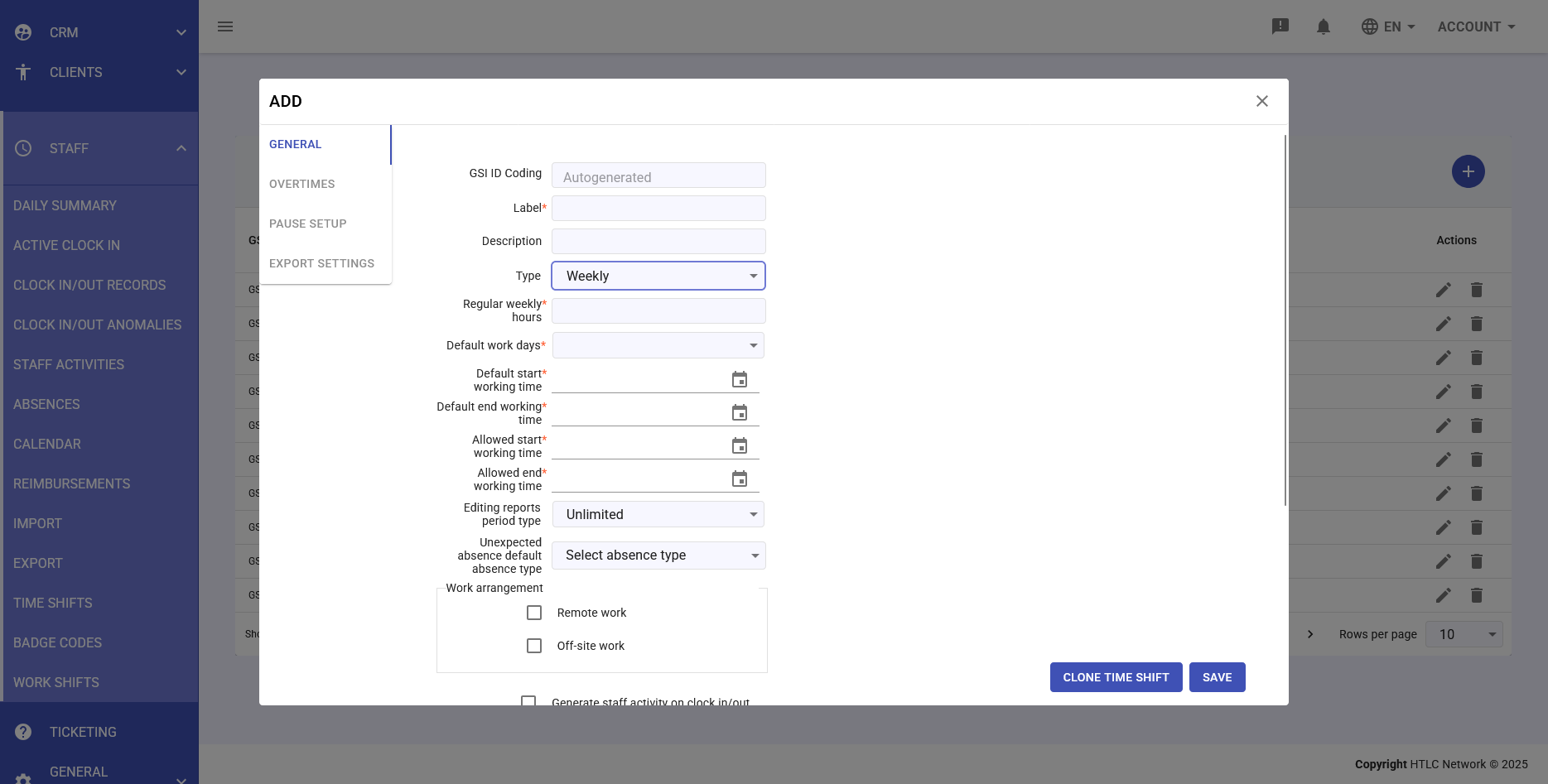
Navigate to Staff → Time Shifts from the main menu. Ensure you have permissions to create new time shifts.
Step 2: Initialization
- Click the "+" button to start creation
- The form with multiple configuration tabs will open
- Start from the "General" tab
Step 3: Basic Configuration
Fill in the fundamental fields:
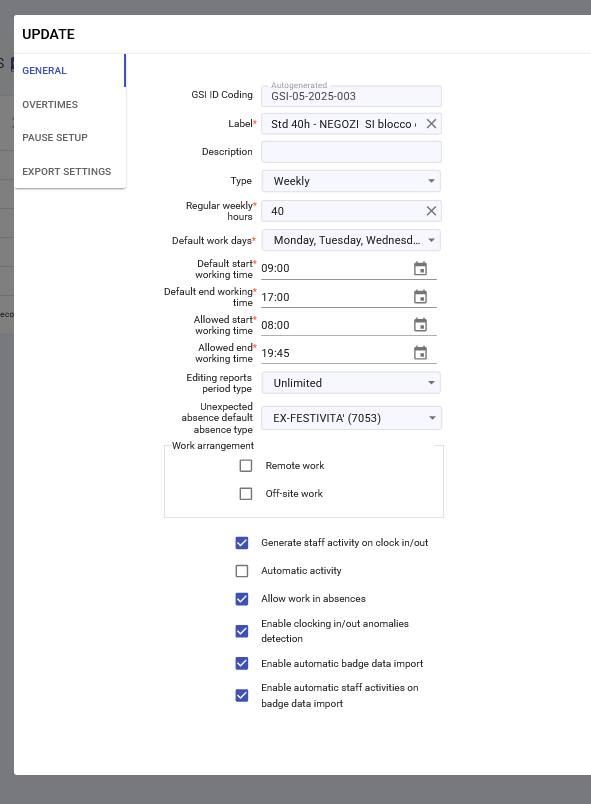
- Label: Identifying name (e.g., "Weekly 40 Hours Flexible")
- Description: Details on usage and specific rules
- Type: Select "Weekly"
Step 4: Weekly Parameters
Once "Weekly" is selected, configure:
- Regular weekly hours: Total hours required per week (e.g., 40)
- Default work days: Days when work is permitted
- Allowed start working time: Earliest possible start time (e.g., 06:00)
- Allowed end working time: Latest possible end time (e.g., 22:00)
Step 5: Tolerances and Flexibility
Set flexibility margins:
- Under tolerance (minutes): Acceptable weekly margin (e.g., 30 minutes)
- Over tolerance (minutes): Tolerated extra hours (e.g., 60 minutes)
- Tolerance rounding: To simplify calculations
Step 6: Specific Anomaly Management
The Weekly profile has a unique anomaly:
- Incompleted working week: Generated when total hours are below minimum
- System automatically fills missing hours as absences
- Starts from last available working day and proceeds backwards
- Default absence type for anomaly: Select code to apply
Step 7: Activity Generation Options
Configure automation options:
- Generate staff activity on clock in/out: Recommended to enable
- Enable clocking in/out anomalies detection: Always active for weekly control
- Editing reports period type: "Month end" for alignment with closings
Step 8: Weekly Overtime
In the Overtimes tab:
- Allow overtime: Enable for hours beyond weekly total
- Regular hours type: Select "Weekly"
- Overtime is calculated on weekly total, not daily
Configure progressive rules:
- First 5 extra weekly hours → Base overtime code
- Next 5 hours → Enhanced overtime code
- Beyond 10 hours → Special overtime code
Step 9: Breaks and Daily Limits
Even though calculation is weekly, you can set:
- Allowed lunch pause start time: For those working full days
- Allowed lunch pause end time: Break window
- Breaks are not mandatory but recommended for compliance
Step 10: Export and Integration
In the Export Settings tab:
- Regular hours code: For weekly total
- Generate ticket codes: Based on minimum daily presence
- In absence of overtime, limit worked hours: For weekly cap
- If hours exceed expected, remove partial absences: Automatic optimization
Step 11: Saving and Activation
- Review all configurations
- Verify consistency with work contracts
- Click "SAVE"
- Profile is ready for assignment
Assignment and Planning
Strategic Assignment
- Access Organization → Individuals
- Select employees needing flexibility
- In the Time Shift section:
- Assign the Weekly profile
- Consider start date (week start recommended)
Team Communication
It's essential to communicate:
- Required weekly hour total
- Flexibility in distribution
- Importance of completing hours within the week
- How "incomplete week" anomaly works
Weekly Operational Management
Monitoring During the Week
Employees can:
- Distribute hours freely on working days
- Work more hours some days and fewer others
- Compensate absences with extra hours on other days
- Monitor progress toward weekly total
Weekly Distribution Example
For 40 weekly hours:
- Monday: 10 hours (urgent project)
- Tuesday: 6 hours (personal appointments)
- Wednesday: 8 hours (standard day)
- Thursday: 9 hours (extra meetings)
- Friday: 7 hours (early closure)
- Total: 40 hours ✓
Week End Management
Weekly Closing
- System calculates total hours at week end
- If hours < required minimum:
- Generates "Incompleted working week" anomaly
- Fills missing hours with default absence code
- Starts from last day and goes backwards
- If hours > maximum with tolerance:
- Calculates weekly overtime
- Requires manager approval
Cross-Month Week Management
When week crosses two months:
- System identifies monthly boundary
- Hours from week's final part go to next month
- Important for:
- Monthly payroll closings
- Monthly reports
- Overtime calculation