-
This guide walks you through configuring daily work shifts in GSI2, using Range and Custom Range types.
Accessing the Section
- From the main menu, navigate to Staff → Time Shifts
- Click the + button at the top right to create a new shift
Choosing the Shift Type
Range Type
Use Range when you have fixed hours that are the same for all working days (example: 9:00-18:00 Monday to Friday).
Custom Range Type
Use Custom Range when you have different hours for each day or split shifts (example: Monday 8:00-14:00, Tuesday 14:00-22:00).
Range Configuration
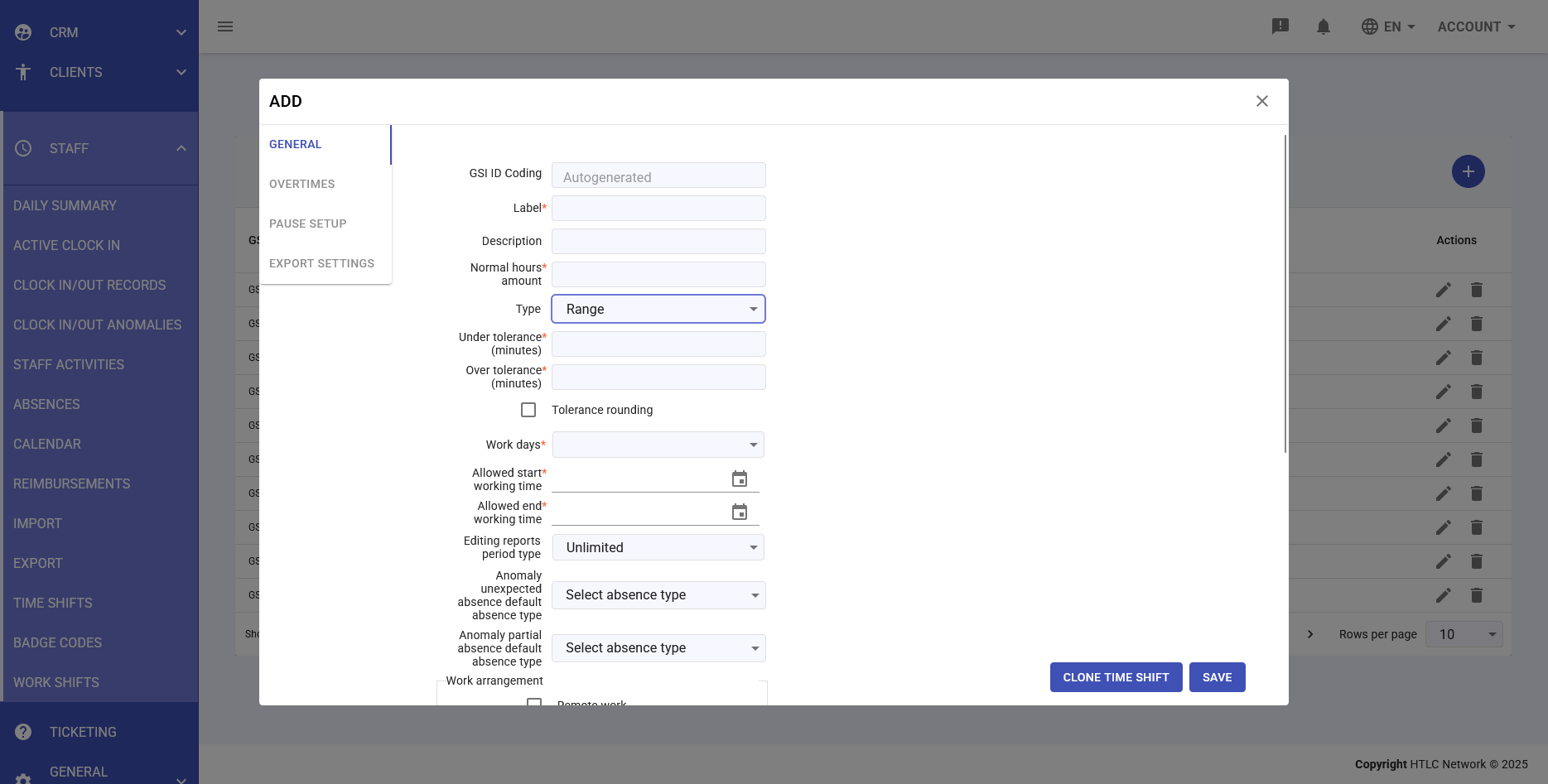
- In the Type field, select Range from the dropdown menu
- Enter an identifying name in the Label field (example: "Standard Office Hours")
- Add an optional description in the Description field to explain when to use this shift
- Select the Default work days by checking the working days (Monday-Friday for standard hours)
- Set the Normal hours amount per working day
- Configure tolerances by entering minutes in the Under tolerance field (acceptable delay) and Over tolerance field (acceptable early exit)
- Set the allowed time limits in the Allowed start working time and Allowed end working time fields to define the maximum time window
Custom Range Configuration
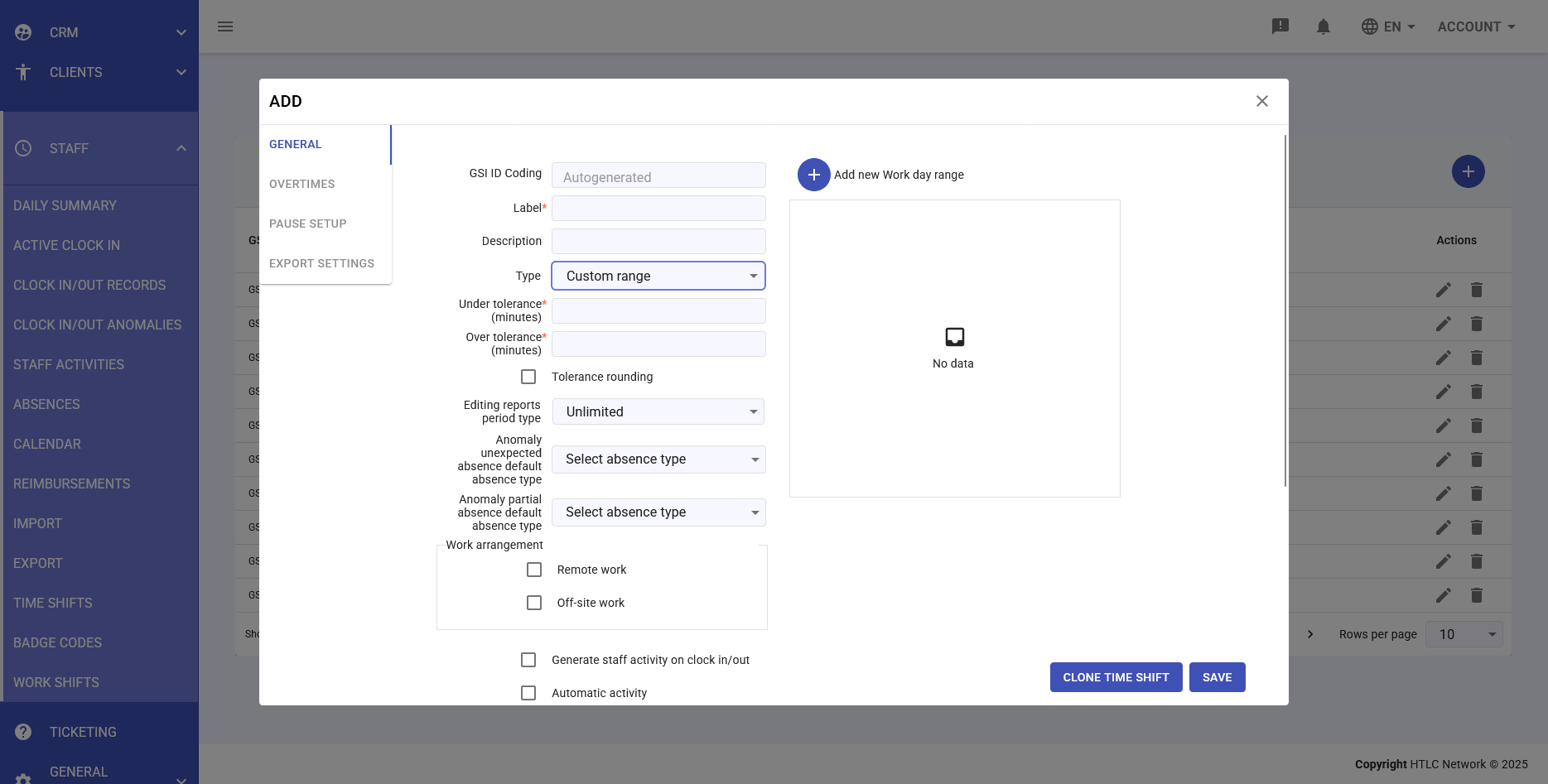
- In the Type field, select Custom Range from the dropdown menu
- Enter Label and Description as for Range
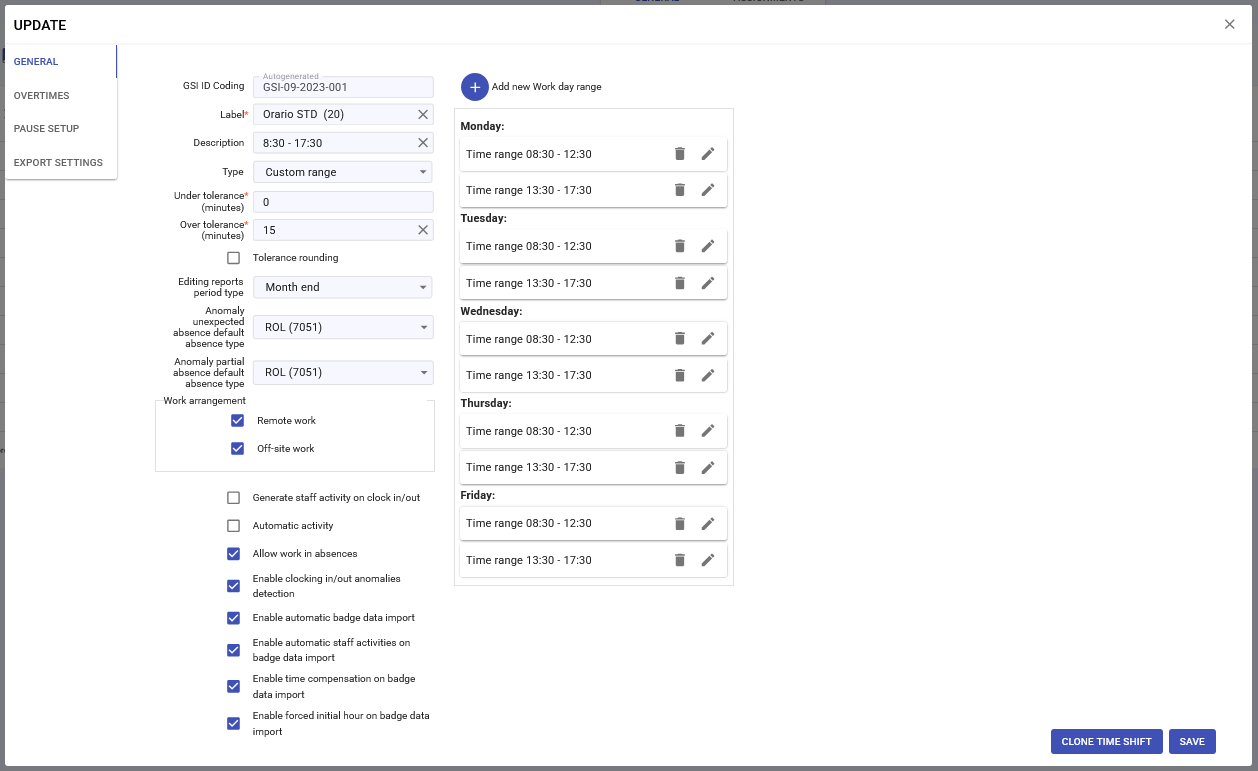
- For each working day, click Add work day range to add a time slot
- Select the day of the week from the first dropdown menu
- Set the start time for that specific day
- Set the end time for that specific day
- For split shifts, click Add work day range again for the same day and add the second time block
- Repeat for each working day with different hours
Staff Activities generation Configuration
In the lower section of the General tab, configure automatic activities:
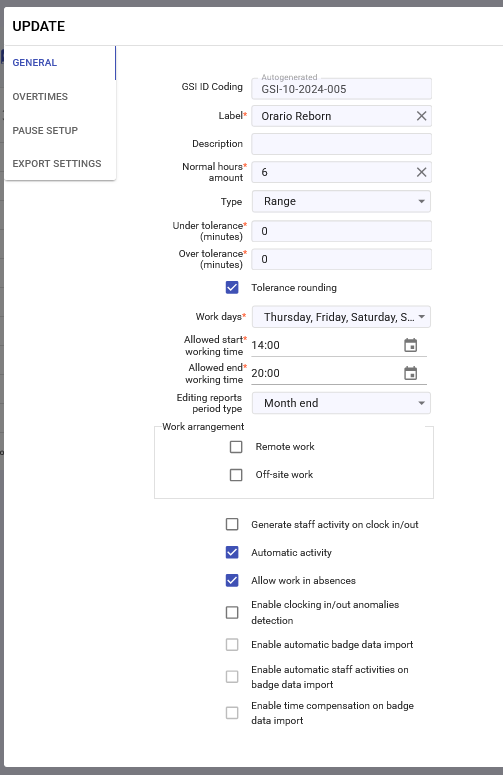
- Check Generate staff activity on clock in/out if you want activities to be automatically created from clock-ins without anomalies
- Enable Enable clocking in/out anomalies detection to activate anomaly detection
- Select the default absence type in the Anomaly unexpected absence default absence type field for unjustified absences
- If needed, enable Work arrangement to allow remote or off-site work
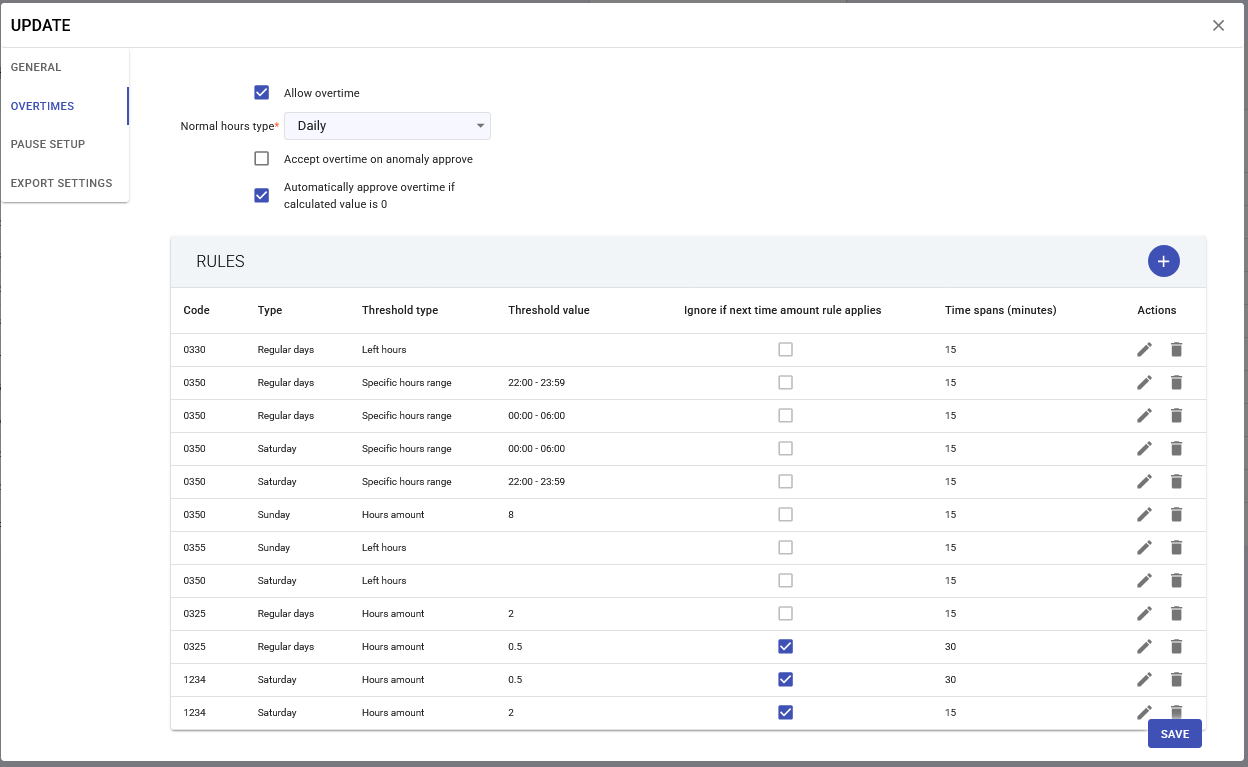
Overtime Configuration
- Click on the Overtimes tab
- Check Allow overtime to enable overtime calculation
- Click Add new rule to add an overtime calculation rule
- In the Code field, enter the payroll code for this type of overtime
- Select the Type: Regular days, Saturday, or Sunday
- Configure the Threshold type:
- Hours amount: for progressive overtime (first 2 hours, next hours until 4 hours, etc.)
- Specific hours range: for overtime in specific time ranges (example: after 8:00 PM)
- Left hours: for remaining hours after other rules
- Set the Threshold value with the number of hours (Hours amount) or specific time (Range from - Range to)
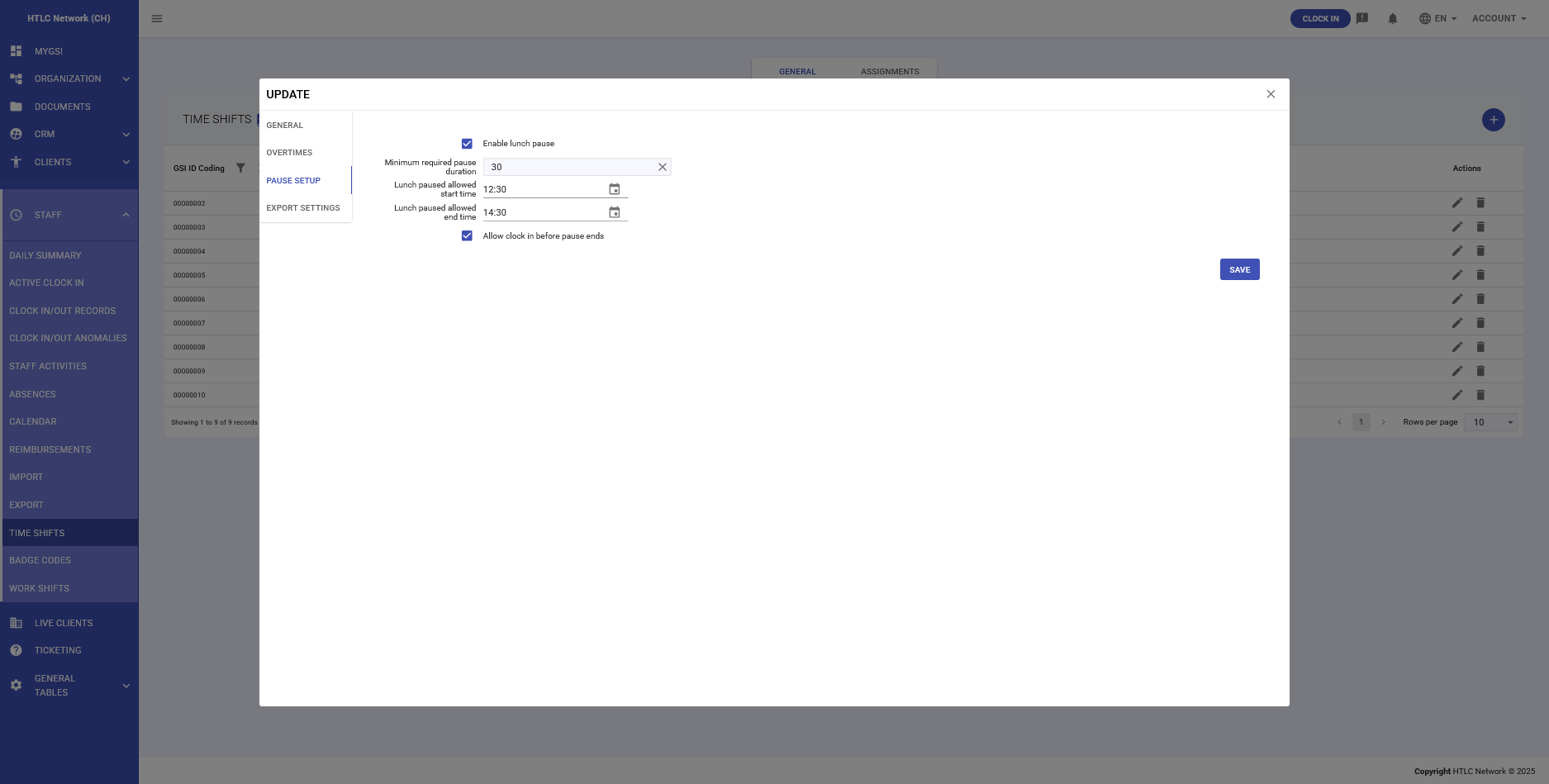
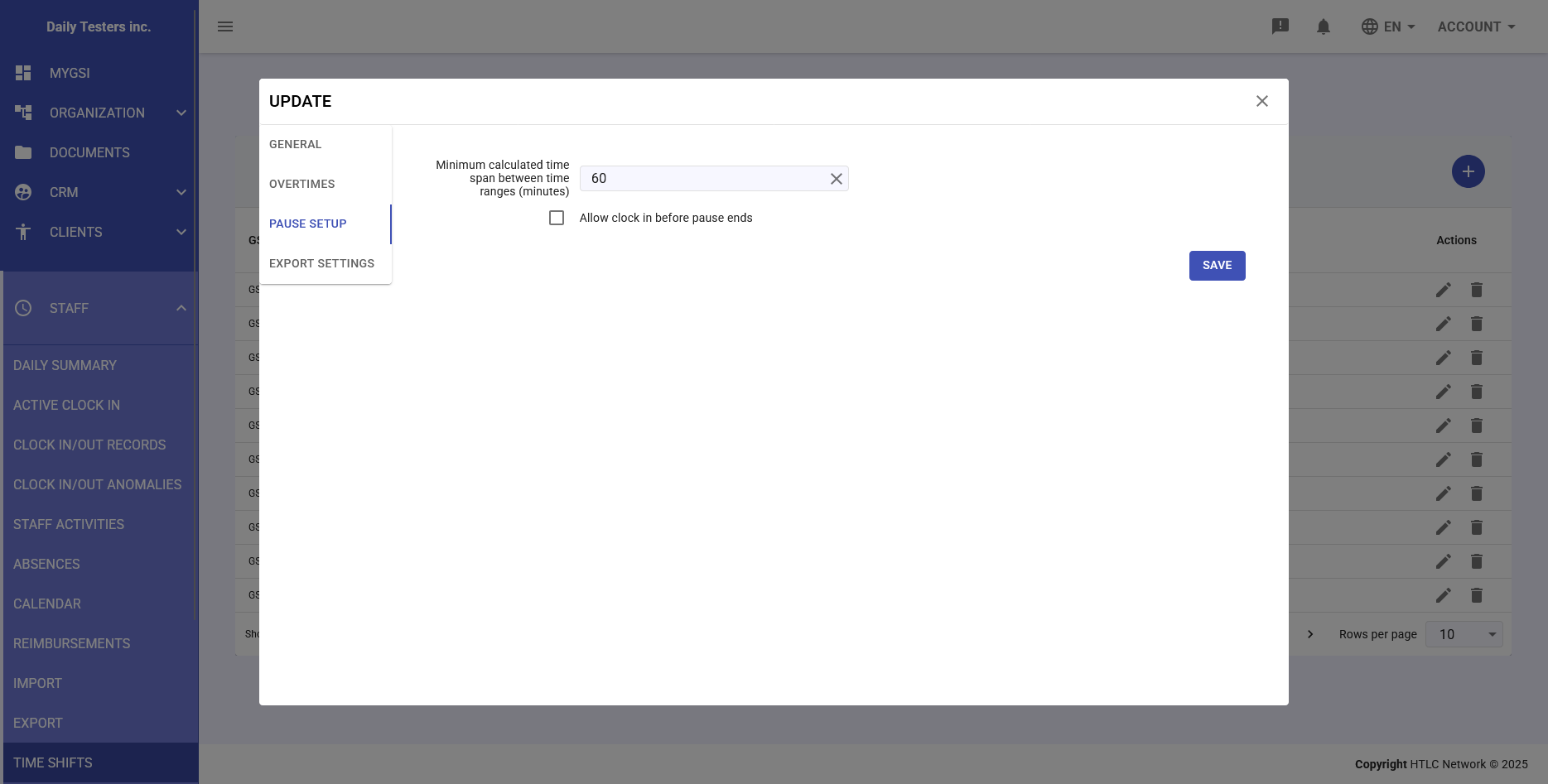
Launch Pause Configuration
Click on the "Pause Setup" tab
For Range:
- Check "Enable Lunch Break"
- Set the Minimum Required Pause Duration
- Set the Lunch Pause Start Time (e.g., 12:30)
- Set the Lunch Pause End Time (e.g., 13:30)
For Custom Range:
- Set the Minimum Time Interval calculated between time slots (minutes) (corresponds to the minimum lunch break duration)
Optional: check Allow clock in before pause ends. This allows employees to clock in before the minimum duration, but the recorded clock-in time will still be adjusted to respect it; in this case, the timer starts from a negative value until it reaches zero at the compliant time, then proceeds normally.
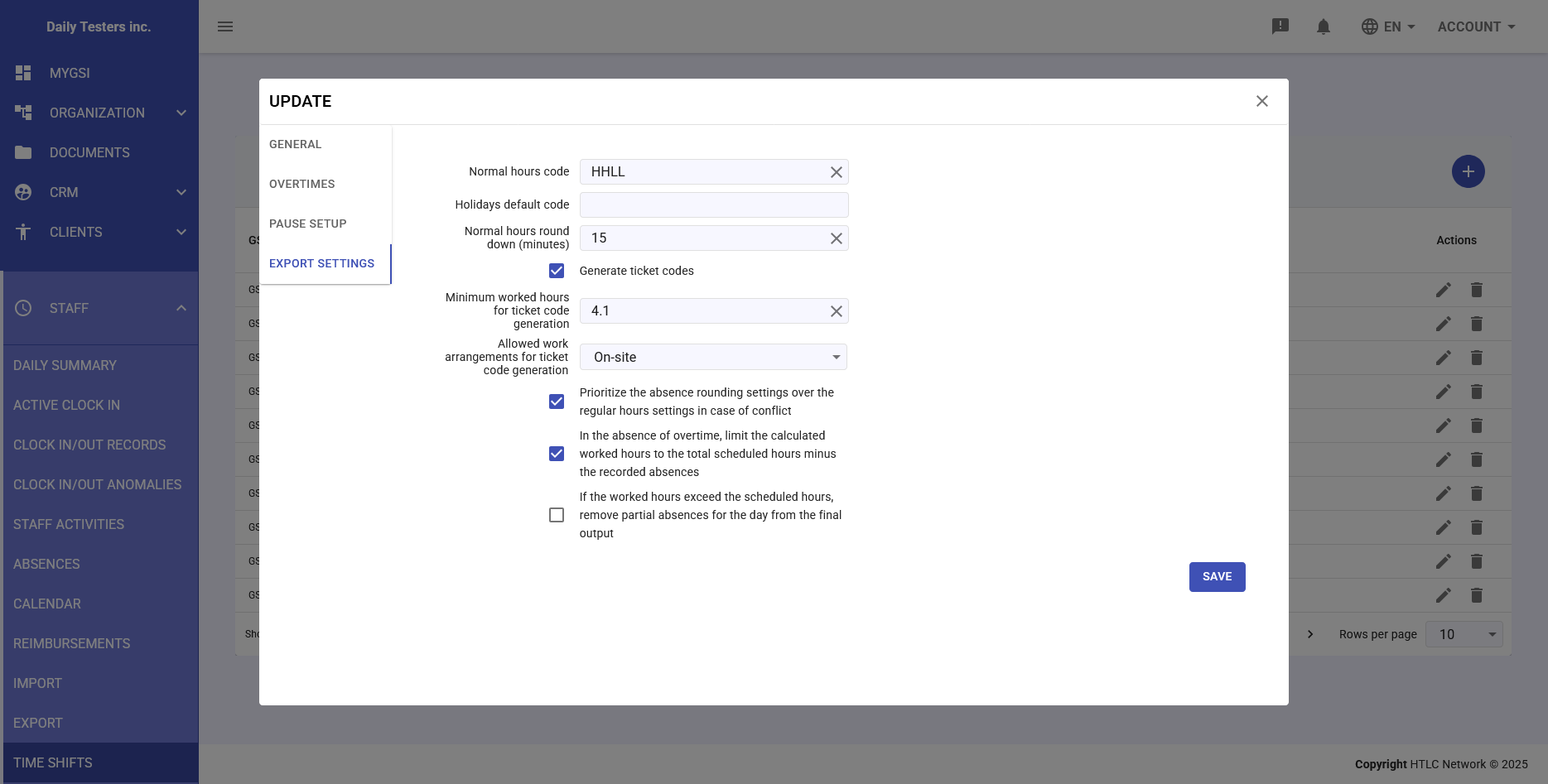
Export Settings Tab
- Click on the Export Settings tab
- In the Normal hours code field, enter the code for normal hours in the payroll system
- In the Holidays default code field, enter the code for holidays
- Configure Normal hours round down (minutes) for hour rounding (example: 15 to round to inferior quarter hours)
- If applicable, check Generate ticket codes to generate meal ticket codes
- Set Minimum worked hours for ticket code generation with minimum hours for meal ticket (accepts decimal values for fractions of hours)
Save and Assign the Shift
- After configuring all tabs, click the SAVE button at the bottom right
- The system will return you to the shift list where you'll see the newly created shift
- To assign the shift to an employee, go to Organization → Individuals
- Select the employee and in the Time Shift section assign the newly created shift
Verification and Testing
- After assignment, verify the shift works correctly by doing a test clock-in
- Check in Staff → Clock In/Out Anomalies that there are no unexpected anomalies
- If needed, return to the shift configuration and adjust tolerances or times
Practical Tips
- For offices with fixed hours, Range is simpler to manage
- Custom Range offers more flexibility for more varied hours (e.g. free friday afternoons)
- Set reasonable tolerances (5-10 minutes) to avoid too many anomalies
- Always test the shift with a pilot employee before assigning it to the entire team
- Use the description to document any special rules or exceptions
- To modify an existing shift, use the Clone button to create a copy and then modify it. Assign the edited copy from the moment you want the rule change to take effect.