-
This guide explains how to configure timezone settings for individual employees, essential for accurate attendance management in multi-location companies or with internationally traveling staff.
When to Configure Individual Timezone
- Employees working in locations with different timezones from headquarters
- Staff with frequent international travel
- Globally distributed teams
- Consultants operating in different countries
- International branch management
Prerequisites
- Employee must be registered in Organization → Individuals
- Company must have configured its default timezone
- You must have permissions to modify employee data
Navigate to Employee Profile
- From main menu, go to Organization → Individuals
- Find the employee in the table
- Click the pencil icon to open the profile
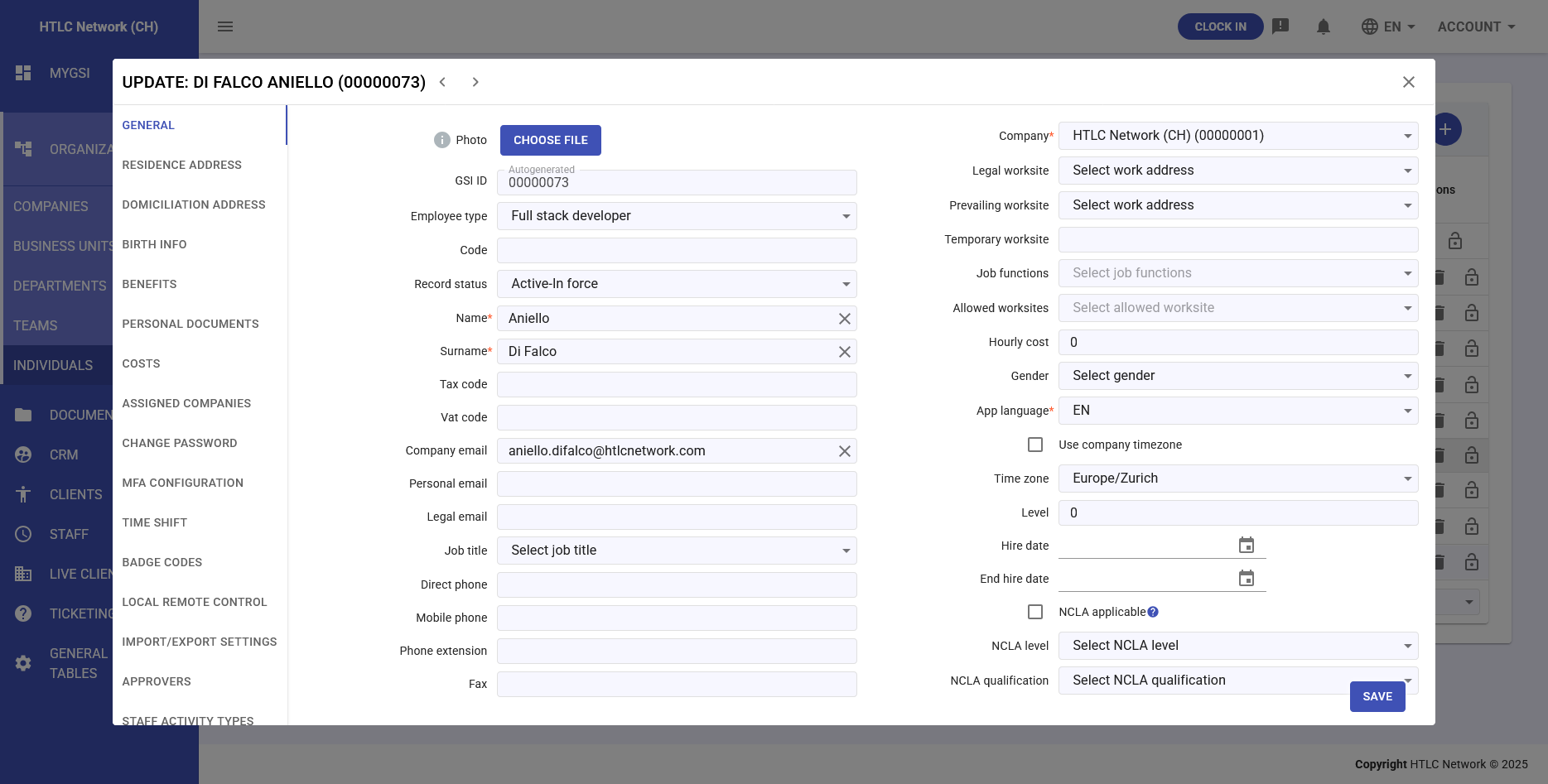
- Stay in the General tab
- Scroll to the Employment Information section
Timezone Configuration Options
Option 1: Use Company Timezone (Default)
This is the standard setting for most employees.
- Ensure the "Use Company Timezone" checkbox is selected
- The Timezone field will be disabled and automatically show the company's timezone
- Employee will inherit all company timezone changes
- Click SAVE to confirm
Advantages:
- Centralized management
- Automatic updates if company timezone changes
- No individual maintenance required
Option 2: Set Specific Timezone
For employees operating in different timezones from headquarters.
- Uncheck the "Use Company Timezone" checkbox
- The Timezone field will become active
- Click the Timezone dropdown menu
- Select the appropriate timezone from the list:
- Timezones are organized by continent/city (e.g., Europe/Rome, America/New_York)
- Shows UTC offset (e.g., UTC+01:00)
- Includes major reference cities
- Verify the correct selection
- Click SAVE to apply
Important Notes:
- Individual timezone takes priority over company timezone
- Affects all attendance calculations
- Determines reference time for clock-ins and activities