- Documents
- Navigation and Interface
- Access Settings and Permissions
- Basic Operations: create, configure, rename delete Folders and Files
- Advanced Feature: Zip Archive import/export
- Advanced Feature: Bulk Import with Tax Code Matching
- Advanced Feature: Document Sharing with Live Clients
- Documents Requests
-
Overview
The Documents module in GSI2 provides a sophisticated document management solution designed for multi-tenant business environments. This advanced system intelligently organizes documents into hierarchical structures, maintains granular access controls, and offers powerful features like automatic document matching and cross-client sharing capabilities.
Core Architecture
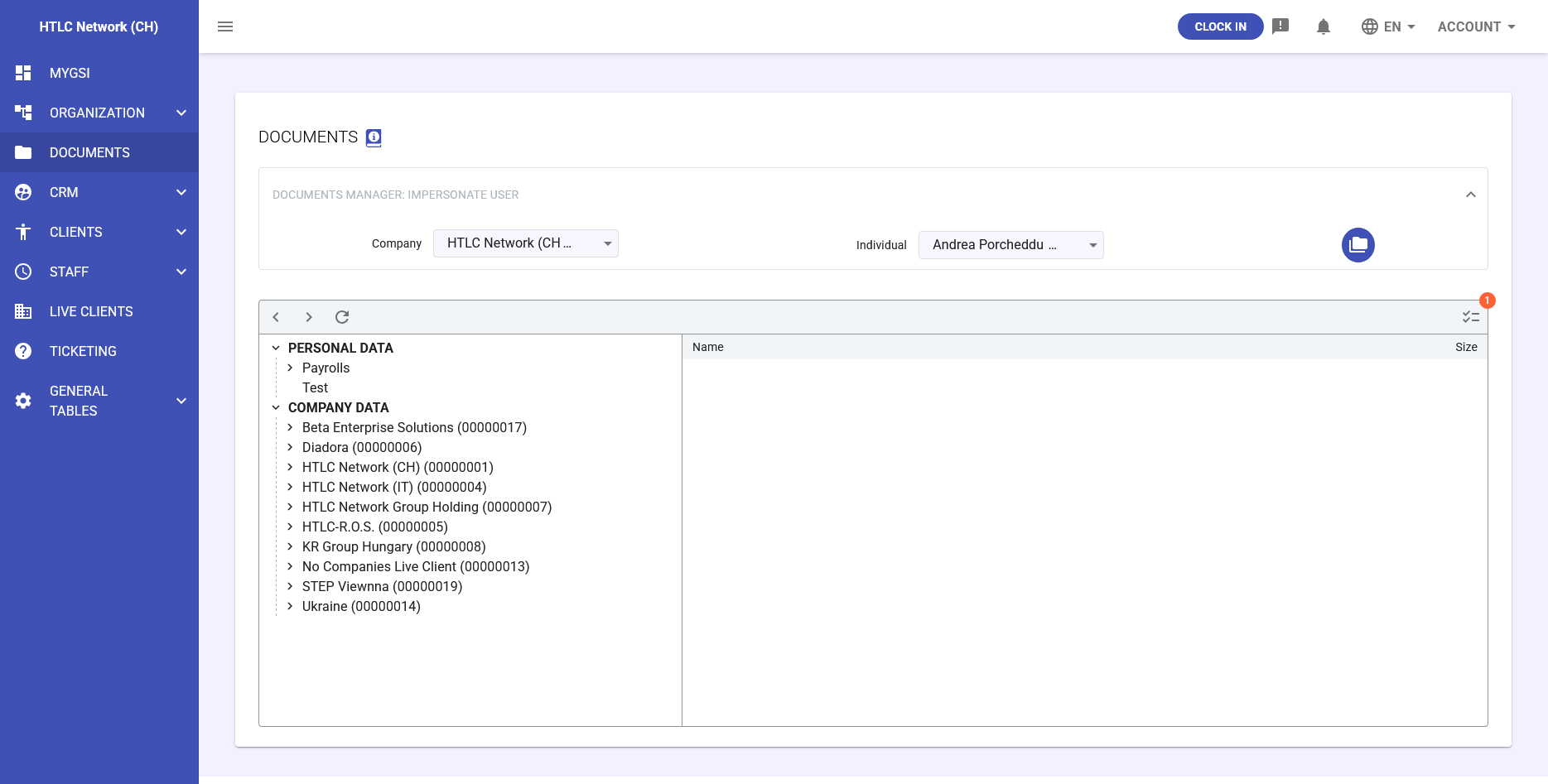
The document management system is built around two main organizational structures that ensure both security and accessibility:
System Architecture
Dual Folder Structure
The document management system organizes content into two primary structures:
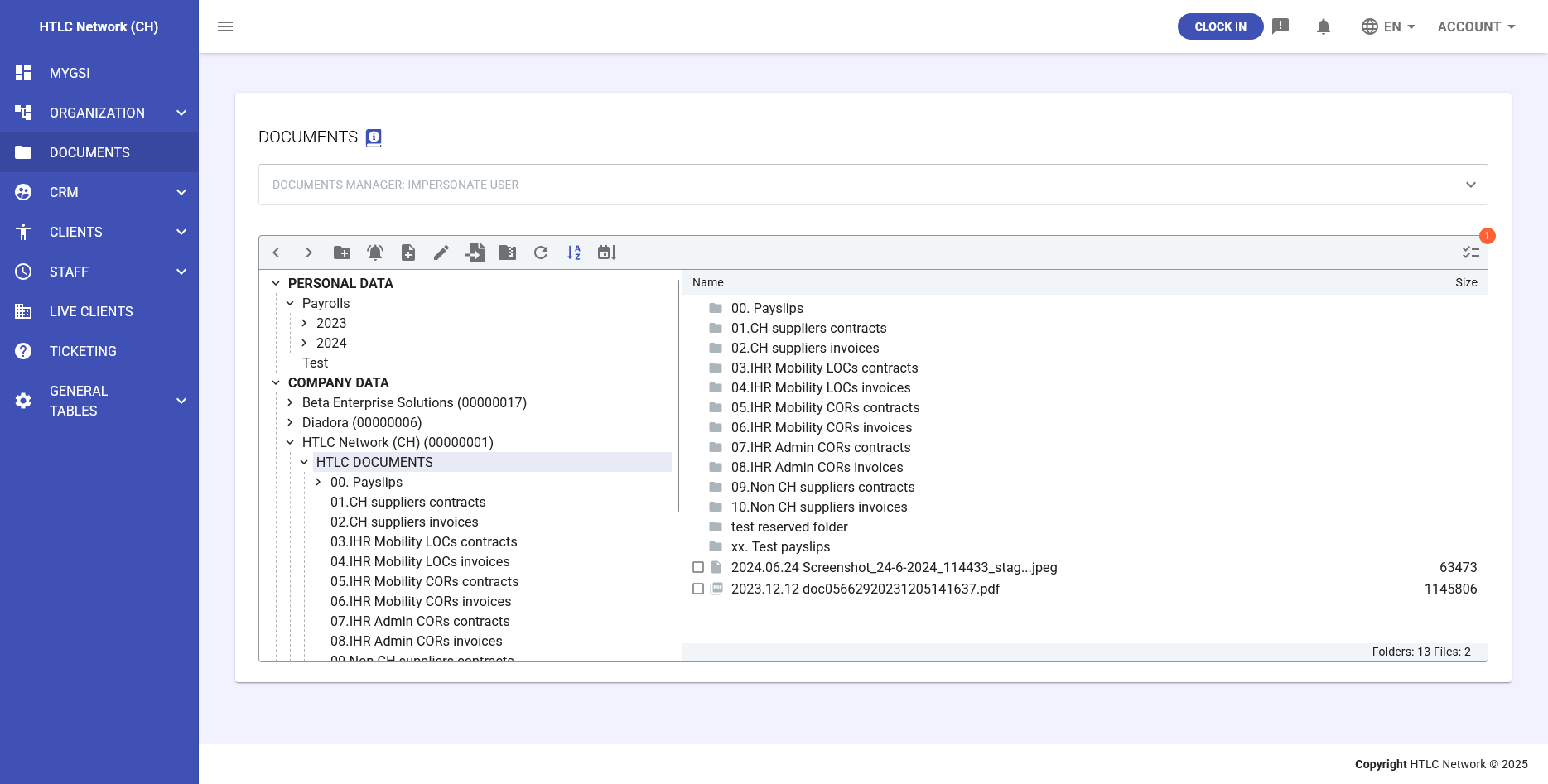
Personal Folders
- Private workspace for each individual user
- Complete user control over personal documents
- Only accessible by the user and designated Document Managers
- Files can be selectively shared with specific individuals or groups
Company Folders
- Dedicated folder for each registered company in the system
- Root folder name can be customized to reflect company identity
- Regular users access only their assigned company folder
- Access restricted to explicitly granted permissions only
- Default setting uses "Company Shared" access type
Document Manager Capabilities
Users with Document Manager permissions gain enhanced administrative controls:
Impersonate Function
- View the Documents section as any selected user
- Understand user-specific access and permissions
- Troubleshoot access issues from the user's perspective
- Verify correct permission assignments
Full Administrative Access
- Complete access to all personal and company folders
- Ability to modify any access settings
- Management of cross-company document sharing
- Control over Live Client document exchanges
-
Navigation and Interface
Main Navigation Structure
The Documents interface provides an Explorer-like experience with:
Toolbar Functions
- Create folder
- Delete items
- Share documents
- Manage access
- Edit/rename files
- Download/upload
- Refresh view
- Sort options
Breadcrumb Navigation
- Visual path indicator showing current location
- Click any level to navigate directly
- Maintains context during deep folder navigation
File List View
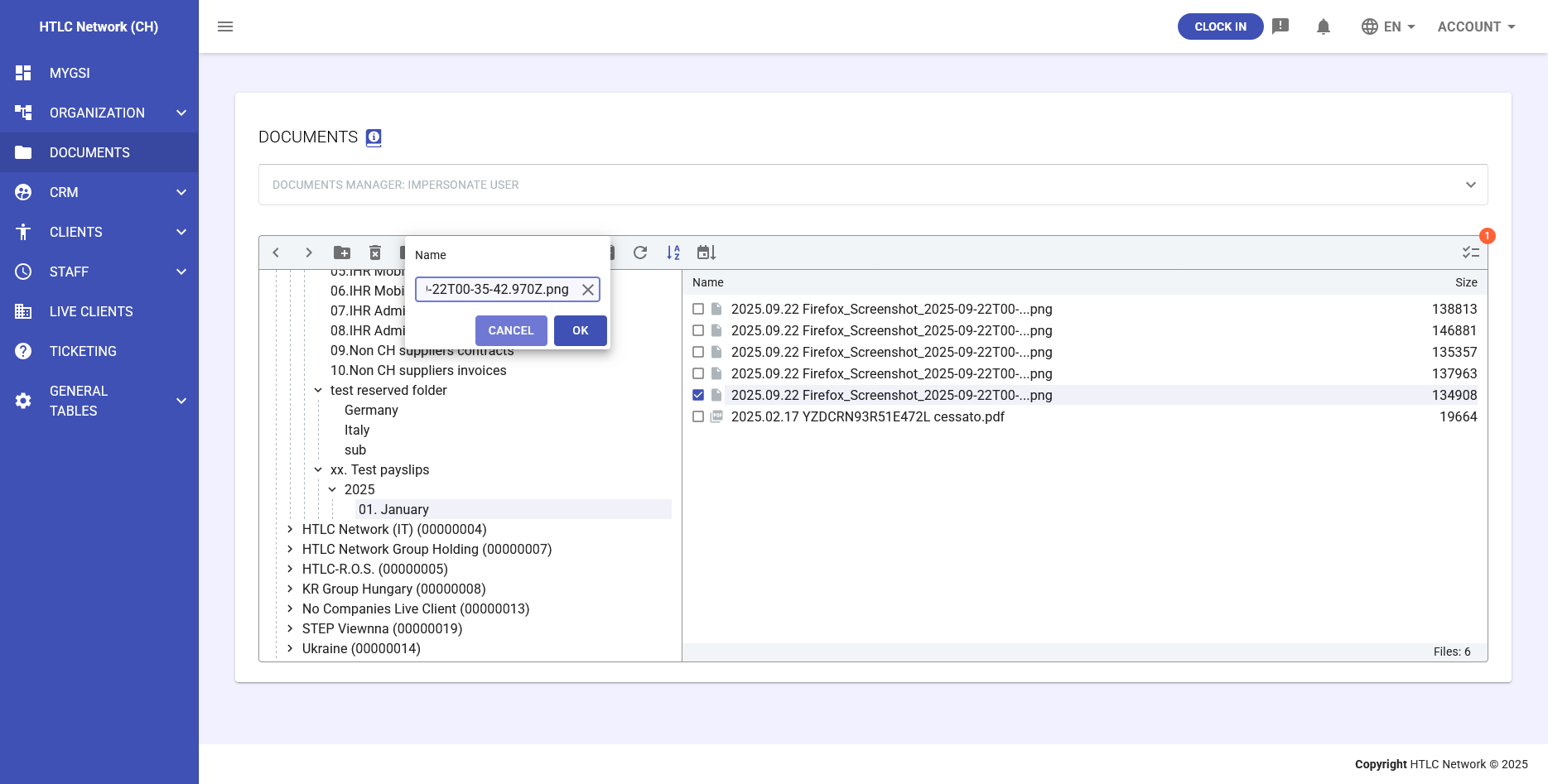
- Name column with automatic date prefix
- Size information
- Upload date tracking
- User who uploaded
- Access type indicators
Automatic Date Prefixing
Every uploaded file receives an automatic, non-editable date prefix:
- Format:
YYYY.MM.DD(e.g., 2025.09.22) - Applied before the editable filename
- Facilitates chronological sorting and archiving
- Ensures consistent file naming conventions
-
Access Settings and Permissions
Folder Access Types
Public Access
- Available to all users within the Live Client
- No individual permissions required
- Suitable for company-wide announcements or policies
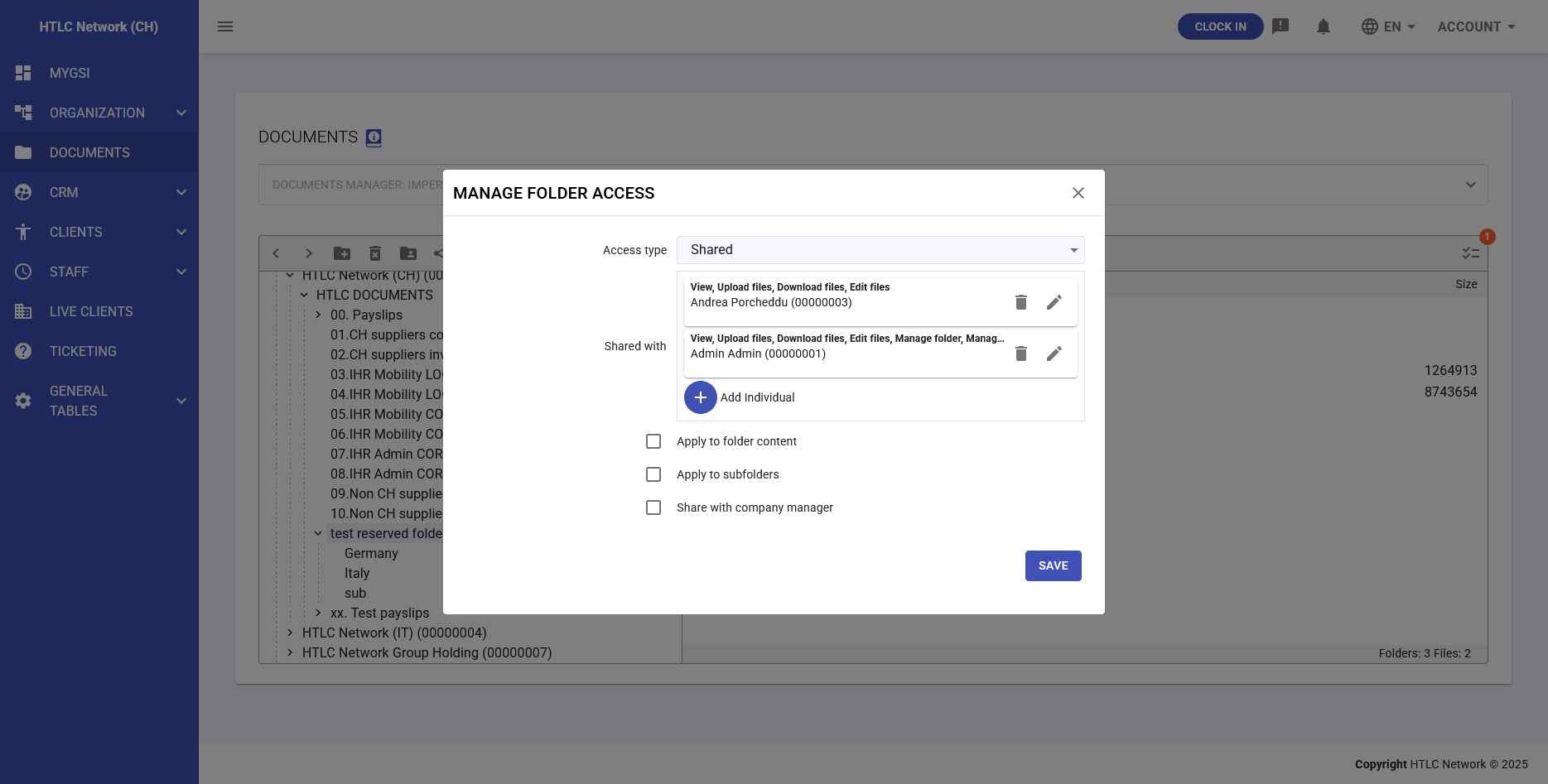
Shared Access
- Restricted to specifically selected individuals
- Granular permission controls per user
- Most flexible access option
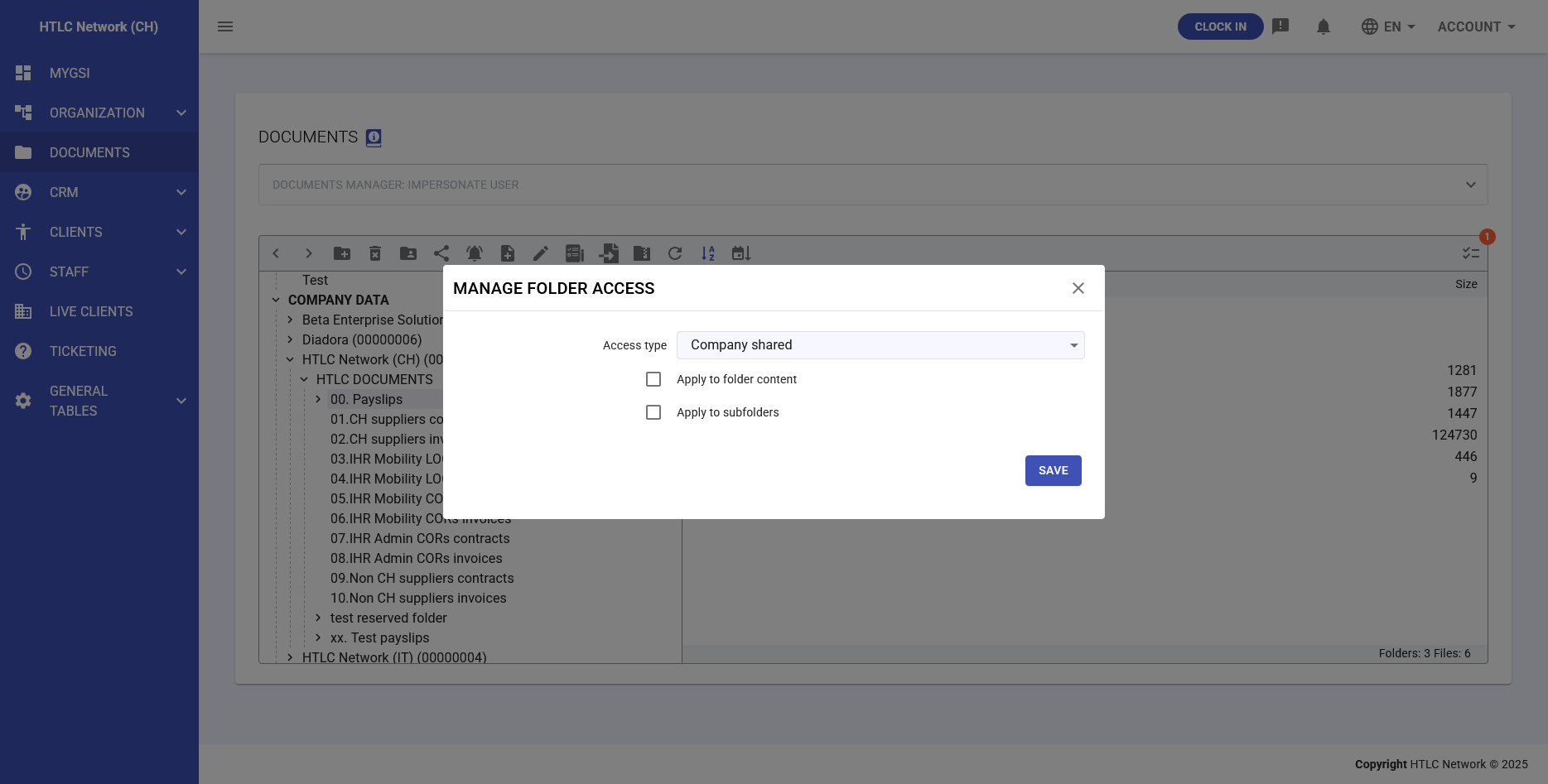
Company Shared (Default for company folders)
- Accessible only by users of the specific company
- Automatic access for new company members
- Maintains company data segregation
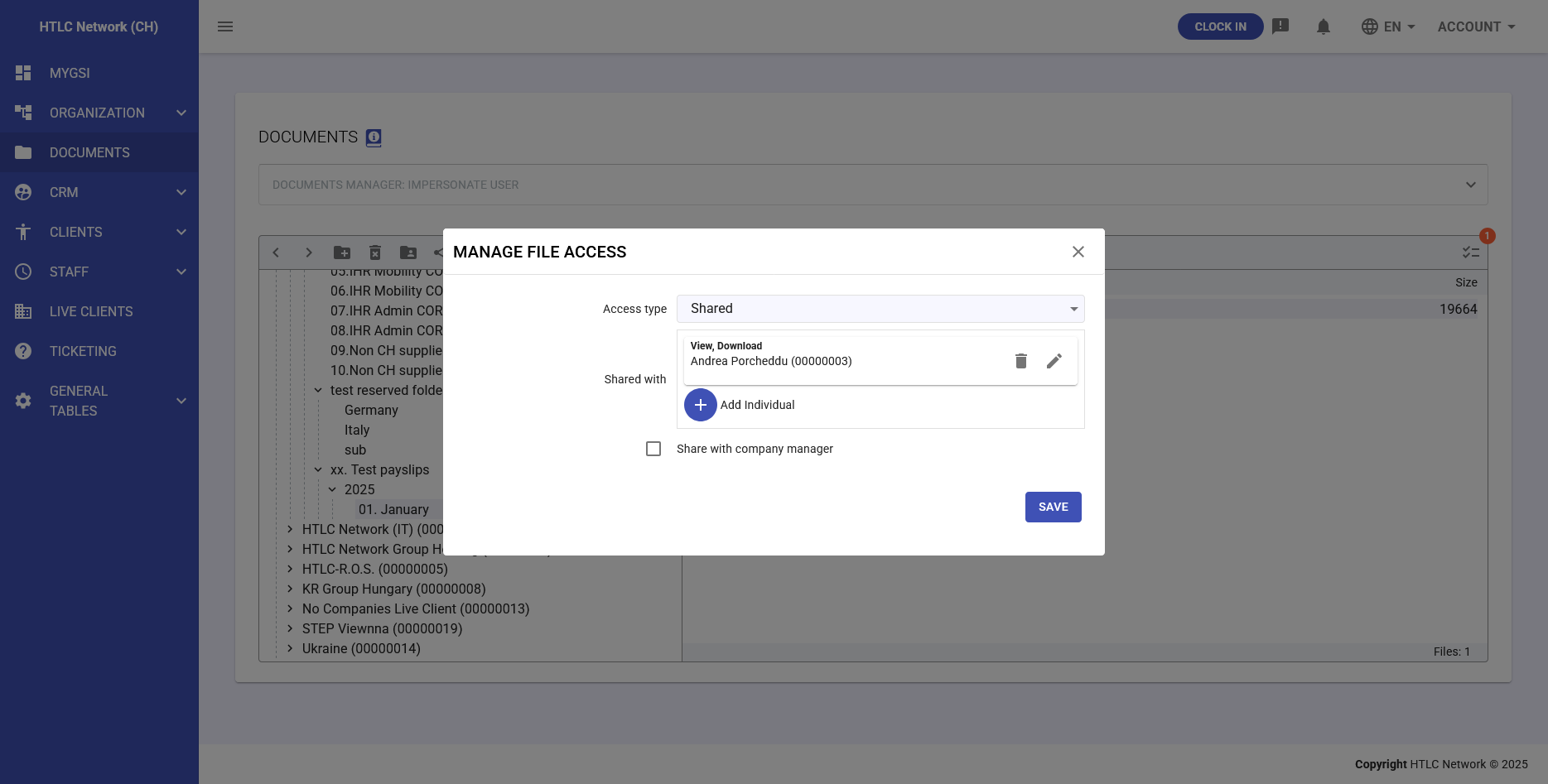
File Access Settings
Access settings vary based on folder location:
In Personal Folders:
- Private (Default) - Only owner access
- Public - All Live Client users
- Shared - Selected individuals only
In Company Folders:
- Shared (Default) - Selected individuals
- Public - All Live Client users
- Company Shared - All company users
Granular Permission Controls
When setting "Shared" access, administrators can grant specific permissions:
Permission Types:
- View/Download - Read-only access to documents
- Edit - Modify existing documents
- Manage Permissions - Change access settings
- Delete - Remove documents
Inheritance Options:
- Inherit from parent folder
- Apply to all subfolders
- Apply to folder contents
- Override with specific permissions
-
Basic Operations: create, configure, rename delete Folders and Files
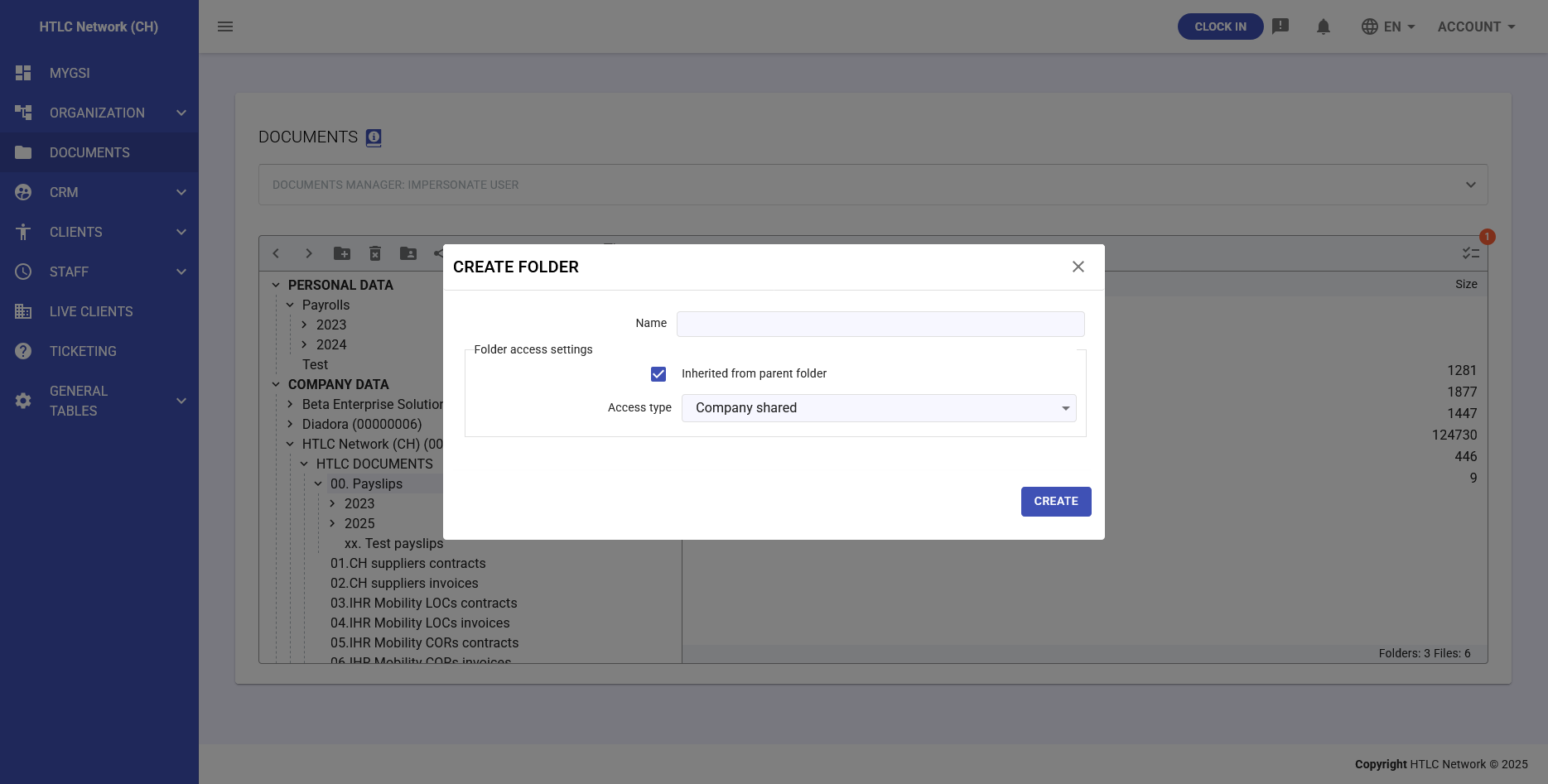
Creating Folders
- Click the Create Folder button in the toolbar
- Enter folder name in the dialog
- Configure access settings:
- Choose access type (Public/Shared/Company Shared)
- Option to inherit from parent folder
- Set specific permissions if needed
- Click CREATE to confirm
Uploading Files
Single File Upload:
- Navigate to target folder
- Click upload button
- Choose file from system
- File receives automatic date prefix
- Confirm upload
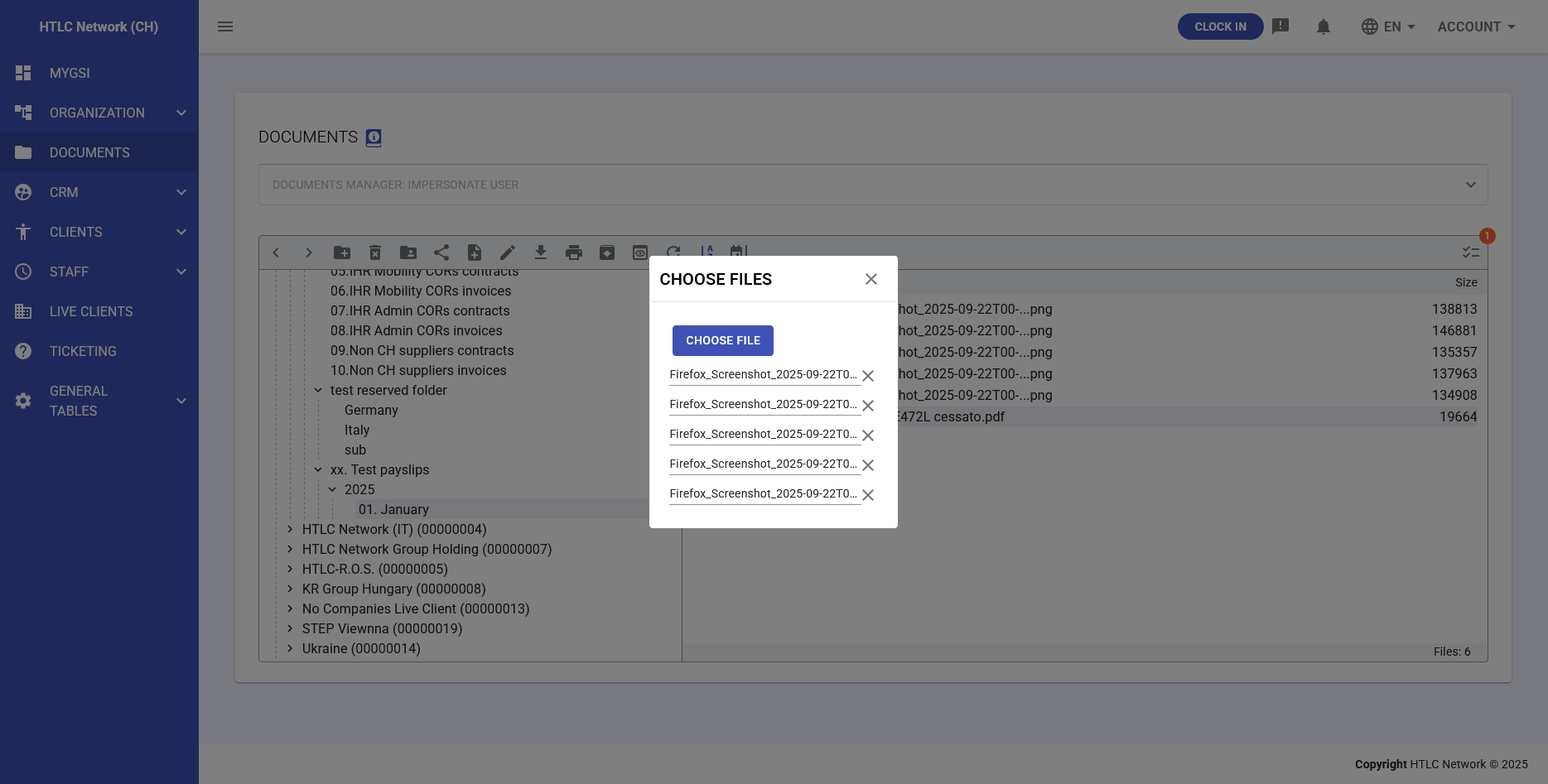
Multiple File Upload:
- Click upload button
- Select "Choose Files" option
- Select multiple files simultaneously
- All files uploaded with individual date prefixes
- Progress indicator shows upload status
Managing File/Folder Access
- Select the file or folder
- Click "Manage Access" icon (lock symbol)
- Choose access type from dropdown
- For "Shared" access:
- Click "Add Individual"
- Select users from dropdown
- Configure specific permissions
- Option to share with company manager
- Apply inheritance settings if managing folder
- Click SAVE to apply changes
Renaming Files
- Select the file
- Click rename icon (pencil)
- Edit the filename (date prefix remains unchanged)
- Press OK to confirm
- System maintains file history
Deleting Files/Folders
- Select items to delete
- Click delete button (trash icon)
- Confirm deletion in dialog
-
Advanced Feature: Zip Archive import/export
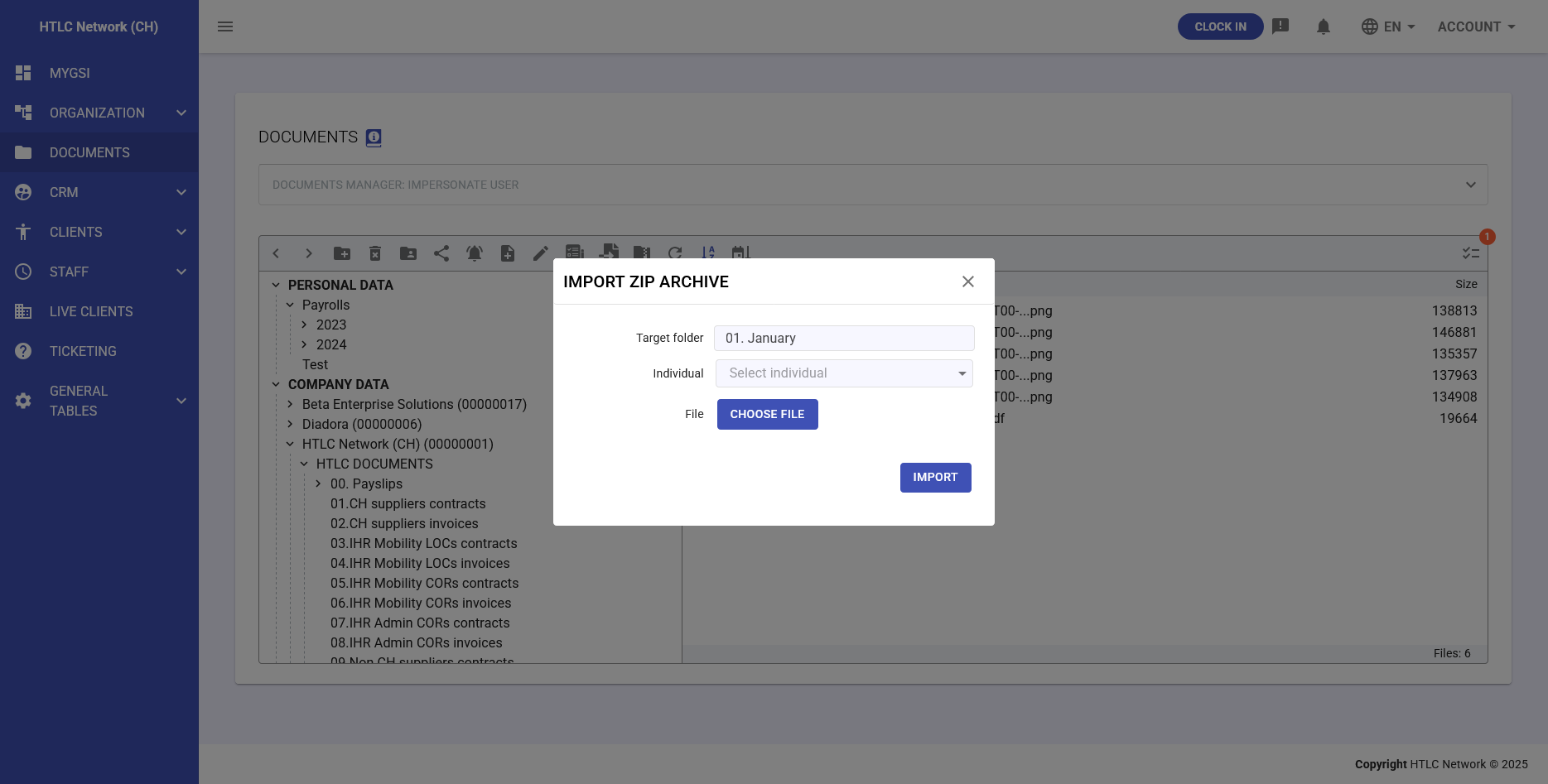
Import from ZIP Archive
The ZIP import feature enables bulk document upload with intelligent processing:
Basic Import Process:
- Click import icon in toolbar
- Select "Import ZIP Archive"
- Configure target folder (Personal/Company)
- Choose individual assignment (if applicable)
- Upload ZIP file
- Click IMPORT to process
Automatic Extraction:
- Maintains folder structure from ZIP
- Preserves file metadata
- Applies date prefixes to all files
- Generates import report
Export to ZIP Archive
To export to ZIP Archive, navigate to the desired folder path and use the toolbar option: download of zip archive with all folder / subfolders structure will begin shortly
-
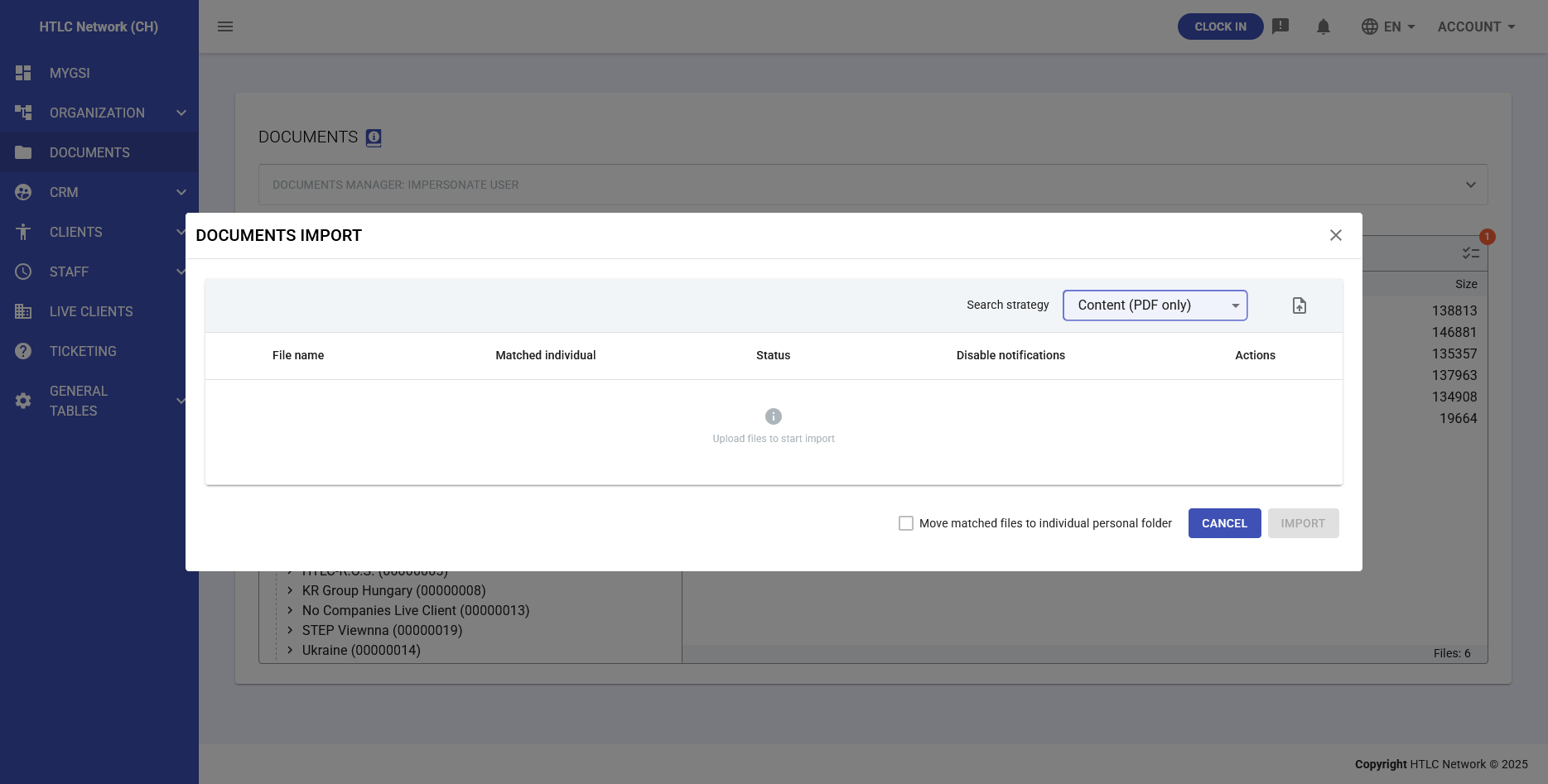
Advanced Feature: Bulk Import with Tax Code Matching
This advanced feature automatically distributes documents based on individual tax codes:
Configuration Options:
- Search Strategy:
- Content (PDF only) - Scans PDF content for tax codes
- Filename - Matches tax codes in filenames
- Both - Combines content and filename matching
- Target Settings:
- Individual selection for single-person import
- Company folder with automatic distribution
- Personal folder assignment
- Matching Process:
- System detects tax codes in files
- Automatically matches to registered individuals
- Creates individual access permissions
- Reports unmatched files
- Conflict Resolution:
- Duplicates Detection: Identifies existing files
- Action Options:
- Skip duplicate files
- Overwrite existing
- Import with different filename
- Missing Matches: Lists files without valid tax code matches
- Notifications:
- Option to disable notifications during import
- Bulk notification after completion
- Error reporting for failed matches
- Search Strategy:
-
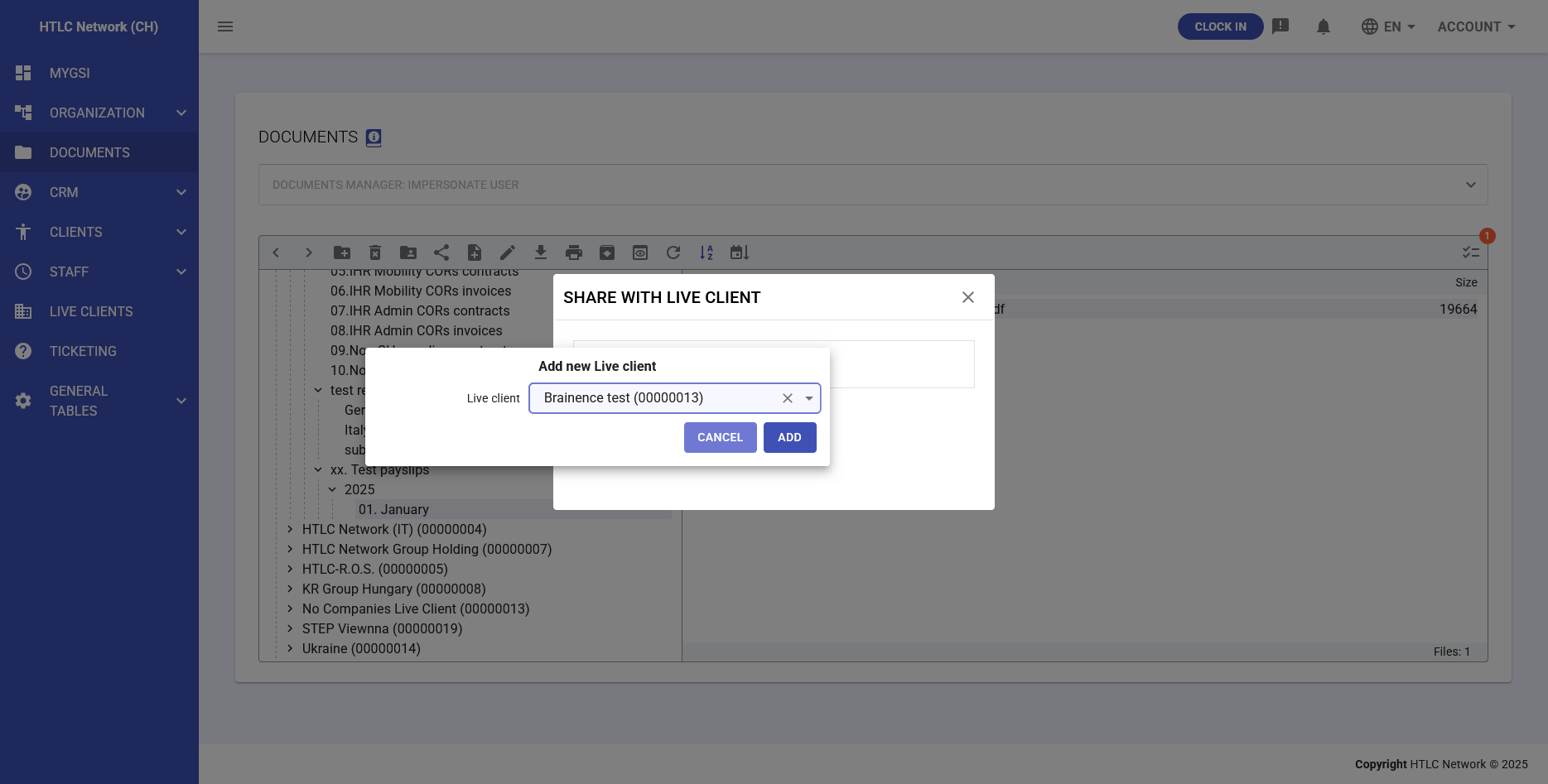
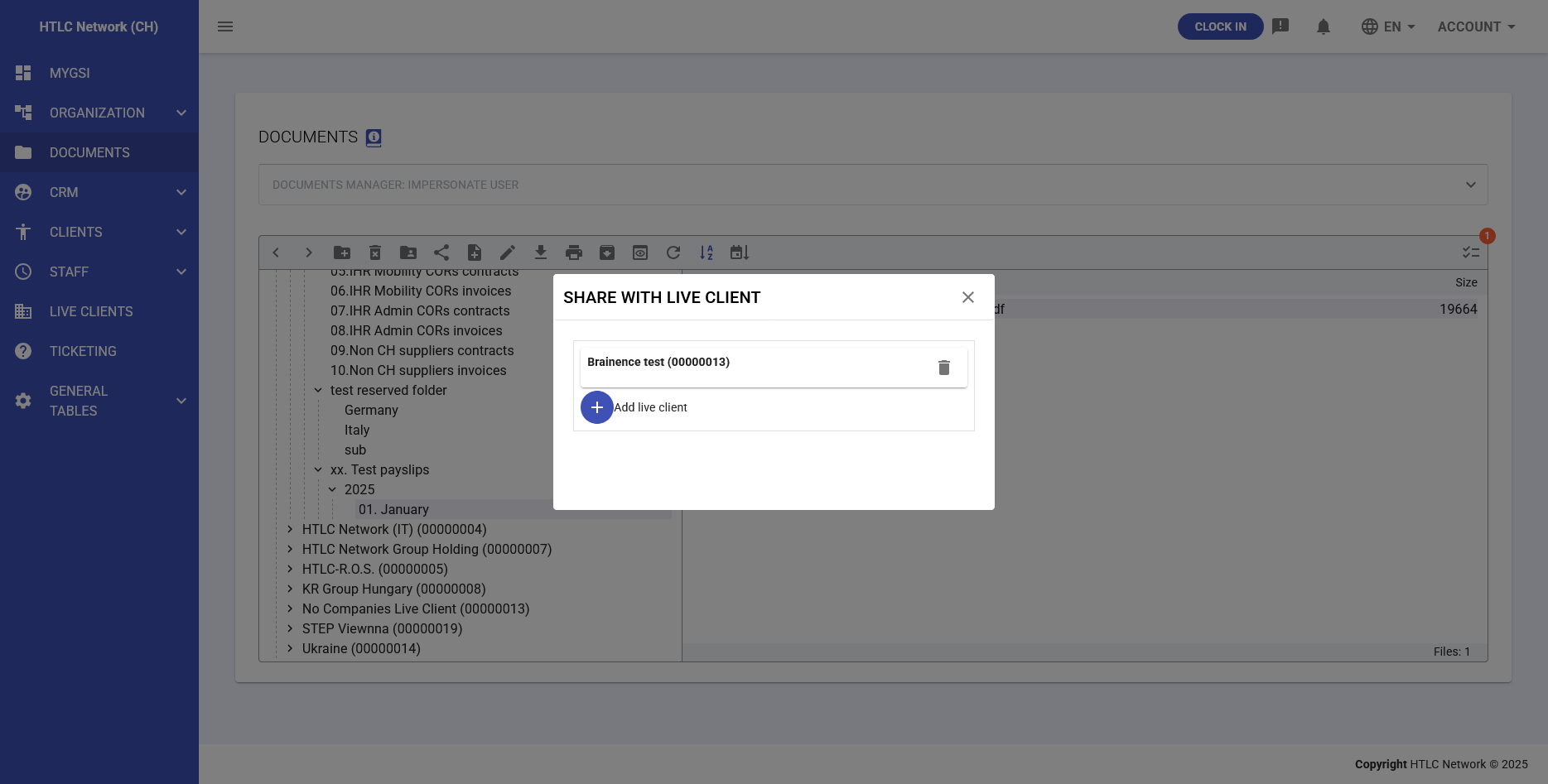
Advanced Feature: Document Sharing with Live Clients
Share documents across different Live Client organizations:
Prerequisites:
- Existing share grant between Live Clients
- Appropriate permissions in both environments
- Active Live Client accounts
Sharing Process:
- Select folder to share
- Click "Share with Live Client"
- Search and select target Live Client
- Choose specific users (optional)
- Configure access permissions
- Confirm sharing arrangement
Adding New Live Client:
- Click "Add live client" button
- Select from available Live Clients dropdown
- System validates existing share grants
- Confirm addition
- Configure specific permissions
-
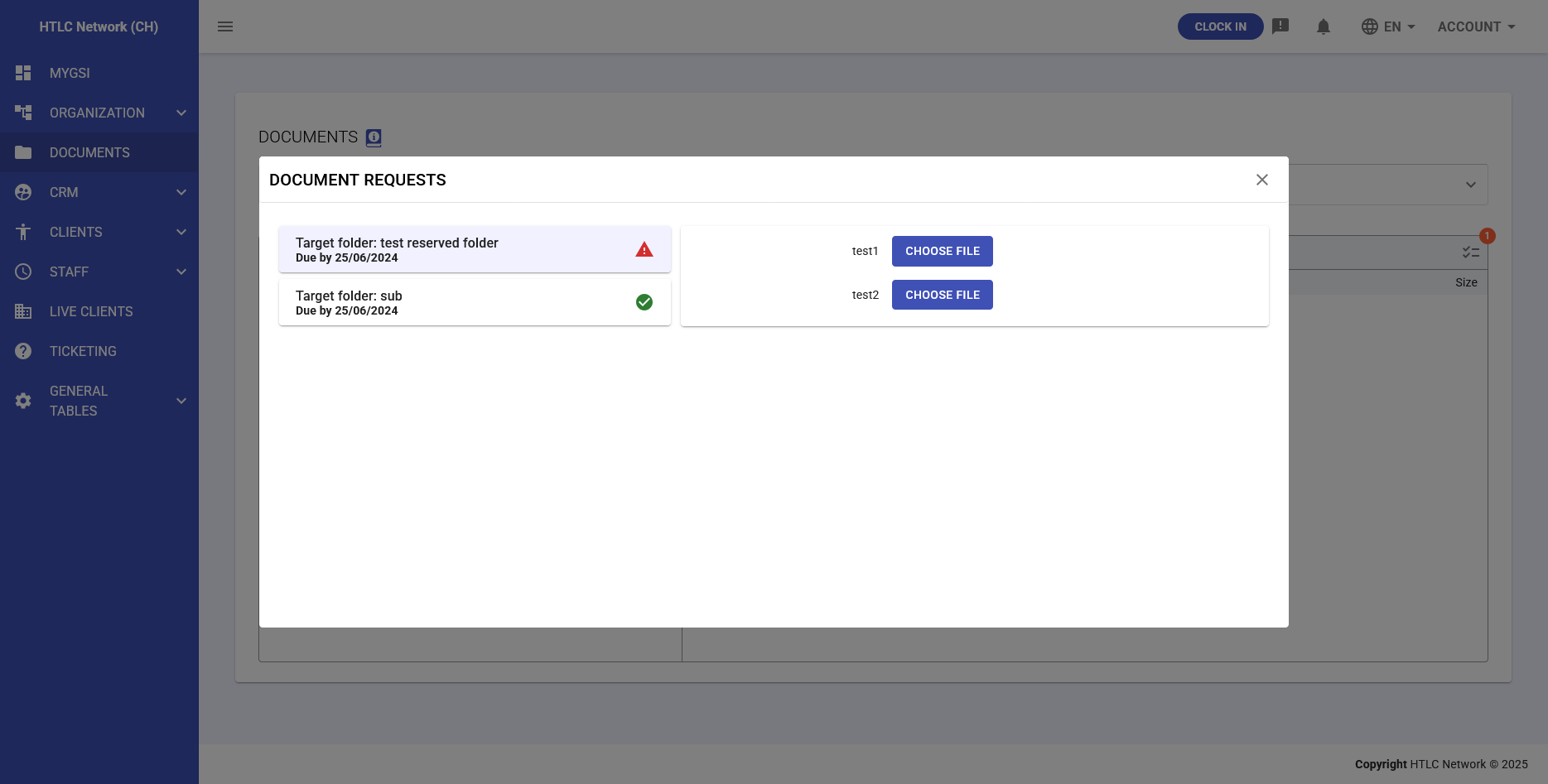
Documents Requests
The Documents Requests system enables structured collection of documents from individuals:
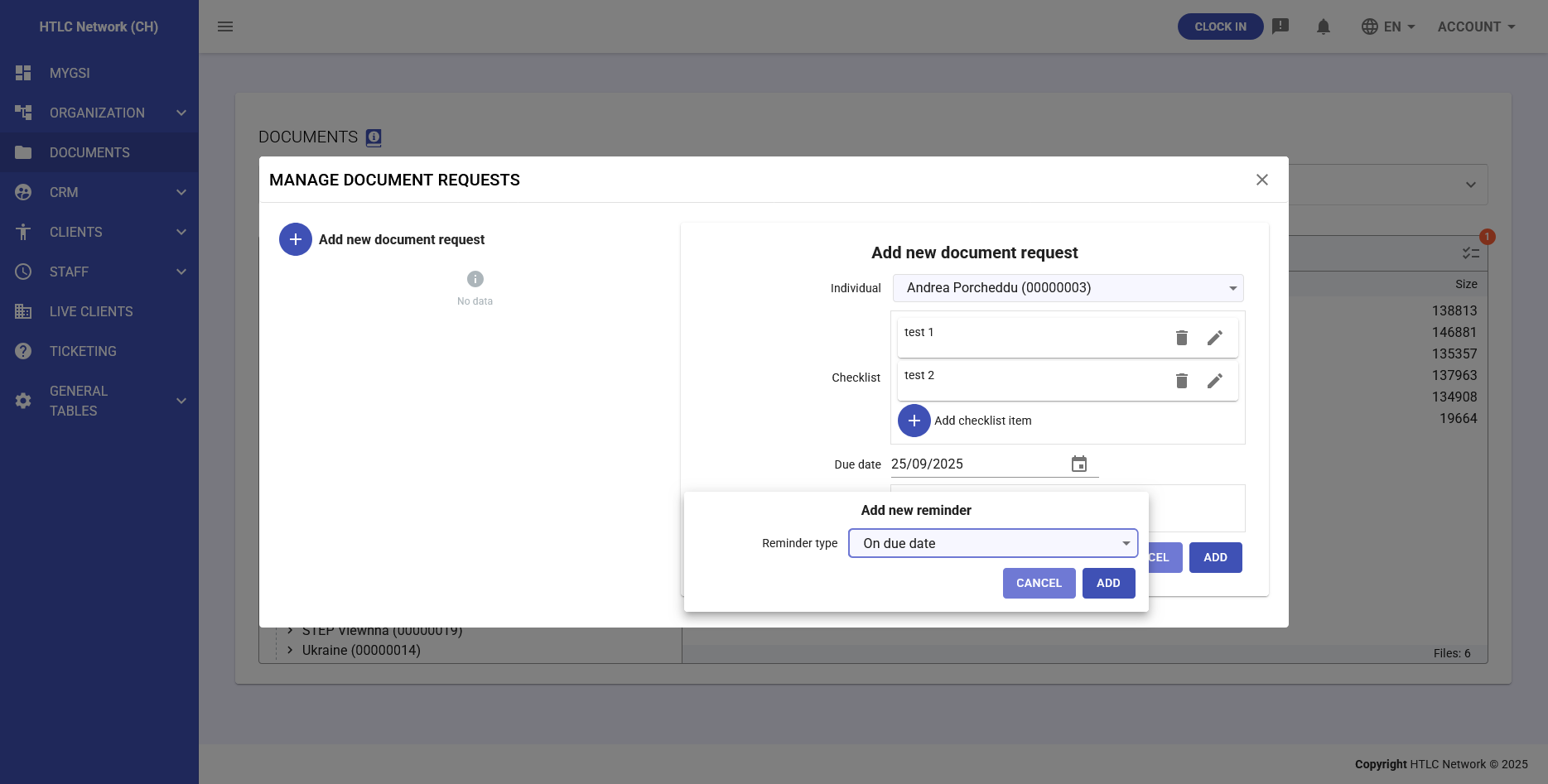
Creating Document Requests
- Access Document Requests section
- Click "Add new document request"
- Configure request details:
- Individual: Select target person
- Checklist: Define required documents
- Due Date: Set submission deadline
- Target Folder: Specify storage location
- Add Checklist Items:
- Click "Add checklist item"
- Enter document description
- Set as required/optional
- Add multiple items as needed
- Configure Reminders:
- Type: On due date, before due date, after due date
- Frequency: One-time or recurring
- Notification method: Email/System/Both
- Click ADD to create request
Managing Document Requests
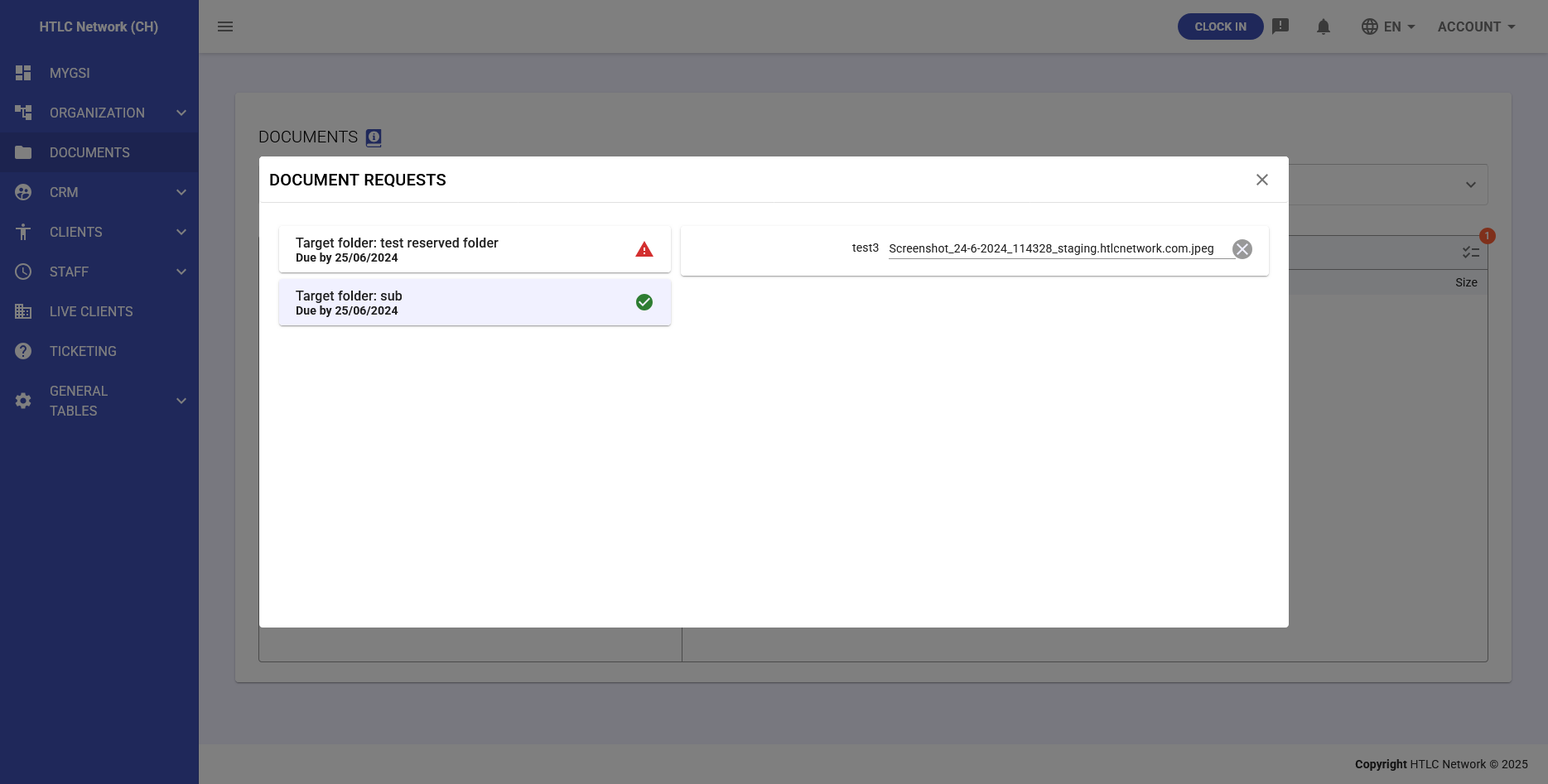
Request Status Indicators:
- Red Warning: Overdue requests
- Green Check: Fulfilled requests
- Yellow Clock: Pending requests
Request Actions:
- View submitted documents
- Send reminders
- Modify due dates
- Cancel requests
- Download submissions
Fulfilling Requests
Recipients can fulfill requests by:
- Accessing their document requests
- Viewing required documents checklist
- Uploading requested files
- System automatically:
- Marks items as complete
- Notifies requester
- Files documents in specified folder
- Updates request status