-
The Clients module manages the contracts established with clients and monitors the progress of the requested services. The module is divided into two main sections that work together to manage the complete service delivery lifecycle:
- Service Agreements - Contract templates that define available services
- RFA (Request for Action) - Operational documents that activate and track service delivery
Service Agreements
Purpose
Service Agreements are contracts that act as templates, where services and their associated tasks are pre-defined. When a client requests one or more services, they are activated by creating an RFA (Request for Action) and selecting the required services. The RFA then creates the actual service instances according to what has been defined in the Service Agreement template.
Overview
Service Agreements act as the contractual foundation for client services within GSI2. Each agreement contains a structured hierarchy of activities and tasks that define what services will be delivered, how they will be organized, and what resources are required. These agreements serve as master templates that are referenced when services are actually initiated through RFA.
Key Components
Agreement Structure
Each Service Agreement consists of:
- Agreement Details: Basic information including name, client type, owner company, dates, and payment terms
- Activities: High-level service components that group related tasks
- Tasks: Specific deliverables or work items within each activity
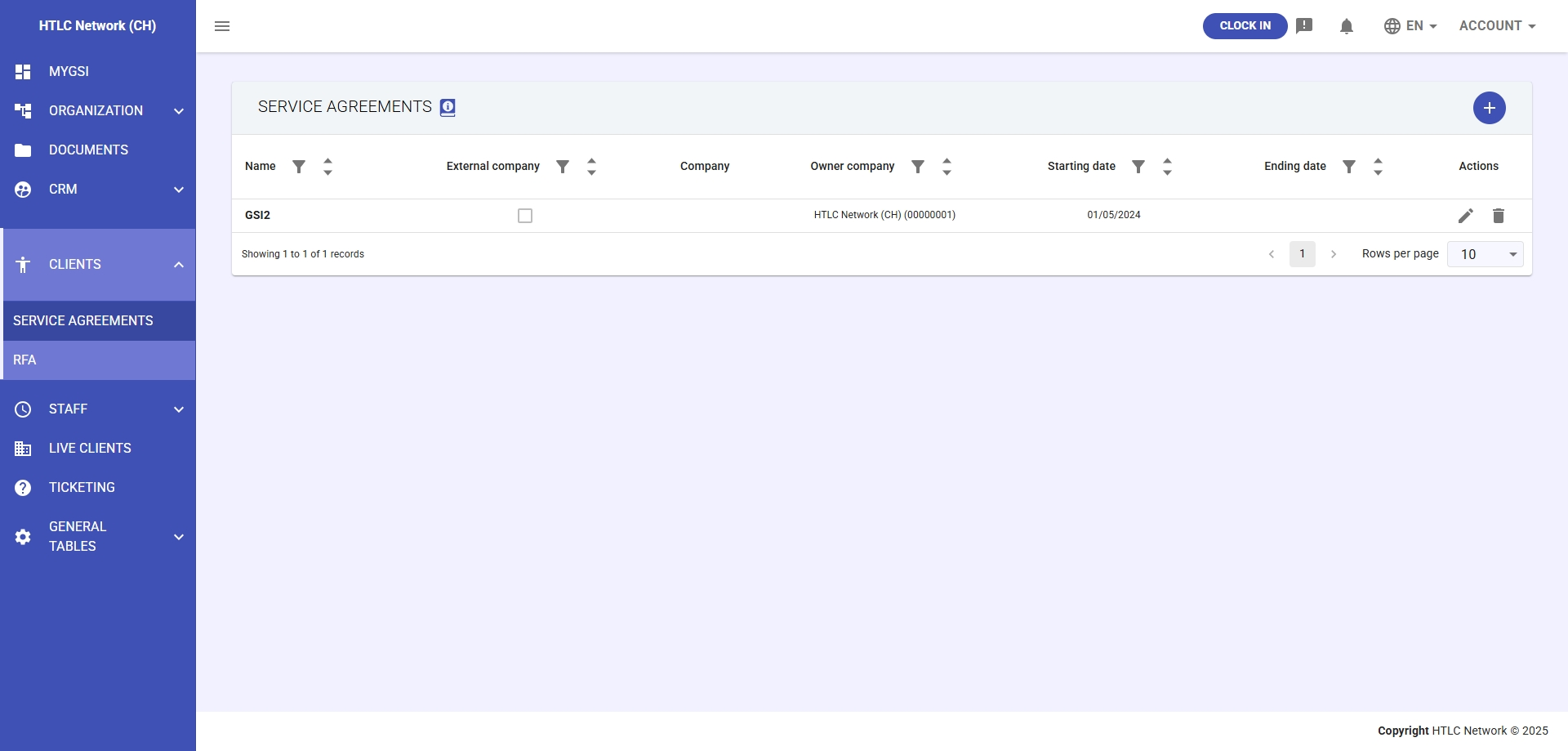
Service Agreement List View
The main Service Agreements page displays:
Field Description Name Agreement identifier External Company Whether the service involves external entities Company/Owner Company The organization responsible for the agreement Starting/Ending Date Agreement validity period Actions Edit and delete options Creating a Service Agreement
Step 1: Initial Setup
- Navigate to Clients > Service Agreements section
- Click the "+" button to create a new agreement
- Configure basic information:
- Agreement Name: Enter a unique, descriptive identifier
- Client Type: Select category (e.g., Multiple clients)
- Owner Company: Choose the client company from the list
- External Company: Check if services involve external providers
- Starting Date: Set contract start date
- Ending Date: Set contract end date
- Fee Type: Select payment structure (None, Monthly, Yearly, etc.)
- Currency: Choose monetary unit (EUR, USD, etc.)
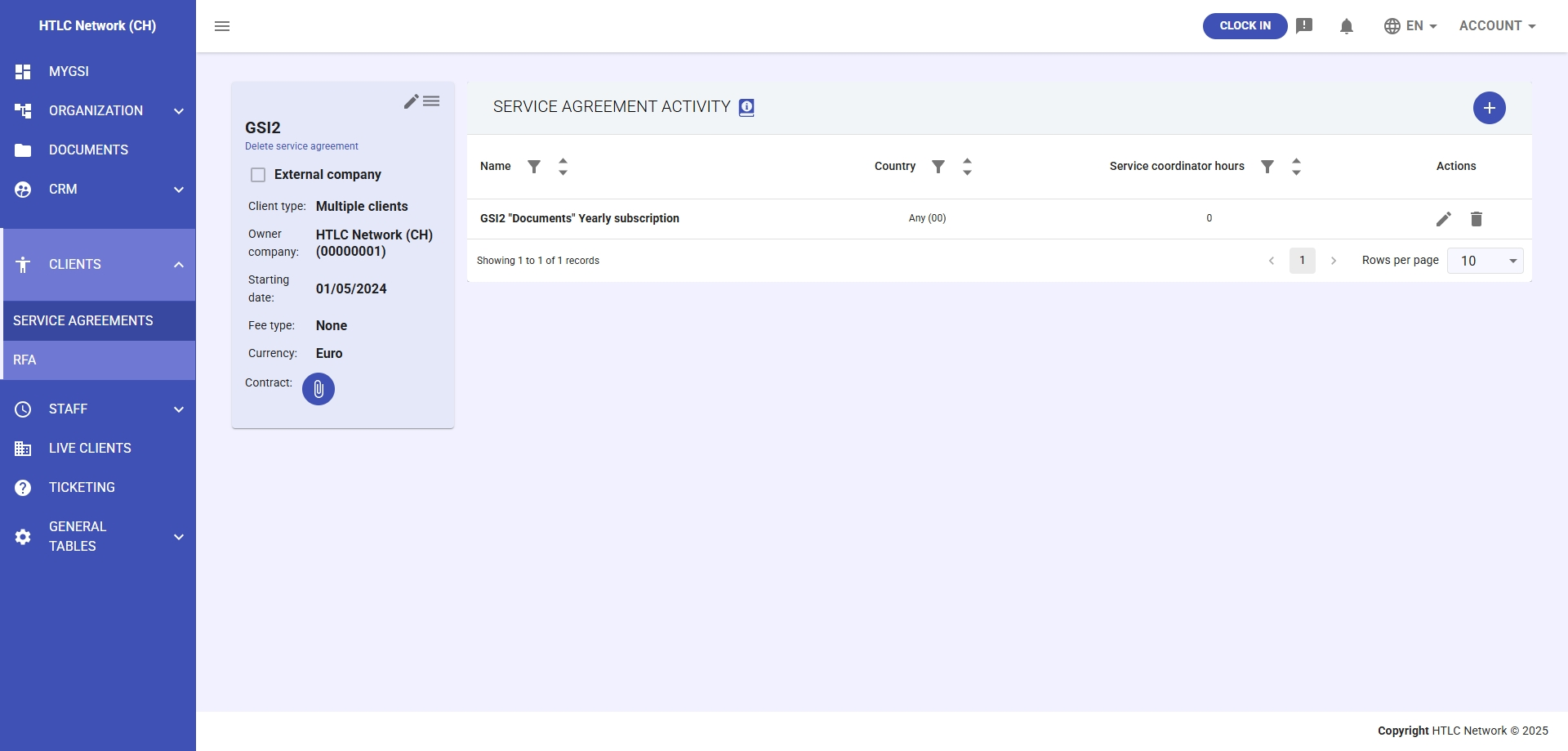
Step 2: Add Service Activities
Each Service Agreement can include multiple service activities:
- Click "Add New Activity" within the agreement
- Configure activity details:
- Activity: Select from predefined activities or create new
- Description: Provide detailed service description
- Country: Select reference country for the service
- Service Coordinator Hours: Allocate time for coordination
- Currency: Set specific currency for this activity
- Fee Type: Define payment structure (Hourly, Monthly, Yearly)
- Fee Value: Enter the cost amount
- Cancellation Fee Type: Specify cancellation terms
Step 3: Define Tasks
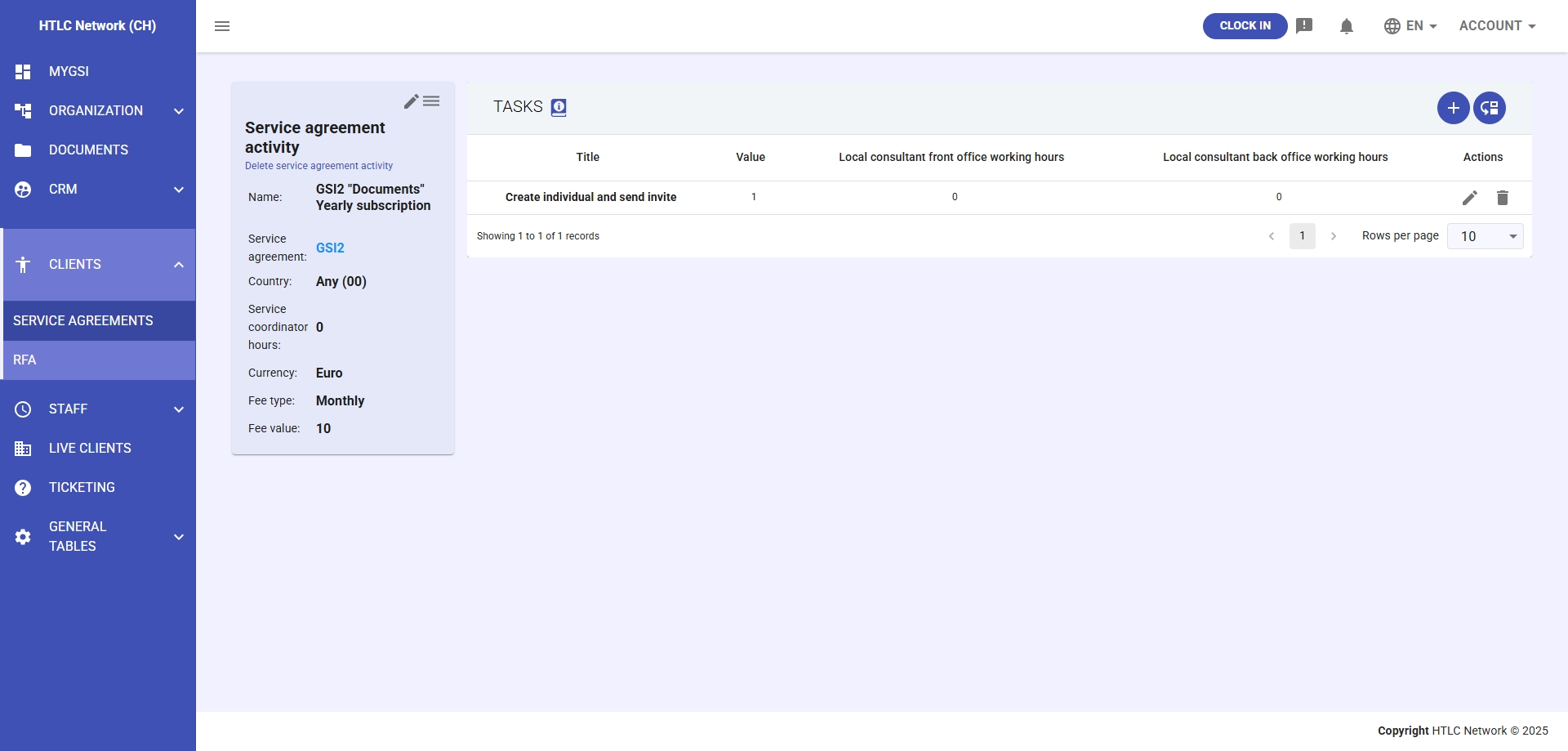
For each activity, define the specific tasks required:
- Within an activity, click "Add New Task"
- Configure task details:
General Settings
- Task: Select from existing tasks or create new
- Title: Clear, descriptive task name
- Description: Detailed task requirements
- Value: Relative weight/importance (used for progress calculation)
- Action: Select associated action type from predefined list
Working Hours
- Local Consultant Front Office Hours: Client-facing work time
- Local Consultant Back Office Hours: Administrative work time
Task Options (Checkboxes)
- Is invoiceable government fees: Check if government fees apply
- Has deadline: Enable to set time constraints
- Has local consultant: Enable if external resources needed
- Has cost: Enable for tasks with associated costs
Important Notes
- Service Agreements serve as templates only - no actual work is tracked here
- All tasks and activities defined will be copied when creating an RFA
- The "Value" field determines the relative importance for progress tracking
- Local consultant fields remain empty in Service Agreements and are filled during RFA creation
-
Data Fields Reference: Service Agreement
Field Type Description Name Text Unique identifier for the agreement Client Type Dropdown Classification of client (Multiple clients, etc.) Owner Company Dropdown Selected from company list Starting Date Date Contract start date Ending Date Date Contract end date Fee Type Dropdown Payment structure (None, Monthly, Yearly) Currency Dropdown Monetary unit (Euro, USD, etc.) Contract File Upload Attachment for contract documents -
Data Fields Reference: Service Activity
Field Type Description Activity Dropdown Select from predefined activities Description Text Area Detailed activity description Country Dropdown Service reference country Service Coordinator Hours Number Allocated hours Currency Dropdown Activity currency Fee Type Dropdown Payment structure Fee Value Number Cost amount Cancellation Fee Type Dropdown Cancellation terms -
Data Fields Reference: Task
Field Type Description Task Dropdown/Text Select existing or create new task Title Text Task title Description Text Area Task details Value Number Task weight/importance Local Consultant Front Office Hours Number Front office working hours Local Consultant Back Office Hours Number Back office working hours Action Dropdown Associated action type Invoiceable Government Fees Checkbox Government fee applicability Deadline Checkbox Deadline requirement Local Consultant Checkbox Local consultant involvement Cost Checkbox Associated costs