-
RFAs (Request for Action) are the operational documents that activate services from Service Agreements when a client makes a request. The RFA system creates actual service instances based on the templates defined in Service Agreements, allowing for tracking and management of service delivery to specific beneficiaries (expats).
Overview
An RFA is created when a client requests the activation of services defined in a Service Agreement. The system copies all activities and tasks from the selected agreement, allowing you to assign specific people, set actual deadlines, and track real-time progress. This is where the operational work happens, transforming contractual agreements into actionable service delivery.
Structure
The RFA module is structured in three hierarchical levels:
- RFA - Main request document
- RFA Activities - Services activated from the agreement
- RFA Tasks - Individual tasks to complete each activity
Key Components
RFA Structure
Each RFA includes:
- Service Agreement Reference: Links to the original agreement template
- Company/Beneficial Owner: The client receiving the services
- Activities: Copied from the Service Agreement with assigned resources
- Tasks: Specific work items with deadlines and assigned consultants
RFA List View
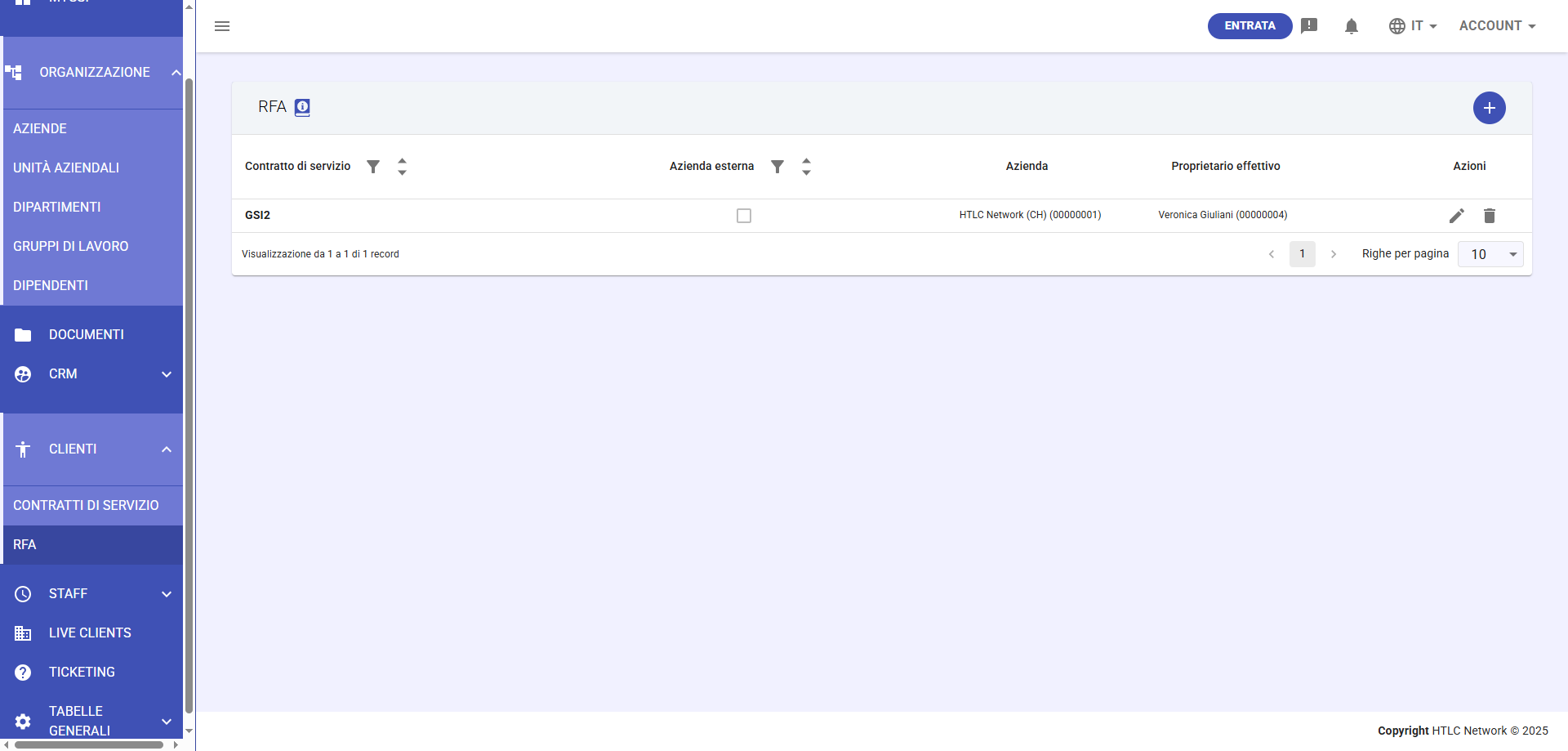
The main RFA page displays:
- Service Agreement: Reference to the source agreement
- External Company: Indicator for external entity involvement
- Company: Client organization
- Beneficial Owner: Specific person or entity receiving services (expat)
- Actions: Edit and delete options
Creating an RFA
Step 1: Initialize RFA
- Navigate to Clients > RFA section
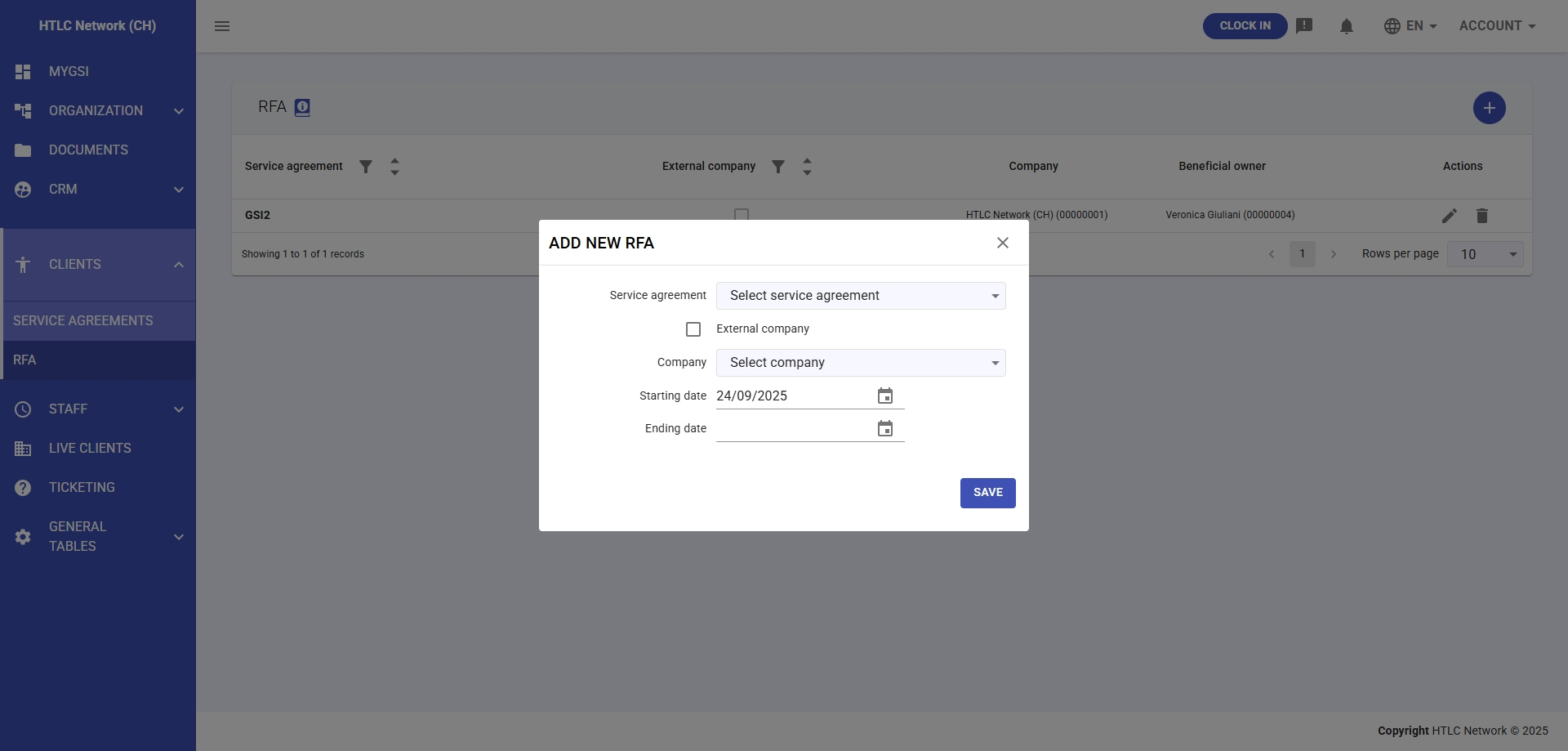
- Click the "+" button to create a new RFA
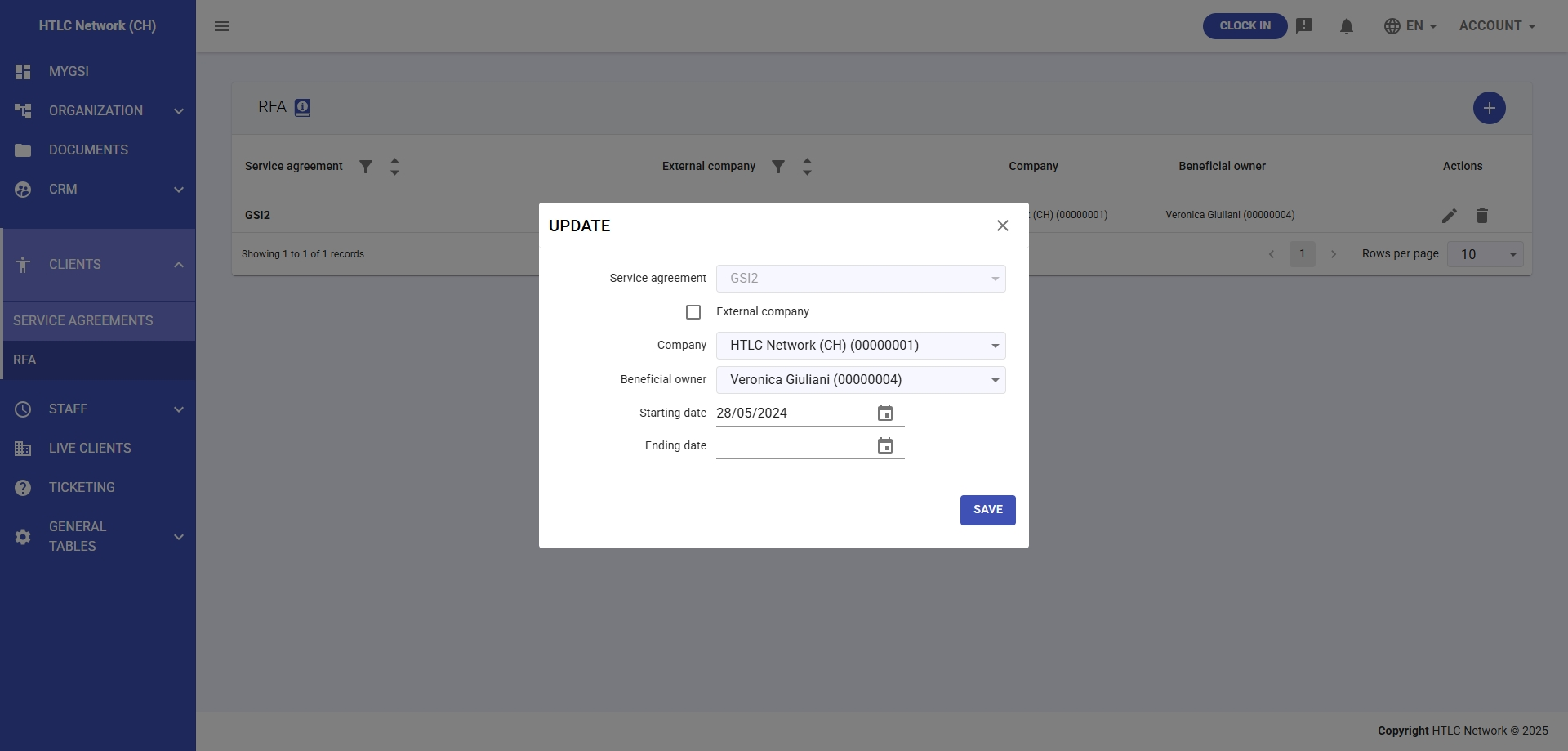
- Configure RFA details:
- Service Agreement: Select the template agreement to use
- External Company: Check if applicable
- Company: Select the client company
- Beneficial Owner: Choose the specific person (expat) receiving services
- Starting Date: Set actual service delivery start
- Ending Date: Set service delivery end
- Click SAVE to create the RFA
Step 2: Configure RFA Activities
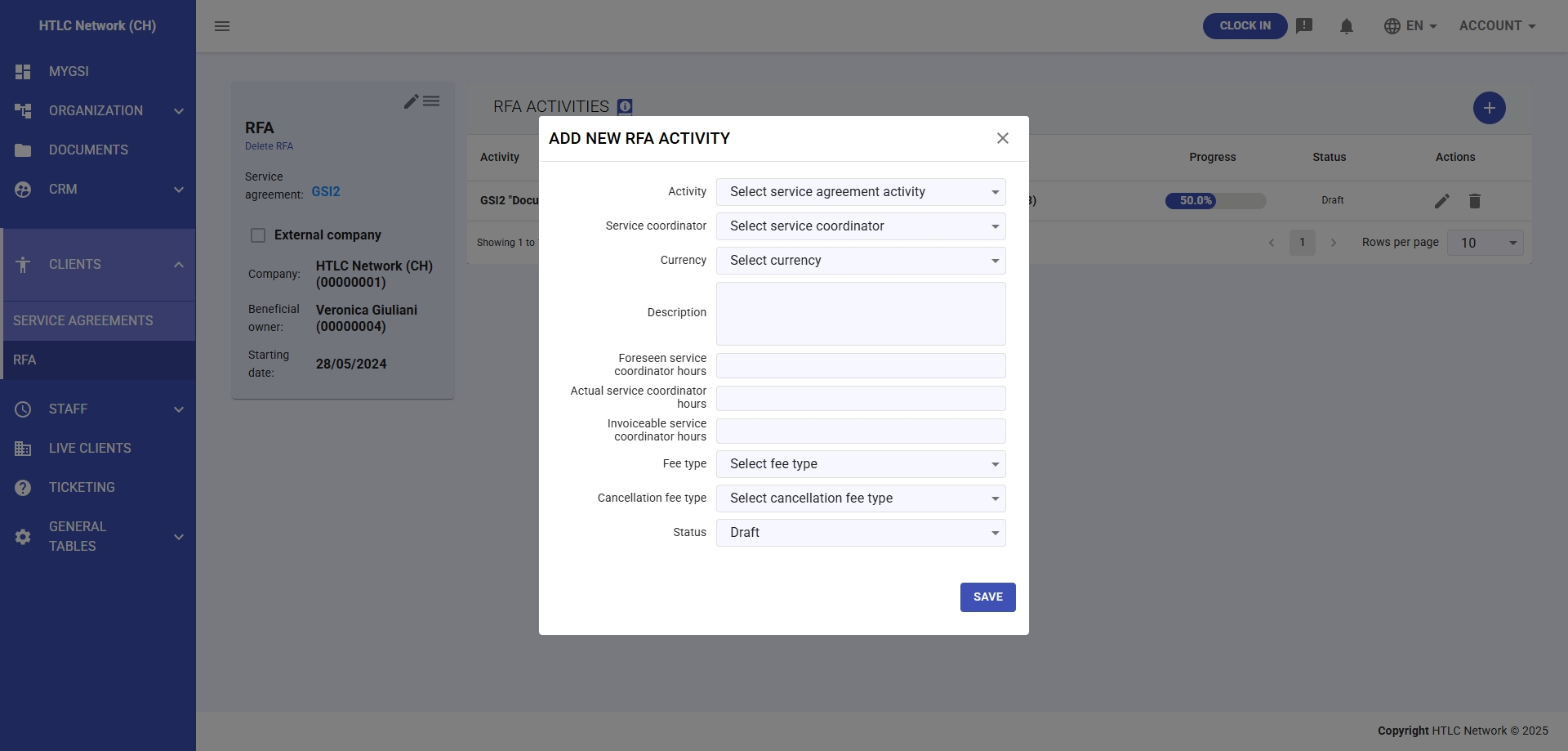
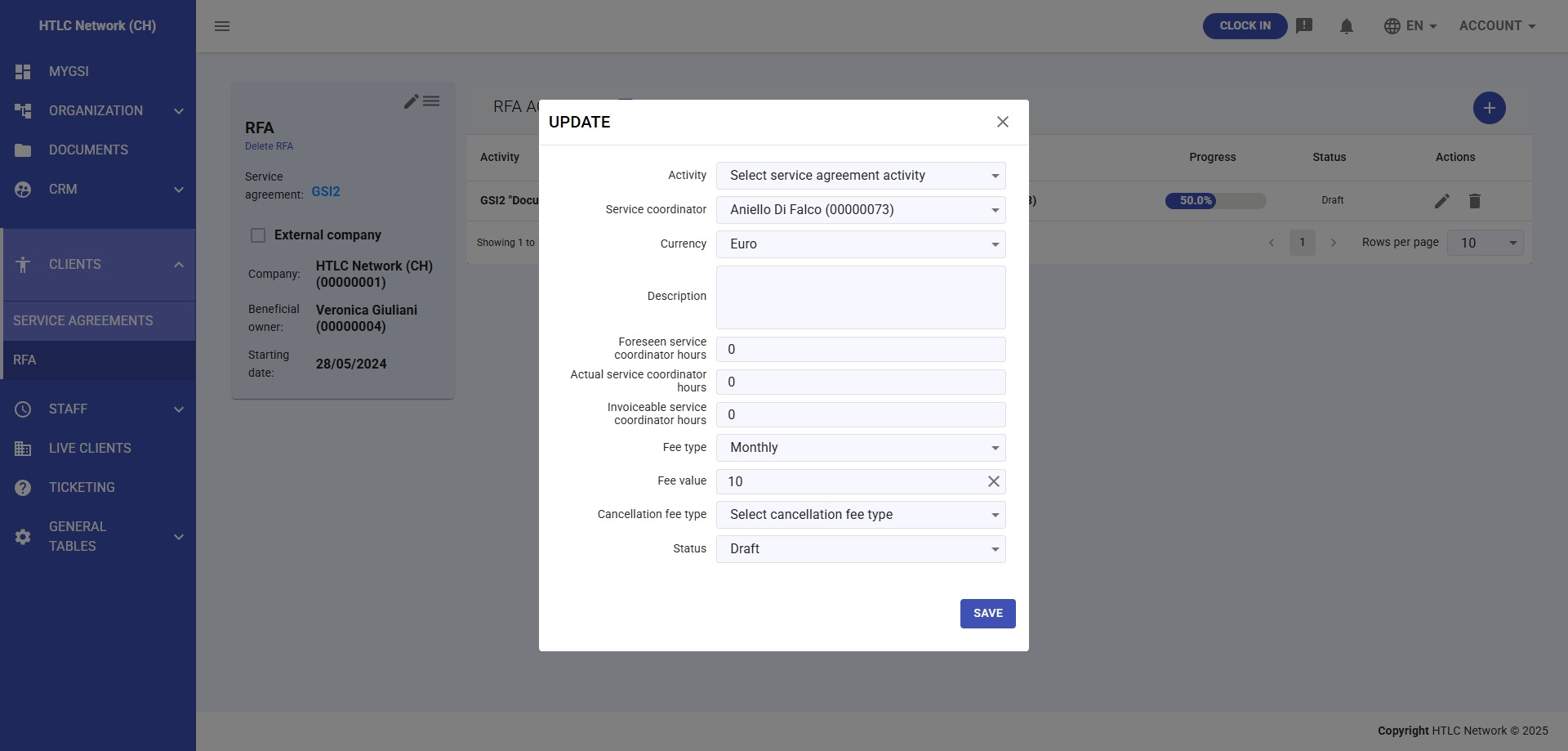
RFA activities are copied from the Service Agreement but require additional configuration:
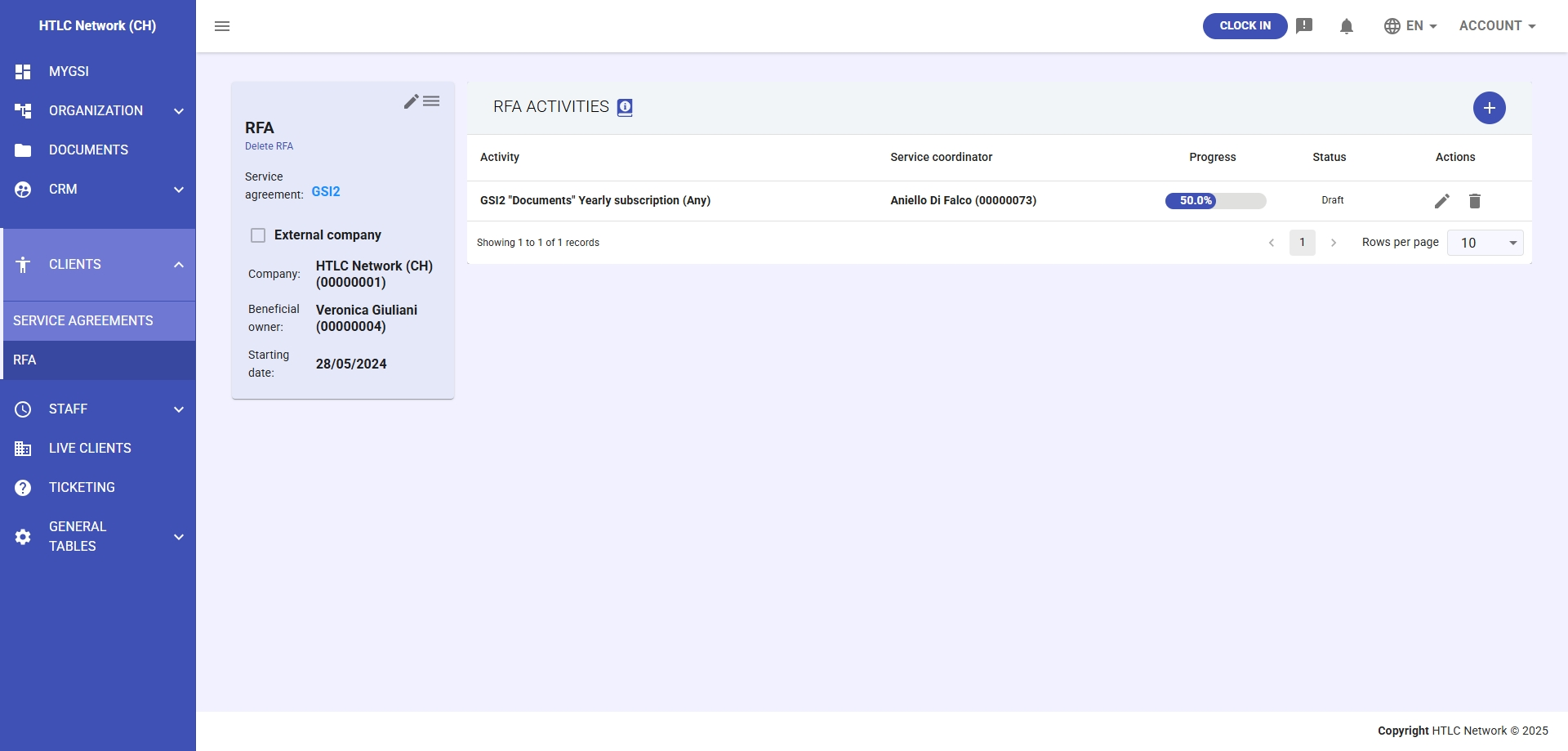
- Open the RFA to view its activities
- For each activity, configure:
- Service Coordinator: Assign responsible person
- Currency: Confirm or change monetary unit
- Description: Add specific details for this instance
Hours Tracking
- Foreseen Service Coordinator Hours: Planned hours
- Actual Service Coordinator Hours: Track worked hours
- Invoiceable Service Coordinator Hours: Billable hours
Financial Settings
- Fee Type: Confirm payment structure (Monthly, Yearly, etc.)
- Fee Value: Set actual cost amount
- Cancellation Fee Type: Define cancellation terms
Status Management
- Status: Set current status (Draft, Approved, In Progress, Completed)
- Progress: Automatically calculated based on task completion
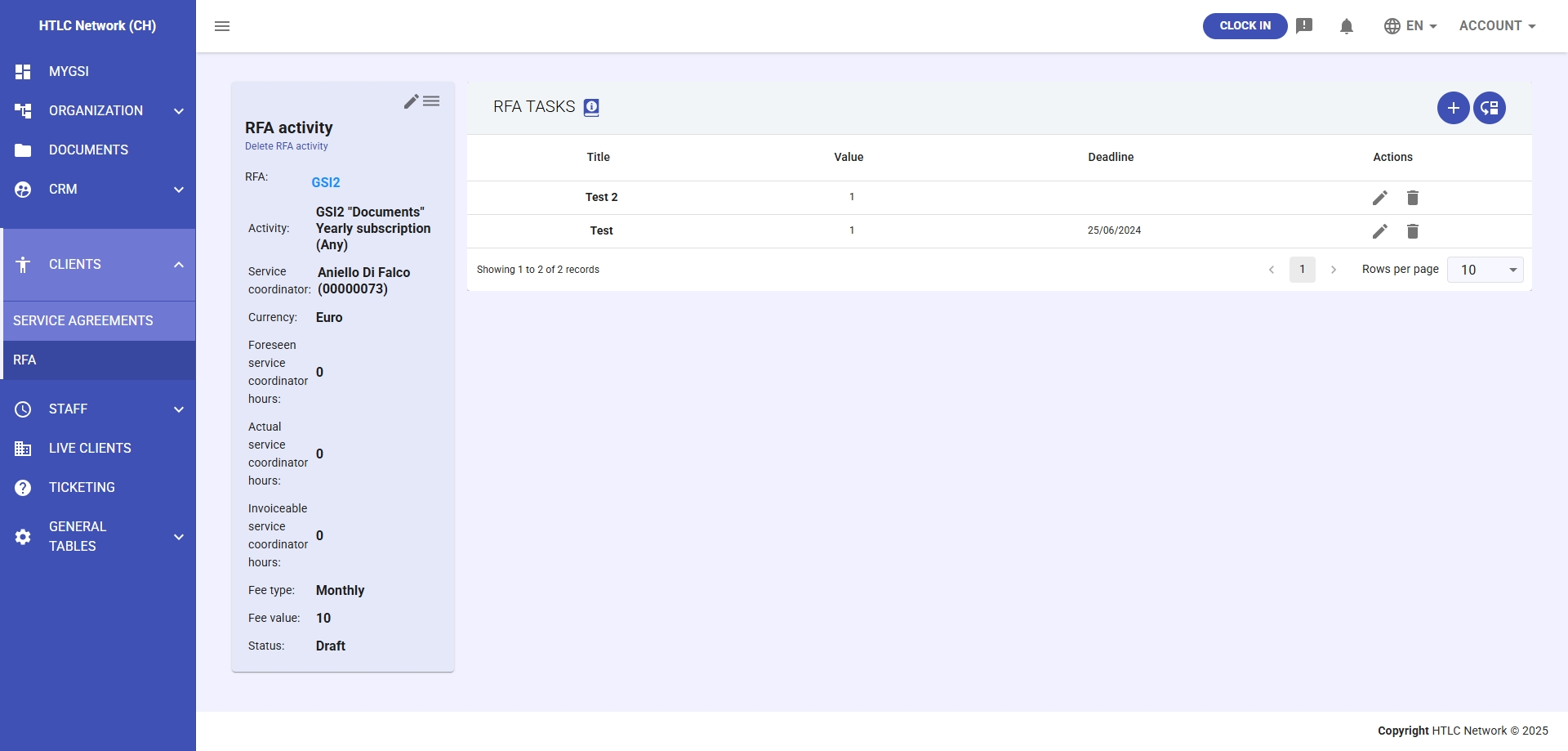
Step 3: Manage RFA Tasks
Tasks are copied from the Service Agreement template but need specific values:
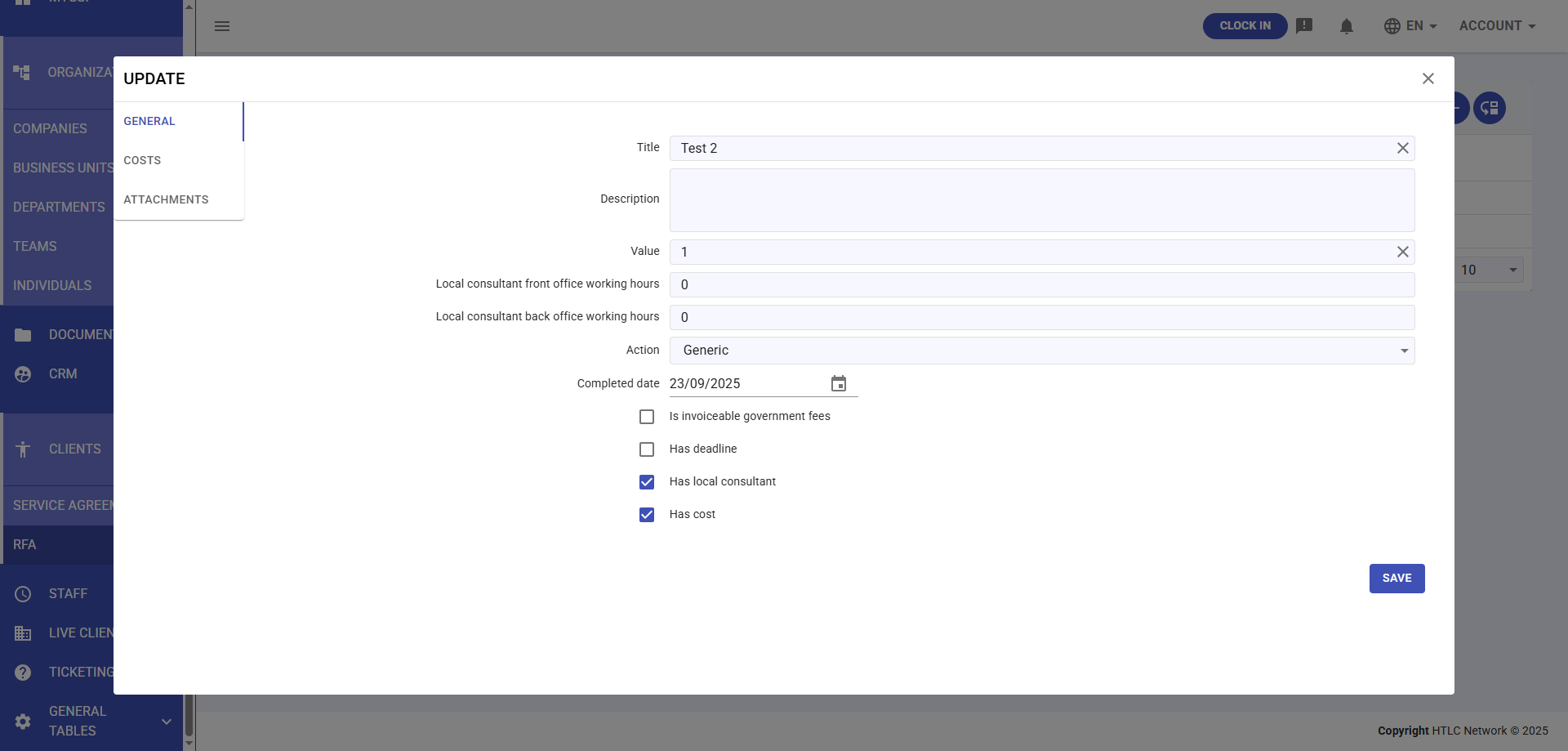
General Tab
- Service Agreement Task: Pre-filled from template
- Title: Task name (can be modified if needed)
- Description: Add specific requirements
- Value: Weight for progress calculation
- Local Consultant Working Hours:
- Front Office hours
- Back Office hours
- Action: Associated action type
- Completed Date: Set when task is finished
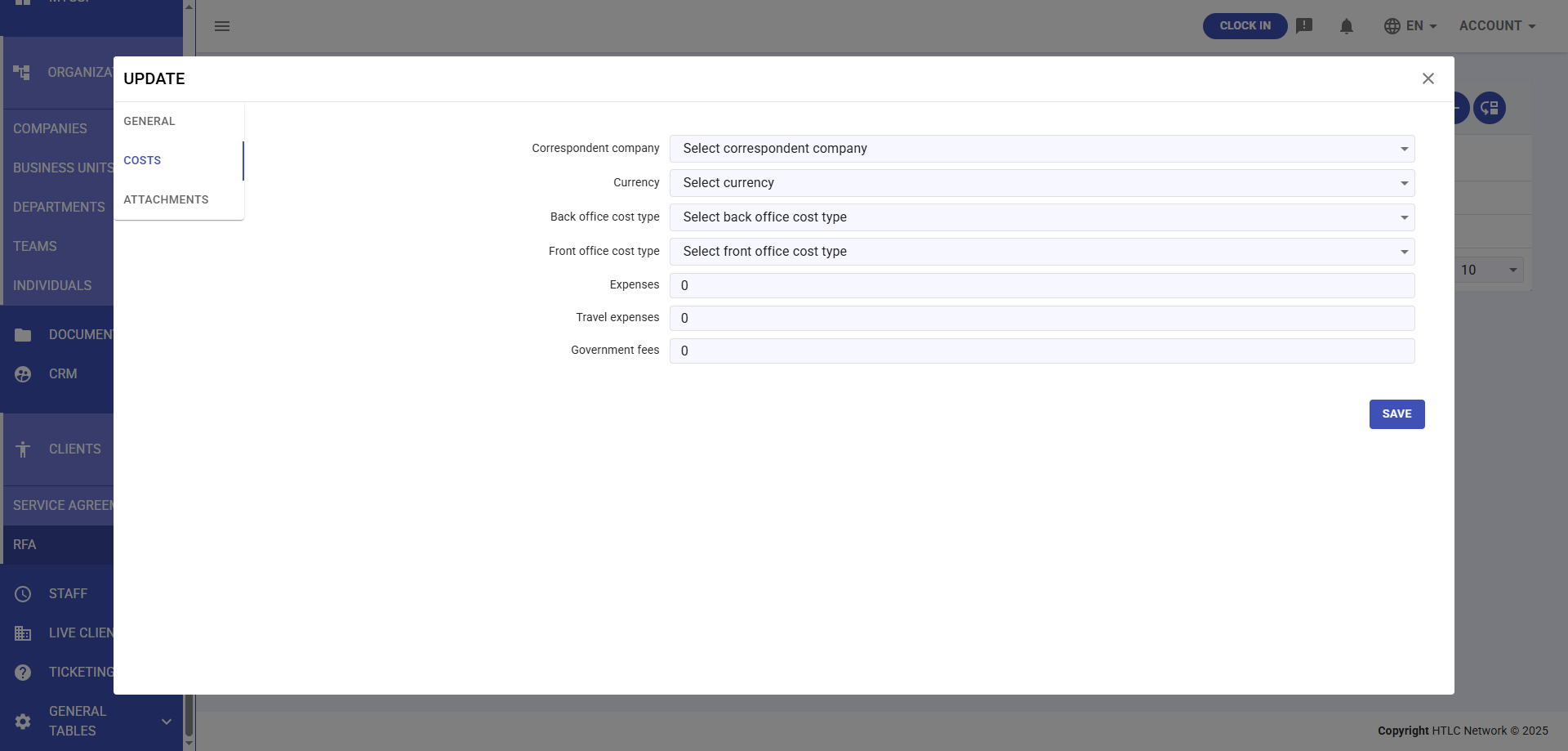
Costs Tab
Configure actual costs for the task:
- Correspondent Company: Associated company for costs
- Currency: Monetary unit
- Back Office Cost Type: Classification of back office costs
- Front Office Cost Type: Classification of front office costs
- Back Office Cost Amount: Actual monetary value
- Front Office Cost Amount: Actual monetary value
- Expenses: Additional expenses
- Travel Expenses: Travel-related costs
- Government Fees: Official fees
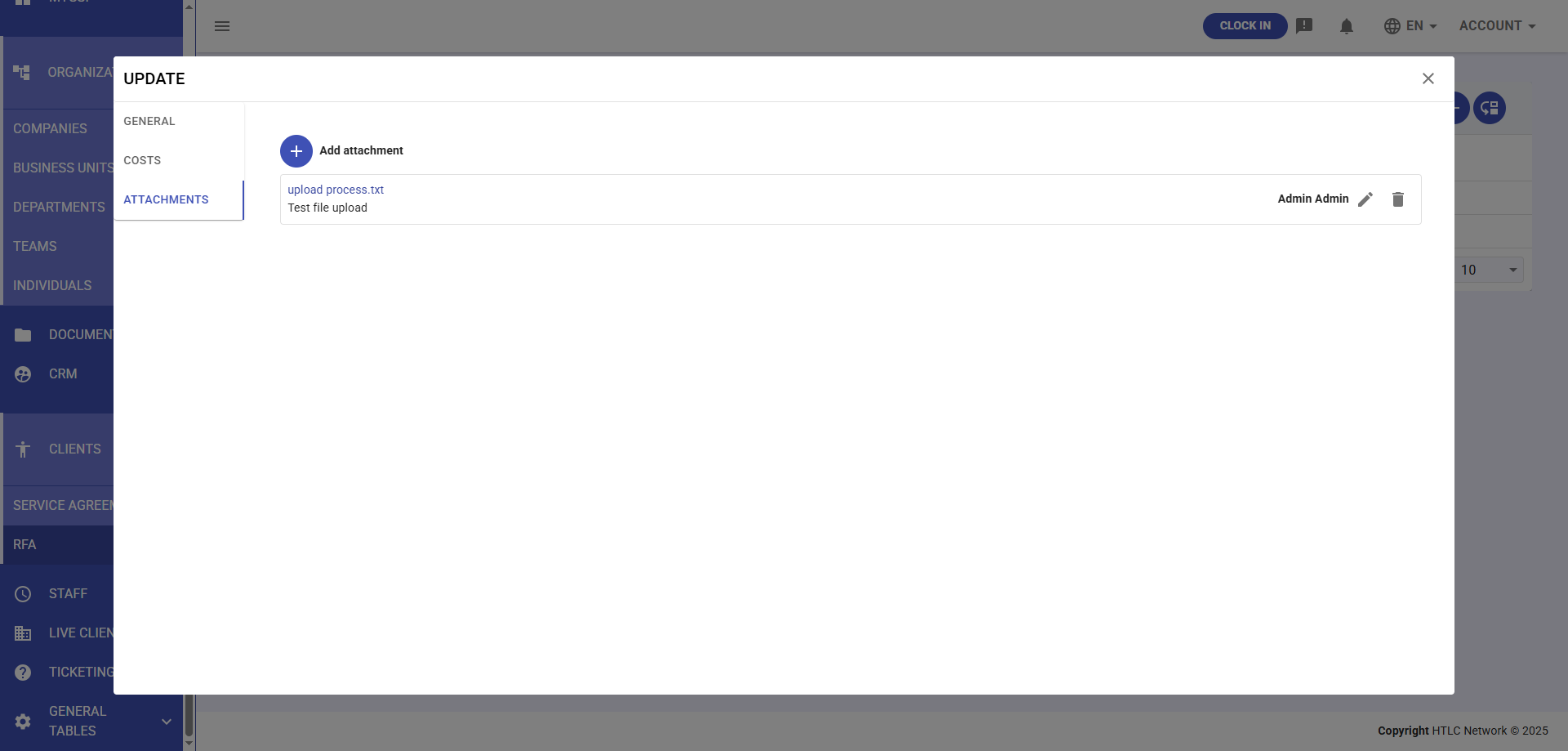
Attachments Tab
- File Upload: Add supporting documents
- Document Management: View, edit, delete attached files
- File Types: Support for PDF, DOCX, XLSX, images
Workflow Process
Complete Service Delivery Workflow
- Client Request → Client requests services for a beneficiary
- Create RFA → Select appropriate Service Agreement template
- Add RFA Activities → Choose required services from agreement
- Assign Coordinators → Designate service coordinators
- Create RFA Tasks → Define specific tasks for each activity
- Set Deadlines → Establish timeline for delivery
- Track Progress → Monitor task completion and hours
- Update Status → Move from Draft to Approved to In Progress to Completed
- Complete Tasks → Mark tasks as done with completion dates
- Close RFA → Finalize when all services delivered
Status Management
Activity Statuses
- Draft: Initial creation state
- Approved: Ready to begin work
- In Progress: Currently being worked on
- Completed: All tasks finished
- Cancelled: Terminated before completion
- On Hold: Temporarily suspended
Task Completion
- Tasks can be marked complete individually
- Completion percentage auto-calculates based on task values
- Completed date is recorded for each task
- Progress rolls up to activity and RFA levels
-
Data Fields Reference: RFA
Field Type Description Required Service Agreement Dropdown Template agreement selection Yes External Company Checkbox External entity involvement No Company Dropdown Client company Yes Beneficial Owner Dropdown Person receiving services Yes Starting Date Date Service start date Yes Ending Date Date Service end date Yes -
Data Fields Reference: RFA Activity
Field Type Description Required Activity Dropdown Service from agreement Yes Service Coordinator Dropdown Assigned coordinator Yes Currency Dropdown Monetary unit Yes Description Text Area Activity details Yes Foreseen SC Hours Number Planned hours Yes Actual SC Hours Number Worked hours No Invoiceable SC Hours Number Billable hours No Fee Type Dropdown Payment structure Yes Fee Value Number Cost amount Yes Cancellation Fee Type Dropdown Cancellation terms No Status Dropdown Current status Yes Progress Percentage Auto-calculated Auto -
Data Fields Reference: RFA Activity Task
Field Type Description Required Service Agreement Task Dropdown Template task reference Yes Title Text Task name Yes Description Text Area Task details Yes Value Number Task importance Yes LC Front Office Hours Number Local consultant front time No LC Back Office Hours Number Local consultant back time No Action Dropdown Associated action Yes Completed Date Date Completion date No Correspondent Company Dropdown Cost association No Currency Dropdown Cost currency No Back Office Cost Type Dropdown Cost classification No Front Office Cost Type Dropdown Cost classification No Back Office Cost Amount Number Monetary value No Front Office Cost Amount Number Monetary value No Expenses Number Additional expenses No Travel Expenses Number Travel costs No Government Fees Number Official fees No