-
In this article, you will find:
- How to record your clock-in
- How to manage breaks and clock-out
- How to proceed in case of a missed punch
Clock In
To clock in, follow these steps:
1. Access the GSI system
Log into the system with your credentials and navigate to the My GSI module.
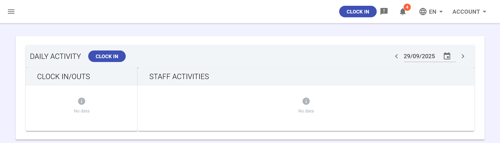
2. Click the CLOCK IN button
In the My GSI module, you will find the CLOCK IN button at the top right or in the center of the module.
3. Select the work mode
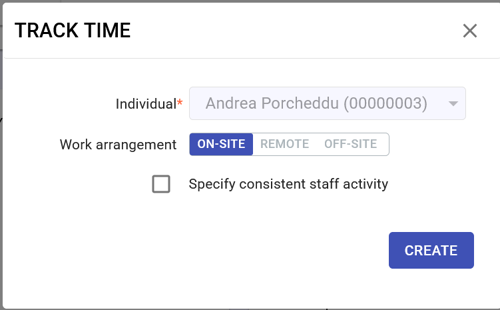
The RECORD TIME ACTIVITY panel will open, where you can select the work mode from:
-
- On-site
- Remote
- Off-site
4. Confirm
To confirm, click on CREATE.
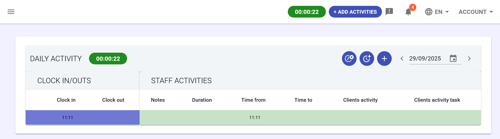
After confirming, the Daily Activity module will appear on the main screen, which will start the day timer, showing the actual time worked.
Clock Out / Pause
To clock out or pause, follow these steps:
1. Access the GSI system
Log into the system with your credentials and navigate to the My GSI module.
2. Locate the CLOCK OUT button
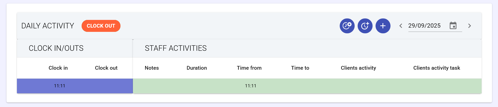
In the Daily Activity module, hover your mouse over the active timer. The timer will turn red and the text CLOCK OUT will appear.
3. Close the clock record
-
- Click on CLOCK OUT.
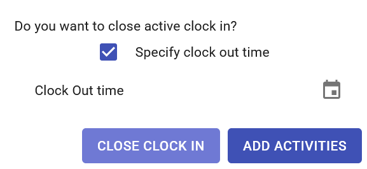
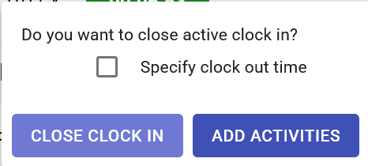
- A window will open asking you to confirm if you want to close the active record.
- If you want to specify an exit time earlier than the current time, check the Specify exit time box and enter the desired time.
4. Confirm
Click on CLOSE RECORD to complete the clock out.
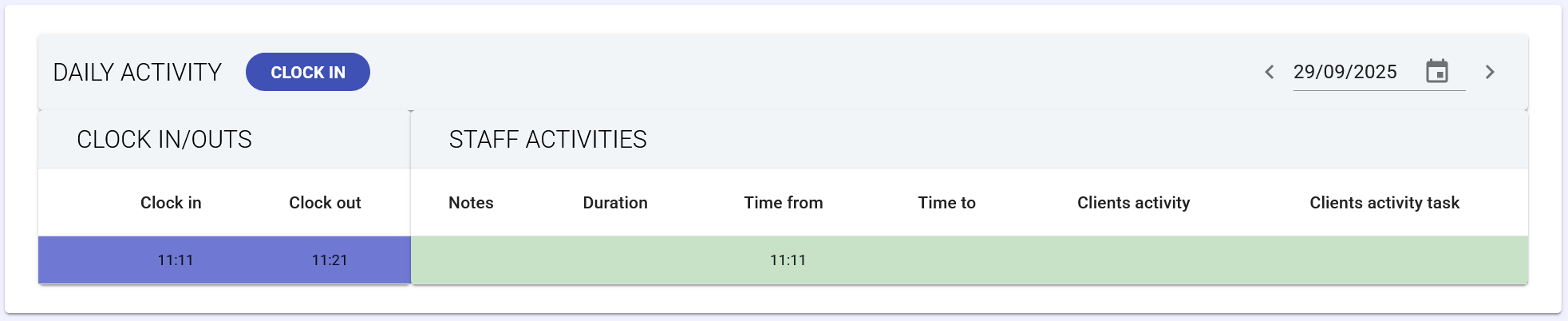
In the Daily Activity module, your exit will be recorded and visible in the CLOCK RECORDS panel, along with the time and selected work mode.
Missed Clock Record
If you forget to clock in or out, follow these steps to resolve the anomaly:
1. Clock normally
If you forgot to clock in, clock in late as you normally would and complete all clock records for the day. At the end of the day, the system will flag an anomaly.
2. View anomalies
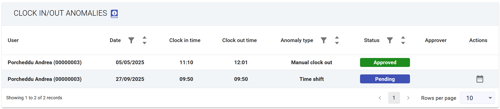
Go to the Staff module, in the Anomalies section. Here all detected anomalies are displayed in table format.
3. Add a resolution proposal
Click on the Add proposal button next to the anomaly you want to resolve.
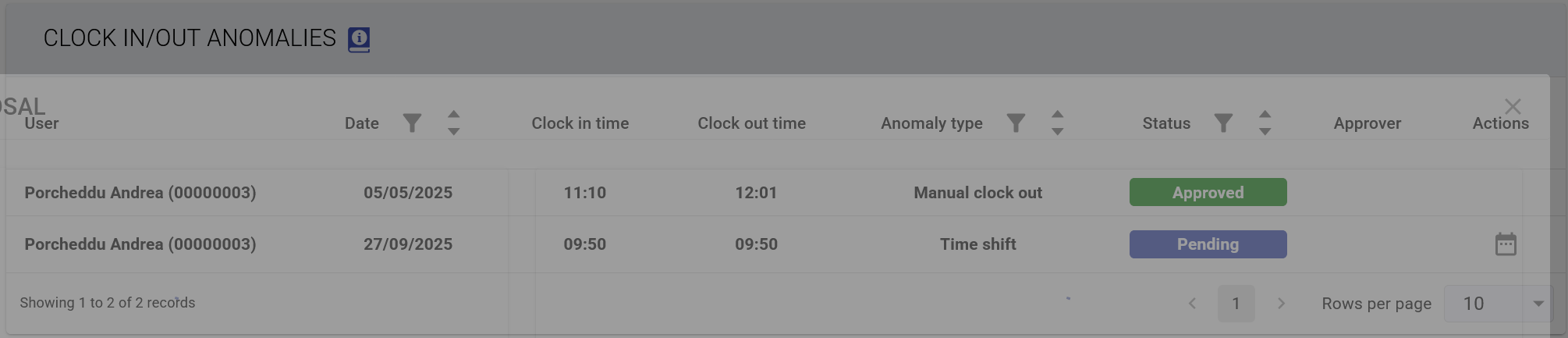
The Edit anomaly proposal screen will open. At the bottom right, click on Add new proposal.
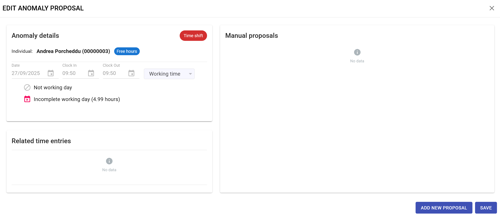 4. Enter proposal details
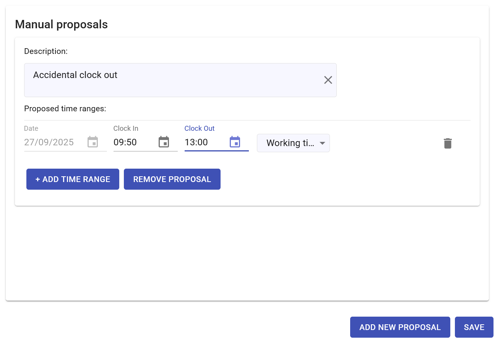
In the Manual proposals section you can:
-
- Enter a description of the proposal.
- Enter the time intervals (clock in and clock out times) or check the Absence for the entire day box.
- Select the proposal type:
- Working hours: if you were present but forgot to clock in/out.
- Absence: if you were not present at the workplace (illness, vacation, etc.).
5. Save the proposal
Once all details are completed, click on Save to record the changes.
6. Review and modify the proposal
Your proposal will be sent to your approver. If you need to modify it, you can select the desired anomaly row, click on Add proposal again and view the already submitted proposal to update it.