-
In this article you will find
Submitting a new absence request
To submit a new absence request, follow these steps:
- Log in to the GSI2 system – Use your credentials to log in and go to the main menu.
- Navigate to Staff → Absences – From the main menu, select the Staff section, then click on Absences.
- Click the “+” button – You will find the button at the top right of the page to add a new request.
- Fill out the request form – A panel will open where you need to complete the following fields:
- Employee: This field will be pre-filled with your name (you can only request absences for yourself).
- Type: Leave set to “Absence Request”
- Absence Type: Select the appropriate type from the dropdown menu:
- VACATION (7004): Annual leave
- ROL (7051): ROL leave
- SICKNESS: Sick leave
- PAID LEAVE: Paid leave
- UNPAID LEAVE: Unpaid leave
- Absence Duration Type:
- One day: Full-day absence
- Multiple days: Consecutive days absence
- Partial day: Absence for a few hours
- Dates and Times:
- One day: Select only the date from the calendar
- Multiple days: Select “From date” and “To date”
- Partial day: Select the date and specify “From time” and “To time”
- Attachments (optional): Attach any supporting documents (medical certificates, special permissions) by clicking Choose File
- Save the request – Click SAVE to submit your request.
- After submission
- The request will appear in the list with the status “Requested”
- You will receive a notification when your manager approves or rejects the request
- You can monitor the status from the MyGSI dashboard or the Absences section.
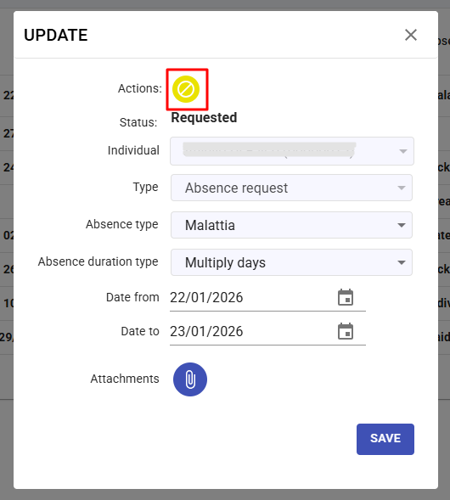
Delete an absence request
To cancel a request that has not yet been approved, follow these steps:
- In the absences table, find the request you want to delete
- Next to the request, click the "Update" button

- A confirmation window will appear; click "Cancel" button, near "Actions" label.