-
Multi Factor Authentication (MFA) can be enabled by Company admin (or other users with appropriate permissions) at company or individual level.
The option to enable MFA at company level (as default for the company’s individuals) can ben found under the “Organization” > “Company” > “Company login settings” tab.
Individual’s default is the “Use company settings” option, which inherits the choice made in the “Company login settings” card, but it can also be changed to individually apply a specific option:
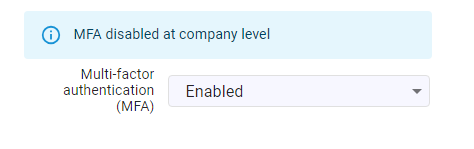
This settings can be found in the “Organization” > “Individuals” > “MFA Configuration” tab.
Once enabled, on next login the user will be prompted to configure MFA:
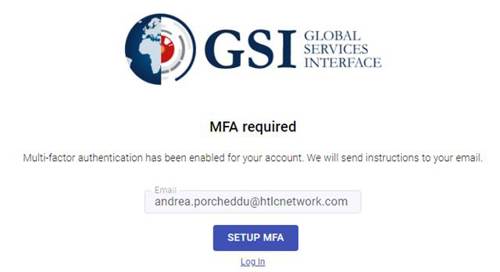
Clicking on the “Setup MFA” button will result in an activation email being sent to the user’s registered company email, containing a link following which the user is presented with it’s token in text and QR code format.
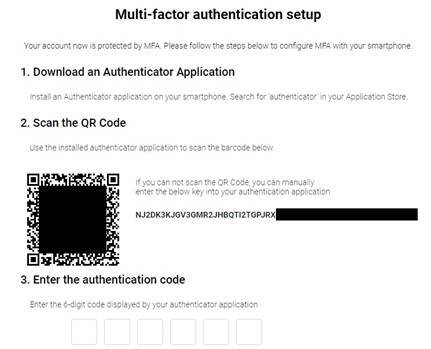
As authenticator app we suggest downloading “OpenOTP Token”, but any standard OTP authenticator app (e.g. Google or Microsoft Authenticator) would also work.
Here is provided the link for the Android version:
https://play.google.com/store/apps/details?id=com.rcdevs.auth&pcampaignid=web_share
And the iOs version:
https://apps.apple.com/us/app/openotp-token/id1148075952
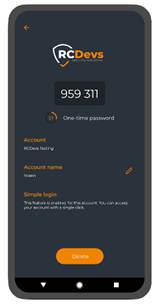
Once in the app (in the case of OpenOTP), the user should use the “Add” option (the button with the “plus” icon in the bottom center of the app) and scan the QR code with the mobile phone camera in order to associate the token. Once this step is completed, a “GSI2” account will be added in the app, opening which the 6-digits temporary code will be provided.
Entering the code concludes the setup.
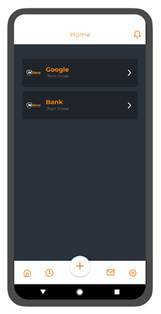
On every following logins, after entering the username and password, the user will be presented with the same request verification:
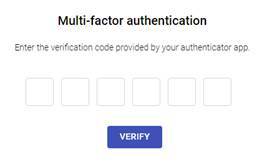
Providing the temporary verification code shown by the chosen linked Authenticator app will allow the user to complete the login.
In case the authenticator device is lost, the setup can be reinitialized by hitting the “Reset MFA” button in “Organization” > “Individuals” > “MFA Configuration” section.