-
The Currencies module in GSI2 provides essential financial infrastructure for multi-currency operations across the entire platform. This foundational component enables organizations to operate globally by supporting multiple currencies, managing exchange rates, and ensuring accurate financial calculations throughout all system modules.
Key Concepts
Default Currency
The system requires a single default currency to be designated as the primary reference point for all monetary calculations. This currency serves as the baseline for financial data storage, reporting, and calculations within GSI2.
Exchange Rates
Exchange rates form the backbone of multi-currency operations, enabling real-time conversion between the default currency and all other configured currencies. The system supports both automatic daily updates and manual rate management.
Accessing Currency Management
- Navigate to General Tables
From the main menu, access the "General Tables" or "Setup & Tables" section. - Select "Currencies"
Click on the item to open the currency management interface. - View the main interface
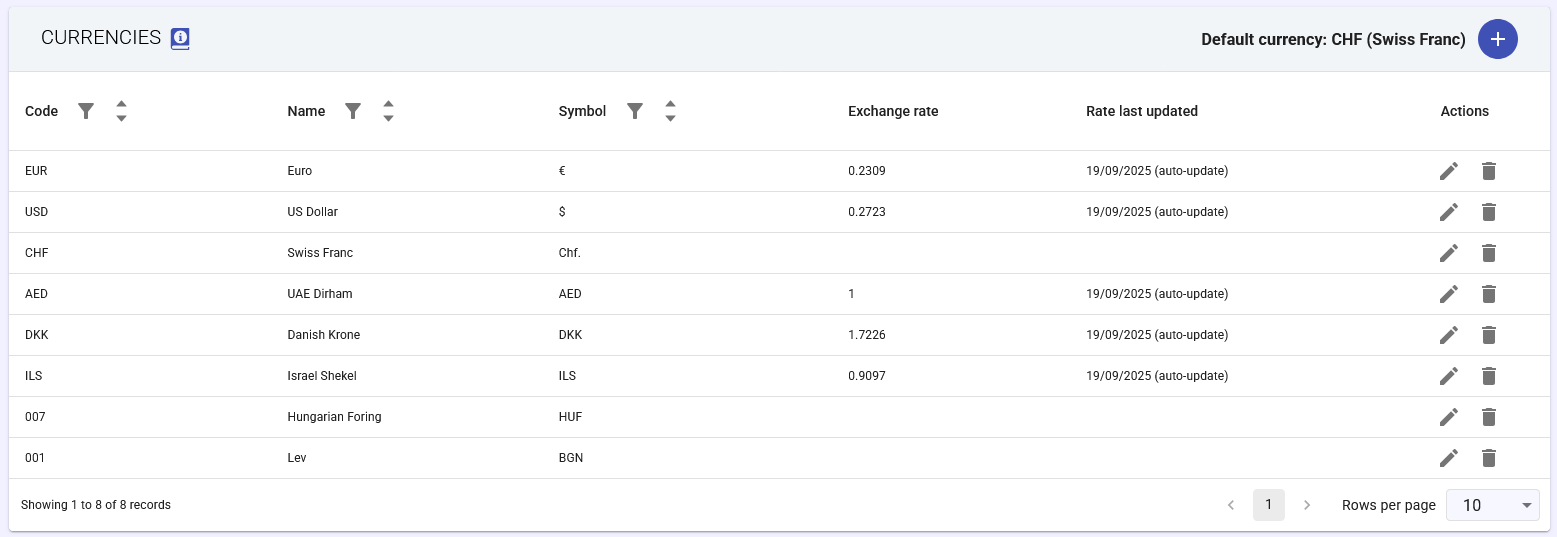
You'll immediately notice:- The current default currency shown at the top right (e.g., "Default currency: CHF (Swiss Franc)")
- The table with all configured currencies
- The "+" button to add new currencies
Currency Table Structure
The table displays the following columns for each currency:
- Code: Three-letter ISO 4217 code (e.g., EUR, USD, CHF)
- Name: Full currency name (e.g., Euro, US Dollar, Swiss Franc)
- Symbol: Display symbol used (e.g., €, $, CHf.)
- Exchange Rate: Current conversion rate from default currency
- Rate Last Updated: Date and time of last update with auto-update indicator
- Actions: Icons to edit or delete the currency
Adding a New Currency
- Click the "+" button
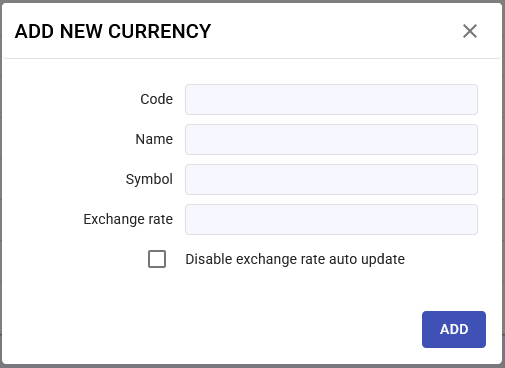
The "ADD NEW CURRENCY" window will open. - Fill in required fields
- Code: Enter the three-letter ISO code (e.g., EUR for Euro, USD for US Dollar)
Tip: Always use standard ISO 4217 codes to ensure compatibility - Name: Type the full currency name (e.g., "Euro", "US Dollar")
- Symbol: Enter the display symbol (e.g., €, $, £)
Note: You can use special symbols or abbreviations like "CHf." for Swiss Franc - Exchange Rate: Enter the conversion rate from the default currency
Example: If the default currency is CHF and 1 CHF = 0.92 EUR, enter 0.92
- Code: Enter the three-letter ISO code (e.g., EUR for Euro, USD for US Dollar)
- Configure automatic updates (optional)
If you want to manage exchange rates manually, check "Disable exchange rate auto update". - Save the new currency
Click "SAVE" to add the currency to the system.
Editing an Existing Currency
- Locate the currency in the table
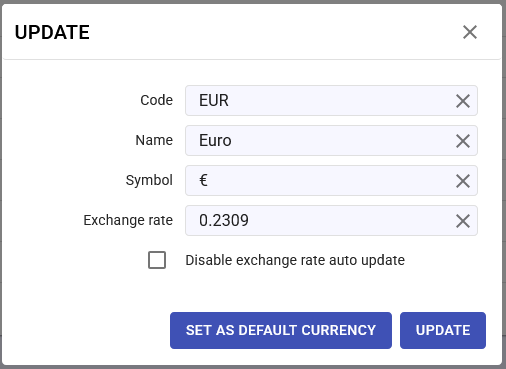
Find the currency you want to modify in the list. - Click the edit icon
Click the pencil icon in the "Actions" column. - Modify necessary data
In the edit window you can:- Update the code, name, or symbol
- Manually modify the exchange rate
- Enable/disable automatic rate updates
- Set as default currency (if needed)
If you want to make this the system's default currency:- Click the "Set as Default Currency" button
- Confirm the operation (this will change the reference for all calculations)
- The system will automatically recalculate all exchange rates
- Save changes
Click "UPDATE" to save the modifications.
Managing Exchange Rates
Automatic Updates
By default, GSI2 automatically updates exchange rates daily from external sources. This ensures that financial calculations are always based on current rates.
Manual Updates
If you prefer to manage rates manually:
- During creation or editing, check "Disable exchange rate auto update"
- Manually enter the desired exchange rate
- Periodically update rates according to your needs
Rate Calculation
Important: The exchange rate represents how many units of the foreign currency equal 1 unit of the default currency.
Example: If CHF is the default currency and 1 CHF = 0.92 EUR, the rate for EUR will be 0.92
Deleting a Currency
- Check usage
Before deleting, ensure the currency isn't used in:- Existing transactions
- Contracts or documents
- Pricing configurations
- Click the delete icon
In the "Actions" column, click the trash can icon. - Confirm deletion
The system will ask for confirmation. Click "OK" to proceed.
Note: You cannot delete the default currency. You must first set another currency as default.
- Navigate to General Tables