-
This article explains how to:
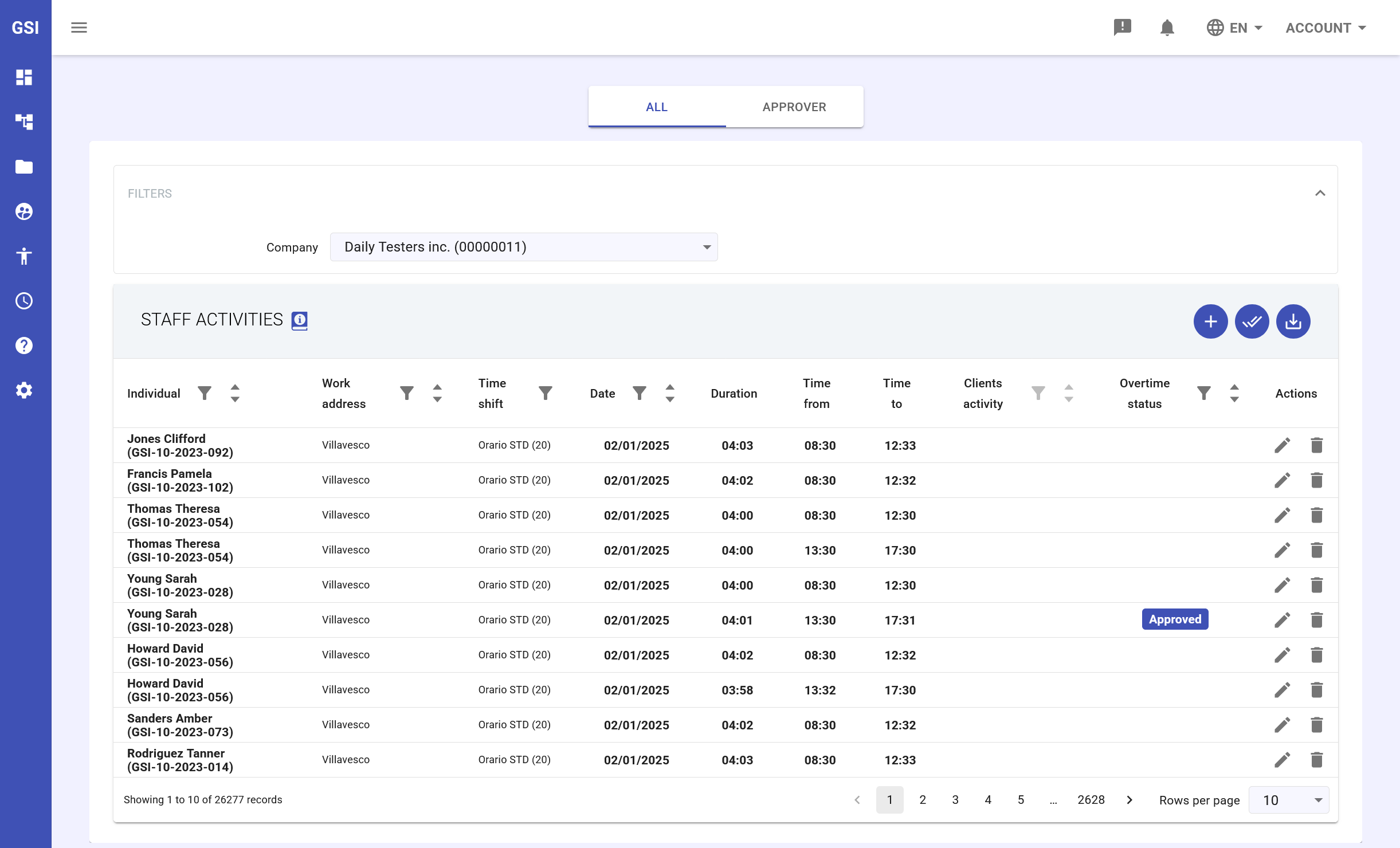
In the Staff Activities module, you can manage, view, and update all employees’ work activities.
The main view is divided into two tabs: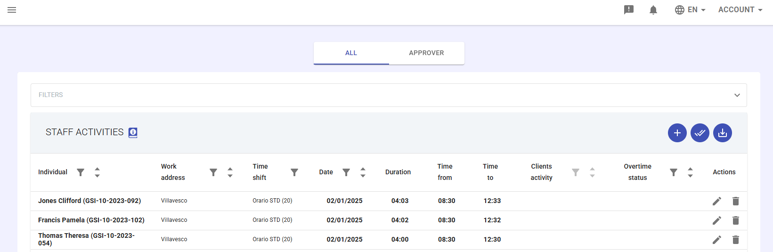
- All – displays all activities within the organization (visible to managers).
- Approver – allows viewing activities filtered by approver and company (restricted to system administrators).
Create a staff activity
To create a new staff activity, follow these steps:
- Access the module
Go to Staff → Staff Activities – this section lists all staff activities in a table view.
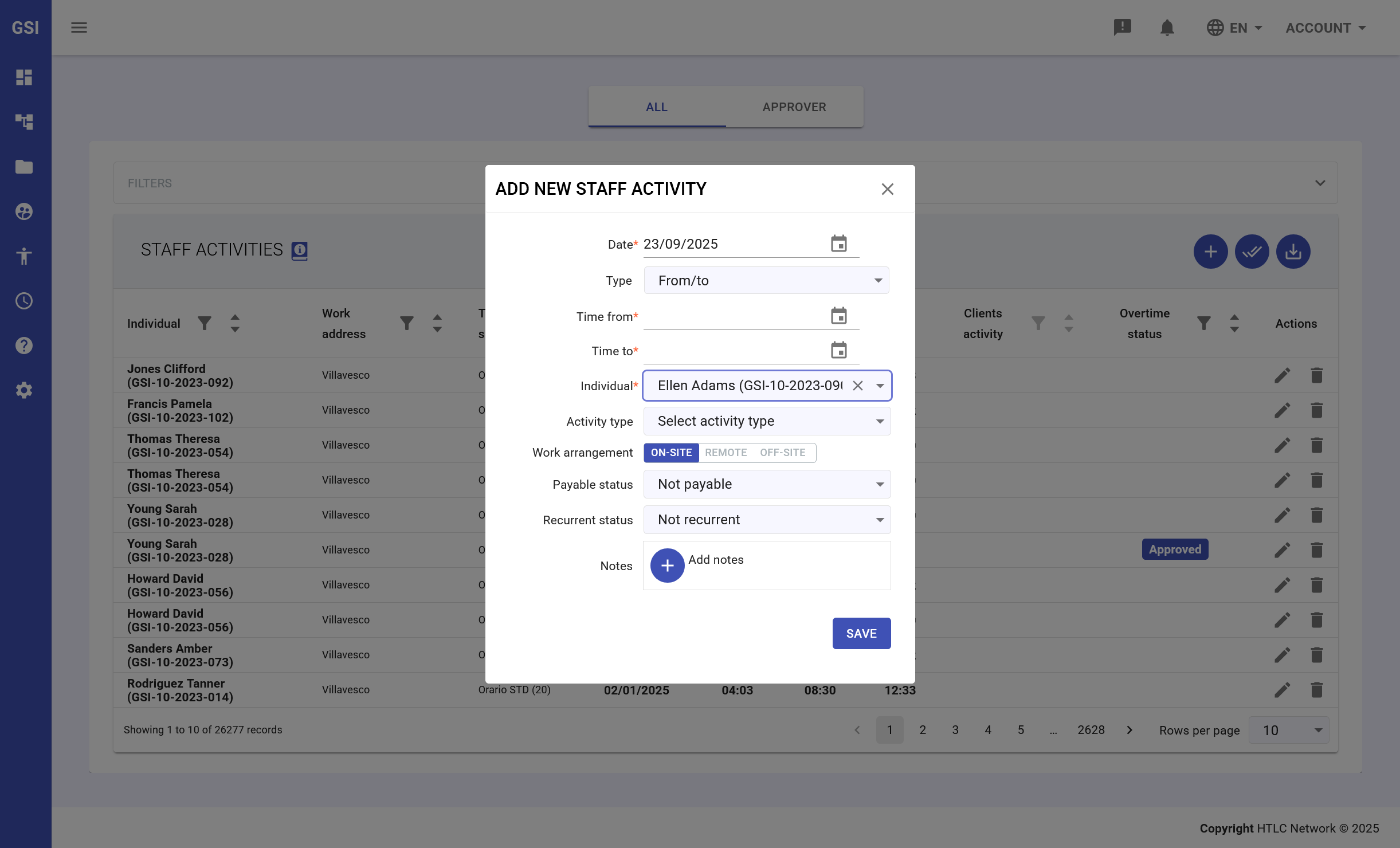
You can filter by specific employee, date range, work location, and approval status. - Create a new activity - Click the + icon in the top-right corner of the Staff Activities module to create a new activity.
A panel will open where you can enter the following details:- Date
- Type
- Time from
- Time to
- Individual
- Activity type
- Work arrangment
- Payable status
- Recurrence status
- Notes
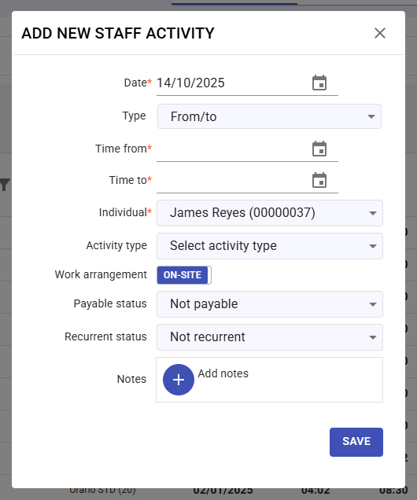
- Save changes
Click SAVE to store the new activity.
Edit or delete a staff activity
To edit or delete a staff activity, follow these steps:
- Access the module - go to Staff → Staff Activities; this section lists all staff activities in a table view.
You can filter by employee, work location, shift, date, and status - Edit or delete the activity
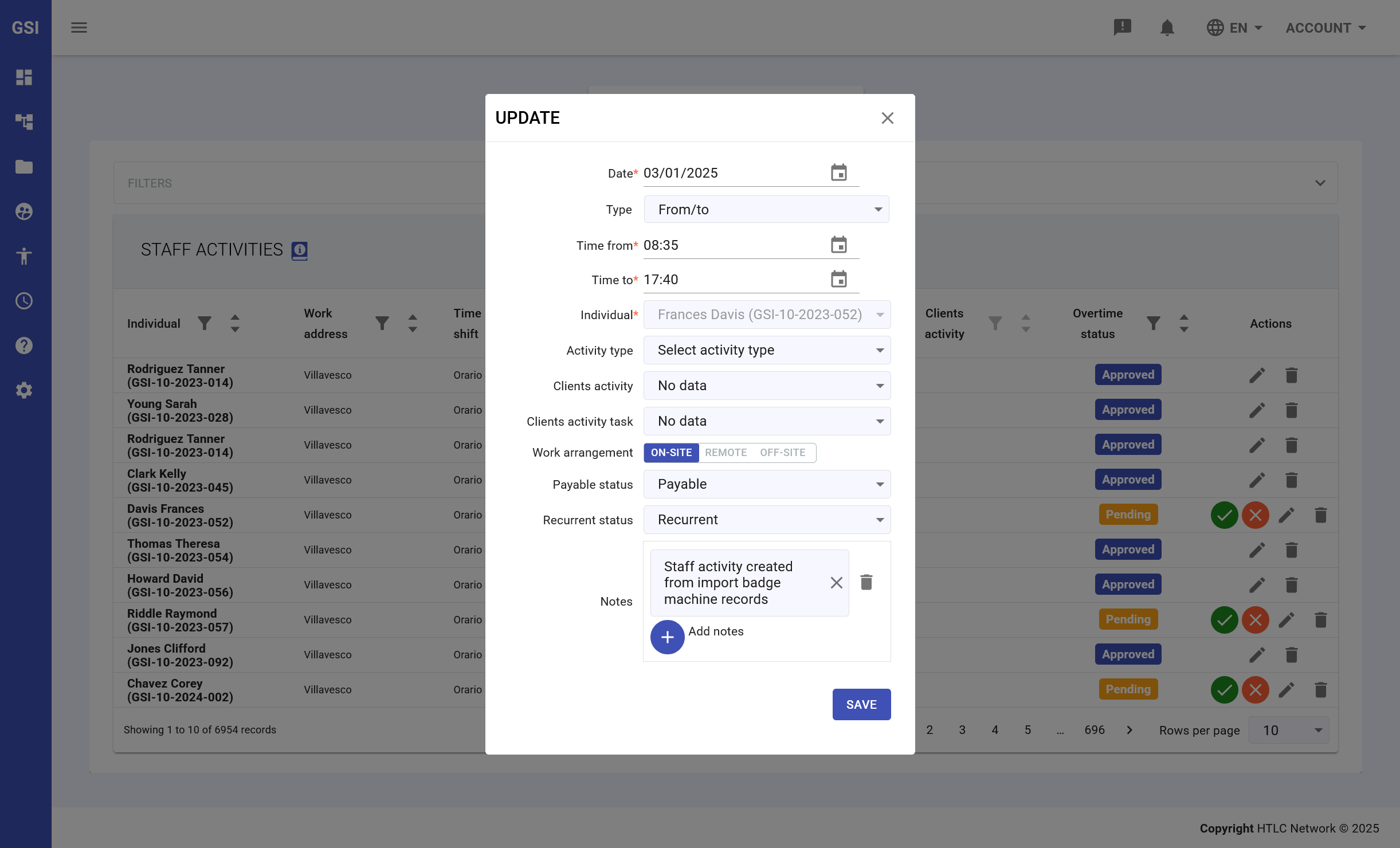
In the last column of the row, you’ll find two buttons: Pencil: edit the activity details such as type, time, work mode, and notes.
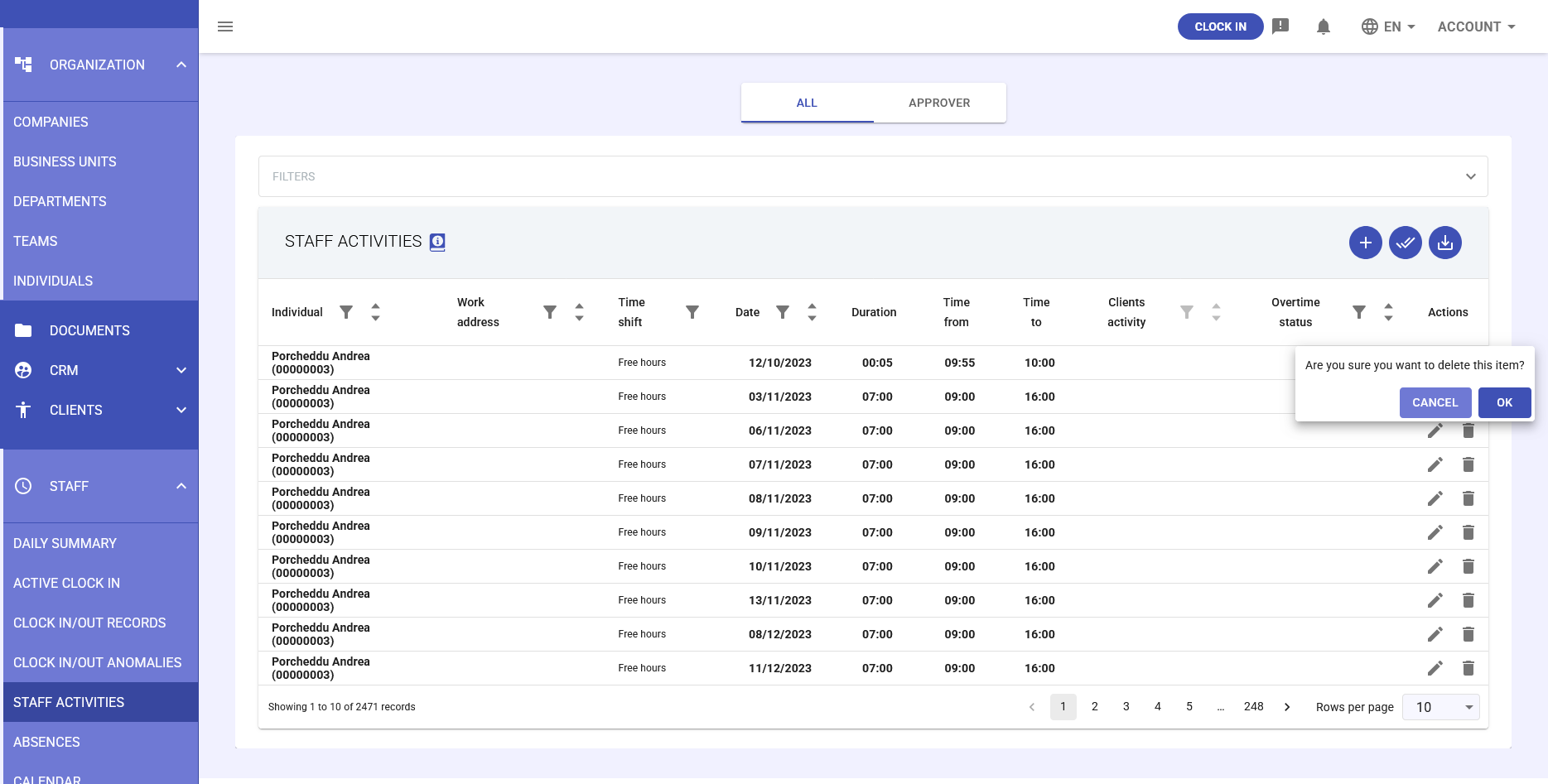
 Trash bin: delete the activity.
- Save changes - click OK/UPDATE to confirm and save your changes.