Esporta
-
Prerequisites
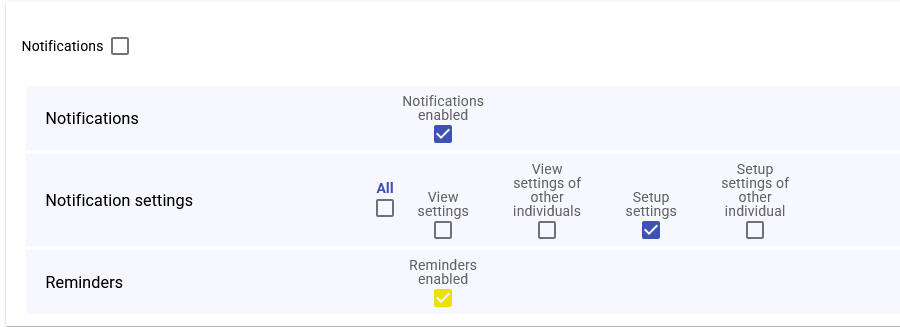
Before configuring notifications, ensure you have the right permissions. Admin must assign:
- Notifications – Allows receiving notifications
- Notification settings – Allows configuring your own notifications
- View settings of other individuals – Allows viewing others’ settings
- Setup settings of other individual – Enables BULK mode
Accessing the notifications module
- Click the bell icon in the top toolbar
- In the panel, click the gear icon to open “Notification Settings”
Configuring in SINGLE mode
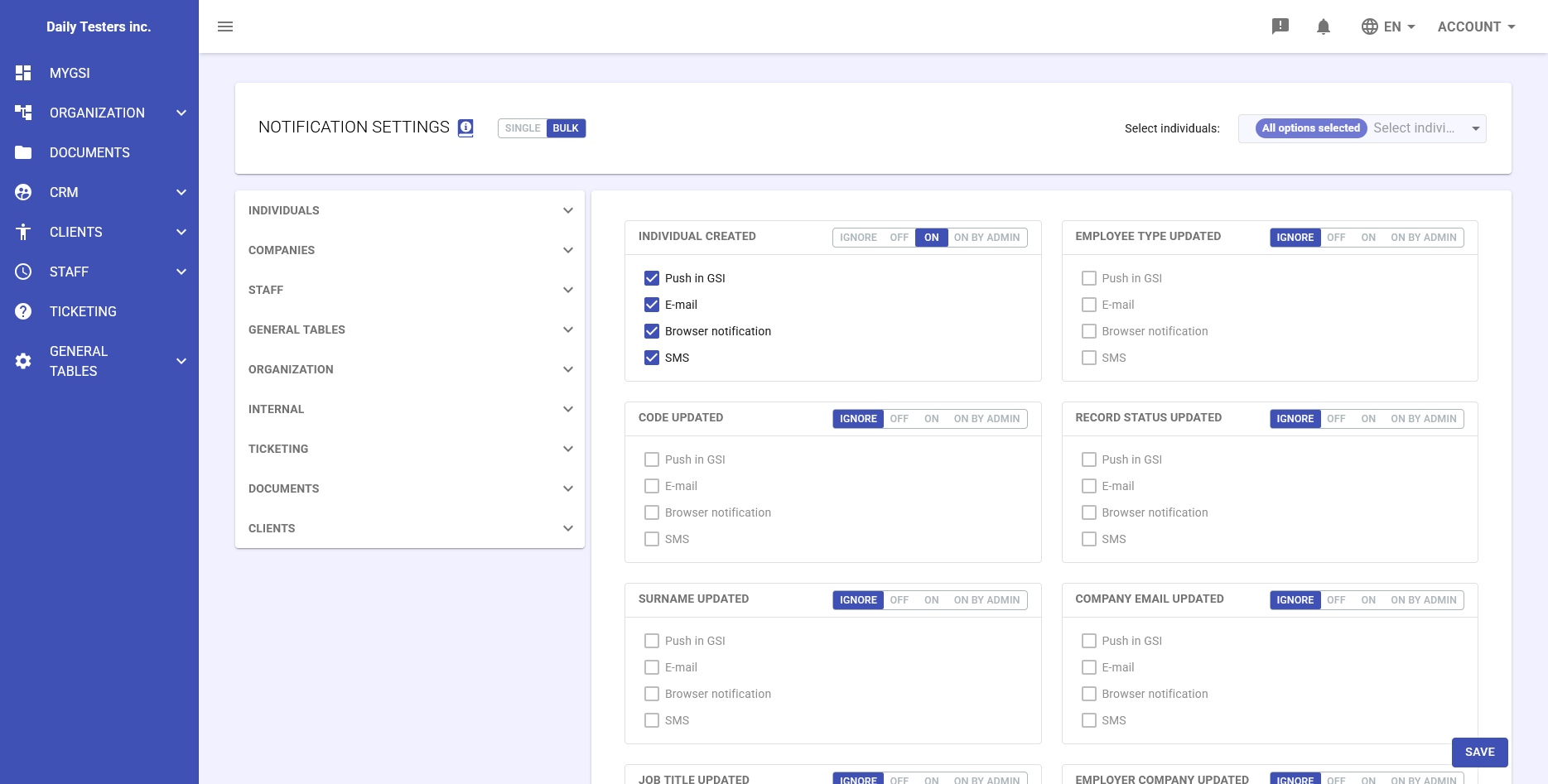
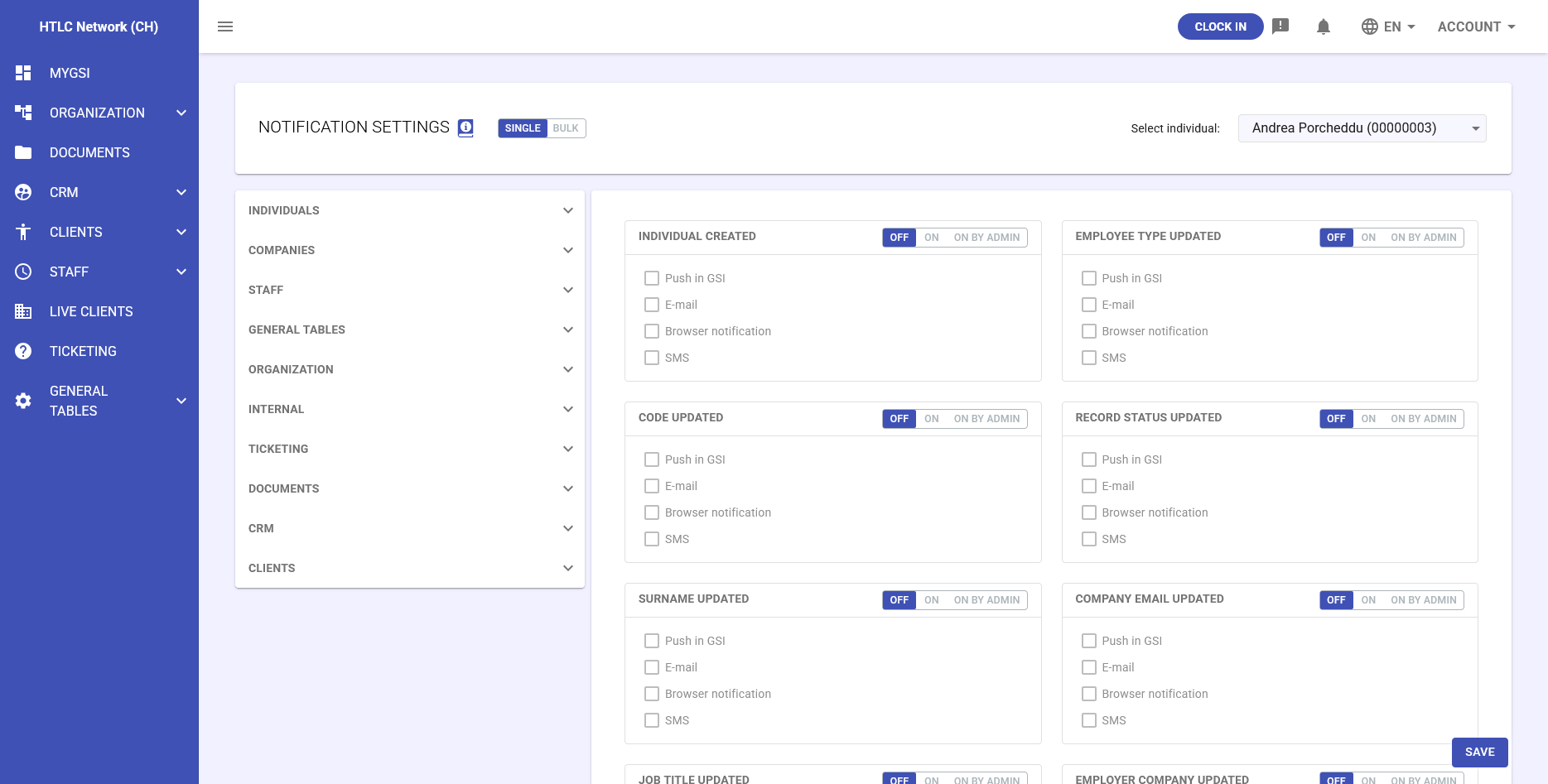
- If authorized, select user from “Select individual”
- Expand modules (INDIVIDUALS, COMPANIES, STAFF, etc.)
- For each category choose: IGNORE/OFF, ON, ON BY ADMIN
- Enable/disable channels: Push in GSI, Email, Browser notification, SMS
- Click SAVE
Configuring in BULK mode
Available only with “Setup settings of other individual” permission.
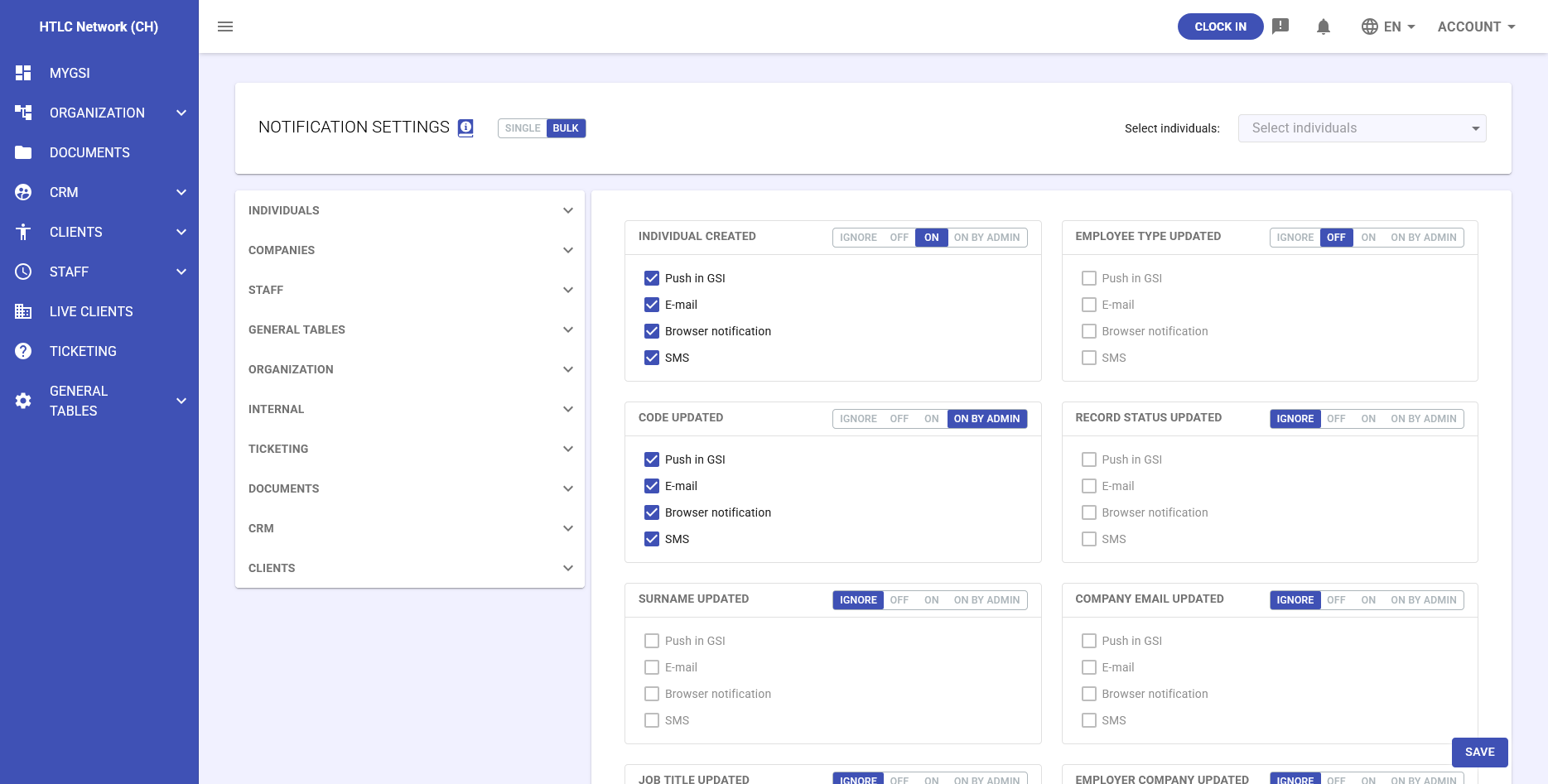
- Switch to BULK mode
- Select users (All, multiple with Ctrl/Cmd, range with Shift)
- Configure notifications as in SINGLE, applied to all
- Use ON BY ADMIN for mandatory notifications
Practical examples
- Example 1: Enable personal notifications (ticket created → ON, Push + Email)
- Example 2: BULK configuration for approved absences (ON BY ADMIN, all channels)
Troubleshooting
- No gear icon → check “Notification settings” permission
- Cannot disable → status ON BY ADMIN
- No notifications received → check permissions, browser authorization, email, spam folder
Tips
- Enable only essential notifications
- Use email for important events
- Push for urgent alerts
- In BULK, test on small group first
- Document company policies