-
Administrators can add employee profiles using two methods:
Both methods simplify the process of adding employees to the system, offering different levels of guidance depending on user preference and data complexity.
Note: If your company’s employees have a badge code, you must first create the corresponding code. For detailed instructions, refer to the article on Creating a badge code.
Direct entry
To manually enter an employee’s personal details into the system, follow these steps:
- Access the module
Go to Organization → Individuals– this section lists all employees in a table view.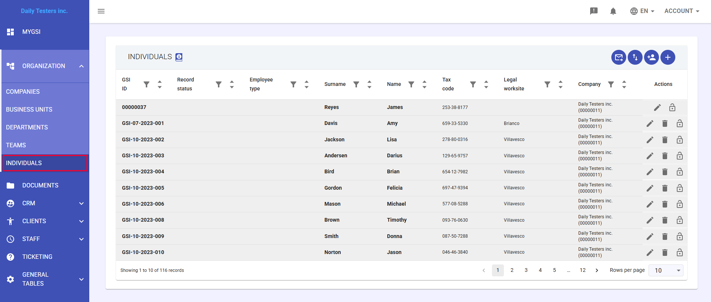
- Create a new employee
Click the + icon in the top-right corner of the Individuals module to create a new profile.
- Enter personal details
A panel will open on the General tab, where you can enter the employee’s personal information.
Fields marked with a red asterisk (*) are mandatory.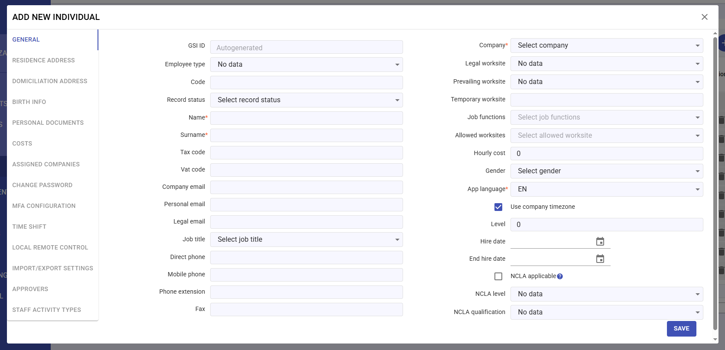
- Save changes
Click SAVE to store the data and create the employee profile.
Guided entry (wizard)
The guided procedure offers a step-by-step process to help users easily add new employees.
Here’s how to create an employee using the wizard:- Select the guided procedure
Click the person icon with a + located in the top-right corner of the Individuals module.
This icon represents the option to add employees using the guided procedure.
- Enter the employee’s main information
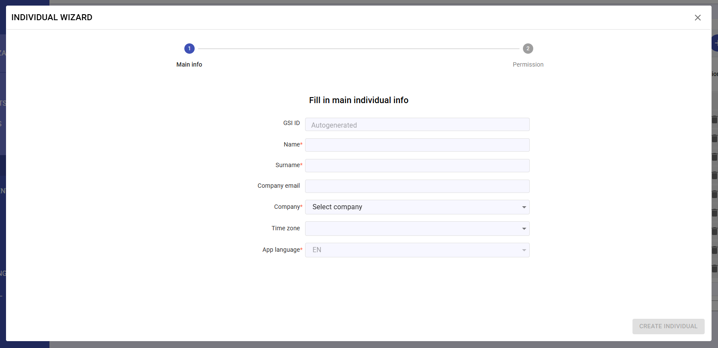
The system will guide you through several steps, asking for key information such as:- First name
- Last name
- Company email
- Company name
- Application language
- Submit data
Once all steps are completed, click Create individual.
The details will be saved in the system, and the employee will receive an email with instructions to register in the GSI system. - Set employee permissions
You’ll be redirected to a module where you can configure specific permissions for the employee within the following modules:- Individuals
- Companies
- Permissions
- Staff
- General Tables
- Organization
- Notifications
- Mobility Integration
- Internal
- Ticketing
- Files
- Documents
- CRM
- Customers
- Review and save
- Once configuration is complete, click Set Permissions to finalize the process.
- A Success notification will appear confirming completion.
- Access the module