-
This guide walks you through assigning work shifts (timeshift) to individual employees in GSI2.
Accessing the Section
- From the main menu, navigate to Organization → Individuals
- Locate the employee in the table
- Click the pencil icon to edit
- Click on the Time Shift tab
Interface Overview
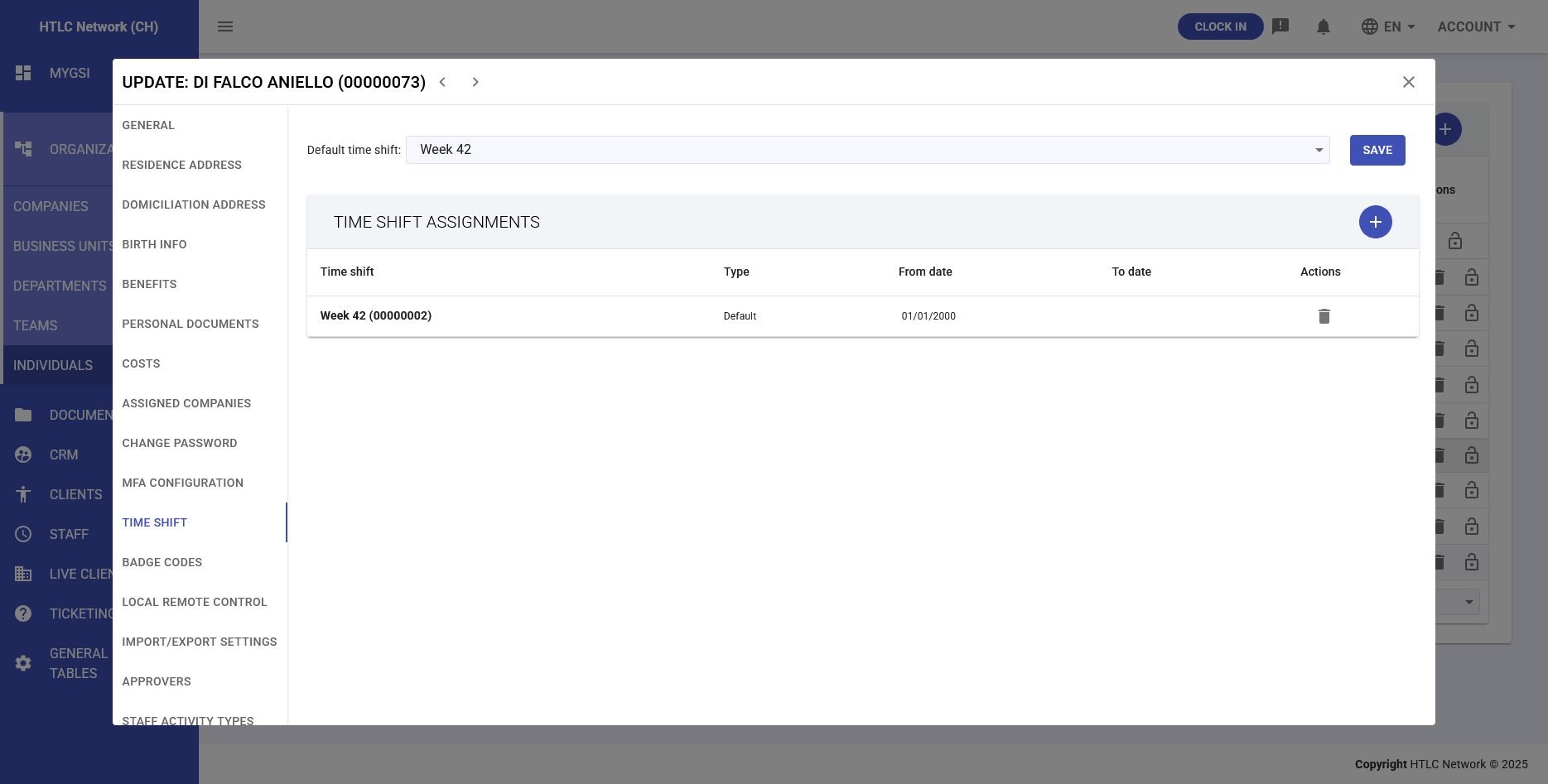
The Time Shift section shows two main areas:
- Default Time Shift: Employee's main shift
- Time Shift Assignments: Table with all assigned shifts (default and temporary)
Assigning Default Shift
- In the Default Time Shift field, open the dropdown menu
- You'll see all shifts configured in Staff → Time Shifts
- Select the appropriate shift for the employee:
- Range: for fixed daily hours
- Custom Range: for variable hours
- Weekly: for weekly management
- Duration: for flexible daily hours
- Unlimited: no restrictions
- Click SAVE to confirm
- Important: Default shift activates from the next day after assignment
Viewing Assigned Shifts
In the Time Shift Assignments table you'll see:
- Time Shift: Shift name and code
- Type: "Default" or "Custom"
- From Date: Validity start date
- To Date: End date (empty if active)
- Actions: Delete button
Adding Temporary Shift
- Click the + button above the assignments table
- In the "ADD TIME SHIFT ASSIGNMENT" window:
- Select the Time Shift from the dropdown
- Set the From Date (start date)
- Set the To Date (end date)
- The Type will automatically be "Custom"
- Click ADD to confirm
- Use for:
- Colleague vacation coverage
- Temporary projects
- Training periods
- Extraordinary shifts
Modifying Existing Shift
Warning: You cannot directly modify an assigned shift. You must:
- Assign a new default shift (will start tomorrow)
- Old shift will automatically receive end date (today)
- Or delete the assignment and create a new one
Impact of Shift Change
CRITICAL: Timeshift change automatically triggers:
- Clock In/Out Recalculation: All period records are recalculated
- Anomaly Detection: New anomalies per new rules
- Resolution Reset: Resolved anomalies return to pending
- Overtime Reset: Approved overtime needs re-approval
- New Rules: New shift rules apply
Shift History Management
- System automatically maintains complete history
- When assigning new default:
- Previous receives end date (today)
- New starts tomorrow
- No overlaps
- Temporary shifts can overlap default
- In case of overlap, temporary prevails
Post-Assignment Verification
- After assignment, check in Staff → Anomalies
- Check any new generated anomalies
- Verify in Staff → Clock In/Out Records the recalculations
- If needed, re-approve overtime in Staff Activities
- Communicate shift change to employee
Best Practices
- Plan shift changes in advance
- Avoid frequent changes to prevent too many anomalies
- Use temporary shifts for short-term needs
- Always verify impact on existing records
- Document change reason in notes
- Coordinate with HR for structural changes
- Consider impact on badge and access
- Train employees on new schedule