-
The Zucchetti Workflow import feature allows organizations to import attendance and staff data from Zucchetti Workflow exports into GSI2. This process uses Excel files exported from the WORKFLOW system following the standard export structure.
Prerequisites
Employee Mapping Configuration
Before importing, each employee must have their Zucchetti identifier configured in GSI2:
- Navigate to Organization → Individuals
- Select an individual to edit
- Go to the Import/Export Settings tab
- In the Staff Activities Import ID field, enter the employee's COD_DIPENDENTE from Zucchetti Workflow
- Click SAVE to store the settings
Important: The Staff Activities Import ID must match exactly with the COD_DIPENDENTE value in the Zucchetti export file for successful matching.
File Requirements
- File format: Excel (.xls or .xlsx)
- Must contain data exported from WORKFLOW system
- Must follow the standard WORKFLOW export structure
- Must include COD_DIPENDENTE field for employee matching
Import Procedure
- Navigate to Staff → Import
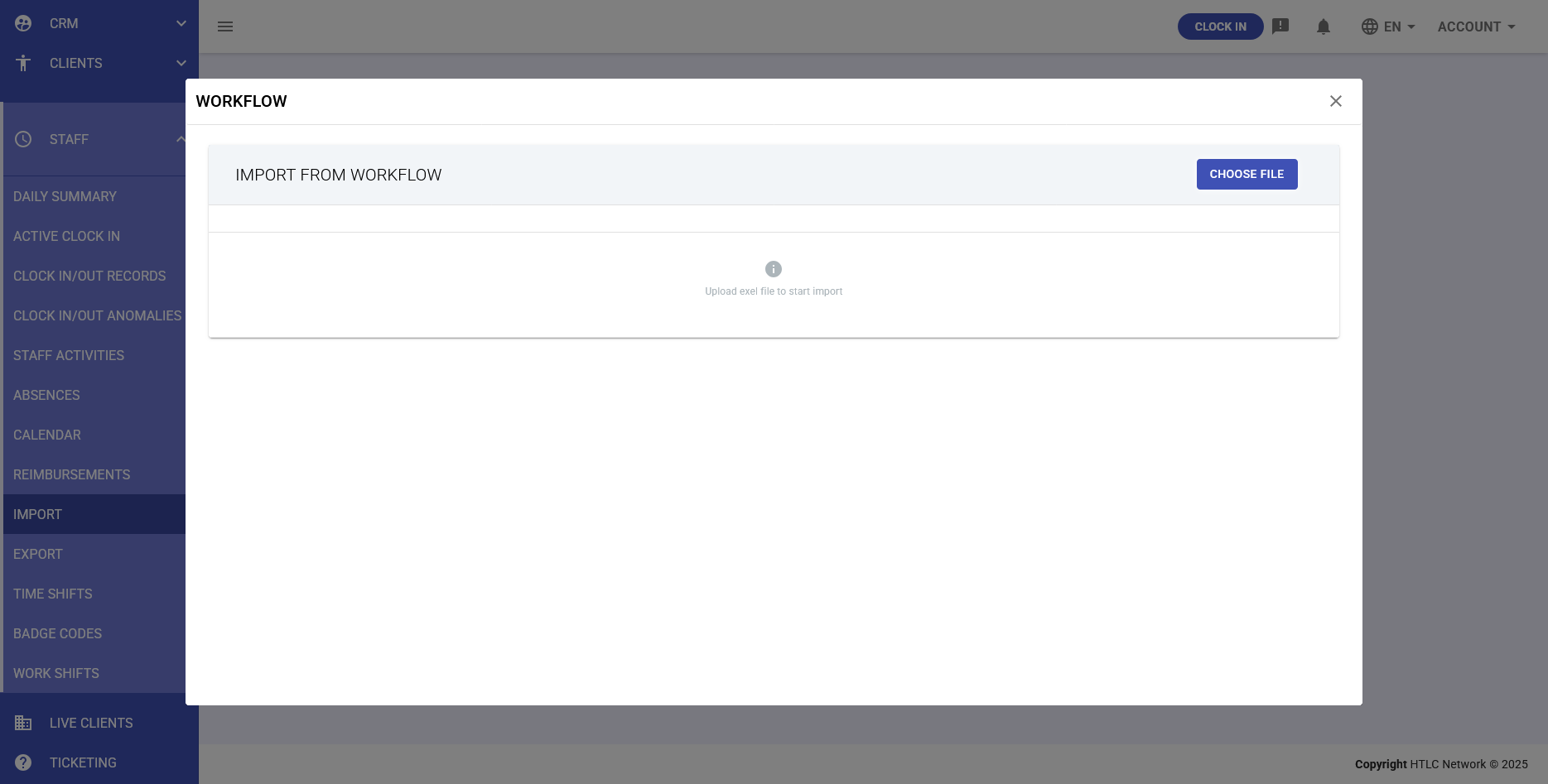
- Click on the WORKFLOW card
- Click the IMPORT button below the WORKFLOW icon
- A modal window titled "IMPORT FROM WORKFLOW" will open
- Click the CHOOSE FILE button in the top right
- Select the Excel file exported from WORKFLOW containing the staff data
- The system will automatically load the file and start the import process
Note: The message "Upload excel file to start import" will appear in the dialog window before file selection.
Imported Data Types
The import from WORKFLOW may include:
- Clock in/out records: Time stamp data from badge readers
- Clock in/out anomalies: Detected irregularities in attendance
- Staff activities: Validated work activities
- Absences and leave: Vacation, sick leave, and other absence types
- Work shifts: Assigned shift information
Import Process Flow
Data Matching
- System reads the COD_DIPENDENTE from each row in the Excel file
- Matches it with the Staff Activities Import ID configured for each individual
- Associates the imported data with the correct employee in GSI2
Data Processing
- Validates data format and completeness
- Checks for duplicates against existing records
- Processes records according to configured rules
- Creates or updates records in GSI2 database
Import Report
Upon completion, the system provides a detailed import report showing:
- Total number of records processed
- Successfully imported records
- Failed imports with error reasons
- Skipped duplicates
- Unmatched employees (COD_DIPENDENTE not found)