-
The TeamSystem export generates a technical file containing all employee attendance data for the selected month. This file is specifically formatted to be imported directly into the TeamSystem software for automatic payroll processing.
Access to Export Function
- Navigate to the STAFF section in the side menu
- Select EXPORT
- Choose the TeamSystem card
Export Procedure
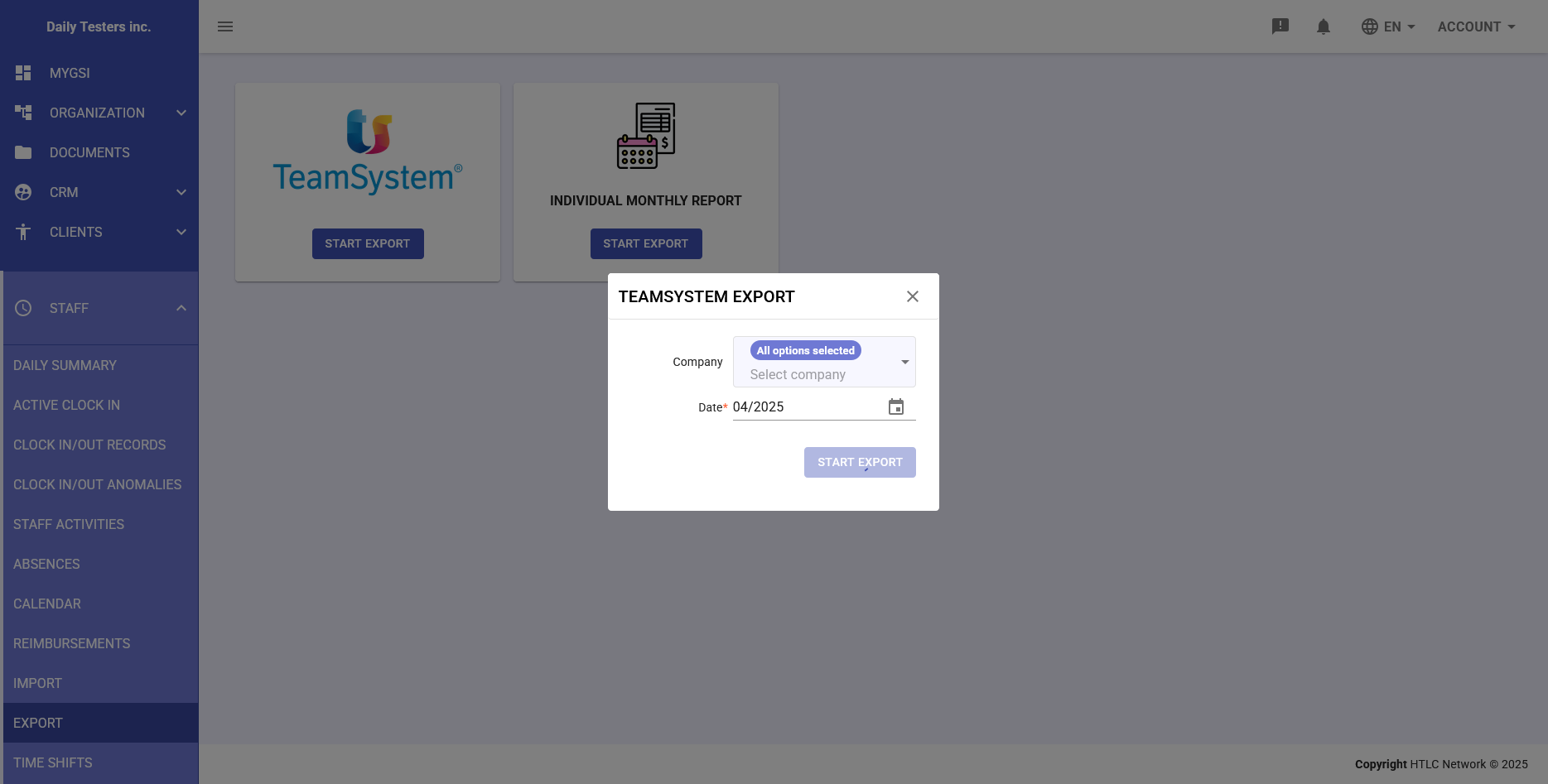
- From the main export screen, click on the TeamSystem card
- Click the START EXPORT button below the TeamSystem logo
- The "TEAMSYSTEM EXPORT" modal window will open
- Select the Company from the dropdown menu (or keep "All options selected")
- Select or verify the Date for the month to export (MM/YYYY format)
- Click the START EXPORT button
Error Checking and Warnings
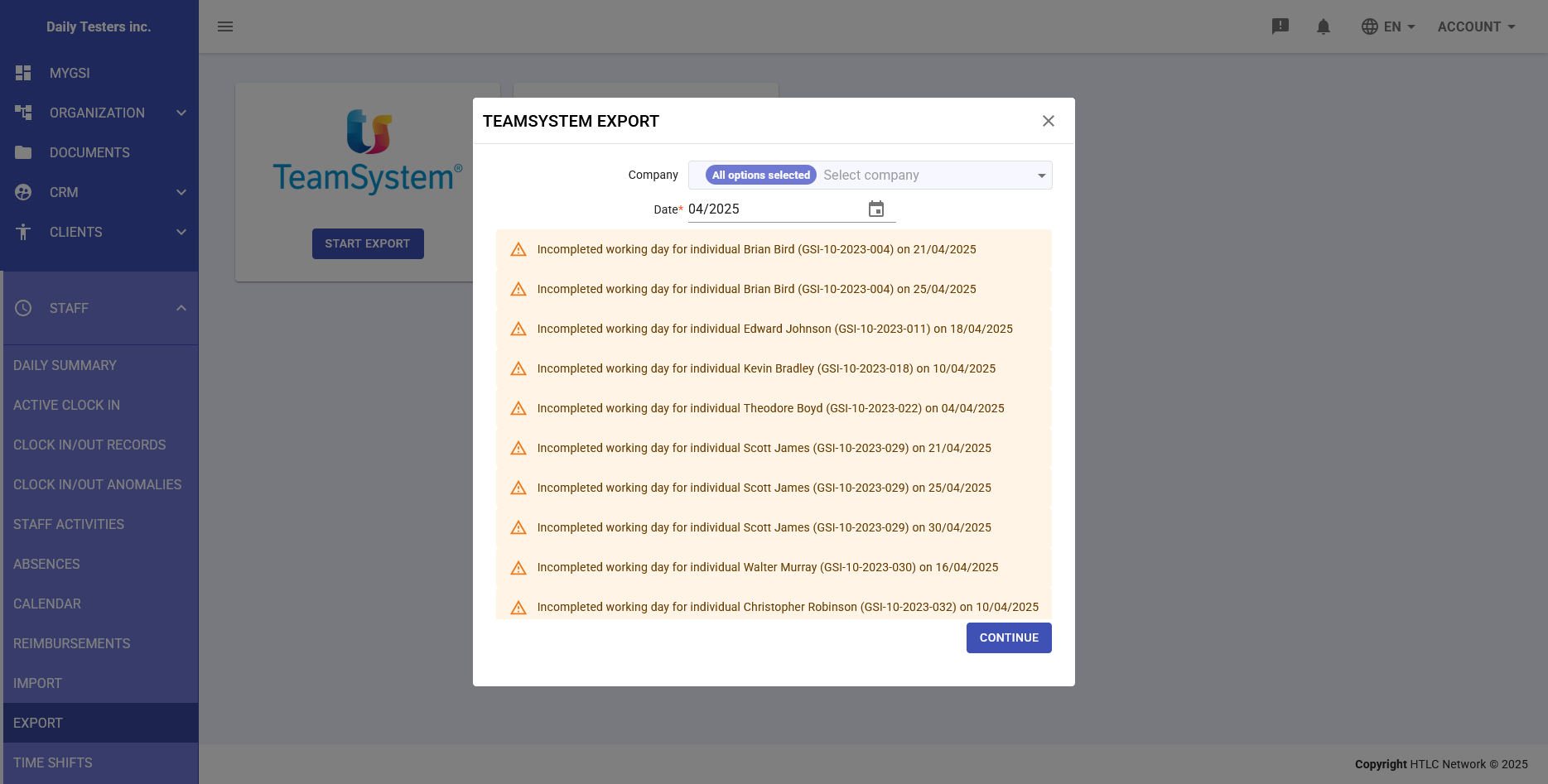
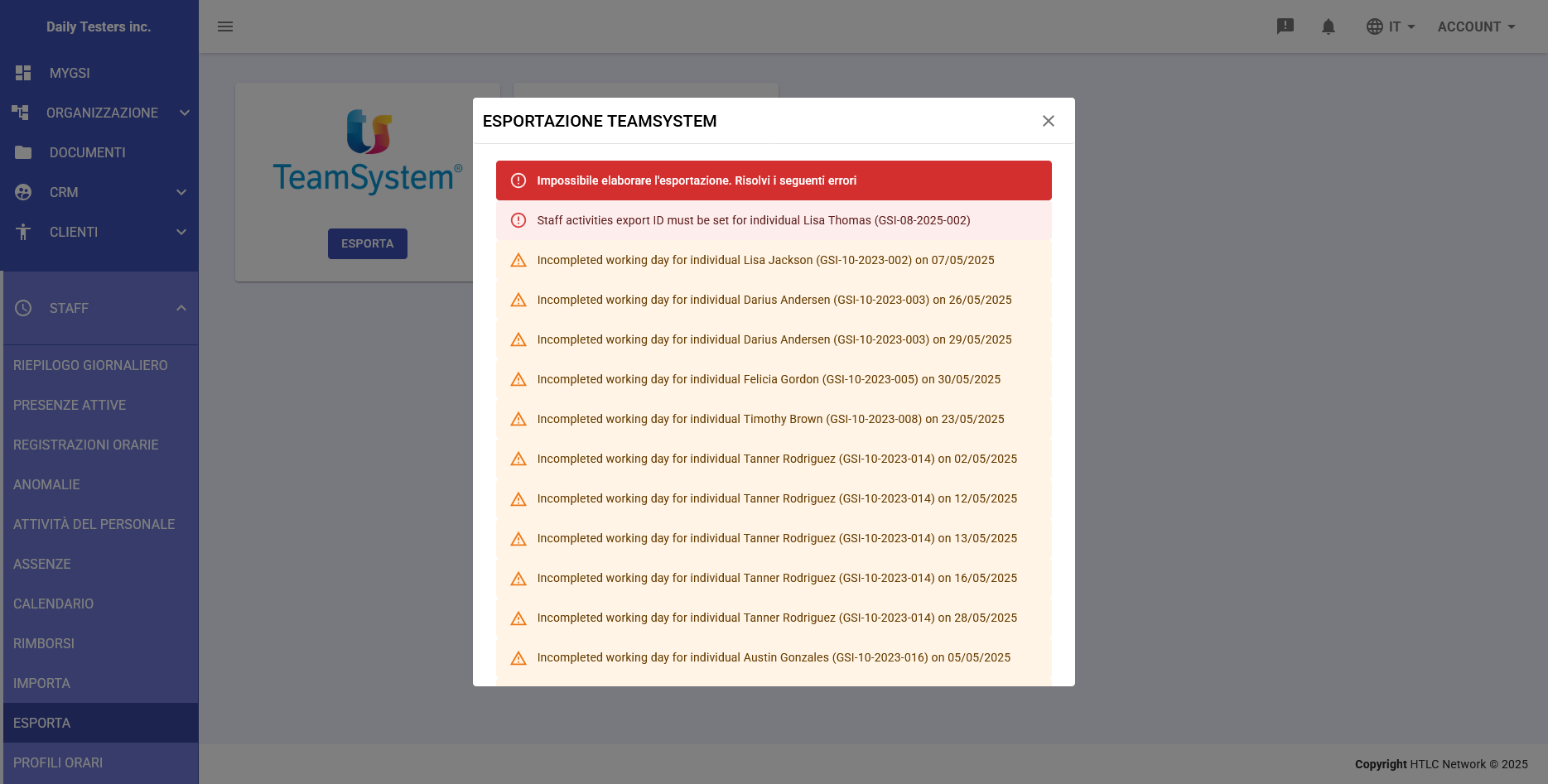
Before proceeding with the export, the system automatically performs a data check to identify any issues:
Blocking Errors (Red Indicator)
- Message: "Unable to process export. Resolve the following errors"
- Example: "Staff activities export ID must be set for individual"
- Required action: Blocking errors must be corrected before you can proceed with the export
- The export button remains disabled until all errors are resolved
Warnings (Yellow Indicator)
- Indicate incomplete working days for individual employees
- Example: "Incompleted working day for individual John Smith (GSI-10-2023-001) on 04/21/2025"
- Optional action: Warnings can be bypassed by clicking CONTINUE
- The decision to proceed despite warnings is under the manager's responsibility
Exported File Format
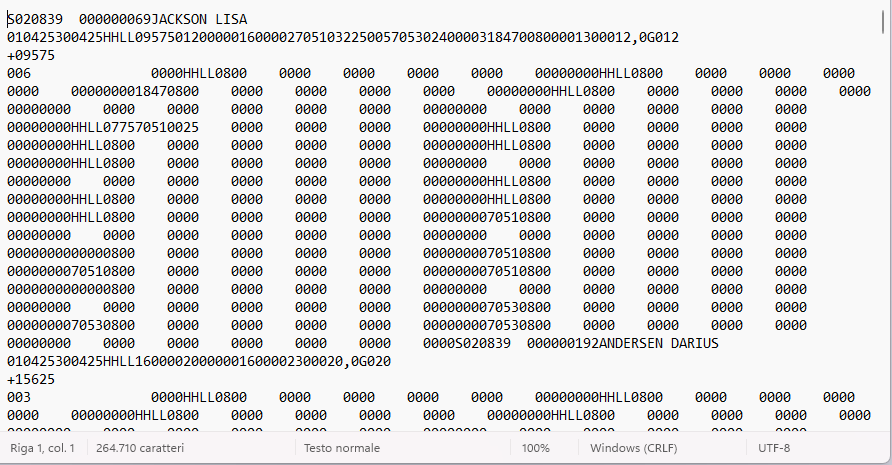
The exported file is in text format with specific encoding for TeamSystem, containing:
- Company code and reference period
- Employee codes and ID numbers
- Daily working hours
- Justification codes for absences
- Monthly totals by category (regular hours, overtime, vacation, leave)
File Name and Structure
The exported file is typically named OREPAGG.txt and follows the specific format required by TeamSystem for payroll import.