-
The Work Shifts section of the Staff module is designed for comprehensive management of weekly staff work shifts. Typically used in conjunction with "weekly" type Timeshifts, this section allows you to define work shifts week by week, with a preventive calculation system for planned weekly working hours utilization, identifying any missing hours or overtime for each resource.
Key features:
- Weekly shift planning by worksite and business unit
- Employee assignment based on job functions
- Automatic calculation of working hours and overtime
- Calendar view and list view for optimal management
- Real-time resource allocation monitoring
- Integrated approval system
Main Shifts Table
Table Structure
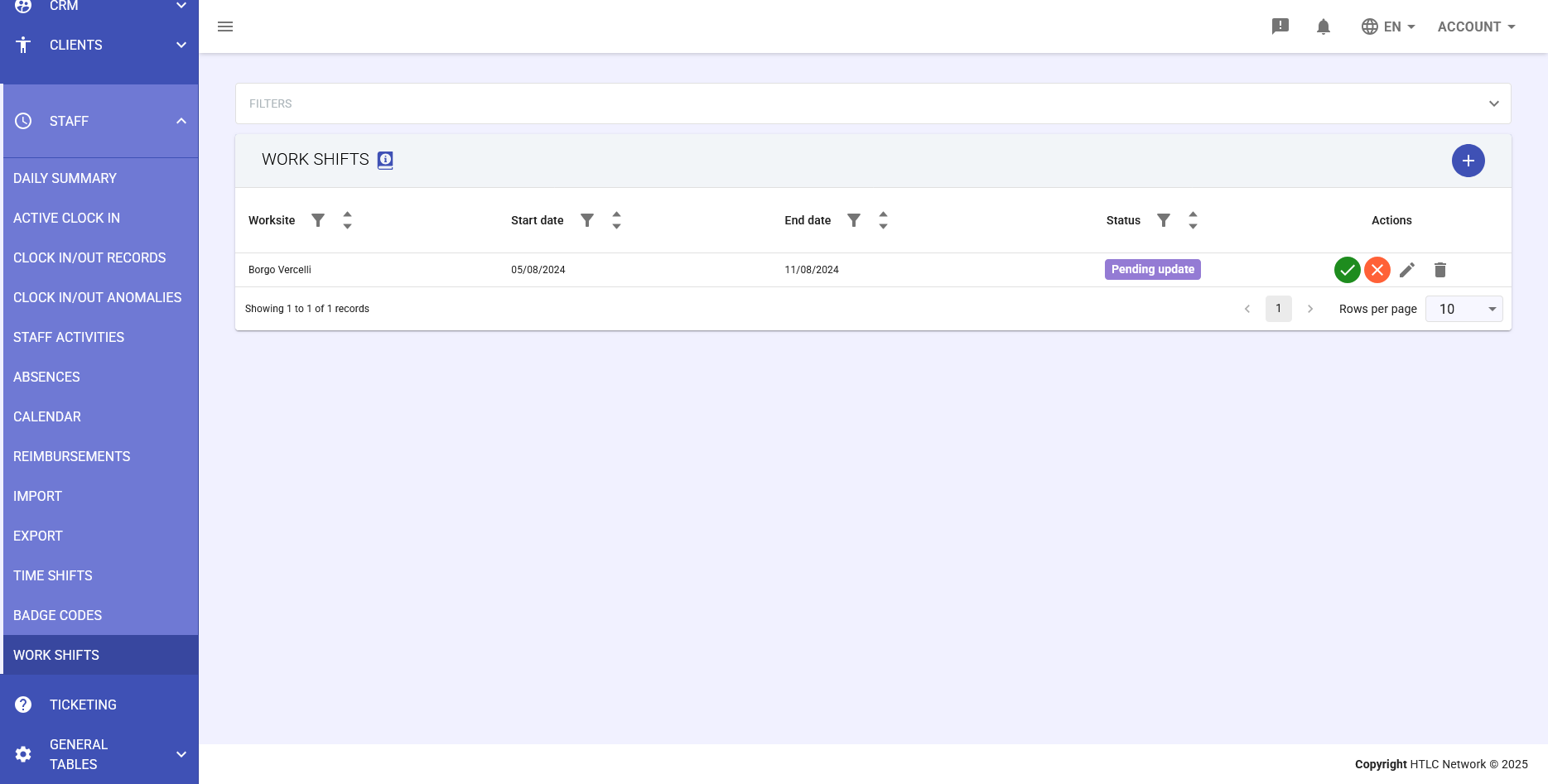
The main table presents the following columns:
- Worksite: Location or worksite (e.g., Borgo Vercelli)
- Start date: Start date of the shift period
- End date: End date of the shift period
- Status: Shift status
- Pending update: Changes awaiting confirmation
- Approved: Confirmed shift
- Under review: In evaluation phase
- Actions: Available operations
- Green checkmark icon: Approve shift
- Red X icon: Reject/Delete shift
- Pencil icon: Edit shift
- Trash icon: Permanently delete
Creating New Shift
- Click the + (Add) button in the top right corner
- Fill in the required fields in the creation window
- Select worksite, period, and shift parameters
- Save to access weekly management
Weekly Shift Management
Header and Filters
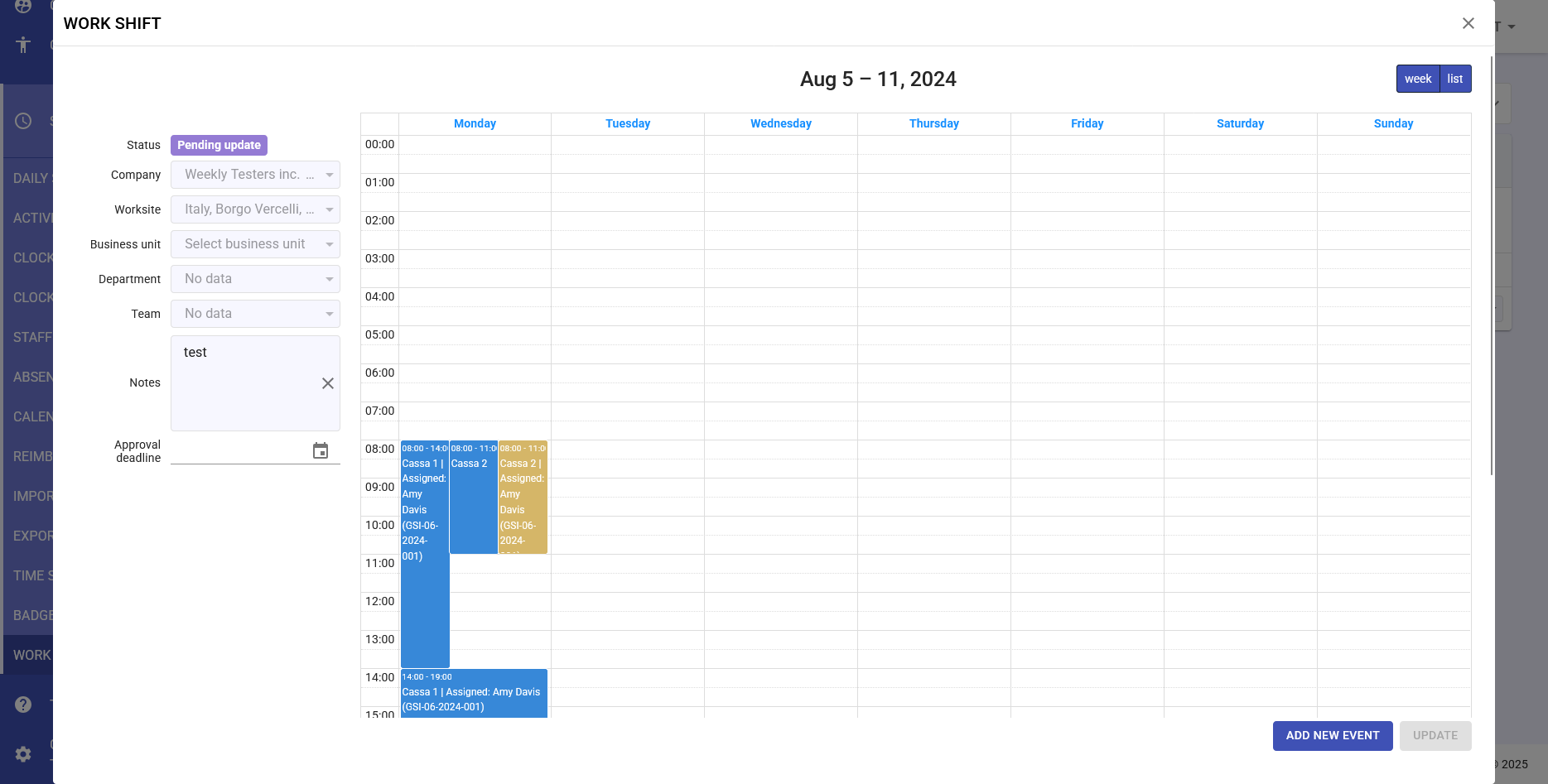
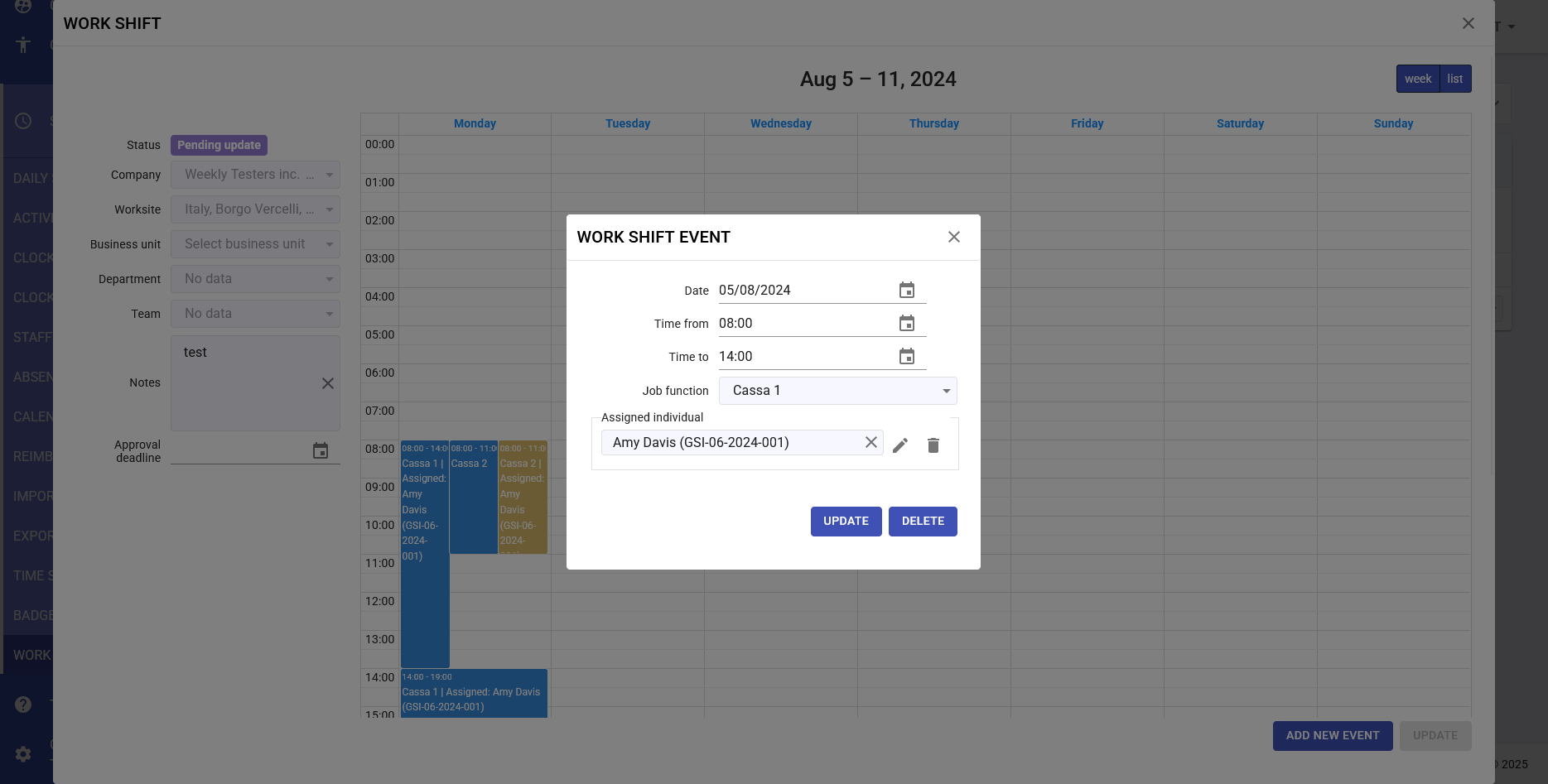
- Displayed period: E.g., "Aug 5 – 11, 2024" - Current week
- View Toggle: "week" and "list" buttons to change display mode
- Time navigation: Specific date to jump to a particular week
Side Filters
- Status: Filter by shift status (e.g., "Pending update")
- Company: Select company (e.g., "Weekly Testers inc.")
- Worksite: Filter by specific location (e.g., "Italy, Borgo Vercelli")
- Business unit: Select unit or department
- Department: Filter by specific department
- Team: Select specific team
- Notes: Field for annotations
- Approval deadline: Deadline for shift approval
Best Practices
Effective Planning
- Plan at least one week in advance
- Balance workloads fairly
- Consider employee preferences when possible
- Verify coverage of all critical functions
Overtime Management
- Distribute overtime fairly
- Respect contractual and legal limits
- Document overtime needs
- Obtain advance approvals when required
Communication
- Publish shifts with sufficient advance notice
- Promptly notify any changes
- Maintain transparency in assignments
- Collect feedback from staff
-
List View
Daily Events Section
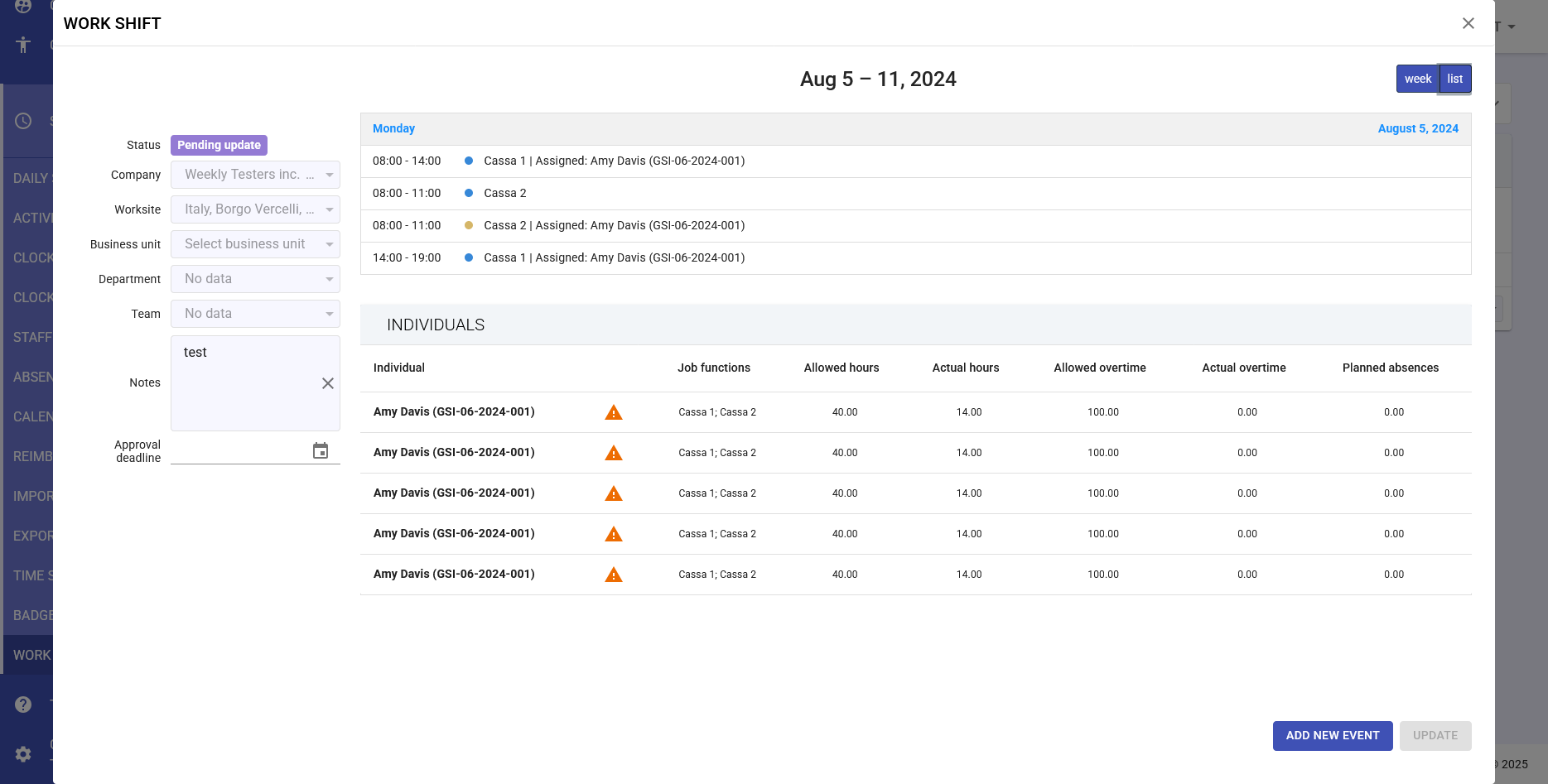
At the top, display of time slots for each day:
- Time: Time slot (e.g., "08:00 - 14:00")
- Function and Assignment: "Cassa 1 | Assigned: Amy Davis (GSI-06-2024-001)"
- Conflict indicator: Warning triangle for overlaps or issues
Individuals Table
Employee table columns:
- Individual: Employee name and GSI code
- Job functions: Assignable roles (e.g., "Cassa 1; Cassa 2")
- Allowed hours: Contractual weekly hours (e.g., 40.00)
- Actual hours: Currently planned hours (e.g., 14.00)
- Allowed overtime: Authorized overtime hours (e.g., 100.00)
- Actual overtime: Planned overtime (e.g., 0.00)
- Planned absences: Expected absence hours (e.g., 0.00)
Status Indicators
- Yellow triangle: Warning - check allocation
- Red hours: Exceeding hour limits
- Green hours: Correct allocation
-
Calendar View
Calendar Structure
- Horizontal axis: Days of the week (Monday - Sunday)
- Vertical axis: Hours of the day (00:00 - 24:00)
- Colored blocks: Shift events with information
- Blue: Assigned shifts
- Yellow: Shifts with warnings
- Gray: Unassigned shifts
Information in Shift Blocks
Each shift block displays:
- Time (e.g., "14:00 - 19:00")
- Job function (e.g., "Cassa 1")
- Assigned employee with GSI code
-
Shift Event Management
Adding a New Event
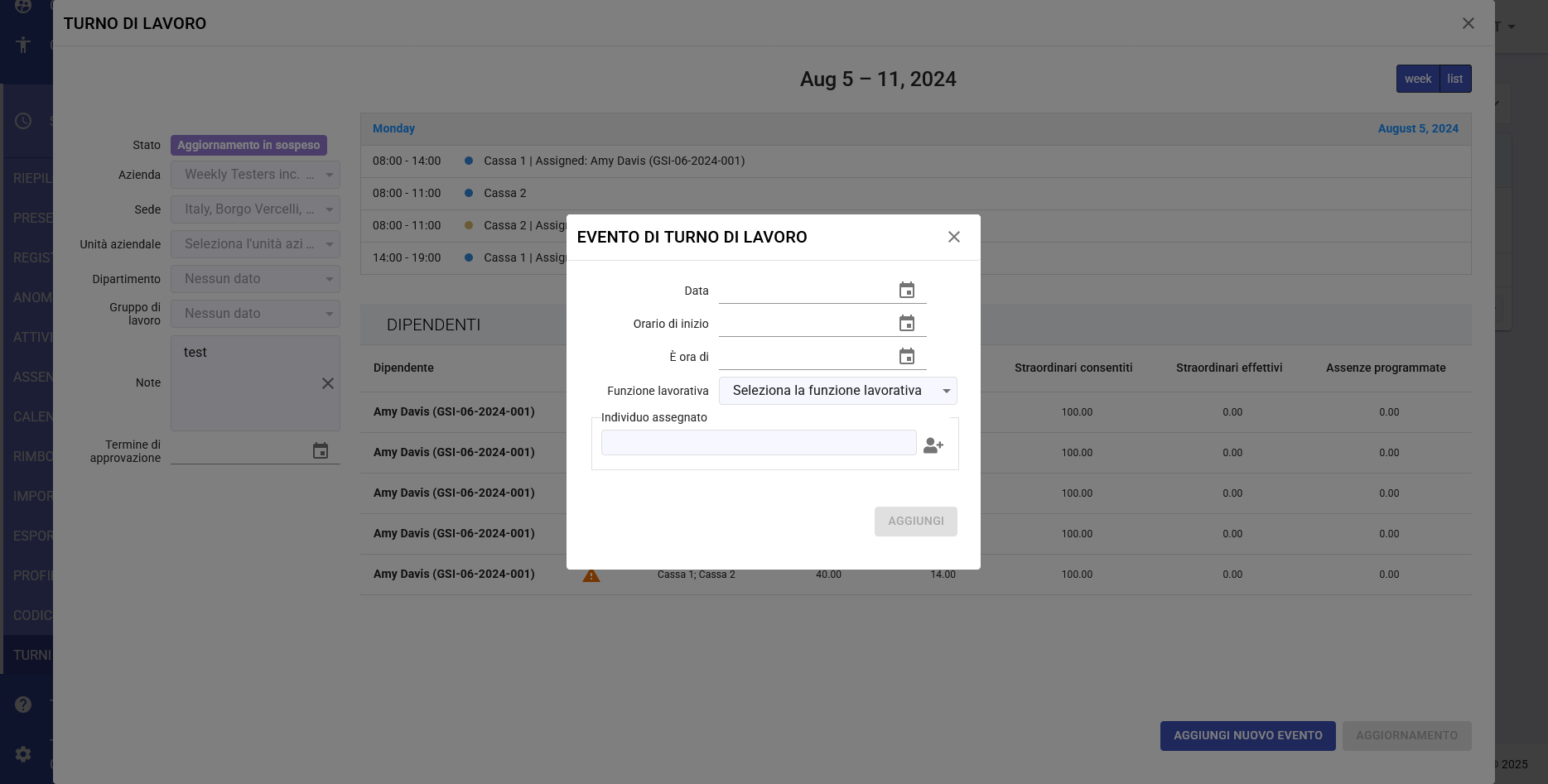
- Click the ADD NEW EVENT button at the bottom right
- The "WORK SHIFT EVENT" modal window will open
- Fill in the fields:
- Date: Select the day
- Time from: Set start time
- Time to: Set end time
- Job function: Select required function
- Assigned individual: Choose employee (optional)
- Click ADD to save
Editing an Existing Event
- Click on the event in the calendar or list
- The edit window will open with current data
- Modify necessary fields
- Available options:
- UPDATE: Save changes
- DELETE: Remove event
Employee Assignment
The assignment system works by compatibility:
- Only employees with matching job function can be assigned
- System automatically checks for time conflicts
- Warnings for exceeding weekly hours
- Automatic overtime checking
-
Hours and Overtime Calculation
Preventive Calculation System
The system automatically calculates:
- Total planned hours: Sum of all assigned shifts
- Missing hours: Difference between contractual and planned hours
- Expected overtime: Hours exceeding base contract
- Resource balancing: Fair distribution of workloads
Warnings and Notifications
- Under-allocation: Employee with insufficient hours
- Over-allocation: Exceeding hour limits
- Shift conflicts: Time overlaps
- Uncovered functions: Slots without assignment
-
Approval Workflow
Shift Status
- Draft: Under creation
- Pending update: Changes to be confirmed
- Under review: Submitted for approval
- Approved: Confirmed and operational
- Rejected: Not approved, requires revision
Approval Process
- Complete shift planning
- Verify absence of critical warnings
- Submit for approval via UPDATE button
- Manager receives notification for review
- Approval or request for changes
- Publication of approved shift