-
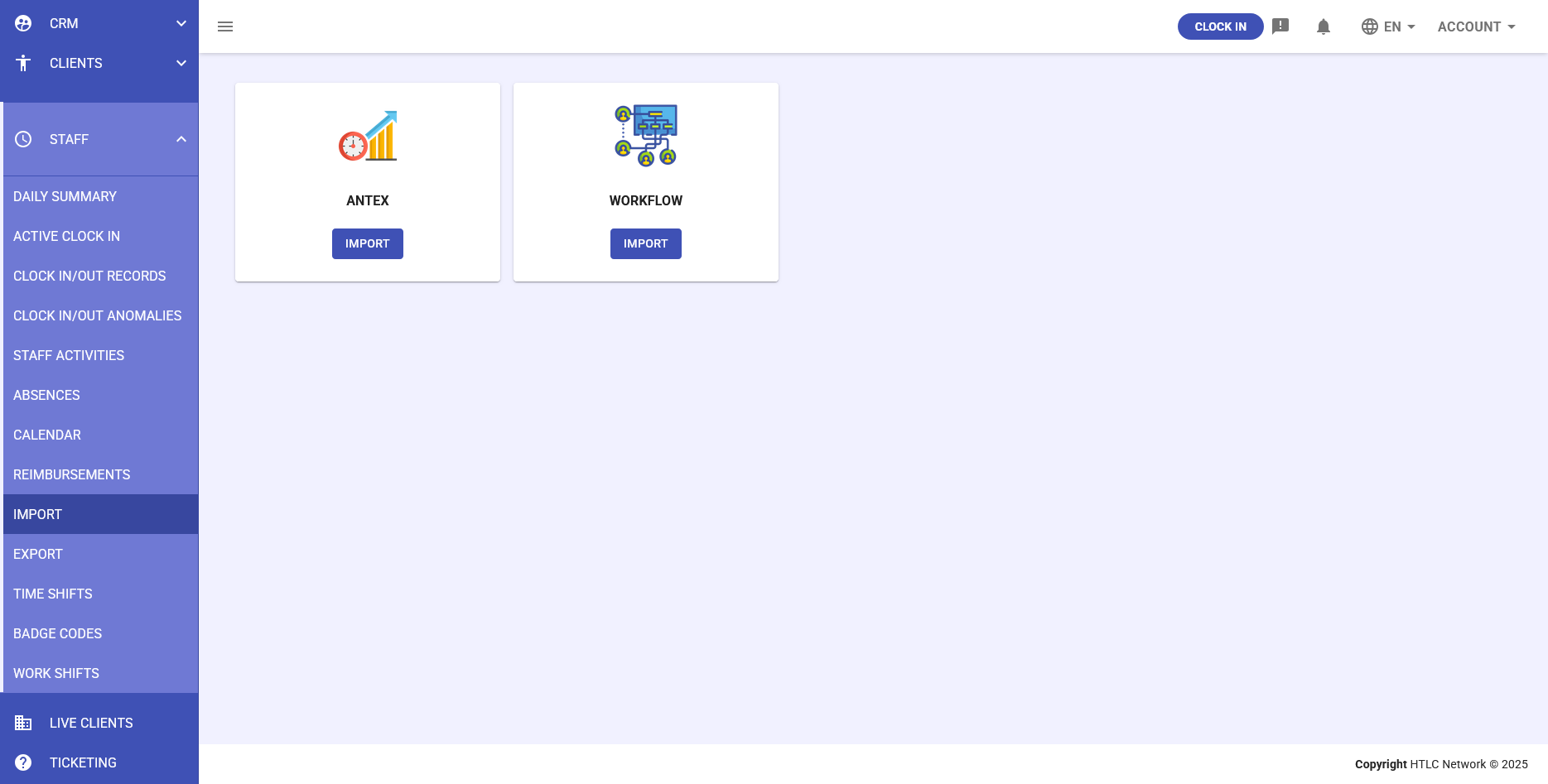
The Import section of the Staff module allows you to manually import staff attendance data into GSI2 from external systems. This functionality is essential for synchronizing time tracking and attendance information from other personnel management software.
The system currently supports importing from two main platforms:
- ANTEX - Attendance tracking system
- WORKFLOW - Staff workflow management system
To access the import function:
- Navigate to the STAFF section in the side menu
- Select IMPORT
- Choose the source system (ANTEX or WORKFLOW)
-
Import from ANTEX
Source description
ANTEX is an attendance tracking system that records staff clock-in and clock-out times. Importing from ANTEX allows you to transfer all time tracking data recorded in the ANTEX system directly into GSI2.
Import Procedure
- From the main import screen, click on the ANTEX card
- Click the IMPORT button below the ANTEX icon
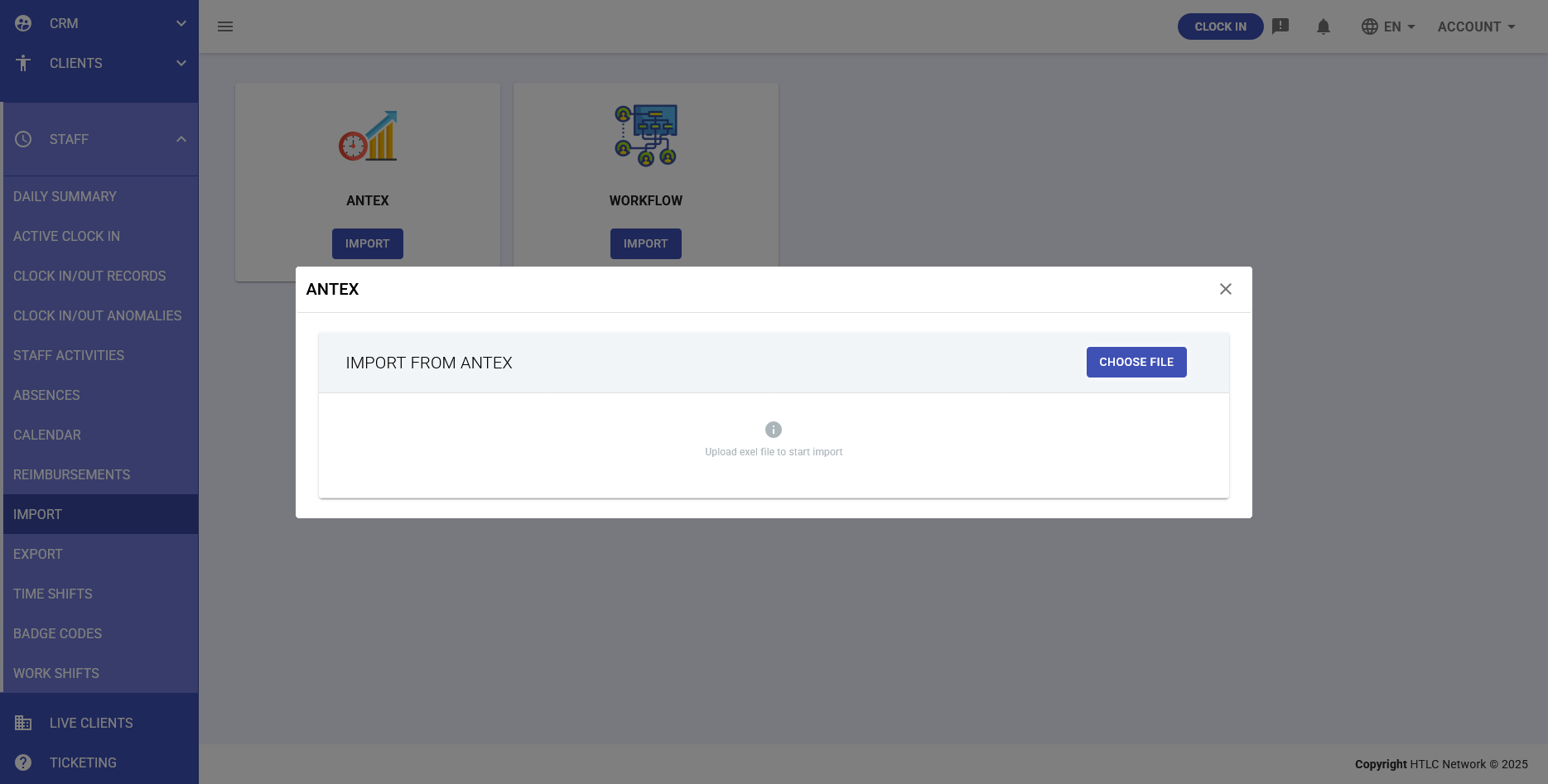
- A modal window titled "IMPORT FROM ANTEX" will open
- Click the CHOOSE FILE button in the top right
- Select the Excel file exported from ANTEX containing the attendance data
- The system will automatically load the file and start the import process
File Format
The file to import must be in Excel format (.xls or .xlsx) and must contain attendance data exported directly from the ANTEX system according to the standard format.
Important Notes
- Verify that the Excel file is in the correct format before importing
- The import will overwrite any existing data for the same period
- It is recommended to backup your data before proceeding with the import
-
Import from WORKFLOW
Source description
WORKFLOW is a personnel process management system that includes attendance management, activities, and shift management. Importing from WORKFLOW allows you to synchronize attendance data with GSI2.
Import Procedure
- From the main import screen, click on the WORKFLOW card
- Click the IMPORT button below the WORKFLOW icon
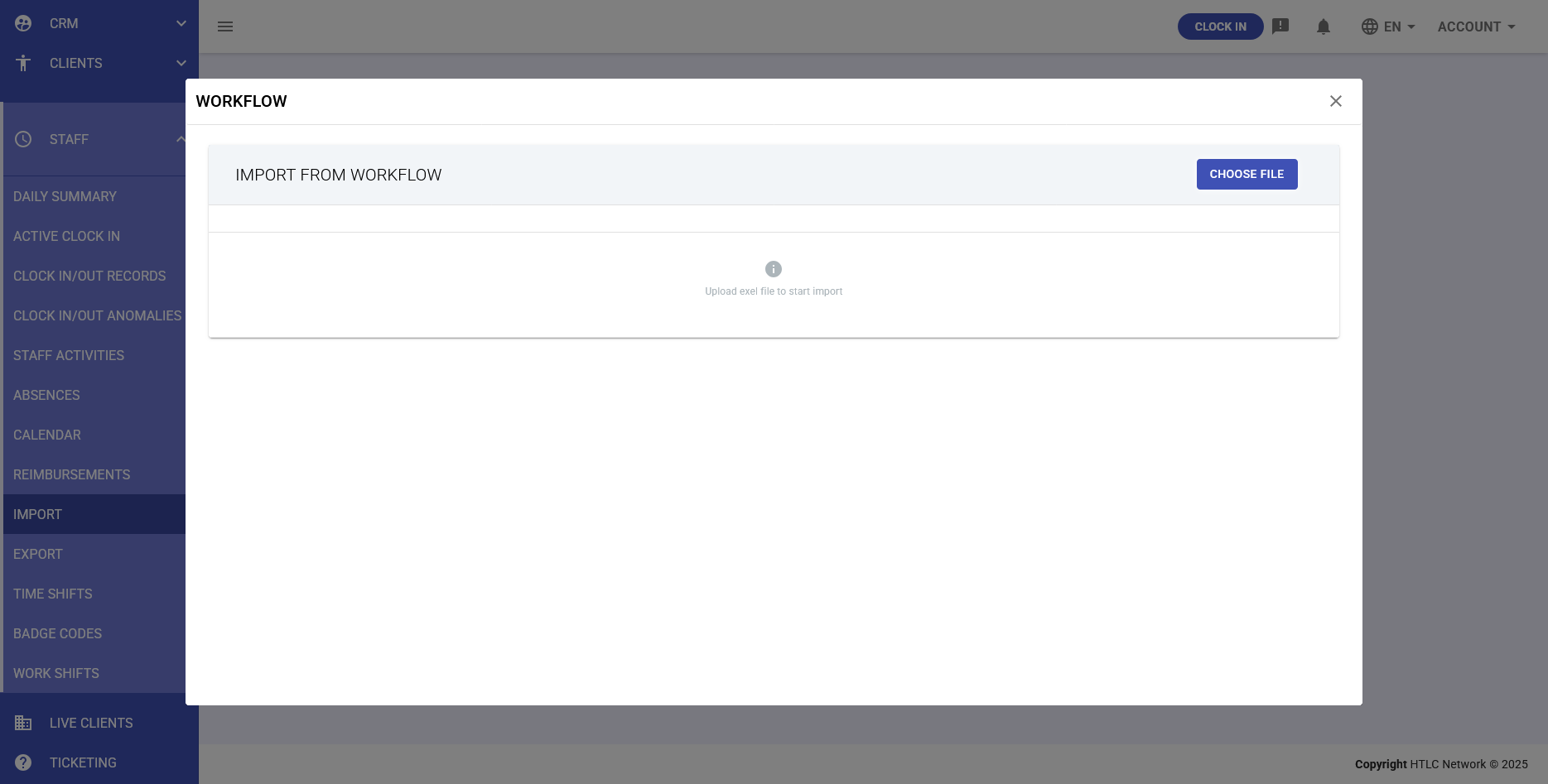
- A modal window titled "IMPORT FROM WORKFLOW" will open
- Click the CHOOSE FILE button in the top right
- Select the Excel file exported from WORKFLOW containing the staff data
- The system will automatically load the file and start the import process
File Format
The file to import must be in Excel format (.xls or .xlsx) and must contain data exported from the WORKFLOW system following the standard export structure.
Imported Data
The import from WORKFLOW may include:
- Clock in/out records
- Clock in/out anomalies
- Staff activities
- Absences and leave
- Work shifts
Important Notes
- The message "Upload excel file to start import" will appear in the dialog window
- Ensure the file contains all required fields for successful import
- The import process may take several minutes depending on the file size