-
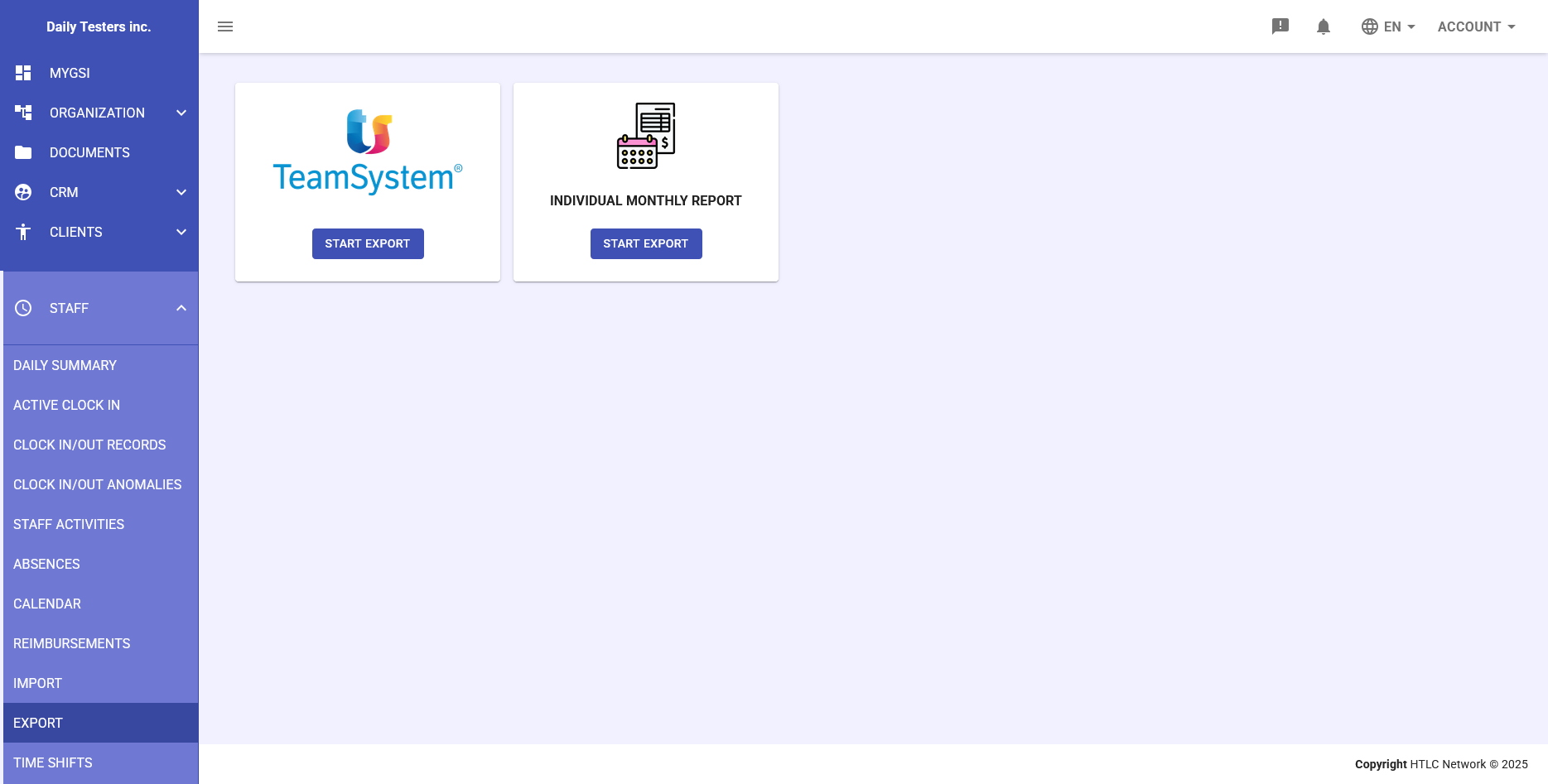
The Export section of the Staff module allows you to export staff attendance and activity data in various formats for external processing. The system offers two main export modes:
- TeamSystem - Technical file export for payroll processing
- Individual Monthly Report - Generation of monthly timesheets in PDF format
To access the export function:
- Navigate to the STAFF section in the side menu
- Select EXPORT
- Choose the desired export type
Important Notes
Permissions and Access
- Access to export functions is limited to managers and HR administrators
- Exported data contains sensitive information and must be handled according to privacy regulations
Export Timing
- TeamSystem export should be performed after month closure
- It is advisable to wait for validation of all time stamps before final export
- Monthly reports can be generated at any time for consultation
Troubleshooting
- Invalid TeamSystem file: Verify that all employees have their ID number correctly configured
- Empty PDF report: Check that data exists for the selected period
- Generation errors: Contact the system administrator if errors persist
-
TeamSystem Export
Description
The TeamSystem export generates a technical file containing all employee attendance data for the selected month. This file is specifically formatted to be imported directly into the TeamSystem software for automatic payroll processing.
Export Procedure
- From the main export screen, click on the TeamSystem card
- Click the START EXPORT button below the TeamSystem logo
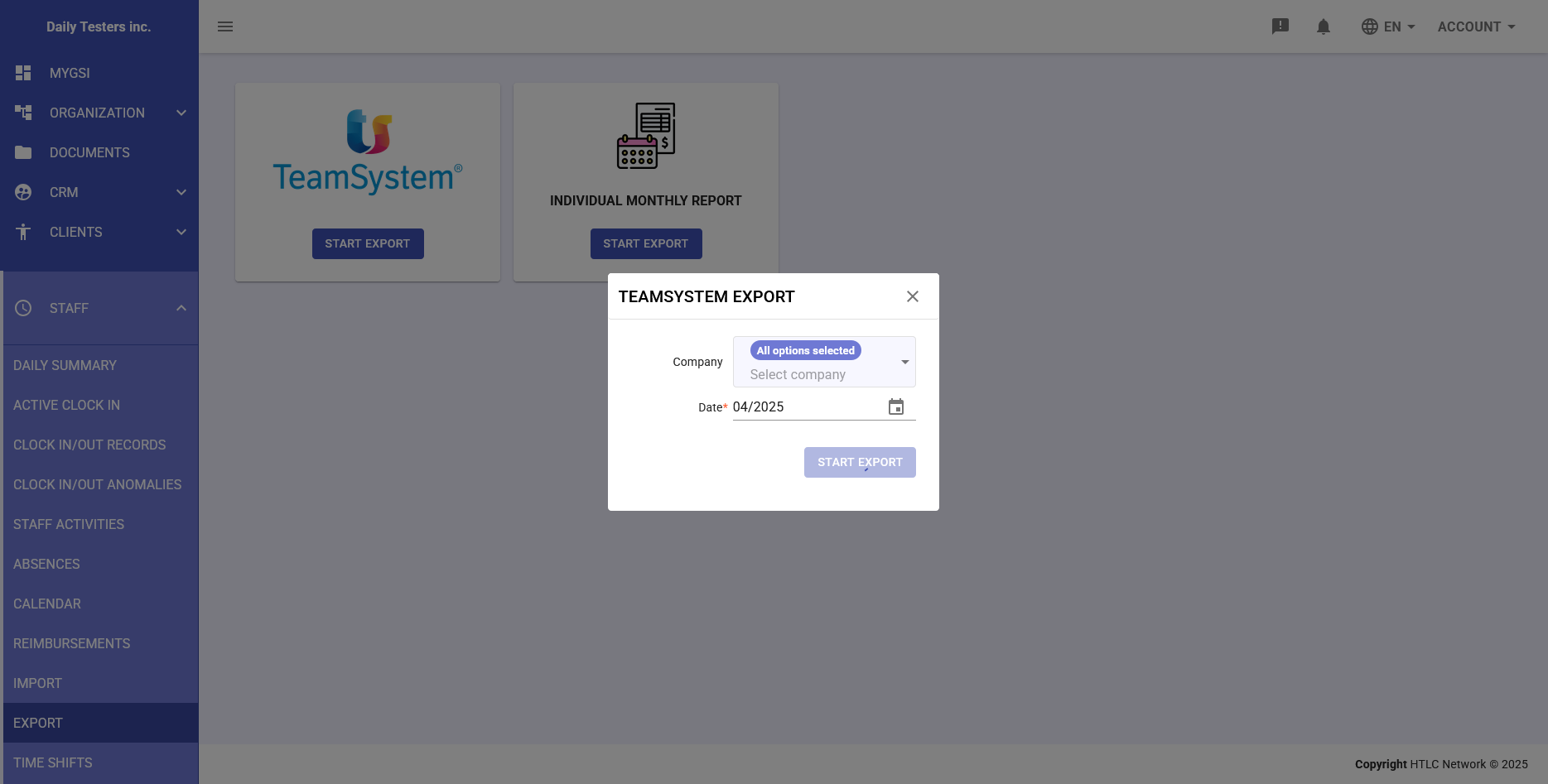
- The "TEAMSYSTEM EXPORT" modal window will open
- Select the Company from the dropdown menu (or keep "All options selected")
- Select or verify the Date for the month to export (MM/YYYY format)
- Click the START EXPORT button
Error Checking and Warnings
Before proceeding with the export, the system automatically performs a data check to identify any issues:
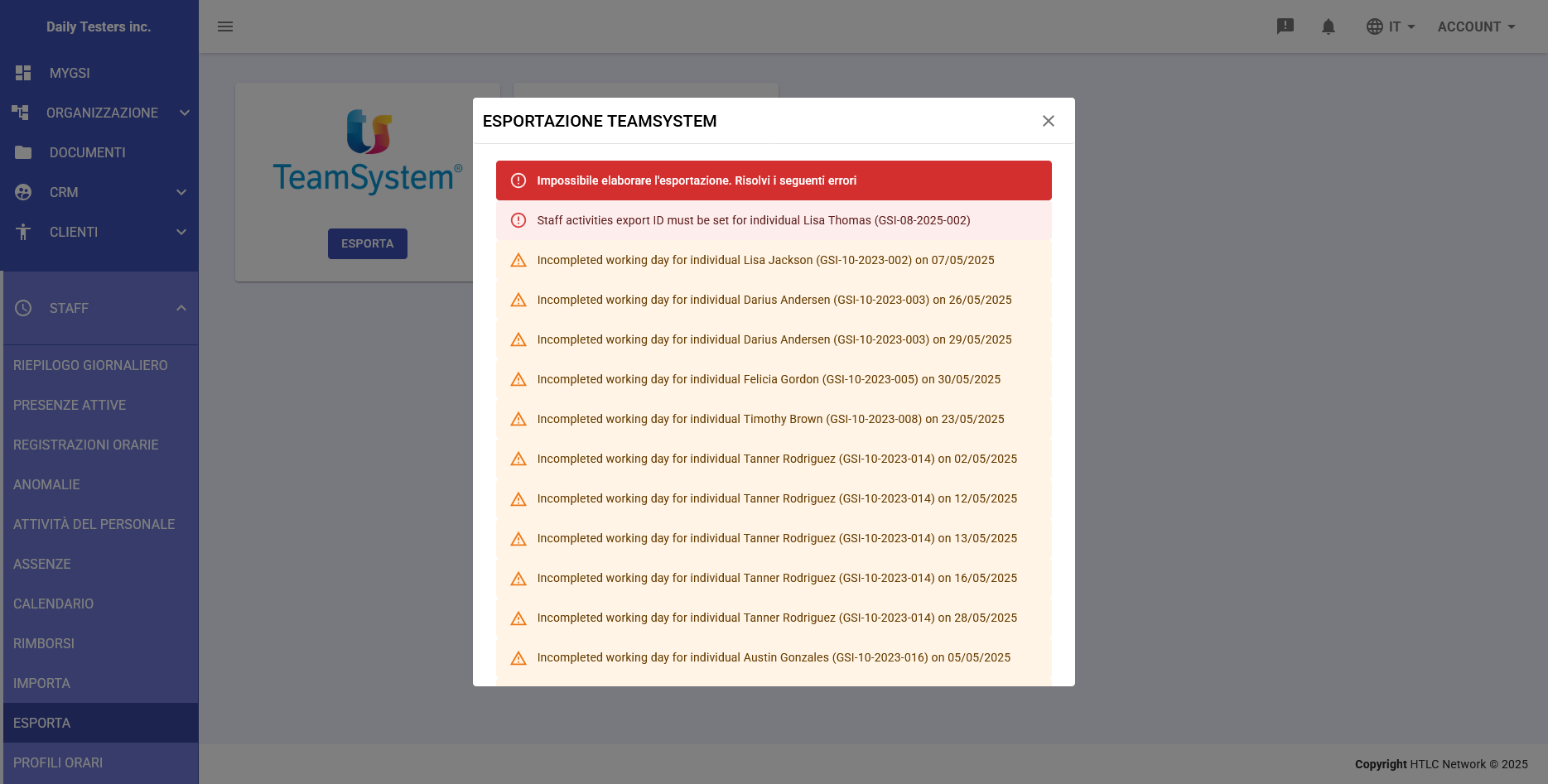
Blocking Errors (Red Indicator)
- Message: "Unable to process export. Resolve the following errors"
- Example: "Staff activities export ID must be set for individual"
- Required action: Blocking errors must be corrected before you can proceed with the export
- The export button remains disabled until all errors are resolved
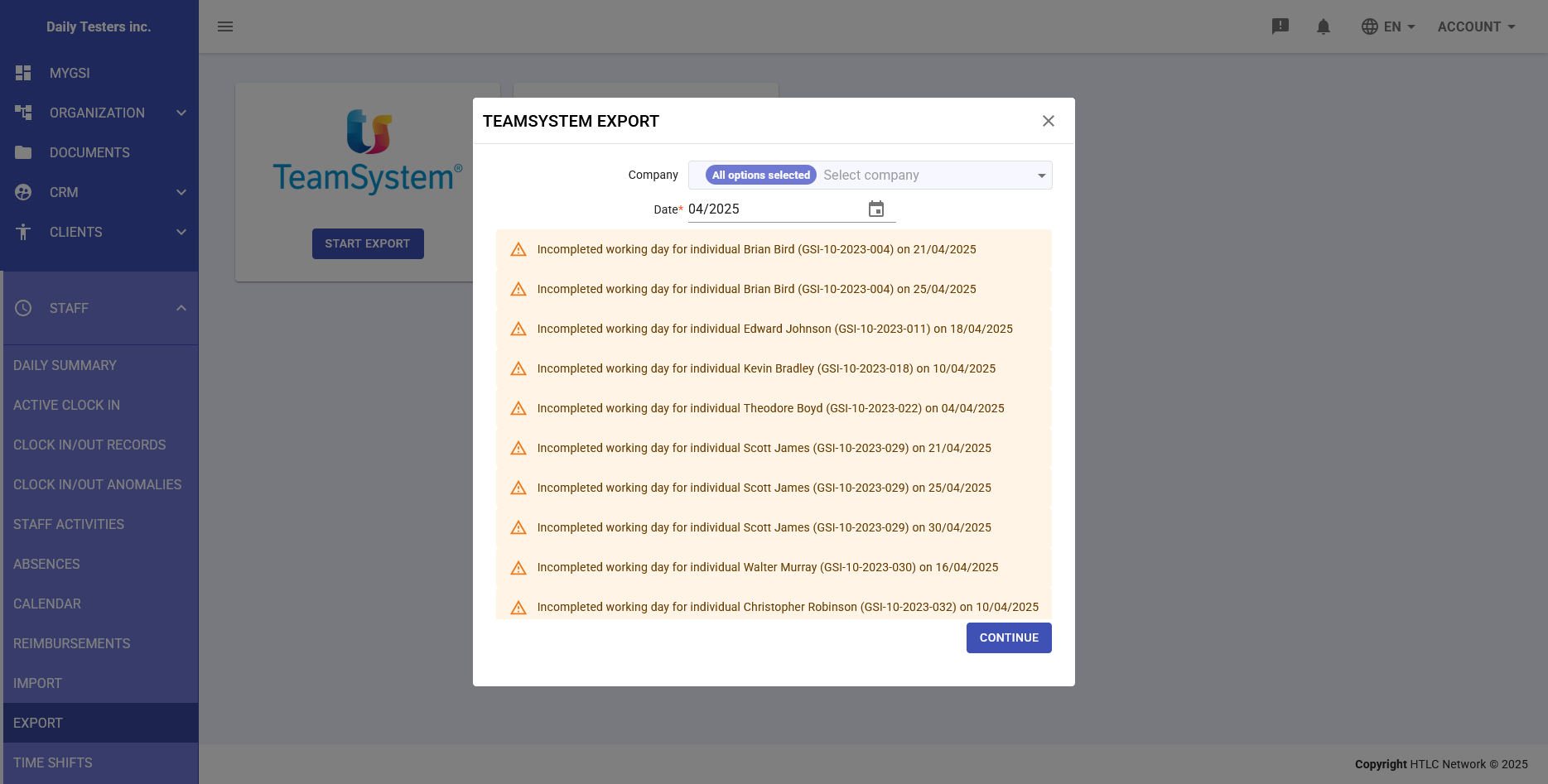
Warnings (Yellow Indicator)
- Indicate incomplete working days for individual employees
- Example: "Incompleted working day for individual John Smith (GSI-10-2023-001) on 04/21/2025"
- Optional action: Warnings can be bypassed by clicking CONTINUE
- The decision to proceed despite warnings is under the manager's responsibility
Exported File Format
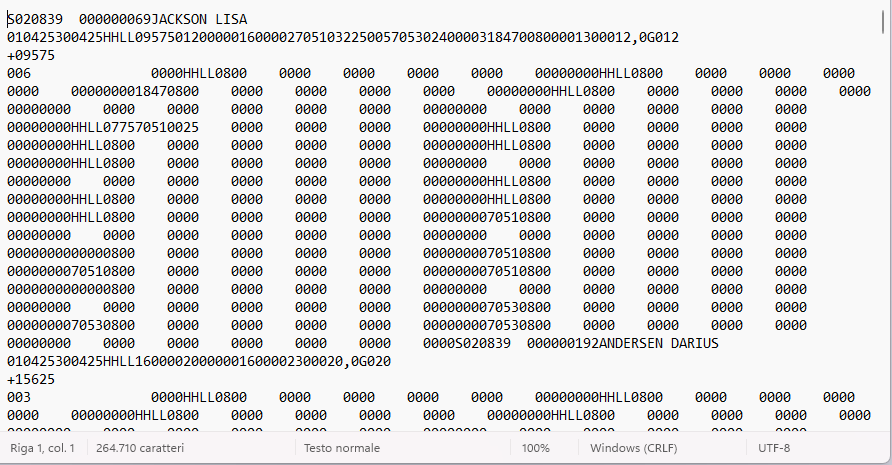
The exported file is in text format with specific encoding for TeamSystem, containing:
- Company code and reference period
- Employee codes and ID numbers
- Daily working hours
- Justification codes for absences
- Monthly totals by category (regular hours, overtime, vacation, leave)
-
Individual(s) Monthly Report
Description
The Individual Monthly Report generates a PDF document containing the detailed monthly attendance summary. This report can be generated for the entire company, specific business units, or individual employees.
Generation Procedure
- From the main export screen, click on the INDIVIDUAL MONTHLY REPORT card
- Click the START EXPORT button below the report icon
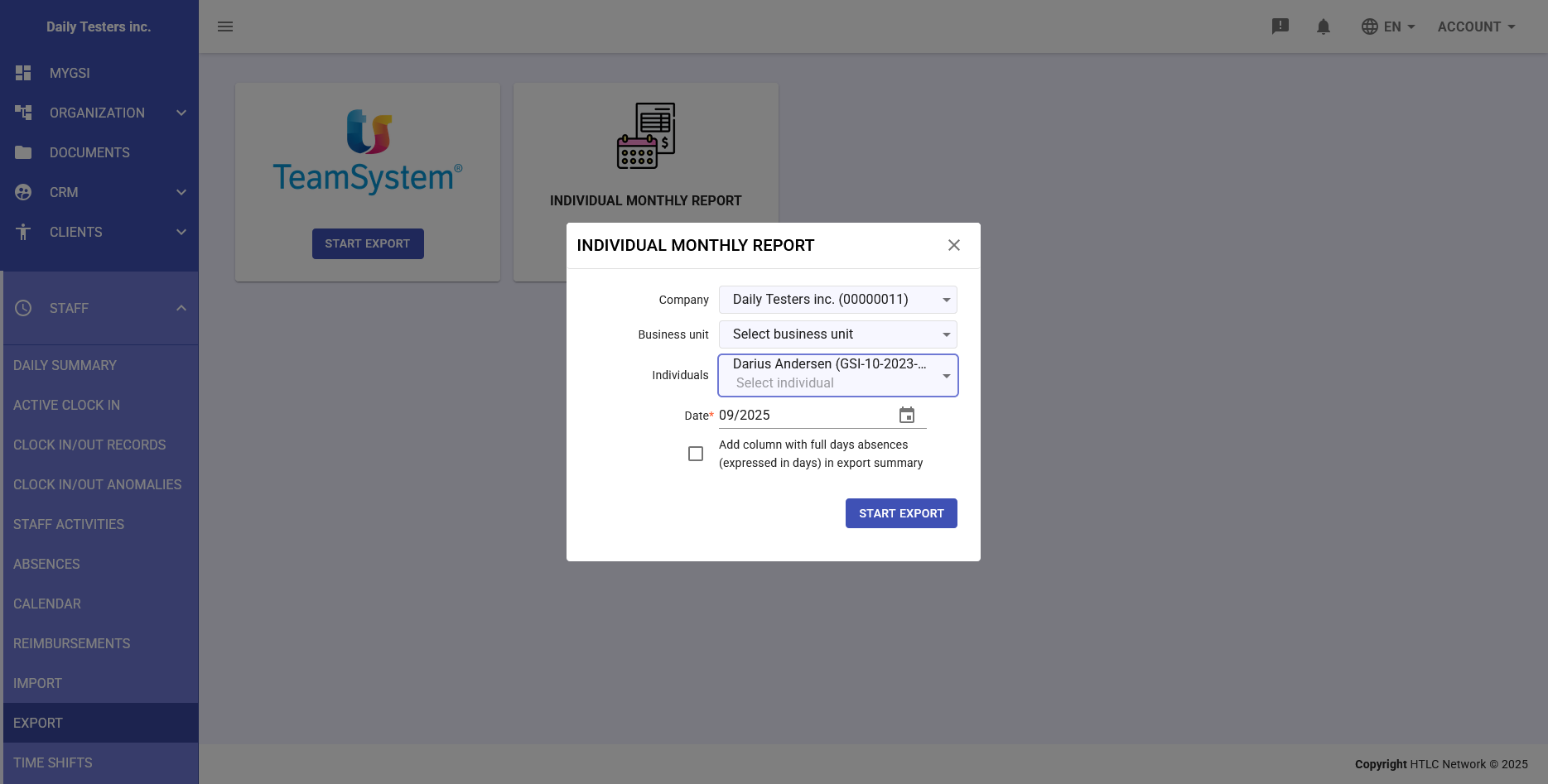
- The "INDIVIDUAL MONTHLY REPORT" modal window will open
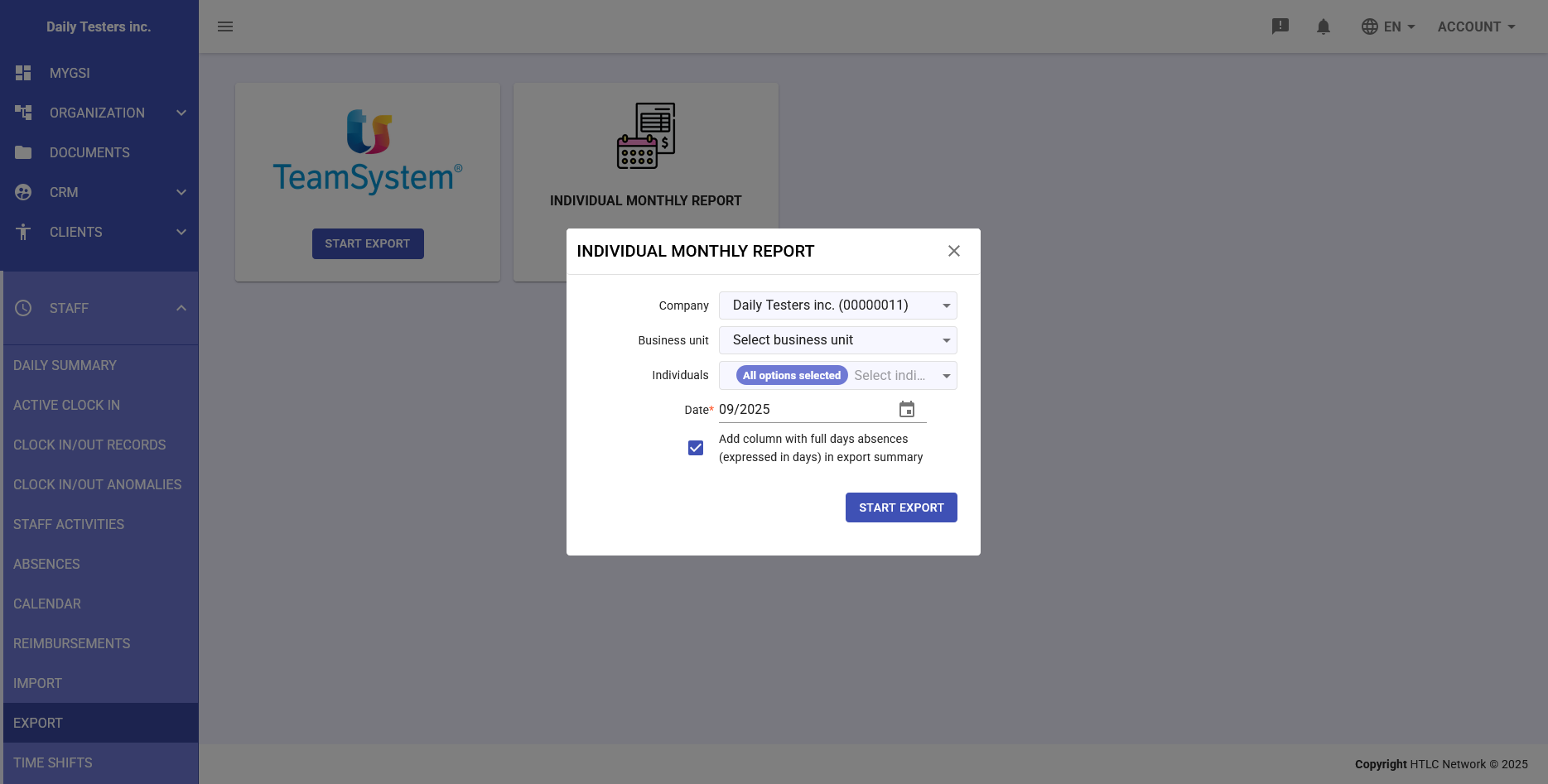
- Configure the export parameters:
- Company: Select the company or keep all selected
- Business unit: Select specific unit or all
- Individuals: Select "All options selected" for all employees or choose specific individuals
- Date: Set the reference month (MM/YYYY format)
- Optional: Check the "Add column with full days absences (expressed in days) in export summary" box to include absence details
- Click the START EXPORT button
PDF Report Content
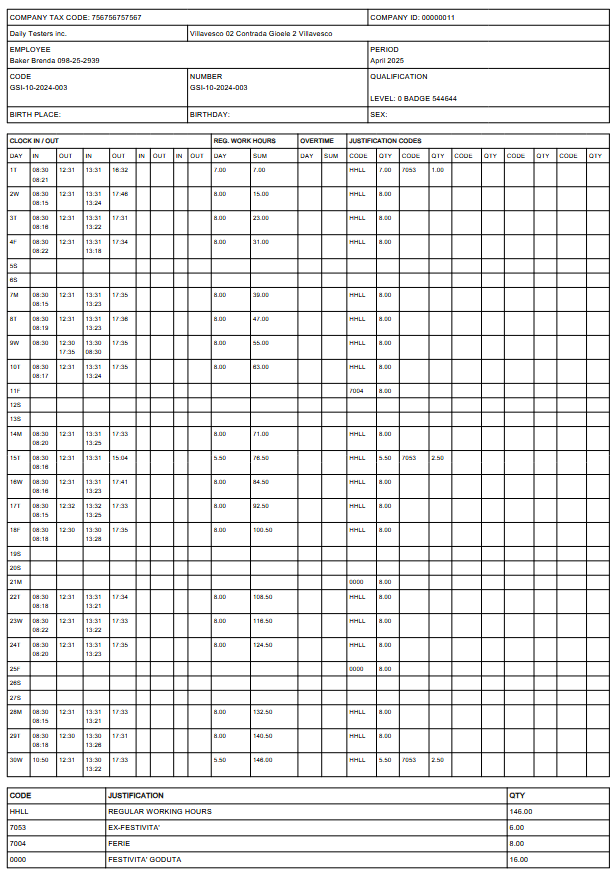
The generated report includes:
- Header: Company data, employee and reference period
- Monthly calendar: Daily grid with clock in/out times
- Justification codes: Legend of codes used (PROL, F003, etc.)
- Hours summary:
- Regular working hours
- Overtime hours
- Vacation days used
- Leave and absences
- Totals: Sum of hours by category
Multiple Selection Options
The system allows great flexibility in report generation:
- Complete company report: Selecting all options generates a single PDF with all employees
- Business unit reports: Generates separate reports for each organizational unit
- Individual reports: Generates a separate PDF for each selected employee