-
Overview
Purpose: Environment access management and multi-tenant administration
Overview: The Live Clients section serves as the central hub for managing isolated client environments within the GSI system. Each live client represents a completely independent business environment with its own dedicated database, ensuring complete data segregation and security while allowing controlled inter-client access when explicitly authorized.
Key Features and Concepts
Multi-Tenant Architecture
GSI operates on a sophisticated multi-tenant architecture where each client environment is completely isolated with its own dedicated database. This ensures maximum data security and privacy while maintaining the flexibility to grant controlled access between environments when business requirements demand it.
Module Configuration
Each live client can be configured with specific GSI modules based on their business needs and licensing agreements. Available modules include:
- Organization Management (Essential)
- Document Management
- CRM (Customer Relationship Management)
- Client Services
- Staff Management
- Time & Activities
- Ticketing System
- Notifications
Module activation is controlled at the live client level and determines which functionalities are available to users within that environment.
Company Administrator Role
Every live client has a designated referent who serves as the Company Administrator - the primary user with maximum permissions within their live client environment. This role includes:
- Full access to all activated modules
- User management and permission assignment
- System configuration within their environment
- Authority to grant cross-client access permissions
Important: The Company Administrator can only be changed by system administrators upon explicit request from the client organization that owns the live client. This ensures proper authorization and prevents unauthorized access transfers.
Cross-Client Access Control
The system supports controlled access between different live clients through an explicit authorization mechanism:
- Authorization Grant: The Company Administrator of a live client can explicitly grant access to their environment to companies from other live clients
- Permission Inheritance: Users accessing external live clients inherit only the permissions specifically granted by the host Company Administrator
- Additional Restrictions: Access can be further limited through individual-specific permissions within the authorized live client
- Data Segregation: Outside of these explicitly enabled access grants, all live client data remains completely segregated and inaccessible to other environments
System Database Architecture
While live client data is completely segregated, certain essential information is maintained in a common system database:
- User Authentication Data: Login credentials and basic user information
- Routing Information: Data required to direct users to their correct live client environments
- Cross-Client Permissions: Authorization records for inter-client access rights
- System Administration: Global system configuration and management data
This dual-database approach ensures both security through segregation and functionality through necessary shared authentication and routing mechanisms.
Live Clients Interface
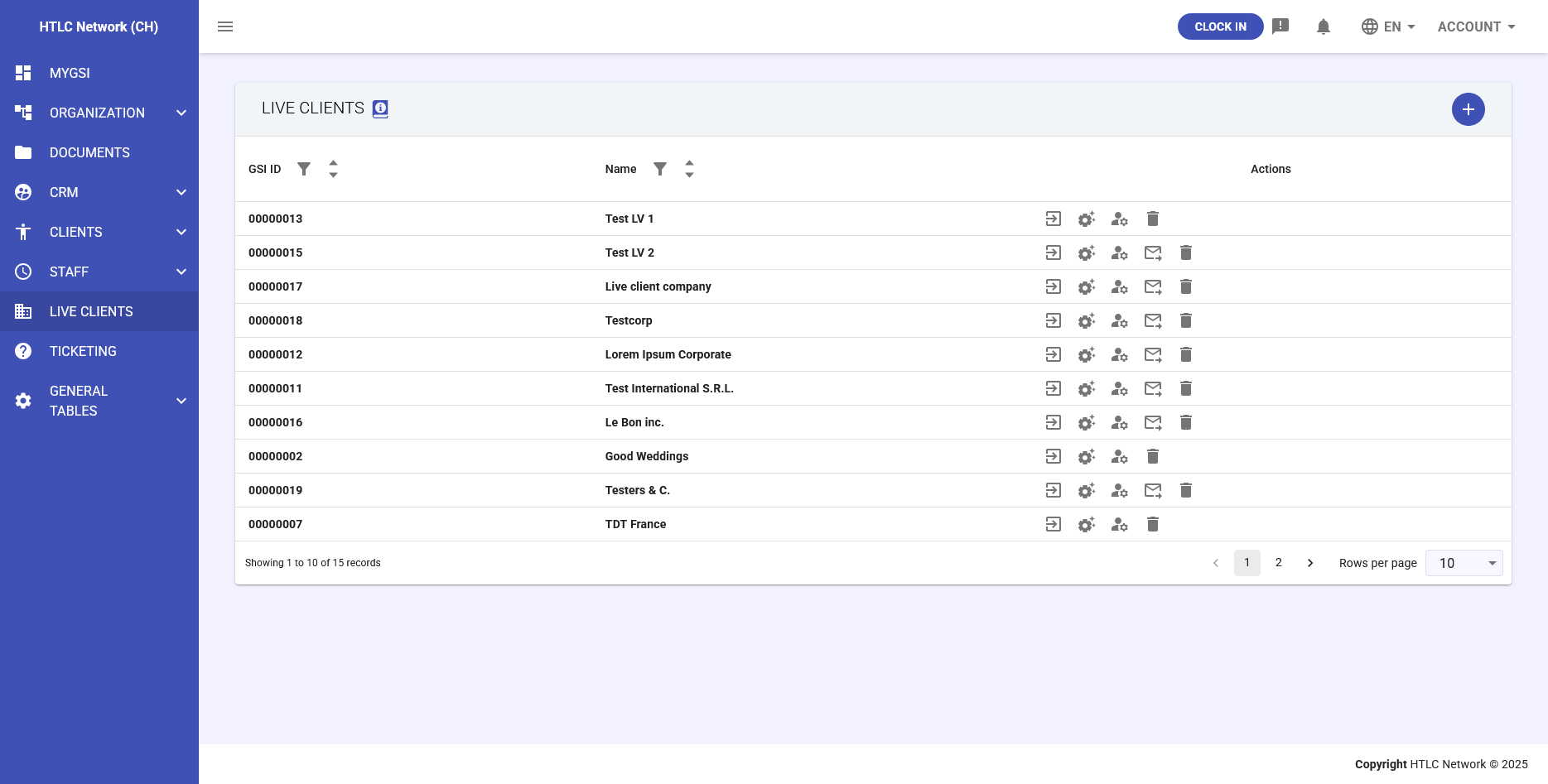
The Live Clients management interface displays a table with the following information:
Table Columns:
- GSI ID: Unique system identifier for each live client (e.g., 00000013, 00000015)
- Name: Descriptive name of the client organization
- Actions: Management tools for each live client
Action Buttons (from left to right):
- Login to Live Client - Direct access to the client environment
- Manage Live Client Modules - Configure which GSI modules are active
- Change Company Manager - Reassign the Company Administrator role
- Send Invitation Mail to Manager - Email access credentials to the Company Administrator
- Delete - Remove the live client (with soft/reversible or hard/irreversible options)
Security Considerations
Live Clients implement multiple security layers:
- Database Isolation: Physical separation of client data
- Permission Hierarchy: Multi-level access control system
- Audit Logging: Comprehensive tracking of all actions
- Encryption: Data encrypted in transit and at rest
- Role-Based Access: Permissions tied to specific roles and responsibilities
-
Create New Live Client
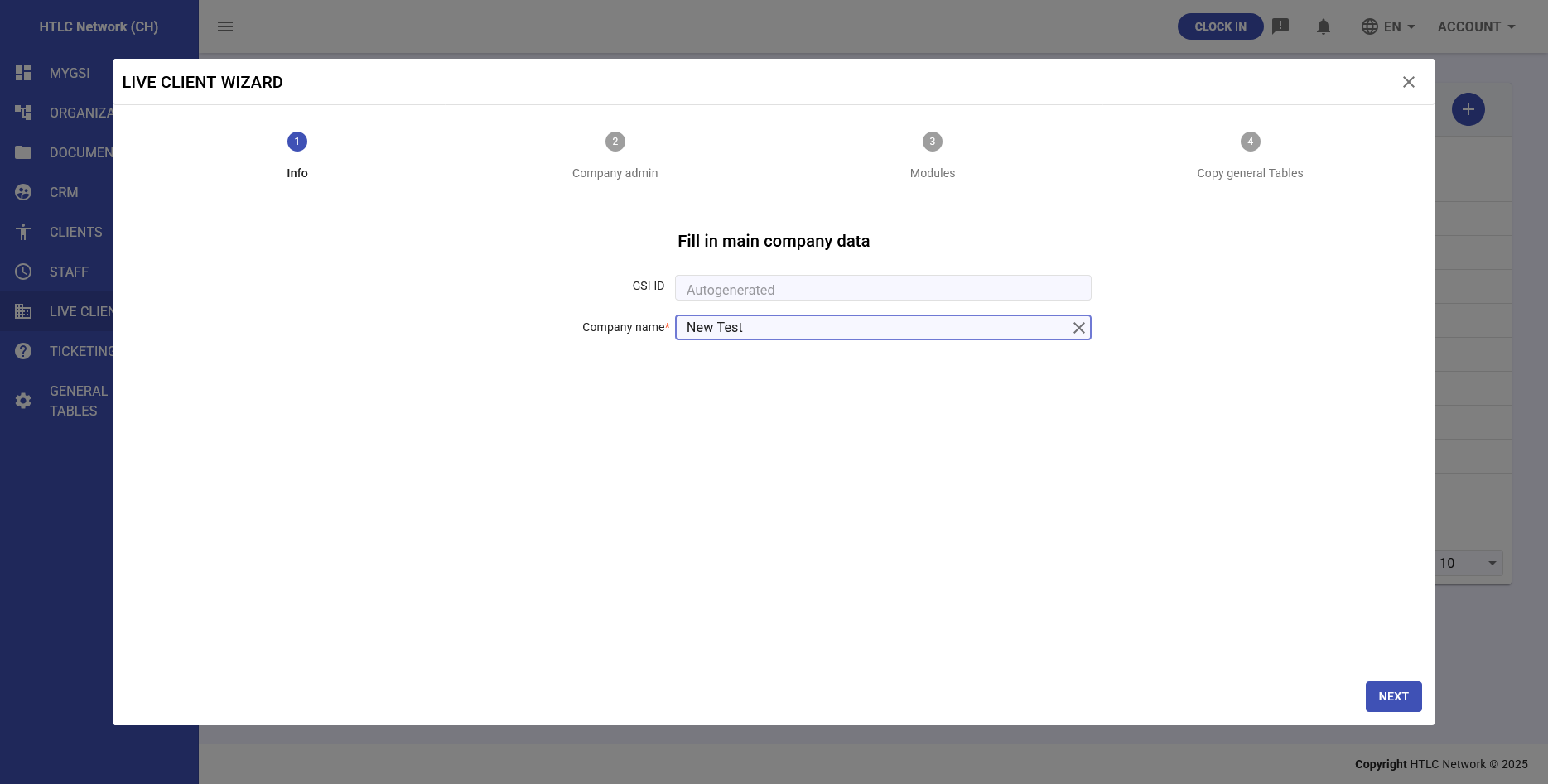
Creating a new Live Client is accomplished through a comprehensive 4-step wizard that guides administrators through the setup process.
Step 1: Info
Configure basic company information:
- GSI ID: Automatically generated unique identifier
- Company Name: Primary identifier for the client organization (required)
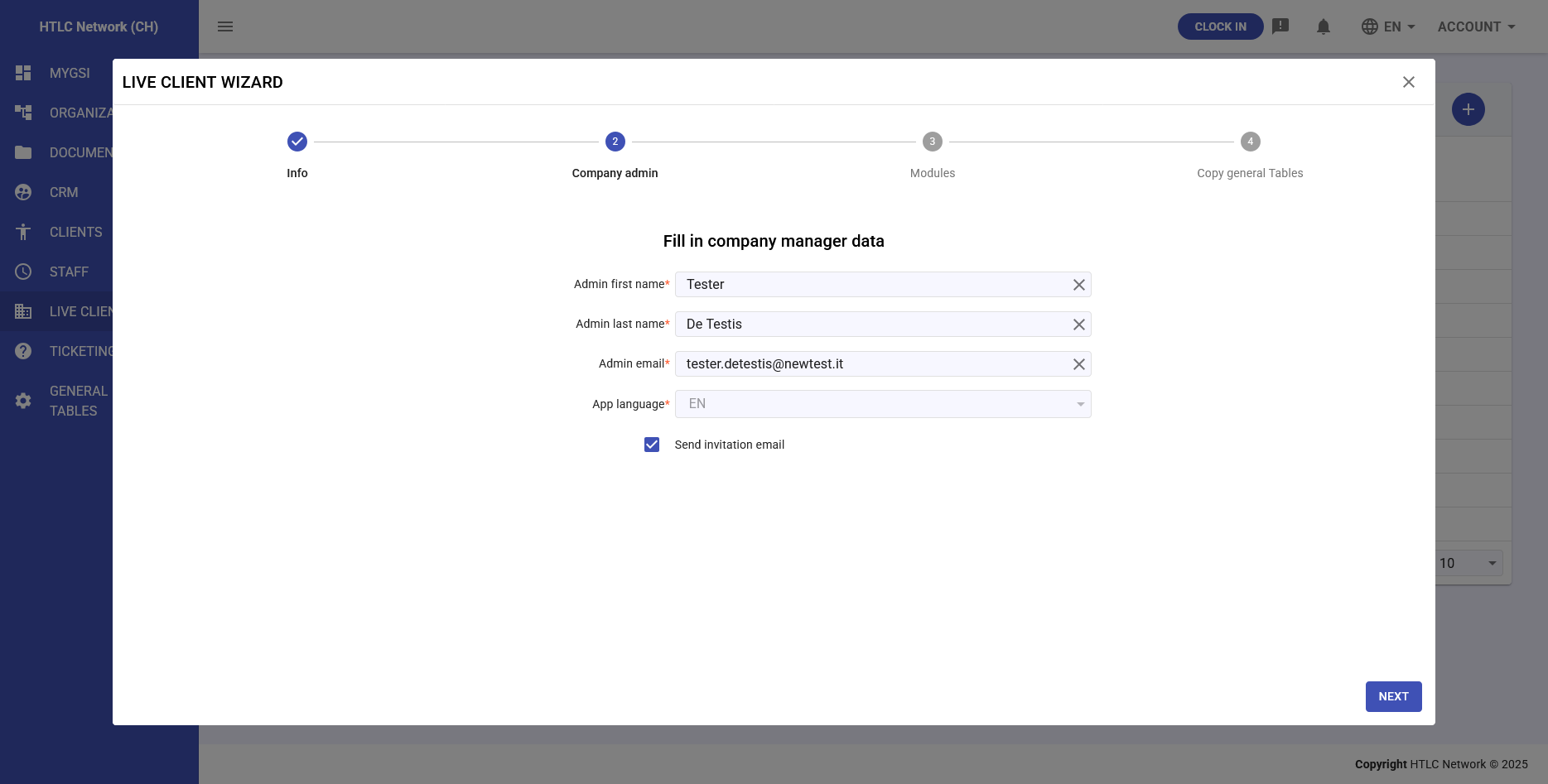
Step 2: Company Admin
Set up the Company Administrator who will manage the Live Client:
- Admin First Name: Required field for the administrator's first name
- Admin Last Name: Required field for the administrator's last name
- Admin Email: Primary contact email for system access
- App Language: Default language for the administrator's interface
- Send Invitation Email: Option to automatically send access credentials
Important: The Company Administrator role can only be changed by system administrators upon explicit request from the client organization.
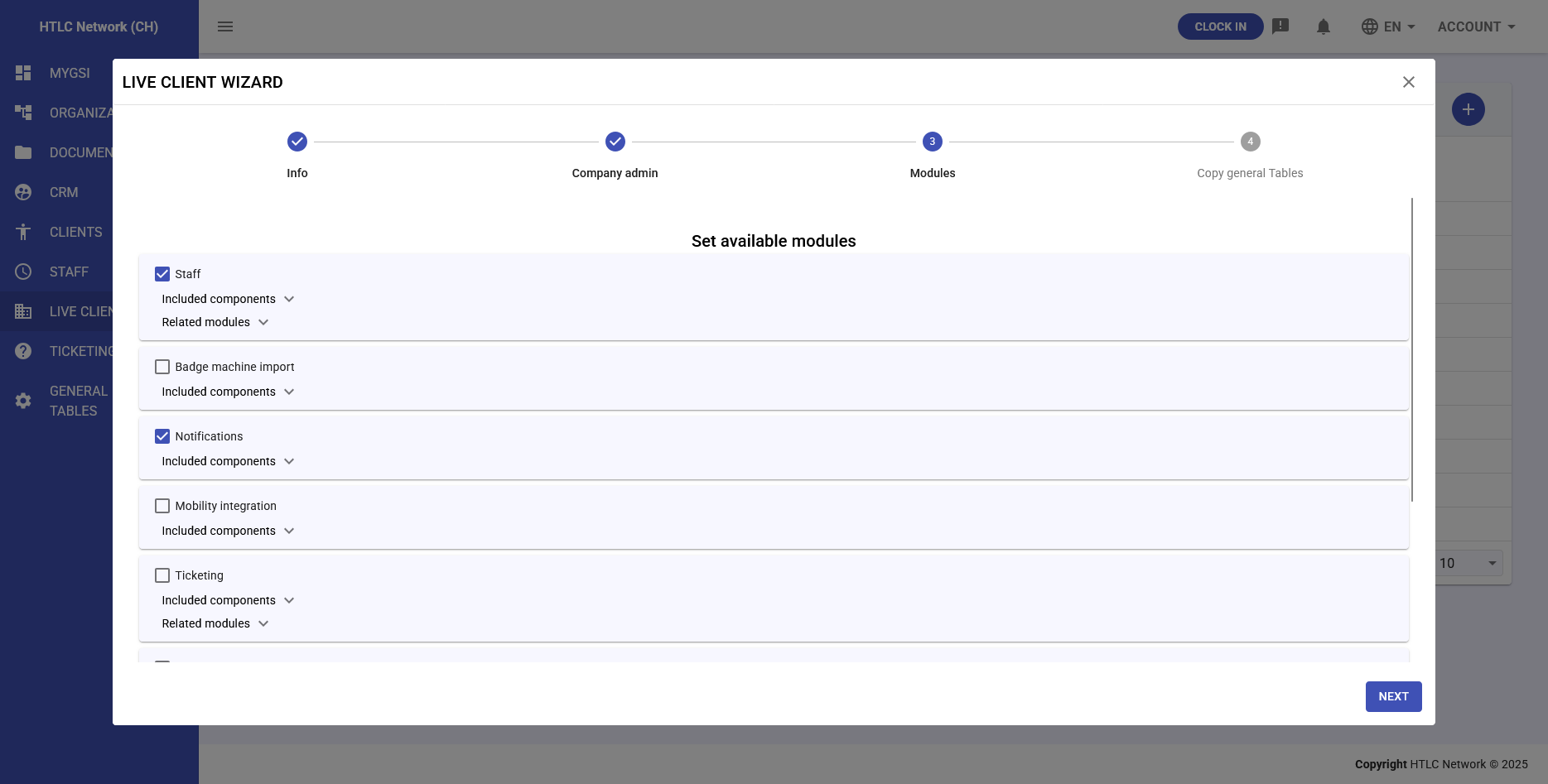
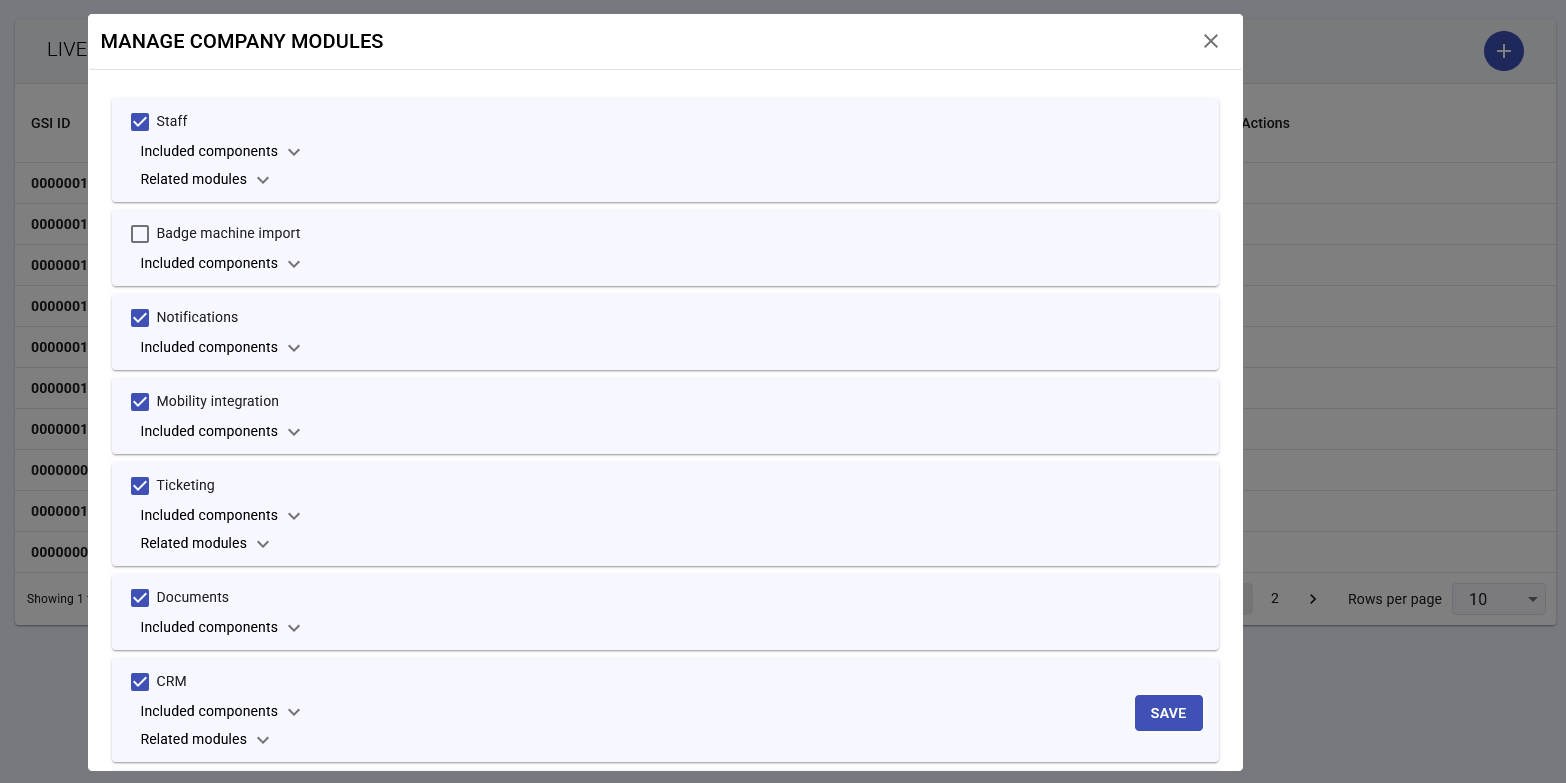
Step 3: Modules
Select and configure GSI modules for the Live Client:
Available Modules:
- Staff: Employee management with included components and related modules
- Badge Machine Import: Integration with attendance tracking systems
- Notifications: System-wide alert and communication features
- Mobility Integration: Mobile access and functionality
- Ticketing: Support and request management system
- Documents: Document management capabilities
- CRM: Customer relationship management tools
Each module includes:
- Included Components: Core features automatically activated with the module
- Related Modules: Additional modules that enhance functionality when used together
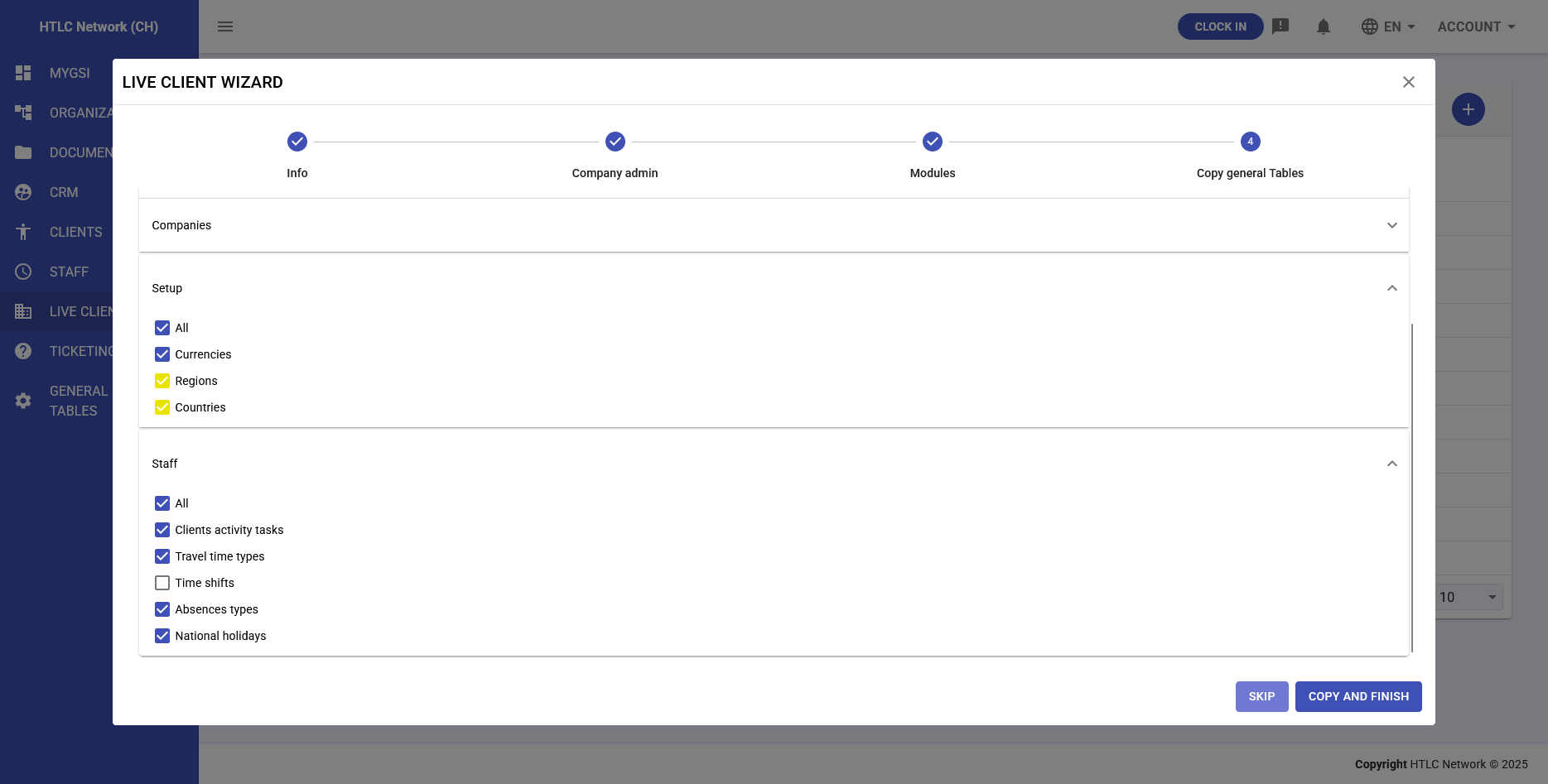
Step 4: Copy General Tables
Inherit standardized configuration data from an existing Live Client:
Setup Options:
- Companies: Pre-configured company structures and relationships
- Staff: Employee categories, roles, and permission templates
- All staff-related configurations
- Clients activity tasks
- Travel time types
- Time shifts
- Absences types
- National holidays
Benefits:
- Rapid deployment with proven configurations
- Consistency across related environments
- Reduced setup time and effort
- Inheritance of best practices
After selecting what to copy, click "COPY AND FINISH" to complete the Live Client creation.
-
Access Live Client
Access to Live Clients is controlled through a multi-layered permission system that ensures security while enabling necessary cross-client collaboration.
Access Requirements
- Primary Access: Users must have permission from their source Live Client to access external environments
- Target Authorization: The target Live Client's Company Administrator must grant explicit "share with" permissions
- Individual Permissions: User-specific permissions within the source Live Client further define access levels
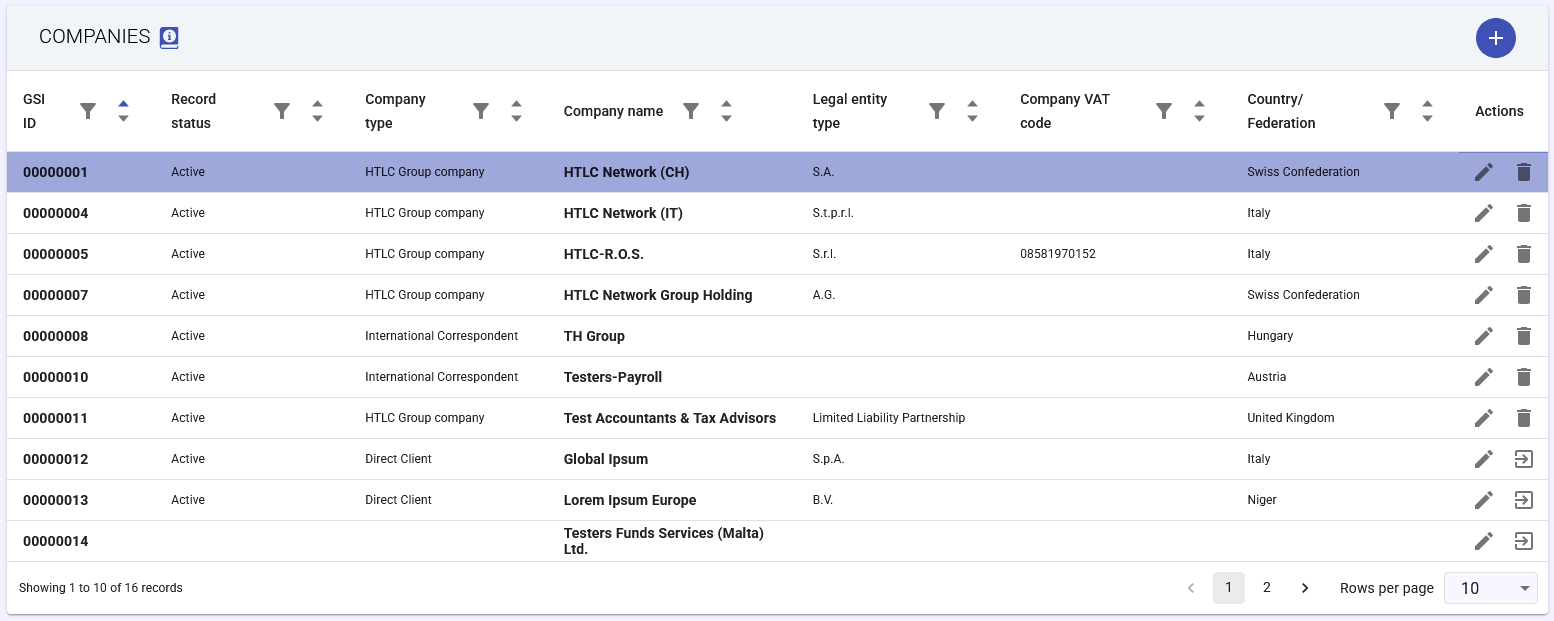
Access Types in the Live Clients Table
The Live Clients interface displays different action icons based on access levels:
- Edit + Delete Icons: Internal companies within your Live Client
- Full management capabilities
- Direct editing and configuration
- Complete administrative control
- Edit + Link Icons: External Live Clients with granted access
- View-only unless specific permissions are granted
- Modifications require logging into the company's own environment
- Access level depends on permissions granted by target Company Administrator
Navigation
Users can switch between authorized Live Clients by:
- Accessing the Live Clients section
- Clicking the appropriate action icon for the desired environment
- System automatically switches context to the selected Live Client
-
Manage Existing Live Client
Live Client management provides comprehensive tools for maintaining and modifying client environments after initial creation.
Live Clients Table Interface
The management interface displays:
- GSI ID: Unique system identifier
- Name: Client organization name
- Actions: Management tools available based on permissions
Management Actions
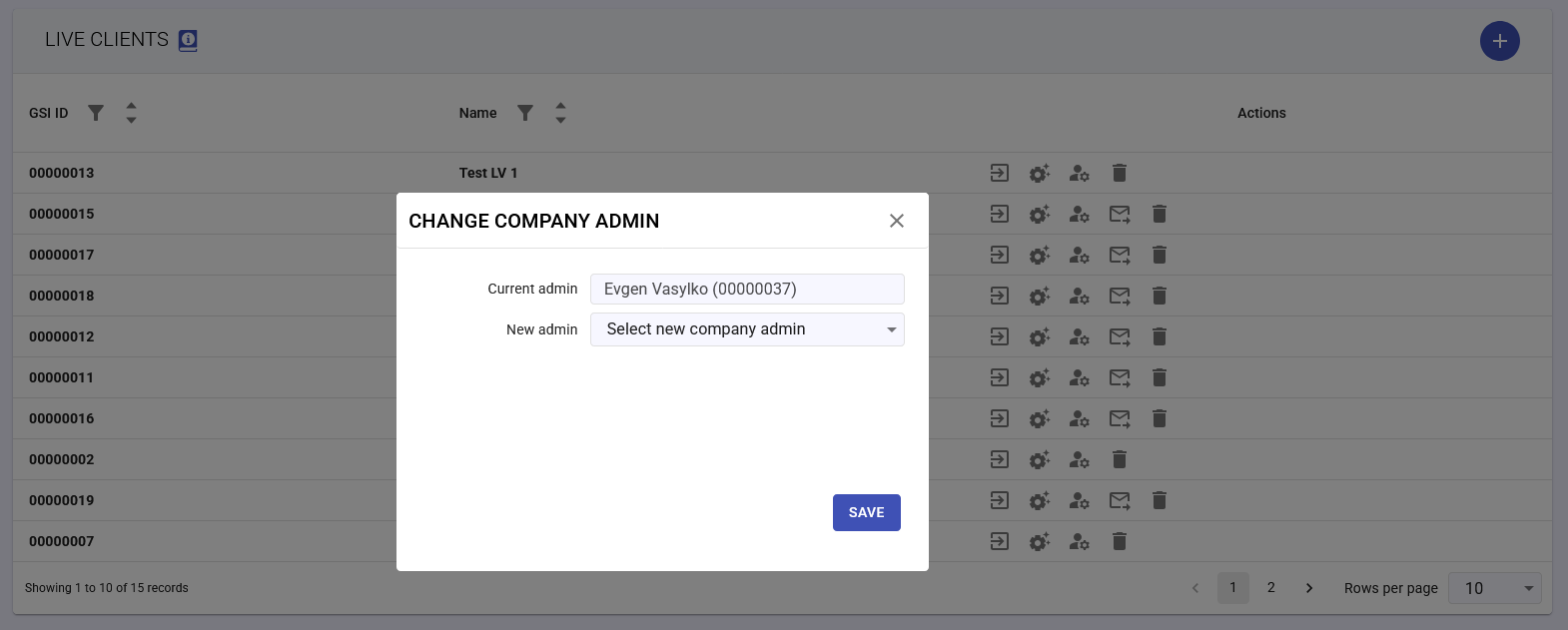
Change Company Admin
Modify the Company Administrator assignment:
- Click the Change Admin icon in the Actions column
- View current admin information
- Select new Company Administrator from dropdown
- Click SAVE to apply changes
Note: This action requires system administrator privileges and should be performed only with proper authorization from the client organization.
Manage Modules
Modify active modules for a Live Client:
- Click the Manage Modules icon in the Actions column
- Check/uncheck desired modules
- Configure included components and related modules
- Click SAVE to apply changes
Module changes take effect immediately and may impact user access to specific functionality.
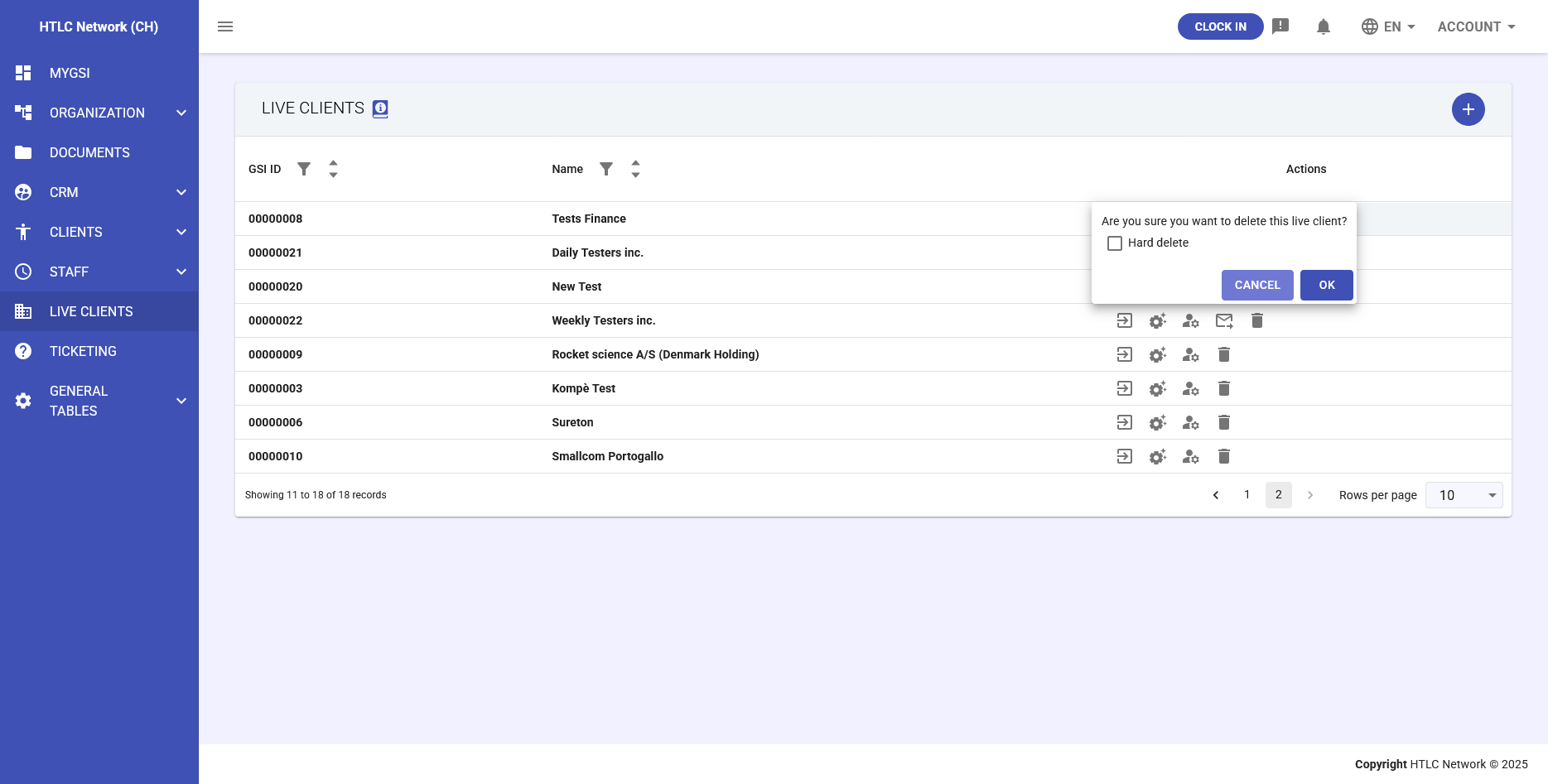
Delete Live Client
Remove a Live Client from the system:
- Click the Delete icon in the Actions column
- Choose deletion type:
- Hard Delete: Permanently removes all data (irreversible)
- Soft Delete: Marks as deleted but preserves data for potential recovery
- Click OK to confirm or CANCEL to abort
Warning: Hard deletion is permanent and cannot be undone. Always ensure proper backups before proceeding.
-
Share Between Live Clients
Cross-client sharing enables controlled collaboration between separate Live Client environments while maintaining security and data integrity.
Data Sharing Architecture
Shared Data Types:
- Documents: Files and folders can be shared with specific access controls
- Company Data: Selected company information visible in source company tables
- Reference Data: General tables and configurations
Synchronization Process:
- Shared data from source Live Clients appears in designated tables
- Background jobs handle data synchronization to ensure consistency
- Updates are reflected according to configured sync intervals
Setting Up Cross-Client Access
Step 1: Authorization Grant
The target Live Client's Company Administrator must:
- Access company settings in their environment
- Navigate to sharing permissions
- Grant access to specific source Live Clients
- Define permission levels for shared access
Step 2: Configure Sharing Rules
In the source Live Client:
- Identify data to be shared
- Set sharing permissions for specific companies
- Configure synchronization frequency
- Define access restrictions
Document Sharing Specifics
Document sharing between Live Clients follows these principles:
- Folder-Level Permissions: Set at folder level with inheritance options
- Granular Controls: View, download, edit, and manage permissions
- Audit Trail: All cross-client access is logged
- Revocable Access: Permissions can be modified or revoked at any time
Data Synchronization
Background Job Processing:
- Automatic synchronization runs at configured intervals
- Manual sync can be triggered for immediate updates
- Conflict resolution follows predefined rules
- Sync logs available for troubleshooting
Important Considerations:
- Data visible in source company tables is read-only by default
- Modifications require explicit edit permissions
- Sync delays may occur during high-volume operations
- Always verify critical data after synchronization
Best Practices for Cross-Client Sharing
- Minimize Shared Data: Share only essential information
- Regular Permission Audits: Review and update access permissions periodically
- Document Sharing Agreements: Maintain clear records of sharing arrangements
- Monitor Sync Logs: Regular review helps identify potential issues