-
Overview
The HTLC Network CRM (Customer Relationship Management) system is a comprehensive tool designed to manage customer interactions, track leads, organize campaigns, and maintain detailed company records. The system provides a centralized platform for managing all aspects of customer relationships and sales processes.
Key Features
- Company Management: Complete database of companies with detailed information
- Lead Tracking: Track and manage leads through various stages
- Campaign Management: Create and monitor marketing campaigns
- Lifecycle Pipeline: Visual representation of lead progress
- Activity Logging: Track all interactions including calls, emails, meetings, notes, and tasks
- Multi-user Support: Assign owners and track activities by user
Access and Navigation
The CRM module can be accessed from the main navigation menu under the CRM section. The system includes the following main areas:
- CRM Companies
- CRM Workflow
- CRM Campaigns
- Lifecycle
-
CRM Companies
Companies Management and Activities
Viewing All Companies
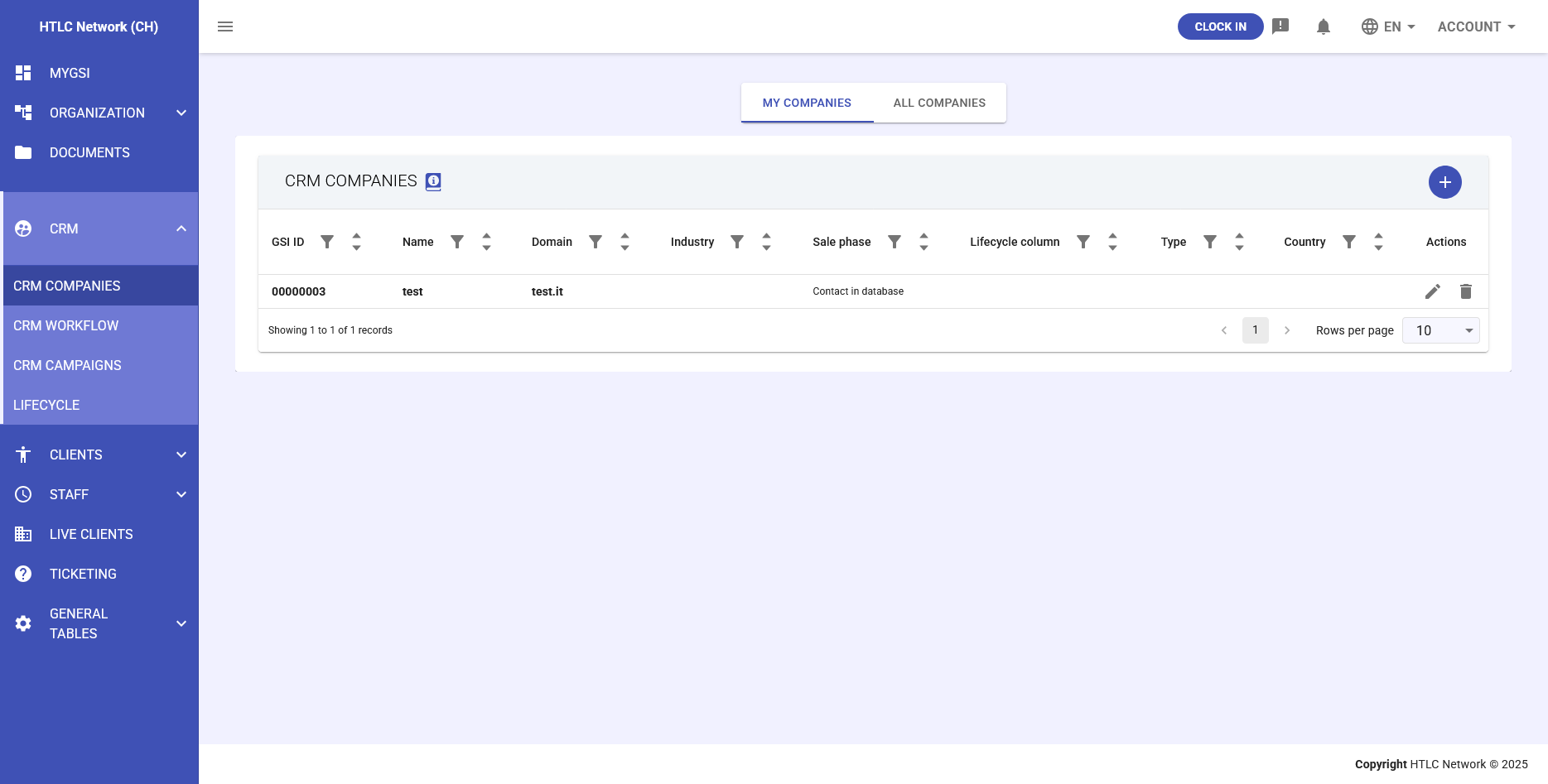
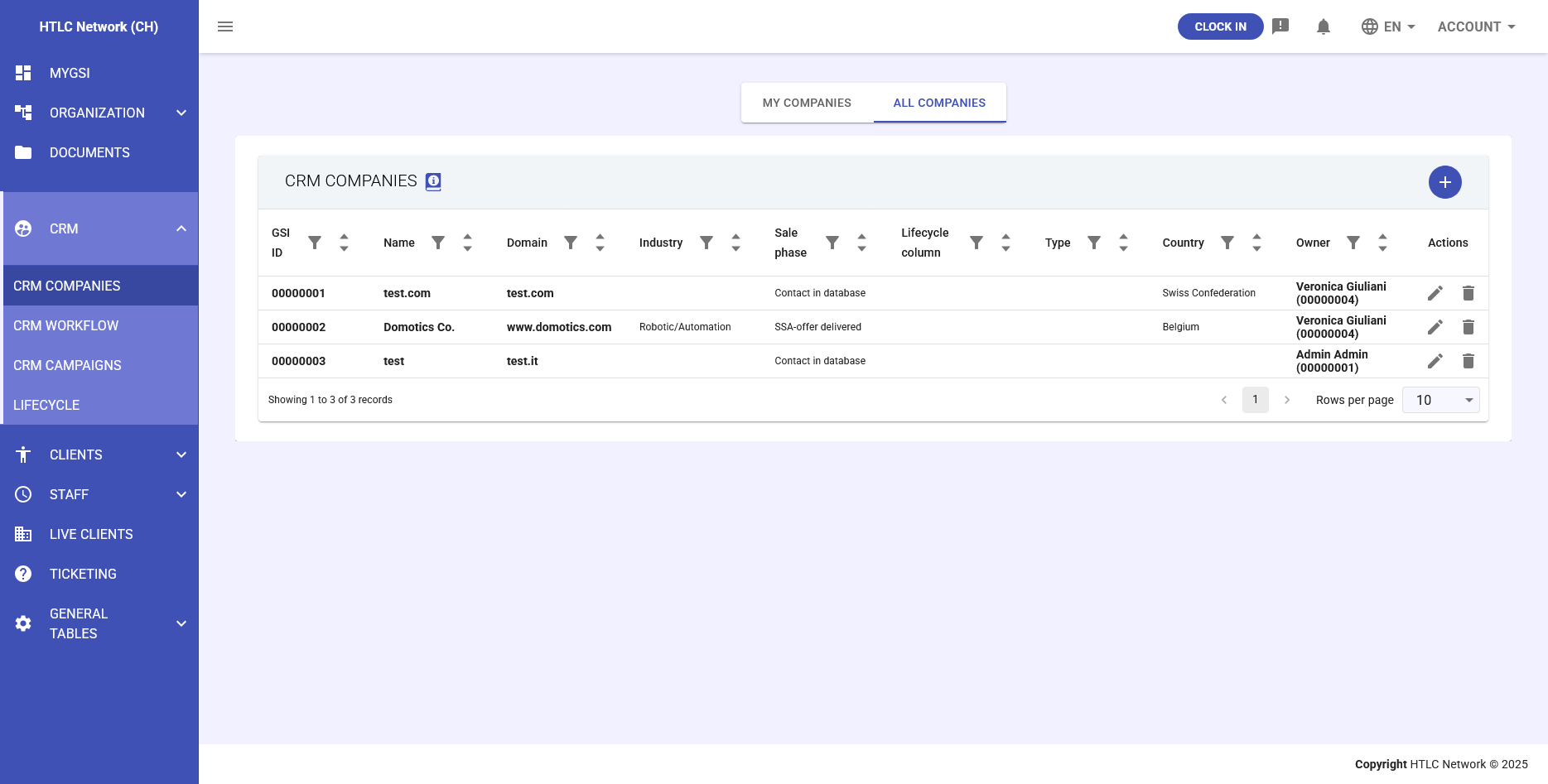
The Companies section displays a comprehensive list of all companies in your CRM database. The main table includes:
- GSI ID: Unique identifier for each company
- Name: Company name
- Domain: Company website domain
- Industry: Business sector classification
- Sale Phase: Current status in the sales process
- Lifecycle Column: Position in the sales pipeline
- Type: Company classification
- Country: Company location
- Owner: Assigned team member
- Actions: Edit and delete options
Table Features
- Sortable columns (click column headers)
- Pagination controls (rows per page: 10, 25, 50, etc.)
- Filter between "My Companies" and "All Companies"
Adding a New Company
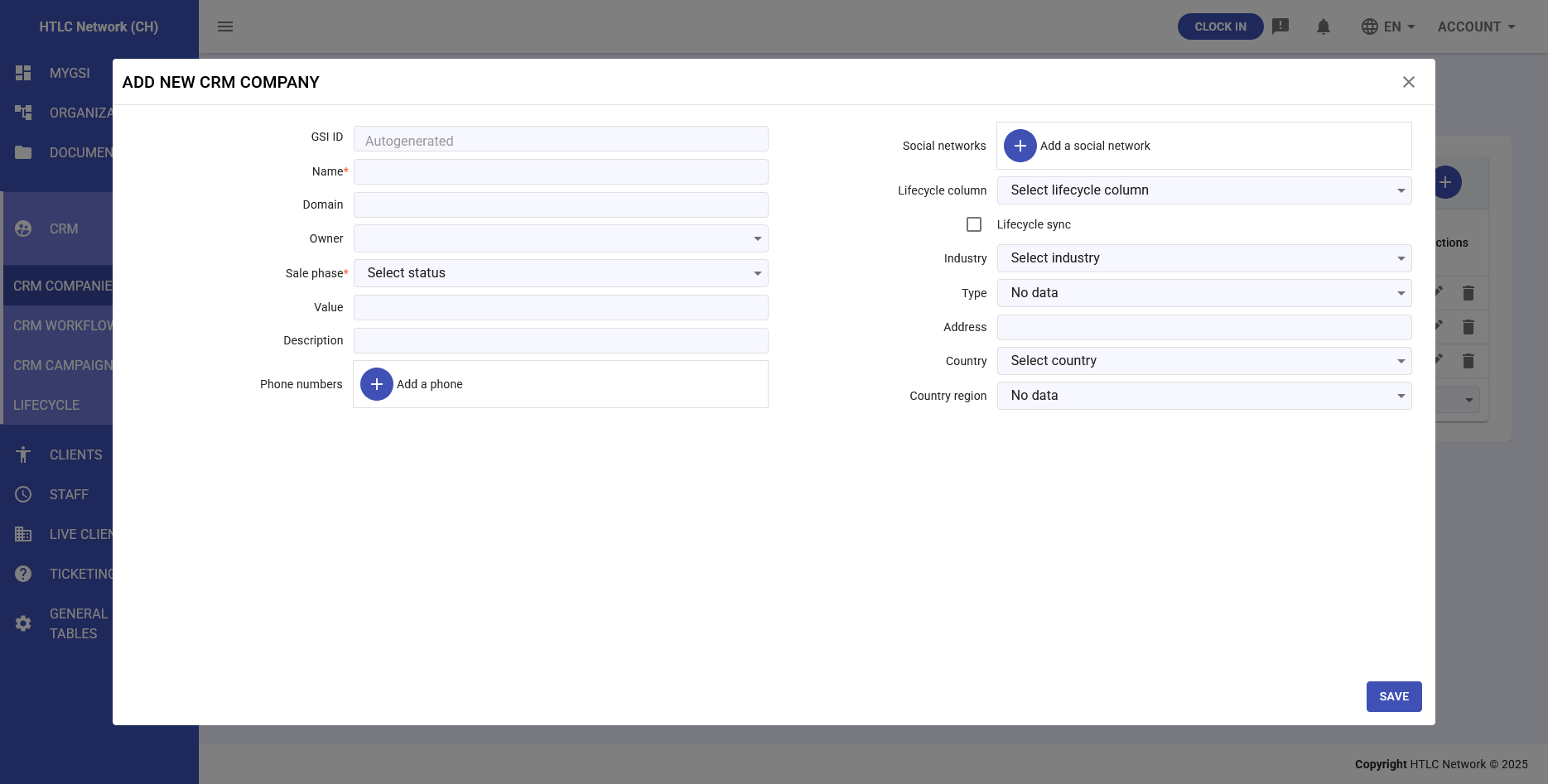
To add a new company, click the "+" button in the top right corner. The form includes:
- GSI ID: Auto-generated unique identifier
- Name: Company name (required)
- Domain: Website URL
- Owner: Assign responsible team member
- Sale Phase: Select current status
- Value: Estimated deal value
- Description: Additional company details
- Phone Numbers: Add multiple phone contacts
- Social Networks: Add social media links
- Lifecycle Column: Select pipeline stage
- Lifecycle Sync: Enable/disable synchronization
- Industry: Select from industry list
- Type: Company type classification
- Address: Physical location
- Country: Select from country list
- Country Region: Specific region/state
Updating Company Information
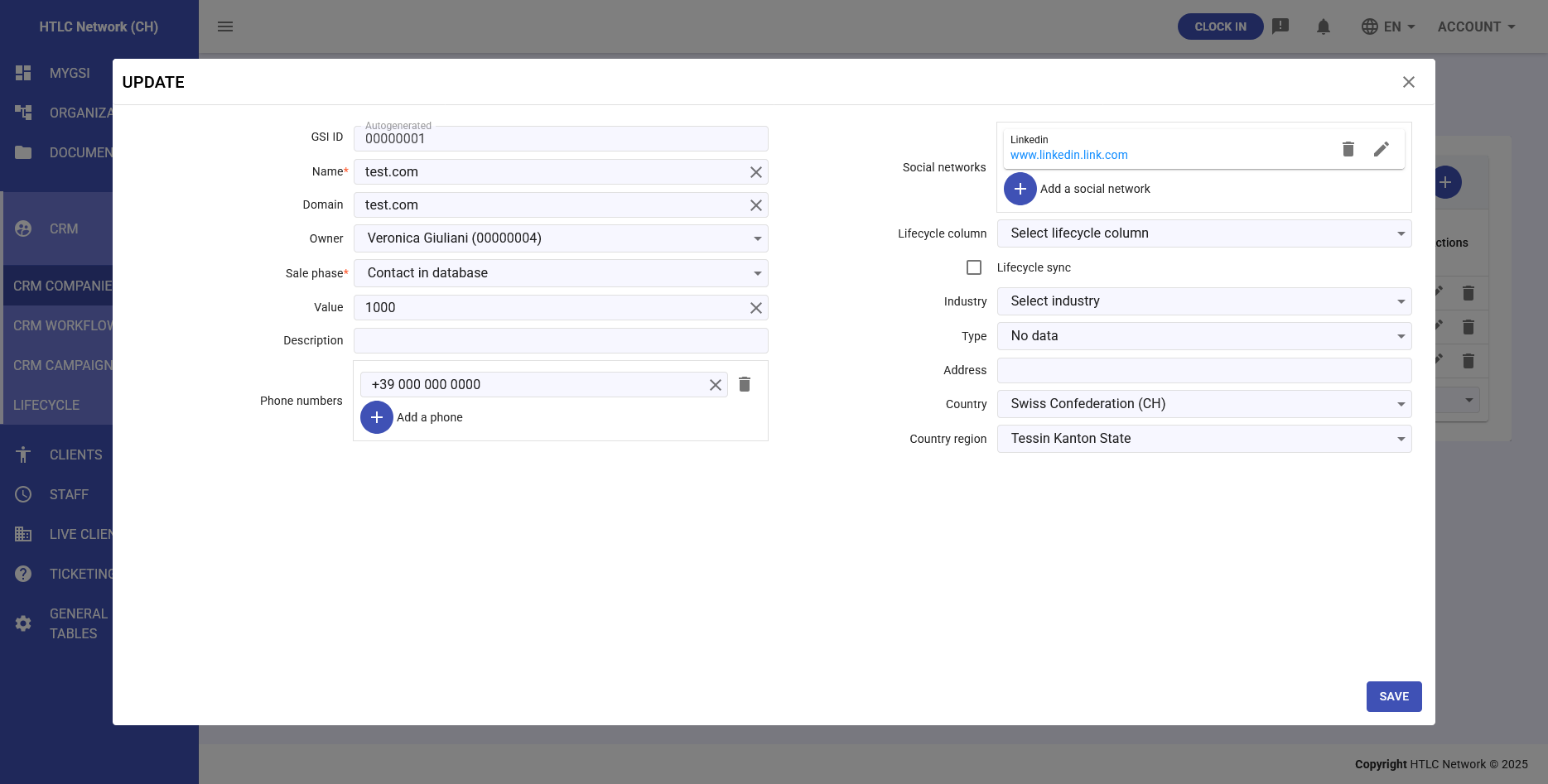
Click the edit icon in the Actions column to modify company details. The update form contains all the same fields as the creation form, allowing you to:
- Modify basic information
- Update contact details
- Change ownership
- Adjust sale phase and lifecycle position
- Add or remove phone numbers and social links
Company Profile and Activities
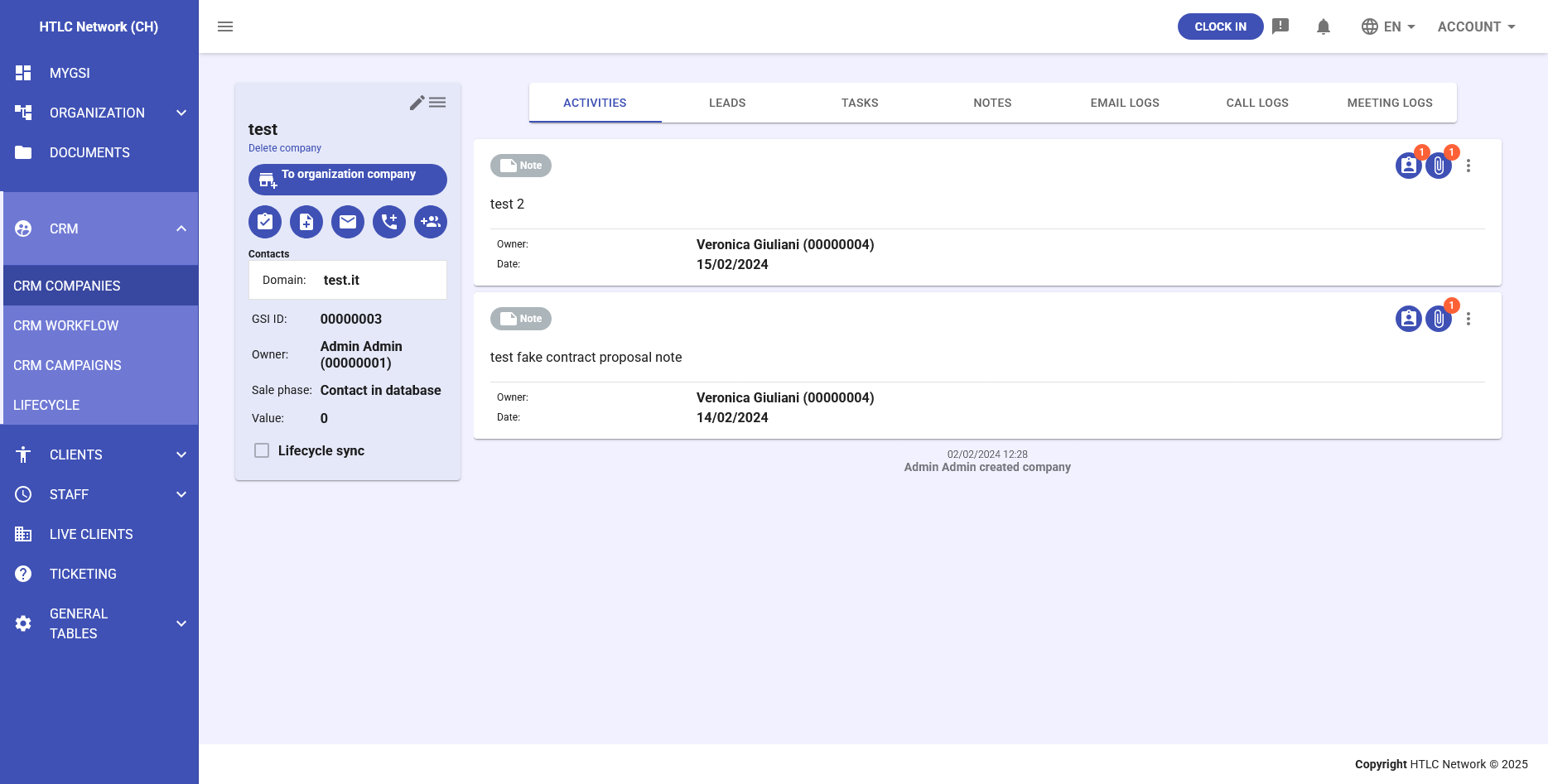
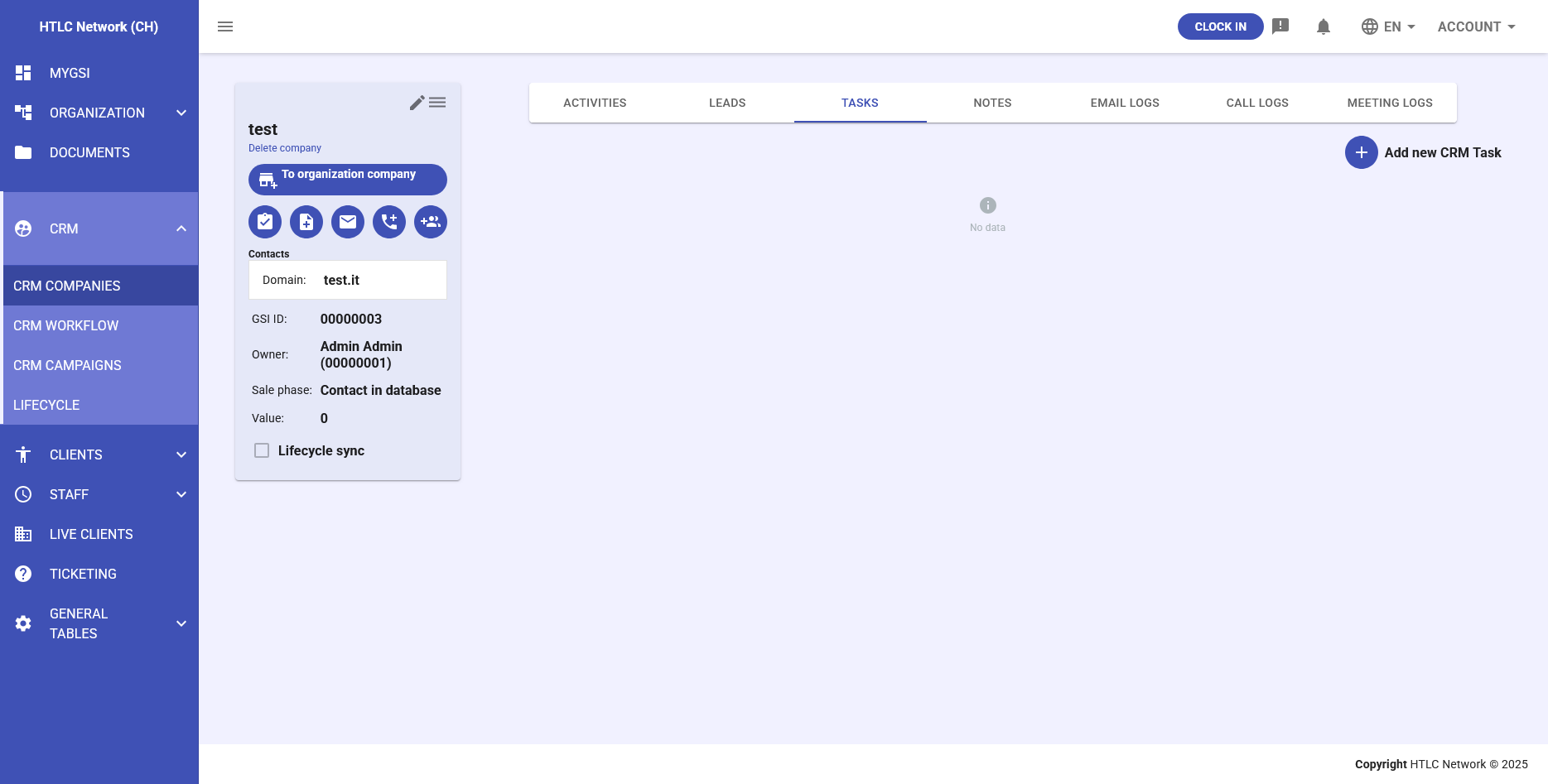
Each company profile includes comprehensive information and activity tracking. The profile header shows:
- Company name and status
- Quick action buttons (email, document, call, etc.)
- Contact information
- Owner and key details
Activity Tabs
Company profiles include multiple activity tabs for comprehensive tracking:
Activities Tab
Overview of all activities related to the company, displayed in chronological order.
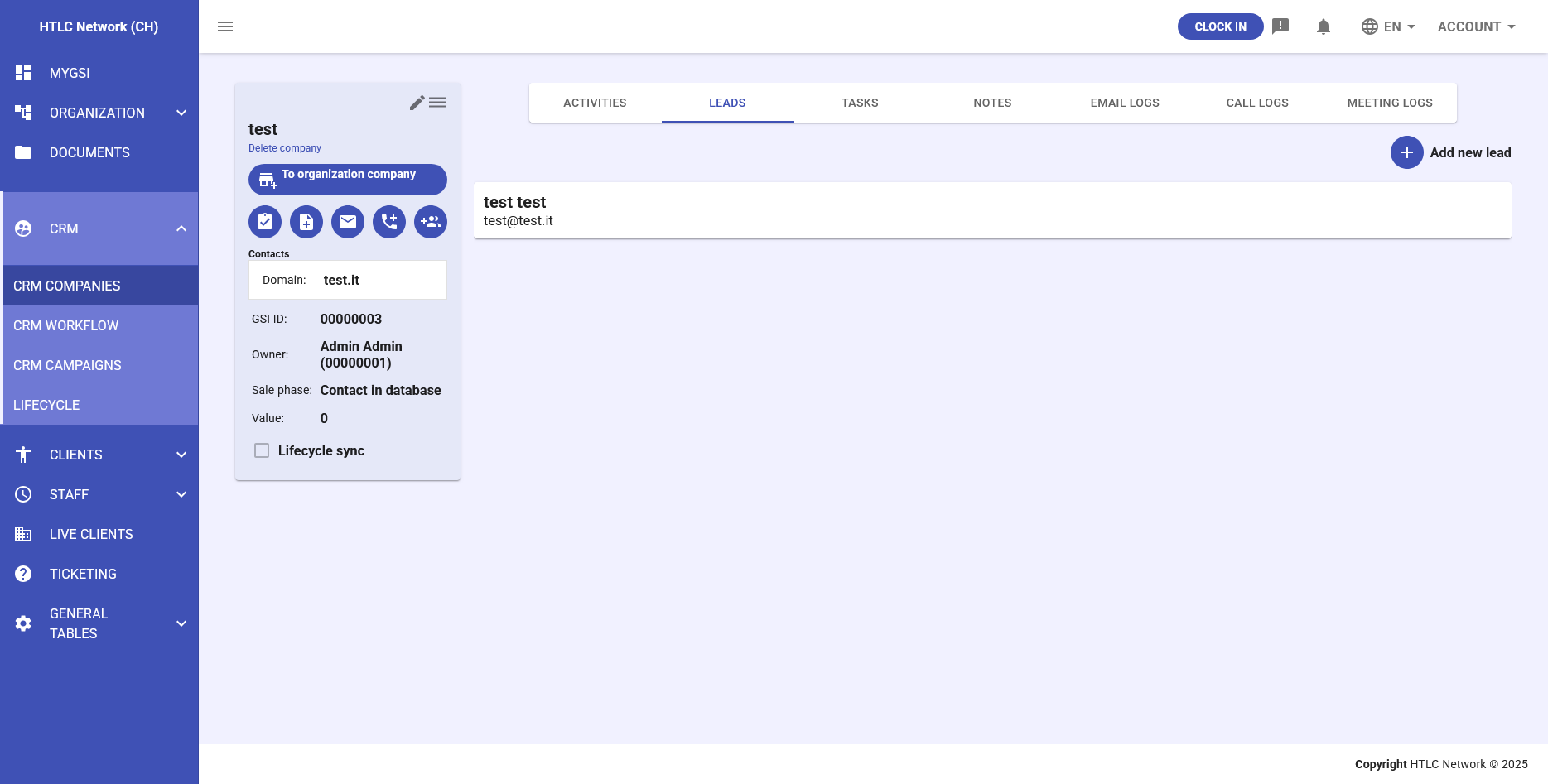
Leads Tab
- View all leads associated with the company
- Add new leads directly from company profile
- Track lead status and ownership
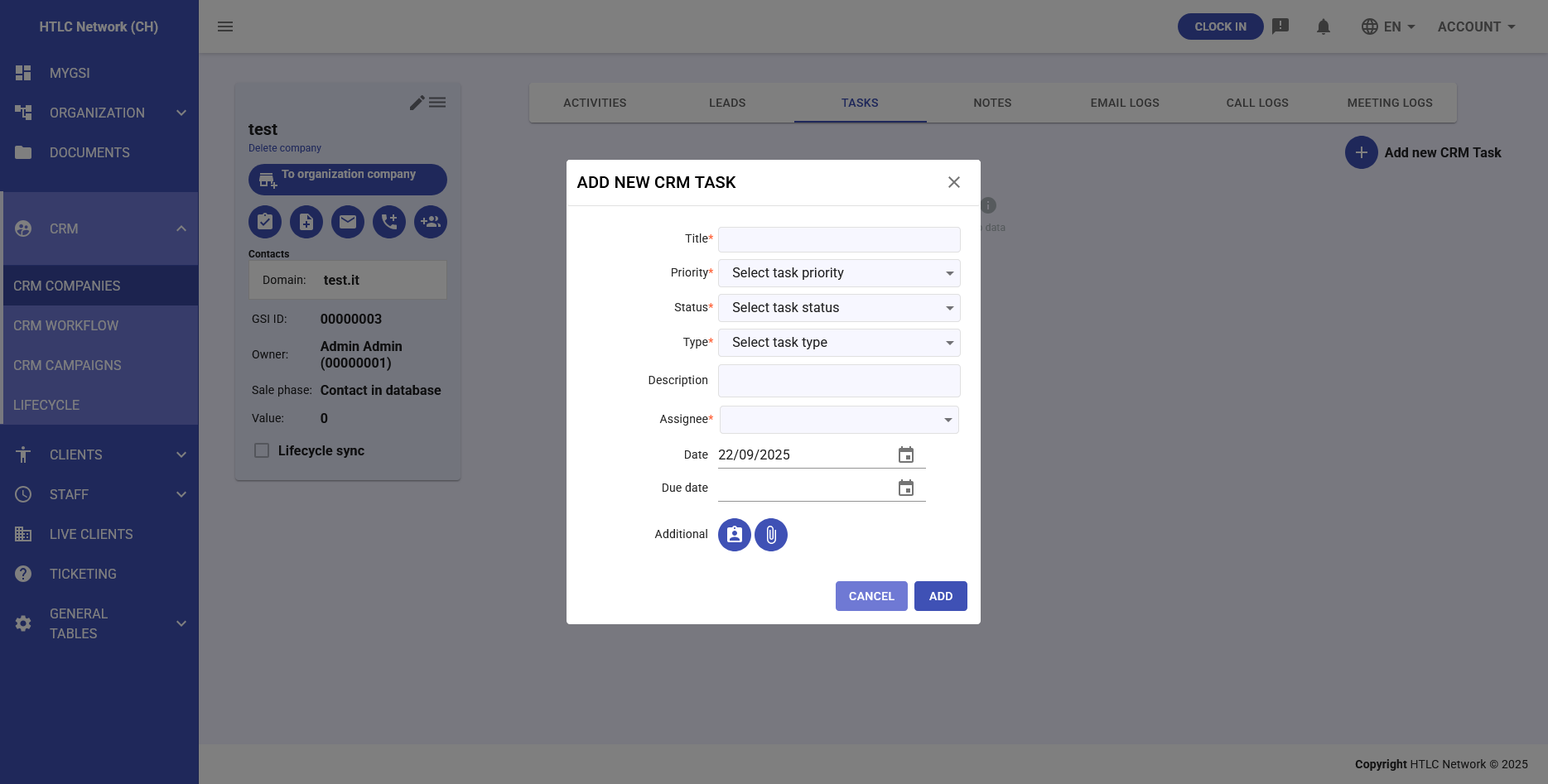
Tasks Tab
- Create and manage tasks related to the company
- Task fields include:
- Title
- Priority (High, Medium, Low)
- Status (Open, In Progress, Completed)
- Type (Call, Email, Meeting, etc.)
- Description
- Assignee
- Due date
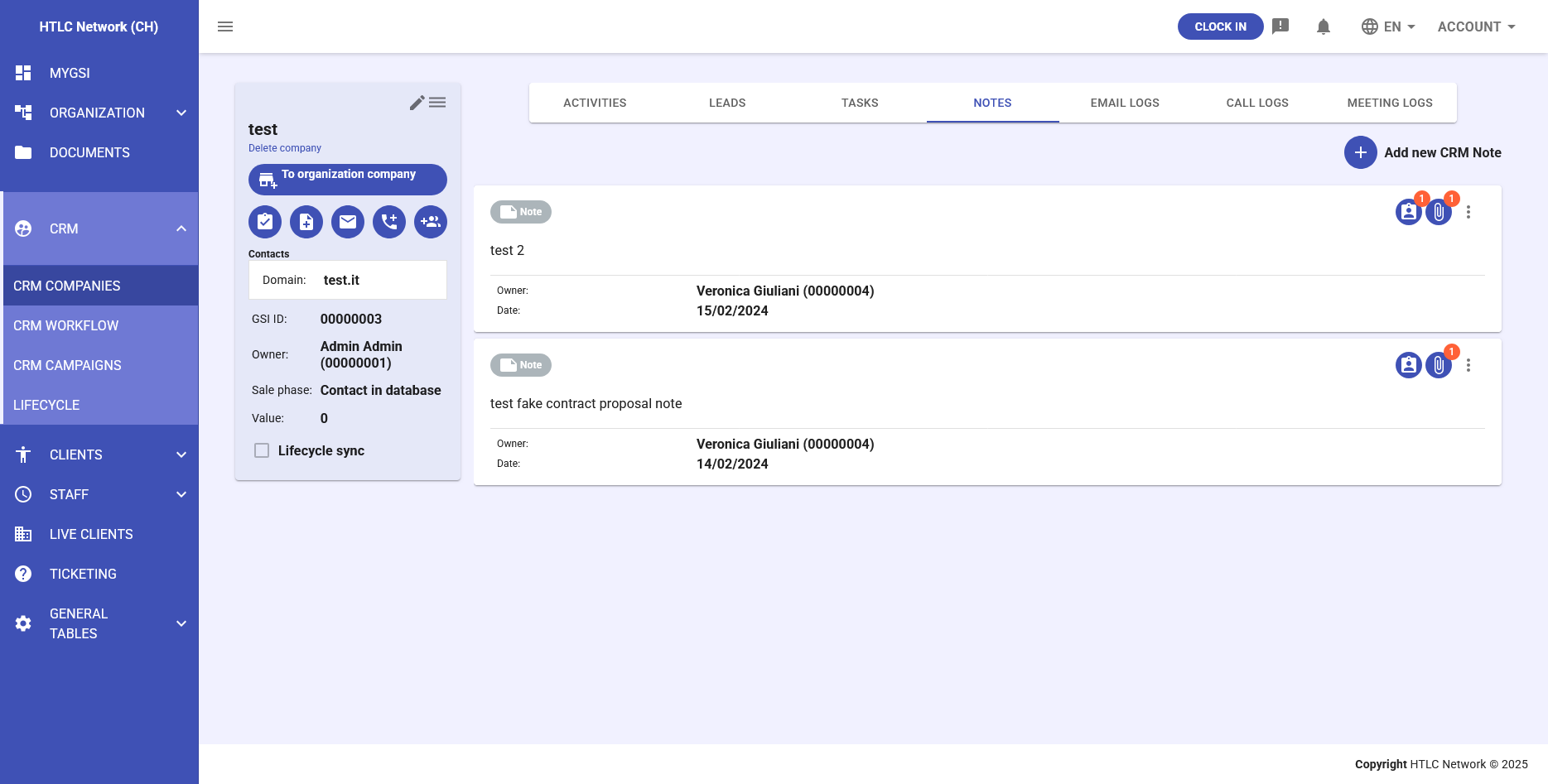
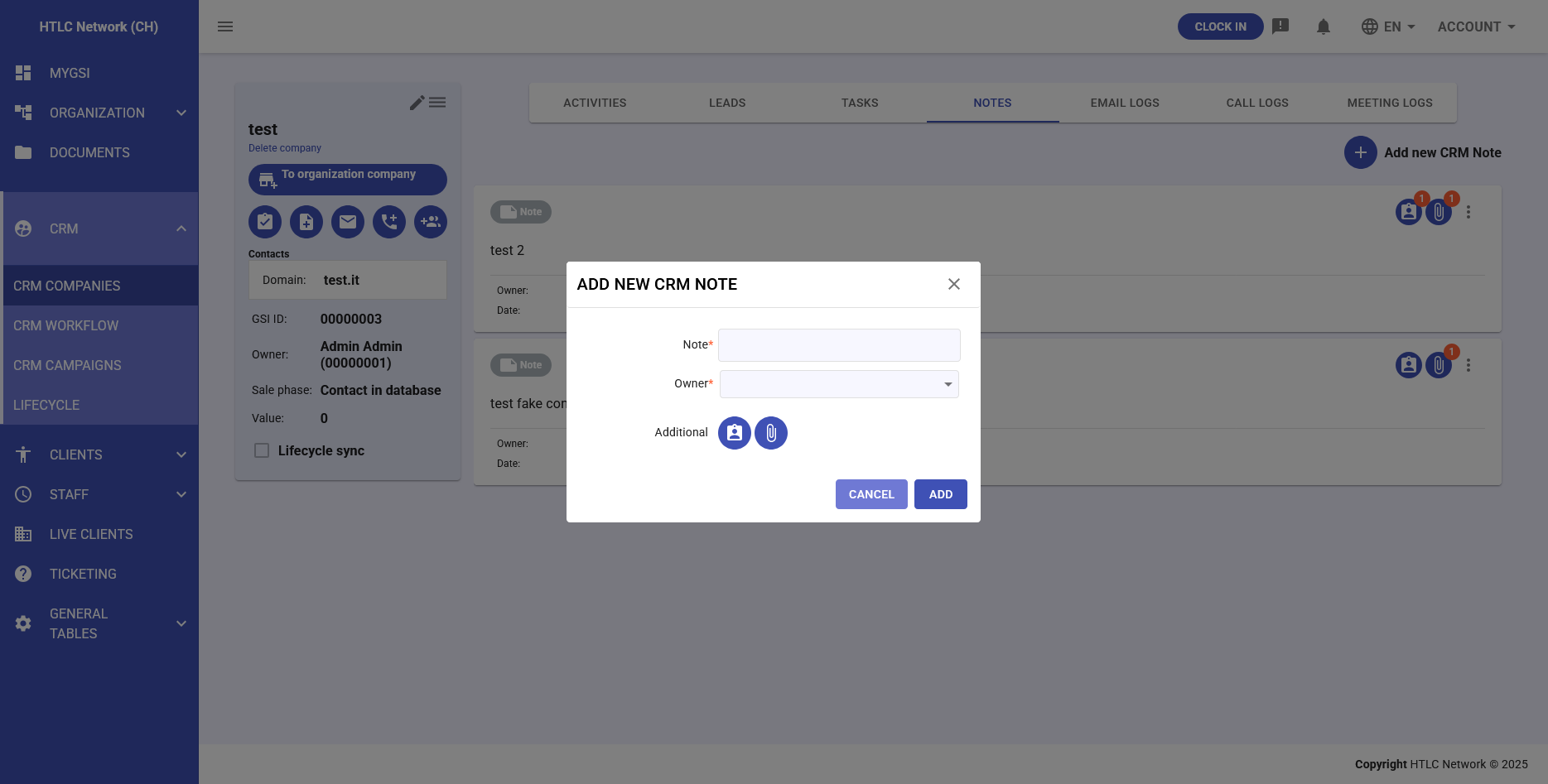
Notes Tab
- Add internal notes about the company
- Track important information and observations
- Each note includes:
- Note content
- Owner/Author
- Date created
- Additional team members (optional)
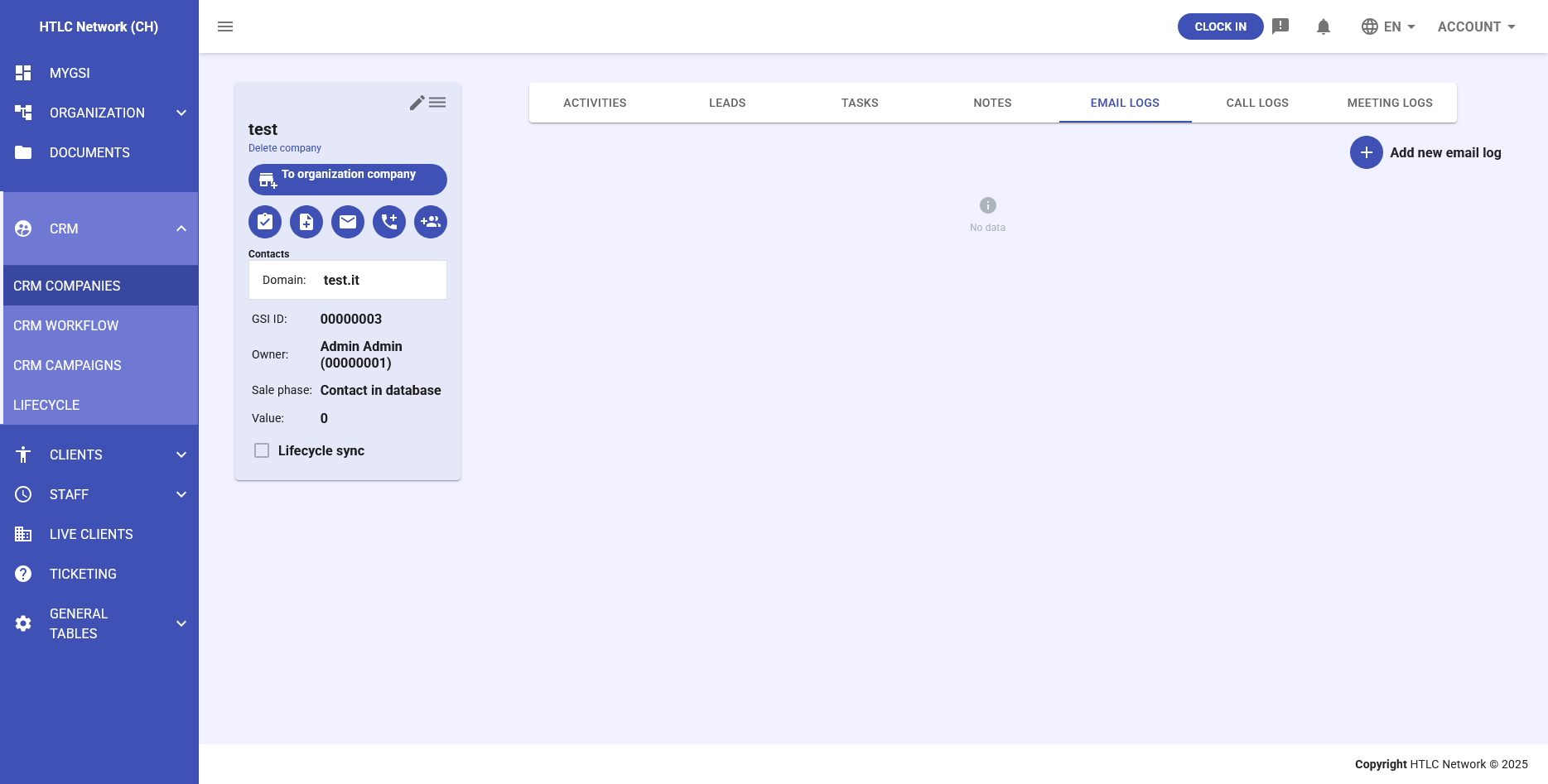
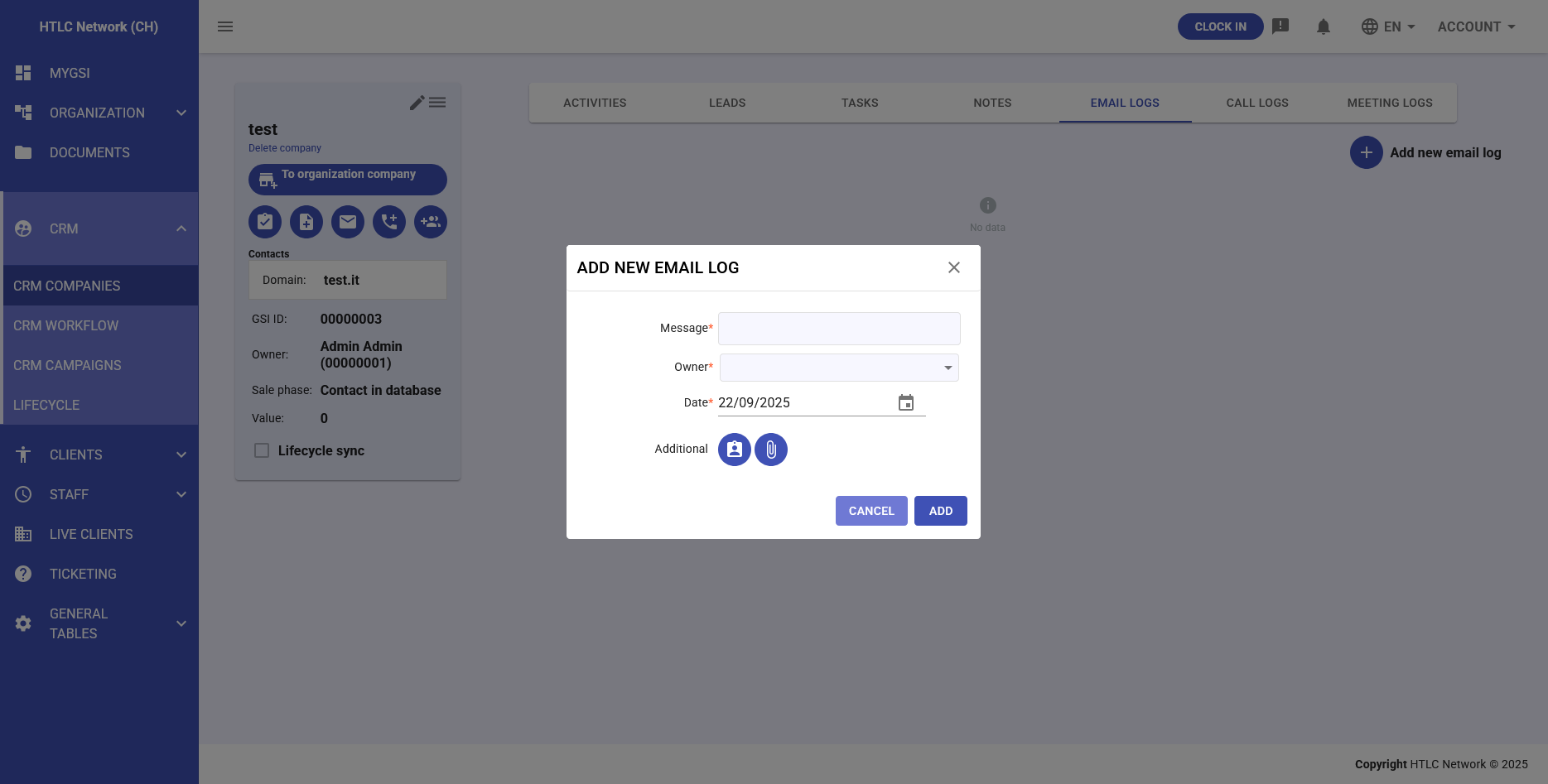
Email Logs Tab
- Track all email communications
- Add new email records
- View email history with the company
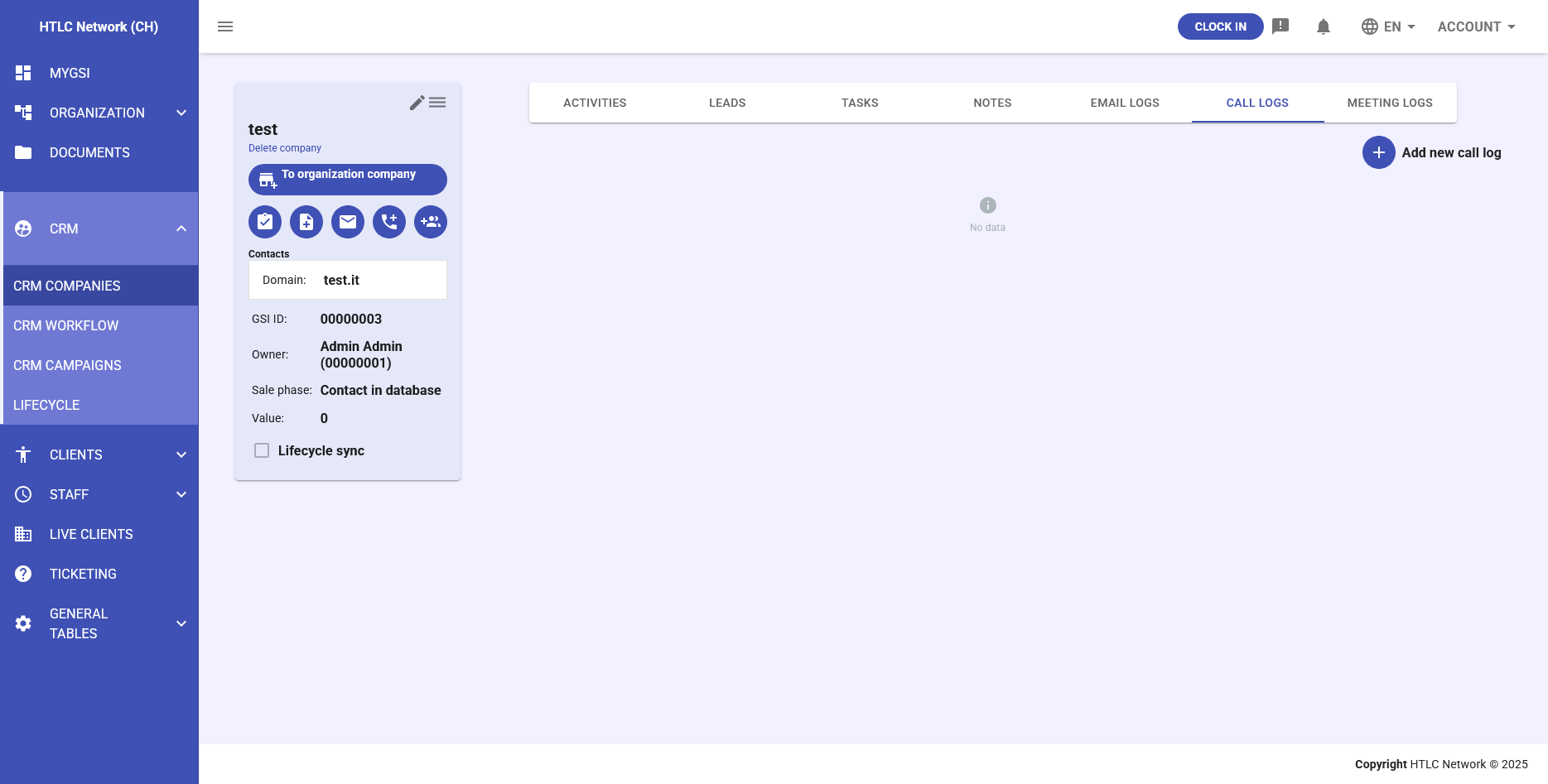
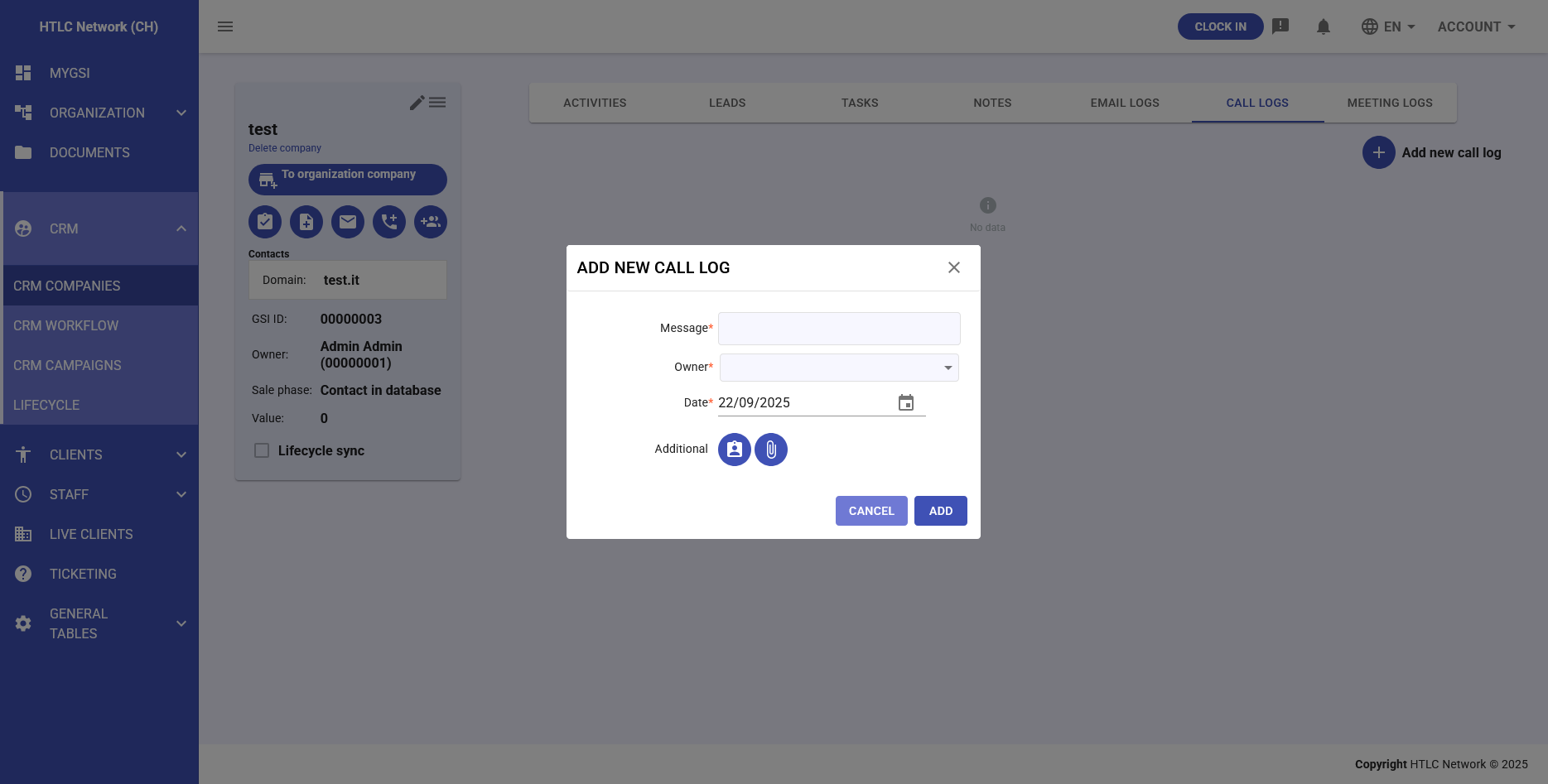
Call Logs Tab
- Record phone conversations
- Track call dates, duration, and outcomes
- Add call notes and follow-up actions
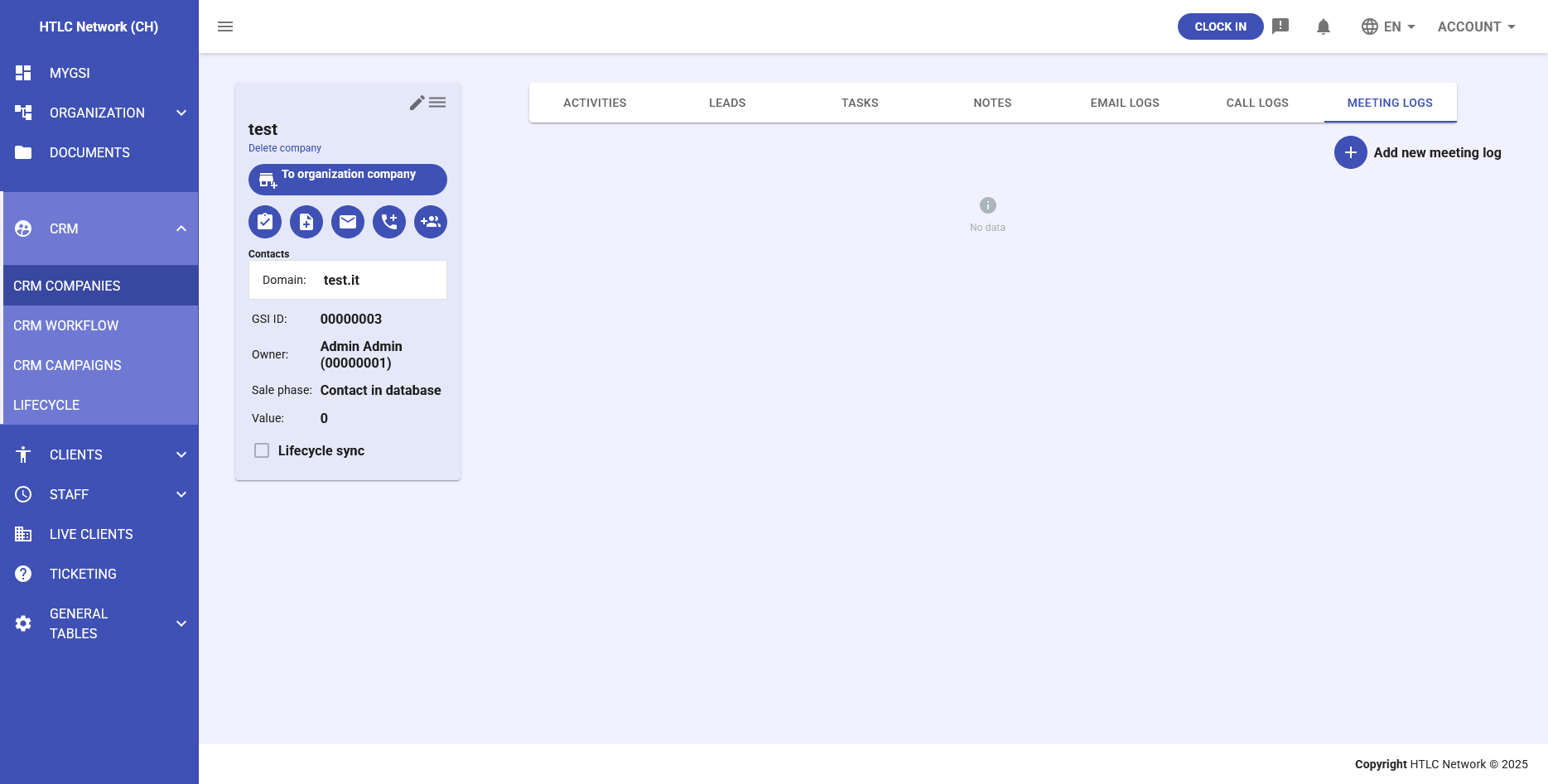
Meeting Logs Tab
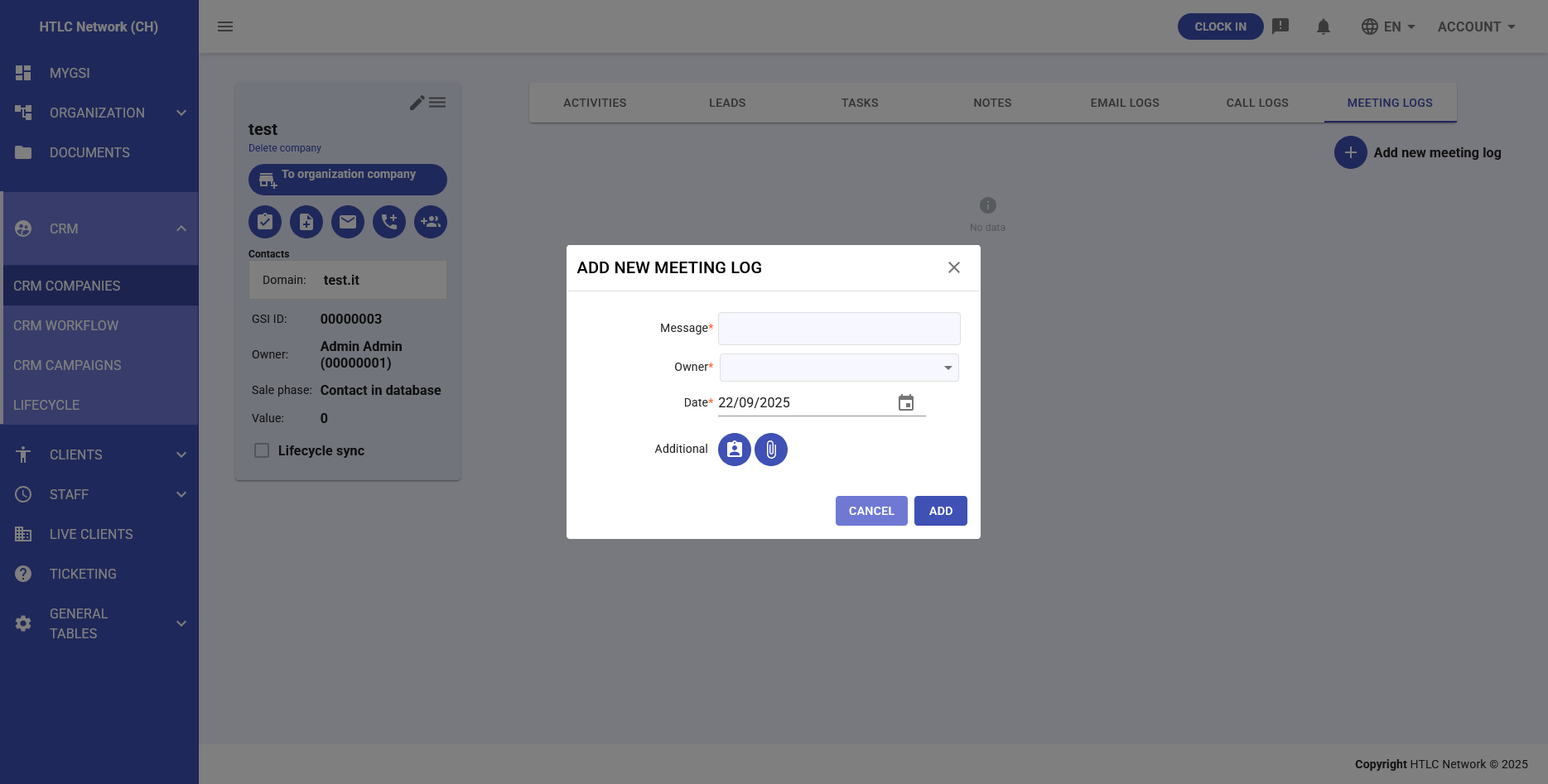
- Schedule and track meetings
- Record meeting notes and attendees
- Link to calendar events
-
CRM Workflow and Leads
Lead Management
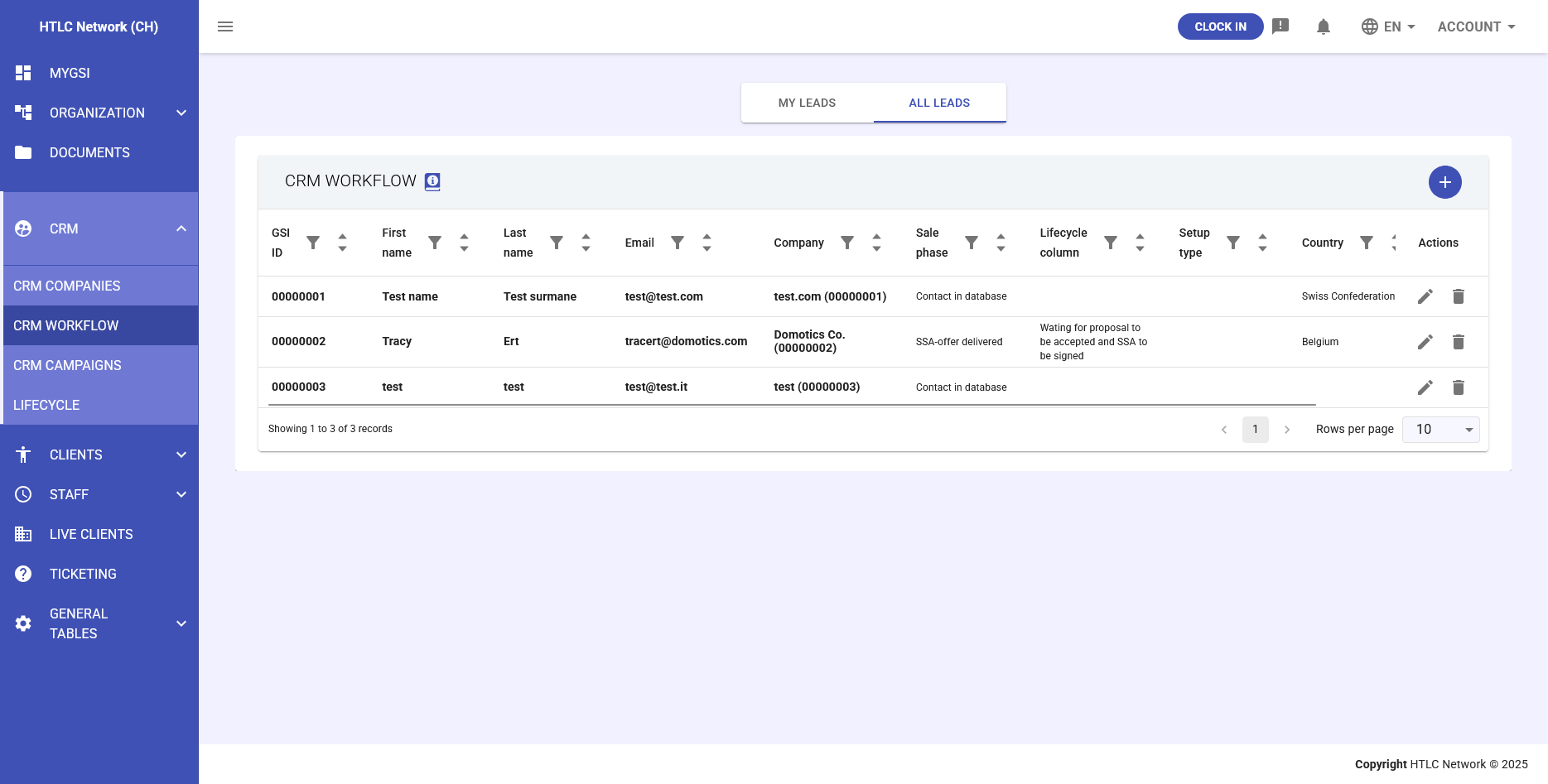
The CRM Workflow section manages all leads in the system. Leads represent potential customers who have shown interest in your products or services.
Lead Information Includes:
- GSI ID: Unique lead identifier
- First Name: Lead's first name
- Last Name: Lead's last name
- Email: Primary email address
- Company: Associated company
- Sale Phase: Current stage in sales process
- Lifecycle Column: Pipeline position
- Setup Type: Lead classification
- Country: Lead location
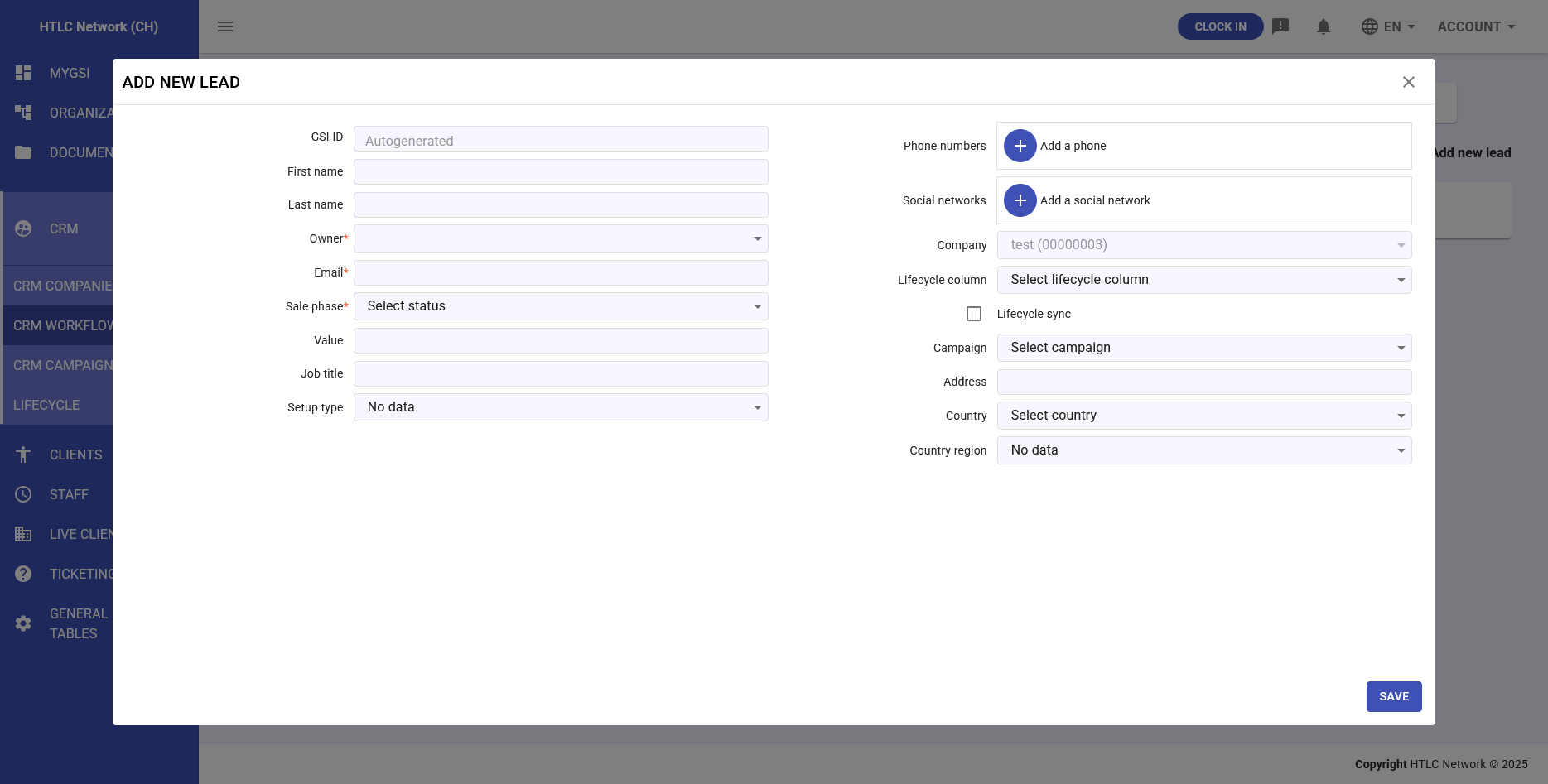
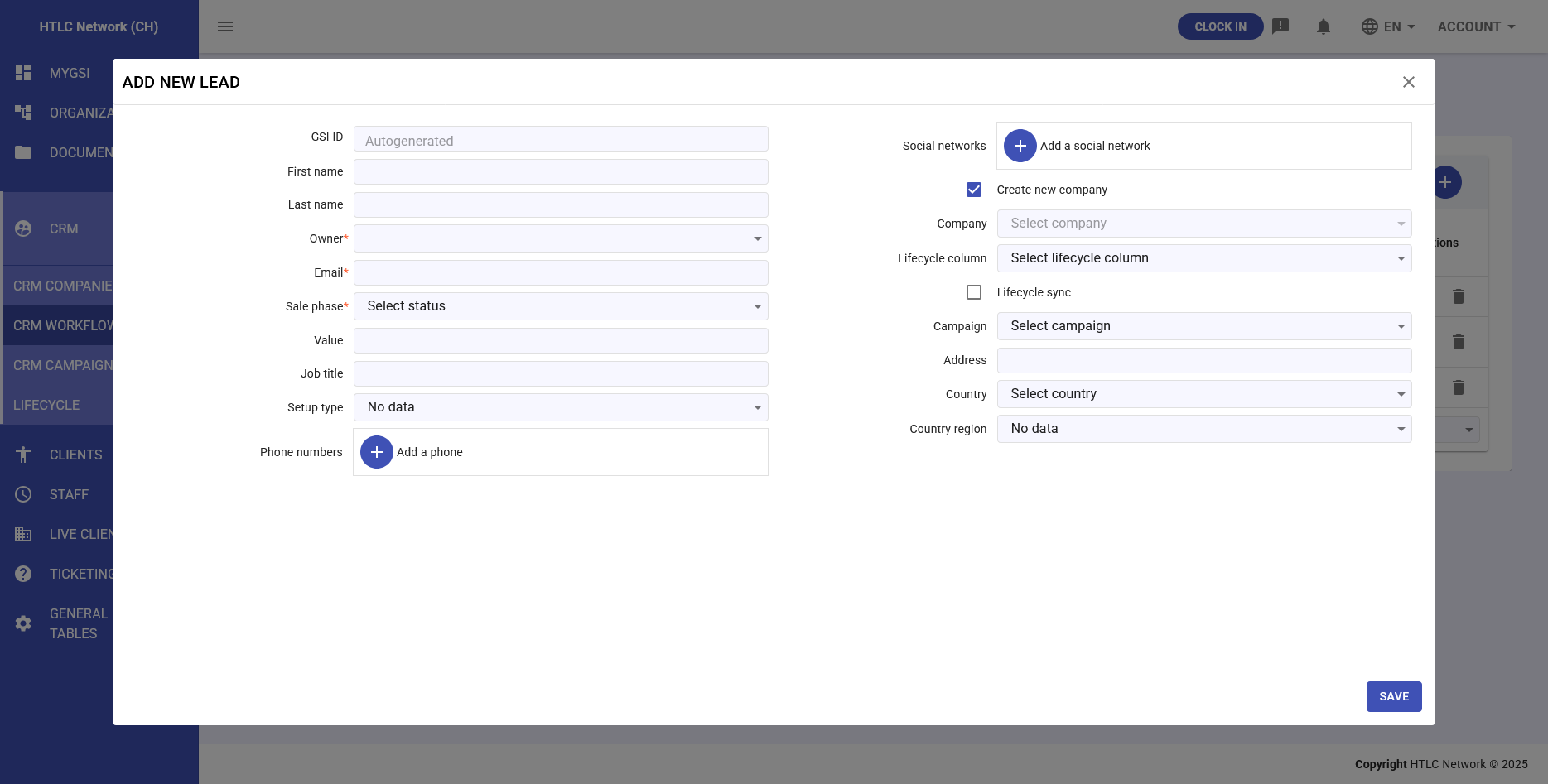
Adding New Leads
To create a new lead, click the "+" button. The form includes:
- Personal Information: First name, last name
- Contact Details: Email, phone numbers
- Company Association: Link to existing company or create new
- Owner Assignment: Assign responsible team member
- Sale Phase: Set initial status
- Value: Potential deal value
- Job Title: Lead's position
- Setup Type: Lead source/type
- Social Networks: Add social media profiles
- Lifecycle Settings: Column and sync options
- Campaign: Associate with marketing campaign
- Location: Address, country, region
Lead Views
- My Leads: Shows leads assigned to current user
- All Leads: Displays all leads in the system
-
CRM Campaigns
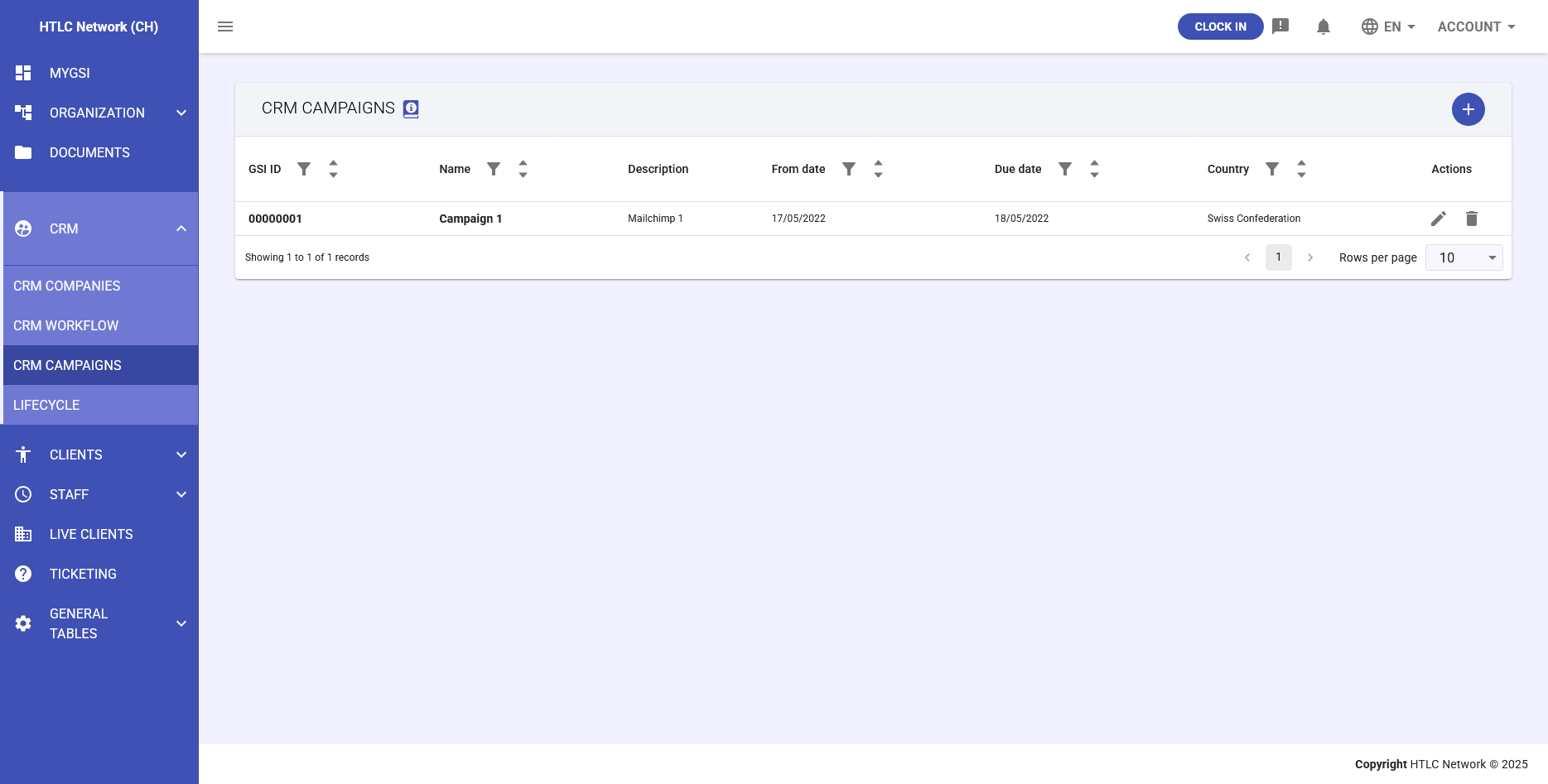
Campaign Overview
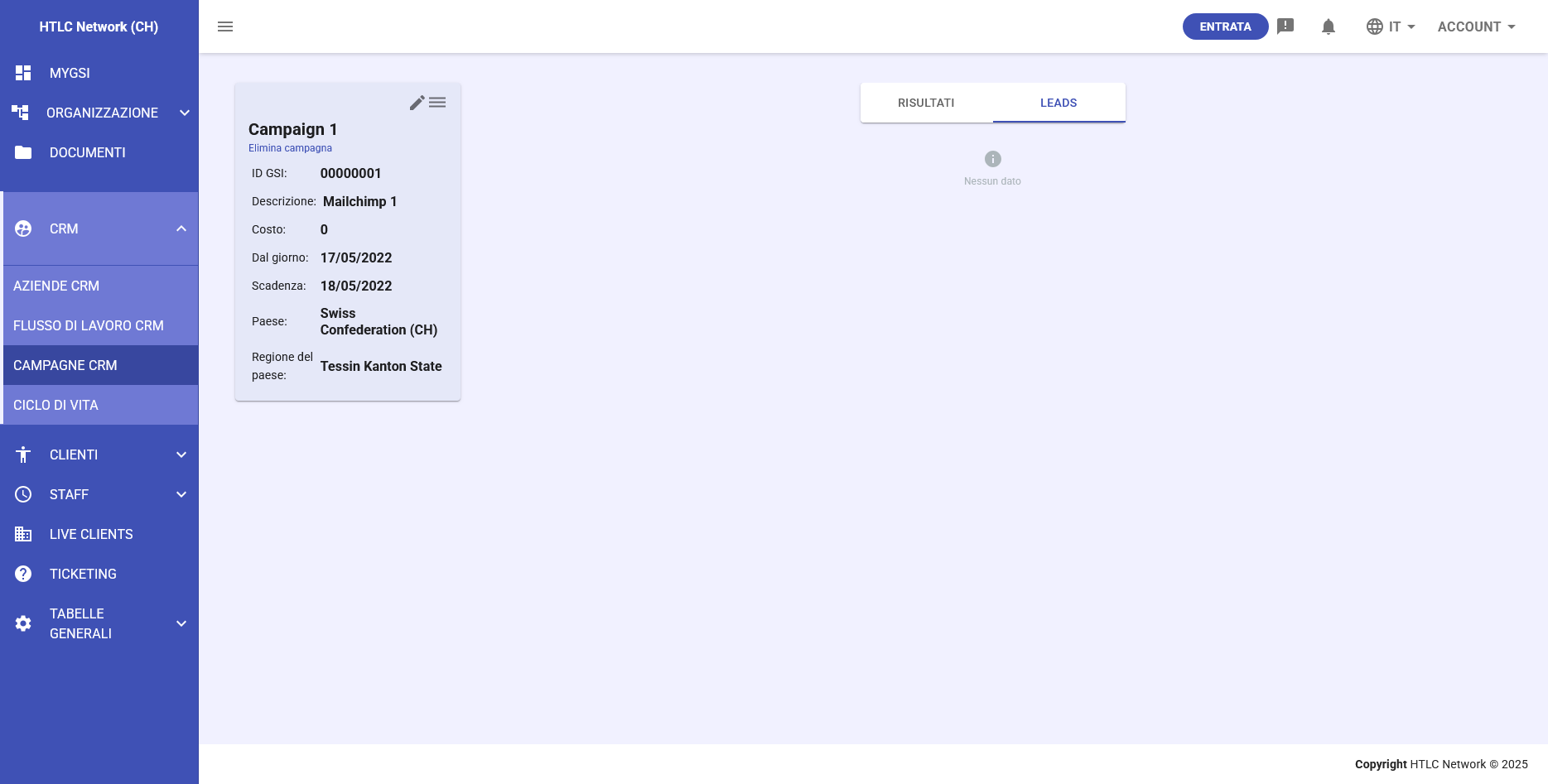
Campaigns allow you to track marketing initiatives and their effectiveness. Each campaign can be linked to leads and companies to measure ROI and conversion rates.
Campaign Fields:
- GSI ID: Unique campaign identifier
- Name: Campaign title
- Description: Detailed campaign information
- From Date: Campaign start date
- Due Date: Campaign end date
- Country: Target country
- Cost: Campaign budget/expenses
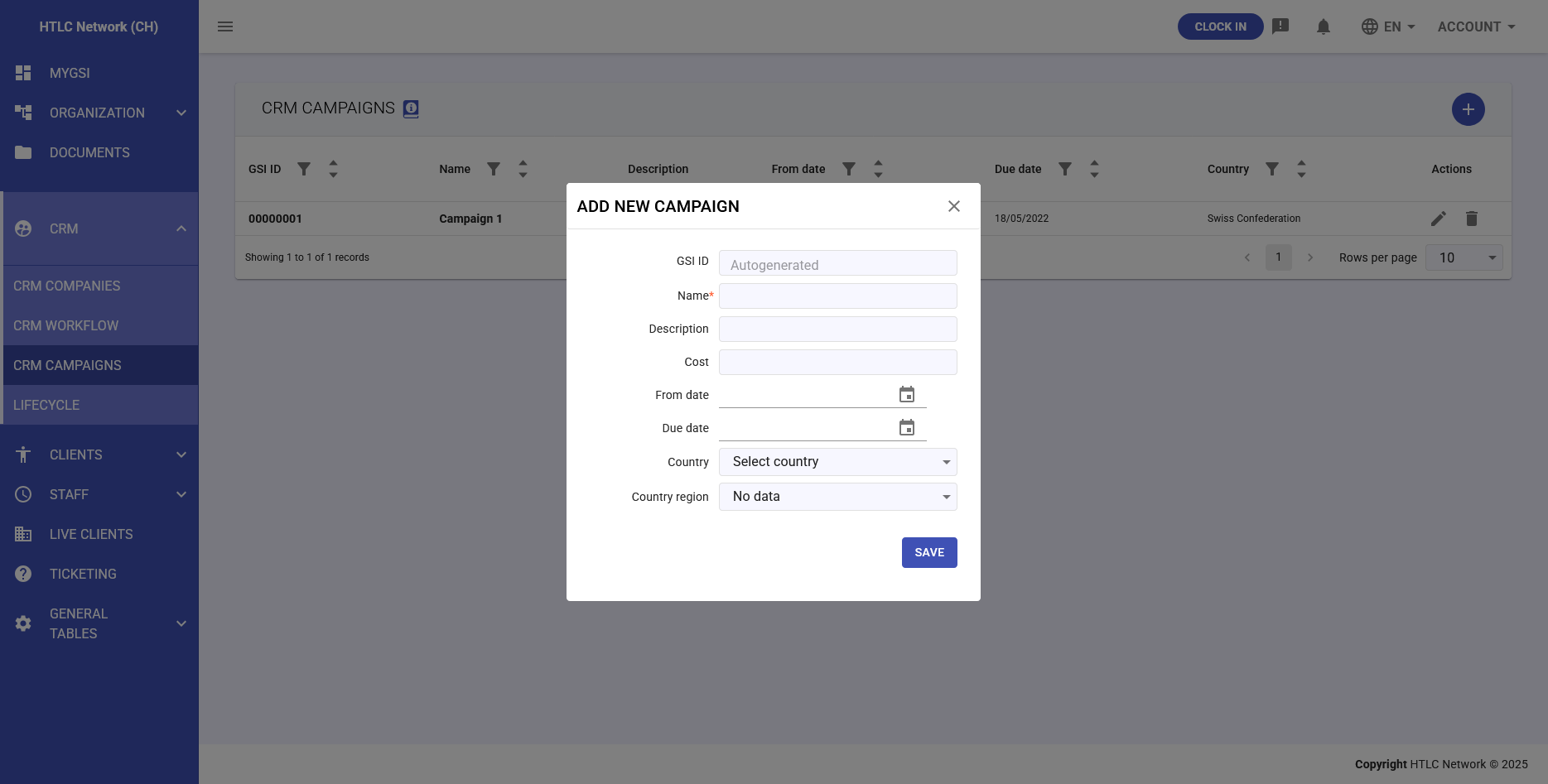
Creating Campaigns
To add a new campaign:
- Click the "+" button in the Campaigns section
- Fill in campaign details:
- GSI ID (auto-generated)
- Name (required)
- Description
- Cost
- Date range (From/Due dates)
- Target country and region
- Click "SAVE" to create the campaign
Campaign Management
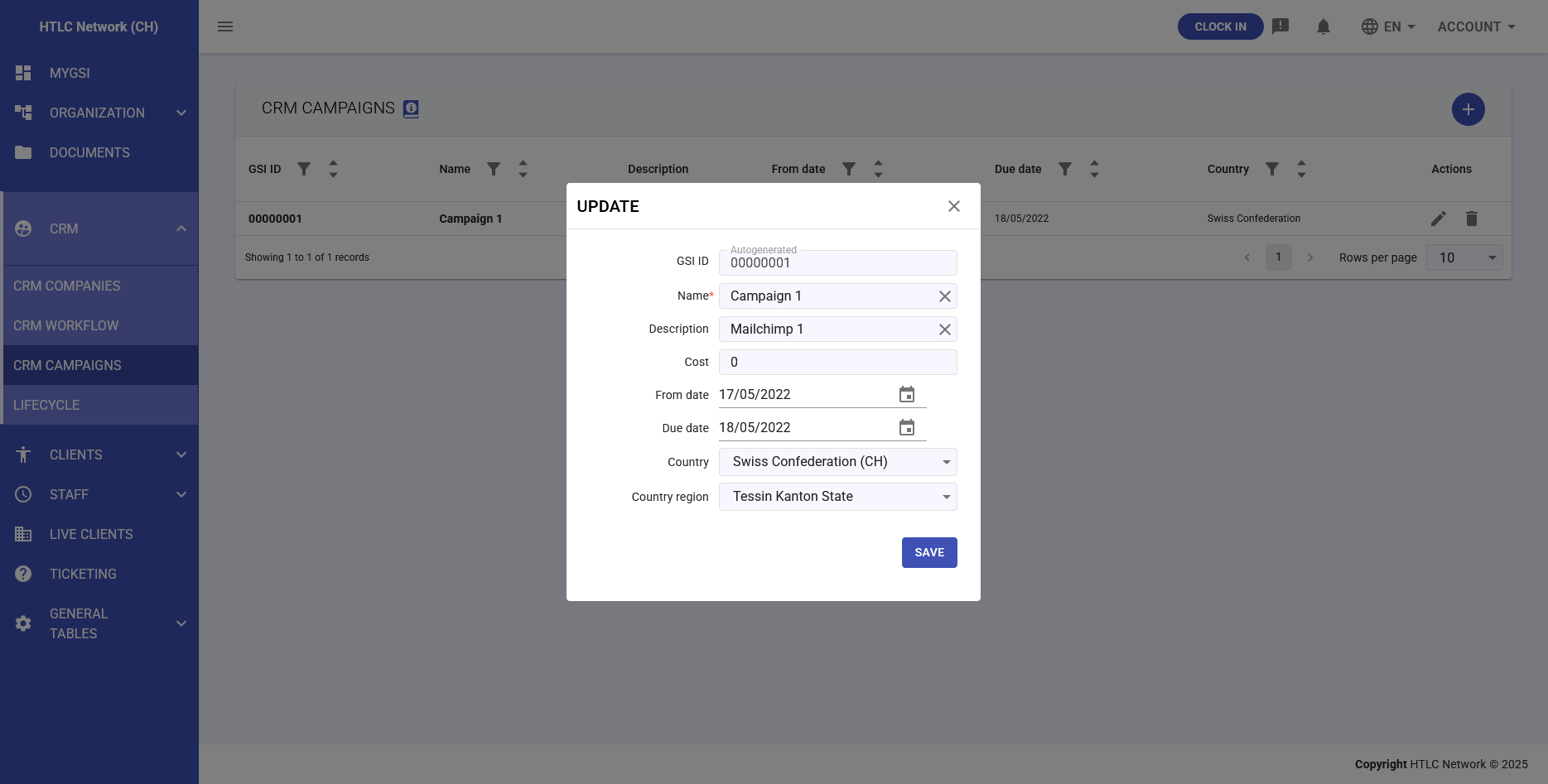
- Edit: Click the edit icon to modify campaign details
- Delete: Remove campaigns that are no longer needed
- View: See all associated leads and conversion metrics
-
Lifecycle Management
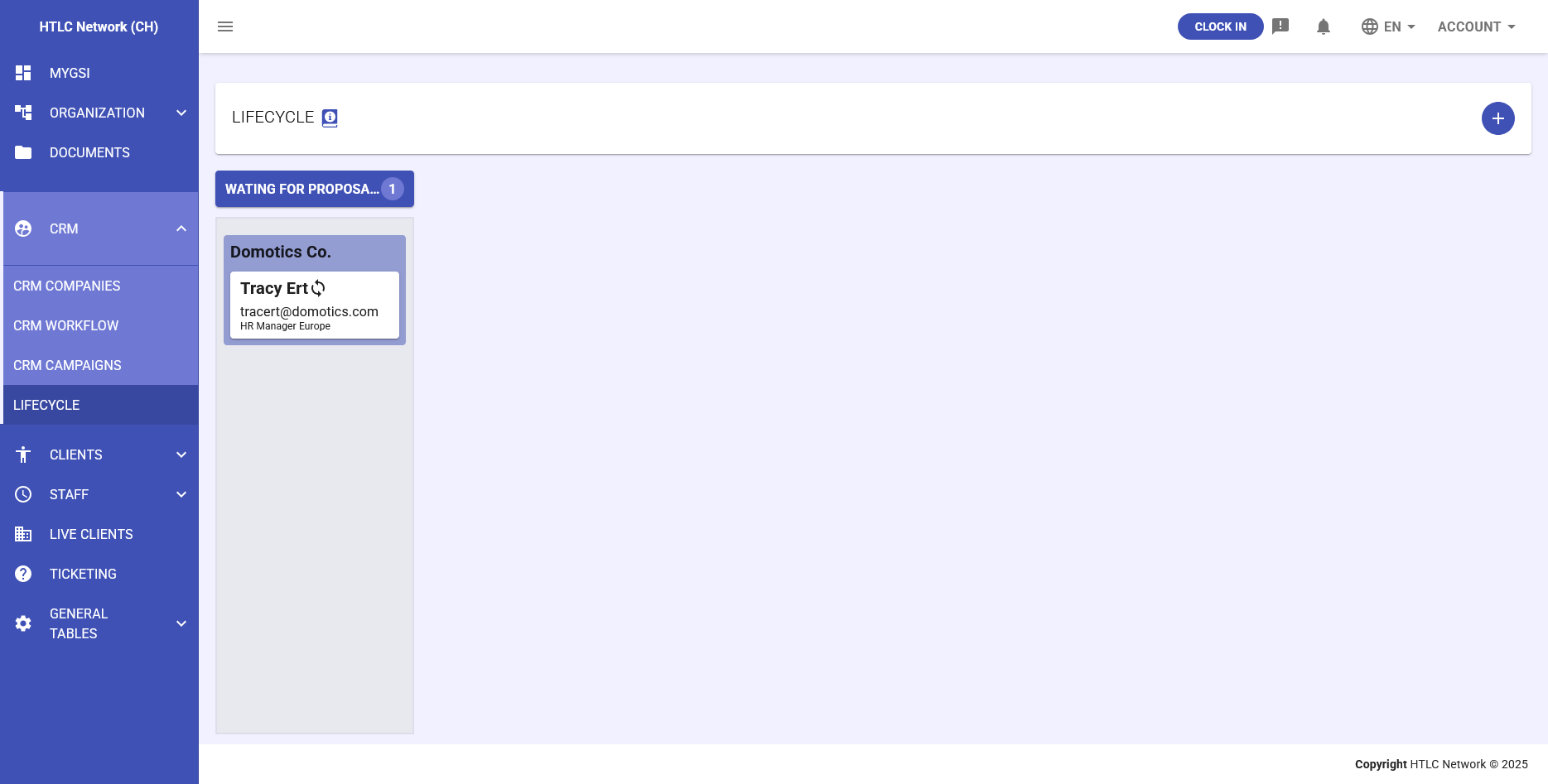
Pipeline Overview
The Lifecycle view provides a visual pipeline representation of your sales process. Leads and companies move through different stages as they progress toward conversion.
Default Lifecycle Stages:
- Waiting for Proposal to be Accepted
- SSA to be Signed
- Custom stages can be added as needed
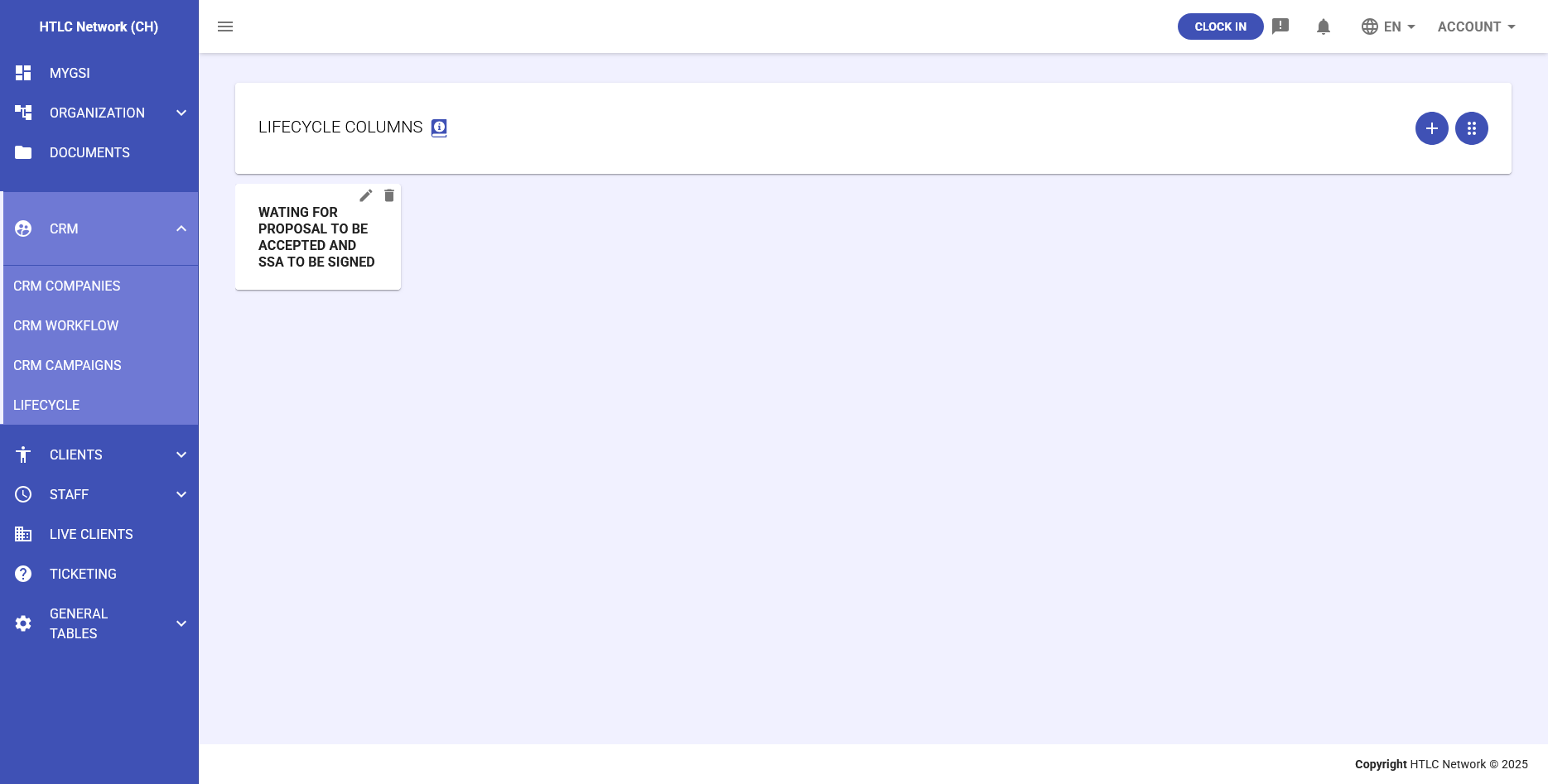
Managing Lifecycle Columns
To customize lifecycle stages:
- Navigate to Lifecycle section
- Click on "Edit Columns" button
- Add, rename, or remove stages
- Drag to reorder stages
- Save changes
Moving Items Through Pipeline
- Drag and drop cards between columns
- Click on cards to view details
- Update status from within company/lead records