-
Overview
The Absence Types table in General Tables enables complete configuration of absence categories available in the GSI2 system. This functionality is fundamental for managing permits, holidays, sick leave, and other types of staff absences, integrating directly with the Staff module for time and activity tracking.
Absence Types defined in this table determine not only the categories available for absence requests, but also calculation rules, usage limits, and approval processes. The system supports advanced configurations such as automatic approval, negative balance management, and integration with export systems for payroll calculation.
Beyond traditional leave management, this functionality also serves as a correction mechanism for resolving time tracking anomalies when clock in/out records don't align with expected work schedules.
Main View - Table
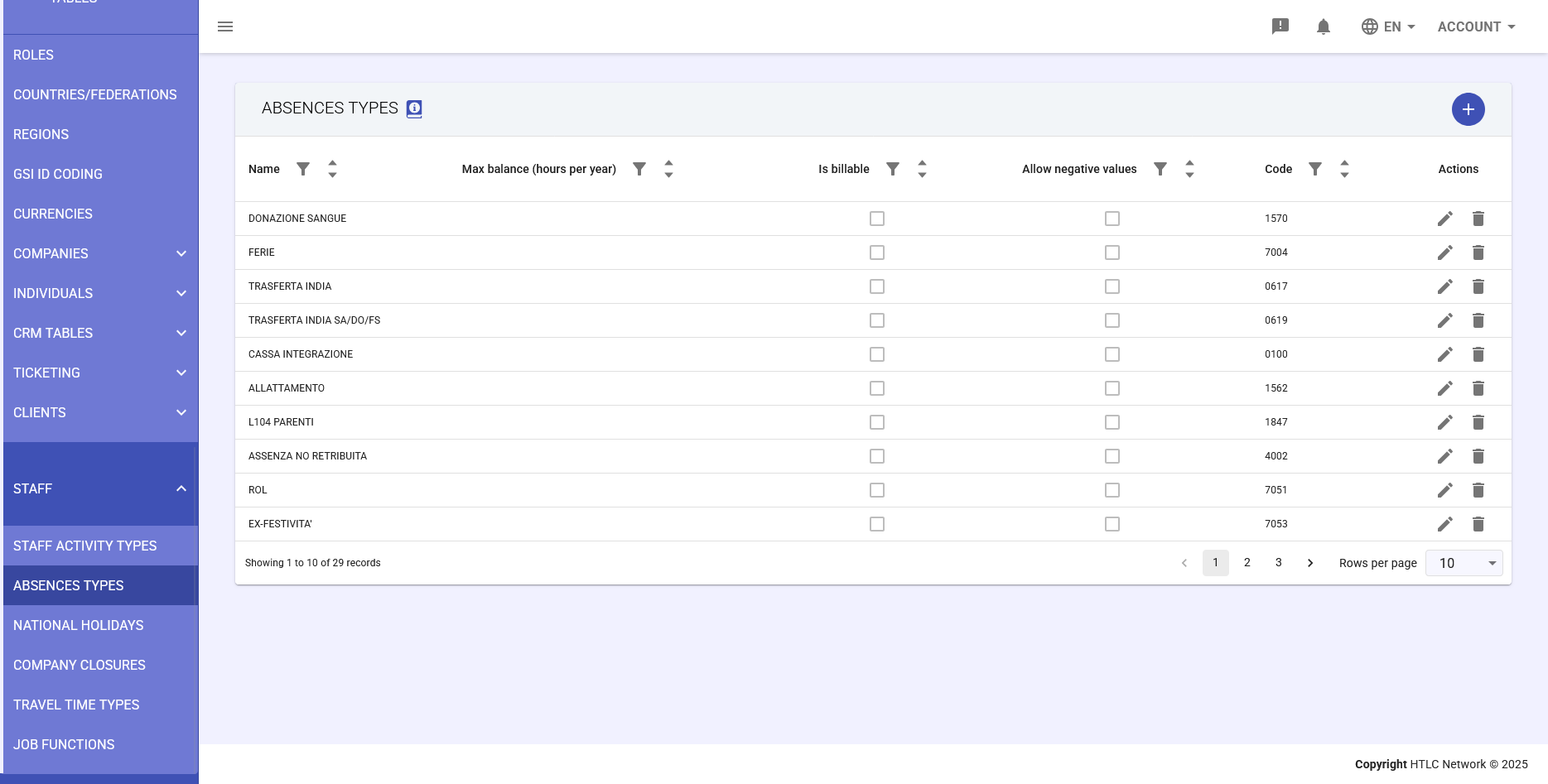
The table view presents all configured absence types in the system, allowing centralized management and a quick overview of current settings. The table includes filter, sort, and pagination functionality to facilitate navigation through numerous configurations.
Table Fields
- Name
- The absence type designation displayed to users in the system. This field uniquely identifies each absence category (e.g., "HOLIDAY", "SICK LEAVE", "PERMIT").
- Max balance (hours per year)
- The maximum number of hours available annually for this absence type. This value determines the total hour allowance that each employee can use in a year.
- Is billable
- Indicator that determines whether absence hours of this type should be considered billable to clients or projects. Primarily used for absences related to training activities or specific projects.
- Allow negative values
- Option that allows the balance of this absence type to go negative. Useful for managing exceptional situations where the employee needs to use hours not yet accrued.
- Code
- Alphanumeric code used in export processes and integration with external systems. This code is used in CSV export files and integrations with payroll management systems.
- Actions
- Column containing buttons to edit (pencil icon) or delete (trash icon) each absence type. Deletion is only possible if no absences are recorded with that type.
-
Add New Absence Type
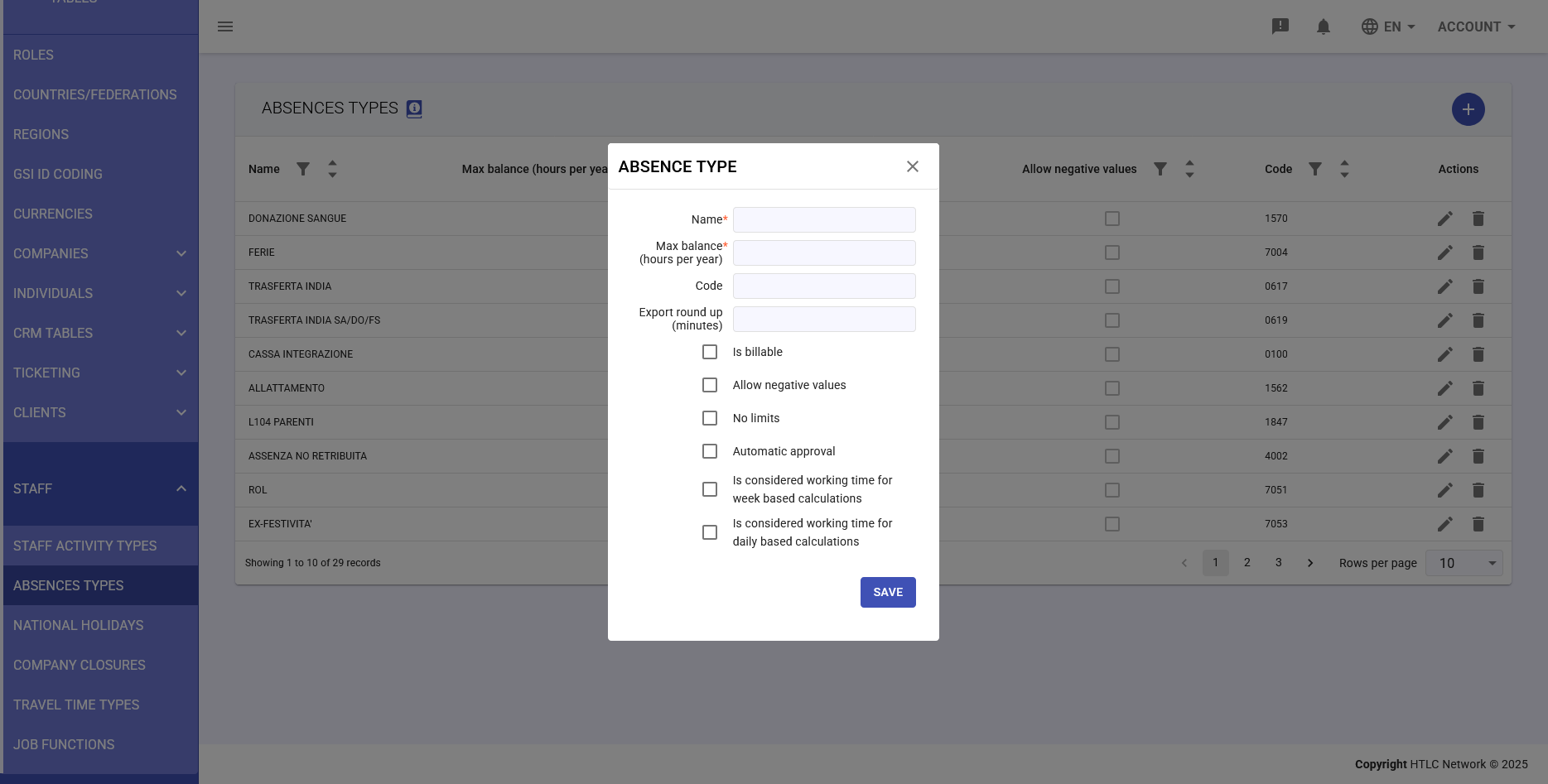
Creating a new absence type occurs through a modal window that opens by clicking the "+" button at the top of the table. The creation form requires completing several fields to fully define the behavior of the new absence type.
Creation Form Fields
Basic Information
- Name*: Absence type designation (required field)
- Max balance (hours per year): Annual limit of usable hours
- Code: Identifier for exports and integrations
Configuration Options
- Is billable: If selected, hours of this absence type can be billed to clients
- No limits: If activated, removes any restriction on the number of usable hours, ignoring the "Max balance" field
- Automatic approval: Absence requests of this type are automatically approved without requiring managerial review
Balance Management
- Allow negative values: Only available if "No limits" is not active. Allows the employee to use hours beyond the available balance, resulting in a negative balance
Export Rounding
- Export round up (minutes): Value in minutes for rounding up during export. For example, with value 15, an absence of 1 hour and 10 minutes will be exported as 1 hour and 15 minutes
Working Time Calculation
- Is considered working time for week based calculations: If activated, absence hours of this type contribute to achieving the weekly hour quota specified in the contract
- Is considered working time for daily based calculations: If activated, absence hours of this type contribute to achieving the expected daily hour quota
Important note: When working time calculation options are activated, the absence still generates its own identification code in reports, but the duration is added to the actual hours worked for achieving the daily or weekly quota specified in the employee's time profile.
-
Edit Absence Type
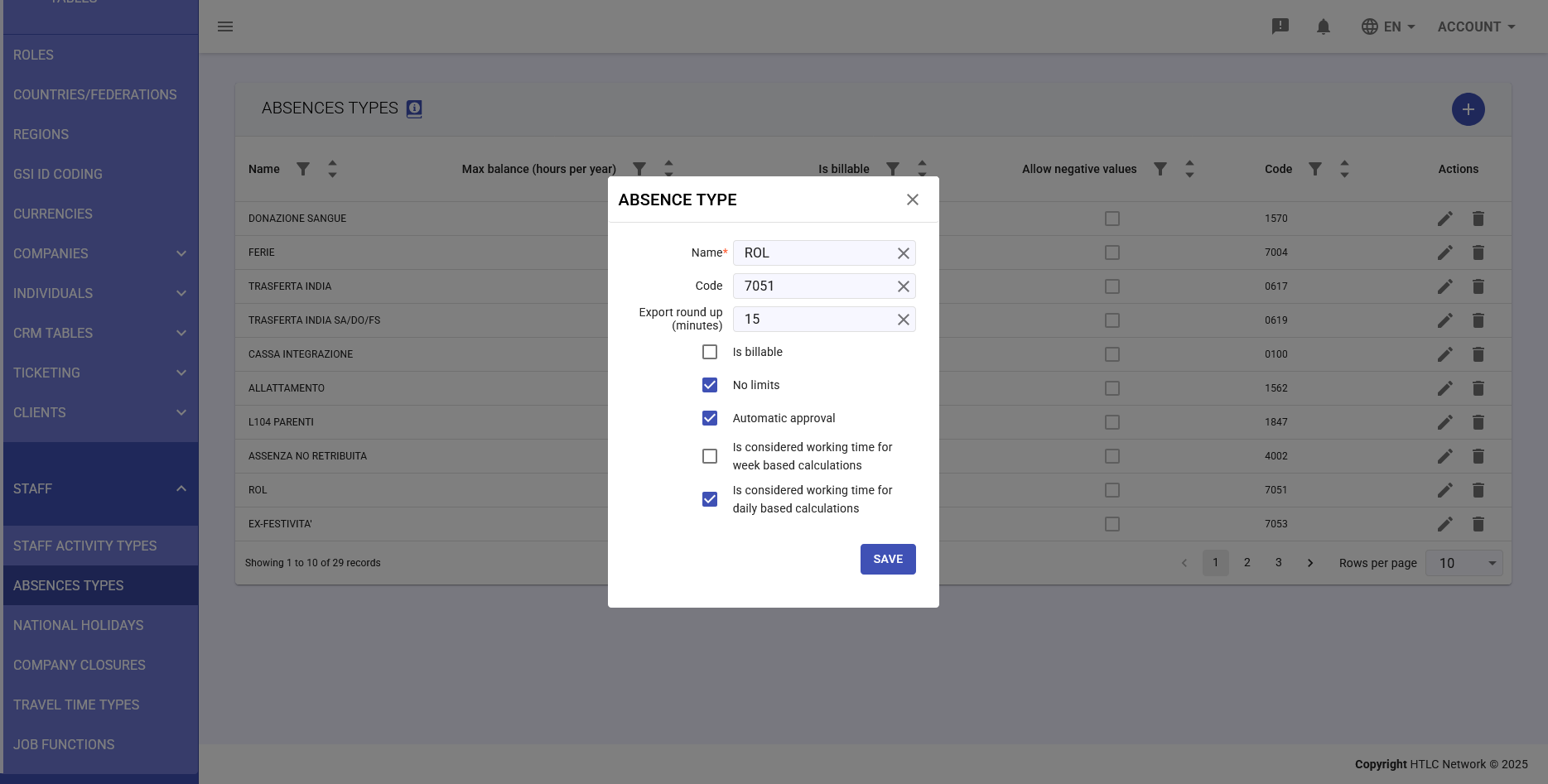
Editing an existing absence type allows updating all previously configured settings. To edit an absence type:
- Locate the absence type in the main table
- Click the pencil icon in the Actions column
- A modal window will open with all fields pre-filled with current values
- Modify the necessary fields
- Click "SAVE" to confirm the changes
Considerations for Editing
- Changes to maximum balances do not retroactively affect already recorded absences
- Changing the export code may affect existing integrations with external systems
- Modification of automatic approval options applies only to new requests
- Disabling "Allow negative values" does not automatically correct already negative balances
-
Integration with Staff Module
Absence Types configured in this table are directly used in the Staff module for:
- Creating and managing employee absence requests
- Automatic calculation of available balances
- Application of approval rules
- Generation of reports and statistics on absences
- Data export for payroll processing
- Resolution of time tracking anomalies
Best Practices
- Use clear and descriptive names to facilitate selection by users
- Define unique and consistent codes for integration with external systems
- Configure automatic approval only for non-critical absence types
- Set realistic maximum balances based on applicable collective agreements
- Internally document the meaning and use of each configured absence type
- Test rounding configurations before production use
- Consider the impact of working time calculation options on attendance reports